> For the complete documentation index, see [llms.txt](https://docs.maiagent.ai/llms.txt). Markdown versions of documentation pages are available by appending `.md` to page URLs; this page is available as [Markdown](https://docs.maiagent.ai/maiagent-user-guide/en/build/teams/setup.md).

# Create and Orchestrate Teams

Build and orchestrate a multi-agent team: create a team, configure the built-in entry (model, routing instructions, knowledge bases), drag Agent nodes onto the canvas, draw edges and set interaction t

This page explains how to build an Agent Team from scratch: create a team, configure the team's entry, add Agents on the canvas, set the edges and interaction types between them, and start a conversation with the whole team.

{% hint style="info" %}
**Prepare the Agents you want to add to the team first.** Every node in a team is an existing Agent, so create each specialist Agent (for example, triage, orders, and returns & exchanges Agents) under 〈AI Assistants〉 first, then come back here to assemble them into a team.
{% endhint %}

## <mark style="color:blue;">1. Create a Team</mark> <a href="#create-team" id="create-team"></a>

### 1. Open the team list <a href="#team-list" id="team-list"></a>

From the left menu, go to <mark style="color:blue;">AI Features</mark> →〈<mark style="color:blue;">Teams</mark>〉. The list shows all teams in the current organization, including **team name, status, description, and creation time**. Use the search box to find a team.

<figure><img src="https://1360999650-files.gitbook.io/~/files/v0/b/gitbook-x-prod.appspot.com/o/spaces%2F6v6TNkkOQVfRYfcNirHL%2Fuploads%2Fgit-blob-e4b4ade565ac92a82627769032207321143b9e52%2Fteams-list.png?alt=media" alt="Team list page"><figcaption><p>Team list: see each team's name, enabled status, description, and creation time</p></figcaption></figure>

### 2. Create a team <a href="#new-team" id="new-team"></a>

Click <mark style="color:blue;">New Team</mark> in the upper right, then enter a **team name** (required) and a **description** to create it.

<figure><img src="https://1360999650-files.gitbook.io/~/files/v0/b/gitbook-x-prod.appspot.com/o/spaces%2F6v6TNkkOQVfRYfcNirHL%2Fuploads%2Fgit-blob-e963d0a321f92e60860565c434e1eeda62099a02%2Fteams-new-modal.png?alt=media" alt="New team dialog"><figcaption><p>New team: enter a team name and description</p></figcaption></figure>

{% hint style="success" %}
Once created, the team's **entry node** appears on the canvas automatically, and the system also creates a matching **Web Chat channel** so you can chat with the whole team right away. The entry is built in, so you don't need to drag an Agent from the assistant list to serve as the entry.
{% endhint %}

## <mark style="color:blue;">2. Orchestrate the Team on the Canvas</mark> <a href="#compose-canvas" id="compose-canvas"></a>

After opening a team, you land in the <mark style="color:blue;">Canvas</mark> view by default. The screen has three areas: the 〈**Assistant List**〉 on the left, the **canvas** in the middle, and the **settings panel** on the right (it appears when you select a node or an edge).

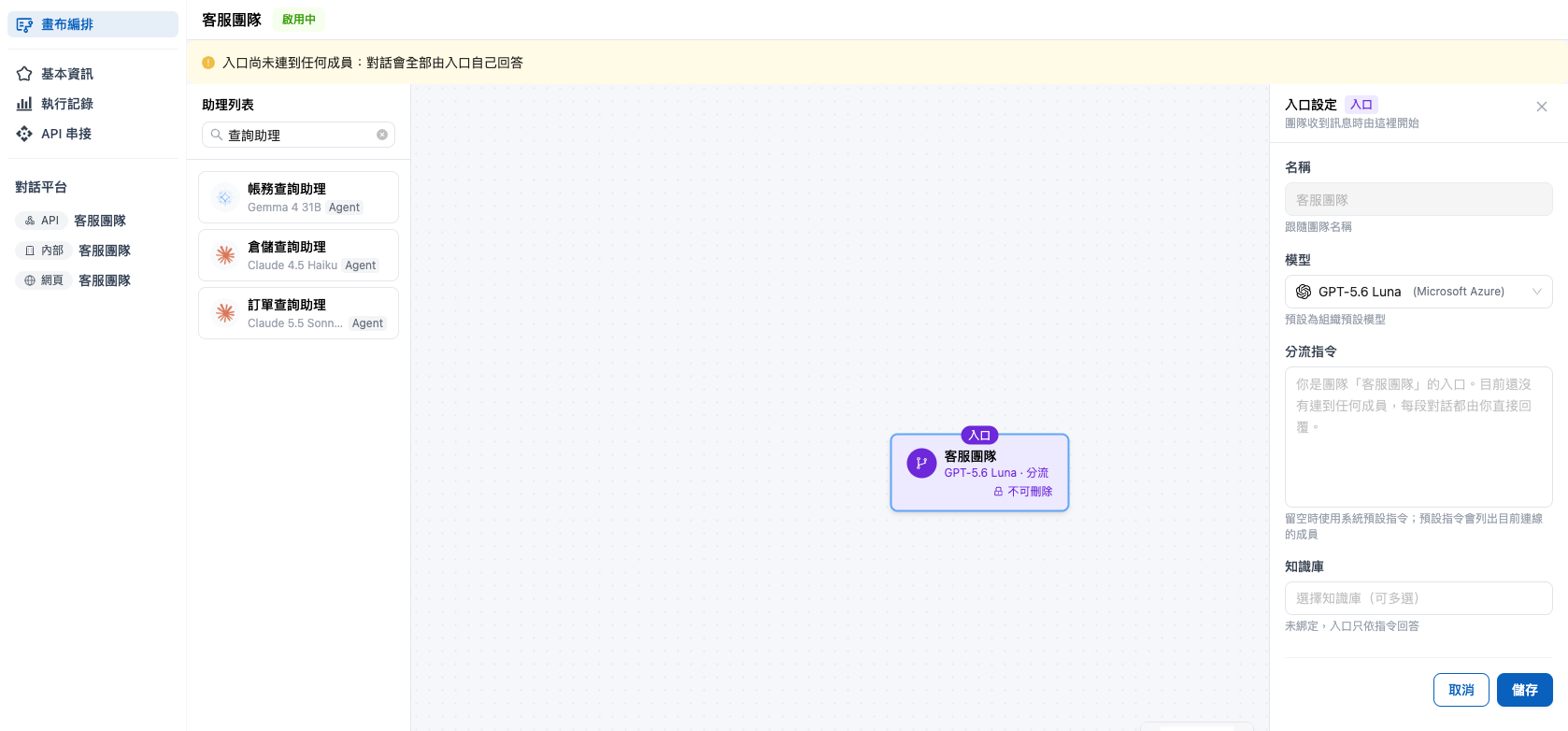
<figure><img src="https://1360999650-files.gitbook.io/~/files/v0/b/gitbook-x-prod.appspot.com/o/spaces%2F6v6TNkkOQVfRYfcNirHL%2Fuploads%2Fgit-blob-32544819c639bb999b22a532554a911790206eb7%2Fteams-entry-node-settings.png?alt=media" alt="Canvas of a newly created team: in the middle is a purple entry node labeled &#x22;Entry&#x22;, showing the model and &#x22;Routing&#x22;, and marked &#x22;Cannot be deleted&#x22;; the assistant list is on the left, and the entry settings panel on the right contains the name, model, routing instructions, and knowledge bases"><figcaption><p>A newly created team: the canvas holds only the built-in entry node; selecting it opens 〈Entry Settings〉 on the right</p></figcaption></figure>

{% hint style="warning" %}
**Use a desktop browser for canvas orchestration.** On small screens such as phones, the canvas area shows a notice asking you to finish orchestration on a desktop.
{% endhint %}

### 1. Understand the entry node <a href="#entry-node" id="entry-node"></a>

The entry node is the team's first stop: every new conversation from a user goes to the entry first, which decides from its 〈Routing Instructions〉 which member should handle it and then hands the conversation over.

On the canvas, the entry node is shown in purple, labeled "**Entry**" at the top, with the model and "**Routing**" in the subtitle and "**Cannot be deleted**" at the lower right. It is created and deleted together with the team, and its name follows the team name; to rename it, change the team name under 〈Basic Info〉.

While a newly created team has no members, a notice appears above the canvas: 〈The entry isn't connected to any member: all conversations will be answered by the entry itself〉. Add members to the canvas, then draw edges from the entry to them (see [Add Agent nodes](#add-nodes) and [Draw edges](#add-edges) below), and the entry starts routing.

A customer service manager at an online store wants three specialist assistants, "Orders," "Returns & Exchanges," and "Product Recommendations," to serve customers together. After creating the team, she sees the entry node already on the canvas. She drags the three assistants onto the canvas, draws a "Handoff" edge from the entry to each, and then switches the entry to a fast model in the entry settings. Later, when a customer asks in web chat, "Where is my package?", the entry hands the conversation to the Orders assistant, and the customer never has to choose which assistant to contact.

### 2. Configure the entry <a href="#entry-settings" id="entry-settings"></a>

Select the entry node, and 〈<mark style="color:blue;">Entry Settings</mark>〉 appears on the right. You can adjust:

| Setting                  | Description                                                                                                                                                             |
| ------------------------ | ----------------------------------------------------------------------------------------------------------------------------------------------------------------------- |
| **Name**                 | Follows the team name and cannot be changed here.                                                                                                                       |
| **Model**                | The model the entry uses for routing. Defaults to the organization's default model.                                                                                     |
| **Routing instructions** | Tell the entry which situations go to which member. If left empty, the system default instructions are used, which list the members currently connected from the entry. |
| **Knowledge bases**      | Knowledge bases the entry can reference; multiple selections are allowed. If none are linked, the entry answers based only on the routing instructions.                 |

After making changes, click <mark style="color:blue;">Save</mark>; clicking <mark style="color:blue;">Cancel</mark> restores the last saved content.

{% hint style="info" %}

* **Adding or removing members after writing your own routing instructions**: Entry settings shows the message 〈Members have changed. Consider updating the routing instructions〉. Remember to add the new members to the instructions, or clear the instructions to use the system default.
* **Without edit permission**: the fields are read-only, and the bottom of the panel shows "You don't have edit permission and can only view." Only the organization owner and the team creator can edit a team.
  {% endhint %}

### 3. Add Agent nodes <a href="#add-nodes" id="add-nodes"></a>

In the 〈Assistant List〉 on the left, find the Agent you want to add and **drag it onto the canvas**, or **click** it to add it. Agents already in the team are marked 〈Already in team〉; click one to jump to its node on the canvas. With many Agents, use the search box at the top to filter.

Each node shows the Agent name, the model it uses, and whether it is in <mark style="color:blue;">Agent</mark> or <mark style="color:blue;">RAG</mark> mode, to help you tell them apart.

{% hint style="info" %}
If the nodes look messy, click <mark style="color:blue;">Auto Layout</mark> on the canvas to have the system tidy up the layout. Node positions are saved automatically.
{% endhint %}

### 4. Configure a node <a href="#node-settings" id="node-settings"></a>

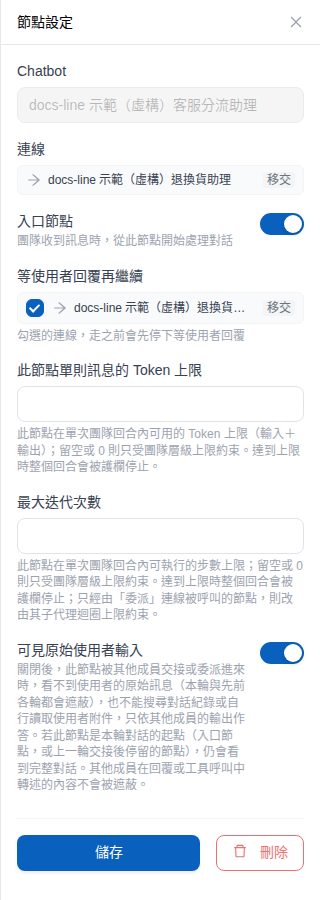
Select a node, and 〈**Node Settings**〉 appears on the right. You can adjust:

| Setting                                   | Description                                                                                                                                                                                                                                                                                                                                        |
| ----------------------------------------- | -------------------------------------------------------------------------------------------------------------------------------------------------------------------------------------------------------------------------------------------------------------------------------------------------------------------------------------------------- |
| **Entry node**                            | Appears only for teams with a [legacy entry](#upgrade-legacy-entry). When enabled, the team starts handling a conversation from this node when it receives a message. **A team can have only one entry node.** Teams that use the built-in entry don't need this setting.                                                                          |
| **Token limit per message for this node** | The Token limit (input + output, optional) this node can use within a single team turn; if left empty or 0, only the team-level limit applies. When the limit is reached, the guardrail stops the entire turn.                                                                                                                                     |
| **Max iterations**                        | The maximum number of steps this node can run within a single team turn (optional); if left empty or 0, only the team-level limit applies. A node that is only called through a delegate edge is instead bound by the sub-Agent's loop limit.                                                                                                      |
| **Can see original user input**           | Determines whether this Agent can read the user's original messages when it is handed off or delegated to (on by default; see the explanation below).                                                                                                                                                                                              |
| **Wait for user reply before continuing** | Lists all outgoing edges of this node (target Agent + interaction type). Checking one is written back to each edge when you click 〈**Save**〉, which is the same as turning it on edge by edge in the edge settings. Delegate edges are listed but cannot be checked. When there are no outgoing edges, "This node has no outgoing edges" is shown. |

When 〈**Can see original user input**〉 is off: if this node is handed off or delegated to by another member, it cannot see the user's original messages (they are masked in the current turn and all earlier turns), cannot search the conversation history or read the user's attachments on its own, and answers based only on the other members' output. If this node is the starting point of the current turn (the entry node, or the node where the previous turn's handoff ended), it still sees the full conversation; content that other members relay in replies or tool calls is not masked.

<figure><img src="https://1360999650-files.gitbook.io/~/files/v0/b/gitbook-x-prod.appspot.com/o/spaces%2F6v6TNkkOQVfRYfcNirHL%2Fuploads%2Fgit-blob-a7f77a14215fd1233dc58146d81f4ca511c0896d%2Fteams-node-settings.png?alt=media" alt="Node settings panel: edges, entry node, wait for user reply before continuing, token limit per message for this node, max iterations, can see original user input"><figcaption><p>Node settings: the outgoing-edge list lets you check "Wait for user reply before continuing"; below are the Token / iteration limits and 〈Can see original user input〉 (this screen is a legacy-entry team, so there is an extra 〈Entry node〉 switch)</p></figcaption></figure>

### 5. Draw edges and set the interaction type <a href="#add-edges" id="add-edges"></a>

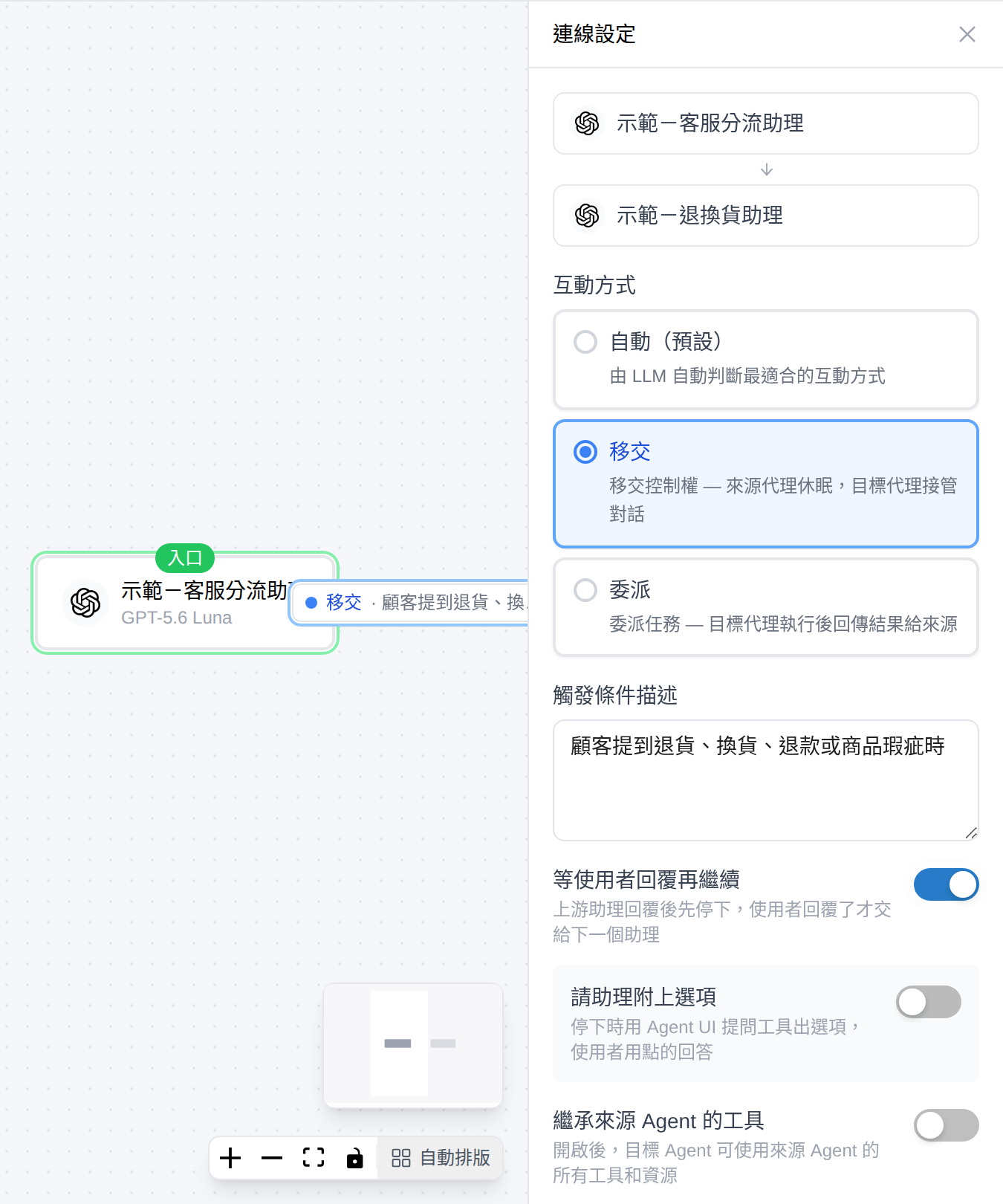
Drag from one node's connection point to another node to create a **directed edge** (source → target). An edge drawn from the entry to a member defines who the entry can route to. Members can also draw an edge back to the entry, but an edge to the entry can only be 〈Handoff〉 and cannot inherit the source Agent's tools. Select an edge, and 〈**Edge Settings**〉 appears on the right:

| Setting                                   | Description                                                                                                                                                                                                                                                                                                                                                                                                                                                                                                                                                                                                                      |
| ----------------------------------------- | -------------------------------------------------------------------------------------------------------------------------------------------------------------------------------------------------------------------------------------------------------------------------------------------------------------------------------------------------------------------------------------------------------------------------------------------------------------------------------------------------------------------------------------------------------------------------------------------------------------------------------- |
| **Trigger condition description**         | Describe in plain language "when this edge should be taken." This description is given to the AI as the basis for its decision, so writing it clearly makes routing more accurate.                                                                                                                                                                                                                                                                                                                                                                                                                                               |
| **Interaction type**                      | Choose 〈**Auto**〉, 〈**Handoff**〉, or 〈**Delegate**〉 (see the table below for the differences).                                                                                                                                                                                                                                                                                                                                                                                                                                                                                                                                   |
| **Wait for user reply before continuing** | When on, the upstream Agent stops after replying and passes the conversation to the next Agent only after the user replies; off by default. Once on, you can also turn on 〈**Have the assistant attach options**〉, so that when it stops it lists options with the Agent UI question tool for the user to click and answer (the source Agent must have the Agent UI question tool enabled). Only 〈Auto〉 and 〈Handoff〉 edges can turn this on; 〈Delegate〉 edges are disabled and show "Delegate edges don't support this. Use Handoff instead"; an edge that was already on is turned off automatically when changed to Delegate. |
| **Inherit source Agent's tools**          | When on, the target Agent can use all of the source Agent's tools and resources.                                                                                                                                                                                                                                                                                                                                                                                                                                                                                                                                                 |

**Interaction types** (as described in the settings panel):

| Interaction type   | Description                                                                                                                                                                                                                                                                                                                               |
| ------------------ | ----------------------------------------------------------------------------------------------------------------------------------------------------------------------------------------------------------------------------------------------------------------------------------------------------------------------------------------- |
| **Auto (default)** | The LLM automatically decides the most suitable interaction type.                                                                                                                                                                                                                                                                         |
| **Handoff**        | Hand over control: the source agent goes idle and the target agent takes over the conversation.                                                                                                                                                                                                                                           |
| **Delegate**       | Delegate a task: the target agent runs it and returns the result to the source. When a sub-Agent finishes with question options, Quick Replies, rich cards, or files, this content is shown directly to the user; see [Interactive endings of delegated sub-Agents](#delegate-interactive-endings) below for differences across channels. |

On the canvas, an edge with "Wait for user reply before continuing" turned on turns amber and gets a "⏸ Waiting for reply" badge. When the team reaches this edge, it stops, and the run record shows the status "Waiting for reply"; expanding the steps shows "Waiting for user reply" and "After the reply, hand over to: ○○" (see [Team run records](/maiagent-user-guide/en/build/teams/traces.md#waiting-for-user)). The conversation is passed to the target Agent only after the user replies.

<figure><img src="https://1360999650-files.gitbook.io/~/files/v0/b/gitbook-x-prod.appspot.com/o/spaces%2F6v6TNkkOQVfRYfcNirHL%2Fuploads%2Fgit-blob-efed918ce4340db9339cc601faf459056c16cf9f%2Fteams-edge-settings.png?alt=media" alt="Edge settings panel: interaction type set to Handoff, trigger condition description reads &#x22;when the customer mentions returns, exchanges, refunds, or defective products&#x22;, wait for user reply before continuing is on, and below are the switches for having the assistant attach options and inheriting the source Agent&#x27;s tools"><figcaption><p>Edge settings: trigger condition description, interaction type, wait for user reply before continuing (once on, you can also turn on attach options), and whether to inherit the source Agent's tools</p></figcaption></figure>

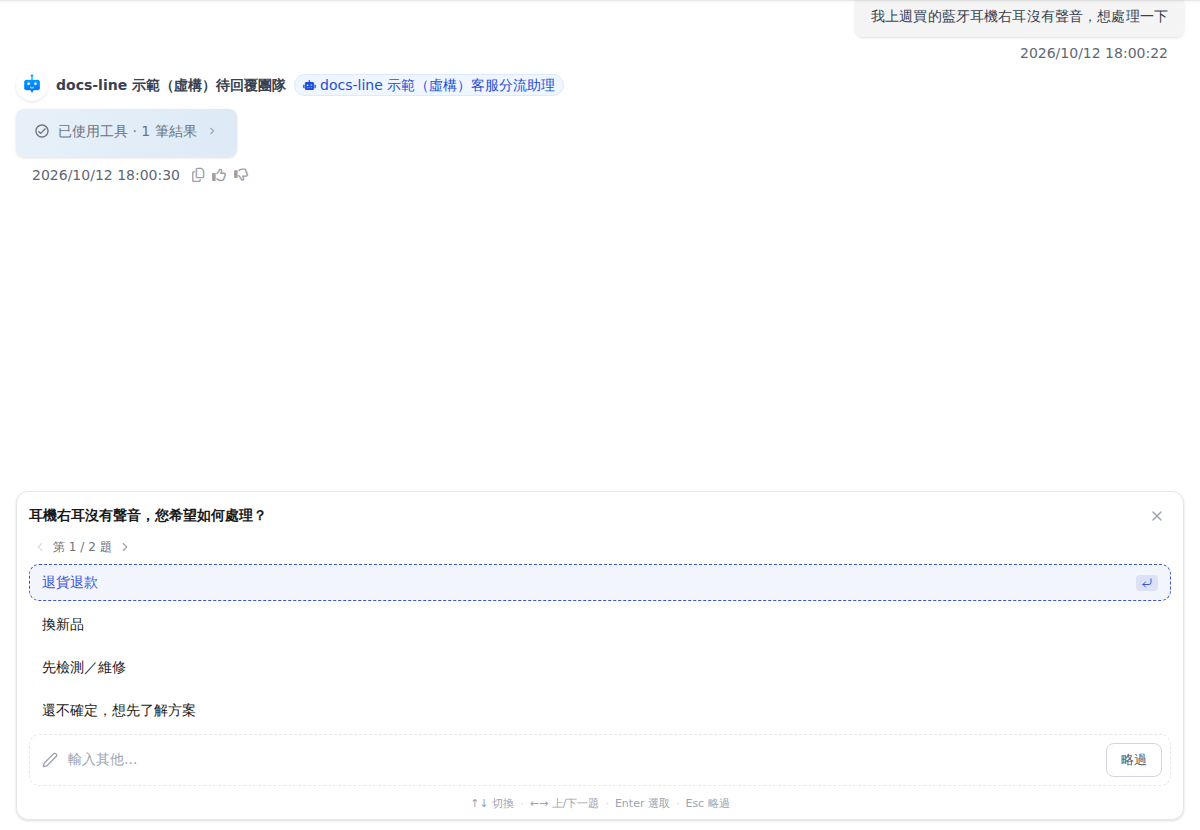
For example, when an online store's triage Agent receives "The right earbud of the Bluetooth earphones I bought last week has no sound," it should first ask how the customer wants to proceed before handing over to the returns & exchanges Agent. With 〈**Wait for user reply before continuing**〉 and 〈**Have the assistant attach options**〉 turned on for this edge, when the triage Agent decides to hand over to the returns & exchanges Agent, it stops first and offers options for the customer to click on how to handle it (for example, "Return and refund" or "Exchange for a new one"). After the customer replies, that reply goes straight to the returns & exchanges Agent, so the conversation isn't passed along before the information is complete.

<figure><img src="https://1360999650-files.gitbook.io/~/files/v0/b/gitbook-x-prod.appspot.com/o/spaces%2F6v6TNkkOQVfRYfcNirHL%2Fuploads%2Fgit-blob-c15198d3385ff482d99e4701f652c7b241c954e7%2Fteams-wait-reply-webchat-options.png?alt=media" alt="Web Chat screen: the user says the right earbud of the Bluetooth earphones has no sound, and the customer service triage assistant stops and shows the question &#x22;The right earbud has no sound. How would you like to handle it?&#x22; with the options Return and refund, Exchange for a new one, Test / repair first, and Not sure yet, I&#x27;d like to learn about the options first"><figcaption><p>Web Chat: when the customer service triage assistant reaches an edge with "Wait for user reply before continuing," it stops and uses question options to ask the user how to proceed</p></figcaption></figure>

#### How "Wait for user reply before continuing" works <a href="#wait-for-reply-rules" id="wait-for-reply-rules"></a>

* **It stops only when the edge is actually chosen**: if the source Agent answers the question itself and doesn't hand over to the target Agent, the turn ends as usual and doesn't stop. It stops every time this edge is taken, not just the first time.
* **Stopping is a normal ending**: the turn ends after the source Agent replies, and the run record shows 〈Waiting for reply〉; it doesn't count as a failure. The user's next message, whatever its content, is picked up by the target Agent. If the turn times out, errors, triggers a safety guardrail, or the user clicks stop, it does not enter the waiting state.
* **Editing or regenerating a message**: when the user rewrites or regenerates a message that was already sent, the run restarts from the source Agent and does not go straight to the target Agent.
* **Options appear only in Web Chat and the API**: the question options from 〈Have the assistant attach options〉 appear in Web Chat and API replies; on other channels such as LINE, users see only the source Agent's text explanation and can simply reply by typing.
* **Options are generated by the Agent**: the question and options are written by the source Agent based on the conversation at the time, not a fixed list, and different models follow the instruction to different degrees. Test with real conversations before going live to confirm that options appear when it stops.
* **Node settings are a shortcut**: checking all of a node's outgoing edges in 〈Node Settings〉 is equivalent to having this Agent stop and wait for a user reply every time it hands off.

{% hint style="warning" %}
**This setting does not take effect when the source node's Agent uses 〈Canvas Mode〉.** The switch can still be turned on and the canvas still shows "⏸ Waiting for reply," but the team doesn't stop when it runs and hands off as if the setting were off (for Agent modes, see [Sub-options of Agent mode](/maiagent-user-guide/en/build/agent/setup.md#agent-mode-normal-vs-canvas)). If you need the team to stop at this edge and wait for the user's reply, set the source node's Agent to 〈Normal Mode〉.
{% endhint %}

#### Interactive endings of delegated sub-Agents <a href="#delegate-interactive-endings" id="delegate-interactive-endings"></a>

When you hand work to a sub-Agent with 〈Delegate〉, the sub-Agent's ordinary text, reasoning, and tool-call process are not shown to the user. But if the sub-Agent finishes with one of the following interactive components, the component is delivered directly to the user without waiting for the source Agent to relay it:

| Sub-Agent's ending                            | Web Chat, back-office chat, API        | LINE                                                                       | Other channels (Telegram, Slack, etc.)                          |
| --------------------------------------------- | -------------------------------------- | -------------------------------------------------------------------------- | --------------------------------------------------------------- |
| **Question options** (Agent UI question tool) | Options shown directly                 | Options not shown; the source Agent relays them in text                    | Options not shown; the source Agent relays them in text         |
| **Quick Reply**                               | Buttons shown directly                 | LINE quick-reply buttons shown; the source Agent may explain again in text | The source Agent relays it in text                              |
| **Rich card**                                 | Card shown directly                    | Card shown; the source Agent may explain again in text                     | Card not sent; the source Agent relays the card content in text |
| **File panel**                                | File card shown directly, downloadable | The source Agent relays it in text                                         | The source Agent relays it in text                              |

{% hint style="info" %}
When a sub-Agent finishes with question options, a Quick Reply, or a rich card, the component has already reached the user in Web Chat, back-office chat, and the API, so the source Agent doesn't repeat the content. As a result, any explanatory text the sub-Agent wrote before these components (for example, "I found three plans, please choose one") does not appear, and the user sees only the component itself; this is especially noticeable with Quick Reply. If you need an explanation, put it in the question text or the card content. The file panel is not covered by this ending rule, and the source Agent may still follow up with a text explanation.
{% endhint %}

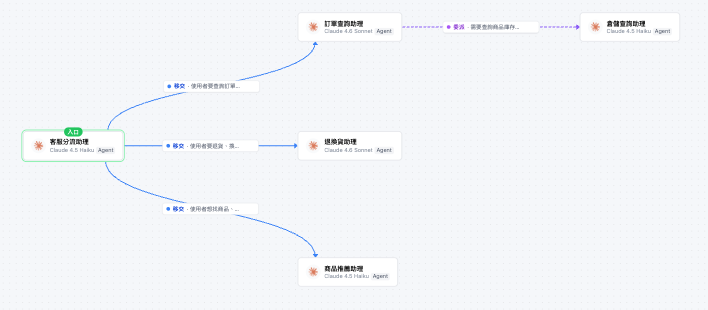
<figure><img src="https://1360999650-files.gitbook.io/~/files/v0/b/gitbook-x-prod.appspot.com/o/spaces%2F6v6TNkkOQVfRYfcNirHL%2Fuploads%2Fgit-blob-f51a387c2396cd384df57b8073fa2d2b0d22067c%2Fteams-canvas.png?alt=media" alt="Team diagram (enlarged)"><figcaption><p>Edge example: the "Customer Service Triage Assistant" routes via "Handoff" to the order lookup / returns &#x26; exchanges / product recommendation assistants, and the order lookup assistant then "Delegates" to the warehouse lookup assistant. Each node shows the Agent name, model, and Agent / RAG mode (this example is a legacy-entry team, where the member "Customer Service Triage Assistant" serves as the entry)</p></figcaption></figure>

{% hint style="info" %}
**Watch the semantic warnings above the canvas.** When the team graph has problems, a yellow notice appears above the canvas, for example: 〈The entry isn't connected to any member: all conversations will be answered by the entry itself〉, 〈There are duplicate edges〉, or 〈The edges form a cycle〉; teams with a legacy entry may also show 〈No entry node is set〉 or 〈There are multiple entry nodes; keep only one〉. We recommend clearing these warnings before starting conversations.
{% endhint %}

### 6. Upgrade a legacy entry <a href="#upgrade-legacy-entry" id="upgrade-legacy-entry"></a>

Teams created earlier have no built-in entry; instead, a member node serves as the entry (the one with 〈Entry node〉 turned on in its node settings). Such teams work as usual and don't need any change; if you'd like to switch to the built-in entry for unified routing, you can upgrade on your own.

When you open the canvas of such a team at desktop width, an orange "**Legacy entry**" tag appears next to the team name, and a banner appears above the canvas: "This team uses a legacy entry (a member node serves as the entry). After the upgrade, the canvas gets an additional routing entry node, and this cannot be undone."

<figure><img src="https://1360999650-files.gitbook.io/~/files/v0/b/gitbook-x-prod.appspot.com/o/spaces%2F6v6TNkkOQVfRYfcNirHL%2Fuploads%2Fgit-blob-23afb6c145962dce632daf3e2e7fb7cb08fda892%2Fteams-legacy-entry-banner.png?alt=media" alt="Top of the canvas of a legacy-entry team: an orange &#x22;Legacy entry&#x22; tag next to the team name, and below it an orange banner explaining that the team uses a legacy entry and that the upgrade cannot be undone, with an &#x22;Upgrade entry&#x22; button on the right"><figcaption><p>Legacy-entry team: the "Legacy entry" tag next to the name and the upgrade banner above the canvas</p></figcaption></figure>

Upgrade steps:

1. Click <mark style="color:blue;">Upgrade entry</mark> on the right of the banner.
2. The confirmation dialog "**Upgrade to the built-in entry?**" explains: the upgrade cannot be undone. Each new conversation goes through the entry first and is then handed off to the original entry member; the members' settings and edges are not changed.
3. After you confirm, the screen shows "Upgraded to the built-in entry," and an entry node appears to the left of the original entry member on the canvas, connected to it by a 〈Handoff〉 edge.

After the upgrade, the entry by default hands every new conversation to the original entry member, so the conversation flow users experience stays the same as before. Later, if you want the entry to route directly to other members, draw edges from the entry to those members and update the routing instructions in [Entry settings](#entry-settings).

{% hint style="warning" %}

* **The upgrade cannot be undone.** We recommend verifying the flow in a test team before upgrading a team that is in production use.
* Only the organization owner and the team creator can upgrade; for everyone else, the 〈Upgrade entry〉 button is disabled.
  {% endhint %}

## <mark style="color:blue;">3. Configure Basic Info and Safety Guardrails</mark> <a href="#settings-guardrails" id="settings-guardrails"></a>

After opening a team, the left menu has four views: 〈<mark style="color:blue;">Canvas</mark>〉, 〈<mark style="color:blue;">Basic Info</mark>〉, 〈<mark style="color:blue;">Run Records</mark>〉, and 〈<mark style="color:blue;">API Integration</mark>〉, with this team's <mark style="color:blue;">channels</mark> listed below. Switch to 〈**Basic Info**〉 to adjust team-level settings:

* **Basic info**: team name, description, and whether it is enabled.
* **Safety guardrails**:
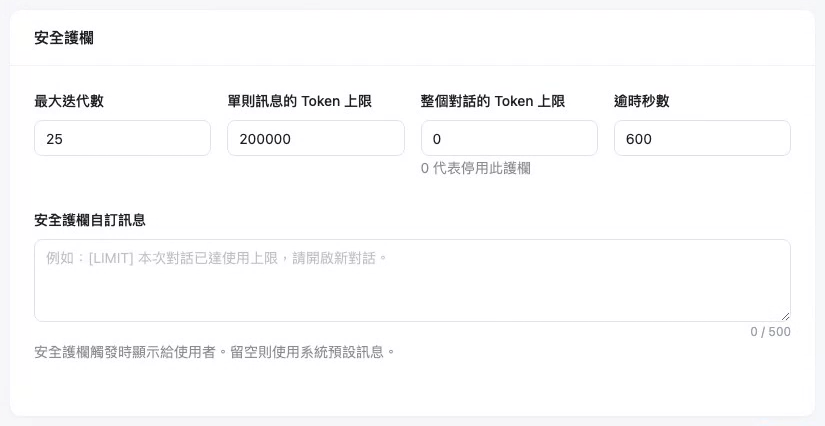
  * **Max iterations** (default `25`) — the maximum number of back-and-forth exchanges between Agents in one conversation, to prevent infinite loops.
  * **Token limit per message** (default `200000`) — the Token budget limit for the whole team to process a single user message.
  * **Token limit for the entire conversation** (default `0`) — the Token budget accumulated from the start of the whole conversation; the screen says "0 means this guardrail is disabled," so keep it at 0 if you only want to limit single messages.
  * **Timeout in seconds** (default `600`) — the hard timeout for the entire team processing flow.
  * **Custom guardrail message** (empty by default) — the text shown to the user when one of the first three guardrails stops a reply; if left empty, the system default message is used. See [Custom guardrail message](#guardrail-stop-message) below.

<figure><img src="https://1360999650-files.gitbook.io/~/files/v0/b/gitbook-x-prod.appspot.com/o/spaces%2F6v6TNkkOQVfRYfcNirHL%2Fuploads%2Fgit-blob-acc619316f285d3cc8af1f8b85ff3312a5b4d3ce%2Fteams-settings.png?alt=media" alt="Team basic info and safety guardrails"><figcaption><p>Basic info and safety guardrails: adjust the team name, enabled status, max iterations, the two Token limits, and the timeout in seconds</p></figcaption></figure>

### Custom guardrail message <a href="#guardrail-stop-message" id="guardrail-stop-message"></a>

If, partway through processing, the team hits the **max iterations**, the **Token limit per message**, or the **Token limit for the entire conversation**, the system stops that turn's reply and appends a stop message at the end to tell the user. The "custom guardrail message" lets you decide what this text says; if left empty, the system shows a default message based on the stop reason and the user's language.

An online shopping platform uses the API to connect an Agent Team to the shopping assistant on its own website. The engineers want a fixed-format line of text to appear at the end of the reply when a guardrail triggers, so the program can recognize it and show a "Contact support" button instead. The team administrator enters "\[LIMIT] This conversation has reached its usage limit. Please start a new conversation or contact support." in the "Custom guardrail message" under 〈Basic Info〉 and saves. Later, a visitor asks the team to compare a dozen products at once; the team hits the usage limit and stops, and after the part of the reply already written and a divider line, this fixed text is appended. The website's code matches `[LIMIT]` at the end of the reply and replaces the input box with a Contact support button.

#### 1. Enter the custom message <a href="#fill-stop-message" id="fill-stop-message"></a>

In the team's 〈<mark style="color:blue;">Basic Info</mark>〉, find the 〈**Safety Guardrails**〉 card; below the four numeric fields is the <mark style="color:blue;">Custom guardrail message</mark>. The lower right of the input box shows the current character count (for example, `34 / 500`), and the help text below reads "Shown to the user when a safety guardrail triggers. Leave empty to use the system default message."

<figure><img src="https://1360999650-files.gitbook.io/~/files/v0/b/gitbook-x-prod.appspot.com/o/spaces%2F6v6TNkkOQVfRYfcNirHL%2Fuploads%2Fgit-blob-f3a64721b05fce13808039b100c06e653790698f%2Fteams-guardrail-stop-message.png?alt=media" alt="Safety guardrails card: four fields for max iterations, token limit per message, token limit for the entire conversation, and timeout in seconds, with the custom guardrail message input box below showing a 0 / 500 character count and help text"><figcaption><p>The "Custom guardrail message" below the "Safety Guardrails" card: when empty, it shows placeholder text and 0 / 500</p></figcaption></figure>

Rules for filling it in:

* **Up to 500 characters**: when exceeded, the count turns red and the message "The message cannot exceed 500 characters" appears below the field; clicking Save is blocked. Other changes made on the same page at the same time (for example, a changed max iterations) are **also not saved**, so shorten the message to within 500 characters before saving.
* **Shown as-is**: it is not translated and no variables are substituted; what you enter is what is shown. Line breaks are kept, and leading and trailing whitespace is trimmed automatically. Whitespace only is treated as empty.

#### 2. Save <a href="#save-stop-message" id="save-stop-message"></a>

Click <mark style="color:blue;">Save</mark>. It takes effect immediately, and the next reply that triggers a guardrail uses the new text. To go back to the system default message, clear the field and save.

#### What users see <a href="#what-users-see" id="what-users-see"></a>

When any of the three guardrails triggers, **Web Chat and API replies show the same text**:

* If the Agent had already replied in part before stopping, that partial reply is kept first, followed by a divider line, and then the stop message.
* No system prefix is added before the stop message.

| Guardrail triggered                         | Custom message filled in | Default message when left empty (Traditional Chinese) | Default message when left empty (English)                                                   |
| ------------------------------------------- | ------------------------ | ----------------------------------------------------- | ------------------------------------------------------------------------------------------- |
| **Max iterations**                          | Shows the custom message | 這次回覆的處理步驟已達上限，請換個方式再問一次。                              | This reply has reached its processing step limit. Please try asking in a different way.     |
| **Token limit per message**                 | Shows the custom message | 這則訊息的用量已達上限，請縮短內容或換個方式再問一次。                           | This message has reached its usage limit. Please shorten it or try asking differently.      |
| **Token limit for the entire conversation** | Shows the custom message | 本次對話的用量已達上限，請開啟新對話繼續。                                 | This conversation has reached its usage limit. Please start a new conversation to continue. |

The default message is shown in the user's language, and supports Traditional Chinese, Simplified Chinese, English, Japanese, and Korean: Web Chat uses the interface language at the time the conversation was created; the API uses the language information in the request, and if there is none, it detects the language from the message content; if the language can't be determined, English is shown. The custom message is the same in every language.

{% hint style="warning" %}
**The custom guardrail message is not shown in the following cases:**

* When the **timeout (seconds)** triggers: the [timeout message](/maiagent-user-guide/en/build/agent/custom-max-tokens.md#agent-timeout-message) of the team's entry Agent is shown (or the system default if none is set).
* When the node-level "Token limit per message for this node" or "Max iterations" triggers (see [Node settings](#node-settings)): a system message stating the node name and the limit value is shown, and this field has no effect on it.
  {% endhint %}

{% hint style="info" %}
**If you integrate through the API and want your program to recognize the stop message:**

* Check whether the **end of the reply** is your custom message; don't compare against the whole reply—the Agent may have already replied in part before stopping, with a divider line in between.
* Don't compare against the system default message, because the default message changes with the user's language.
* The custom message does not appear when a node-level limit triggers; if you rely on fixed text for recognition, leave the node's Token and iteration limits empty.
* Web Chat renders this text as Markdown, so for example `**important**` is displayed in bold.
  {% endhint %}

## <mark style="color:blue;">4. Talk to the team</mark> <a href="#talk-to-team" id="talk-to-team"></a>

Once the setup is complete and the team is confirmed as "Active", you can talk to the whole team through the team's **Web Chat platform**. Users deal with a single entry point, and the system automatically routes each question to the appropriate Agent.

When the team hands off or delegates between Agents, the chat interface shows a switching notice, such as "**Handing off to**", "**Delegating to**", or "**Switching to**", so users know which Agent is currently serving them.

## <mark style="color:blue;">5. Delete a team</mark> <a href="#delete-team" id="delete-team"></a>

You can "**Delete team**" in the danger zone at the bottom of the "Basic Info" view. Deleting also removes the team's entry, and **this action cannot be undone**, so confirm before proceeding. The Agents corresponding to the member nodes are not deleted and remain in "AI Assistants".

## <mark style="color:blue;">6. API integration</mark> <a href="#api-integration" id="api-integration"></a>

To call the whole team from your own system, switch to "**API Integration**" on the left. This page reuses the Agent API documentation (request examples, fields, and response format). The only difference is that the target is the **entry Agent** automatically created when the team was created: sending a message to it is the same as sending a message to the whole team, and routing and handoff are handled by the team itself. The IDs in the examples are already filled in with the entry Agent, so you can copy them directly; for full field descriptions, see [Developer tools](/maiagent-user-guide/en/org/developer.md#integration-docs).

{% hint style="info" %}
If the page shows "This team has no entry Chatbot yet, so no API example is available", the team has no entry Agent. The entry Agent is created automatically by the system when the team is created and normally is never missing; if you see this message, please contact your MaiAgent representative to have it recreated.
{% endhint %}

## <mark style="color:blue;">7. FAQ</mark> <a href="#faq" id="faq"></a>

### After creating a team, why is there no assistant with the team's name in the AI assistant list? <a href="#faq-entry-agent-hidden" id="faq-entry-agent-hidden"></a>

Behind the team's entry is an Agent with the same name as the team, dedicated to that team, so it doesn't appear in the "AI Assistants" list, nor in the canvas "Assistant list" where you could drag it into other teams. The entry's model, routing instructions, and knowledge bases are adjusted in the team canvas under [Entry settings](#entry-settings).

If you open this entry Agent's settings page from a link on another page, the screen shows only the note "This is the entry of team "Team name"". Click <mark style="color:blue;">Go to team canvas</mark> to return to the team settings; its mode is fixed to Team and cannot be changed to a regular assistant.

<figure><img src="https://1360999650-files.gitbook.io/~/files/v0/b/gitbook-x-prod.appspot.com/o/spaces%2F6v6TNkkOQVfRYfcNirHL%2Fuploads%2Fgit-blob-6d90132dbdf46d46eabf748a91cd6baf13515cd2%2Fteams-entry-agent-guide.png?alt=media" alt="Entry Agent settings page: shows &#x22;This is the entry of team &#x27;Customer Service Team&#x27;&#x22;, explaining that the entry&#x27;s model, routing instructions, and knowledge bases are set on the team canvas, with a &#x22;Go to team canvas&#x22; button below"><figcaption><p>When you open the entry Agent's settings page, you are guided back to the team canvas</p></figcaption></figure>

### Can the entry node be deleted? <a href="#faq-delete-entry" id="faq-delete-entry"></a>

No. The entry node is marked "Cannot be deleted" and exists together with the team; it is removed only when you [delete the team](#delete-team).

### Do teams with a legacy entry have to upgrade? <a href="#faq-legacy-upgrade" id="faq-legacy-upgrade"></a>

No. Teams with a legacy entry keep working as usual; when you want to switch to the built-in entry, follow [Upgrade the legacy entry](#upgrade-legacy-entry). The upgrade cannot be reverted, so confirm before proceeding.

## <mark style="color:blue;">8. Next steps</mark> <a href="#next" id="next"></a>

Once the team is running, you can use [Team execution records](/maiagent-user-guide/en/build/teams/traces.md) to see which Agents each run went through, how many tokens each used, and how long it took, and confirm that the team divides work as expected.


---

# Agent Instructions
This documentation is published with GitBook. GitBook is the documentation platform designed so that both humans and AI agents can read, navigate, and reason over technical content effectively. Learn more at gitbook.com.

## Querying This Documentation
If you need additional information that is not directly available in this page, you can query the documentation by asking a question.

Perform an HTTP GET request on the following URL with the `ask` and `goal` query parameters:

```
GET https://docs.maiagent.ai/maiagent-user-guide/en/build/teams/setup.md?ask=<question>&goal=<user_goal>
```

`ask` is the immediate question: it should be specific, self-contained, and written in natural language.
`goal` is what the user is ultimately trying to achieve, the reason they need the answer. Sharing it helps GitBook give you a better, more relevant answer. A goal is most helpful when it describes the outcome the user wants rather than restating the question. For example, with `ask=how do I create an API token`, a goal like `automate deployments from our CI pipeline` lets GitBook tailor the answer to that use case.

The response will contain a direct answer to the question and relevant excerpts and sources from the documentation.

Use this mechanism when the answer is not explicitly present in the current page, you need clarification or additional context, or you want to retrieve related documentation sections.