> For the complete documentation index, see [llms.txt](https://docs.maiagent.ai/llms.txt). Markdown versions of documentation pages are available by appending `.md` to page URLs; this page is available as [Markdown](https://docs.maiagent.ai/maiagent-user-guide/en/build/skills/skills-management.md).
# Skill Management
Learn how to create, edit, and manage skills, including manual creation, skill package uploads, additional tools, and export features
{% hint style="info" %}
If you are not yet familiar with skills, read [Skills](/maiagent-user-guide/en/build/skills.md) first.
{% endhint %}
## Create a skill
Click Skills in the left menu to open the skill management page, then click the Add Skill button in the upper right.
The system provides two creation methods:
### Method 1: Create manually
Use this method to write skill instructions from scratch.
1. In the Add Skill dialog, click Create a New Skill Manually at the bottom to switch to manual mode
2. Complete the Basic Settings tab:
* **Skill name** (required): Give the skill an easily recognizable name
* **Description** (required): Briefly describe the skill's purpose
3. Switch to the Instructions tab and write instructions in Markdown. You can also click Apply Template to use the system's default template as a starting point
4. (Optional) Switch to the Additional Tools tab and select the tools the skill needs
5. Click Save to finish creating the skill
### Method 2: Upload a skill package
Use this method to import a packaged `.skill` or `.zip` file.
1. In the Add Skill dialog (upload mode by default), drag a `.skill` or `.zip` file into the upload area, or click the area to select a file
2. Once the upload is complete, the system automatically parses `SKILL.md` in the file to extract the skill name, description, and instructions
3. After creation succeeds, you are automatically taken to the editing page, where you can adjust the settings further
{% hint style="info" %}
The skill package must contain a `SKILL.md` file in the following format:
```markdown
---
name: Skill name
description: Skill description
---
Execution instructions for the AI assistant go here...
```
{% endhint %}
***
## Edit and configure a skill
In the skill list, click the skill's Edit icon to open its settings page.
### Basic settings
Edit the skill's name and description.
### Instructions
Edit the skill instructions in Markdown. The Agent uses these instructions when it expands the skill.
Click Apply Template to load the default instruction template.
{% hint style="warning" %}
Applying a template overwrites the current instructions. Confirm before proceeding.
{% endhint %}
### Files
The Files tab manages the skill's resource files and is available for both manually created and uploaded skills. The file tree is on the left; select a file to preview its content on the right. Uploading, adding folders, deleting, and reuploading in this tab take effect immediately without a separate save.
* Upload Files: Upload reference documents, templates, or scripts as skill resources (up to 100 MB)
* Add Folder: Create a folder in the current directory to organize resource files
* Download Skill Package: Package the instructions and resource files into a `.skill` download; see [Export a skill](#export-skill)
* Reupload Skill Package: Upload a new `.skill`/`.zip` version to replace the skill's name, description, instructions, and all resource files; available only for skills created by upload
* When previewing a file, you can Download or delete it individually
{% hint style="info" %}
Resource files are used only when the Agent has [Code Interpreter](/maiagent-user-guide/en/build/agent/code-interpreter.md) enabled. After the Agent expands a skill, the system places the files in the code execution environment for the Agent to read. Agents without Code Interpreter enabled use only the skill's instructions.
{% endhint %}
### Additional tools
Attach the required tools to the skill so the Agent can call them while executing it.
1. Click Select Tools to open the tool selection dialog
2. Select the tools to attach (multiple selections are supported), then click Confirm
3. Selected tools appear in the list with their names, types (API / MCP), and descriptions
4. To remove a tool, click the delete icon on its card
When you finish configuring the skill, click Save Changes in the lower right of the page.
***
## Export a skill
In the Files tab of the skill editing page, click Download Skill Package to export the skill as a `.skill` file.
{% hint style="info" %}
Manually created skills can also be exported. The system automatically packages the instructions and resources into a `.skill` file. You can share the exported skill package with other organizations for import.
{% endhint %}
***
## Assign a skill to an Agent
A created skill must be assigned to an Agent before it takes effect:
1. Go to the AI Assistants page, select the target Agent, and open its settings
2. Find the Skills setting in the model settings area
3. Select the skills to assign and click Confirm
4. Save the Agent settings
Once assigned, the Agent automatically determines whether to expand a skill based on the user's question during a conversation, then follows the skill's instructions to perform the task.
***
## Control skill visibility and permissions by role
To let members with specific roles see only skills relevant to their work, use role permission management to assign skills to roles individually.
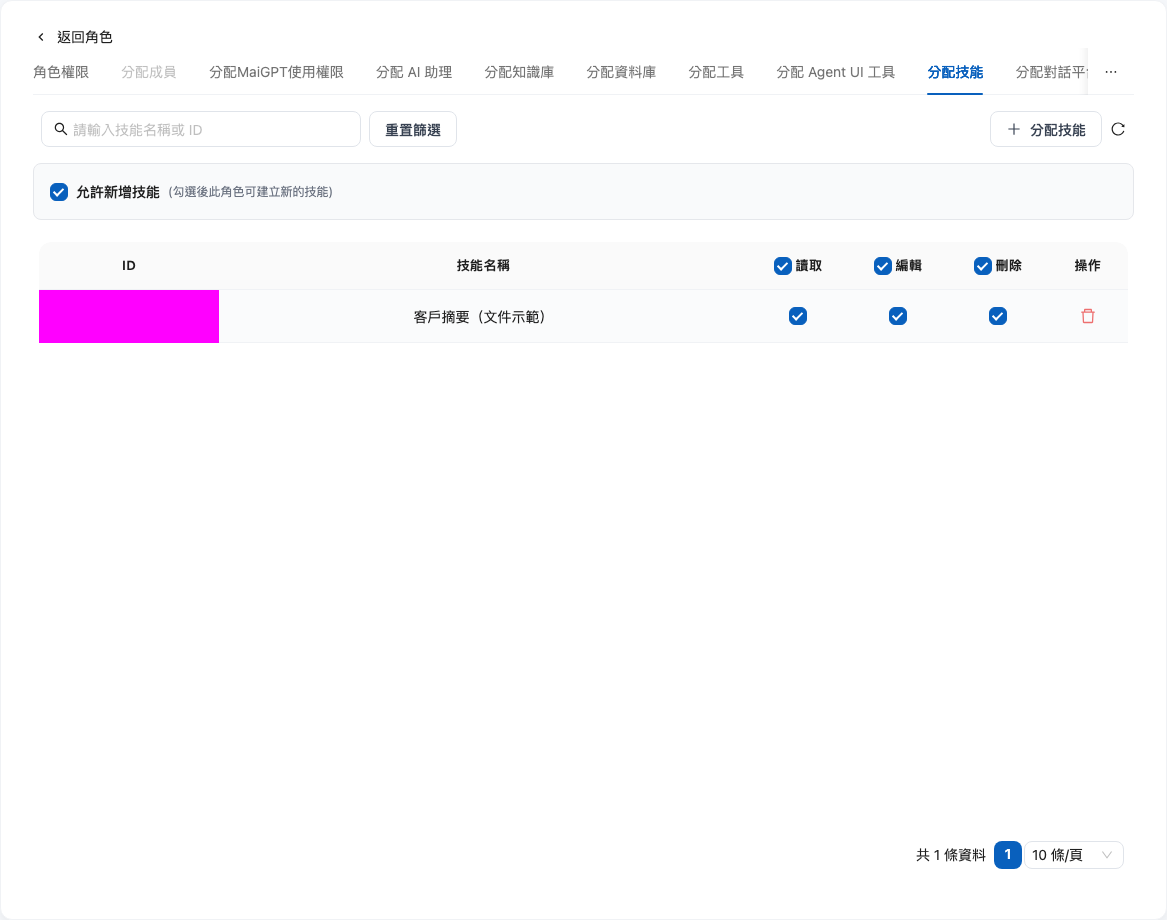
For example, a company's system administrator wants sales staff to read the “Customer Summary” skill without being able to edit or delete it. She can edit the sales role, assign this skill, and retain only read permission. After configuration, sales staff can see “Customer Summary” in the skill list without receiving edit or delete permissions.
### How it works
* **Unassigned skills are invisible**: Organization-created skills must be assigned to a role before its members can see them in the skill list; unassigned skills are completely hidden from that role
* **Permission granularity**: For each “role × skill” assignment, you can configure Read, Edit, and Delete permissions separately to support read-only access, such as allowing reading without modification
* **Creation permission**: Each role has an independent “Allow Skill Creation” toggle that controls whether its members can create skills
* **Owners are unrestricted**: Organization owners automatically have full access to all skills without assignment
* **Global skill exception**: Built-in global skills are visible to all members and cannot be restricted through role assignments
### Setup steps
{% stepper %}
{% step %}
### Open role settings
In the left menu, click “Organization Settings” → “Organization Overview”, then click “Edit Role Permissions”. Select the role to configure and switch to the “Assign Skills” tab.
{% endstep %}
{% step %}
### Configure skill creation permission
Select or clear “Allow Skill Creation” as needed to determine whether members with this role can create skills. Changes are saved immediately; a success message appears after the update.
{% endstep %}
{% step %}
### Assign skills
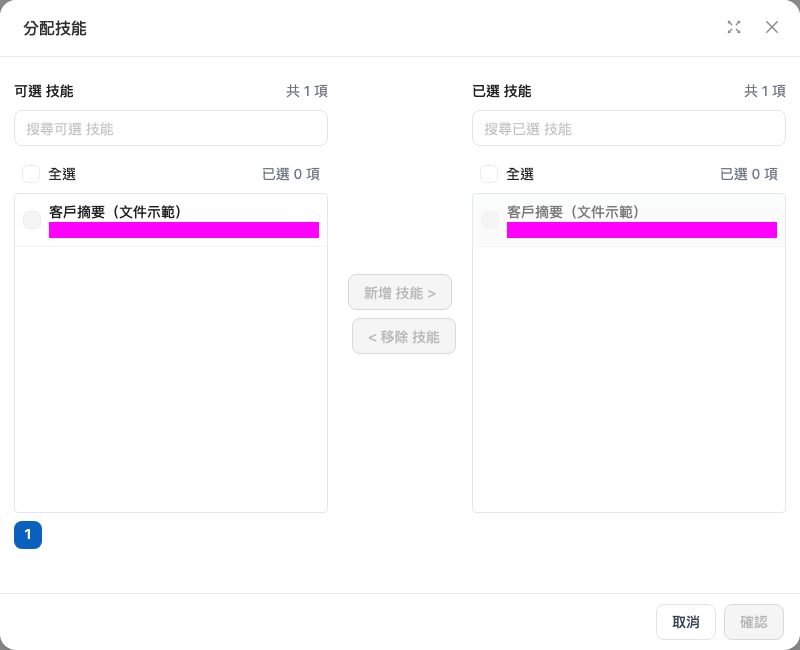
Click “Assign Skills”, select the skills to make available to this role, and confirm.
{% endstep %}
{% step %}
### Configure skill permissions
In the assigned list, configure read/edit/delete permissions for each skill individually, or remove the assignment. Selecting or clearing a permission saves it immediately; a success message appears after the update. There is no separate “Save” button on this page.
{% endstep %}
{% endstepper %}
Manage creation permission and individual skill permissions in the “Assign Skills” tab
Select the skills to assign to the role from the available skills
{% hint style="info" %}
For details on creating roles and assigning members, see [Role Permission Management](/maiagent-user-guide/en/org/roles/role-permission.md).
{% endhint %}
***
## Delete a skill
In the skill list, click the skill's Delete icon and confirm to delete it.
{% hint style="warning" %}
After a skill is deleted, Agents assigned to it can no longer use it. This action cannot be undone.
{% endhint %}
---
# Agent Instructions
This documentation is published with GitBook. GitBook is the documentation platform designed so that both humans and AI agents can read, navigate, and reason over technical content effectively. Learn more at gitbook.com.
## Querying This Documentation
If you need additional information that is not directly available in this page, you can query the documentation by asking a question.
Perform an HTTP GET request on the following URL with the `ask` and `goal` query parameters:
```
GET https://docs.maiagent.ai/maiagent-user-guide/en/build/skills/skills-management.md?ask=&goal=
```
`ask` is the immediate question: it should be specific, self-contained, and written in natural language.
`goal` is what the user is ultimately trying to achieve, the reason they need the answer. Sharing it helps GitBook give you a better, more relevant answer. A goal is most helpful when it describes the outcome the user wants rather than restating the question. For example, with `ask=how do I create an API token`, a goal like `automate deployments from our CI pipeline` lets GitBook tailor the answer to that use case.
The response will contain a direct answer to the question and relevant excerpts and sources from the documentation.
Use this mechanism when the answer is not explicitly present in the current page, you need clarification or additional context, or you want to retrieve related documentation sections.