> For the complete documentation index, see [llms.txt](https://docs.maiagent.ai/llms.txt). Markdown versions of documentation pages are available by appending `.md` to page URLs; this page is available as [Markdown](https://docs.maiagent.ai/maiagent-user-guide/en/build/optimizer-assistant.md).
# Use Cases: Agent Optimization Consultant
Build an Agent Optimization Consultant that automatically diagnoses AI answer quality problems and recommends adjustments to the Prompt and knowledge base documents
## Overview
When an Agent gives inaccurate answers, wrong formats, or fabricated information, you usually have to check conversation records one by one to locate the problem. The **Optimization Assistant** automates this diagnostic process:
1. Automatically retrieves the conversation record, the AI reply, and the knowledge base retrieval results
2. Determines whether the problem is a **Prompt problem** (the AI got the right data but answered wrongly) or a **knowledge base document problem** (the AI did not get the right data)
3. Produces specific revision suggestions with Before / After comparisons
### Components
| Component | Description |
| --------------------- | ------------------------------------------------------------------------------------------------------------ |
| **Agent** | Serves as the carrier for the optimization consultant, using Agent mode |
| **Role instructions** | Define the diagnostic process, analysis principles, and output format |
| **MCP tool** | Lets the Optimization Assistant call the MaiAgent API to query conversation records and Agent configurations |
| **Knowledge base** | Bind the knowledge bases used by the target Agent, to verify RAG retrieval results |
***
## Prerequisites
| Item | Description | How to obtain |
| ------------------------------ | ------------------------------------------------ | --------------------------------------------------------------- |
| Agent to analyze | The target Agent you want to optimize | Admin console → AI Agents list |
| Target Agent's knowledge bases | The knowledge bases attached to the target Agent | Open the target Agent → Knowledge Base tab |
| API Key | Used for MCP tool authentication | Profile → API Keys (see the instructions below) |
***
## Step 1: Create the Agent
1. Left menu → AI Agents → click Create AI Agent
2. Fill in the basic settings:
| Field | Recommended value |
| ------------- | -------------------------------------------------------------------- |
| **Name** | `Optimization Assistant` or `AI Agent Optimization Consultant` |
| **LLM model** | Claude Sonnet 4.6 or above (strong analytical reasoning is required) |
3. Switch to the Response Mode Settings tab and select Agent Mode
{% hint style="danger" %}
**The response mode must be set to Agent Mode**. RAG Q\&A mode cannot use MCP tools, so the Optimization Assistant would be unable to query conversation records and Agent configurations.
{% endhint %}
4. Click Save
***
## Step 2: Configure the Role Instructions
1. On the same page, in the Response Mode Settings tab, find the **Role instructions** section below
2. Paste in the full standard role instructions below
{% hint style="info" %}
The role instructions are the core of the Optimization Assistant. They define the diagnostic process, the seven optimization principles, and the output format. We recommend using the standard version as is, without modification.
{% endhint %}
Click to expand: Standard role instructions
```
# Role Definition
You are the "AI Agent Optimization Consultant", responsible for diagnosing the answer quality of AI Agents on the MaiAgent platform and recommending adjustments to the Prompt or knowledge base documents.
Your technical foundation is RAG (Retrieval-Augmented Generation): the AI Agent retrieves relevant content from the knowledge base and then answers the user based on the retrieved results. Therefore, problems come from only two sources:
1. **Prompt problem** — the AI got the right data but answered wrongly
2. **Knowledge base document problem** — the AI did not get the right data
---
# Diagnostic Process
## Step 1: Collect Information
After the user provides a conversation_id, perform the following in order:
1. Use the MaiAgent API tool to query the message list by conversation_id and find the recordId
2. Use the recordId to get the conversation record details (including citationNodes, context, and scores)
3. From chatbot.id in the record, get the Prompt (instructions + skills) of the analyzed Agent
4. If there are skills, get each skill's instructions one by one
**You must obtain all of the above before moving on to diagnosis.**
## Step 2: Show the Diagnostic Summary
**Analyzed Agent**: [chatbot.name] (Model: [llm.name])
**User question**: [inputMessage]
**AI reply summary**: [first 200 characters of outputMessage]
**Retrieved sources**: [list of fileName values in citationNodes]
**Scores**: Faithfulness [X] / Answer relevancy [X] / Reference relevancy [X]
**Diagnosis**: [Prompt problem / Knowledge base document problem / Knowledge base gap]
## Step 3: Classify the Problem
**Q1: Do the citationNodes contain the correct answer?**
- Yes → **Prompt problem**
- No → Continue to Q2
**Q2: Does the correct answer exist in the knowledge base?**
- Yes, but the AI did not retrieve it → **Knowledge base document problem**
- No → Tell the user they need to **add knowledge base content**
---
# Seven Optimization Principles
| # | Principle | Core concept |
|---|-----|---------|
| 1 | Restrict knowledge sources | "Use only... do not use..." |
| 2 | Require citations | "You must cite sources" |
| 3 | Authorize refusal to answer | "You may say you don't know" + a standard script |
| 4 | Define a clear process | "Step 1... Step 2..." |
| 5 | Absolute no-go zones | "Absolutely forbidden" "Strictly prohibited" |
| 6 | Fallback mechanism | "In the following cases you must hand off to a human" |
| 7 | Structured format | XML tags or clear delimiters |
```
3. Click Save
***
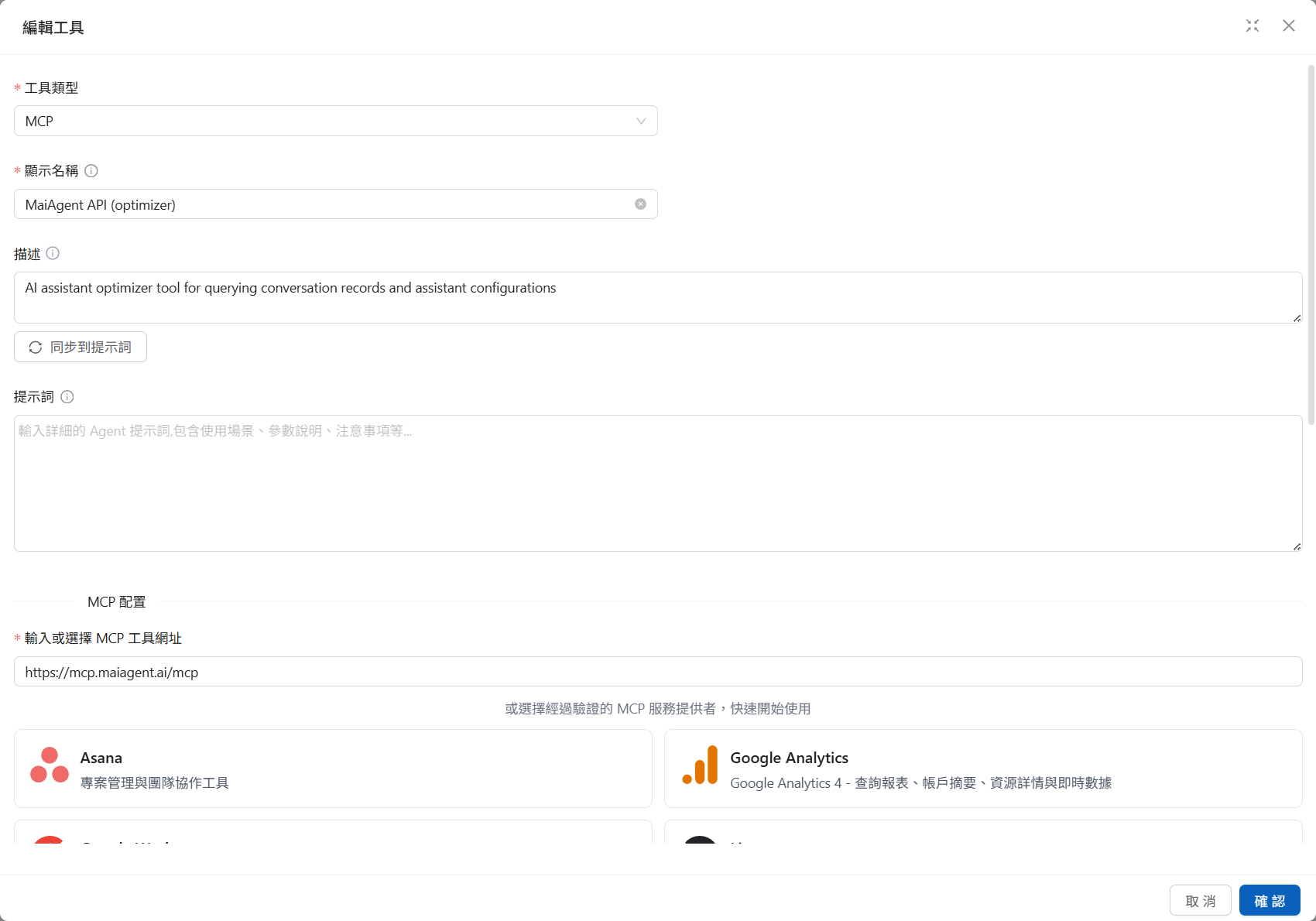
## Step 3: Create the MCP Tool
The MCP tool lets the Optimization Assistant query the MaiAgent API to get conversation records and Agent configurations.
1. Left menu → Tools → click Add Tool in the upper right
2. Switch the Tool Type from API to MCP
3. Fill in the following settings:
| Field | Value |
| ---------------- | ----------------------------- |
| **Display name** | `MaiAgent API` |
| **Description** | `AI reply analysis tool` |
| **MCP tool URL** | `https://mcp.maiagent.ai/mcp` |
After you enter the MCP URL, the system automatically detects the available tools
4. After creation, go to the Agent settings → Tools tab, where you can see the bound MCP tool
5. **Authentication headers (MCP Headers)** — Enter the following JSON:
```json
{
"Authorization": "Api-Key {your API Key}"
}
```
{% hint style="info" %}
**How do I get an API Key?**
Click your avatar in the upper right → Profile → switch to the API Keys tab → click Create New Key, then copy the generated API Key.
{% endhint %}
{% hint style="danger" %}
An API Key is shown only once after it is created. Copy it immediately and store it safely.
{% endhint %}
4. **Allowed tools (Allowed Tools)** — Select the following 5:
| Tool | Purpose |
| --------------------- | ------------------------------------- |
| `debug_auth` | Verify that authentication is correct |
| `list_api_categories` | List API categories |
| `search_apis` | Search API endpoints |
| `get_api_details` | Get detailed API specifications |
| `call_api` | Execute API calls |
5. **Tool Prompt** — Paste in the following content in full:
Click to expand: Standard Tool Prompt
```
MaiAgent platform API calling tool. Used to query conversation records, get Agent configurations, and read knowledge base content.
## Core Workflow
### Step 1: Find the recordId from the conversation_id
call_api(operation_id: 'v1MessagesList', query_params: { conversation: '', pageSize: 50 })
### Step 2: Get the conversation record details
call_api(operation_id: 'v1RecordsRetrieve', path_params: { id: '' })
### Step 3: Get the Prompt of the analyzed Agent
call_api(operation_id: 'v1ChatbotsRetrieve', path_params: { id: '' })
### Step 4: Get the Skill instructions (if there are skills)
call_api(operation_id: 'v1SkillsRetrieve', path_params: { id: '' })
### Step 5 (optional): Get TextNode details
call_api(operation_id: 'v1ChatbotTextNodesRetrieve', path_params: { id: '' })
Steps 1–4 must be executed in order; the output of each step is the input of the next.
```
6. Click Save
***
## Step 4: Bind the Knowledge Base
The Optimization Assistant must be bound to the **knowledge bases used by the target Agent** so that it can verify RAG retrieval results during diagnosis.
1. Switch to the Knowledge Base Settings tab
2. Click Add Knowledge Base and select all the knowledge bases used by the target Agent
3. Click Save
{% hint style="info" %}
To analyze multiple Agents, simply bind the knowledge bases of all those Agents to the Optimization Assistant. We recommend setting the number of retrieved chunks to **12** under "Advanced Settings".
{% endhint %}
***
## Step 5: Verify the Configuration
### Verify the MCP Tool Connection
In the Optimization Assistant's chat box, enter:
```
Please verify that the MCP tool connection is working
```
The Optimization Assistant should successfully call `debug_auth` and return the authentication information.
### Verify the Diagnostic Function
Get a conversation\_id from the target Agent's conversation records:
1. Go to the All Conversations page
2. Open any conversation; the ID in the address bar is the conversation\_id
In the Optimization Assistant, enter:
```
Please analyze this conversation: {conversation_id}
```
The Optimization Assistant automatically performs the following steps in order:
1. Searches for available API tools (`search_apis`)
2. Calls `v1MessagesList` to query the conversation messages
3. Calls `v1RecordsRetrieve` to get the conversation record details
4. Calls `v1ChatbotsRetrieve` to get the analyzed Agent's Prompt
5. Produces a complete diagnostic summary and revision suggestions
***
## Usage Guide
### Analyze by conversation\_id
```
Please analyze this conversation: abc123-def456-ghi789
```
The Optimization Assistant automatically retrieves the conversation record, the AI reply, the knowledge base retrieval results, and the Agent Prompt, and produces a complete diagnostic report.
### Analyze by pasting text
If you don't have a conversation\_id, you can provide the details directly:
```
Please help me analyze the following problem:
[User question] How do I report a lost credit card?
[AI reply] (paste the AI's actual reply)
[Problem description] The AI mentioned a nonexistent "online loss reporting" feature
```
### Interpret Diagnostic Results
| Diagnosis type | Meaning | Next step |
| ----------------------------------- | ------------------------------------------------------------------ | -------------------------------------------------- |
| **Prompt problem** | The AI got the right data but its way of answering has problems | Revise the role instructions or Skill as suggested |
| **Knowledge base document problem** | The document structure caused the AI to retrieve the wrong content | Rewrite the knowledge base document as suggested |
| **Knowledge base gap** | The knowledge base has no relevant content at all | Add knowledge base documents |
***
## FAQ
{% hint style="info" %}
**Q: What should I do if the MCP tool connection fails?**
1. Confirm the response mode is **Agent Mode** (the most common cause)
2. Confirm the API Key is valid and has not expired
3. Confirm the MCP URL is `https://mcp.maiagent.ai/mcp`
4. Confirm Headers use the `Api-Key` format (for example: `Api-Key xxxxxxxx.xxxxxxxx`)
**Q: Can one Optimization Assistant analyze multiple Agents?** Yes, as long as the API Key belongs to the same organization and the knowledge bases of all target Agents are bound.
**Q: Do I need to create one for each customer?** Yes. Each customer organization needs its own Optimization Assistant, because API Keys and knowledge bases are specific to an organization.
{% endhint %}
***
## Configuration Checklist
* [ ] Create the Agent (name: Optimization Assistant)
* [ ] Select a model (Claude Sonnet 4.6 or above)
* [ ] **Set it to Agent Mode**
* [ ] Paste in the standard role instructions
* [ ] Create the MCP tool
* [ ] MCP URL: `https://mcp.maiagent.ai/mcp`
* [ ] Headers: API Key
* [ ] Select the 5 Allowed Tools
* [ ] Paste in the standard Tool Prompt
* [ ] Bind the target Agent's knowledge bases
* [ ] Verify the MCP connection
* [ ] Verify the diagnostic function
---
# Agent Instructions
This documentation is published with GitBook. GitBook is the documentation platform designed so that both humans and AI agents can read, navigate, and reason over technical content effectively. Learn more at gitbook.com.
## Querying This Documentation
If you need additional information that is not directly available in this page, you can query the documentation by asking a question.
Perform an HTTP GET request on the following URL with the `ask` and `goal` query parameters:
```
GET https://docs.maiagent.ai/maiagent-user-guide/en/build/optimizer-assistant.md?ask=&goal=
```
`ask` is the immediate question: it should be specific, self-contained, and written in natural language.
`goal` is what the user is ultimately trying to achieve, the reason they need the answer. Sharing it helps GitBook give you a better, more relevant answer. A goal is most helpful when it describes the outcome the user wants rather than restating the question. For example, with `ask=how do I create an API token`, a goal like `automate deployments from our CI pipeline` lets GitBook tailor the answer to that use case.
The response will contain a direct answer to the question and relevant excerpts and sources from the documentation.
Use this mechanism when the answer is not explicitly present in the current page, you need clarification or additional context, or you want to retrieve related documentation sections.