> For the complete documentation index, see [llms.txt](https://docs.maiagent.ai/llms.txt). Markdown versions of documentation pages are available by appending `.md` to page URLs; this page is available as [Markdown](https://docs.maiagent.ai/maiagent-user-guide/en/build/knowledge-base/test-search-result.md).
# Search Testing
Before the LLM goes live, use the search test preview to check the relevance and content of the data the LLM retrieves
## Why Do You Need Search Testing?
1. **Ensure Response Accuracy**
* The quality of Agent responses directly affects customer satisfaction
* Incorrect or irrelevant answers damage brand trust
2. **Avoid Information Gaps**
* Prevent important product details or safety instructions from being overlooked
* Optimize how efficiently the knowledge base is used
3. **Improve Q\&A Consistency**
* Ensure the same question receives a consistent answer at different times
* Avoid unstable responses caused by knowledge base updates
With search testing and chunk preview, you can instantly review the quality of the data chunks the Agent uses, ensuring your Q\&A standards.
## How to Get Started?
1. Go to the Knowledge Base page, select the knowledge base you want to view, and open its settings
2. Click "AI Search" on the left (the page title is "Knowledge Base Search Test")
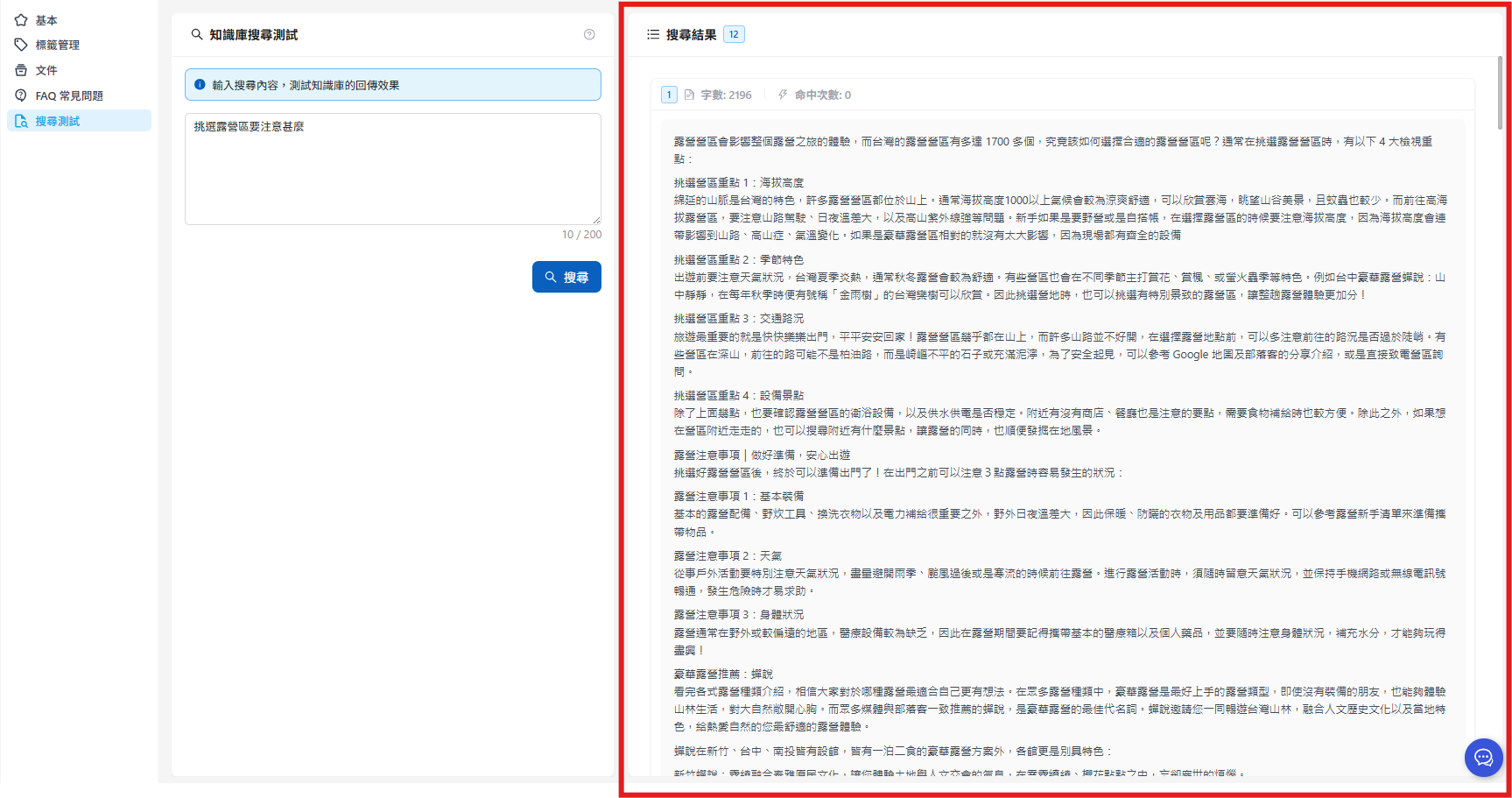
Enter what you want to search for in the dialog box, for example "What should I pay attention to when choosing a campsite?" After you click the search button, the Agent searches for the documents most relevant to your input.
3. View the search results
The chunks the Agent retrieves when answering appear on the right. In the figure there are 12 chunks (for the retrieval chunk count setting, see: [How to Create a Knowledge Base: Basic Settings](/maiagent-user-guide/en/build/knowledge-base/km-basic-settings.md#retrieval-chunk))
The right side shows the content retrieved for this question. Each chunk displays:
* Character count: the number of characters the chunk covers
* Hit count: the number of times the Agent referred to this chunk when answering (only official Q\&A is counted; test Q\&A is not included in the hit count)
A higher hit count means users ask more questions about this chunk.
Collapse All / Expand All at the top right of the search results area collapses or expands all chunks at once. Each chunk can be switched between Original Text and Highlight Keywords, and you can click Preview to open the corresponding position in the original document (results missing document information show "Preview unavailable").
The clock icon next to the search box is "Search History": it keeps the 10 most recent queries on this browser. Click any entry to search again, which makes it easy to compare results before and after your adjustments using the same set of questions. Clear History removes them all. History is stored only in your browser and is not visible on other devices or to other members.
## AI Summary
The "AI Summary" switch next to the search box is on by default. After each search, in addition to listing the chunks, a summary compiled by the LLM from those chunks appears above them, so you can see directly whether this set of chunks can answer the question without reading every chunk.
* The drop-down menu next to the switch lets you select a model (the system setting is used by default). Switch models when you want to compare how well they summarize.
* The summary is an additional LLM call and consumes your organization's Credits based on the selected model. If you only want to see retrieval results, turn the switch off.
* "AI Summary is not enabled. Please contact your administrator" means your organization has not configured an available model. For "Insufficient Credit balance to generate an AI summary", top up first. "No search results, unable to generate a summary" means there are no chunks to summarize; rewrite the question or check the documents.
{% hint style="info" %}
AI Summary is used only on this test page and does not represent the Agent's actual reply in a conversation: the Agent also applies role instructions, the reply mode, and other settings. To review full reply quality, go to [Automated Evaluation and Agent Monitoring](/maiagent-user-guide/en/build/agent-ops/evaluations.md).
{% endhint %}
## Check Knowledge Chunk Quality
Search testing shows which chunks the Agent uses when reasoning, so you can check whether their content needs improvement, such as:
If you find many blank chunks in the search results, and they all belong to the file "Beginner Camping.pdf", you can check whether the contents of "Beginner Camping.pdf" are all correct and update it right away, **before going live**.
## Search Modes and Query Metadata Conditions
On the left side of the search test page you can adjust two things: which method is used to search, and which documents or tags the search is limited to.
### Choose a Search Mode
Under Search Mode, choose one:
| Search Mode | How It Searches | Best For Testing |
| -------------------------------------------------------- | ----------------------------------------------------------------------- | ---------------------------------------------------------------------- |
| Hybrid Search (default) | Matches both meaning and keywords, then merges the results | General questions; closest to how the Agent retrieves in conversations |
| Semantic Search | Matches meaning only, so it finds results even when the wording differs | Natural-language questions |
| Keyword Search | Matches words only | Whether product models, proper nouns, and codes can be found |
{% hint style="info" %}
The search mode only affects this search test. In Agent conversations, the retrieval method configured on the platform is always used (hybrid search by default; see [Technical Manual - Hybrid Search](https://docs.maiagent.ai/tech/quickstart/rag#hybrid-search)). Keyword Search supports only Elasticsearch and is unavailable when the knowledge base is connected to another type of [bring-your-own vector database](/maiagent-user-guide/en/build/knowledge-base/km-basic-settings.md#vector-database).
{% endhint %}
### Do Search Results Have Relevance Scores?
Chunks in the search test are sorted from most to least relevant, but **no scores are shown**, and the response of the [Knowledge Base Retrieval API](https://docs.maiagent.ai/tech/api-integration/knowledge-base-api#search-response) does not include scores either; use the ranking to judge relevance. The Relevance percentage on a Web Chat citation node is the score the Agent gave the cited chunk at the moment it answered; see [Citation Display](/maiagent-user-guide/en/build/choose-channel/web-chat/citation-display.md#citation-display-location). When a search returns no chunks, the screen shows no results; with AI Summary on, it shows "No search results, unable to generate a summary".
### What Are Query Metadata Conditions?
Query Metadata limits the scope of a search to specified files, FAQs, or documents that match specified tag conditions. It is the same kind of condition as the query metadata set on contacts and conversations, so you can use search testing to simulate which chunks would be retrieved when a given contact asks a question. For the concept, see [Query Metadata](/maiagent-user-guide/en/org/querymetadata.md).
### How to Set Query Metadata Conditions
1. In the Query Metadata section on the left of the search test page, click Query Builder at the top right. If the knowledge base has no documents or FAQs yet, this button cannot be clicked.
2. In the Query Builder, select the documents or FAQs to include. To filter by tag, turn on tag filtering and set the conditions. The operation is the same as in [Query Builder](/maiagent-user-guide/en/org/querymetadata/query-builder.md).
3. After you confirm, the Query Metadata section shows the current conditions as JSON and indicates how many conditions there are.
4. Enter a question and click Search. The results include only chunks within the conditions.
### When to Use It
* **Verify permission scope**: Confirm that, after a set of conditions is applied, documents that should not be visible are indeed not retrieved.
* **Narrow down troubleshooting**: When the results for a question include other documents, first limit the test to the expected documents to determine whether the problem lies in the content itself or in the retrieval scope.
### Practical Use Cases
* **Membership-tier content**: A product price list is open only to VIP members. In the Query Builder, select only the documents or tags that regular members can see, ask "How much does it cost?", and confirm that no chunks from the price list appear in the results.
* **Model number lookups**: Customers often ask using model numbers, for example "How long is the warranty for the A100?" Switch to Keyword Search to test whether the model number can be found; if not, check whether the way the model number is written in the documents matches how customers write it.
## How Search Testing Helps You
### Test Key Questions Regularly
* Test questions related to your core business often
* Re-test after the knowledge base is updated
* Record and compare how test results improve
### Identify Content Gaps
* Find knowledge gaps: test common questions to find queries that return no hits at all
* Example: testing "waterproof rating of tents" finds no relevant chunks → add a waterproof specification document
{% hint style="info" %}
The platform does not automatically record user questions for which no content was retrieved, and there is no report of zero-result queries. To find knowledge gaps from real conversations, use the "Knowledge base gap" category in [Conversation Platform Analytics](/maiagent-user-guide/en/serve/daily-operations/reply/inbox-analysis.md#failure-reasons), or review the chunks actually retrieved for each answer in [Agent Monitoring](/maiagent-user-guide/en/build/agent-ops/evaluations.md), then add the missing content to the knowledge base.
{% endhint %}
### Evaluate Content Completeness
* Check answer depth: confirm whether the AI's answer covers every aspect of the question
* Example: query "camping safety precautions" → check whether it covers weather, wildlife, fire safety, and other aspects
## Query Testing Techniques
You can:
* Ask the same question in different ways
* Test complex scenarios and multi-condition queries
* Verify retrieval of technical terms and product names
With these testing techniques, you can comprehensively evaluate the accuracy and completeness of replies.
---
# Agent Instructions
This documentation is published with GitBook. GitBook is the documentation platform designed so that both humans and AI agents can read, navigate, and reason over technical content effectively. Learn more at gitbook.com.
## Querying This Documentation
If you need additional information that is not directly available in this page, you can query the documentation by asking a question.
Perform an HTTP GET request on the following URL with the `ask` and `goal` query parameters:
```
GET https://docs.maiagent.ai/maiagent-user-guide/en/build/knowledge-base/test-search-result.md?ask=&goal=
```
`ask` is the immediate question: it should be specific, self-contained, and written in natural language.
`goal` is what the user is ultimately trying to achieve, the reason they need the answer. Sharing it helps GitBook give you a better, more relevant answer. A goal is most helpful when it describes the outcome the user wants rather than restating the question. For example, with `ask=how do I create an API token`, a goal like `automate deployments from our CI pipeline` lets GitBook tailor the answer to that use case.
The response will contain a direct answer to the question and relevant excerpts and sources from the documentation.
Use this mechanism when the answer is not explicitly present in the current page, you need clarification or additional context, or you want to retrieve related documentation sections.
%20(1).png?alt=media)
.png?alt=media)
.png?alt=media)
.png?alt=media)
.png?alt=media)