> For the complete documentation index, see [llms.txt](https://docs.maiagent.ai/llms.txt). Markdown versions of documentation pages are available by appending `.md` to page URLs; this page is available as [Markdown](https://docs.maiagent.ai/maiagent-user-guide/en/build/knowledge-base/tags-and-metadata.md).
# Document Management: Tags and Metadata
Knowledge base document management: classify documents and FAQs with tags, control retrieval scope and reference access with metadata, and understand their relationship to tag filtering and query meta
MaiAgent provides tag and metadata management to help you classify and organize the many documents and FAQs in your knowledge base.
## Tag Management
When your knowledge base contains large amounts of data, tags help you quickly organize document and FAQ attributes or control access to reference materials. For example:
```
Product information knowledge base (classified by product information)
|-- #Tents
|-- #4-person-tents
|-- #3-season-tents
|-- #SnowPeak
```
```
Educational content knowledge base (classified by access level)
|-- #Non-members
|-- #Regular-members
|-- #VIP
```
### Add a Tag
1. Click the Add button
2. Enter a tag name
3. After you click Add, the tag you entered appears as shown below, including its ID, name, and other details
{% hint style="info" %}
You can use the ID to grant access to documents. For details, see the [Technical Manual—Query Metadata Controls](https://docs.maiagent.ai/tech/identity-and-access/zhi-shi-guan-li-quan-xian-query-metadata-cha-xun-yuan-zi-liao-zong-lan/json-interfaces#querymetadata-kong-zhi-xiang-mu-shuo-ming)
{% endhint %}
### Add Tags to a Document
After creating tags, go to the documents page
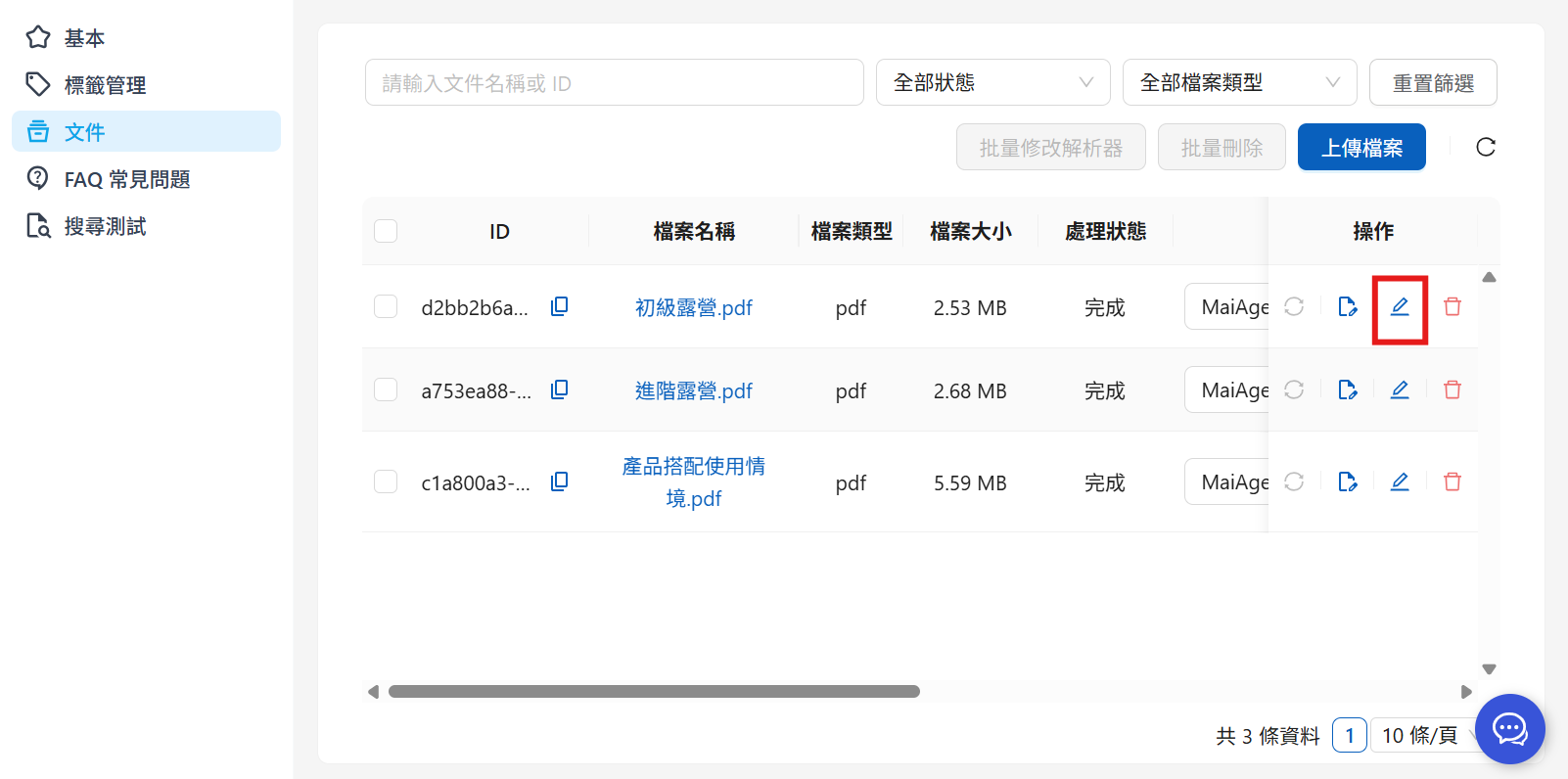
1. Click Edit File Information
2. Select tags
Add the appropriate tags for each document (you can select multiple tags)
The tags you added then appear after the corresponding document:
### Add Tags to an FAQ
To add hierarchical categories or manage tags for FAQs:
1. Open FAQ management in the knowledge base, select the FAQ to edit, and click the Edit button
2. Select the tags to add, then click “Confirm”
The added tags appear in the FAQ field
***
### Tag-Based Access Control
You can use tags to control which content different users see. For example, VIP customers can see more advanced product tutorials, while non-members can only see general tutorials.
{% hint style="info" %}
Filters can apply to both FAQs and documents
{% endhint %}
{% hint style="success" %}
To make an Agent reference only files with specific tags by default across all conversation platforms, without passing parameters on each call, configure this on the Agent settings page. See [Knowledge Base Tag Filtering](/maiagent-user-guide/en/build/agent/label-filter.md).
{% endhint %}
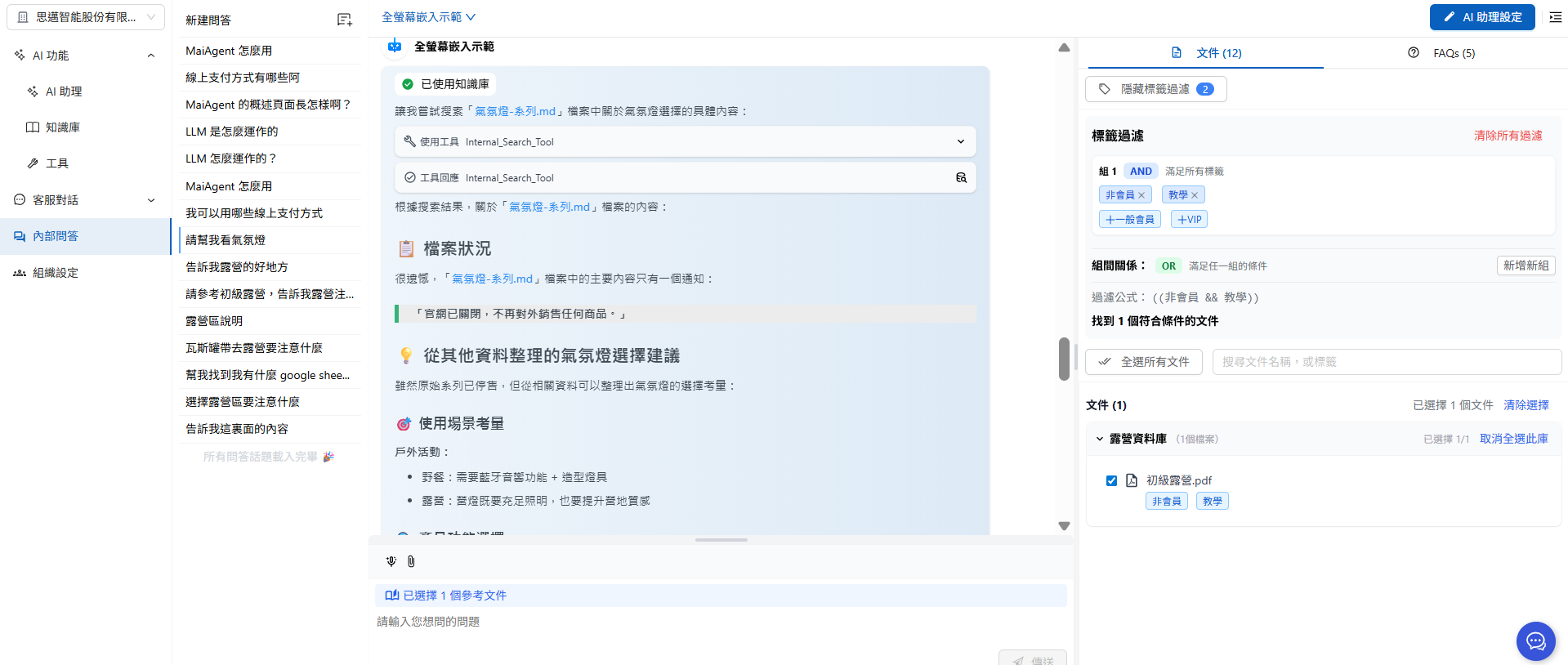
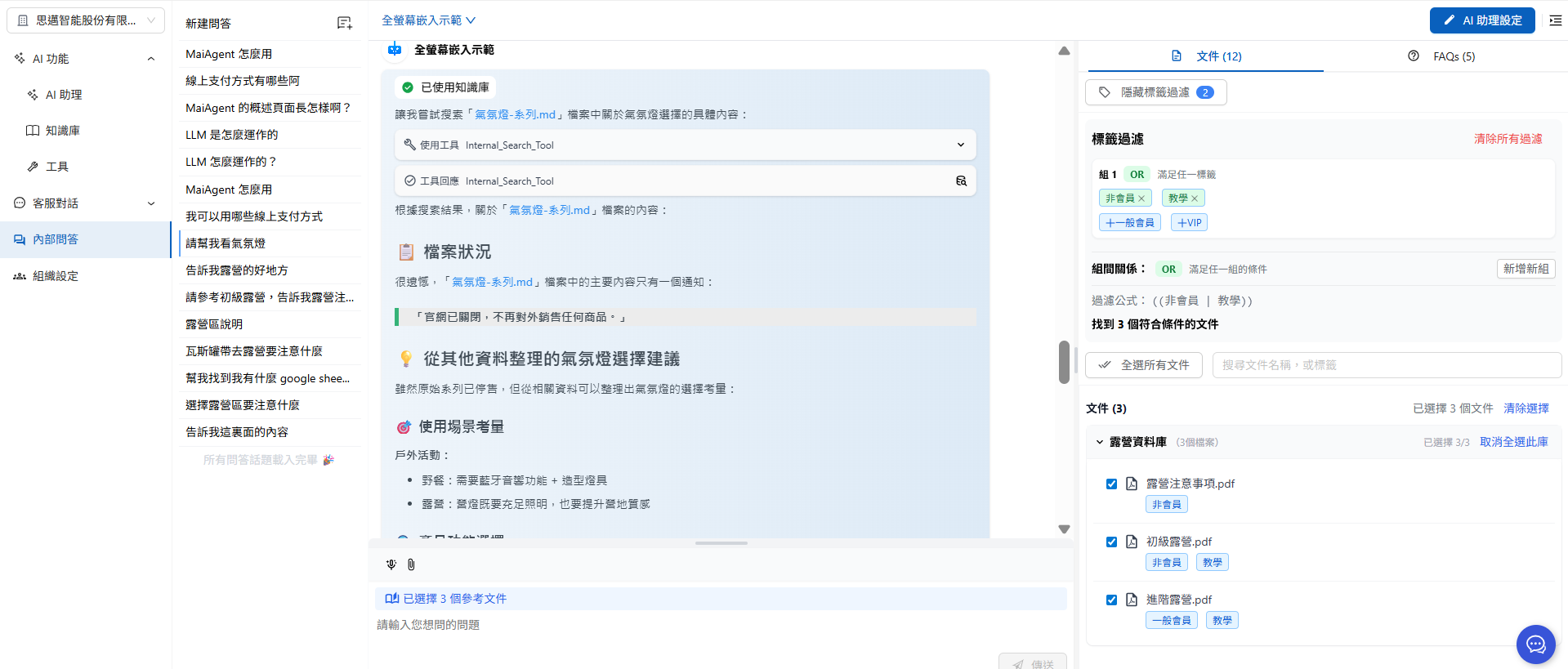
Tag filtering has two levels: conditions within a group and conditions between groups. The interface uses plain language: choose “Include all tags (AND)” or “Include any tag (OR)” within a group, and “Match every group (AND)” or “Match any group (OR)” between groups. The older interface displays AND/OR buttons with the same meaning. The following two examples illustrate this.
#### Include All Tags (AND)
“Include all tags (AND)” allows only content that matches every tag in the group.
For example, in a conversation about tutorials for non-members, use tag filtering to let the Agent access only documents that match both the “Non-member” and “Tutorial” tags.
As shown below, after filtering, the Agent can use only the beginner camping document, preventing unrelated information from being disclosed in conversations with non-members.
#### Include Any Tag (OR)
For conversations with members, switch to “Include any tag (OR)” so the Agent can reference documents tagged for either regular members or non-members:
Members can then see more document content than non-members, providing tiered access.
{% hint style="info" %}
In tag filtering, click “Include all tags (AND)” or “Include any tag (OR)” to switch how this group is evaluated (the image below shows the older AND/OR buttons in the same location). A sentence at the bottom of the builder describes the current conditions so you can verify your settings.
{% endhint %}
> For filtering results, see: [Chat with an Agent (Agent Marketplace)](/maiagent-user-guide/en/work/explain.md)
## Document Metadata Management
### **What Is Metadata?**
Metadata is like an “identity card” for a document. It records detailed information to help the system manage and use documents more effectively.
**Example: 初級露營.pdf**
```
Metadata settings:
├── Document version: v2.1
├── Created on: 2024-03-15
├── Last updated: 2024-11-20
├── Next review: 2025-05-20
├── Updating department: Marketing
└── Version status: Reviewed and approved for access
```
### Why Use Metadata?
When managing complex datasets, metadata makes maintaining data quality easier and faster. It helps you:
**Improve Management Efficiency**
* Quickly identify document status and version information
* Organize bulk management of large numbers of documents
* Reduce time spent manually searching and checking
**Ensure Content Quality**
* Use the latest document version
* Track document update history and version status
* Ensure the Agent uses the latest reviewed content
* Record the next review date and regularly filter for documents due for review
### Documents Have No Expiration Date, and Metadata Does Not Trigger Automatic Reminders
Knowledge base documents have no “expiration date” field: uploaded documents remain available for retrieval until you delete or update them. Metadata such as “Next review” is simply a value you record. The platform **does not** use it to send reminders, notify administrators, add tags automatically, or stop retrieving a document when that date arrives. Schedule periodic reviews yourself:
1. Create a date field such as `next_review` in Metadata Management and enter values for documents (default values can be applied automatically to newly uploaded documents).
2. When reviewing, use [Bulk Metadata Management](/maiagent-user-guide/en/build/knowledge-base/km.md#batch-manage-labels-metadata) to download an Excel file containing metadata for the entire knowledge base. Sort or filter by this field to find documents overdue for review.
3. Update or delete the overdue documents, then enter new review dates and upload the metadata again.
Another approach is to represent “Version status” with tags (such as `Reviewed` and `Pending review`) and use [Knowledge Base Tag Filtering](/maiagent-user-guide/en/build/agent/label-filter.md) to let the Agent reference only reviewed documents. Change documents under review to the `Pending review` tag to exclude them from retrieval.
### Metadata Management Page: Fields, Defaults, and Use During Retrieval
First define metadata fields under “Metadata Management” on the left of the knowledge base settings page. You can then enter values for individual documents and FAQs. The description at the top explains: “Metadata fields provide additional structured information for documents to help organize and retrieve content. After you set global defaults, newly uploaded documents will automatically use them.” The list contains these columns:
| Field | Description |
| --------------------------------------------------- | ---------------------------------------------------------------------------------------------------------------------------------------------------------------------------------------- |
| Field Name | The metadata key, such as `url` or `version` |
| Type | Default = built-in system field; Custom = a field you created with “Add Custom Field” |
| Field Description | A description of its purpose for administrators |
| Default Value | Applied automatically to newly uploaded documents; displays “(None)” when unset |
| Retrieval Settings | A check mark indicates that “Use During Retrieval” is enabled |
| Actions | Edit, Delete (requires knowledge base edit/delete permissions) |
When you click “Add Custom Field” or “Edit”, fill in:
* **Field Name**: Must start with a letter, contain only letters, numbers, and underscores, and be no longer than 50 characters.
* **Field Description**: Optional, up to 200 characters, such as “Link to the cited document”.
* **Default Value**: Optional. The interface explains: “Set a global default value; newly uploaded documents will automatically use it.” Existing documents are not backfilled. Use [Bulk Metadata Management](/maiagent-user-guide/en/build/knowledge-base/km.md#batch-manage-labels-metadata) to populate their values.
* **Use During Retrieval**: When enabled, the interface explains: “Send this information to the LLM during retrieval to support answer evaluation and reference.” When a fragment is retrieved, this metadata value for the document is also passed to the Agent. This suits information that affects answers, such as “Document version”, “Applicable region”, and “Effective date”. Fields such as `url` used only for [Custom URL Mapping](#custom-url-mapping) do not need this enabled, saving tokens.
{% hint style="warning" %}
Editing a field affects all documents using it. Deleting a field removes its data from all documents and cannot be undone.
{% endhint %}
### Add Metadata to a Document
1. Go to the documents page and click Edit Document Information:
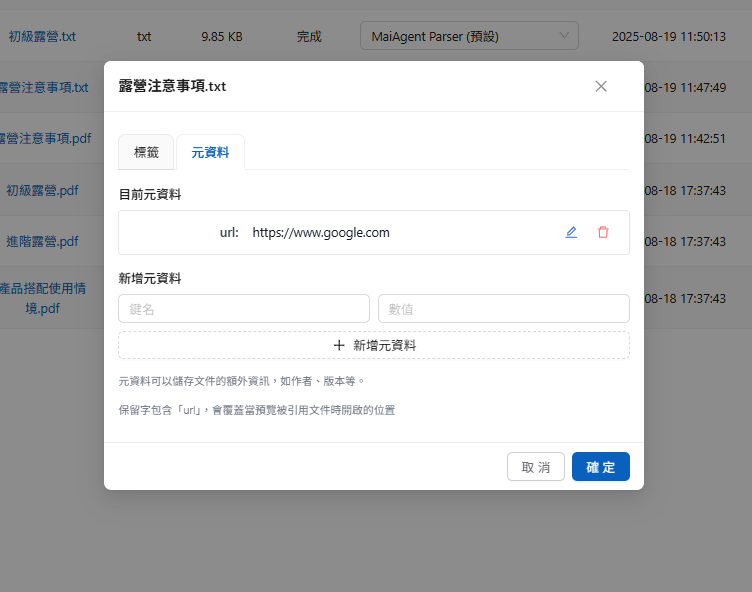
2. Switch to the metadata tab and enter metadata mappings
> MaiAgent uses key-value mappings to access metadata
After entering values, click “Add Metadata” to add the key-value mappings you entered (you can add multiple metadata entries at once).
The new metadata then appears in the fields.
### Add Metadata to an FAQ
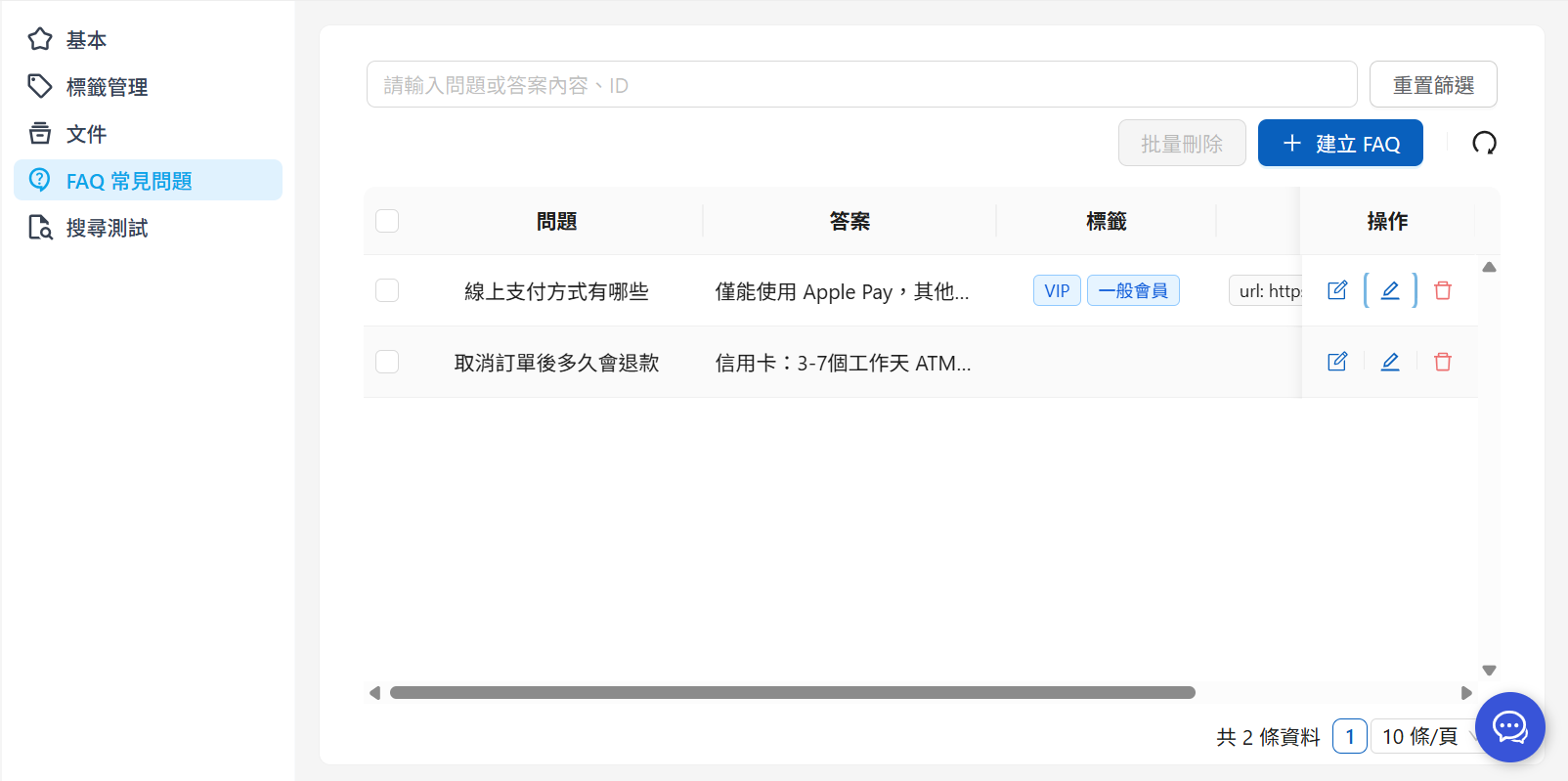
1. Open FAQ management in the knowledge base, select the FAQ to edit, and click the Edit button
2. Switch to the metadata page, enter values, and click Add Metadata
After entering all values, click “Confirm”
The added metadata appears in the FAQ list
### Custom URL Mapping
url is a reserved word in the metadata system. If you set `url: https://...your-specified-url`, this URL replaces the original file location when users view cited fragments in a conversation, opening the URL you specified instead.
**Example Scenario: A Brand’s Spring Sale**
**Original Settings:**
```yaml
title: "2025 Spring Sale Details"
content: "This promotion includes 20% off storewide, gifts with qualifying purchases, and other offers..."
url: https://www.yourstore.com/spring-sale-2025
```
**Result:** When a user asks “What offers are available in the spring sale?” in a conversation:
* AI references this knowledge fragment to answer the question
* Clicking the cited source does not open the internal file location
* Instead, the user goes directly to the official promotion page at `https://www.yourstore.com/spring-sale-2025`
* The user can immediately see the latest promotion details, purchase buttons, countdown timers, and other dynamic content
**Practical Uses:**
* **Website announcements**: `url: https://www.company.com/announcements/system-maintenance`
* **Product specifications**: `url: https://www.product.com/specs/model-x1`
* **Customer support policies**: `url: https://support.company.com/return-policy`
* **Event registration**: `url: https://events.company.com/register/webinar-2025`
This makes AI answers more useful: they provide information and guide users directly to relevant pages to take action, improving the user experience and conversion rate.
***
#### Before Setting url
As shown below, before you set a url value, clicking any citation node (such as 初級露營.pdf) lets you view the original document (you can configure whether users may download original files on the conversation platform):
{% hint style="info" %}
[Conversation Platform - Allow Downloads of Cited Documents](/maiagent-user-guide/en/build/conversation-settings/platform-settings/function-settings.md#ai-interaction)
{% endhint %}
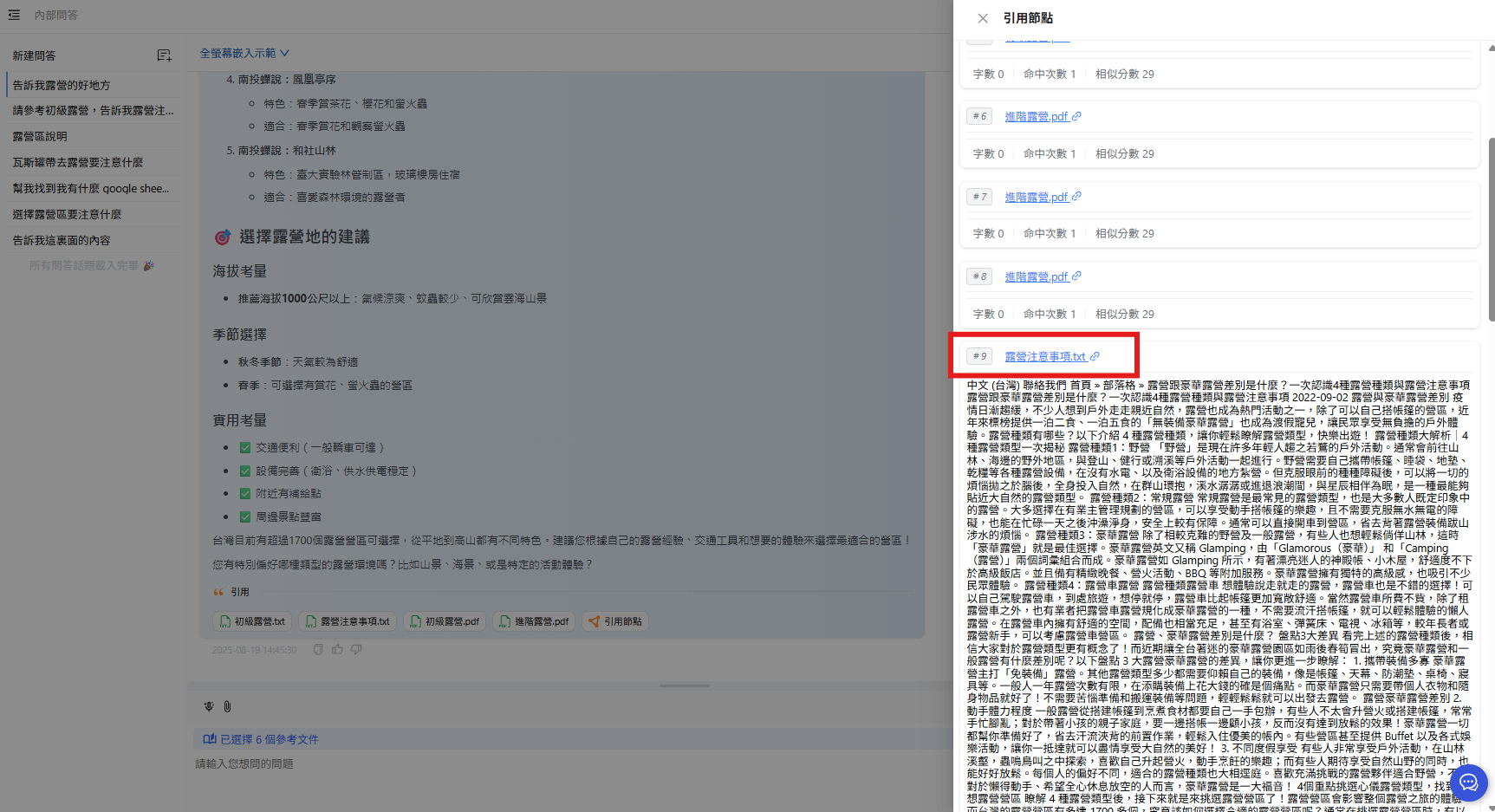
View citation nodes
View the original file location
#### After Setting url (Using Google as an Example)
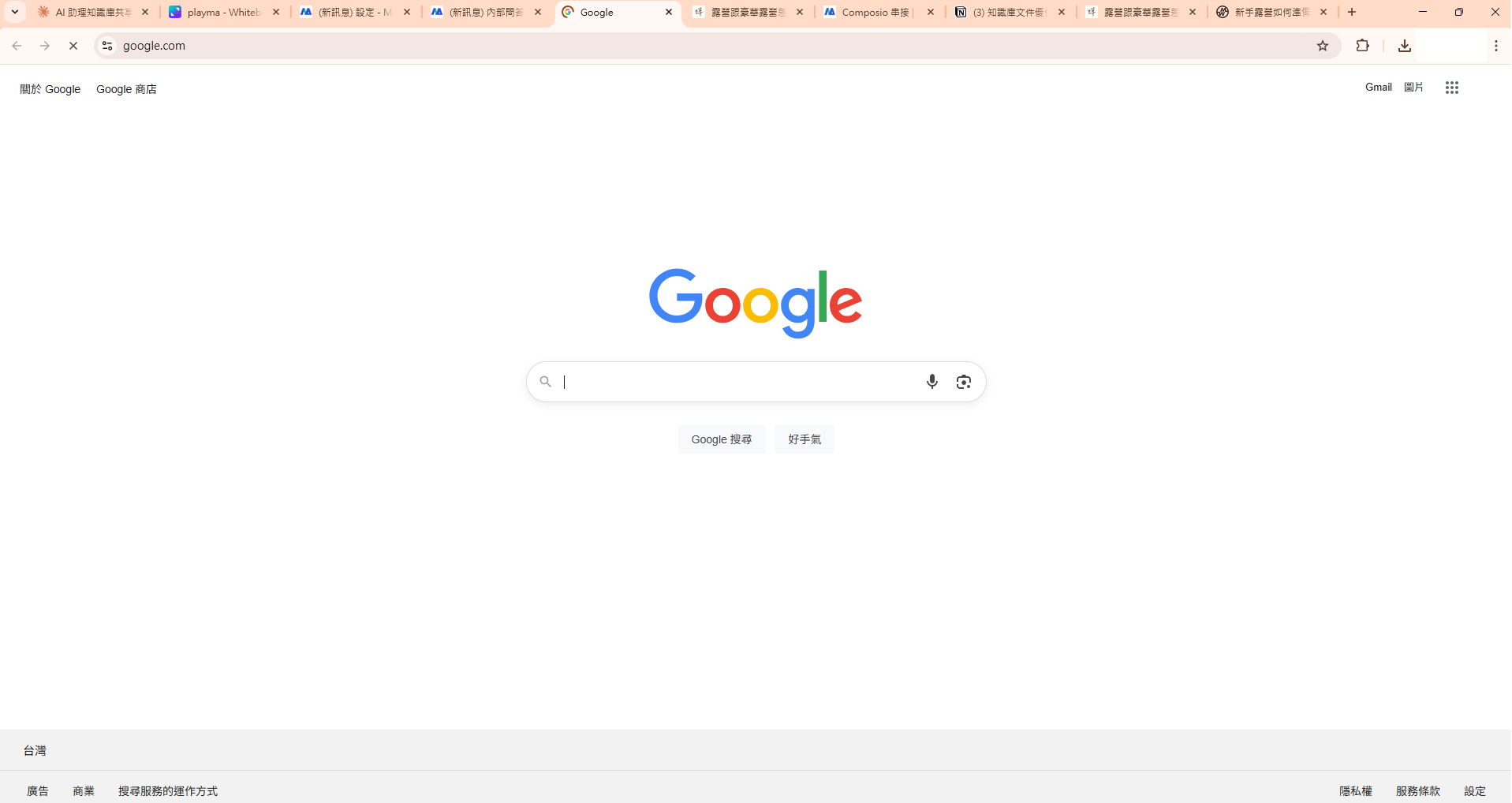
Clicking the cited file node (露營注意事項.txt) again opens the Google homepage instead of displaying a document preview:
Once you set the `url` metadata field, users who see the Agent cite that document in a conversation can click it to open your specified link and obtain more complete information
---
# Agent Instructions
This documentation is published with GitBook. GitBook is the documentation platform designed so that both humans and AI agents can read, navigate, and reason over technical content effectively. Learn more at gitbook.com.
## Querying This Documentation
If you need additional information that is not directly available in this page, you can query the documentation by asking a question.
Perform an HTTP GET request on the following URL with the `ask` and `goal` query parameters:
```
GET https://docs.maiagent.ai/maiagent-user-guide/en/build/knowledge-base/tags-and-metadata.md?ask=&goal=
```
`ask` is the immediate question: it should be specific, self-contained, and written in natural language.
`goal` is what the user is ultimately trying to achieve, the reason they need the answer. Sharing it helps GitBook give you a better, more relevant answer. A goal is most helpful when it describes the outcome the user wants rather than restating the question. For example, with `ask=how do I create an API token`, a goal like `automate deployments from our CI pipeline` lets GitBook tailor the answer to that use case.
The response will contain a direct answer to the question and relevant excerpts and sources from the documentation.
Use this mechanism when the answer is not explicitly present in the current page, you need clarification or additional context, or you want to retrieve related documentation sections.
.png?alt=media)
.png?alt=media)
.png?alt=media)
.png?alt=media)
%20(1).png?alt=media)
.png?alt=media)
.png?alt=media)
.png?alt=media)
.png?alt=media)
.png?alt=media)
.png?alt=media)
.png?alt=media)
.png?alt=media)
.png?alt=media)
.png?alt=media)
.png?alt=media)