> For the complete documentation index, see [llms.txt](https://docs.maiagent.ai/llms.txt). Markdown versions of documentation pages are available by appending `.md` to page URLs; this page is available as [Markdown](https://docs.maiagent.ai/maiagent-user-guide/en/build/knowledge-base/tags-and-metadata.md).
# Document Management: Tags and Metadata
Since a Knowledge Base may contain a large number of documents or FAQs to manage, MaiAgent provides tag management and metadata management features, allowing you to categorize and organize large volumes of documents and FAQs.
## Tag Management
When your Knowledge Base contains a large amount of data, the tagging system helps you quickly organize documents, FAQ attributes, or control reference material permissions. For example:
```
Product Data Knowledge Base (categorized by product information)
|-- #Tent
|-- #4-Person Tent
|-- #3-Season Tent
|-- #SnowPeak
```
```
Tutorial Content Knowledge Base (categorized by permission level)
|-- #Non-Member
|-- #Regular Member
|-- #VIP
```
### Add Tag
1. Click the Add button
2. Enter the tag name
3. After clicking Add, the tag you just entered will be displayed as follows, including ID, name, etc.
{% hint style="info" %}
The ID can be used for granting document access permissions. For details, see [Technical Manual — Query Metadata Control Items](https://docs.maiagent.ai/tech/authorization-integration/zhi-shi-guan-li-quan-xian-query-metadata-cha-xun-yuan-zi-liao-zong-lan/json-interfaces#querymetadata-kong-zhi-xiang-mu-shuo-ming)
{% endhint %}
### Add Tags to Documents
After adding tags, go to the document page.
1. Click Edit File Information
2. Select tags
Add corresponding tags based on the document's requirements (you can select multiple tags).
The added tags will then be displayed next to the corresponding document:
### Add Tags to FAQs
If you want to add hierarchical categorization or tag management for FAQs, you can:
1. Go to the FAQ management interface within the Knowledge Base, select the FAQ you want to edit, then click the Edit button
2. Select the tags to add, then click "Confirm"
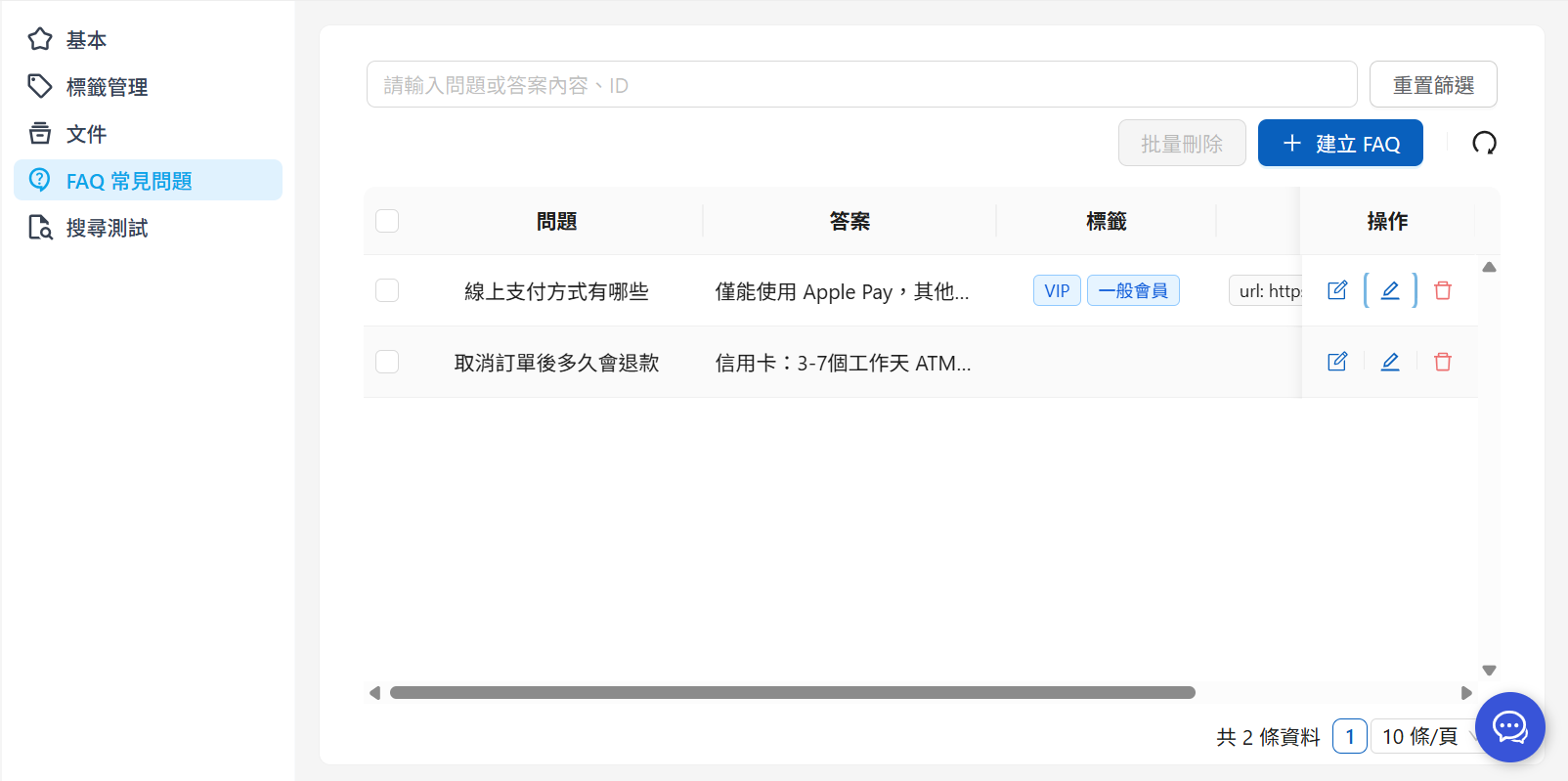
The added tags will appear in the FAQ field.
***
### Tag Access Control
You can control what different users see based on different tags. For example, VIP customers can view more advanced product tutorials, while non-members can only see general tutorials.
{% hint style="info" %}
Filtering can be applied to both FAQs and documents.
{% endhint %}
{% hint style="success" %}
If you want an AI Assistant to reference only files with specific labels by default across all conversation platforms without passing parameters with each call, configure it on the assistant settings page instead. See [Knowledge Base Label Filtering](/maiagent-user-guide/en/build/agent/label-filter.md).
{% endhint %}
Label filtering conditions have two levels: "within a group" and "between groups." The interface presents them in plain language. Between labels in the same group, select "Include All Labels (AND)" or "Include Any Label (OR)." Between multiple condition groups, select "Match Every Group (AND)" or "Match Any Group (OR)." The previous interface displayed AND/OR buttons, but the meaning is the same. The following two examples explain how this works.
#### Include All Labels (AND)
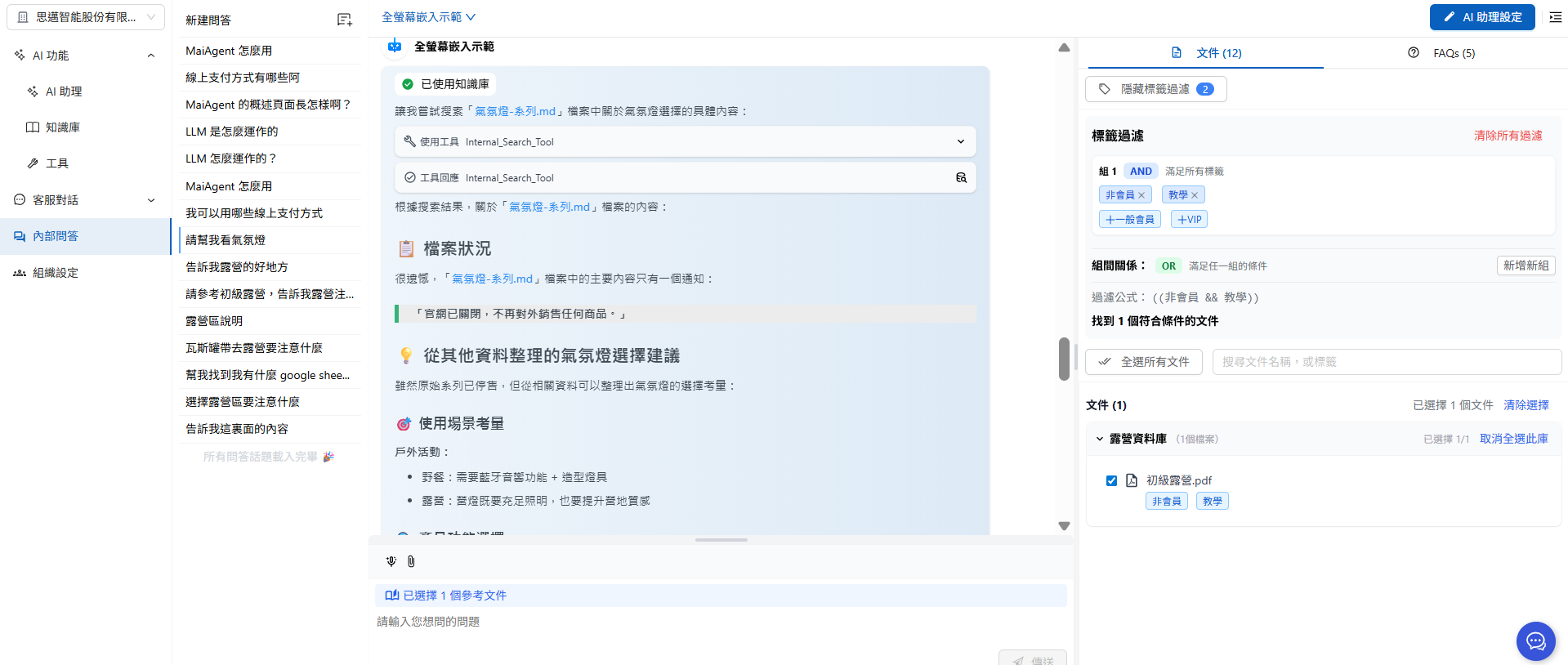
"Include All Labels (AND)" allows access only to content that simultaneously matches every label in the group.
For example: If a conversation is a tutorial-related conversation with a non-member, you can use tag filtering to only open documents that simultaneously match the "Non-Member" and "Tutorial" tags for the AI Assistant to use.
As shown: After filtering, the AI Assistant can only use the beginner camping document, avoiding disclosure of irrelevant information in non-member conversations.
#### Include Any Label (OR)
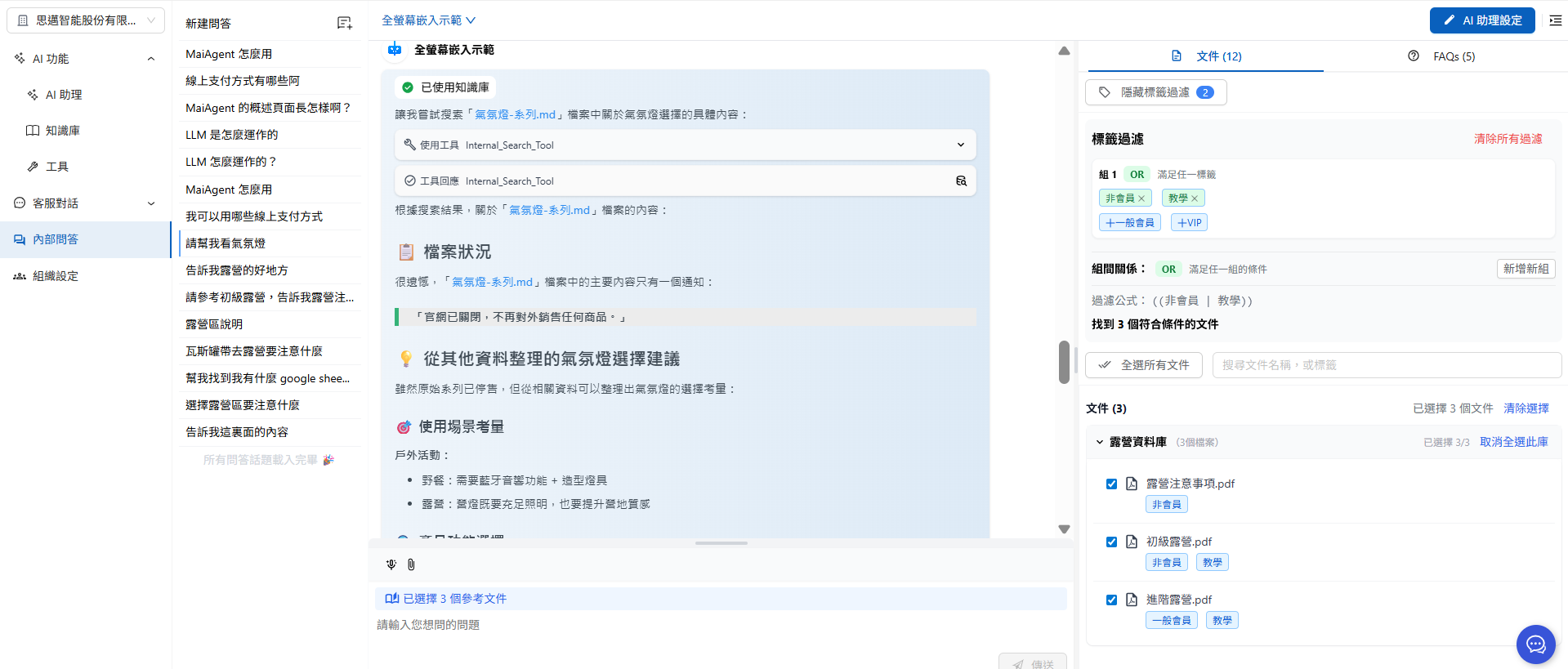
For conversations with members, use "Include Any Label (OR)" so the AI Assistant can reference documents matching either Regular Member or Non-Member:
Members can see more document content than non-members, achieving tiered access control.
{% hint style="info" %}
In label filtering, click "Include All Labels (AND)" or "Include Any Label (OR)" to switch how the group is evaluated (the figure below shows the previous AND/OR buttons in the same location). A sentence at the bottom of the builder describes the current conditions so you can confirm that the settings are correct.
{% endhint %}
> For filtering results, refer to: [Internal Q\&A Features](/maiagent-user-guide/en/work/explain.md)
## Document Metadata Management
### **What Is Metadata?**
Metadata is like a document's "ID card," recording detailed information about the document and helping the system better manage and use these documents.
**Example: Beginner Camping.pdf**
```
Metadata settings:
├── Document version: v2.1
├── Created date: 2024-03-15
├── Last updated: 2024-11-20
├── Next review: 2025-05-20
├── Updated by department: Marketing
└── Version status: Reviewed and approved for release
```
### Why Use Metadata?
When data is complex and voluminous, using metadata helps you maintain data quality more conveniently and quickly by:
**Improving Management Efficiency**
* Quickly identify document status and version information
* Stay more organized when managing large volumes of documents in bulk
* Reduce time spent on manual searching and verification
**Ensuring Content Quality**
* Use the latest document versions
* Track document update history and version status
* Ensure the AI Assistant uses the latest and reviewed content
* Set periodic review reminders to maintain data quality
### Add Metadata to Documents
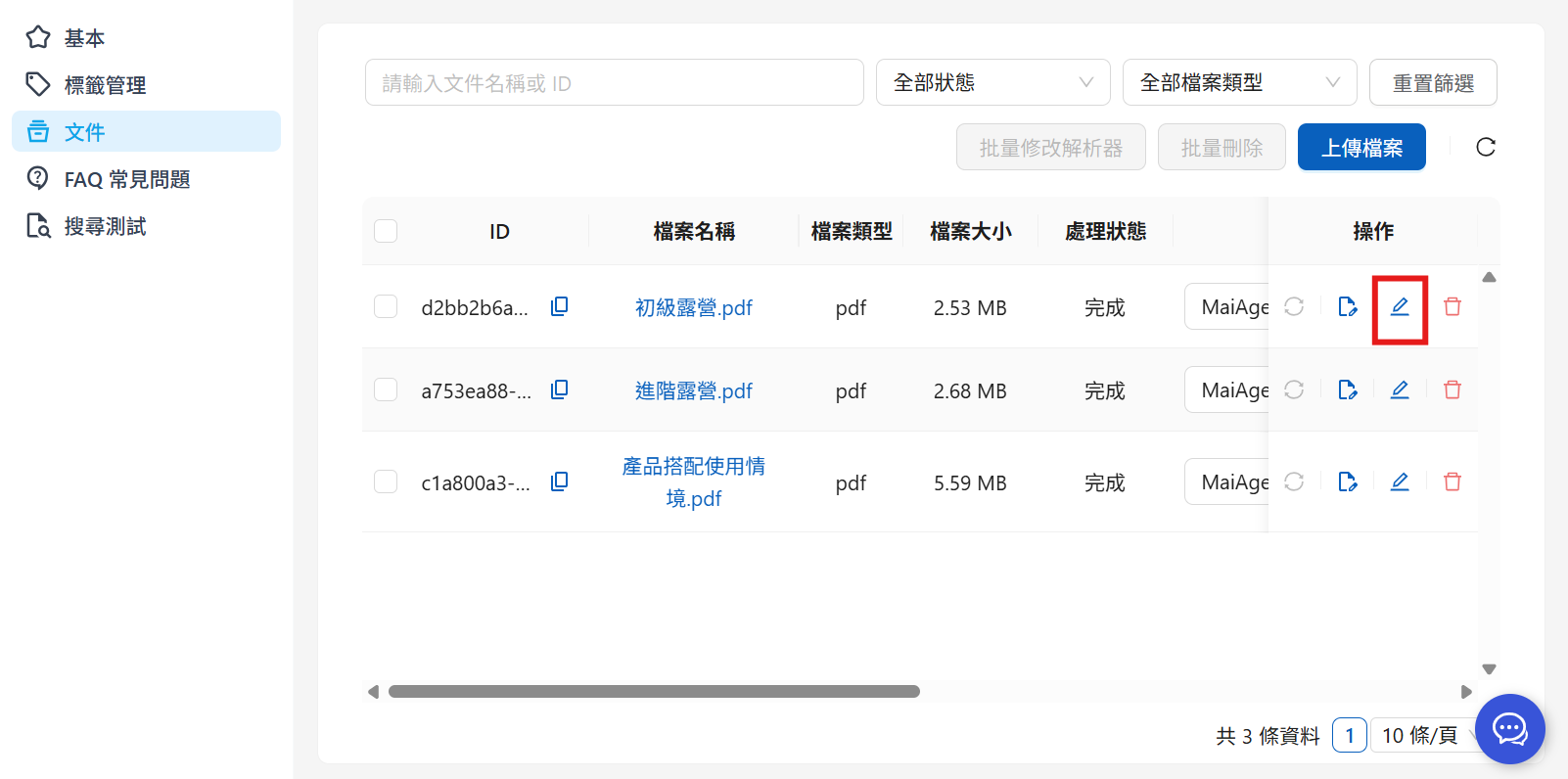
1. Go to the document page and click Edit File Information:
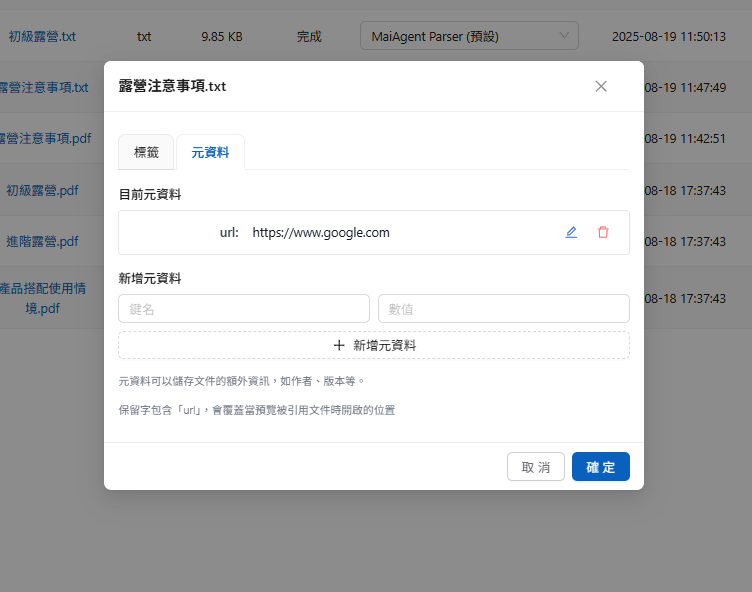
2. Switch to the Metadata tab and enter the metadata mappings
> MaiAgent uses key-value pairs to store and retrieve metadata
After entering, click the "Add Metadata" button to add the key-value pair you just entered (you can add multiple metadata entries at once).
After adding, you can see the metadata you just added appearing in the field.
### Add Metadata to FAQs
1. Go to the FAQ management interface within the Knowledge Base, select the FAQ you want to edit, then click the Edit button
2. Switch to the Metadata page, enter the values, then click Add Metadata
After entering all values, click "Confirm"
The added metadata will appear in the FAQ list.
### Custom URL Mapping
`url` is a reserved word in the metadata system. If you set `url: https://...your-specified-URL`, the URL you set will override the original file location when viewing citation snippets in conversations, opening your specified URL instead.
**Example Scenario: Brand Spring Promotional Campaign**
**Original Settings:**
```yaml
title: "2025 Spring Sale Event Details"
content: "This event includes 20% off storewide, bonus gifts for minimum purchase amounts, and many more offers..."
url: https://www.yourstore.com/spring-sale-2025
```
**Usage Effect:** When a user asks "What offers are available in the spring sale?" in a conversation:
* The AI will cite this knowledge snippet to answer the question
* When the user clicks the citation source, it will not open the internal file location
* Instead, it will navigate directly to `https://www.yourstore.com/spring-sale-2025`, the official campaign page
* The user can immediately see the latest event details, purchase buttons, countdown timers, and other dynamic content
**Practical Scenarios:**
* **Website Announcements**: `url: https://www.company.com/announcements/system-maintenance`
* **Product Spec Pages**: `url: https://www.product.com/specs/model-x1`
* **Customer Service Policies**: `url: https://support.company.com/return-policy`
* **Event Registration**: `url: https://events.company.com/register/webinar-2025`
The benefit of this setup is making AI responses more actionable -- not only providing information but also guiding users directly to relevant pages to take action, improving user experience and conversion rates.
***
#### Before Setting url
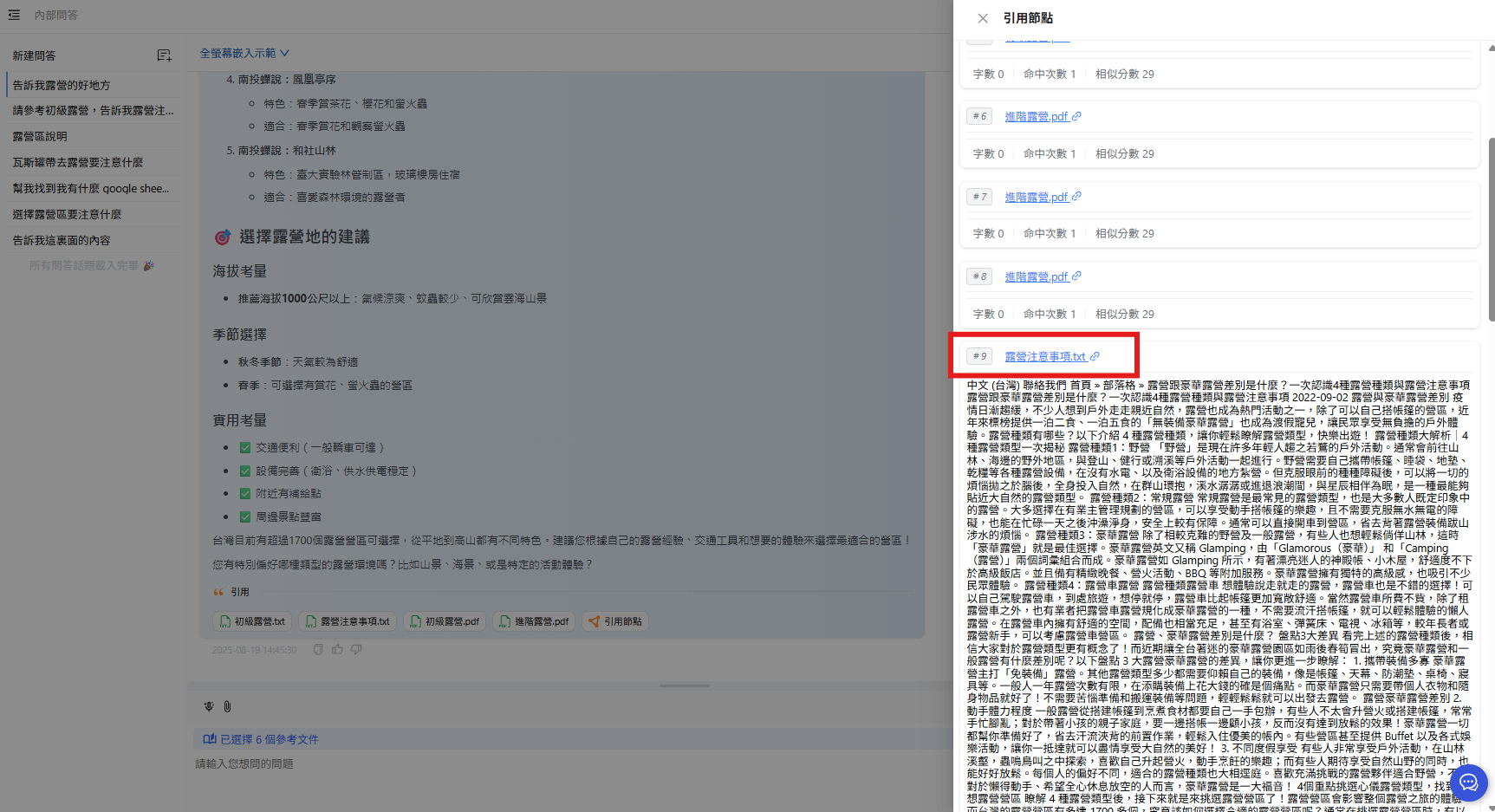
As shown below, before setting the url value, clicking a citation node and clicking any node (e.g., Beginner Camping.pdf) allows you to view the original document (you can configure whether to allow users to download original document files in the conversation platform):
{% hint style="info" %}
[Conversation Platform - Allow Citation Document Download Settings](/maiagent-user-guide/en/serve/platform-settings/function-settings.md#ai-interaction)
{% endhint %}
View citation nodes
View original file location
#### After Setting url (Using Google as an Example)
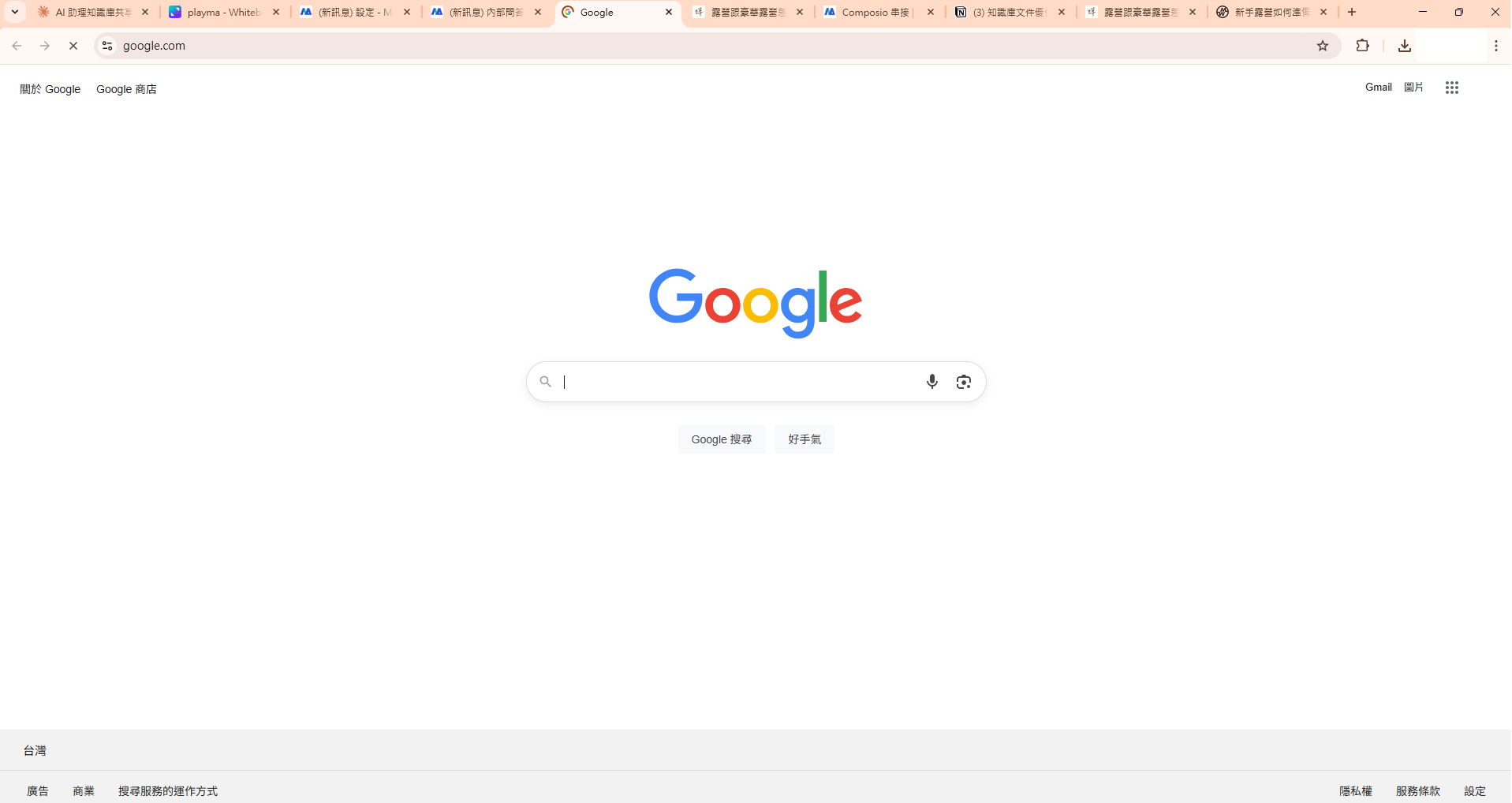
Click the cited node file (Camping Precautions.txt) again. Instead of showing a document preview, it will open the Google homepage:
After setting the `url` field in metadata, when users see the AI Assistant citing that document in a conversation, they can click directly to navigate to the link you set for more complete information.
---
# Agent Instructions
This documentation is published with GitBook. GitBook is the documentation platform designed so that both humans and AI agents can read, navigate, and reason over technical content effectively. Learn more at gitbook.com.
## Querying This Documentation
If you need additional information that is not directly available in this page, you can query the documentation by asking a question.
Perform an HTTP GET request on the following URL with the `ask` and `goal` query parameters:
```
GET https://docs.maiagent.ai/maiagent-user-guide/en/build/knowledge-base/tags-and-metadata.md?ask=&goal=
```
`ask` is the immediate question: it should be specific, self-contained, and written in natural language.
`goal` is what the user is ultimately trying to achieve, the reason they need the answer. Sharing it helps GitBook give you a better, more relevant answer. A goal is most helpful when it describes the outcome the user wants rather than restating the question. For example, with `ask=how do I create an API token`, a goal like `automate deployments from our CI pipeline` lets GitBook tailor the answer to that use case.
The response will contain a direct answer to the question and relevant excerpts and sources from the documentation.
Use this mechanism when the answer is not explicitly present in the current page, you need clarification or additional context, or you want to retrieve related documentation sections.
.png?alt=media)
.png?alt=media)
.png?alt=media)
.png?alt=media)
%20(1).png?alt=media)
.png?alt=media)
.png?alt=media)
.png?alt=media)
.png?alt=media)
.png?alt=media)
.png?alt=media)
.png?alt=media)
.png?alt=media)
.png?alt=media)
.png?alt=media)
.png?alt=media)