> For the complete documentation index, see [llms.txt](https://docs.maiagent.ai/llms.txt). Markdown versions of documentation pages are available by appending `.md` to page URLs; this page is available as [Markdown](https://docs.maiagent.ai/maiagent-user-guide/en/build/knowledge-base/scrape-website.md).

# Use the Crawler (Data Scraping) Feature

Enter a URL, set the crawl scope, and choose a one-time run or recurring schedule. MaiAgent will automatically crawl the website and import its pages into a knowledge base, where you can track the res

## Purpose and Benefits <a href="#feature-purpose-and-value" id="feature-purpose-and-value"></a>

As a business user, you may often be asked by a manager to consult or compile regulations published on websites, or to keep an AI assistant up to date with the latest product information and FAQs on your company's website.

If you have a technical background or help from an engineer, you might automate data collection with a crawler. For nontechnical users, however, collecting pages by hand takes time and effort and can easily miss important information.

MaiAgent's No-Code web scraping feature lets you:

* **Crawl an entire website scope at once**: Set the crawl depth, page limit, and URL rules to choose which pages to crawl.
* **Run once or on a recurring schedule**: Crawl immediately, or recrawl automatically every day, week, or month.
* **Import automatically into a knowledge base**: Import crawled pages directly into a selected knowledge base. For URLs that already exist, choose to skip, overwrite, or allow duplicates.
* **Track import results**: See how many pages succeeded or failed in each import record.

## Use Case <a href="#use-case" id="use-case"></a>

A customer service manager wants her AI support assistant's answers to stay consistent with the FAQs on the company website. She creates a knowledge base for those FAQs, then opens **Crawler** and creates a crawl request. She enters the website's FAQ URL and sets a low maximum crawl depth and page limit so she can first confirm that only FAQ pages will be crawled. She chooses **Scheduled run** for every Monday at 9 a.m., selects the new knowledge base as the automatic import destination, and chooses **Skip** when a URL already exists. The weekly synchronization task then appears on the Schedules tab. After each crawl, she can open **Import history** in the crawl request details to see which knowledge base received the pages and how many succeeded or failed. When the website's FAQs change, she no longer needs an engineer to compile the content again.

## How Do I Crawl a Website? <a href="#how-to-scrape" id="how-to-scrape"></a>

{% hint style="info" %}
If **Crawler** does not appear in the left menu, your account does not have access to it. Contact your organization administrator to confirm your permissions.
{% endhint %}

### 1. Open the Crawler Page <a href="#open-crawler" id="open-crawler"></a>

In the left menu, click <mark style="color:blue;">AI Features</mark> → <mark style="color:blue;">Crawler</mark>. The page has two tabs:

* <mark style="color:blue;">Page crawl requests</mark>: Lists every crawl, including one-time runs and crawls started automatically by schedules. Search by name or URL, and filter by type (one-time/scheduled) and crawl status (completed/in progress/failed).
* <mark style="color:blue;">Schedules</mark>: Lists all recurring crawl schedules.

<figure><img src="https://1360999650-files.gitbook.io/~/files/v0/b/gitbook-x-prod.appspot.com/o/spaces%2F6v6TNkkOQVfRYfcNirHL%2Fuploads%2Fgit-blob-e4539a8db7b766461e78291d443ecd5bdab3035f%2Fcrawl-list-requests.png?alt=media" alt="The Page crawl requests tab on the Crawler page lists a completed one-time crawl with Details, Import, and View actions"><figcaption><p>Page crawl requests tab: each request shows its type, crawl status, and creation time</p></figcaption></figure>

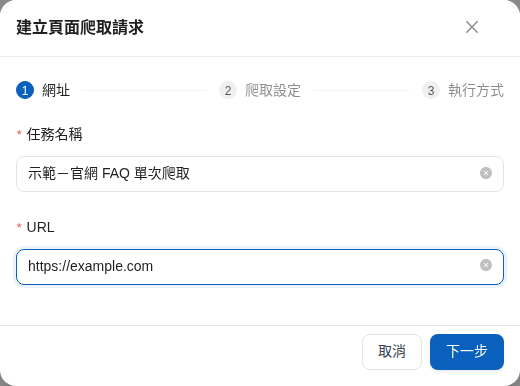
### 2. Enter a Task Name and URL <a href="#step-url" id="step-url"></a>

Click <mark style="color:blue;">Create page crawl request</mark> in the upper right. The setup flow has three steps: **URL**, **Crawl settings**, and **Execution method**.

In the first step, enter:

* <mark style="color:blue;">Task name</mark>: A name that helps you identify this crawl, such as “Daily product page crawl.”
* <mark style="color:blue;">URL</mark>: The URL where crawling should start.

Then click <mark style="color:blue;">Next</mark>.

<figure><img src="https://1360999650-files.gitbook.io/~/files/v0/b/gitbook-x-prod.appspot.com/o/spaces%2F6v6TNkkOQVfRYfcNirHL%2Fuploads%2Fgit-blob-90d847c058b16aa2555db9acbfb4deb8cb91d7df%2Fcrawl-create-url.png?alt=media" alt="First step of the Create page crawl request dialog, with fields for the task name and URL"><figcaption><p>Step 1: enter the task name and starting URL</p></figcaption></figure>

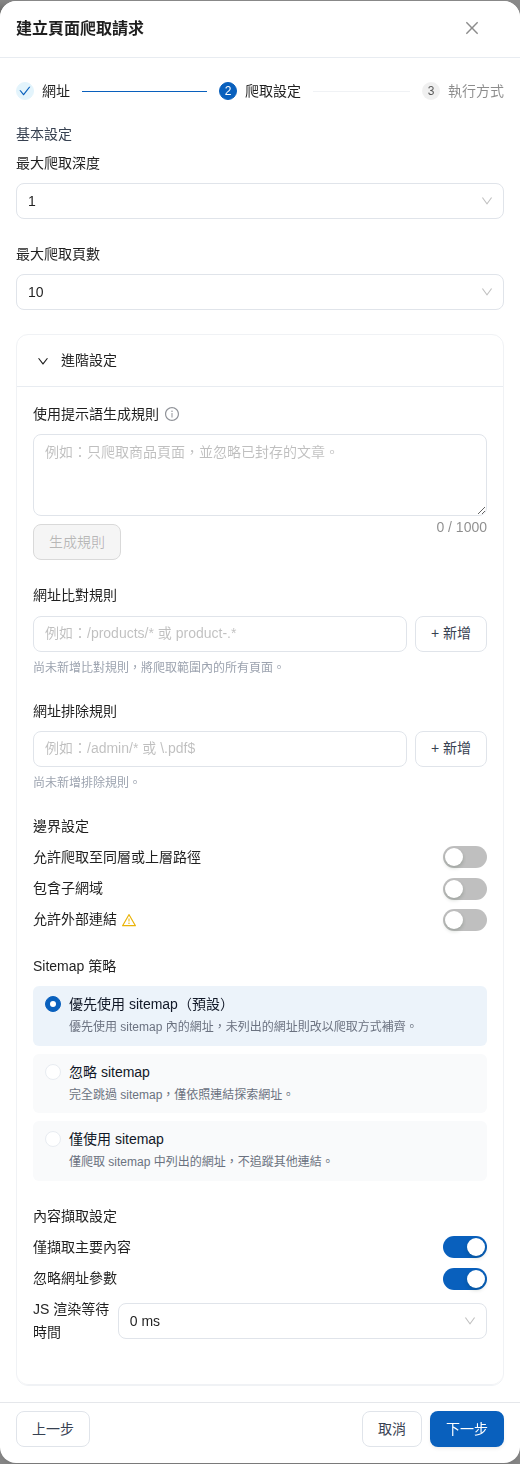
### 3. Set the Crawl Depth and Scope <a href="#step-crawl-settings" id="step-crawl-settings"></a>

The second step, **Crawl settings**, controls how many pages to crawl. <mark style="color:blue;">Basic settings</mark> has two fields:

| Field                                                   | Description                                                                                        |
| ------------------------------------------------------- | -------------------------------------------------------------------------------------------------- |
| <mark style="color:blue;">Maximum crawl depth</mark>    | Number of link levels to follow from the starting URL. Choose 1–10; the default is 2.              |
| <mark style="color:blue;">Maximum pages to crawl</mark> | Maximum number of pages in this crawl. Choose 10, 50, 100, 500, 1000, or 5000; the default is 100. |

<figure><img src="https://1360999650-files.gitbook.io/~/files/v0/b/gitbook-x-prod.appspot.com/o/spaces%2F6v6TNkkOQVfRYfcNirHL%2Fuploads%2Fgit-blob-b8322b7180855f80945e61f82f8859bbf5c5a8bb%2Fcrawl-create-basic-settings.png?alt=media" alt="Basic crawl settings with maximum depth set to 1 and maximum pages set to 10"><figcaption><p>Basic settings: control the crawl scope with the maximum depth and page limit</p></figcaption></figure>

For more precise control, expand <mark style="color:blue;">Advanced settings</mark>:

| Setting                                                      | Description                                                                                                                                                                                                                                        |
| ------------------------------------------------------------ | -------------------------------------------------------------------------------------------------------------------------------------------------------------------------------------------------------------------------------------------------- |
| <mark style="color:blue;">URL matching rules</mark>          | Crawl only URLs that match a rule, such as `/products/*`. Without rules, all pages within the crawl scope are included.                                                                                                                            |
| <mark style="color:blue;">URL exclusion rules</mark>         | Do not crawl URLs that match a rule, such as `/admin/*` or `\.pdf$`.                                                                                                                                                                               |
| <mark style="color:blue;">Boundary settings</mark>           | Choose whether to <mark style="color:blue;">allow crawling same-level or parent paths</mark>, <mark style="color:blue;">include subdomains</mark>, or <mark style="color:blue;">allow external links</mark>. All are off by default.               |
| <mark style="color:blue;">Sitemap strategy</mark>            | <mark style="color:blue;">Prefer sitemap (default)</mark>, <mark style="color:blue;">Ignore sitemap</mark>, or <mark style="color:blue;">Use sitemap only</mark>.                                                                                  |
| <mark style="color:blue;">Content extraction settings</mark> | <mark style="color:blue;">Extract main content only</mark> and <mark style="color:blue;">Ignore URL parameters</mark> are on by default. You can also set the <mark style="color:blue;">JS rendering wait time</mark> to 0, 500, 1000, or 2000 ms. |

<figure><img src="https://1360999650-files.gitbook.io/~/files/v0/b/gitbook-x-prod.appspot.com/o/spaces%2F6v6TNkkOQVfRYfcNirHL%2Fuploads%2Fgit-blob-34933d9cdfa0fd7d6a373ab3c4e6e7321b45c059%2Fcrawl-create-advanced-settings.png?alt=media" alt="Expanded advanced settings with URL matching and exclusion rules, boundary settings, sitemap strategy, and content extraction settings"><figcaption><p>Advanced settings: narrow the crawl scope with URL rules, boundaries, and a sitemap strategy</p></figcaption></figure>

{% hint style="warning" %}
Enabling <mark style="color:blue;">Allow external links</mark> crawls URLs outside your website and may greatly increase the number of pages and the cost. Start with a small depth and page limit to confirm the scope before increasing them.
{% endhint %}

When you finish, click <mark style="color:blue;">Next</mark>.

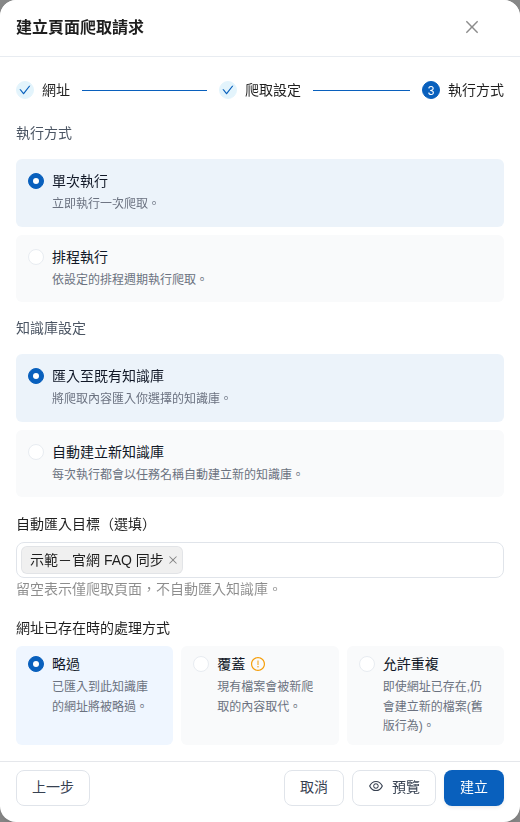
### 4. Choose an Execution Method and Knowledge Base <a href="#step-execution" id="step-execution"></a>

The third step, **Execution method**, determines when to crawl and where to import the results.

**Execution method**

* <mark style="color:blue;">One-time run</mark>: Start one crawl immediately after creating the request.
* <mark style="color:blue;">Scheduled run</mark>: Crawl according to a recurring schedule (see [Set Up a Recurring Schedule](#schedule) in the next section).

**Knowledge base settings**

* <mark style="color:blue;">Import into an existing knowledge base</mark>: Under <mark style="color:blue;">Automatic import destination (optional)</mark>, select one or more knowledge bases. Pages are imported automatically after crawling. Leave this empty to crawl without importing; you can [import manually](#manual-import) later.
* <mark style="color:blue;">Automatically create a new knowledge base</mark>: Create a new knowledge base named after the task on each run and import the crawled content into it.

After selecting an import destination, you can choose <mark style="color:blue;">How to handle existing URLs</mark> for URLs already imported into that knowledge base:

| Option                                            | Description                                           |
| ------------------------------------------------- | ----------------------------------------------------- |
| <mark style="color:blue;">Skip</mark> (default)   | Skip URLs already imported into this knowledge base.  |
| <mark style="color:blue;">Overwrite</mark>        | Replace the existing file with newly crawled content. |
| <mark style="color:blue;">Allow duplicates</mark> | Create a new file even if the URL already exists.     |

<figure><img src="https://1360999650-files.gitbook.io/~/files/v0/b/gitbook-x-prod.appspot.com/o/spaces%2F6v6TNkkOQVfRYfcNirHL%2Fuploads%2Fgit-blob-b849114622ef4fe018592ac55f4824c782ab52d5%2Fcrawl-create-execution-oneshot.png?alt=media" alt="Execution method step with One-time run, Import into an existing knowledge base, and Skip selected for existing URLs"><figcaption><p>Execution method: choose a one-time run, an automatic import destination, and how to handle duplicate URLs</p></figcaption></figure>

{% hint style="info" %}
When synchronizing the same website regularly, choose <mark style="color:blue;">Skip</mark> or <mark style="color:blue;">Overwrite</mark> to avoid accumulating duplicate files that could cause the AI assistant to cite outdated content.
{% endhint %}

### 5. Preview and Create <a href="#preview-and-create" id="preview-and-create"></a>

Before creating the request, click <mark style="color:blue;">Preview</mark> to check which pages will be crawled. The preview explores website URLs and incurs a charge. A confirmation dialog appears first; click <mark style="color:blue;">Confirm</mark> to proceed.

The preview shows the number of URLs found, URLs to crawl and exclude, estimated pages and time, and a list of pages to crawl.

<figure><img src="https://1360999650-files.gitbook.io/~/files/v0/b/gitbook-x-prod.appspot.com/o/spaces%2F6v6TNkkOQVfRYfcNirHL%2Fuploads%2Fgit-blob-98ade6f0b412295b27e59ddb54058d43ec4ade6b%2Fcrawl-preview.png?alt=media" alt="Preview dialog showing the target URL, counts of discovered, included, and excluded URLs, estimated pages and time, and a list of pages to crawl"><figcaption><p>Preview: check the number and list of pages before creating the request</p></figcaption></figure>

{% hint style="info" %}
The preview is an estimate. Actual crawling may vary because of depth limits, dynamic JavaScript pages, and robots.txt.
{% endhint %}

If everything looks correct, click <mark style="color:blue;">Create</mark>. A one-time request appears on the **Page crawl requests** tab and starts crawling.

If the URL was crawled before, a <mark style="color:blue;">This URL has been crawled before</mark> confirmation dialog shows the previous crawl time, page count, and imported knowledge bases. To crawl it again, click <mark style="color:blue;">Crawl again</mark>; otherwise, click <mark style="color:blue;">Cancel</mark>.

<figure><img src="https://1360999650-files.gitbook.io/~/files/v0/b/gitbook-x-prod.appspot.com/o/spaces%2F6v6TNkkOQVfRYfcNirHL%2Fuploads%2Fgit-blob-1701750793d8cd036def10ccfdc6c13d6294e3a0%2Fcrawl-previously-crawled.png?alt=media" alt="Confirmation dialog for a previously crawled URL, showing the previous crawl time, child page count, and imported knowledge bases"><figcaption><p>Repeat crawl reminder: review the previous result before deciding whether to crawl again</p></figcaption></figure>

## Set Up a Recurring Schedule <a href="#schedule" id="schedule"></a>

When website content changes regularly, choose <mark style="color:blue;">Scheduled run</mark> in step 3 to recrawl and import into a knowledge base automatically.

| Field                                                                                   | Description                                                                                                                                                          |
| --------------------------------------------------------------------------------------- | -------------------------------------------------------------------------------------------------------------------------------------------------------------------- |
| <mark style="color:blue;">Frequency</mark>                                              | <mark style="color:blue;">Once</mark>, <mark style="color:blue;">Daily</mark>, <mark style="color:blue;">Weekly</mark>, or <mark style="color:blue;">Monthly</mark>. |
| <mark style="color:blue;">Time zone</mark>                                              | Time zone used for the schedule.                                                                                                                                     |
| <mark style="color:blue;">Start date</mark> / <mark style="color:blue;">End date</mark> | Period when the schedule is active. End date is optional; a one-time frequency only requires a start date.                                                           |
| <mark style="color:blue;">Execution time</mark>                                         | Time of each run.                                                                                                                                                    |
| <mark style="color:blue;">Days of the week</mark>                                       | For weekly schedules, select the days to run (multiple selections allowed).                                                                                          |
| <mark style="color:blue;">Day of the month</mark>                                       | For monthly schedules, enter a day from 1–31.                                                                                                                        |

<figure><img src="https://1360999650-files.gitbook.io/~/files/v0/b/gitbook-x-prod.appspot.com/o/spaces%2F6v6TNkkOQVfRYfcNirHL%2Fuploads%2Fgit-blob-2d4abe505f3c1a4ac079e7c5eabefd3ebea96cdb%2Fcrawl-create-execution-schedule.png?alt=media" alt="Scheduled run set to Weekly, Asia/Taipei, 09:00 on Monday, importing into an existing knowledge base"><figcaption><p>Scheduled run: crawl every Monday at 9 a.m. and import into a knowledge base automatically</p></figcaption></figure>

After creation, the schedule appears on the <mark style="color:blue;">Schedules</mark> tab with its settings and status (<mark style="color:blue;">Active</mark> / <mark style="color:blue;">Paused</mark>). The action icons let you:

* **Edit**: Open **Edit schedule** to change the task name, crawl settings, schedule time, and knowledge base settings. The starting URL cannot be changed after creation.
* **Execution history**: View the time and crawl status of each run and open its details.
* **Pause / Enable**: Temporarily pause or re-enable the schedule.
* **Delete**: Delete the schedule.

<figure><img src="https://1360999650-files.gitbook.io/~/files/v0/b/gitbook-x-prod.appspot.com/o/spaces%2F6v6TNkkOQVfRYfcNirHL%2Fuploads%2Fgit-blob-a004c12c146f1a0a9fae14b5ee685e937d16b530%2Fcrawl-schedule-list.png?alt=media" alt="Schedules tab listing a schedule for Mondays at 9:00, with Active status and Edit, Execution history, Pause, and Delete actions"><figcaption><p>Schedules tab: view settings, edit a schedule, check its execution history, pause it, or delete it</p></figcaption></figure>

{% hint style="warning" %}
Each scheduled run crawls pages and consumes Credits. Pause the schedule when you temporarily do not need synchronization.
{% endhint %}

## View Crawl Results and Import History <a href="#results-and-import-history" id="results-and-import-history"></a>

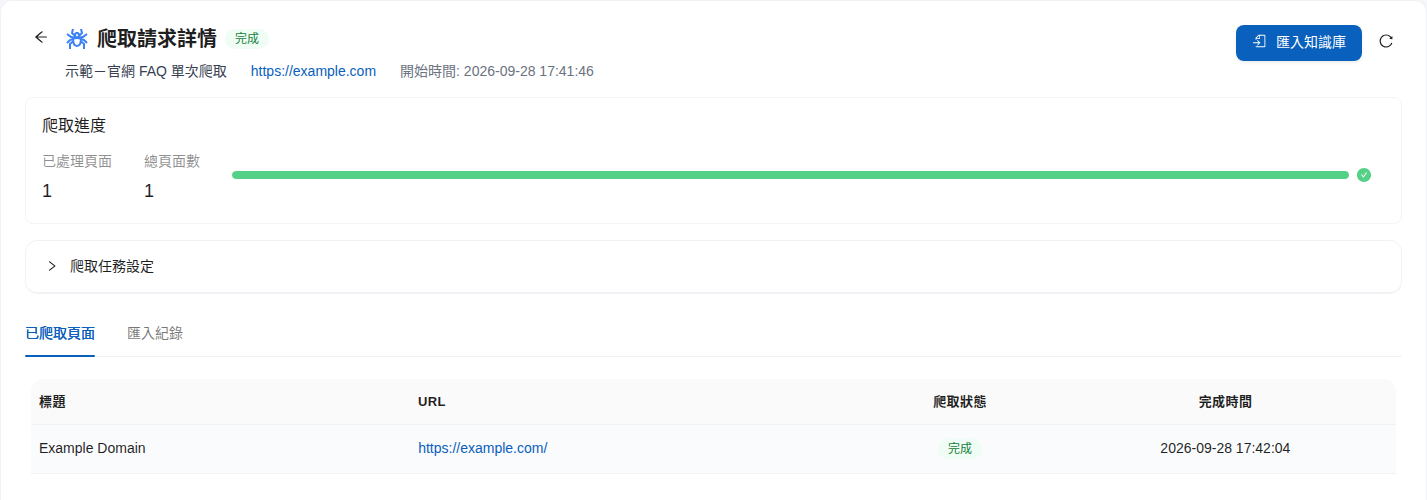
On the **Page crawl requests** tab, click <mark style="color:blue;">Details</mark> for a request to open the <mark style="color:blue;">Crawl request details</mark> page:

* <mark style="color:blue;">Crawl progress</mark>: Number of pages processed and total pages.
* <mark style="color:blue;">Crawl task settings</mark>: Expand to review the URL, crawl settings, and execution method chosen at creation.
* <mark style="color:blue;">Crawled pages</mark>: Titles, URLs, crawl statuses, and completion times of the pages crawled.

<figure><img src="https://1360999650-files.gitbook.io/~/files/v0/b/gitbook-x-prod.appspot.com/o/spaces%2F6v6TNkkOQVfRYfcNirHL%2Fuploads%2Fgit-blob-0d2fa9e3af7c9c17622c9a76458e1535b3a2f8f8%2Fcrawl-detail.png?alt=media" alt="Crawl request details page with crawl progress, task settings, and a list of crawled pages"><figcaption><p>Crawl request details: view progress and crawled pages</p></figcaption></figure>

Switch to the <mark style="color:blue;">Import history</mark> tab to see each import's time, knowledge base, <mark style="color:blue;">Import method</mark> (automatically imported pages show **Automatic**), and counts of successful and failed pages.

<figure><img src="https://1360999650-files.gitbook.io/~/files/v0/b/gitbook-x-prod.appspot.com/o/spaces%2F6v6TNkkOQVfRYfcNirHL%2Fuploads%2Fgit-blob-e7cd87be7b457d330db2ca3192ca780cf6fb4cab%2Fcrawl-import-history.png?alt=media" alt="Import history tab showing one automatic import into an example knowledge base, with 1 success and 0 failures"><figcaption><p>Import history: see the knowledge base, import method, and success/failure counts for each import</p></figcaption></figure>

Click the action icon to open the <mark style="color:blue;">Imported pages list</mark> and review each page's import status and corresponding knowledge base file.

<figure><img src="https://1360999650-files.gitbook.io/~/files/v0/b/gitbook-x-prod.appspot.com/o/spaces%2F6v6TNkkOQVfRYfcNirHL%2Fuploads%2Fgit-blob-776aee0d55309e3f78688782e1f8b4c84cbd41f7%2Fcrawl-import-run-pages.png?alt=media" alt="Imported pages list dialog with page titles, URLs, successful import statuses, and corresponding knowledge base files"><figcaption><p>Imported pages list: find the knowledge base file created for each page</p></figcaption></figure>

On the **Page crawl requests** list, you can also click <mark style="color:blue;">View</mark> on a completed request to open <mark style="color:blue;">Failed import records</mark>. Select a knowledge base to see which pages failed to import and why.

Imported content appears as .md files in the knowledge base's document list. You can set tags and metadata just as you can for other files. The <mark style="color:blue;">Source</mark> column shows a <mark style="color:blue;">Crawler</mark> tag; click it to return to the corresponding crawl request details.

## Manually Import Crawled Pages <a href="#manual-import" id="manual-import"></a>

If you did not set up automatic import or want to import pages into another knowledge base, import them manually:

1. On the crawl request details page, click <mark style="color:blue;">Import into knowledge base</mark> (or click <mark style="color:blue;">Import</mark> for the request in the list).
2. Select the target <mark style="color:blue;">Knowledge base</mark> and <mark style="color:blue;">How to handle existing URLs</mark>.
3. Select the pages to import, then click <mark style="color:blue;">Import</mark>.

<figure><img src="https://1360999650-files.gitbook.io/~/files/v0/b/gitbook-x-prod.appspot.com/o/spaces%2F6v6TNkkOQVfRYfcNirHL%2Fuploads%2Fgit-blob-b84abfbe106ef4aab81f035bee907c9c9c77b2e2%2Fcrawl-manual-import.png?alt=media" alt="Page list dialog for selecting a knowledge base, how to handle existing URLs, and pages to import"><figcaption><p>Manual import: choose a knowledge base, duplicate URL handling, and pages to import</p></figcaption></figure>

If you choose <mark style="color:blue;">Skip</mark> and some URLs have already been imported, the system reports how many import tasks were created and how many duplicate URLs were skipped.

{% hint style="warning" %}
A manual import recrawls the latest page data and incurs a crawling charge.
{% endhint %}

## Web Scraping Considerations <a href="#scraping-considerations" id="scraping-considerations"></a>

* Make sure you have permission to crawl the target website's content.
* Crawling, previewing, and manually importing all consume Credits. Start with a small maximum crawl depth and page limit to verify the scope before increasing them.
* After crawling, use [Search Test](/maiagent-user-guide/en/build/knowledge-base/test-search-result.md) to check data quality.
* If website content changes often, use a [recurring schedule](#schedule) to keep the information current, and choose <mark style="color:blue;">Skip</mark> or <mark style="color:blue;">Overwrite</mark> to avoid duplicate files.


---

# Agent Instructions
This documentation is published with GitBook. GitBook is the documentation platform designed so that both humans and AI agents can read, navigate, and reason over technical content effectively. Learn more at gitbook.com.

## Querying This Documentation
If you need additional information that is not directly available in this page, you can query the documentation by asking a question.

Perform an HTTP GET request on the following URL with the `ask` and `goal` query parameters:

```
GET https://docs.maiagent.ai/maiagent-user-guide/en/build/knowledge-base/scrape-website.md?ask=<question>&goal=<user_goal>
```

`ask` is the immediate question: it should be specific, self-contained, and written in natural language.
`goal` is what the user is ultimately trying to achieve, the reason they need the answer. Sharing it helps GitBook give you a better, more relevant answer. A goal is most helpful when it describes the outcome the user wants rather than restating the question. For example, with `ask=how do I create an API token`, a goal like `automate deployments from our CI pipeline` lets GitBook tailor the answer to that use case.

The response will contain a direct answer to the question and relevant excerpts and sources from the documentation.

Use this mechanism when the answer is not explicitly present in the current page, you need clarification or additional context, or you want to retrieve related documentation sections.