> For the complete documentation index, see [llms.txt](https://docs.maiagent.ai/llms.txt). Markdown versions of documentation pages are available by appending `.md` to page URLs; this page is available as [Markdown](https://docs.maiagent.ai/maiagent-user-guide/en/build/knowledge-base/km-file-move.md).

# Move Knowledge Base Files

Move knowledge base files to another knowledge base in the same organization without changing file IDs or re-parsing and vectorizing the files

When you need to reorganize a knowledge base (for example, split it by department or product line, or archive outdated information), use the "Move Files" feature to move files in batches to another knowledge base in the same organization. Moving files **does not re-parse or vectorize them**, and their file IDs remain unchanged. This makes it quick to move even large numbers of files without additional processing charges.

{% hint style="info" %}
You can move up to 1,000 files at a time. For more files, split them into batches. Moves run in the background, so you can continue other operations while they are in progress.
{% endhint %}

## 1. Open the Move Dialog <a href="#open-move-modal" id="open-move-modal"></a>

There are three entry points, all of which open the same <mark style="color:blue;">**Move Knowledge Base Files**</mark> dialog. The only difference is which source knowledge base or files the system preselects for you.

### Entry Point 1: Top Right of the Knowledge Base List Page <a href="#entry-kb-list-button" id="entry-kb-list-button"></a>

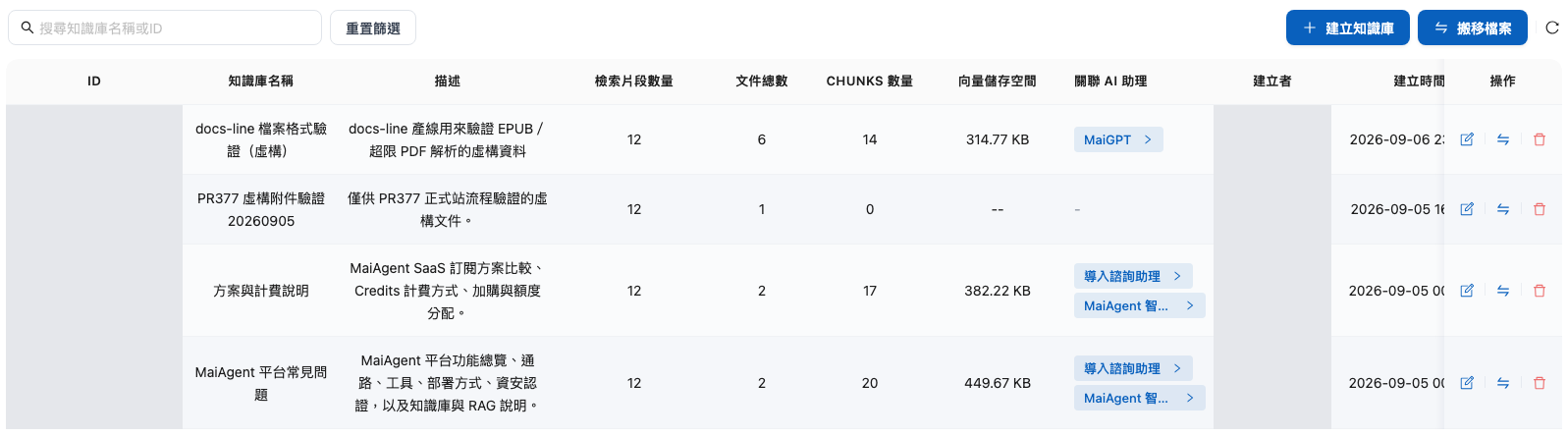
Click <mark style="color:blue;">**Knowledge Base**</mark> in the left menu to open the knowledge base list page, then click <mark style="color:blue;">**Move Files**</mark> at the top right of the page. This entry point does not preselect a source and is useful when planning moves between multiple knowledge bases at once.

<figure><img src="https://1360999650-files.gitbook.io/~/files/v0/b/gitbook-x-prod.appspot.com/o/spaces%2F6v6TNkkOQVfRYfcNirHL%2Fuploads%2Fgit-blob-c94b8b99932bb577018cf74f19fe61264a9140f4%2Fkm-move-01-entry-list-button.png?alt=media" alt="Move Files button at the top right of the knowledge base list page"><figcaption><p>Entry point 1: The <mark style="color:blue;">Move Files</mark> button at the top right of the knowledge base list page</p></figcaption></figure>

### Entry Point 2: Move Icon in the Knowledge Base List <a href="#entry-row-icon" id="entry-row-icon"></a>

In the knowledge base list, click the move icon in a knowledge base's "Actions" column. This entry point **preselects that knowledge base as the source** and is useful when you want to reorganize a specific knowledge base.

<figure><img src="https://1360999650-files.gitbook.io/~/files/v0/b/gitbook-x-prod.appspot.com/o/spaces%2F6v6TNkkOQVfRYfcNirHL%2Fuploads%2Fgit-blob-e4e626c2bd02c956c5d40b88c70b27bbb92c8b04%2Fkm-move-02-entry-row-icon.png?alt=media" alt="Move icon in the Actions column of each knowledge base list row"><figcaption><p>Entry point 2: The move icon in the knowledge base list's "Actions" column</p></figcaption></figure>

### Entry Point 3: Select Files in the Knowledge Base Document List <a href="#entry-kb-documents" id="entry-kb-documents"></a>

Open the <mark style="color:blue;">**Documents**</mark> list on a knowledge base's settings page, select the files you want to move, and click <mark style="color:blue;">**Move Files**</mark>. This entry point **locks the source to the current knowledge base** and preselects the files you just selected. After choosing a target, you must still click "Move In" to add them to the pending move list. This is useful when selecting files to move as you browse documents.

<figure><img src="https://1360999650-files.gitbook.io/~/files/v0/b/gitbook-x-prod.appspot.com/o/spaces%2F6v6TNkkOQVfRYfcNirHL%2Fuploads%2Fgit-blob-6e5437b0c0b5b84eb26d3433fc60298794feffbb%2Fkm-move-03-entry-kb-documents.png?alt=media" alt="Move Files button shown after selecting files in the knowledge base document list"><figcaption><p>Entry point 3: Select files in the document list on the knowledge base settings page, then click <mark style="color:blue;">Move Files</mark></p></figcaption></figure>

## 2. Understand the Move Dialog <a href="#modal-anatomy" id="modal-anatomy"></a>

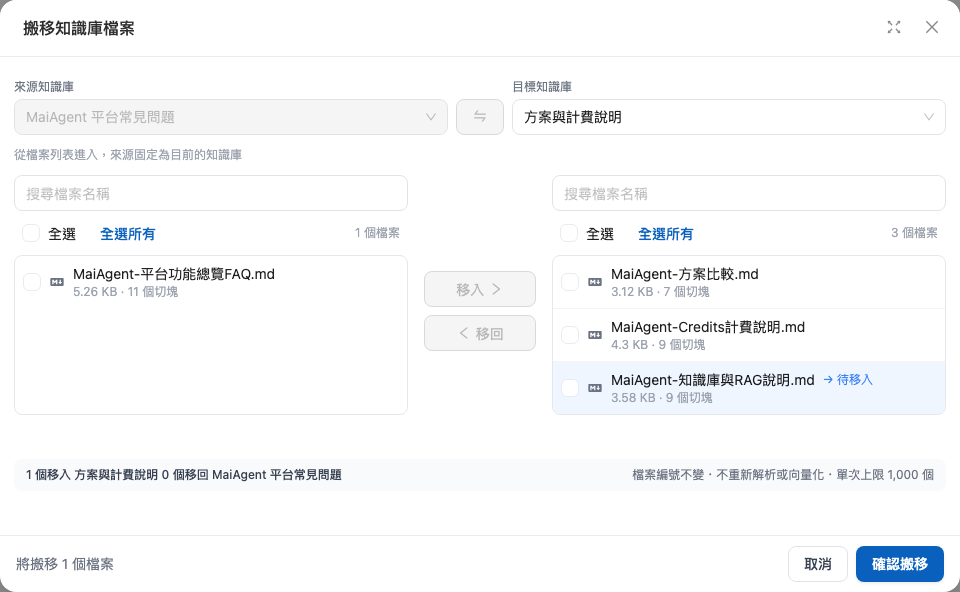
The <mark style="color:blue;">**Move Knowledge Base Files**</mark> dialog has two columns: the left column shows files in the source knowledge base, and the right column shows files in the target knowledge base. Buttons between the columns move files from one side to the other:

<figure><img src="https://1360999650-files.gitbook.io/~/files/v0/b/gitbook-x-prod.appspot.com/o/spaces%2F6v6TNkkOQVfRYfcNirHL%2Fuploads%2Fgit-blob-d92a7fae42dc1844749a29cf8d2c58aa429c0463%2Fkm-file-move-modal.png?alt=media" alt="Move Knowledge Base Files dialog: two columns, Move In / Move Back buttons, and a persistent reminder at the bottom"><figcaption><p>Overview of the Move Knowledge Base Files dialog</p></figcaption></figure>

| Component                                                           | Location                       | Description                                                                                                                                                                                                                  |
| ------------------------------------------------------------------- | ------------------------------ | ---------------------------------------------------------------------------------------------------------------------------------------------------------------------------------------------------------------------------- |
| <mark style="color:blue;">**Source Knowledge Base**</mark> dropdown | Top left of the dialog         | Select the knowledge base where the files currently reside                                                                                                                                                                   |
| <mark style="color:blue;">**Target Knowledge Base**</mark> dropdown | Top right of the dialog        | Select the knowledge base to move the files to. The target must use the same vector settings as the source; when you submit the move, the system also checks that you have delete permissions for both the source and target |
| Swap button                                                         | Between the two dropdowns      | Quickly swap the source and target without selecting them again                                                                                                                                                              |
| Search box                                                          | One in each column             | Search by file name to quickly find files to move when there are many files                                                                                                                                                  |
| Select all checkbox                                                 | Top of each column's file list | Select all files in the current list at once (selecting all after searching selects only the search results)                                                                                                                 |
| <mark style="color:blue;">**Move In**</mark> button (→)             | Between the two columns        | Add selected files from the left column (source) to the pending move list                                                                                                                                                    |
| <mark style="color:blue;">**Move Back**</mark> button (←)           | Between the two columns        | Add selected files from the right column (target) to the pending reverse move list; both directions can be processed in the same batch                                                                                       |
| Pending move indicators                                             | File rows                      | Files added to the pending move list are labeled "Pending Move In" or "Pending Move Back"; they have not actually been moved yet                                                                                             |
| Persistent reminder                                                 | Bottom of the dialog           | "File IDs remain unchanged · No re-parsing or vectorization · Up to 1,000 files per move" reminds you of the feature's three key characteristics                                                                             |

{% hint style="info" %}
The dialog's "edit permissions" message does not mean that move authorization has been granted; submitting a move still requires delete permissions for both knowledge bases.

Until you click <mark style="color:blue;">**Confirm Move**</mark>, all "Move In / Move Back" actions only edit the pending move list. The files have not actually moved, so you can freely adjust the list as often as needed.
{% endhint %}

## 3. Steps <a href="#move-steps" id="move-steps"></a>

{% stepper %}
{% step %}

### Select the Source and Target Knowledge Bases <a href="#select-kbs" id="select-kbs"></a>

Select the <mark style="color:blue;">**Source Knowledge Base**</mark> and <mark style="color:blue;">**Target Knowledge Base**</mark> at the top of the dialog. The target dropdown excludes the source itself and filters knowledge bases by vector settings. Use the swap button between them to quickly swap the source and target. Seeing a knowledge base in the dropdown does not guarantee that you can complete a move; submitting it still requires passing the delete permission checks for both the source and target.
{% endstep %}

{% step %}

### Select Files and Add Them to the Pending Move List <a href="#pick-files" id="pick-files"></a>

Select files in the left column (source) and click <mark style="color:blue;">**Move In**</mark> (→) to add them to the pending move list. You can also select files in the right column (target) and click <mark style="color:blue;">**Move Back**</mark> (←) to move them in the reverse direction. Both directions can be submitted in the same batch. When there are many files, filtering with the search box before selecting all is much faster.

<figure><img src="https://1360999650-files.gitbook.io/~/files/v0/b/gitbook-x-prod.appspot.com/o/spaces%2F6v6TNkkOQVfRYfcNirHL%2Fuploads%2Fgit-blob-1e9c2be18e85c0c4c0faa1738831c2e73837b978%2Fkm-move-04-selected-files.png?alt=media" alt="Source and target knowledge bases selected, with selected files added to the pending move list"><figcaption><p>Selected files added to the pending move list; file rows show Pending Move In / Pending Move Back</p></figcaption></figure>

{% hint style="warning" %}
**Moving files clears all their existing tags and Metadata** (because tag definitions belong to the original knowledge base). To preserve them, first create tags with the same names in the target knowledge base, then reapply the tags after the move. When you add files to the pending move list, the system displays a reminder: "Tags will be cleared for N files."
{% endhint %}
{% endstep %}

{% step %}

### Confirm the Move <a href="#confirm-move" id="confirm-move"></a>

The bottom of the dialog shows the number of files pending a move. Check the counts, then click <mark style="color:blue;">**Confirm Move**</mark>.

<figure><img src="https://1360999650-files.gitbook.io/~/files/v0/b/gitbook-x-prod.appspot.com/o/spaces%2F6v6TNkkOQVfRYfcNirHL%2Fuploads%2Fgit-blob-37f5a331ada3da15fe67a06873a7906f03e2796c%2Fkm-move-06-confirm.png?alt=media" alt="Pending move counts and Confirm Move button at the bottom"><figcaption><p>The bottom shows pending move counts; click <mark style="color:blue;">Confirm Move</mark> to submit</p></figcaption></figure>

After submission, the move runs in the background and the screen shows "Move in Progress." You can work on other tasks while it runs.

<figure><img src="https://1360999650-files.gitbook.io/~/files/v0/b/gitbook-x-prod.appspot.com/o/spaces%2F6v6TNkkOQVfRYfcNirHL%2Fuploads%2Fgit-blob-3f3d3aa741c13bf6af67517499645137398fd45a%2Fkm-move-07-in-progress.png?alt=media" alt="Move in Progress screen"><figcaption><p>The move runs in the background without affecting other operations</p></figcaption></figure>
{% endstep %}

{% step %}

### View the Move Results <a href="#view-result" id="view-result"></a>

When the move finishes, "Move Results" appears with three summary cards: <mark style="color:blue;">**Completed**</mark>, <mark style="color:blue;">**Skipped**</mark> (already in the target knowledge base), and <mark style="color:blue;">**Failed**</mark> (files remain in their original knowledge base). Reasons are listed for each file.

<figure><img src="https://1360999650-files.gitbook.io/~/files/v0/b/gitbook-x-prod.appspot.com/o/spaces%2F6v6TNkkOQVfRYfcNirHL%2Fuploads%2Fgit-blob-9811ad3eef7aeeafac84629234cf7007f4d096f4%2Fkm-move-08-result.png?alt=media" alt="Move Results page: Completed, Skipped, and Failed summary cards with reasons for each file"><figcaption><p>Move Results page: 1 completed, 0 skipped, and 0 failed; click "Move Another Batch" to continue</p></figcaption></figure>

* If any files failed, click <mark style="color:blue;">**Rerun This Batch**</mark>—rerunning is safe: files already moved are skipped and will not be processed again.
* To continue organizing other files, click <mark style="color:blue;">**Move Another Batch**</mark> to return to the selection screen.
* Move results are retained for 7 days, during which you can return to view them and rerun the batch.
  {% endstep %}
  {% endstepper %}

## 4. Limits and Notes <a href="#move-limitations" id="move-limitations"></a>

| Item                         | Description                                                                                                                                                                                                           |
| ---------------------------- | --------------------------------------------------------------------------------------------------------------------------------------------------------------------------------------------------------------------- |
| **Permissions**              | You need **delete permissions** for both the source and target knowledge bases; edit permissions alone are insufficient. Organization owners automatically have full permissions and need no additional configuration |
| **Scope**                    | Moves are limited to knowledge bases within the same organization; knowledge bases in other organizations do not appear in the dropdown                                                                               |
| **Vector settings**          | The target knowledge base must have the same vector settings as the source; those with different settings do not appear in the dropdown                                                                               |
| **Files being parsed**       | Files that are still being parsed cannot be moved; wait for parsing to finish before moving them                                                                                                                      |
| **Per-move limit**           | 1,000 files; move larger numbers in batches                                                                                                                                                                           |
| **Files with the same name** | The system does not deduplicate or rename files. If the target knowledge base already has a file with the same name, both files will exist after the move. Check before moving files                                  |
| **Tags and Metadata**        | All are cleared after a move and must be reapplied in the target knowledge base (see preservation steps below)                                                                                                        |

### Why Must the Target Knowledge Base Have the Same Vector Settings? <a href="#why-same-vector-settings" id="why-same-vector-settings"></a>

Moves require "no re-parsing or re-vectorization" because the system reuses the files' existing parsing results and vector data, changing only the knowledge base they belong to. Vector data is generated using the knowledge base's vector settings—if the target knowledge base uses different settings, the source vectors cannot be retrieved correctly in the target. The system therefore checks this upfront: the <mark style="color:blue;">**Target Knowledge Base**</mark> dropdown only lists knowledge bases with the same vector settings as the source.

If you need to move files to a knowledge base with different vector settings, **upload the original files again to the target knowledge base** so that the system parses and vectorizes them using the target knowledge base's settings.

### Why Are Tags Cleared? How Can I Preserve Them? <a href="#why-tags-cleared" id="why-tags-cleared"></a>

Tag definitions (names and purposes) are created within individual knowledge bases, rather than shared across the organization. Tags from the source knowledge base do not exist in the target knowledge base, so all existing tags and Metadata are cleared when files are moved.

If tags are important to your retrieval or management workflow, follow these steps:

1. Before moving files, record (or take screenshots of) the tags currently applied to them.
2. **Create tags with the same names** in the target knowledge base.
3. Move the files.
4. After the move, **reapply tags to the files** in the target knowledge base's document list.

## 5. Errors and Troubleshooting <a href="#error-handling" id="error-handling"></a>

| Scenario                                                                                         | System Behavior                                                                                                | Recommended Action                                                                                                                                                |
| ------------------------------------------------------------------------------------------------ | -------------------------------------------------------------------------------------------------------------- | ----------------------------------------------------------------------------------------------------------------------------------------------------------------- |
| Some files do not meet the requirements at submission (for example, they are still being parsed) | **The entire batch is rejected**: no files are moved, and reasons are listed for each file                     | Remove the problem files based on the reasons shown (for example, remove files being parsed from the pending move list), then submit again                        |
| Files are being moved by a previous batch                                                        | The system says they cannot be added and provides a "Remove These N Files" button                              | Click "Remove These N Files" to move the remaining files first, then handle these files after the previous batch finishes                                         |
| Some files fail during the move                                                                  | Failed files **remain in their original knowledge base**, and the results page lists the reasons for each file | Click <mark style="color:blue;">**Rerun This Batch**</mark> on the results page; files already moved are automatically skipped, and only failed files are retried |

{% hint style="info" %}
Rejecting the entire batch is intentional: it prevents a partially completed move, with some files succeeding and others failing, from leaving knowledge bases in a state that is difficult to track. Remove files that do not meet the requirements before submitting to complete the move smoothly in one go.
{% endhint %}

## 6. Use Cases <a href="#use-cases" id="use-cases"></a>

### Finance: Split a Shared Knowledge Base by Department <a href="#finance-split-by-department" id="finance-split-by-department"></a>

A bank initially stores credit card, mortgage, and wealth management documents in a single "Customer Service Knowledge Base." As the number of documents grows, its customer service Agent occasionally cites credit card promotional terms when answering mortgage questions. The administrator creates three knowledge bases—"Credit Cards," "Mortgages," and "Wealth Management"—with the same vector settings, then uses the move feature to move hundreds of documents in batches to the appropriate knowledge base by department. No re-parsing or vectorization is needed, and no additional processing charges are incurred. After the split, each department's Agent connects only to its own knowledge base for more focused answers.

### Manufacturing: Organize Catalogs and Specifications by Product Line <a href="#manufacturing-product-line" id="manufacturing-product-line"></a>

An electronic component manufacturer's sales inquiry Agent originally shares a "Product Documents" knowledge base containing catalogs and specifications for three product lines: connectors, cables, and power modules. During an update, the administrator uses the search box in the knowledge base document list to filter for connector files, selects them, and clicks <mark style="color:blue;">**Move Files**</mark> (entry point 3) to move them to a new "Connector Product Line" knowledge base. The administrator then handles the other product lines in the same way. Because file IDs remain unchanged, records that reference them in internal workflows are unaffected.

### Education: Archive Documents at the End of Each Semester <a href="#education-semester-archive" id="education-semester-archive"></a>

A university's admissions and academic affairs Agent knowledge base contains many course announcements and calendars for the current semester. At the end of the semester, the administrator moves outdated documents to a "Past Semester Archive" knowledge base. The active knowledge base stays concise, and the Agent no longer cites outdated information, while the archive remains available to an internal query Agent. Repeating this process each semester establishes a regular knowledge base lifecycle management process.

### Healthcare: Reorganize Patient Education Materials by Department <a href="#healthcare-dept-reorg" id="healthcare-dept-reorg"></a>

A hospital originally stores all patient education materials in a single knowledge base, then decides to split them by department (family medicine, orthopedics, obstetrics and gynecology, and so on) so that each department's LINE patient education Agent connects to the corresponding knowledge base. Because these files often have tags such as "Patient Education" and "Forms," the administrator first creates tags with the same names in each department's knowledge base, then reapplies them after the move to keep tag filtering working.

### Retail and Hospitality: Switch Between Campaign Periods <a href="#retail-campaign-rotation" id="retail-campaign-rotation"></a>

After a peak-season campaign ends, a hotel chain moves room type and promotion documents for its "Summer Package" from the online customer service knowledge base to a "Campaign Archive" knowledge base, while moving documents for the new campaign into the active knowledge base. Because files can move in both directions in the same batch, a single operation switches out the old campaign for the new one.

## 7. Frequently Asked Questions <a href="#faq" id="faq"></a>

#### Q: Will Moving Files Re-parse or Vectorize Them? Will There Be Any Charges? <a href="#faq-no-reprocessing" id="faq-no-reprocessing"></a>

No. Moving files reuses existing parsing results and vector data, changing only the knowledge base they belong to. This makes moves fast and incurs no additional processing charges. This is what the persistent reminder at the bottom of the dialog means: "File IDs remain unchanged · No re-parsing or vectorization · Up to 1,000 files per move."

#### Q: What If I Move Files by Mistake? <a href="#faq-move-back" id="faq-move-back"></a>

Open the move dialog again, swap the source and target (using the swap button between them), and move the files back. Note: if the files originally had tags, those tags were cleared during the first move. Moving the files back will not restore them automatically; you must reapply them.

#### Q: Why Can't I Find the Target Knowledge Base in the Dropdown? <a href="#faq-target-not-listed" id="faq-target-not-listed"></a>

The <mark style="color:blue;">**Target Knowledge Base**</mark> dropdown excludes the source itself and filters knowledge bases by vector settings. If you cannot find a knowledge base, first check whether it belongs to **another organization** (moves between organizations are unsupported) or has different **vector settings** from the source. Even if you can select a target, confirming the move still checks that you have **delete permissions** for both the source and target. If you lack permissions, contact the organization owner to adjust your role permissions.

#### Q: Will a File in the Target Knowledge Base with the Same Name Be Overwritten? <a href="#faq-duplicate-names" id="faq-duplicate-names"></a>

No. Files are not overwritten, automatically deduplicated, or renamed—both files with the same name will exist after the move. To avoid duplicates, check the target knowledge base's file list before moving files, or manually delete the unwanted copy afterward.

#### Q: What If I Need to Move More Than 1,000 Files? <a href="#faq-over-limit" id="faq-over-limit"></a>

Split them into batches. Use the left column's search box and select all feature to group files by keyword. After each batch finishes, click <mark style="color:blue;">**Move Another Batch**</mark> to continue.

#### Q: How Long Can I View Move Results? <a href="#faq-result-retention" id="faq-result-retention"></a>

Move results are retained for 7 days. During this time, you can return to view each file's result and click <mark style="color:blue;">**Rerun This Batch**</mark> for failed batches.


---

# Agent Instructions
This documentation is published with GitBook. GitBook is the documentation platform designed so that both humans and AI agents can read, navigate, and reason over technical content effectively. Learn more at gitbook.com.

## Querying This Documentation
If you need additional information that is not directly available in this page, you can query the documentation by asking a question.

Perform an HTTP GET request on the following URL with the `ask` and `goal` query parameters:

```
GET https://docs.maiagent.ai/maiagent-user-guide/en/build/knowledge-base/km-file-move.md?ask=<question>&goal=<user_goal>
```

`ask` is the immediate question: it should be specific, self-contained, and written in natural language.
`goal` is what the user is ultimately trying to achieve, the reason they need the answer. Sharing it helps GitBook give you a better, more relevant answer. A goal is most helpful when it describes the outcome the user wants rather than restating the question. For example, with `ask=how do I create an API token`, a goal like `automate deployments from our CI pipeline` lets GitBook tailor the answer to that use case.

The response will contain a direct answer to the question and relevant excerpts and sources from the documentation.

Use this mechanism when the answer is not explicitly present in the current page, you need clarification or additional context, or you want to retrieve related documentation sections.