> For the complete documentation index, see [llms.txt](https://docs.maiagent.ai/llms.txt). Markdown versions of documentation pages are available by appending `.md` to page URLs; this page is available as [Markdown](https://docs.maiagent.ai/maiagent-user-guide/en/build/knowledge-base/km-basic-settings.md).

# Create a Knowledge Base: Basic Settings

Basic settings for creating a knowledge base: name and description, retrieval chunk count, similarity threshold, parsers and Embedding models, forcing the full retrieval range, and linked Agents.

## Basic Settings <a href="#basic-settings" id="basic-settings"></a>

### General Information <a href="#general-info" id="general-info"></a>

You can define the name of your knowledge base and add a description on the following page:

<figure><img src="https://1360999650-files.gitbook.io/~/files/v0/b/gitbook-x-prod.appspot.com/o/spaces%2F6v6TNkkOQVfRYfcNirHL%2Fuploads%2Fgit-blob-54f12e2752ebeaec380a1b6a733f6924f051901b%2Fimage%20(162)%20(1).png?alt=media" alt=""><figcaption></figcaption></figure>

#### Retrieval Chunks <a href="#retrieval-chunk" id="retrieval-chunk"></a>

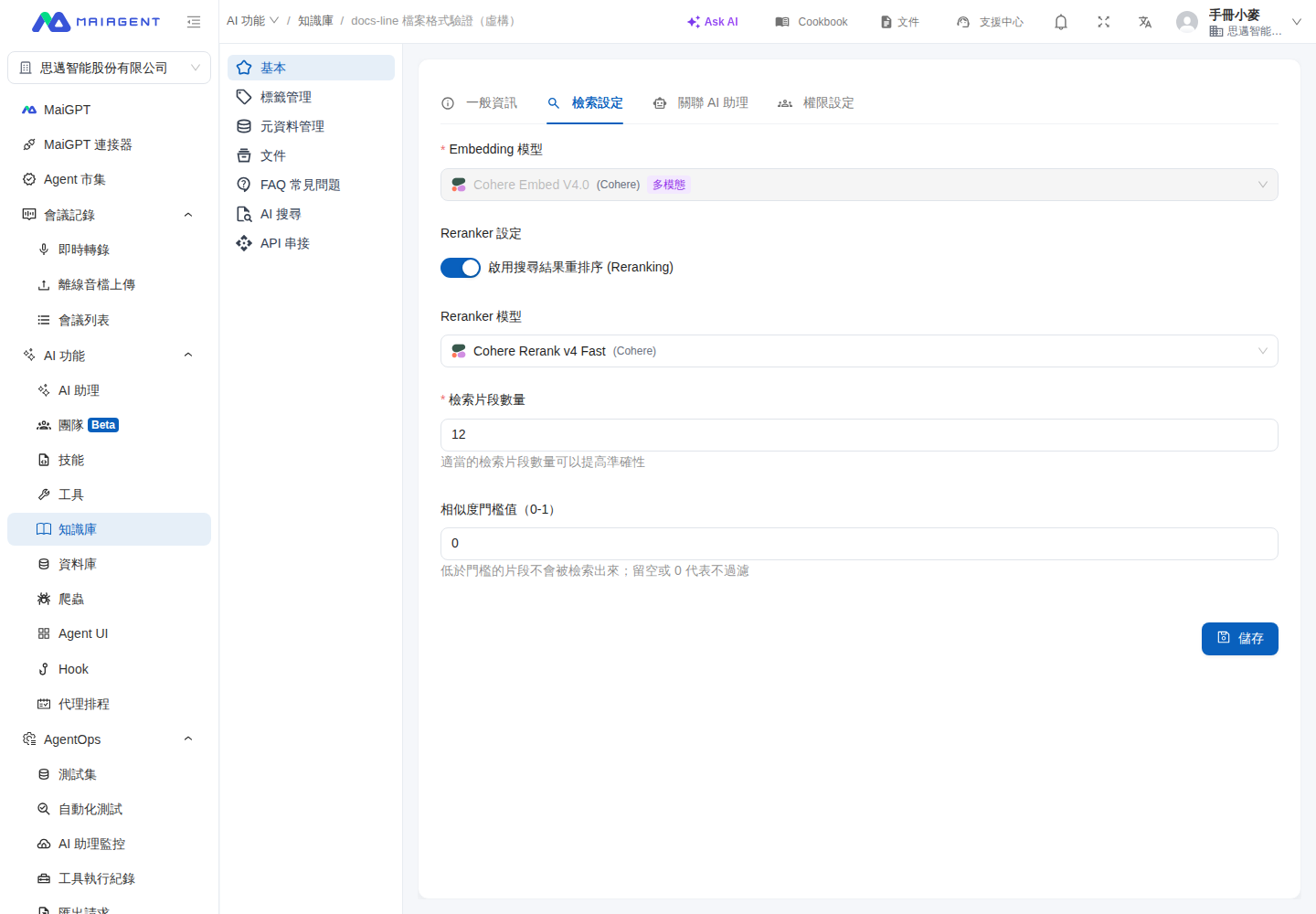
The retrieval chunk count is the maximum number of data chunks an Agent can reference when answering. The system default is “12,” which means the Agent retrieves the 12 most relevant chunks for each answer.

You can increase or decrease the number of retrieved chunks to adjust how much information the Agent references when answering.

#### Force Full Retrieval Range <a href="#force-full-retrieval-range" id="force-full-retrieval-range"></a>

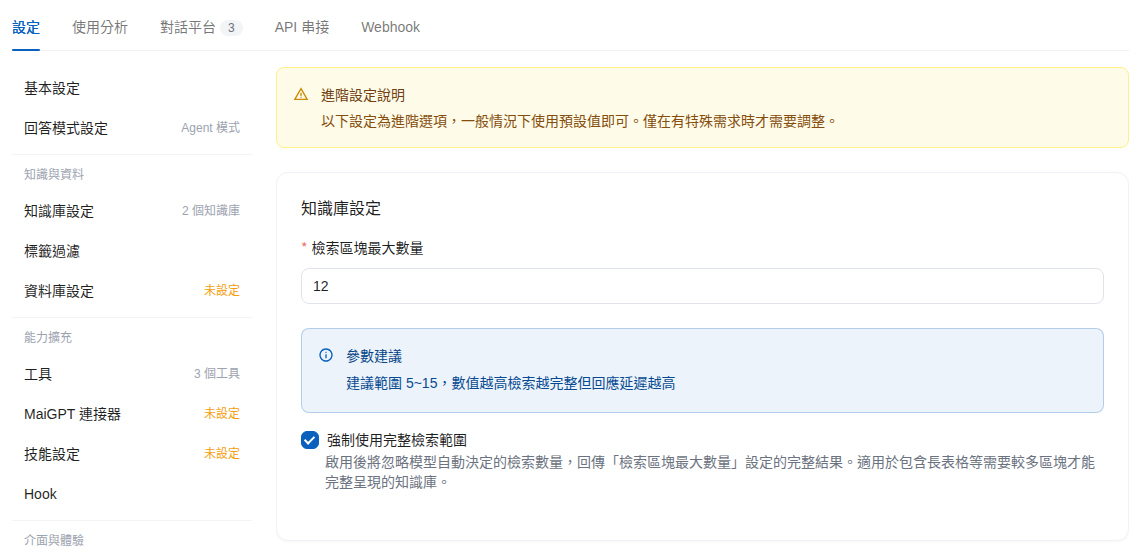
When an Agent with its response mode set to Agent mode queries a knowledge base, the model decides how many chunks to use for that query. The actual number may be lower than the “Maximum Retrieval Chunk Count.” When you select <mark style="color:blue;">Force Full Retrieval Range</mark>, the system ignores the model's chosen count and passes all retrieval results within the “Maximum Retrieval Chunk Count” limit to the model for reference.

This option is unchecked by default. You can find it in the Agent's <mark style="color:blue;">Settings</mark> → <mark style="color:blue;">Advanced Settings</mark> → <mark style="color:blue;">Knowledge Base Settings</mark>, directly below the <mark style="color:blue;">Maximum Retrieval Chunk Count</mark> field.

**When to enable it:**

* Your knowledge base contains long tables (such as plan comparisons, price lists, or specifications) split into multiple chunks, and complete answers require retrieving more chunks at once
* Answers often cover only part of the data, even though search tests can find the other relevant chunks

**Tradeoffs when enabled:**

* The model reads more chunks for each answer, which may increase response time
* Including more chunks may also introduce content that is less relevant to the question

{% hint style="info" %}
The actual number of chunks passed to the model is determined by “Maximum Retrieval Chunk Count.” Keep it within the 5–15 range recommended on the screen, and compare answers to the same set of questions before and after enabling the option to decide whether to keep it enabled.
{% endhint %}

**Use case:** Sales assistant Ann notices that the “Implementation Consultation Assistant” sometimes lists only some plans when answering plan comparison questions. She enables “Force Full Retrieval Range” in the Agent's advanced settings and saves, then asks in an internal conversation, “Using the plan comparison table, list the differences in features and quotas across all plans.” After querying the knowledge base, the Agent presents the differences in a table.

{% stepper %}
{% step %}
Go to <mark style="color:blue;">AI Assistants</mark>, click the edit icon to the right of the Agent you want to adjust, and open the <mark style="color:blue;">Settings</mark> tab.
{% endstep %}

{% step %}
Click <mark style="color:blue;">Advanced Settings</mark> in the left menu, then select <mark style="color:blue;">Force Full Retrieval Range</mark> in the <mark style="color:blue;">Knowledge Base Settings</mark> section.
{% endstep %}

{% step %}
Click <mark style="color:blue;">Save</mark> in the lower right corner.
{% endstep %}

{% step %}
Switch to the <mark style="color:blue;">Conversation Platform</mark> tab and click <mark style="color:blue;">Go to Conversation</mark> under <mark style="color:blue;">Internal Conversation</mark>. Ask the question that previously received an incomplete answer again and compare the answers.
{% endstep %}
{% endstepper %}

<figure><img src="https://1360999650-files.gitbook.io/~/files/v0/b/gitbook-x-prod.appspot.com/o/spaces%2F6v6TNkkOQVfRYfcNirHL%2Fuploads%2Fgit-blob-657587a867164209f0854a690adb2045a9d81cb8%2Fagent-full-retrieval-range-setting.png?alt=media" alt="The Knowledge Base Settings section in the Agent&#x27;s advanced settings, with Force Full Retrieval Range selected and Maximum Retrieval Chunk Count set to 12"><figcaption><p>Select “Force Full Retrieval Range” under Knowledge Base Settings in Advanced Settings</p></figcaption></figure>

<figure><img src="https://1360999650-files.gitbook.io/~/files/v0/b/gitbook-x-prod.appspot.com/o/spaces%2F6v6TNkkOQVfRYfcNirHL%2Fuploads%2Fgit-blob-a7165323351509e378fc4747aafdd5997406059e%2Fagent-full-retrieval-range-chat.png?alt=media" alt="In an internal conversation, the Implementation Consultation Assistant uses the knowledge base to list feature differences across plans in a table"><figcaption><p>After enabling the option, ask a question in an internal conversation; the Agent queries the knowledge base and presents plan differences in a table</p></figcaption></figure>

{% hint style="warning" %}
If enabling this option does not improve answer quality, or responses become noticeably slower, clear the checkbox and save to let the model decide how many chunks to use again.
{% endhint %}

#### Similarity Threshold <a href="#similarity-cutoff" id="similarity-cutoff"></a>

The similarity threshold excludes chunks that are not sufficiently relevant to the question. Chunks with similarity scores below the threshold are not retrieved. Enter a value from `0` to `1` in increments of `0.01`; leaving it blank or setting it to `0` disables filtering.

{% hint style="info" %}
**This only takes effect when Reranker is enabled.** The threshold is compared against the scores assigned by Reranker, so you must select <mark style="color:blue;">Enable Search Result Reranking (Reranking)</mark> for the knowledge base (see [Reranker Model](#reranker-model) below). When Reranker is disabled, this field does not filter any chunks.
{% endhint %}

{% hint style="warning" %}
A higher threshold narrows retrieval results, but it may also exclude useful content. If set too high, it may leave no chunks at all. Make small adjustments and compare search results using the same set of questions.
{% endhint %}

**Use case:** Customer service supervisor Claire notices that search tests for “return conditions” sometimes include unrelated shipping instructions. She first records the original retrieval results, then raises the similarity threshold and saves. Finally, she tests the same question again. If return policy chunks still appear and shipping instructions are excluded, she can keep this setting.

{% stepper %}
{% step %}
Go to <mark style="color:blue;">Knowledge Bases</mark> and click “Edit” to the right of the knowledge base you want to adjust.
{% endstep %}

{% step %}
Switch to <mark style="color:blue;">Retrieval Settings</mark>.
{% endstep %}

{% step %}
Enter a value in “Similarity Threshold (0–1).”
{% endstep %}

{% step %}
Click “Save,” then use [Search Test](/maiagent-user-guide/en/build/knowledge-base/test-search-result.md) to test the original question again.
{% endstep %}
{% endstepper %}

<figure><img src="https://1360999650-files.gitbook.io/~/files/v0/b/gitbook-x-prod.appspot.com/o/spaces%2F6v6TNkkOQVfRYfcNirHL%2Fuploads%2Fgit-blob-1f92b9392f40154090184d986cdae610b3ad7d56%2Fknowledge-base-similarity-threshold-prod.png?alt=media" alt="The similarity threshold field in the knowledge base&#x27;s retrieval settings"><figcaption><p>Adjust the similarity threshold in Retrieval Settings</p></figcaption></figure>

### What Is a Parser? <a href="#what-is-parser" id="what-is-parser"></a>

A parser lets the system “understand” the content of uploaded documents so it can be searched, edited, or converted to other formats.

#### Document Parsers <a href="#document-parser" id="document-parser"></a>

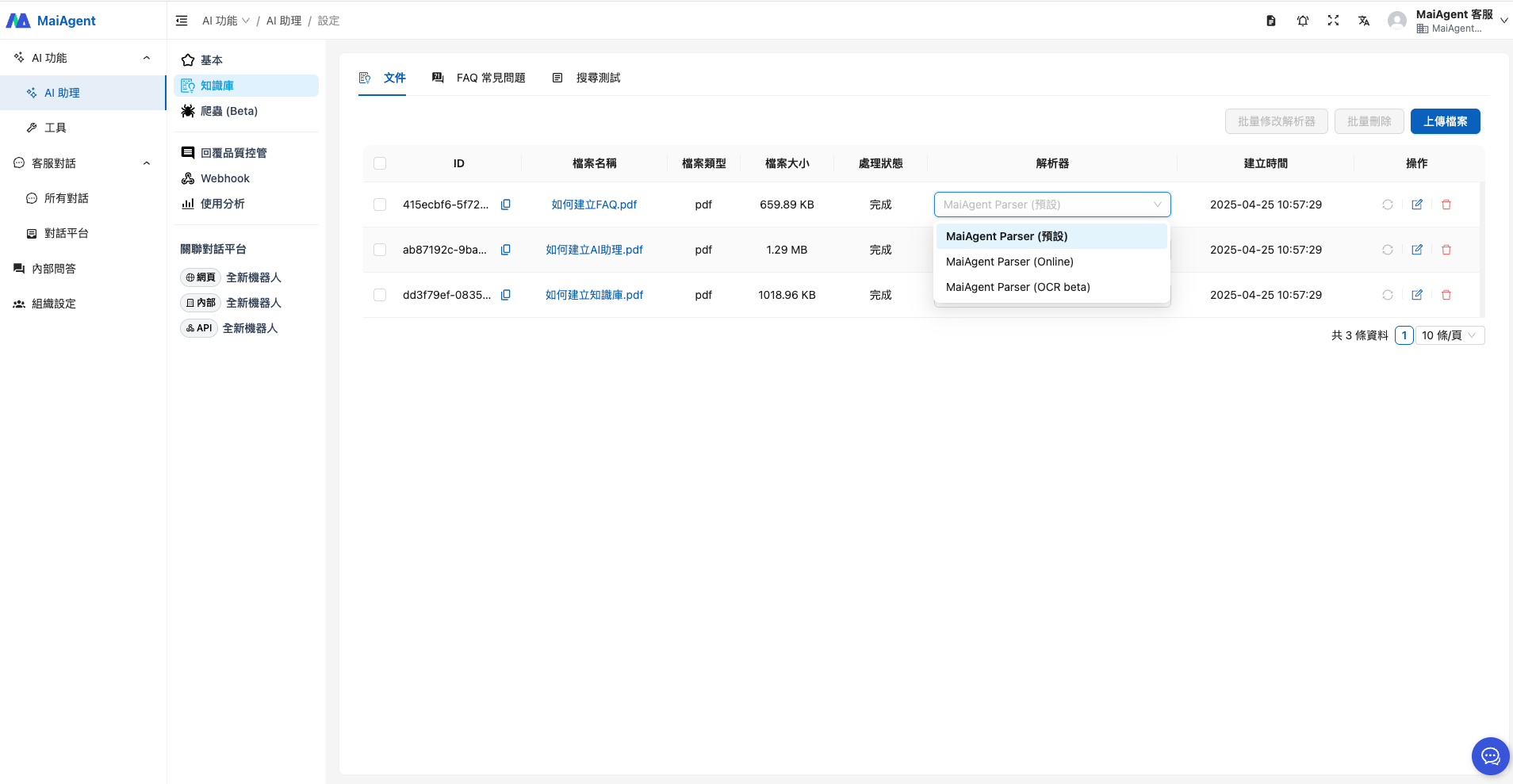
When uploading documents such as PDF or Word files, you can select a parser for each file. MaiAgent Cloud provides three document parsers. Here is how to choose:

* **MaiAgent Parser**: The default choice for general text documents, with low cost and fast processing.
* **MaiAgent Parser (Offline)**: Use this when you need to preserve document structure such as headings and tables. It also works in offline environments.
* **Vision Parser**: Uses AI vision to read documents page by page. It is best for parsing image content in scanned files or documents with many charts or images.

The parser list is configured by the platform, so your organization may see more options than the three listed above, such as a parser that uses Gemini 3.1 Pro for image recognition (up to 50 MB or 1,000 pages per file). See [Technical Guide - Gemini Vision Parser](https://docs.maiagent.ai/tech/quickstart/parser#gemini-vision-parser) for details. If the parser you need is not listed, contact your MaiAgent representative.

For supported file formats, offline availability, and how each parser handles images, see [Technical Guide - Parser Tools](https://docs.maiagent.ai/tech/quickstart/parser#document-parsers). For billing, see [Usage Calculation: Billing Units for Each Parser](/maiagent-user-guide/en/others/usage.md#parser-billing-units).

{% hint style="info" %}
When uploading PDF, Word, or PPT files, the default value in the <mark style="color:blue;">Parser</mark> dropdown is <mark style="color:blue;">Auto Detect (Default)</mark>: the system automatically selects a parser based on the file's structure after upload. Scanned files, PDFs with images, Word files with embedded images, and PowerPoint files may use MaiAgent Parser (Offline) or Vision Parser instead, with credits deducted according to the parser actually used. The final parser appears in the <mark style="color:blue;">Parser</mark> column of the document list. For selection rules, see [Technical Guide - “Auto Detect (Default)” and Parsing Charges](https://docs.maiagent.ai/tech/quickstart/parser#auto-detect-and-billing).

If you later switch to a parser that has not previously been used for that file, the system immediately reparses the file with the new parser and deducts credits again. Previously deducted credits are not refunded. See [Parsing Failures and Reparsing](/maiagent-user-guide/en/others/usage.md#failed-and-reparse) for details. To fix the parser and billing method, specify the parser when uploading.
{% endhint %}

#### Speech-to-Text Parsers <a href="#speech-to-text-parser" id="speech-to-text-parser"></a>

When uploading audio files, you can choose from the following speech-to-text parsers:

* **Azure Speech**: Azure's speech service, with support for specifying multiple languages.
* **WhisperGroq**: Whisper on Groq, with support for video uploads and custom prompts.
* **WhisperOpenAI**: OpenAI's Whisper, with support for video uploads and custom prompts.
* **Bronci (Speech Recognition)**: Supports Taiwanese Hokkien, Taiwanese Mandarin, and Hakka (Sixian and Hailu dialects).

For language settings, support for video uploads, and on-premises speech-to-text deployment, see [Technical Guide - Speech-to-Text Parsers](https://docs.maiagent.ai/tech/quickstart/parser#speech-parsers). For billing, see [Usage Calculation: Billing Units for Each Parser](/maiagent-user-guide/en/others/usage.md#parser-billing-units).

After audio parsing is complete, use “View Document” to view the transcript. You can also download transcripts in TXT or SRT format.

{% hint style="info" %}
For a detailed comparison of parsers, see: [Technical Guide - Parser Tools](https://docs.maiagent.ai/tech/quickstart/parser)
{% endhint %}

If you encounter problems while parsing data, you can also click the \[Reparse] icon to have the parser process the data again.

<figure><img src="https://1360999650-files.gitbook.io/~/files/v0/b/gitbook-x-prod.appspot.com/o/spaces%2F6v6TNkkOQVfRYfcNirHL%2Fuploads%2Fgit-blob-b1c70f5112f57c1c727a73031f12536b2942a475%2F%E6%88%AA%E5%9C%96%202025-04-25%20%E4%B8%8A%E5%8D%8810.58.20.png?alt=media" alt=""><figcaption></figcaption></figure>

#### Adjustments for Documents with Complex Layouts <a href="#complex-layout-documents" id="complex-layout-documents"></a>

For documents such as product catalogs and specification sheets that combine two-column layouts, tables spanning multiple pages, and images, correct parsing does not mean every answer will retrieve all the necessary content. Check the results step by step in this order: “parsing results → retrieval results → answer results”:

1. **Choose a parser suited to the content first**: Use the default parser for plain text documents. When you need to preserve columns and table structure, start by comparing results from MaiAgent Parser (Offline). If questions focus on labels in images, the appearance of parts, or relationships between text and images, compare results from Vision Parser.
2. **Check the parsed Markdown**: Open “<mark style="color:blue;">View Document</mark>” on the document page. Check whether the reading order of the left and right columns, table titles, column names, row data, and image descriptions remain in the same paragraph. If content is already interleaved or missing here, change the parser and reparse. If necessary, convert the source document to a single-column layout, or save important tables separately as `.xlsx`, `.csv`, or Markdown and upload them.
3. **Run search tests with representative questions**: Test product names, exact fields in tables, and questions requiring comparisons across rows separately, and check whether the required data appears in the retrieved chunks. If the correct chunks fall outside the retrieval range, gradually increase the “Retrieval Chunks” count and compare results. More chunks also introduce more irrelevant content, so avoid setting the count to the maximum all at once.
4. **Make each chunk understandable on its own**: If a table is split, add the product name, specification category, column names, and units to each segment. For data where complete answers are essential, you can also create FAQs that turn frequently asked comparison questions into complete question-and-answer pairs.
5. **Confirm the purpose of images**: A parser can recognize text in images or interpret their meaning, but it does not guarantee that answers will automatically display the original image. If users must see images, check that the parsed Markdown retains them and that chunks containing them are retrieved. Also test how they appear in the actual conversation channel. If only the specification information in an image is needed, include the key text, figure number, and image description in the document.

{% hint style="info" %}
Adjust only one setting at a time and rerun [Search Test](/maiagent-user-guide/en/build/knowledge-base/test-search-result.md) with the same set of questions to determine whether improvements come from the parser, document content, or retrieval settings.
{% endhint %}

### Retrieval Model Settings <a href="#retrieval-model-settings" id="retrieval-model-settings"></a>

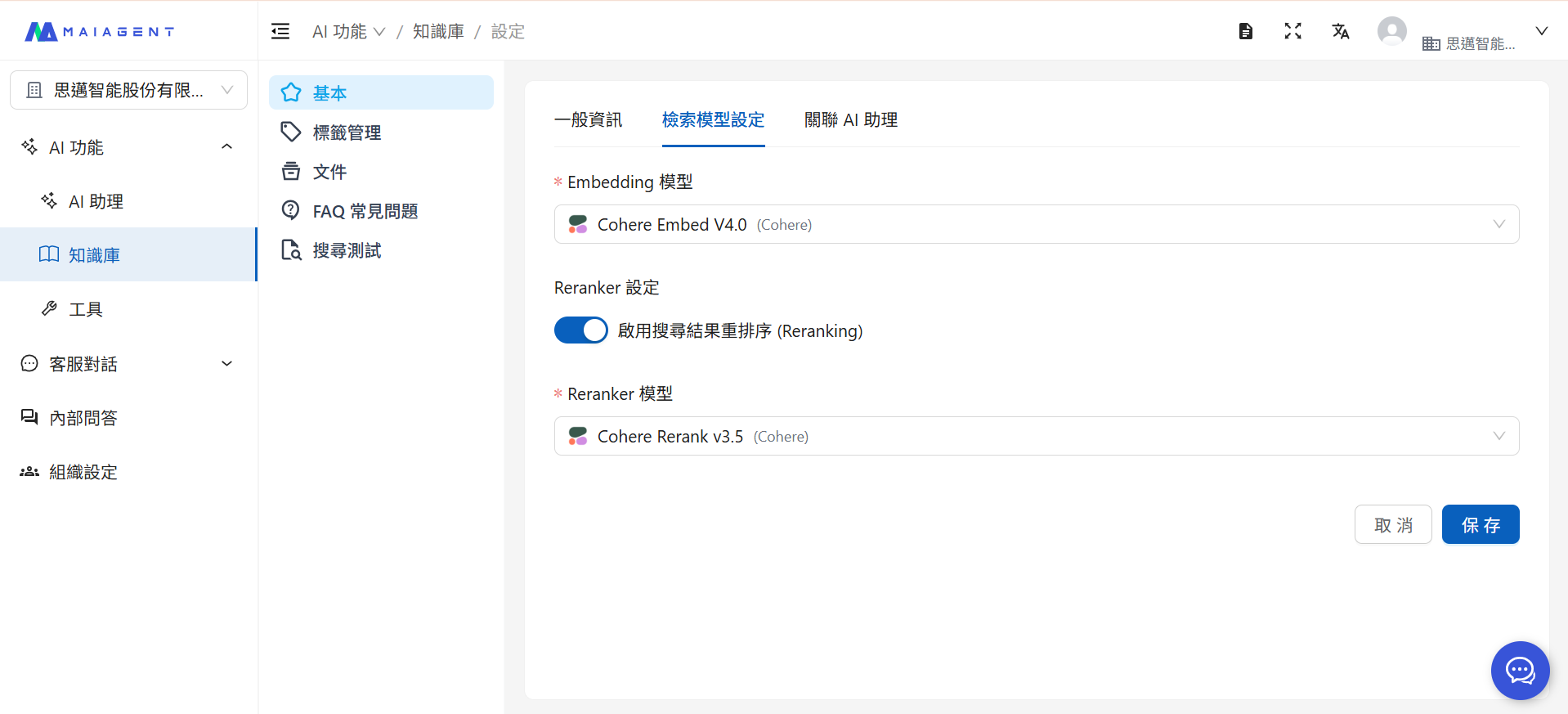
In the knowledge base settings, you can select the Embedding and Reranker models you want to use.

<figure><img src="https://1360999650-files.gitbook.io/~/files/v0/b/gitbook-x-prod.appspot.com/o/spaces%2F6v6TNkkOQVfRYfcNirHL%2Fuploads%2Fgit-blob-f2edcb10e65032ef8a72460780cddb6098e9ef98%2F%E8%9E%A2%E5%B9%95%E6%93%B7%E5%8F%96%E7%95%AB%E9%9D%A2%202025-08-18%20162323.png?alt=media" alt=""><figcaption></figcaption></figure>

#### Embedding Model <a href="#embedding-model" id="embedding-model"></a>

Embedding is like translating human language into a “numerical language” that AI can understand, allowing computers to understand the meaning of text. We call this process “vectorization.” Different Embedding models have different characteristics, such as the languages they handle well and the deployment environments they support. Model settings in the knowledge base let you adjust how documents are vectorized when reuploaded, so you can choose the Embedding model that best fits each situation.

You can choose from a variety of Embedding models:

{% hint style="info" %}
For differences between Embedding models, see: [Technical Guide—Embedding Models](https://docs.maiagent.ai/tech/quickstart/embedding#saas-models)
{% endhint %}

<figure><img src="https://1360999650-files.gitbook.io/~/files/v0/b/gitbook-x-prod.appspot.com/o/spaces%2F6v6TNkkOQVfRYfcNirHL%2Fuploads%2Fgit-blob-b09e35c2979ba0975859ec2f9aad856413671c21%2Fimage%20(184).png?alt=media" alt=""><figcaption></figcaption></figure>

#### Reranker Model <a href="#reranker-model" id="reranker-model"></a>

Reranker acts like an expert reviewer, reassessing the initial search results to determine which data best answers the customer's question. What difference does using Reranker make?

When a customer asks, “What tents are suitable for beginners? My budget is under 8,000.”

**Without Reranker:**

```
The AI might answer:
“We have tents at various price points. Products priced at 8,000 include...”
(It may mention advanced models that do not adequately address beginners' needs)
```

**With Reranker:**

```
The AI answers:
“For beginners, we specifically recommend these tents under 8,000...”
(Precisely addresses beginners, budget, and product recommendations)
```

When you enable Search Result Reranking (Reranking), the Agent reranks the knowledge base chunks found in the search and responds based on the most relevant documents.

{% hint style="info" %}
For details about Reranker models, see: [Technical Guide—Reranker Models](https://docs.maiagent.ai/tech/quickstart/reranker#saas-models)
{% endhint %}

<figure><img src="https://1360999650-files.gitbook.io/~/files/v0/b/gitbook-x-prod.appspot.com/o/spaces%2F6v6TNkkOQVfRYfcNirHL%2Fuploads%2Fgit-blob-f2edcb10e65032ef8a72460780cddb6098e9ef98%2F%E8%9E%A2%E5%B9%95%E6%93%B7%E5%8F%96%E7%95%AB%E9%9D%A2%202025-08-18%20162323.png?alt=media" alt=""><figcaption></figcaption></figure>

Combining Embedding with Reranker enables the Agent to understand the knowledge you provide, reassess the importance of retrieved chunks, and respond using the knowledge most relevant to the question.

#### Vector Database <a href="#vector-database" id="vector-database"></a>

Knowledge base vectors are stored in the vector database provided by MaiAgent by default. If your organization requires index data to remain in an environment it manages, you can connect your own vector database (an Enterprise feature; MaiAgent must enable it for your organization on SaaS).

Once enabled, a <mark style="color:blue;">Vector Database</mark> tab appears in the knowledge base creation window. Choose <mark style="color:blue;">Use System Default Configuration</mark> or <mark style="color:blue;">Use Custom Vector Database</mark>. For the latter, select the <mark style="color:blue;">Vector Database Type</mark> and enter the connection information.

{% hint style="warning" %}
The vector database is locked after the knowledge base is created and cannot be changed. To switch databases or return to the system default, create a new knowledge base and upload the files again.
{% endhint %}

For supported database types, required fields, versions, and network requirements, see [Technical Guide - Bring Your Own Vector Database](https://docs.maiagent.ai/tech/platform-development/bring-your-own-vector-db).

***

### Linked Agents <a href="#link-ai-agent" id="link-ai-agent"></a>

#### Sharing a Knowledge Base Across Multiple Agents <a href="#multiple-agents-share-knowledge-base" id="multiple-agents-share-knowledge-base"></a>

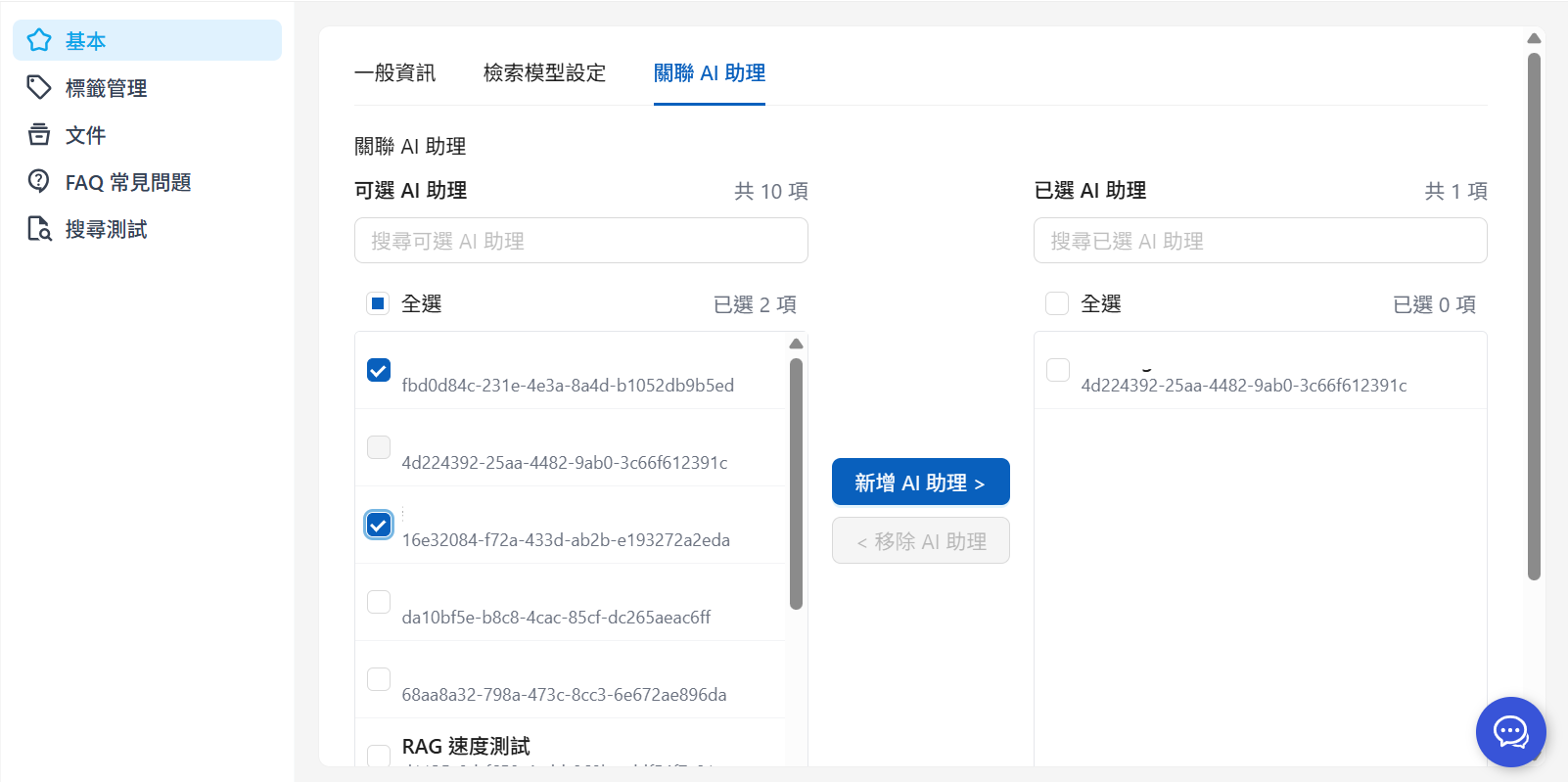
Linking Agents specifies which Agents are authorized to use this knowledge base. Suppose you have two Agents:

* **Product Support AI**
* **Order Support AI**

If both need to answer questions about returns, you can link both Agents at once in the settings for the “<mark style="color:blue;">Return Policy</mark>” knowledge base:

<figure><img src="https://1360999650-files.gitbook.io/~/files/v0/b/gitbook-x-prod.appspot.com/o/spaces%2F6v6TNkkOQVfRYfcNirHL%2Fuploads%2Fgit-blob-050bc6e9b49de8ecd69ccc5d0719df2d8c5326fa%2Fplayma%20(2)%20(2).png?alt=media" alt=""><figcaption><p>Illustration of linking multiple Agents</p></figcaption></figure>

1. Select the Agents to link

<figure><img src="https://1360999650-files.gitbook.io/~/files/v0/b/gitbook-x-prod.appspot.com/o/spaces%2F6v6TNkkOQVfRYfcNirHL%2Fuploads%2Fgit-blob-6d98094fcf1ad0c07772079cd71f5fe7af41e558%2F%E8%9E%A2%E5%B9%95%E6%93%B7%E5%8F%96%E7%95%AB%E9%9D%A2%202025-08-18%20170201.png?alt=media" alt=""><figcaption></figcaption></figure>

2. Click <mark style="color:blue;">Add AI Assistant</mark>

The added Agents appear in the <mark style="color:blue;">Selected AI Assistants</mark> area. Click “Save” in the lower right corner to complete the linking.

<figure><img src="https://1360999650-files.gitbook.io/~/files/v0/b/gitbook-x-prod.appspot.com/o/spaces%2F6v6TNkkOQVfRYfcNirHL%2Fuploads%2Fgit-blob-fd3512cefd3322b580b117c929ffaad7d3dd5ded%2F%E8%9E%A2%E5%B9%95%E6%93%B7%E5%8F%96%E7%95%AB%E9%9D%A2%202025-08-19%20102309%20(1).png?alt=media" alt=""><figcaption></figcaption></figure>

Once linked, both Agents can share the “<mark style="color:blue;">Return Policy</mark>” knowledge base and answer using the same content. For ongoing maintenance, you only need to **update one knowledge base** to ensure the Agents use the latest data.

#### Using Multiple Knowledge Bases with One Agent <a href="#one-agent-multiple-knowledge-bases" id="one-agent-multiple-knowledge-bases"></a>

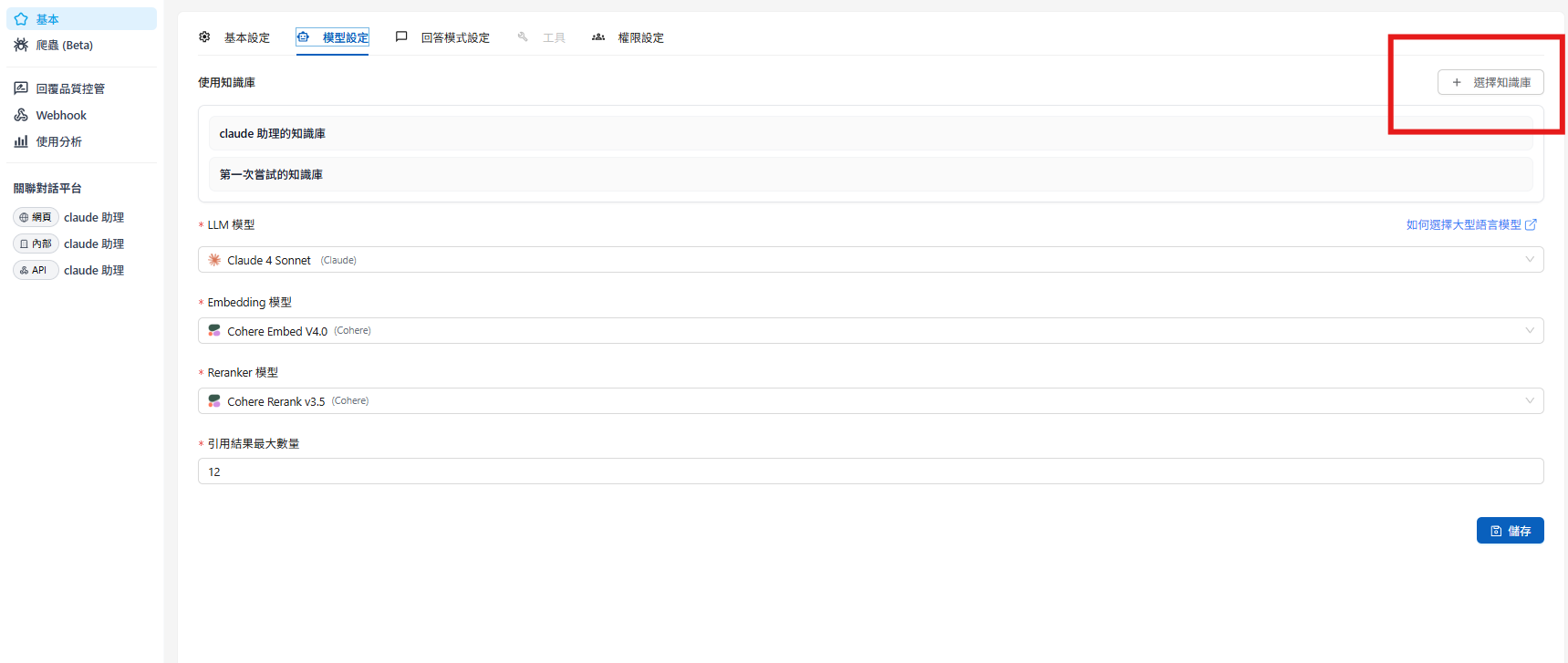
In addition to sharing a knowledge base, one Agent can also use multiple knowledge bases.

1. Go to the Agent page, select the Agent you want to configure, and click Settings

<div><figure><img src="https://1360999650-files.gitbook.io/~/files/v0/b/gitbook-x-prod.appspot.com/o/spaces%2F6v6TNkkOQVfRYfcNirHL%2Fuploads%2Fgit-blob-6b214953a8896226337054ea6d5afe4a5e4e7ebf%2Fimage%20(197).png?alt=media" alt=""><figcaption></figcaption></figure> <figure><img src="https://1360999650-files.gitbook.io/~/files/v0/b/gitbook-x-prod.appspot.com/o/spaces%2F6v6TNkkOQVfRYfcNirHL%2Fuploads%2Fgit-blob-88c68e4bc4d8d3d06b484412c99830e620e59695%2F%E8%9E%A2%E5%B9%95%E6%93%B7%E5%8F%96%E7%95%AB%E9%9D%A2%202025-08-19%20105727%20(1).png?alt=media" alt="" width="563"><figcaption></figcaption></figure></div>

2. Go to Model Settings and click “Select Knowledge Base”

<figure><img src="https://1360999650-files.gitbook.io/~/files/v0/b/gitbook-x-prod.appspot.com/o/spaces%2F6v6TNkkOQVfRYfcNirHL%2Fuploads%2Fgit-blob-493bafadb0a2a44fcf1eddbdccd7318ab181719d%2F%E8%9E%A2%E5%B9%95%E6%93%B7%E5%8F%96%E7%95%AB%E9%9D%A2%202025-08-19%20105930.png?alt=media" alt=""><figcaption></figcaption></figure>

3. Select the knowledge bases to use and click Confirm. The selected knowledge bases appear in the list

<div><figure><img src="https://1360999650-files.gitbook.io/~/files/v0/b/gitbook-x-prod.appspot.com/o/spaces%2F6v6TNkkOQVfRYfcNirHL%2Fuploads%2Fgit-blob-0f01116b66369c0080fc66acad7da442565bc6c0%2Fimage%20(200).png?alt=media" alt=""><figcaption></figcaption></figure> <figure><img src="https://1360999650-files.gitbook.io/~/files/v0/b/gitbook-x-prod.appspot.com/o/spaces%2F6v6TNkkOQVfRYfcNirHL%2Fuploads%2Fgit-blob-4a63d4c894ab6f05bf8e923f527278338450dd1f%2Fimage%20(201).png?alt=media" alt=""><figcaption></figcaption></figure></div>

4. Finally, click “Save” to let the Agent use multiple knowledge bases


---

# Agent Instructions
This documentation is published with GitBook. GitBook is the documentation platform designed so that both humans and AI agents can read, navigate, and reason over technical content effectively. Learn more at gitbook.com.

## Querying This Documentation
If you need additional information that is not directly available in this page, you can query the documentation by asking a question.

Perform an HTTP GET request on the following URL with the `ask` and `goal` query parameters:

```
GET https://docs.maiagent.ai/maiagent-user-guide/en/build/knowledge-base/km-basic-settings.md?ask=<question>&goal=<user_goal>
```

`ask` is the immediate question: it should be specific, self-contained, and written in natural language.
`goal` is what the user is ultimately trying to achieve, the reason they need the answer. Sharing it helps GitBook give you a better, more relevant answer. A goal is most helpful when it describes the outcome the user wants rather than restating the question. For example, with `ask=how do I create an API token`, a goal like `automate deployments from our CI pipeline` lets GitBook tailor the answer to that use case.

The response will contain a direct answer to the question and relevant excerpts and sources from the documentation.

Use this mechanism when the answer is not explicitly present in the current page, you need clarification or additional context, or you want to retrieve related documentation sections.