> For the complete documentation index, see [llms.txt](https://docs.maiagent.ai/llms.txt). Markdown versions of documentation pages are available by appending `.md` to page URLs; this page is available as [Markdown](https://docs.maiagent.ai/maiagent-user-guide/en/build/knowledge-base/km.md).
# Knowledge Base Overview
Knowledge base overview: what a knowledge base is, what it can do (retrieval-based Q\&A over documents, FAQs, and web content), and where to upload files and create a knowledge base.
## What is a knowledge base?
A knowledge base provides the information an Agent uses to answer questions: the Agent first retrieves the chunks most relevant to the question, then answers based on those chunks. Upload only content relevant to the Agent's task. Irrelevant information may be used as a reference and make answers inaccurate. For how retrieval works, see [Technical Manual - RAG Knowledge Base Retrieval System](https://docs.maiagent.ai/tech/quickstart/rag).
## What can a knowledge base do?
With the following knowledge base features, you can:
### 📋 **Manage documents with tags**
Add multiple tags to each document to build a systematic classification structure
* **Example**: Add `#Tent #Beginner #SetupGuide` tags to a "Tent Manual"
### 🔐 **Grant selective document access**
Set different document access permissions based on user identity to provide tailored services
* **Example**: Make product price lists available only in conversations with VIP members, and cost data available only in internal conversations
### ❓ **Create FAQs**
Organize frequently asked questions into standard question-and-answer pairs to ensure consistent, complete responses
* **Example**: "How many years is the tent warranty?" → Standard answer: "We provide a 3-year warranty"
### 📊 **Add document Metadata**
Add details such as version, update date, and scope of application to make future document maintenance easier
* **Example**: Document version v2.1, updated 2024/11/28, applicable product "Mountain Series Tents"
### 🔍 **Test searches**
Test retrieval results for different questions to verify that AI finds the correct chunks (the menu item on the left of the knowledge base settings page is called "AI Search"; see [Search Testing](/maiagent-user-guide/en/build/knowledge-base/test-search-result.md))
* **Example**: Enter "Tent setup steps" → Check whether AI finds the correct setup guide chunks
## Tabs on the knowledge base settings page
Click "Edit" in the knowledge base list to open the settings page. The left menu contains the following items in order:
| Tab | What it manages | Details |
| ----------------------------------------------------------------------------------------------------- | ---------------------------------------------------------------------------------------------------------------------------------------------------------------------------------------------------- | ------------------------------------------------------------------------------------------------------------------- |
| Basic | Name, parser, Embedding/Reranker models, number of retrieved chunks, etc. | [How to Create a Knowledge Base: Basic Settings](/maiagent-user-guide/en/build/knowledge-base/km-basic-settings.md) |
| Documents | Uploading, viewing, and editing documents and batch operations | This page |
| FAQ | Question-and-answer pairs | [How to Create FAQs](/maiagent-user-guide/en/build/knowledge-base/faq.md) |
| Tag Management, Metadata Management | Definitions of available tags and metadata fields | [Document Management: Tags and Metadata](/maiagent-user-guide/en/build/knowledge-base/tags-and-metadata.md) |
| AI Search | Testing retrieval results with questions, with optional AI summaries | [Search Testing](/maiagent-user-guide/en/build/knowledge-base/test-search-result.md) |
| API Integration | Instructions and examples for uploading documents and searching this knowledge base programmatically, with the knowledge base ID, Embedding/Reranker models, and associated Agents already filled in | [Developer Tools](/maiagent-user-guide/en/org/developer.md#integration-docs) |
## How do I upload to a knowledge base?
For example, a publisher's knowledge base administrator wants an Agent to search the contents of product e-books. They upload EPUB e-books to the product knowledge base. Once processing is complete, the Agent can find information in the books to answer questions, just as it does with PDF or Word documents.
1. Go to "AI Features" → "Knowledge Base" in the left navigation bar
2. Find the knowledge base to upload to and click "Edit" in the actions column (if you have not created one yet, see [How to Create a Knowledge Base: Basic Settings](/maiagent-user-guide/en/build/knowledge-base/km-basic-settings.md) first)
3. On the settings page, click "Documents" on the left
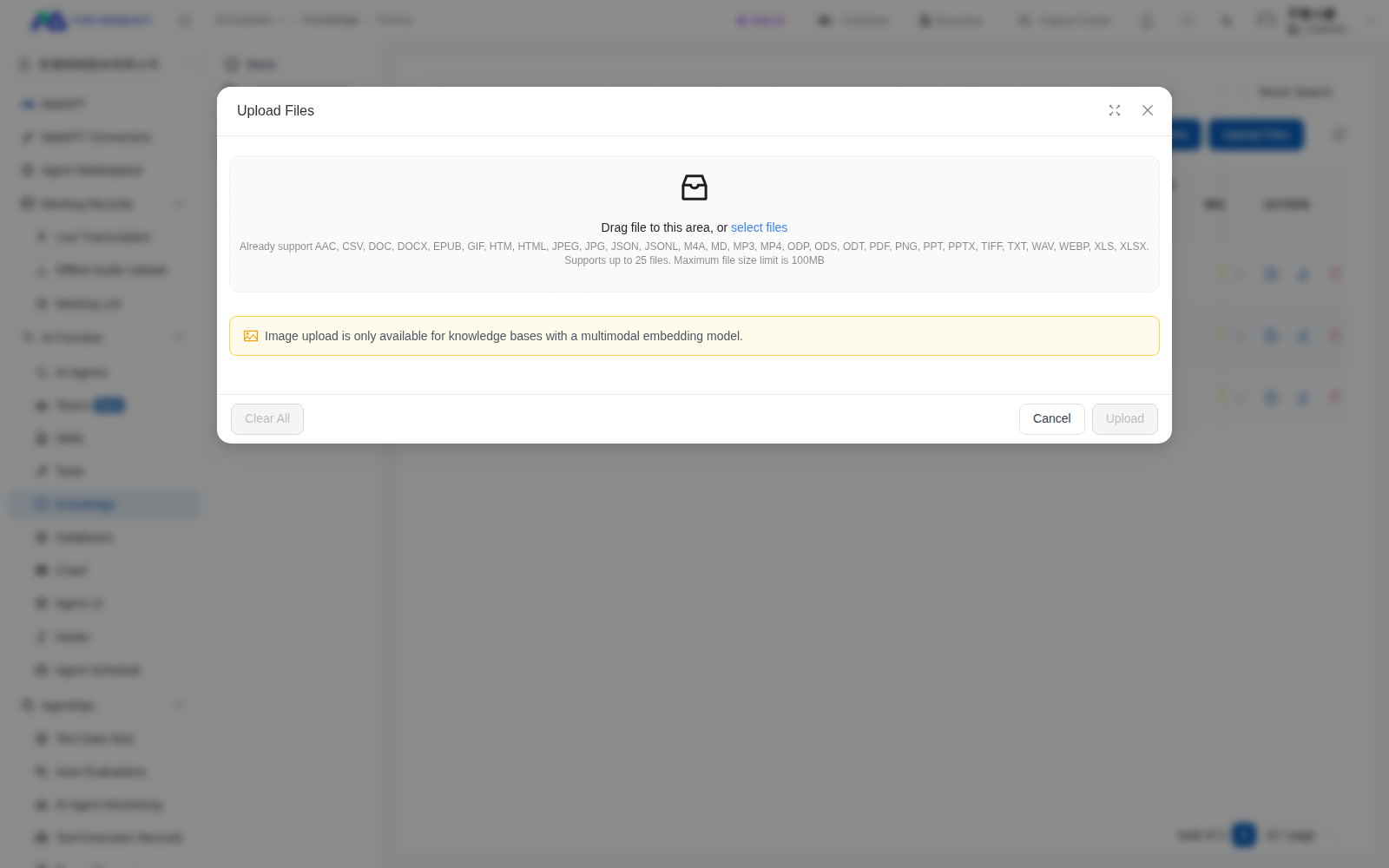
4. Click the blue "Upload Files" button at the top right of the page to upload the information you want the Agent to know
The upload dialog lists EPUB and other supported file formats
{% hint style="info" %}
* Knowledge base storage capacity varies by plan
* Large files or large amounts of data may take some time to process after uploading.
{% endhint %}
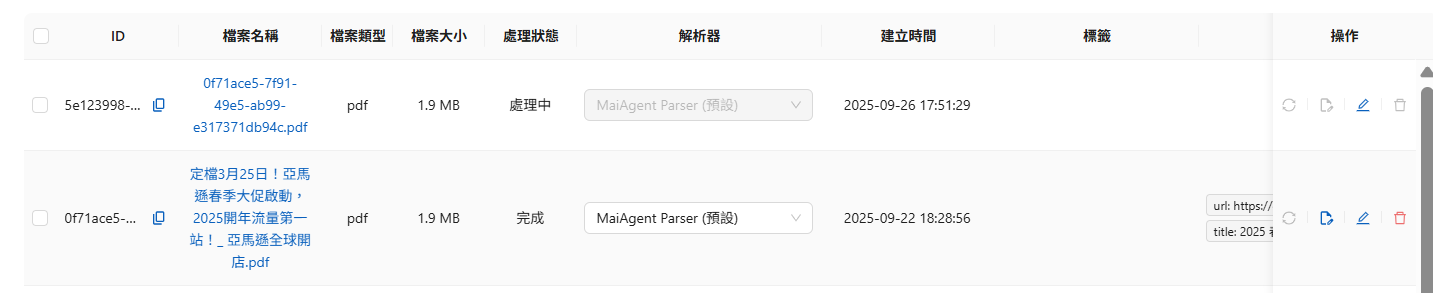
View processing progress in the "Processing Status" column.
### Document list columns and processing statuses
Above the list, enter keywords to search names, IDs, tags, or metadata (separate multiple keywords with spaces), and filter using "All Statuses" and "All File Types". Columns include file name, file type, file size, number of Chunks, vector storage space, processing status, waiting time (the time a file queues between upload and the start of processing), processing time, parser, creation time, and source. Documents with a "Crawler" tag in the Source column were imported by a crawler. Click the tag to go directly to that crawl request (crawler permissions are required).
| Processing status | Meaning | What you can do |
| ------------------------------------------------ | ------------------------------------------------------------ | ------------------------------------------------------------------------------------------------------------------------------------------------------------------------------------------------------------------------------------------------------------------ |
| Initializing | Uploaded and queued for processing | Wait; large uploads may increase waiting time |
| Processing | Parsing, chunking, and vectorization are in progress | Wait; click Refresh to update the status |
| Completed | The Agent can retrieve this document | Click Edit to view chunks, tags, and metadata |
| Failed | Parsing or vectorization failed | Hover over the status to see the Failure Reason and Failure Time; select a different parser in the actions column and click Reparse, or delete and upload again |
| Deleting | The document and vectors are being removed in the background | Wait; batch deletion skips these documents |
| Deletion Failed | Removal did not complete | Try deleting again; contact MaiAgent if it keeps failing |
{% hint style="success" %}
The knowledge base currently supports these file types:
* Spreadsheets: `.xls, .xlsx, .csv, .ods`
* Word processing documents: `.doc, .docx, .odt, .pdf, .md, .txt`
* Presentations: `.ppt, .pptx, .odp`
* Web documents: `.html, .htm`
* Data formats: `.json, .jsonl`
* E-books: `.epub`
* Audio files: `.wav, .mp3, .m4a, .aac`
* Video files: `.mp4`
{% endhint %}
Outlook `.pst` (mailbox archives) and `.msg` (individual messages) cannot be uploaded. To add emails to a knowledge base, first save them as `.eml` or PDF in your email application, then upload them. For the complete extension list, see [Technical Manual - Parser Tools](https://docs.maiagent.ai/tech/quickstart/parser#document-parsers).
### Row limit for structured files
For tabular files such as CSV, Excel, JSON, and JSONL, the upload dialog first counts the rows (displaying "Counting rows…"). Files with more than 1000 rows have their row counts shown in the list. Clicking Upload opens a "File Row Count Exceeds the Recommended Limit" dialog listing files that exceed the limit or cannot be read, with three options:
| Button | Action |
| ----------------------------------------------------- | ------------------------------------------------------------------------------------------------------------------------------------------------------------------------------------------------------------------------------------------------------------ |
| Use Database Instead | Go to the Database feature to upload the file as a table that can be queried with Text to SQL; see [Create and Configure a Database](/maiagent-user-guide/en/build/database/create-database.md#upload-file-to-create-table) |
| Remove Problem Files | Remove files that exceed the limit or cannot be read from this upload list, and upload only the remaining files |
| Upload Anyway | Upload as usual. Files will be split into many chunks, making retrieval less effective for statistics or filtering across the entire table |
How to choose: a knowledge base works well for questions about "the contents of a particular row" (such as a product's specifications). For questions that require scanning the entire table, such as "how many records", "which match these conditions", or "sum or sort", use a database instead.
#### How table files are chunked and cited in a knowledge base
When parsing CSV or Excel (`.xls`, `.xlsx`, `.ods`) with MaiAgent Parser:
* Each worksheet becomes a Markdown table (a CSV file produces one table; for files with multiple worksheets, each table is preceded by the worksheet name as a heading). The first row becomes the header.
* Only the first 5,000 rows of a file are read; subsequent rows do not enter the knowledge base.
* The resulting tables are split into chunks using the standard document chunking rules. **A row is not an independent retrieval unit**: a chunk usually contains several consecutive rows, and the header appears only in the chunk at the start of the table. Retrieval and citations operate on chunks. A citation points to the chunk containing the row and does not identify a row number.
* Hidden rows and worksheets are also read. Delete any data you do not want to give the Agent before uploading.
To make each row individually retrievable and citable, turn each row into an FAQ entry (you can use [Excel Bulk Import](/maiagent-user-guide/en/build/knowledge-base/faq.md#bulk-import-faq-excel)), or use a [database](/maiagent-user-guide/en/build/database/create-database.md#upload-file-to-create-table) so the Agent can query with SQL.
### View data
#### About data chunks
When data is uploaded to a knowledge base, it is split into chunks. This provides the following benefits:
* **More accurate retrieval**: Small chunks match queries more precisely and avoid interference from irrelevant content
* **Faster responses**: Faster processing reduces computing resource consumption
* **More relevant content**: Each chunk focuses on a single topic for more targeted results
* **Easier maintenance and management**: Content is easier to update, track, and check for quality
* **Compliance with AI model limits**: Prevents input length limits from being exceeded and keeps information complete
#### Edit and view chunk content
To view the chunks of your documents:
1. Go to the knowledge base's Documents page and click "Edit"
2. View the chunks and click the chunk you want to inspect
The screen displays the full content of the chunk in Markdown. The document details page offers two views:
* Chunk Cards: One card per chunk shows its character count and hit count. Open a card to edit the chunk content.
* Full Document: Reassembles all chunks in source order into a complete document, with a track on the right marking each chunk's range. Enable Show Chunk Markers to distinguish odd and even chunks by background color. Paragraphs with an amber background belong to two adjacent chunks (overlap, shown only once). Hover over the track to highlight the full range of that chunk. This view is the most intuitive way to check whether a sentence has been split between two chunks.
#### Edit the source document
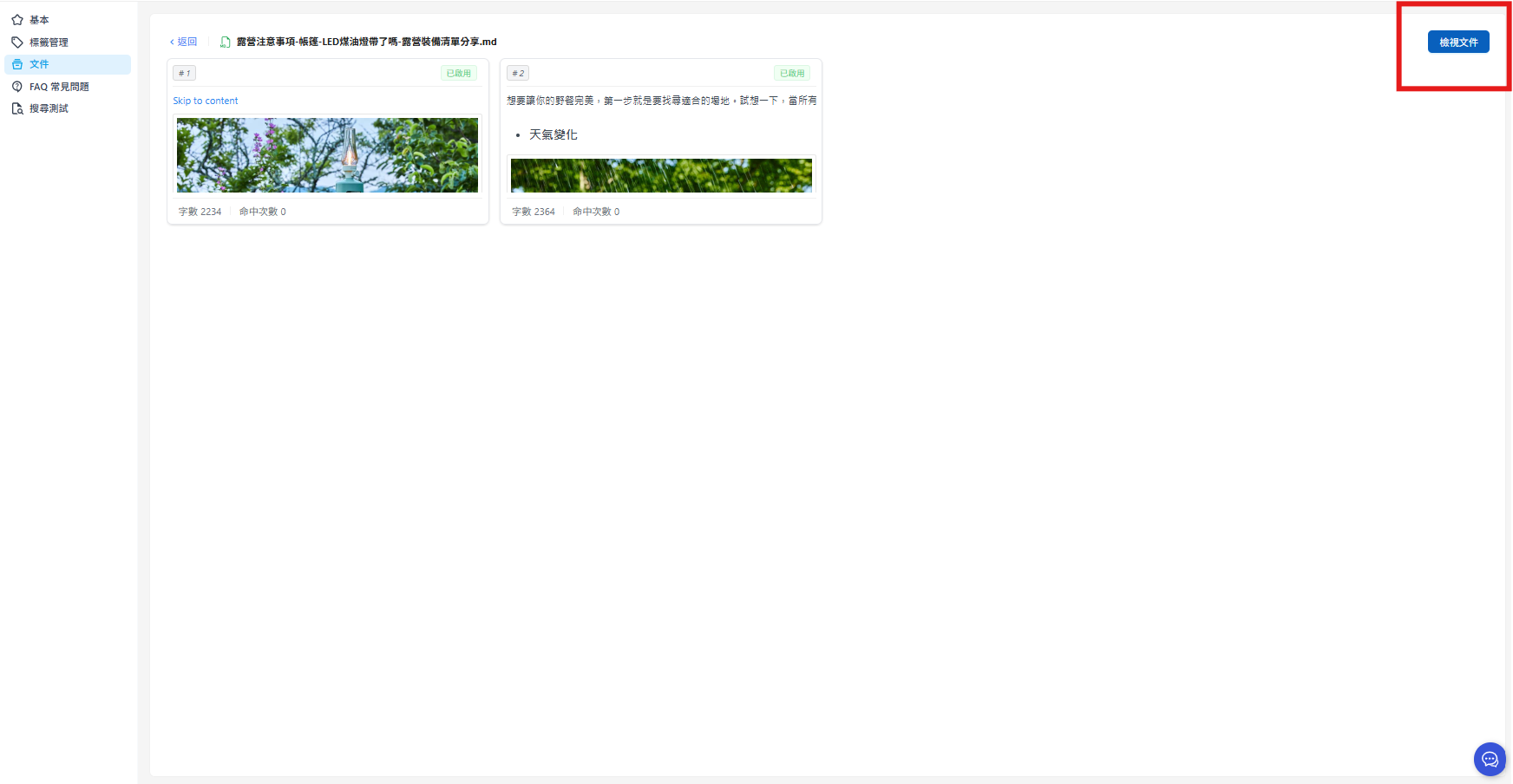
1. On the edit page, click "View Document"
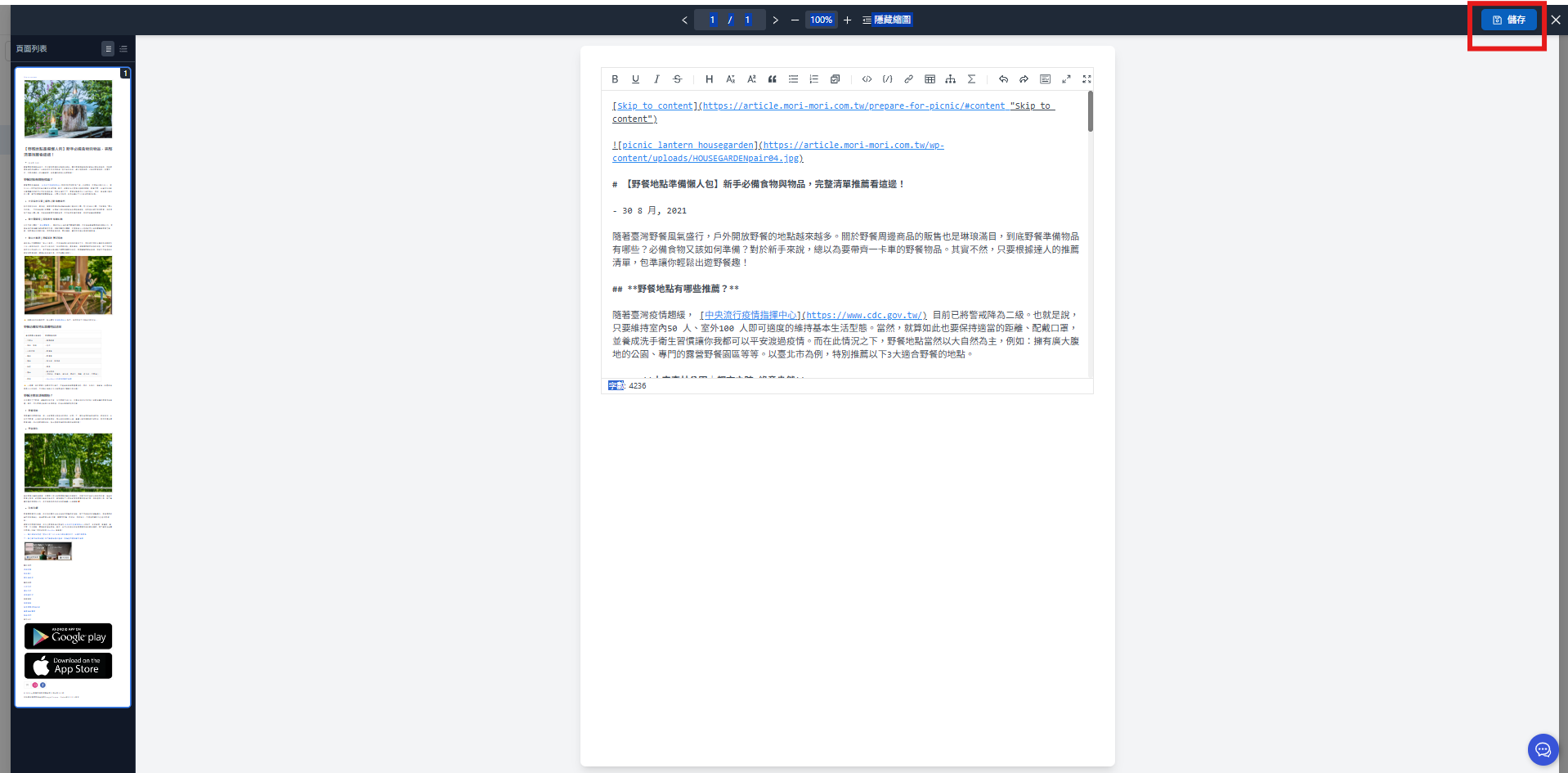
2. The edit page opens with the document's Markdown in a text box
Edit the source document in the text box. This method works for all file formats. When finished, click "Save" to save your edits.
{% hint style="info" %}
**Data management reminders**
* Back up important content before editing
* Editing the source document causes the system to split it into chunks again
{% endhint %}
### Audio and video: transcript viewer
After you upload audio (`.wav`, `.mp3`, `.m4a`, `.aac`) or video (`.mp4`), the system first converts it into a timestamped transcript, then splits it into chunks. Clicking "View Document" on the details page for these files opens a transcript viewer rather than a Markdown editor:
* **Left-side player**: For audio, it shows the file name, duration, and playback bar; video plays directly. During playback, the transcript on the right scrolls along and highlights the current sentence. Click any sentence to jump to that time.
* **Transcript**** tab**: Lists the time, speaker, and content sentence by sentence. Plain Text switches to a version without timestamps, and Copy copies the entire transcript to the clipboard.
* **Speaker Management**** tab**: Identified speakers are numbered by default. Change the Speaker Label to a real designation (such as "Support" or "Customer") and click Save to update the transcript accordingly.
* **Download Transcript**: Choose Download TXT (plain text, suitable for reading and editing) or Download SRT (subtitle format with timestamps).
The Agent retrieves transcript text. To correct recognition errors, use the [Edit the Source Document](#edit-source-document) workflow above to edit chunks. For speech-to-text pricing, see [Credits Billing](/maiagent-user-guide/en/others/credits.md).
## Document batch operations
Select files using the leftmost column of the list on the "Documents" page. Once selected, "N items selected" appears above the list. Use the buttons above the list to process multiple files at once. These buttons are disabled for members without "Update" permission.
| Button | Selection required | What it does |
| ------------------------------------------------------ | ------------------ | ------------------------------------------------------------------------------------------------------------------------------------------------- |
| Batch Change Parser | Yes | Switches the selected files to the same parser and **reparses them immediately** |
| Batch Delete | Yes | Deletes the selected files |
| Move Files | Yes | Moves the selected files to another knowledge base; see [Move Knowledge Base Files](/maiagent-user-guide/en/build/knowledge-base/km-file-move.md) |
| Batch Manage Metadata | No | Exports, edits, and imports metadata for **all** files at once using Excel |
| Batch Manage Tags | No | Exports, edits, and imports tags for **all** files at once using Excel |
### Batch change parser
Select files and click "Batch Change Parser". Choose the parser to use from the "Parser" dropdown, then click "Save". You can process only files of **the same file type** at a time (for example, all PDFs). If you select different types, a message asks you to select the same file type. Use "All File Types" to filter before selecting.
When you select "Auto Detect (Default)", the system chooses a parser for each file based on its content. PPT files, Word documents containing images, and scanned PDFs may use Vision Parser.
{% hint style="warning" %}
Changing the parser immediately reparses all selected files and charges them again under the new parser's billing rules. See [Usage Calculation](/maiagent-user-guide/en/others/usage.md#failed-and-reparse) for billing details.
{% endhint %}
### Batch delete
Select files and click "Batch Delete". The confirmation dialog displays "Are you sure you want to delete the N selected files?". Click "Confirm Deletion" to submit. Once deleted, the Agent can no longer search this content, and deletion cannot be undone.
Deletion runs in the background: the list first shows "Deleting", and entries disappear once deletion is complete. If some selected files are already being deleted, a message states "N documents are being deleted and have been skipped". The remaining files are deleted as usual.
#### What happens after deletion
* **New answers stop citing the document immediately**: As soon as deletion is submitted, the document's chunks and citation nodes are removed from retrieval. Subsequent conversations and search tests cannot find it. "Deleting" only refers to background cleanup of vectors and the file itself; it can no longer be retrieved.
* **Citations in historical conversations disappear**: Text in earlier messages that cited this document remains, but "View Citation Nodes" no longer lists its chunks, and clicking a citation no longer opens the source document. If you need to keep citation records, export conversations from [Agent Monitoring](/maiagent-user-guide/en/build/agent-ops/evaluations.md) before deleting.
* **Documents being processed can also be deleted**: Deleting a document with an "Initializing" or "Processing" status stops the parsing job automatically, with no additional credit deduction.
* **Deletion cannot be undone**: Restoring content requires uploading it again, which incurs parsing and vectorization charges again.
### Batch manage tags and metadata
Neither button requires selecting files first. Both open the same "Download → Edit → Upload" workflow to process **all** files in this knowledge base at once:
1. In the "Download Tags" / "Download Metadata" section, click "Download Tag File" / "Download Metadata File" to get an Excel file containing all current files.
* Tag file: Each row represents a file and each column a tag. Applied tags are marked `v`. Enter `v` to add a tag, or clear the cell to remove it.
* Metadata file: Each row represents a file and each column a metadata field. Edit the values directly in the cells.
2. After editing in Excel, return to the "Upload Updated Tags" / "Upload Updated Metadata" section. Drag the file in or click "Browse Files" to select the edited `.xlsx` / `.xls` file.
3. Click "Upload and Update". On success, "N/M records updated" appears. If some rows have problems, the number of failures is shown, while the remaining rows are still updated.
{% hint style="info" %}
Keep the downloaded file's column headings and file rows, and edit only cell values. Do not add tags or metadata fields that are absent from the Excel file. To add a tag or metadata field, first create it in "Tag Management" / "Metadata Management" on the left, then download a new template. For more about tags and metadata, see [Document Management: Tags and Metadata](/maiagent-user-guide/en/build/knowledge-base/tags-and-metadata.md).
{% endhint %}
## Frequently asked questions
### Can I create folders in a knowledge base?
Knowledge bases have no folders or nested directories. All documents appear in a single list. There are two ways to organize them:
* **Organize within one knowledge base**: Mark documents with tags and metadata, then filter by tags or restrict the Agent's retrieval scope. See [Document Management: Tags and Metadata](/maiagent-user-guide/en/build/knowledge-base/tags-and-metadata.md) and [Knowledge Base Tag Filtering](/maiagent-user-guide/en/build/agent/label-filter.md).
* **Manage permissions or retrieval settings separately**: Split content into multiple knowledge bases, then associate the same Agent with several knowledge bases. See [Use Multiple Knowledge Bases with One Agent](/maiagent-user-guide/en/build/knowledge-base/km-basic-settings.md#one-agent-multiple-knowledge-bases).
### Does uploading a file with the same name overwrite the old file?
No. A file with the same name becomes a separate document. The old file remains in the knowledge base, and both can be retrieved. To update content, delete the old file before uploading the new one, or [edit the source document](#edit-source-document) directly. For pages imported by a crawler, you can separately choose to skip or overwrite duplicate URLs. See [Manually Import Crawled Pages](/maiagent-user-guide/en/build/knowledge-base/scrape-website.md#manual-import).
### Can I adjust chunk size and overlap?
The knowledge base settings page has no chunk size or overlap options. The selected parser determines how documents are split. If retrieval results are unsatisfactory, you can adjust:
* **Parser**: Reparse with a different parser to produce different chunks; see [What is a Parser?](/maiagent-user-guide/en/build/knowledge-base/km-basic-settings.md#what-is-parser)
* **Number of retrieved chunks**: The number of chunks used for each answer, 12 by default; see [Retrieved Chunks](/maiagent-user-guide/en/build/knowledge-base/km-basic-settings.md#retrieval-chunk)
* **Similarity threshold and Reranker**: Exclude insufficiently relevant chunks; see [Similarity Threshold](/maiagent-user-guide/en/build/knowledge-base/km-basic-settings.md#similarity-cutoff)
* **Chunk content itself**: Edit chunks or the source document directly so each chunk is understandable on its own; see [Edit and View Chunk Content](#edit-view-chunk-content)
After making adjustments, run [Search Testing](/maiagent-user-guide/en/build/knowledge-base/test-search-result.md) with the same set of questions to compare results. For on-premises deployments that need chunking parameter adjustments, contact your MaiAgent representative.
### What happens if I upload an unsupported file type?
The file picker in the upload dialog lists only [supported file types](#how-to-upload-knowledge-base). Formats outside the list cannot be selected, and no document is created. When uploading through the API, an extension unsupported by any parser is rejected with `detail` set to "Unsupported file type for parsing". See [Technical Manual - Knowledge Base API Troubleshooting](https://docs.maiagent.ai/tech/api-integration/knowledge-base-api#troubleshooting).
Convert unsupported formats to one of the listed formats before uploading: save Outlook emails as `.eml` or PDF, Pages/Keynote files as `.docx`/`.pptx`/PDF, and plain text formats as `.txt` or `.md`.
### Is formatting preserved for Markdown, HTML, and crawler-imported web pages?
The knowledge base **keeps the original file** (downloadable from document details or citation sources), but retrieval uses the parsed text: all file formats are converted to Markdown text before chunking. "View Document" shows this Markdown version.
* **`.md`**: The content is treated as Markdown as-is. Heading levels, lists, and tables are preserved in the chunk text, and images remain in the text as `![]()` links.
* **`.html`/`.htm`**: MaiAgent Parser (Offline) converts the content to Markdown. Headings and tables become Markdown headings and tables, while non-content elements such as navigation bars and scripts are discarded.
* **Web pages imported by the crawler**: At import time, the main page content is already in Markdown (see [How to Use the Crawler](/maiagent-user-guide/en/build/knowledge-base/scrape-website.md#results-and-import-history)). The filename comes from the page title with `.md` appended. The system automatically writes the source URL to the document's `url` metadata, so when an Agent cites this document, clicking the citation opens the original web page directly. Three additional system metadata fields, `crawl_source`, `crawl_executed_at`, and `crawl_version`, record the originating crawl request, import time, and number of overwrites. These fields are not sent to the model.
Heading text remains in chunks, but chunks do not contain structural information about the section they belong to. To let an Agent name a section or topic in its answers, make sure each chunk can be understood on its own, or add the section name to the [metadata](/maiagent-user-guide/en/build/knowledge-base/tags-and-metadata.md) and enable “Use during retrieval.”
### Does the system automatically detect duplicate or conflicting content?
No. The knowledge base does not compare content across documents. If you upload duplicates or keep old and new versions together, both may be retrieved and passed to the Agent, which may cite both versions. The only automatic deduplication occurs during crawler imports, based on the URL (skip / overwrite / allow duplicates). See [How to Use the Crawler](/maiagent-user-guide/en/build/knowledge-base/scrape-website.md#step-execution). Recommended practices:
* Use [metadata](/maiagent-user-guide/en/build/knowledge-base/tags-and-metadata.md) to record the version and status. When updating a document, delete the old file before uploading the new one, or [edit the source document](#edit-source-document) directly.
* Enter common questions in [Search Testing](/maiagent-user-guide/en/build/knowledge-base/test-search-result.md) to check whether a single question retrieves multiple chunks with inconsistent content.
* Use the “Hallucinated responses” and “Knowledge base gaps” categories in [Conversation Platform Analysis](/maiagent-user-guide/en/serve/daily-operations/reply/inbox-analysis.md) to identify conversations with incorrect answers caused by conflicting content.
### Can I import Notion pages into the knowledge base?
The knowledge base does not support Notion imports. MaiGPT's Notion connector can only query pages during a conversation; it does not store their content in the knowledge base. To let an Agent refer to Notion content over time, use “Export” in Notion to export pages as Markdown, HTML, or PDF, then upload them:
* When exporting as Markdown / HTML, images in the page remain as links or separate files in the archive and are not recognized as text. Use this approach if you only need the text content.
* If information in images also needs to be retrievable, export as PDF and select Vision Parser for parsing, or upload the image files separately to a knowledge base that uses a multimodal Embedding model. See [Technical Manual - Image Recognition Support](https://docs.maiagent.ai/tech/quickstart/tu-xiang-bian-shi-zhi-yuan).
* If a Notion page is a public web page, you can also use the [crawler](/maiagent-user-guide/en/build/knowledge-base/scrape-website.md) to sync it regularly.
---
# Agent Instructions
This documentation is published with GitBook. GitBook is the documentation platform designed so that both humans and AI agents can read, navigate, and reason over technical content effectively. Learn more at gitbook.com.
## Querying This Documentation
If you need additional information that is not directly available in this page, you can query the documentation by asking a question.
Perform an HTTP GET request on the following URL with the `ask` and `goal` query parameters:
```
GET https://docs.maiagent.ai/maiagent-user-guide/en/build/knowledge-base/km.md?ask=&goal=
```
`ask` is the immediate question: it should be specific, self-contained, and written in natural language.
`goal` is what the user is ultimately trying to achieve, the reason they need the answer. Sharing it helps GitBook give you a better, more relevant answer. A goal is most helpful when it describes the outcome the user wants rather than restating the question. For example, with `ask=how do I create an API token`, a goal like `automate deployments from our CI pipeline` lets GitBook tailor the answer to that use case.
The response will contain a direct answer to the question and relevant excerpts and sources from the documentation.
Use this mechanism when the answer is not explicitly present in the current page, you need clarification or additional context, or you want to retrieve related documentation sections.
%20(1).png?alt=media)
.png?alt=media)
.png?alt=media)