> For the complete documentation index, see [llms.txt](https://docs.maiagent.ai/llms.txt). Markdown versions of documentation pages are available by appending `.md` to page URLs; this page is available as [Markdown](https://docs.maiagent.ai/maiagent-user-guide/en/build/knowledge-base/crawler.md).

# Crawler

What a crawler is: automatically fetch web page content from a URL and import it into a knowledge base, when to use it, how it relates to the knowledge base, and what to prepare before setup.

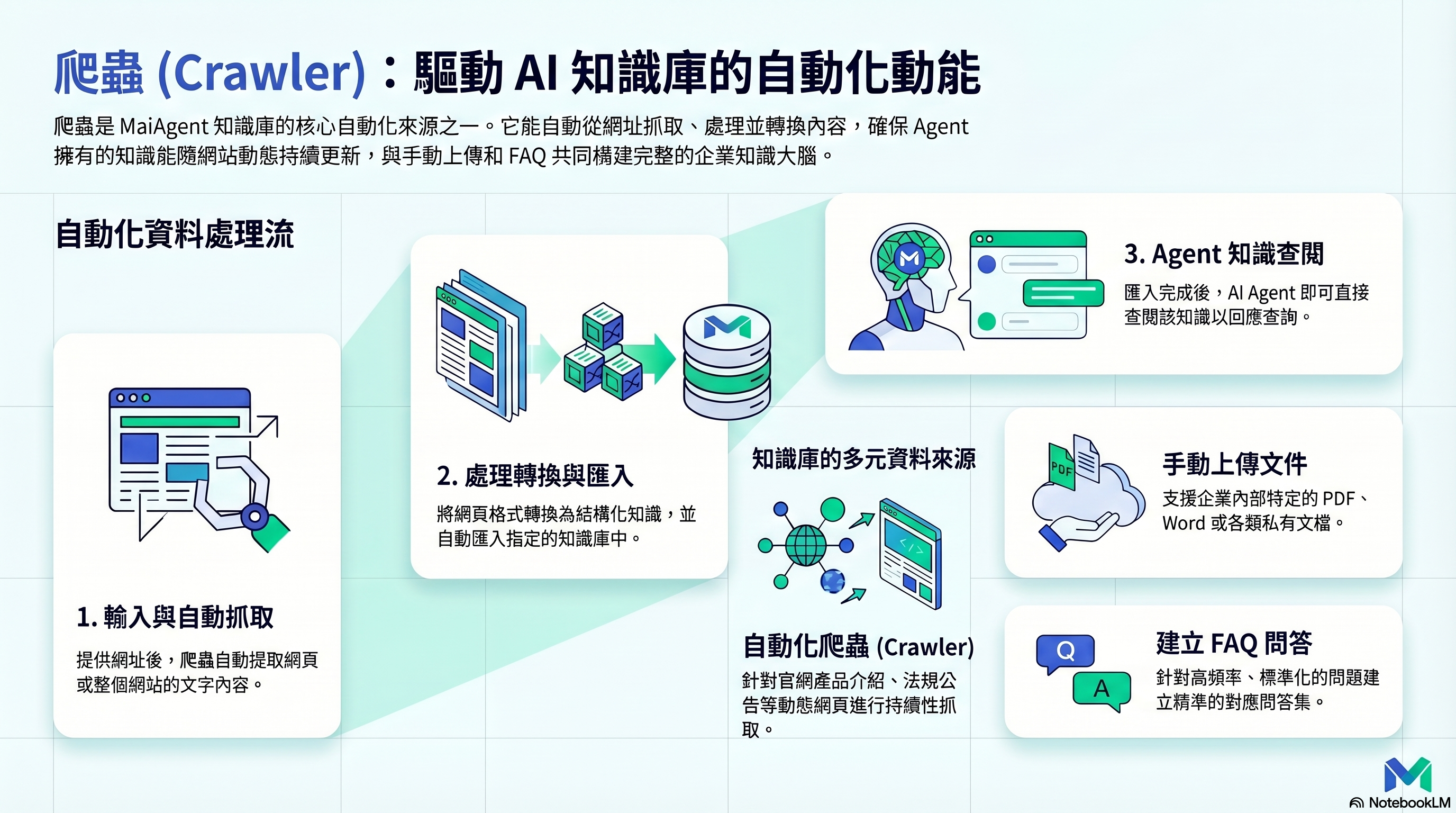
<figure><img src="https://1360999650-files.gitbook.io/~/files/v0/b/gitbook-x-prod.appspot.com/o/spaces%2F6v6TNkkOQVfRYfcNirHL%2Fuploads%2Fgit-blob-61507b5c380bef646f2b6892dc510feddab0993d%2Fcrawler-infographic.png?alt=media" alt="Crawler concept"><figcaption><p>Crawler: automatically fetch web page content and import it into a knowledge base</p></figcaption></figure>

## What is this? <a href="#what-is-this" id="what-is-this"></a>

A crawler automatically fetches content from web pages and imports it into a knowledge base. Give it a URL, and it can crawl the text on that page (or the entire website) and turn it into knowledge that an Agent can consult.

## When do you need it? <a href="#when-do-you-need-it" id="when-do-you-need-it"></a>

* **Official website content**: automatically import product introductions and service descriptions from your company's website
* **Public information**: fetch public web pages such as regulations, announcements, and technical documentation
* **Ongoing updates**: website content changes; recrawl regularly to keep the knowledge base up to date

## How crawlers relate to knowledge bases <a href="#crawler-and-knowledge-base-relationship" id="crawler-and-knowledge-base-relationship"></a>

A crawler is **one of the data sources** for a knowledge base. Its role is:

```
Data sources             Knowledge base             Agent
─────────                ──────                     ──────
Manually upload files ──→
Create FAQs           ──→ Enterprise knowledge hub ──→ Consult and respond
Crawl web pages       ──→
```

The content a crawler fetches ultimately goes into the knowledge base. Agents do not interact directly with the crawler.

## What do I need to do? <a href="#what-do-i-need-to-do" id="what-do-i-need-to-do"></a>

1. **Enter a URL** — Tell the crawler which web page or website to fetch
2. **Set the scope** — Use the maximum crawl depth, maximum page count, and URL rules to determine whether to fetch only the starting page or include subpages on the site (see [How crawl scope is determined](/maiagent-user-guide/en/build/knowledge-base/scrape-website.md#crawl-scope-rules) for the rules); for multilingual websites, you can also specify the [crawl language/region](#crawl-locale)
3. **Run the crawl** — Start the crawler and wait for it to finish
4. **Import into a knowledge base** — Import the crawl results into the specified knowledge base
5. **Verify the content** — Check that the imported content is correct and complete

## Multilingual websites: specify the crawl language/region <a href="#crawl-locale" id="crawl-locale"></a>

Some websites offer multiple language versions, such as Chinese and English, and decide which version to return based on the browser's language. If the crawler does not specify a language, the website may treat it as an English-speaking visitor and redirect it to an English page, resulting in English content in the knowledge base. When crawling only a single page, the starting page may even be redirected to a path outside the starting URL, leaving no pages crawled.

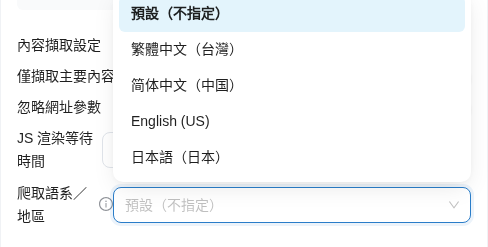
In this case, expand <mark style="color:blue;">Advanced Settings</mark> in the “Crawl Settings” step when creating a crawl request, and select the language and region for reading the website under <mark style="color:blue;">Crawl Language/Region</mark>, below <mark style="color:blue;">Content Extraction Settings</mark>:

| Option                                                        | Description                                                                                                                       |
| ------------------------------------------------------------- | --------------------------------------------------------------------------------------------------------------------------------- |
| <mark style="color:blue;">Default (unspecified)</mark>        | The default for new requests. No language is declared to the website; the crawl service decides (currently equivalent to English) |
| <mark style="color:blue;">Traditional Chinese (Taiwan)</mark> | Read the website in Traditional Chinese with Taiwan as the region                                                                 |
| <mark style="color:blue;">Simplified Chinese (China)</mark>   | Read the website in Simplified Chinese with China as the region                                                                   |
| <mark style="color:blue;">English (US)</mark>                 | Always read in English, regardless of future changes to the crawl service's default                                               |
| <mark style="color:blue;">Japanese (Japan)</mark>             | Read the website in Japanese with Japan as the region                                                                             |

<figure><img src="https://1360999650-files.gitbook.io/~/files/v0/b/gitbook-x-prod.appspot.com/o/spaces%2F6v6TNkkOQVfRYfcNirHL%2Fuploads%2Fgit-blob-b4a6c630ca887baf06158b0c3d3cbec5be212160%2Fcrawl-create-locale-options.png?alt=media" alt="Expanded Crawl Language/Region dropdown below Content Extraction Settings, with options Default (unspecified), Traditional Chinese (Taiwan), Simplified Chinese (China), English (US), and Japanese (Japan)"><figcaption><p>Crawl Language/Region: select the language and region for reading the website below Content Extraction Settings</p></figcaption></figure>

The selected language applies to every step of this crawl task:

* **Preview**: clicking <mark style="color:blue;">Preview</mark> in the “Execution Method” step uses the same language to discover URLs, so the URLs listed in the preview match those used in the actual crawl
* **Scheduling**: when you select <mark style="color:blue;">Scheduled Execution</mark>, the language is saved in the schedule settings and used for every subsequent run. You can change the language by clicking <mark style="color:blue;">Edit</mark> for the schedule on the “Schedules” tab; the new language takes effect on the next run
* **Details**: expand <mark style="color:blue;">Crawl Task Settings</mark> in the crawl request details to see the <mark style="color:blue;">Crawl Language/Region</mark> used for this run

For example, a knowledge base administrator at an appliance brand wants to crawl product descriptions from the bilingual Chinese/English website `https://www.example-appliance.com/` into the knowledge base, but previous crawls returned only English pages. She creates a new crawl request, changes <mark style="color:blue;">Crawl Language/Region</mark> to <mark style="color:blue;">Traditional Chinese (Taiwan)</mark> in Advanced Settings, then clicks <mark style="color:blue;">Preview</mark> in the “Execution Method” step to confirm that all pages to be crawled are in Chinese before creating the request. After the crawl finishes, she sees “Traditional Chinese (Taiwan)” in <mark style="color:blue;">Crawl Task Settings</mark> in the request details, and all crawled pages have Chinese titles. When she later switches to a weekly synchronization schedule, she selects the same language when creating the schedule, and every scheduled run uses it.

{% hint style="info" %}
The crawler does not translate content. If the website has no version in the selected language, the content collected is whatever the website actually returns. The language setting applies only to that crawl task or schedule and does not affect other crawl tasks in the organization. Existing tasks and schedules with no language setting continue to behave as before.
{% endhint %}

For all fields and operation steps, see [How to use the crawler (crawl data) feature](/maiagent-user-guide/en/build/knowledge-base/scrape-website.md#step-crawl-settings).

## Further reading <a href="#further-reading" id="further-reading"></a>

* [How to use the crawler (crawl data) feature](/maiagent-user-guide/en/build/knowledge-base/scrape-website.md)


---

# Agent Instructions
This documentation is published with GitBook. GitBook is the documentation platform designed so that both humans and AI agents can read, navigate, and reason over technical content effectively. Learn more at gitbook.com.

## Querying This Documentation
If you need additional information that is not directly available in this page, you can query the documentation by asking a question.

Perform an HTTP GET request on the following URL with the `ask` and `goal` query parameters:

```
GET https://docs.maiagent.ai/maiagent-user-guide/en/build/knowledge-base/crawler.md?ask=<question>&goal=<user_goal>
```

`ask` is the immediate question: it should be specific, self-contained, and written in natural language.
`goal` is what the user is ultimately trying to achieve, the reason they need the answer. Sharing it helps GitBook give you a better, more relevant answer. A goal is most helpful when it describes the outcome the user wants rather than restating the question. For example, with `ask=how do I create an API token`, a goal like `automate deployments from our CI pipeline` lets GitBook tailor the answer to that use case.

The response will contain a direct answer to the question and relevant excerpts and sources from the documentation.

Use this mechanism when the answer is not explicitly present in the current page, you need clarification or additional context, or you want to retrieve related documentation sections.