> For the complete documentation index, see [llms.txt](https://docs.maiagent.ai/llms.txt). Markdown versions of documentation pages are available by appending `.md` to page URLs; this page is available as [Markdown](https://docs.maiagent.ai/maiagent-user-guide/en/build/hook/setup.md).

# Add and Configure Hooks

Create a Hook from a standard template, configure its parameters (prohibited terms, evaluation model, detection service, block message, and more), and associate it with an Agent.

This page explains how to create a Hook from a standard template, configure its parameters, and attach it to an Agent so it can start working.

## <mark style="color:blue;">1. Add a Hook</mark> <a href="#create-hook" id="create-hook"></a>

### 1. Open the Hook List <a href="#hook-list" id="hook-list"></a>

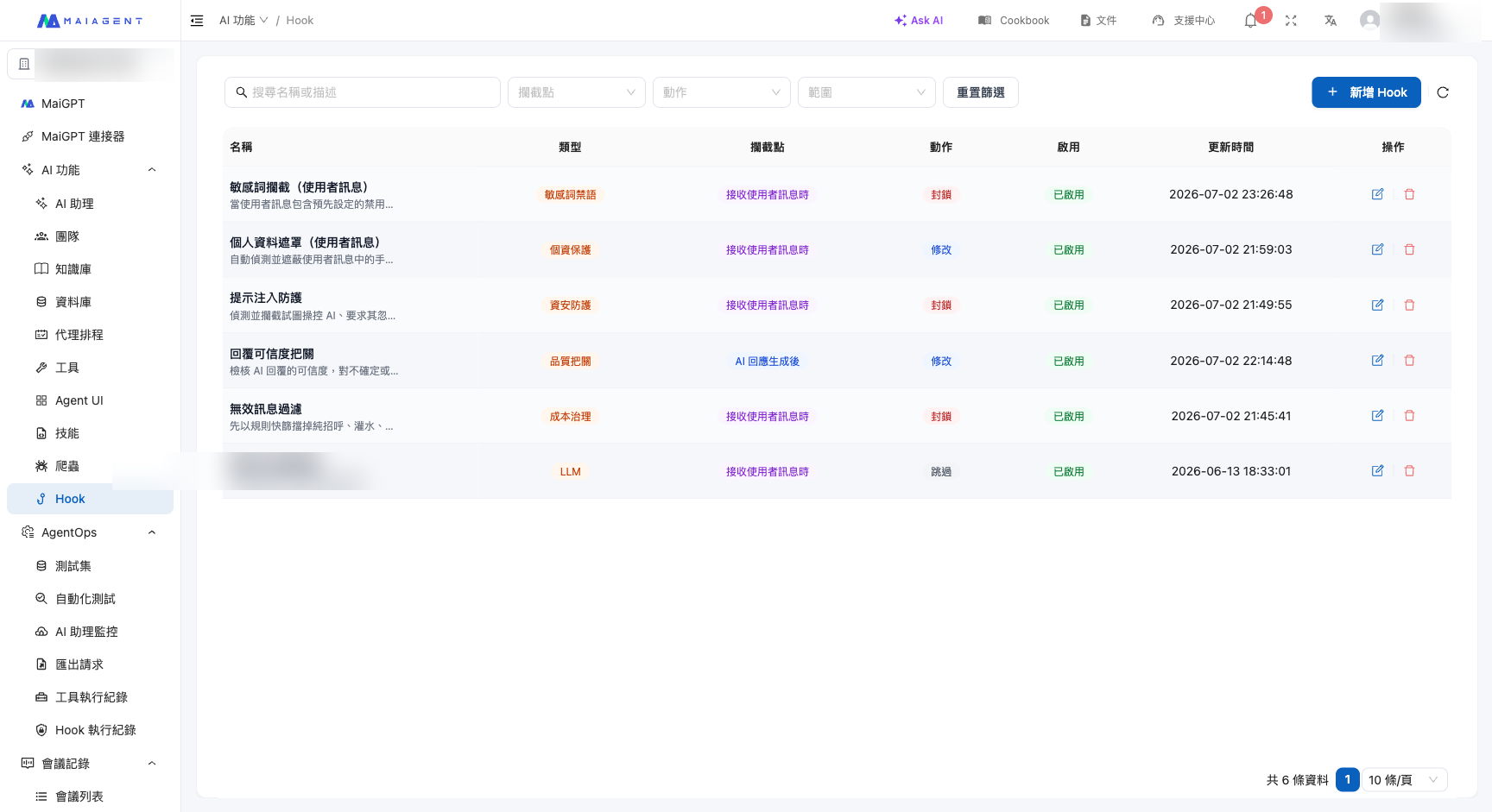
From the left menu, go to <mark style="color:blue;">AI Features</mark> → <mark style="color:blue;">Hook</mark>. The list displays all Hooks in the current organization, including their **name, description, type, interception point, action, associated AI assistants, enabled status, creator, and update time**.

<figure><img src="https://1360999650-files.gitbook.io/~/files/v0/b/gitbook-x-prod.appspot.com/o/spaces%2F6v6TNkkOQVfRYfcNirHL%2Fuploads%2Fgit-blob-6e59d6234d2cd7e2151d3e9a72ba87cffaab5b47%2Fhook-list.png?alt=media" alt="Hook list page"><figcaption><p>The Hook list shows each Hook's type, interception point (when it intervenes), action (modify/block), the Agents it is attached to, and enabled status.</p></figcaption></figure>

### 2. Select a Template <a href="#pick-template" id="pick-template"></a>

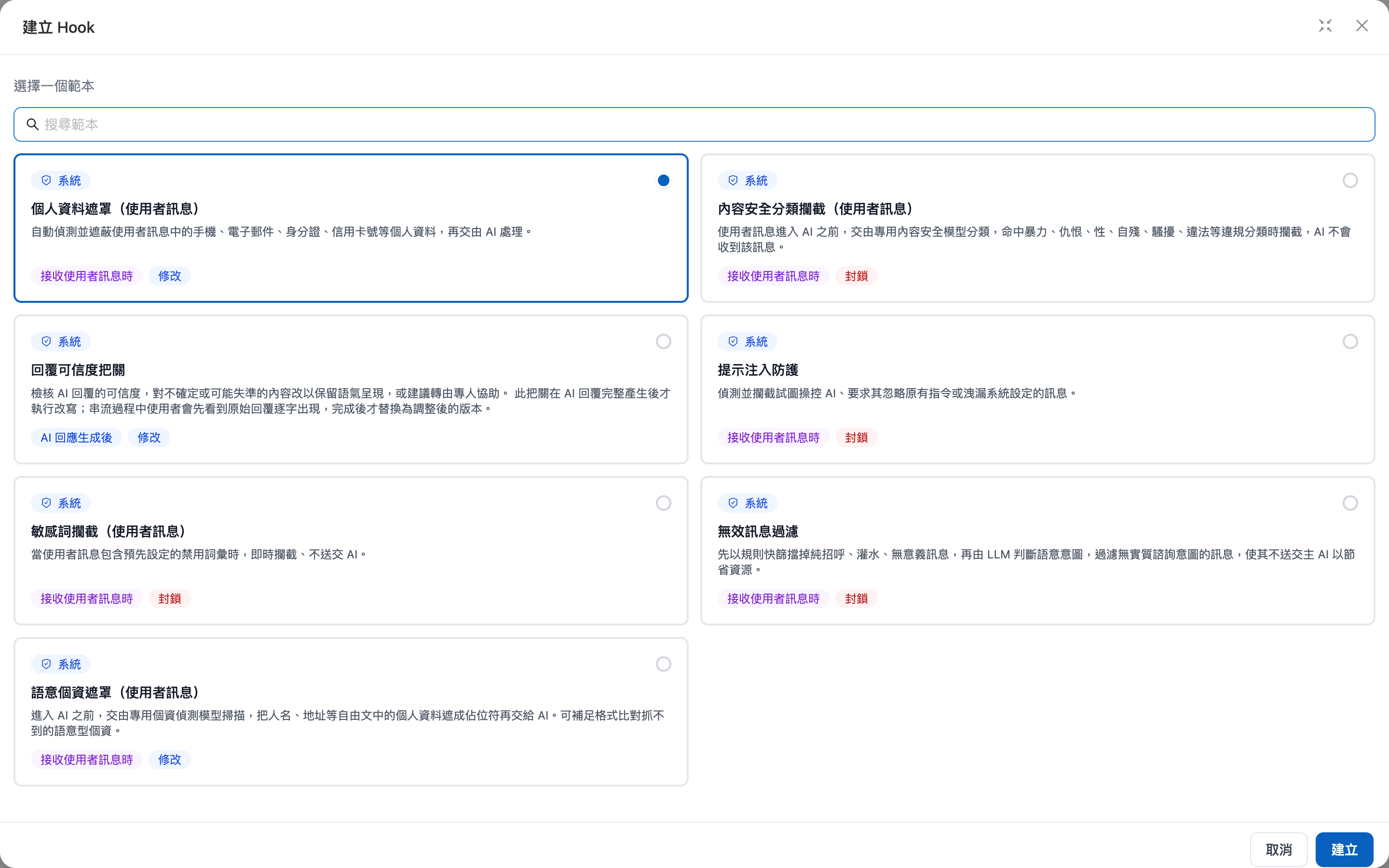
Click <mark style="color:blue;">Add Hook</mark> in the upper-right corner, then select a standard template in the pop-up window. Each template card shows its **interception point** and **action**, making it easy to quickly identify its purpose.

<figure><img src="https://1360999650-files.gitbook.io/~/files/v0/b/gitbook-x-prod.appspot.com/o/spaces%2F6v6TNkkOQVfRYfcNirHL%2Fuploads%2Fgit-blob-2cfaec04f48cf340169889f5d617c82c0f9a88f7%2Fhook-create-modal.png?alt=media" alt="Create a Hook: select a template"><figcaption><p>Select a template: Each of the seven standard templates indicates its interception point (when receiving a user message/after an AI response is generated) and action (modify/block).</p></figcaption></figure>

{% hint style="info" %}
The creation process has three tabs: **Template** (which type to use) → **Basic Information** (name and description) → **Apply to AI Assistants** (which Agents to attach it to). After selecting a template, complete each tab in order.
{% endhint %}

## <mark style="color:blue;">2. Configure Parameters</mark> <a href="#configure" id="configure"></a>

Each template has different parameters. You can configure them on the Hook settings page after creation. Common parameters include:

| Template                               | Main parameters                                                                                                             | Description                                                                                                                                                                 |
| -------------------------------------- | --------------------------------------------------------------------------------------------------------------------------- | --------------------------------------------------------------------------------------------------------------------------------------------------------------------------- |
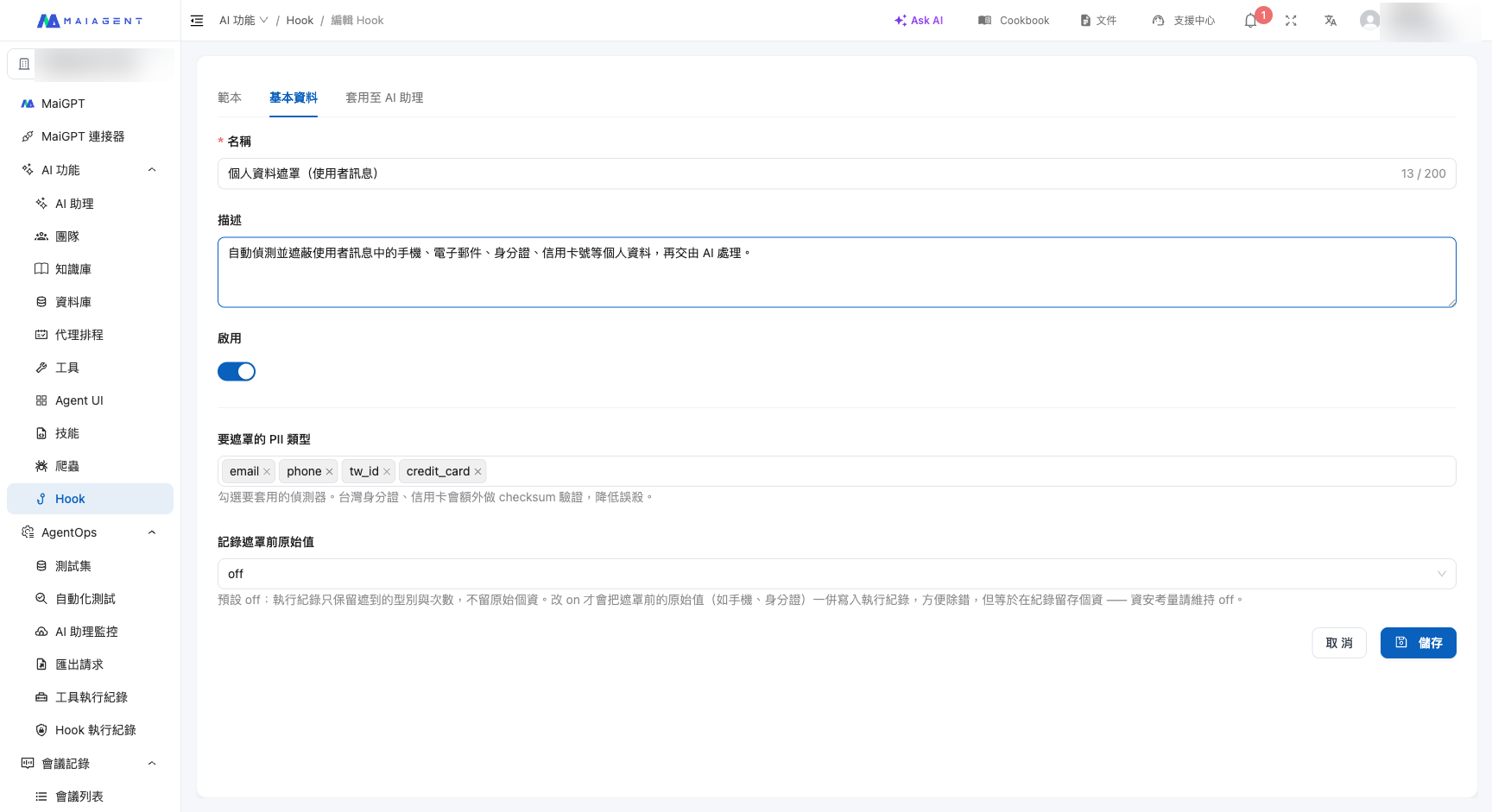
| Personal Data Masking                  | PII types to mask                                                                                                           | Select the types to detect (Email/mobile phone number/ID number/credit card)                                                                                                |
| Semantic Personal Data Masking         | Personal data detection model and detection types, minimum confidence, masking style                                        | Select a detection service, then choose the personal data types to mask (name, address, phone number, and more); increasing the confidence value can reduce false positives |
| Sensitive Keyword Blocking             | Prohibited terms, minimum term length                                                                                       | Enter one prohibited term per line; the minimum term length filters out terms that are too short and helps prevent false positives                                          |
| Prompt Injection Protection            | Evaluation model, additional evaluation rules                                                                               | Select an LLM to determine whether content is an attack; you can also add custom rules                                                                                      |
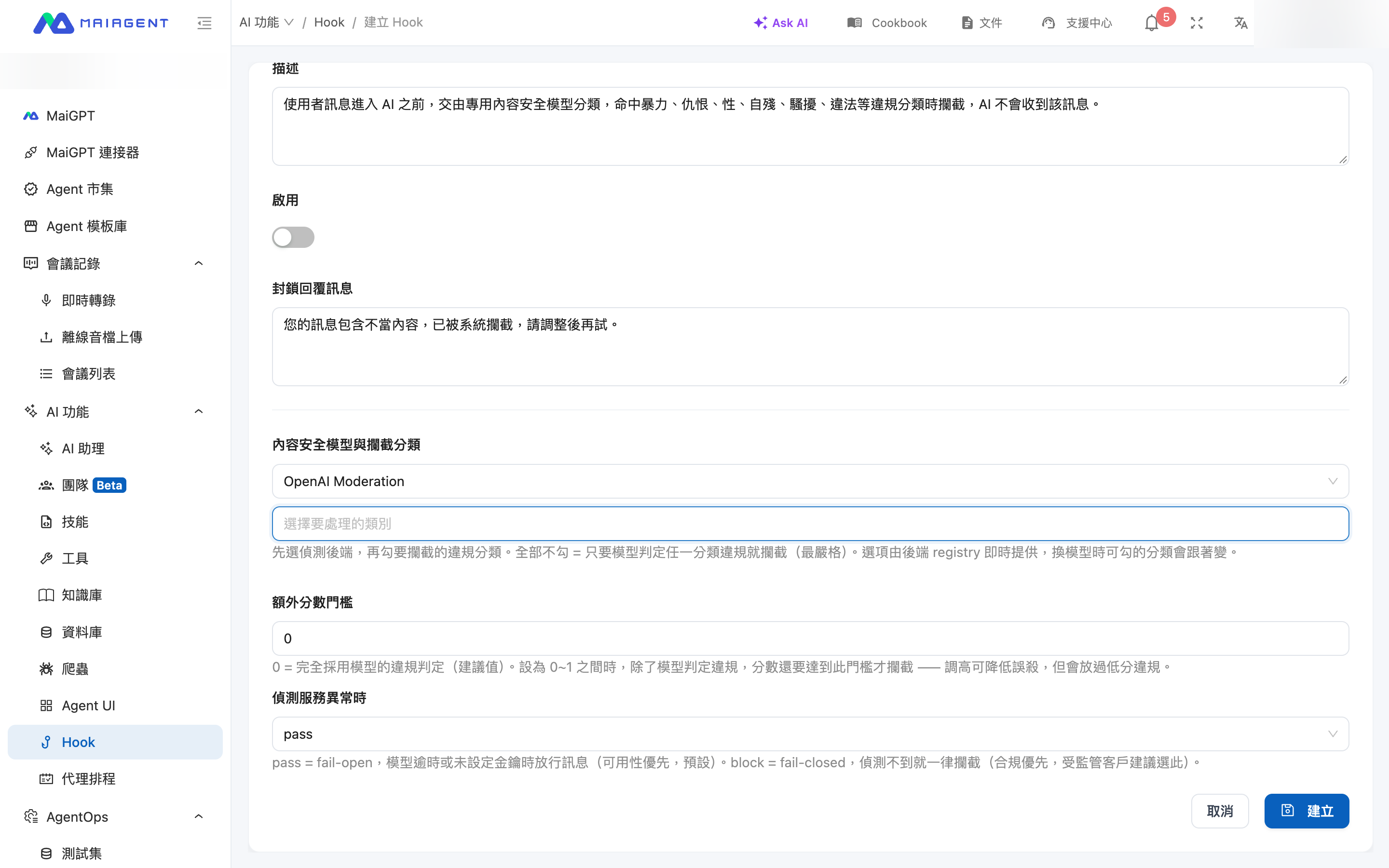
| Content Safety Classification Blocking | Content safety model and blocked categories, additional score threshold, behavior when the detection service is unavailable | Select a detection service, then choose the categories to block; if none are selected, any category violation will be blocked                                               |
| Invalid Message Filtering              | Greeting list, consecutive repetition limit, evaluation model                                                               | Rules filter messages first, then an LLM determines whether a message is invalid                                                                                            |
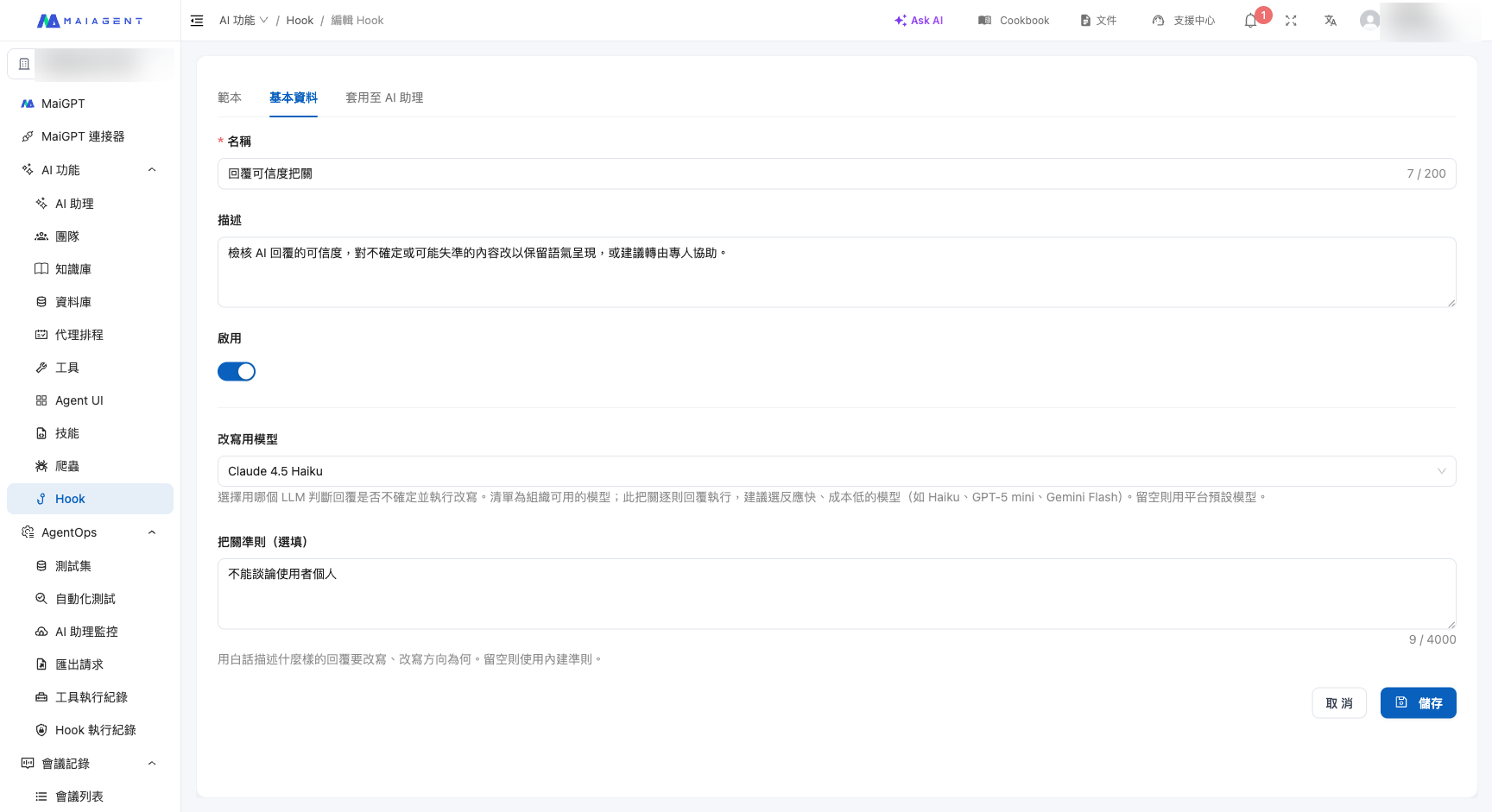
| Response Reliability Check             | Rewrite model, verification criteria                                                                                        | Select an LLM to determine whether a response is reliable and rewrite it                                                                                                    |

<figure><img src="https://1360999650-files.gitbook.io/~/files/v0/b/gitbook-x-prod.appspot.com/o/spaces%2F6v6TNkkOQVfRYfcNirHL%2Fuploads%2Fgit-blob-283ea3184f3a97f6a72bd3739e6973ce958d571d%2Fhook-settings-pii.png?alt=media" alt="Personal Data Masking settings page"><figcaption><p>Using Personal Data Masking as an example, you can select the PII types to detect and set the enabled status.</p></figcaption></figure>

### Evaluation Model (LLM-Based Templates) <a href="#judge-model" id="judge-model"></a>

Templates that require semantic evaluation—Prompt Injection Protection, Invalid Message Filtering, and Response Reliability Check—include an **evaluation model** field. The drop-down menu lists the models currently available to your organization. This evaluation runs for every message, so **we recommend selecting a fast, lower-cost model** (such as Haiku, GPT-5 mini, or Gemini Flash). Leave the field blank to use the platform's default model.

<figure><img src="https://1360999650-files.gitbook.io/~/files/v0/b/gitbook-x-prod.appspot.com/o/spaces%2F6v6TNkkOQVfRYfcNirHL%2Fuploads%2Fgit-blob-46b3fd072556f852d8d520ed156770152d7d0b9b%2Fhook-settings-model.png?alt=media" alt="Evaluation model settings for an LLM-based template"><figcaption><p>Using Response Reliability Check as an example, you can select the evaluation model from the LLMs available to your organization and describe the evaluation approach in plain language under Verification Criteria.</p></figcaption></figure>

### Detection Service (Safety Model-Based Templates) <a href="#detection-service" id="detection-service"></a>

Content Safety Classification Blocking and Semantic Personal Data Masking do not use a general-purpose LLM for evaluation. Instead, they send content to a **dedicated safety model**. This model returns structured classifications and scores that support thresholds and auditing, with lower latency and cost than an LLM judge. Both templates use a **two-step** configuration: first select a detection service, then choose the items to process.

**Content Safety Classification Blocking**

1. Under <mark style="color:blue;">Content Safety Model and Blocked Categories</mark>, select a detection service from the first drop-down menu (OpenAI Moderation is currently available).
2. In the second drop-down menu, select the categories to block, such as harassment, hate, illegal activity, self-harm, sexual content, and violence. **Selecting no categories means that any category violation will be blocked** (the strictest option and the recommended starting setting).
3. The default <mark style="color:blue;">Additional Score Threshold</mark> is 0, meaning the model's determination is used directly. If you set a value between 0 and 1, a score must also meet that threshold to be blocked. Raising the threshold can reduce false positives.
4. <mark style="color:blue;">When the Detection Service Is Unavailable</mark> determines what happens when the service times out or no key is configured: `pass` allows the message through (availability first; default), while `block` always blocks it (compliance first; recommended for regulated industries).

<figure><img src="https://1360999650-files.gitbook.io/~/files/v0/b/gitbook-x-prod.appspot.com/o/spaces%2F6v6TNkkOQVfRYfcNirHL%2Fuploads%2Fgit-blob-3fc8d36ba688b70d35c16b1332c9154940dac18d%2Fhook-settings-content-safety.png?alt=media" alt="Content Safety Classification Blocking settings page"><figcaption><p>Content Safety Classification Blocking: First select a detection service, then choose the categories to block. Below, you can set an additional score threshold and the behavior to use when the service is unavailable.</p></figcaption></figure>

<figure><img src="https://1360999650-files.gitbook.io/~/files/v0/b/gitbook-x-prod.appspot.com/o/spaces%2F6v6TNkkOQVfRYfcNirHL%2Fuploads%2Fgit-blob-5978480ef70accd2cd91a1b7f80ed1fc506aa27a%2Fhook-settings-content-safety-categories.png?alt=media" alt="Content Safety Classification Blocking: selectable categories"><figcaption><p>The detection service provides the selectable categories in real time. Each category displays the service's native category name, and the list changes when you switch services.</p></figcaption></figure>

**Semantic Personal Data Masking**

1. Under <mark style="color:blue;">Personal Data Detection Model and Detection Types</mark>, select a detection service from the first drop-down menu (Google Cloud DLP is currently available).
2. In the second drop-down menu, select the personal data types to mask. “Standard types” include names, addresses, phone numbers, email addresses, Taiwan ID numbers, and Taiwan passport numbers, while “provider-specific types” include credit card numbers, IBANs, and other detailed types. **Selecting more types increases the cost of each call**, so we recommend selecting only those that your business actually needs to mask.
3. The default <mark style="color:blue;">Minimum Confidence</mark> is 0.5. Detection results below this value are ignored. Raising the value can reduce false positives (such as mistaking a company name for a person's name), at the cost of potentially missing some data.
4. <mark style="color:blue;">Masking Style</mark>: `type_token` replaces content with placeholders such as `[NAME]` and `[ADDRESS]`, so the AI still knows what type of data was originally present (recommended); `asterisk` replaces it with an equal number of asterisks, completely concealing the type.

<figure><img src="https://1360999650-files.gitbook.io/~/files/v0/b/gitbook-x-prod.appspot.com/o/spaces%2F6v6TNkkOQVfRYfcNirHL%2Fuploads%2Fgit-blob-be9b5bdd1c5d8d18c9e112919d93fc1c9222cb54%2Fhook-settings-semantic-pii.png?alt=media" alt="Semantic Personal Data Masking settings page"><figcaption><p>Semantic Personal Data Masking: First select a detection service, then choose the personal data types to mask (name and address are selected in this example). Below, you can set the minimum confidence and masking style.</p></figcaption></figure>

<figure><img src="https://1360999650-files.gitbook.io/~/files/v0/b/gitbook-x-prod.appspot.com/o/spaces%2F6v6TNkkOQVfRYfcNirHL%2Fuploads%2Fgit-blob-c8c02f637932adf48cd4965c29022620d9555b97%2Fhook-settings-semantic-pii-types.png?alt=media" alt="Semantic Personal Data Masking: selectable personal data types"><figcaption><p>The selectable personal data types are divided into “standard types” and “provider-specific types,” presented in separate sections within the same menu.</p></figcaption></figure>

{% hint style="warning" %}
**Content will be sent to an external detection service.** These two templates send the text to be checked to a detection service (OpenAI or Google Cloud) for evaluation. Organizations with data residency requirements or policies that prohibit external data transfers should confirm compliance before enabling them. When you switch detection services, selected items are automatically cleared to prevent incompatible types from causing a save failure.
{% endhint %}

{% hint style="info" %}
**Block messages are customizable.** Blocking templates (such as Prompt Injection Protection, Sensitive Keyword Blocking, Invalid Message Filtering, and Content Safety Classification Blocking) let you configure the message returned to users when content is blocked under <mark style="color:blue;">Block Response Message</mark>. For example: “Your message contains inappropriate language. Please revise it and try again.”
{% endhint %}

## <mark style="color:blue;">3. Associate Agents</mark> <a href="#link-assistant" id="link-assistant"></a>

A Hook only takes effect after it is **attached to an Agent**. There are two ways to do this:

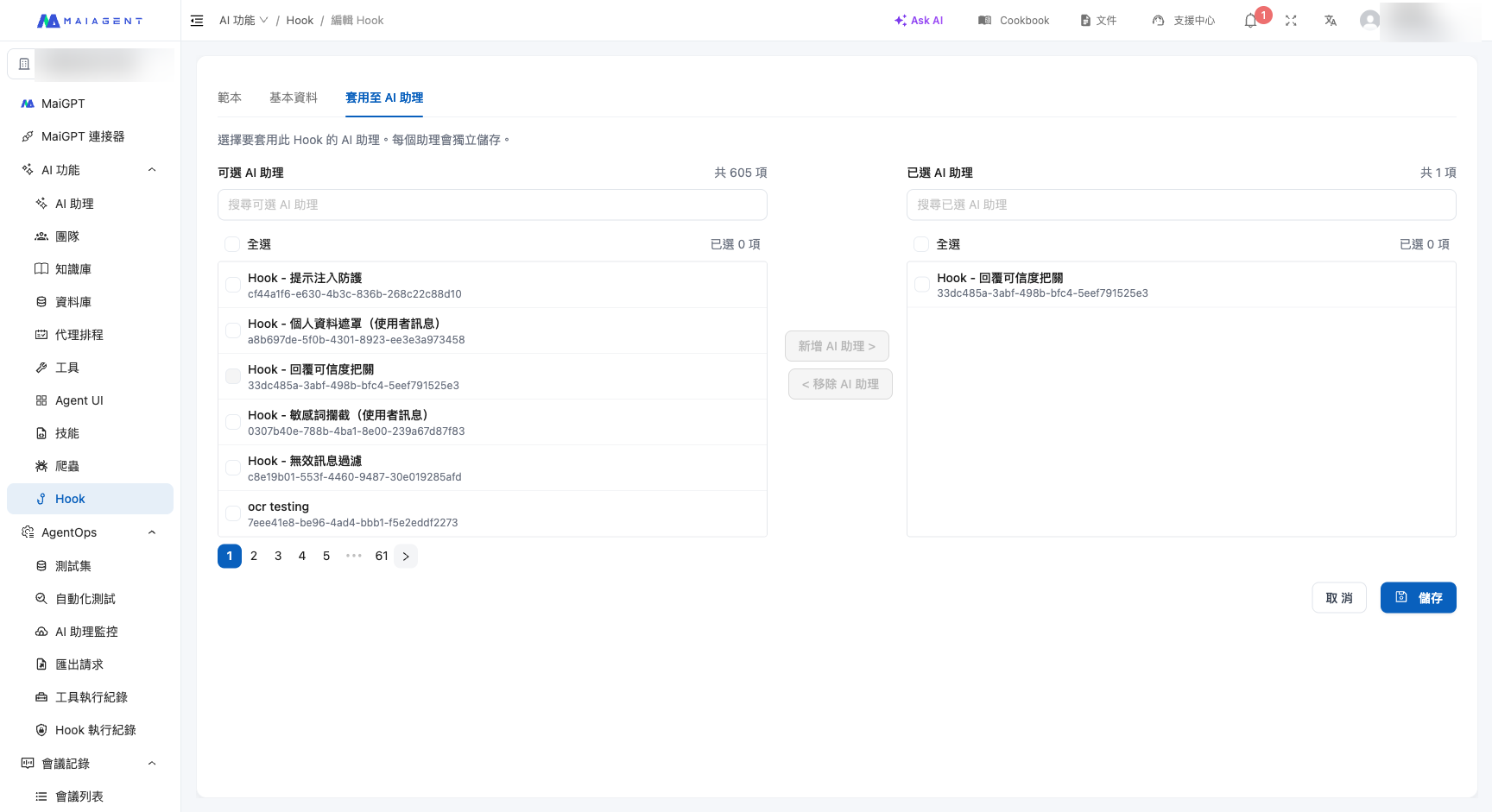
* **Attach during creation**: On the Apply to AI Assistants tab when creating a Hook, select the Agents to which it should apply.
* **Attach from Agent settings**: Open an Agent's settings page, switch to the <mark style="color:blue;">Hook</mark> tab, and select the Hook to apply.

<figure><img src="https://1360999650-files.gitbook.io/~/files/v0/b/gitbook-x-prod.appspot.com/o/spaces%2F6v6TNkkOQVfRYfcNirHL%2Fuploads%2Fgit-blob-48a16fe6492f63a9726f72e39eda7952762048e1%2Fhook-assistant-link.png?alt=media" alt="Apply a Hook to an Agent"><figcaption><p>On the Hook's Apply to AI Assistants tab, move the Hook from the “Available” list on the left to the “Selected” list on the right to complete the association.</p></figcaption></figure>

{% hint style="success" %}
**An Agent can have multiple Hooks attached.** The system executes them in sequence. For example, it can first use Invalid Message Filtering to block spam, then use Personal Data Masking to mask personal data, and finally use Prompt Injection Protection to block attacks—creating a tailored protection workflow.
{% endhint %}

{% hint style="info" %}
**When a “When receiving a user message” Hook is attached, attachments, knowledge base passages, and tool responses are also checked.** No additional configuration is required. If an Agent has a Hook that runs before content reaches the AI, content from user-uploaded attachments, passages retrieved from the knowledge base, and results returned by tools in Agent mode all pass through the same set of Hooks before being sent to the model. See [Hook Message Interception](/maiagent-user-guide/en/build/hook.md#four-sources) for details.
{% endhint %}

### Enable the Hook <a href="#enable" id="enable"></a>

After confirming the parameters and associated Agents, set the Hook to <mark style="color:blue;">Enabled</mark>. Once enabled, the Hook runs automatically at the corresponding point whenever a user interacts with that Agent.

## <mark style="color:blue;">4. Next Steps</mark> <a href="#next" id="next"></a>

After completing the setup, you can view each interception or modification in [Hook Execution Logs](/maiagent-user-guide/en/build/hook/execution-logs.md) to confirm that the Hook is working correctly.


---

# Agent Instructions
This documentation is published with GitBook. GitBook is the documentation platform designed so that both humans and AI agents can read, navigate, and reason over technical content effectively. Learn more at gitbook.com.

## Querying This Documentation
If you need additional information that is not directly available in this page, you can query the documentation by asking a question.

Perform an HTTP GET request on the following URL with the `ask` and `goal` query parameters:

```
GET https://docs.maiagent.ai/maiagent-user-guide/en/build/hook/setup.md?ask=<question>&goal=<user_goal>
```

`ask` is the immediate question: it should be specific, self-contained, and written in natural language.
`goal` is what the user is ultimately trying to achieve, the reason they need the answer. Sharing it helps GitBook give you a better, more relevant answer. A goal is most helpful when it describes the outcome the user wants rather than restating the question. For example, with `ask=how do I create an API token`, a goal like `automate deployments from our CI pipeline` lets GitBook tailor the answer to that use case.

The response will contain a direct answer to the question and relevant excerpts and sources from the documentation.

Use this mechanism when the answer is not explicitly present in the current page, you need clarification or additional context, or you want to retrieve related documentation sections.