> For the complete documentation index, see [llms.txt](https://docs.maiagent.ai/llms.txt). Markdown versions of documentation pages are available by appending `.md` to page URLs; this page is available as [Markdown](https://docs.maiagent.ai/maiagent-user-guide/en/build/database/create-database.md).

# Create and Configure a Database

This guide explains how to create and configure databases in MaiAgent, including creating tables by uploading files, connecting to external databases, and setting column descriptions

MaiAgent's **Database Management** feature lets you centrally manage the database connections used by AI assistants on the platform. With Text to SQL, AI assistants can query data in a database directly using natural language.

{% hint style="info" %}
For an introduction to Text to SQL, see [Text to SQL Feature](/maiagent-user-guide/en/build/database/text2sql.md).
{% endhint %}

MaiAgent supports two types of databases:

* **MaiAgent Database**: Upload an Excel / CSV / JSON file, and the system automatically creates a table. Suitable for users who do not have their own database
* **External Database**: Connect to an existing PostgreSQL, MySQL, SQL Server (MSSQL), Oracle, or SynxDB database

## Create a Database <a href="#create-database" id="create-database"></a>

### 1. Open the Database Management Page <a href="#enter-database-management-page" id="enter-database-management-page"></a>

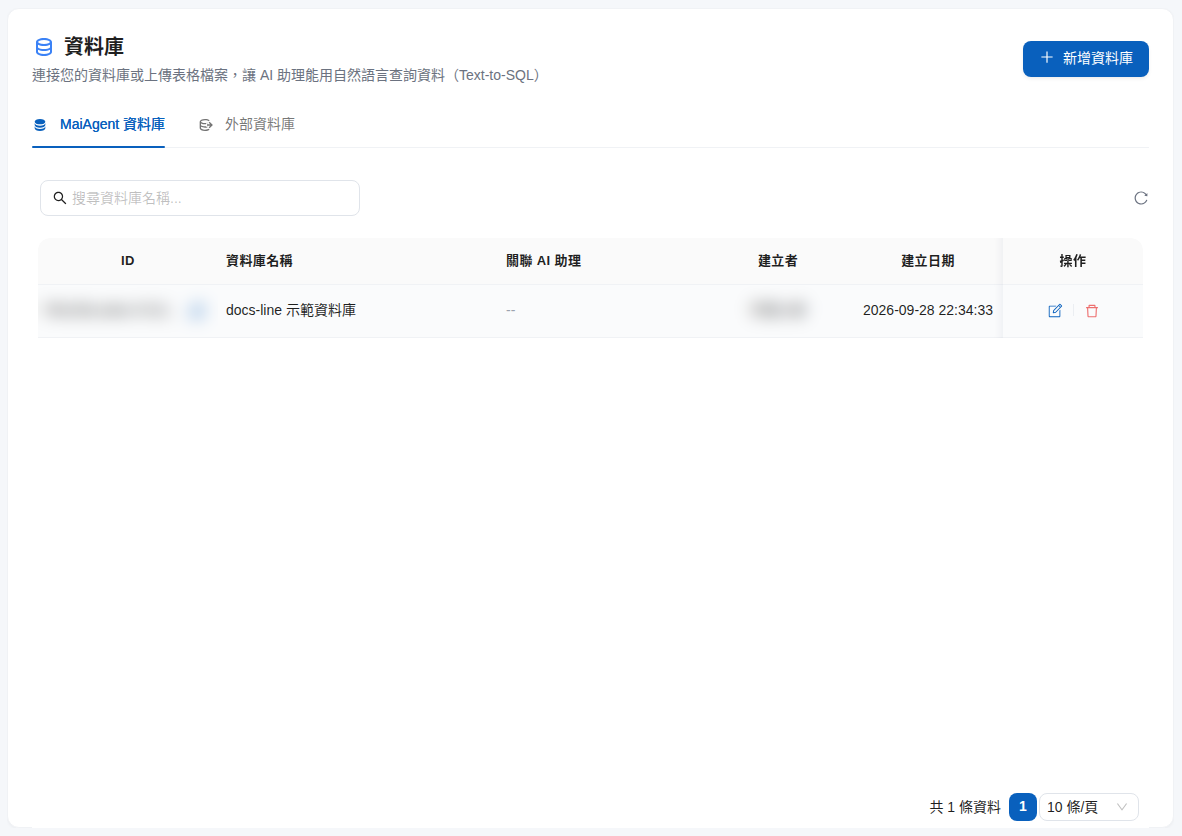
From the left navigation bar, open <mark style="color:blue;">**AI Features**</mark> and click <mark style="color:blue;">**Database**</mark>. The page has two tabs: <mark style="color:blue;">MaiAgent Database</mark> and <mark style="color:blue;">External Database</mark>.

Click <mark style="color:blue;">**Add Database**</mark> in the upper right to begin.

<figure><img src="https://1360999650-files.gitbook.io/~/files/v0/b/gitbook-x-prod.appspot.com/o/spaces%2F6v6TNkkOQVfRYfcNirHL%2Fuploads%2Fgit-blob-1679e98bd1aac4aaa4518e438af0f88ac67c34e7%2Fdatabase-list-page.png?alt=media" alt="Database management page"><figcaption><p>Database management page showing the MaiAgent database list</p></figcaption></figure>

{% hint style="info" %}
If the button is grayed out and cannot be clicked, your role has not been granted permission to create databases. Contact your organization administrator to set up the permission.
{% endhint %}

### 2. Select a Database Type <a href="#select-database-type" id="select-database-type"></a>

Select the type of database you want to create. Click its card, then click <mark style="color:blue;">**Next**</mark>:

* **MaiAgent Database**: For uploading spreadsheet files; no connection string is required
* **PostgreSQL / MySQL / SQL Server / Oracle / SynxDB**: Connect to an existing external enterprise database

<figure><img src="https://1360999650-files.gitbook.io/~/files/v0/b/gitbook-x-prod.appspot.com/o/spaces%2F6v6TNkkOQVfRYfcNirHL%2Fuploads%2Fgit-blob-7bfa7cfc7a933807d14941d090f30a8442c0e3af%2Fdatabase-create-select-type.png?alt=media" alt="Select a database type"><figcaption><p>Step 1: Select a database type</p></figcaption></figure>

### 3. Enter Basic Information <a href="#fill-in-basic-info" id="fill-in-basic-info"></a>

#### MaiAgent Database <a href="#maiagent-database-info" id="maiagent-database-info"></a>

| Field         | Required | Description                                                 |
| ------------- | -------- | ----------------------------------------------------------- |
| Database name | Yes      | For example, "2024 sales data"                              |
| Description   | No       | Additional details about the database's purpose or contents |

{% hint style="info" %}
A MaiAgent Database does not require a connection string; the system handles data storage automatically. After creating it, upload a spreadsheet file.
{% endhint %}

<figure><img src="https://1360999650-files.gitbook.io/~/files/v0/b/gitbook-x-prod.appspot.com/o/spaces%2F6v6TNkkOQVfRYfcNirHL%2Fuploads%2Fgit-blob-87d0a0885bc2b8454421703e90225a019c1e2b57%2Fdatabase-create-info-maiagent.png?alt=media" alt="MaiAgent Database settings"><figcaption><p>Step 2: MaiAgent Database settings</p></figcaption></figure>

#### External Database <a href="#external-database-info" id="external-database-info"></a>

| Field             | Required | Description                                                                     |
| ----------------- | -------- | ------------------------------------------------------------------------------- |
| Database name     | Yes      | For example, "Enterprise ERP database"                                          |
| Description       | No       | Additional details about the database's purpose or contents                     |
| Connection string | Yes      | The database connection URL                                                     |
| Specify tables    | No       | Limit the tables that AI assistants can query; separate table names with commas |

The connection string formats are shown below (the format for the selected database type also appears below the field):

```
PostgreSQL:   postgresql://username:password@host:port/database_name
MySQL:        mysql+pymysql://username:password@host:port/database_name
SQL Server:   mssql+pyodbc://username:password@host:port/database_name?driver=ODBC+Driver+18+for+SQL+Server&TrustServerCertificate=yes&Encrypt=no
Oracle:       oracle+oracledb://username:password@host:port/?service_name=service_name
SynxDB:       postgresql://username:password@host:port/database_name
```

{% hint style="danger" %}
Make sure the connection string has the correct format and contains all required connection information. Its prefix must match the format above; otherwise, an "Invalid connection string format" message appears and you cannot continue to the next step. Also make sure the database URL is accessible to MaiAgent services.
{% endhint %}

<figure><img src="https://1360999650-files.gitbook.io/~/files/v0/b/gitbook-x-prod.appspot.com/o/spaces%2F6v6TNkkOQVfRYfcNirHL%2Fuploads%2Fgit-blob-6158a998800e16ec360cd66dc1d0203786acdcf4%2Fdatabase-create-info-external.png?alt=media" alt="External database settings"><figcaption><p>Step 2: External database (PostgreSQL) settings</p></figcaption></figure>

After entering the connection string, click <mark style="color:blue;">**Test Connection**</mark> to check the connection (or skip the test and save directly):

* **Connection successful**: MaiAgent can access your database
* **Connection failed**: Check the connection string format, network connectivity, and whether the database allows external connections

If your database has many tables, enter the names of the tables you want to make available (for example, `customers, orders, products`) in <mark style="color:blue;">**Specify Tables**</mark> to improve query efficiency and security. Leave this field blank to allow queries across all tables.

### 4. Configure Role Permissions <a href="#configure-group-permission" id="configure-group-permission"></a>

The final step is to choose which roles can access the database. Select one option under <mark style="color:blue;">**Quick Select Permission Scope**</mark>:

* <mark style="color:blue;">All Roles</mark>: Allow members with any role in the organization to use this database
* <mark style="color:blue;">Exclude Default Roles</mark>: Allow only custom roles; exclude default roles
* <mark style="color:blue;">Select Roles</mark>: Choose specific roles manually by moving roles you want to authorize from <mark style="color:blue;">**Available Roles**</mark> to <mark style="color:blue;">**Selected Roles**</mark>

<figure><img src="https://1360999650-files.gitbook.io/~/files/v0/b/gitbook-x-prod.appspot.com/o/spaces%2F6v6TNkkOQVfRYfcNirHL%2Fuploads%2Fgit-blob-370933d45e5081799639a1b310f3f3ae875936a2%2Fdatabase-create-role-permission.png?alt=media" alt="Configure role permissions"><figcaption><p>Step 3: Quickly select the permission scope</p></figcaption></figure>

{% hint style="info" %}
If you do not need to configure role permissions yet, skip this step. You can adjust them later on the <mark style="color:blue;">**Role Permissions**</mark> tab of the database settings page.
{% endhint %}

### 5. Finish Creating the Database <a href="#complete-creation" id="complete-creation"></a>

After reviewing the settings, click <mark style="color:blue;">**Create Database**</mark> (MaiAgent Database) or <mark style="color:blue;">**Save**</mark> (external database). Once the database is created, its settings page opens for further configuration.

{% hint style="warning" %}
New databases are **disabled** by default. On the <mark style="color:blue;">**Basic Information**</mark> tab, turn on <mark style="color:blue;">**Enable Database**</mark> and save, or toggle <mark style="color:blue;">**Enable**</mark> in the database list. AI assistants can then use this database for Text to SQL queries.
{% endhint %}

{% hint style="info" %}
After creating the database, remember to **link it to an AI assistant** so the assistant can query it. See [Link AI Assistants and Group Permissions](/maiagent-user-guide/en/build/database/link-chatbots-groups.md).
{% endhint %}

## Upload a File to Create a Table (MaiAgent Database) <a href="#upload-file-to-create-table" id="upload-file-to-create-table"></a>

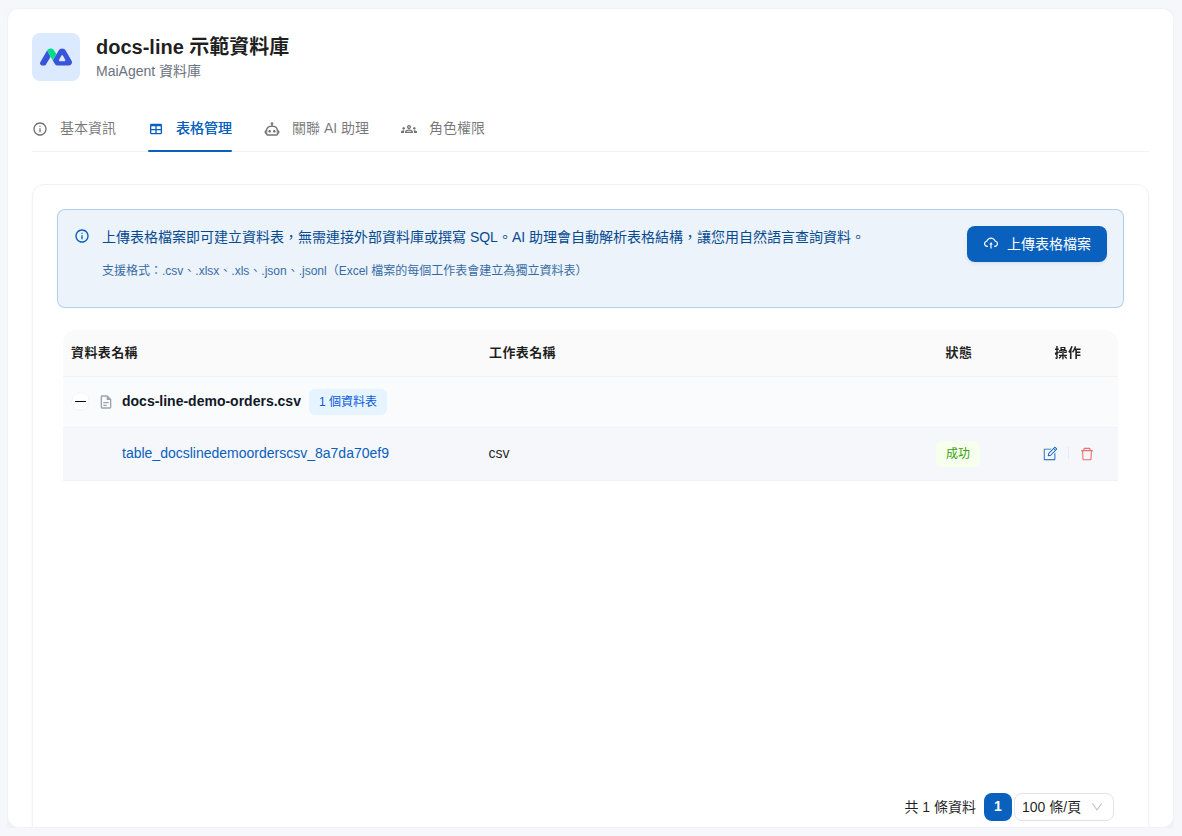
After creating a MaiAgent Database, open its settings page and switch to the <mark style="color:blue;">**Table Management**</mark> tab. Click <mark style="color:blue;">**Upload Table File**</mark>, select a file or drag one into the upload area, and then click <mark style="color:blue;">**Upload**</mark>.

<figure><img src="https://1360999650-files.gitbook.io/~/files/v0/b/gitbook-x-prod.appspot.com/o/spaces%2F6v6TNkkOQVfRYfcNirHL%2Fuploads%2Fgit-blob-20335fe758b8e0f9dbd3fd5f1bb89d70b698624a%2Fdatabase-config-table-management.png?alt=media" alt="Table Management tab"><figcaption><p>Table Management tab, with tables grouped by source file</p></figcaption></figure>

### Supported File Formats <a href="#supported-file-formats" id="supported-file-formats"></a>

| Format | Extension         | Description                                         |
| ------ | ----------------- | --------------------------------------------------- |
| Excel  | `.xlsx`, `.xls`   | Creates a separate table for each worksheet (Sheet) |
| CSV    | `.csv`            | Comma-separated values file                         |
| JSON   | `.json`, `.jsonl` | JSON data file                                      |

After upload, the system parses the file structure and creates tables in the background. Tables are grouped by source file and display their processing status:

| Status     | Description                                                                    |
| ---------- | ------------------------------------------------------------------------------ |
| Pending    | The file has been uploaded and is waiting to be processed                      |
| Processing | The system is parsing the file and creating tables                             |
| Success    | The table has been created and AI assistants can query it                      |
| Failed     | An error occurred during creation; hover over the error icon to see the reason |

### File Format Notes <a href="#file-format-notes" id="file-format-notes"></a>

* [x] The first row must contain **column names**
* [x] Each column must have a consistent **data type** (for example, all values in a price column should be numbers)
* [x] Avoid **merged cells**
* [x] Avoid **duplicate column names**
* [x] Each worksheet (Sheet) in an Excel file must contain **only one table**

{% hint style="warning" %}
Common reasons a table fails to be created include an invalid or damaged file, special characters in column names, duplicate column names, or inconsistent data types within a column.
{% endhint %}

## Edit Column Descriptions <a href="#edit-column-description" id="edit-column-description"></a>

Column descriptions are a **key setting** for improving the accuracy of Text to SQL queries. AI assistants use them to understand what the data means and generate more accurate SQL queries.

For example, a table may have a column named `status` without explaining what it represents. Adding a description such as "Order status; possible values: pending (awaiting processing), completed (finished), cancelled (canceled)" helps the AI assistant interpret the column correctly.

### How to Edit <a href="#how-to-edit" id="how-to-edit"></a>

**MaiAgent Database**: On the <mark style="color:blue;">**Table Management**</mark> tab, click the <mark style="color:blue;">**Edit**</mark> icon in the table's Actions column. In the <mark style="color:blue;">**Edit Table Information**</mark> window, enter a <mark style="color:blue;">**Table Description**</mark> and a <mark style="color:blue;">**Column Description**</mark> for each column, then click <mark style="color:blue;">**Save**</mark>. The window shows your progress (for example, "3 / 10 columns configured").

<figure><img src="https://1360999650-files.gitbook.io/~/files/v0/b/gitbook-x-prod.appspot.com/o/spaces%2F6v6TNkkOQVfRYfcNirHL%2Fuploads%2Fgit-blob-55bbc387eb441d873faf95addb67a70ecba7ce0c%2Fdatabase-edit-table-info.png?alt=media" alt="Edit Table Information window"><figcaption><p>Edit Table Information: Enter table and column descriptions</p></figcaption></figure>

**External Database**: In the <mark style="color:blue;">**Table Structure Description**</mark> section below the <mark style="color:blue;">**Basic Information**</mark> tab, click <mark style="color:blue;">**Add Table**</mark>, enter the <mark style="color:blue;">**Table Name**</mark> and <mark style="color:blue;">**Column and Purpose Description**</mark>, then click <mark style="color:blue;">**Save**</mark>.

### Writing Tips <a href="#writing-suggestions" id="writing-suggestions"></a>

{% hint style="info" %}
Good column descriptions can significantly improve the accuracy of AI queries:
{% endhint %}

| Column Name | Less Helpful Description | Better Description                                                                                                             |
| ----------- | ------------------------ | ------------------------------------------------------------------------------------------------------------------------------ |
| `amt`       | Amount                   | Total order amount (NTD), including tax and shipping                                                                           |
| `cust_lvl`  | Level                    | Customer level: A for VIP customers spending over 1 million per year, B for annual spending of 100,000–1 million, C for others |
| `reg`       | Region                   | Customer's geographic region; possible values: north, central, south, east, offshore islands                                   |

## Manage Existing Databases <a href="#manage-existing-databases" id="manage-existing-databases"></a>

### Edit a Database <a href="#edit-database" id="edit-database"></a>

In the database list, click the <mark style="color:blue;">**Edit**</mark> icon in the Actions column to open the settings page.

<figure><img src="https://1360999650-files.gitbook.io/~/files/v0/b/gitbook-x-prod.appspot.com/o/spaces%2F6v6TNkkOQVfRYfcNirHL%2Fuploads%2Fgit-blob-4730481d7efc94106f51933b1d9399496e2a39b8%2Fdatabase-config-basic-info.png?alt=media" alt="Database settings page"><figcaption><p>Database settings page: Basic Information tab</p></figcaption></figure>

The settings page contains these tabs:

| Tab                  | Description                                                                                                                                                   | Applies To             |
| -------------------- | ------------------------------------------------------------------------------------------------------------------------------------------------------------- | ---------------------- |
| Basic Information    | Edit the name, description, and enabled status; for external databases, also change the connection string, specified tables, and table structure descriptions | All databases          |
| Table Management     | Upload files and manage tables and column descriptions                                                                                                        | MaiAgent Database only |
| Linked AI Assistants | Specify which AI assistants can use this database                                                                                                             | All databases          |
| Role Permissions     | Configure access permissions for roles                                                                                                                        | All databases          |

{% hint style="info" %}
For security, passwords in external database connection strings are masked. To change one, click <mark style="color:blue;">**Change**</mark> and enter the complete new connection string.
{% endhint %}

### Enable / Disable <a href="#enable-disable" id="enable-disable"></a>

In the database list, use the **Enable** switch to change the status quickly. When disabled, AI assistants temporarily cannot query the database, but its settings and data are retained.

### Delete a Database <a href="#delete-database" id="delete-database"></a>

{% hint style="danger" %}
Deleting a database cannot be undone.

* **MaiAgent Database**: Also deletes all tables created from uploaded files
* **External Database**: Removes only the connection settings in MaiAgent; the data in the original database is unaffected
  {% endhint %}


---

# Agent Instructions
This documentation is published with GitBook. GitBook is the documentation platform designed so that both humans and AI agents can read, navigate, and reason over technical content effectively. Learn more at gitbook.com.

## Querying This Documentation
If you need additional information that is not directly available in this page, you can query the documentation by asking a question.

Perform an HTTP GET request on the following URL with the `ask` and `goal` query parameters:

```
GET https://docs.maiagent.ai/maiagent-user-guide/en/build/database/create-database.md?ask=<question>&goal=<user_goal>
```

`ask` is the immediate question: it should be specific, self-contained, and written in natural language.
`goal` is what the user is ultimately trying to achieve, the reason they need the answer. Sharing it helps GitBook give you a better, more relevant answer. A goal is most helpful when it describes the outcome the user wants rather than restating the question. For example, with `ask=how do I create an API token`, a goal like `automate deployments from our CI pipeline` lets GitBook tailor the answer to that use case.

The response will contain a direct answer to the question and relevant excerpts and sources from the documentation.

Use this mechanism when the answer is not explicitly present in the current page, you need clarification or additional context, or you want to retrieve related documentation sections.