> For the complete documentation index, see [llms.txt](https://docs.maiagent.ai/llms.txt). Markdown versions of documentation pages are available by appending `.md` to page URLs; this page is available as [Markdown](https://docs.maiagent.ai/maiagent-user-guide/en/build/conversation-settings/platform-settings/basic-settings.md).

# Basic Settings

Basic settings for a web chat platform: platform name, the bound Agent, return URL, custom domain, allowed embed domains, public access URL and the three embed methods, plus where to find the Web Chat

<mark style="color:blue;">Basic Settings</mark> is the first category in the "General" group of the chat platform settings page. It determines what the platform is called, which Agent it connects to, and which URL it is served from. This page describes all fields of a web platform. For messaging platforms such as LINE and Microsoft Teams, the basic settings are that platform's credential fields; see the corresponding "Connect a Chat Platform" page. For the overall structure of the settings page and how to open it, see [Chat Platform Settings Overview](/maiagent-user-guide/en/build/conversation-settings/platform-settings.md).

{% hint style="info" %}
**Guide navigation**: This page is one step in configuring a chat platform. For the complete go-live process for text customer service, see [Text Customer Service: From Zero to Launch](/maiagent-user-guide/en/serve/text-service.md); for voice customer service, see [Voice Customer Service: From Zero to Launch](/maiagent-user-guide/en/serve/voice.md).
{% endhint %}

## 1. When You Will Use This <a href="#when-to-use" id="when-to-use"></a>

A marketer wants to put the company's AI customer service on the corporate website. She opens the web platform's <mark style="color:blue;">Basic Settings</mark>, changes the name to "Support Helper", confirms the bound Agent is "Product Inquiry Assistant", enters the website's home page in <mark style="color:blue;">Return URL</mark>, and then adds `*.my-company.com` to <mark style="color:blue;">Allowed Embed Domains</mark>. After saving, she clicks <mark style="color:blue;">Embed</mark>, copies the JavaScript code, and hands it to the website engineer. Once live, only the company's own websites can load this customer service; copying the code elsewhere will not work.

## 2. Field Descriptions <a href="#fields" id="fields"></a>

<figure><img src="https://1360999650-files.gitbook.io/~/files/v0/b/gitbook-x-prod.appspot.com/o/spaces%2F6v6TNkkOQVfRYfcNirHL%2Fuploads%2Fgit-blob-8b1e203abe16f045412157499f71caf17674cb29%2Fplatform-basic-settings.png?alt=media" alt="Basic settings of a web platform: name, Agent, return URL, custom domain, allowed embed domains, public access URL"><figcaption><p>Basic settings of a web platform</p></figcaption></figure>

| Field                     | Description                                                                                                                                                                                                                                                                                                                                                                            |
| ------------------------- | -------------------------------------------------------------------------------------------------------------------------------------------------------------------------------------------------------------------------------------------------------------------------------------------------------------------------------------------------------------------------------------- |
| **Name**                  | The name shown in the title bar of the chat window, for example "Support Helper"; required                                                                                                                                                                                                                                                                                             |
| **Description**           | A short introduction to what this Agent can help with (up to 100 characters). It appears on the Agent card in the "Organization-built" tab of the [Agent Marketplace](/maiagent-user-guide/en/work/built-in-agents/management.md) and in the share link preview. If left empty, the card shows default text. Website and internal chat platforms have this field; API platforms do not |
| **AI Assistant**          | The Agent that answers on this platform; the same Agent can be connected to multiple platforms                                                                                                                                                                                                                                                                                         |
| **Return URL**            | The URL users go to when they click Back in the chat window, usually the website's home page                                                                                                                                                                                                                                                                                           |
| **Custom Domain (CNAME)** | Serve the chat page from your own domain; see [Section 3](#custom-domain)                                                                                                                                                                                                                                                                                                              |
| **Allowed Embed Domains** | The embed allowlist; see [Section 4](#allowed-embed-origins)                                                                                                                                                                                                                                                                                                                           |
| **Public Access URL**     | The chat page URL generated automatically by the system, which can be shared or embedded directly; see [Section 5](#public-url-and-embed)                                                                                                                                                                                                                                              |

### Name and Agent <a href="#name-and-agent" id="name-and-agent"></a>

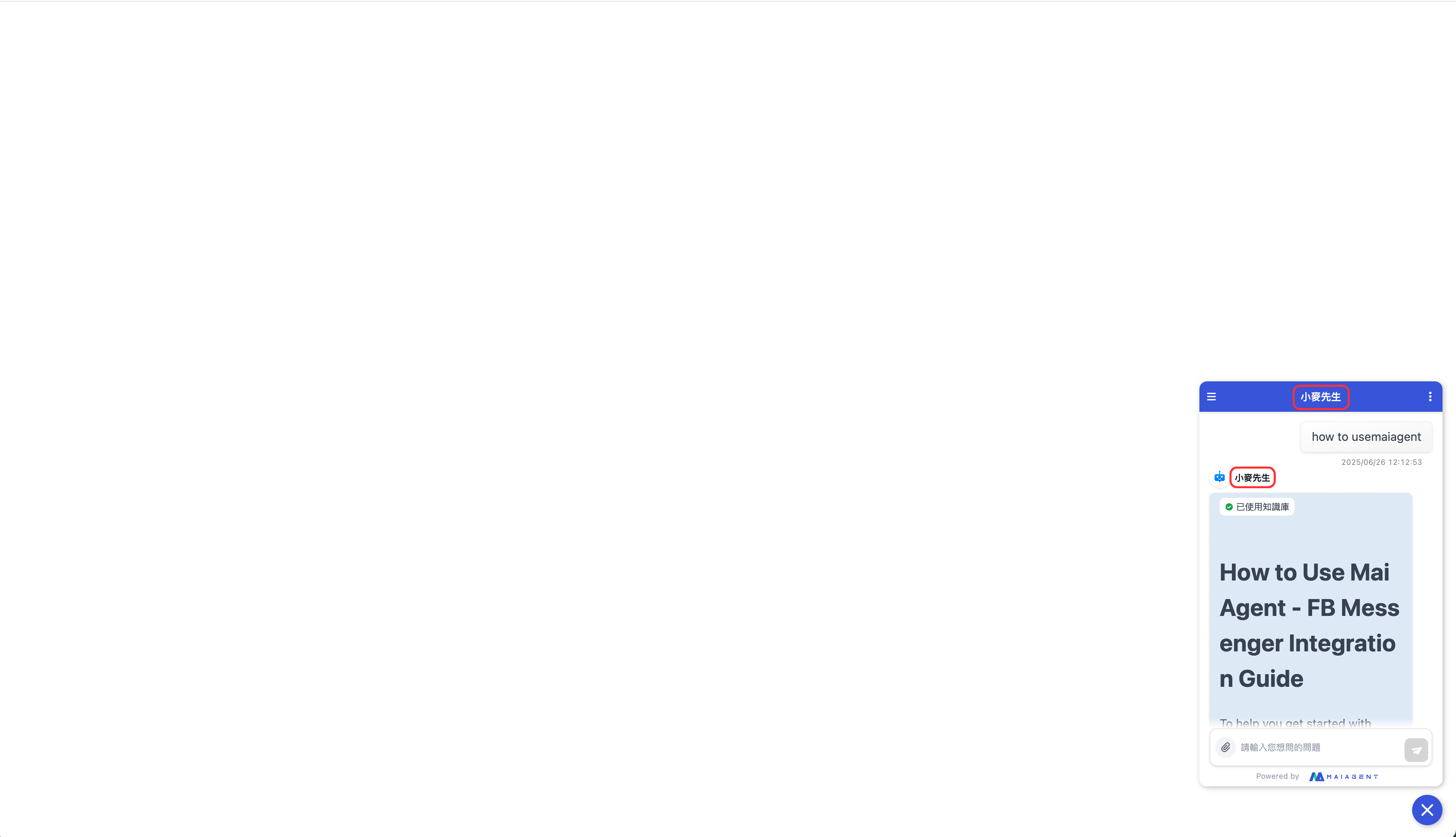
In <mark style="color:blue;">Name</mark>, enter the name you want displayed on your website, and in the <mark style="color:blue;">AI Assistant</mark> dropdown, select the Agent that will answer questions. Switching the Agent takes effect immediately, and the chat window does not need to be re-embedded.

<figure><img src="https://1360999650-files.gitbook.io/~/files/v0/b/gitbook-x-prod.appspot.com/o/spaces%2F6v6TNkkOQVfRYfcNirHL%2Fuploads%2Fgit-blob-b51d95e2e16cbd042aa3b0b1c86f72f8923b0439%2F%E5%90%8D%E7%A8%B1display.png?alt=media" alt="The platform name is displayed in the chat window title bar"><figcaption><p>The platform name is displayed in the title bar of the chat window</p></figcaption></figure>

### Return URL <a href="#return-url" id="return-url"></a>

After you enter your company website's URL, users who click Back on the full-screen chat page are taken to this URL. The embed preview also uses this URL as its background.

<figure><img src="https://1360999650-files.gitbook.io/~/files/v0/b/gitbook-x-prod.appspot.com/o/spaces%2F6v6TNkkOQVfRYfcNirHL%2Fuploads%2Fgit-blob-63ec964871ee05c4285511fbc4b922d35405803b%2F%E5%9F%BA%E6%9C%AC%E8%A8%AD%E5%AE%9A%20-%20%E5%B5%8C%E5%85%A5%E9%A0%90%E8%A6%BD%20%E8%BF%94%E5%9B%9E%E7%B6%B2%E5%9D%80%20(1)%20(1)%20(1).png?alt=media" alt="The embed preview uses the return URL&#x27;s website as its background"><figcaption><p>After you add a return URL, the embed preview uses that website as its background</p></figcaption></figure>

## 3. Custom Domain (CNAME) <a href="#custom-domain" id="custom-domain"></a>

The default public access URL is under `chat.maiagent.ai`. If you want the chat page to use your own domain (for example `chat.my-company.com`), enter that domain in <mark style="color:blue;">Custom Domain (CNAME)</mark> and save. The system will request a certificate for it and set up routing. After saving, a <mark style="color:blue;">Domain Status</mark> appears next to the field:

| Status                      | Meaning                                                              | What to do                                                 |
| --------------------------- | -------------------------------------------------------------------- | ---------------------------------------------------------- |
| **Checking**                | The system is setting up routing and the certificate                 | Wait a few minutes, then refresh                           |
| **DNS not ready**           | Your DNS does not yet point the domain to MaiAgent                   | Add a CNAME record at your DNS provider                    |
| **Certificate not ready**   | DNS points correctly, but the certificate is still being issued      | Wait; it usually completes within a few minutes            |
| **DNS configuration error** | It was active before, but the DNS record has been changed or removed | Check the CNAME record at your DNS provider                |
| **Active**                  | The chat page can now be opened with your domain                     | The public access URL and embed code switch to your domain |

{% hint style="info" %}
The target address the CNAME record should point to depends on the environment. Please ask the [Support Center](https://helpdesk.maiagent.ai/) for it. To remove the custom domain, clear the field and save; the chat page returns to the default URL.
{% endhint %}

## 4. Allowed Embed Domains <a href="#allowed-embed-origins" id="allowed-embed-origins"></a>

### What Is It? <a href="#embed-origins-overview" id="embed-origins-overview"></a>

<mark style="color:blue;">Allowed Embed Domains</mark> is an "embed allowlist": once filled in, only the websites on the list can embed this web chat, and embed code placed on other websites stops working.

Situations where enabling it is appropriate:

* **Prevent unauthorized embedding**: You are concerned that third-party websites may copy your embed code and embed your customer service bot on their pages, consuming your conversation quota
* **Security compliance**: Your company's or customers' security policy requires controlling which websites can load this customer service widget

{% hint style="info" %}
This is an advanced security setting. **If you have no such need, leave the list empty.** When the list is empty, any website can embed this web chat.
{% endhint %}

### How It Works <a href="#embed-origins-behavior" id="embed-origins-behavior"></a>

| List state      | Behavior                                                                                                |
| --------------- | ------------------------------------------------------------------------------------------------------- |
| Empty (default) | No restriction; any website can embed this web chat                                                     |
| Not empty       | Allowlist mode: browsers block embedding from other domains, and the SDK also rejects their setup calls |

* **When a blocked domain embeds it**: The chat widget on that page does not finish initializing, and visitors cannot start a conversation
* **Visitors who open the public access URL directly**: This setting restricts only "embedding"; visitors who open the chat page directly through the public URL are not affected
* **The security mechanism rejects anything it cannot verify**: When the list is not empty, any embed that cannot pass origin verification is rejected, including a mistyped domain or an embed page that uses an older embed script that does not support origin verification

### Setup Steps <a href="#embed-origins-setup" id="embed-origins-setup"></a>

{% stepper %}
{% step %}

### Find the Field <a href="#embed-origins-step-navigate" id="embed-origins-step-navigate"></a>

In <mark style="color:blue;">Basic Settings</mark>, find <mark style="color:blue;">Allowed Embed Domains</mark> and click <mark style="color:blue;">+ Add</mark>.

<figure><img src="https://1360999650-files.gitbook.io/~/files/v0/b/gitbook-x-prod.appspot.com/o/spaces%2F6v6TNkkOQVfRYfcNirHL%2Fuploads%2Fgit-blob-2c6dc13d0e37a07d6f539d493f1e1493d018dcfb%2Fwebchat-basic-allowed-origins.png?alt=media" alt="The &#x22;Allowed Embed Domains&#x22; field in Basic Settings"><figcaption><p>The "Allowed Embed Domains" field in Basic Settings</p></figcaption></figure>
{% endstep %}

{% step %}

### Add a Domain <a href="#embed-origins-step-add" id="embed-origins-step-add"></a>

Each entry can be an exact origin (`https://example.com`) or a wildcard domain (`*.example.com`, which matches example.com and all of its subdomains).

| Format                      | Description                                                                                 |
| --------------------------- | ------------------------------------------------------------------------------------------- |
| ✅ `https://www.example.com` | Exact origin: only pages at this address (including the protocol) may embed                 |
| ✅ `*.example.com`           | Wildcard domain: allows example.com and all its subdomains (www, shop, blog, …) to embed    |
| ❌ `example.com`             | An exact origin must include the protocol; without `https://` it will not take effect       |
| ❌ `*.com`                   | Too broad; it opens embedding to every .com website and defeats the purpose of an allowlist |
| {% endstep %}               |                                                                                             |

{% step %}

### Save and Verify <a href="#embed-origins-step-save" id="embed-origins-step-save"></a>

After saving, wait about one minute, then refresh the embed page on a listed website and confirm the chat window can still open a conversation normally.

<figure><img src="https://1360999650-files.gitbook.io/~/files/v0/b/gitbook-x-prod.appspot.com/o/spaces%2F6v6TNkkOQVfRYfcNirHL%2Fuploads%2Fgit-blob-856c495d2fb9896943ac455178eed55a38f15a0e%2Fembed-origins-01-filled-list.png?alt=media" alt="The &#x22;Allowed Embed Domains&#x22; field with a filled-in domain list"><figcaption><p>Example list containing an exact origin and a wildcard domain</p></figcaption></figure>
{% endstep %}
{% endstepper %}

### Pre-Enablement Checklist <a href="#embed-origins-checklist" id="embed-origins-checklist"></a>

{% hint style="warning" %}
Once the list is not empty, every embed not on the list is blocked. To avoid "everything is blocked as soon as I fill it in", confirm the following in order before enabling:

1. **List every domain that will embed this web chat**: include production, test, and preview environments; do not miss any
2. **Get the latest embed code again**: embed scripts obtained earlier may not support origin verification and will be rejected once the list is enabled; we recommend going to <mark style="color:blue;">Embed</mark>, copying the code again, and updating your website
3. **Add first, remove later**: When enabling for the first time, add all domains and do not clean up while enabling
4. **Verify one by one**: After saving, open a conversation on each embed page to confirm they all work
5. **Keep a way back**: If embeds cannot create conversations after enabling, clear the list and save; after about one minute, restrictions are lifted
   {% endhint %}

### FAQ <a href="#embed-origins-faq" id="embed-origins-faq"></a>

**Q: How long until the setting takes effect?**

It usually takes effect within about one minute after saving; after that, refreshing an already-open embed page applies the new setting.

**Q: I have many subdomains. Do I need to list each one?**

No. A single `*.example.com` entry matches example.com and all of its subdomains.

**Q: What does this setting protect against, and what does it not?**

It is protection at the "embed layer": it prevents other websites from embedding this web chat in their pages. It is not authentication; anyone who knows the public access URL can still open the chat page directly and start a conversation. If you need to control who can chat, use it together with [Login Settings](/maiagent-user-guide/en/build/choose-channel/web-chat/website.md#login-settings).

**Q: I configured it wrong and no embed can chat. What should I do?**

Clear the <mark style="color:blue;">Allowed Embed Domains</mark> list and save; after about one minute the restriction is lifted, and you can then recheck the domain format.

## 5. Public Access URL and Embedding <a href="#public-url-and-embed" id="public-url-and-embed"></a>

The <mark style="color:blue;">Public Access URL</mark> at the bottom of the page is the chat page URL generated automatically by the system. The action buttons next to it are:

| Action            | Purpose                                                                                                                                                                                                                                                                           |
| ----------------- | --------------------------------------------------------------------------------------------------------------------------------------------------------------------------------------------------------------------------------------------------------------------------------- |
| **Copy**          | Copy the URL to share directly with users or use in a QR code                                                                                                                                                                                                                     |
| **Visit**         | Open the chat page in a new tab to test your settings                                                                                                                                                                                                                             |
| **Voice Mode**    | Open the voice chat page in a new tab; it appears only when the bound Agent has [Voice Assistant](/maiagent-user-guide/en/build/agent/voice-agent.md) enabled. For the go-live process, see [Voice Customer Service: From Zero to Launch](/maiagent-user-guide/en/serve/voice.md) |
| **Embed**         | Get the embed code; see the three embed methods below                                                                                                                                                                                                                             |
| **Embed Preview** | Preview how it looks once embedded, using the return URL's website as the background                                                                                                                                                                                              |

### Three Embed Methods <a href="#embed-methods" id="embed-methods"></a>

After clicking <mark style="color:blue;">Embed</mark>, you can switch between the following at the top of the window:

* **JavaScript**: Loaded with `<script>`; the most common option, and it handles loading and compatibility automatically
* **Iframe**: Embedded directly with `<iframe>`; suitable for environments where scripts cannot be inserted
* **MaiGPT**: A ChatGPT-style full chat interface (conversation history on the left plus the main chat area on the right). It can stay permanently on the embedding page, or be expanded to full screen by clicking a floating button in the lower-right corner

After selecting <mark style="color:blue;">MaiGPT</mark>, you can adjust the <mark style="color:blue;">Embed Container (targetElement)</mark>, <mark style="color:blue;">Locale (locale)</mark>, and <mark style="color:blue;">Title (maigptTitle)</mark> on the left. The <mark style="color:blue;">Code Preview</mark> on the right updates in real time, and clicking <mark style="color:blue;">Copy</mark> lets you paste it into your website. For the full parameter reference, see [MaiGPT Window Mode Embedding](/maiagent-user-guide/en/build/choose-channel/web-chat/maigpt-embed.md).

### Embed Script Characteristics <a href="#embed-script" id="embed-script"></a>

The embed.js script provided by the JavaScript embed offers:

* **Duplicate-run protection**: Even if the script is loaded multiple times, it initializes only once
* **Clear error messages**: When loading fails, an error message is provided to make debugging easier
* **No impact on site load speed**: The script is optimized
* **Compatible with various website environments and frameworks**

When embedding, we recommend:

1. Place the embed script before the `</body>` tag so the main page content loads first
2. Add the embed script to the page only once to avoid duplication
3. When using it in a SPA (Single Page Application), refer to the advanced settings in the technical documentation

<figure><img src="https://1360999650-files.gitbook.io/~/files/v0/b/gitbook-x-prod.appspot.com/o/spaces%2F6v6TNkkOQVfRYfcNirHL%2Fuploads%2Fgit-blob-5c896d7bb75574c434d11ef560612d20a61eba48%2F%E5%9F%BA%E6%9C%AC%E8%A8%AD%E5%AE%9A%20-%20%E9%81%B7%E5%85%A5%E8%A8%AD%E5%AE%9A%E9%A0%90%E8%A6%BD.png?alt=media" alt="Embed preview screen"><figcaption><p>Embed preview</p></figcaption></figure>

## 6. Web Chat ID of an API Platform <a href="#web-chat-id" id="web-chat-id"></a>

When an engineer creates a conversation through the API, the required `webChat` field takes the **Web Chat ID of the API platform**. It is not on the Agent detail page, but on the API platform's settings page:

1. Go to <mark style="color:blue;">Customer Service Conversations</mark> → <mark style="color:blue;">Chat Platforms</mark>, find the Agent's <mark style="color:blue;">API</mark> platform (created automatically when the Agent is created), and click <mark style="color:blue;">Edit</mark>.
2. In the left category navigation, under the "Integration and Login" group, click <mark style="color:blue;">Webhook Settings</mark>.
3. The <mark style="color:blue;">API Information</mark> card at the bottom of the page shows the <mark style="color:blue;">Web Chat ID</mark> (read-only); click the copy button on its right to copy it.

This card exists only on API platforms; web and internal platforms have no Web Chat ID field. To look up the list of Web Chats and their IDs for the whole organization, engineers can also call `GET /api/v1/web-chats/`; for details, see the technical manual [Creating Conversations and Messages](https://docs.maiagent.ai/tech/api-integration/conversations-and-messages).

## 7. FAQ <a href="#faq" id="faq"></a>

### Q: If I change the name or Agent, do I need to re-embed? <a href="#faq-resave" id="faq-resave"></a>

No. It takes effect immediately after you click <mark style="color:blue;">Save</mark>, and the embed code does not change.

### Q: Can the same Agent be connected to multiple web platforms? <a href="#faq-multi-platform" id="faq-multi-platform"></a>

Yes. Each platform has its own name, appearance, and feature toggles, which is suitable when the same Agent should look different on different websites. Go to <mark style="color:blue;">Customer Service Conversations</mark> → <mark style="color:blue;">Chat Platforms</mark>, click <mark style="color:blue;">Connect Chat Platform</mark>, and add one.


---

# Agent Instructions
This documentation is published with GitBook. GitBook is the documentation platform designed so that both humans and AI agents can read, navigate, and reason over technical content effectively. Learn more at gitbook.com.

## Querying This Documentation
If you need additional information that is not directly available in this page, you can query the documentation by asking a question.

Perform an HTTP GET request on the following URL with the `ask` and `goal` query parameters:

```
GET https://docs.maiagent.ai/maiagent-user-guide/en/build/conversation-settings/platform-settings/basic-settings.md?ask=<question>&goal=<user_goal>
```

`ask` is the immediate question: it should be specific, self-contained, and written in natural language.
`goal` is what the user is ultimately trying to achieve, the reason they need the answer. Sharing it helps GitBook give you a better, more relevant answer. A goal is most helpful when it describes the outcome the user wants rather than restating the question. For example, with `ask=how do I create an API token`, a goal like `automate deployments from our CI pipeline` lets GitBook tailor the answer to that use case.

The response will contain a direct answer to the question and relevant excerpts and sources from the documentation.

Use this mechanism when the answer is not explicitly present in the current page, you need clarification or additional context, or you want to retrieve related documentation sections.