> For the complete documentation index, see [llms.txt](https://docs.maiagent.ai/llms.txt). Markdown versions of documentation pages are available by appending `.md` to page URLs; this page is available as [Markdown](https://docs.maiagent.ai/maiagent-user-guide/en/build/conversation-settings/platform-settings.md). Agents can also search and read this documentation through its [MCP server](https://docs.maiagent.ai/~gitbook/mcp).

# Conversation Platform Settings Overview

A guide to conversation platform settings: how to open them, what each tab controls, and which platforms support each tab. Includes links to all five categories under General and explains the allowlis

Each conversation platform (Web, Internal, API, LINE, Microsoft Teams, and so on) has its own settings for appearance, feature toggles, interactions, human handoff, and permissions. These **settings belong to each conversation platform**. If you connect one Agent to three platforms, each platform has its own settings. This page explains the settings layout and what each tab controls. Each of the five categories under General has a dedicated page:

{% hint style="info" %}
**Setup guides**: Configuring a conversation platform is one step in the setup process. For a complete walkthrough, see [Text Support: From Setup to Launch](https://docs.maiagent.ai/maiagent-user-guide/en/serve/text-service.md) or [Voice Support: From Setup to Launch](https://docs.maiagent.ai/maiagent-user-guide/en/serve/voice.md).
{% endhint %}

* [Basic Settings](https://docs.maiagent.ai/maiagent-user-guide/en/build/conversation-settings/platform-settings/basic-settings.md): Name, Agent, return URL, custom domain, allowed embedding domains, public access URL, and embedding
* [Appearance Settings](https://docs.maiagent.ai/maiagent-user-guide/en/build/conversation-settings/platform-settings/appearance-settings.md): Brand assets, display settings, and colors for light and dark themes
* [Reply Loading Display](https://docs.maiagent.ai/maiagent-user-guide/en/build/conversation-settings/platform-settings/loading-display.md): Status messages or branded animations while users wait for a reply, plus tool display modes
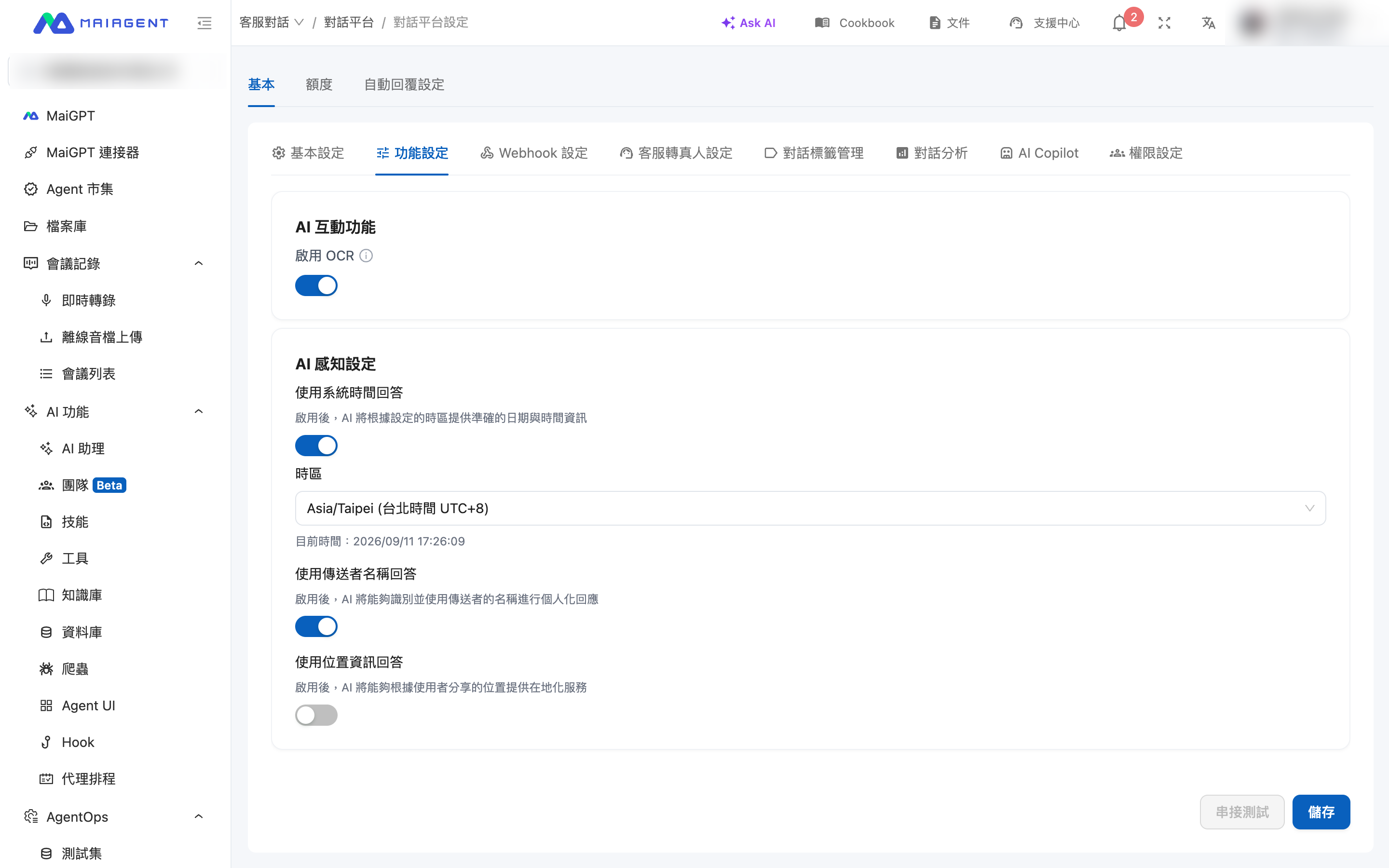
* [Feature Settings](https://docs.maiagent.ai/maiagent-user-guide/en/build/conversation-settings/platform-settings/function-settings.md): Basic features, AI interaction features, Hook processing indicators, question set option display mode, and AI awareness settings
* [Interaction Settings](https://docs.maiagent.ai/maiagent-user-guide/en/build/conversation-settings/platform-settings/interaction-settings.md): Welcome message, conversation starters, conversation display settings, satisfaction survey, and out-of-quota message

For connection instructions, see the setup page for the relevant platform under Connect a Conversation Platform.

{% hint style="info" %}
When you create an Agent, the system automatically creates three built-in conversation platforms: <mark style="color:blue;">Web</mark>, <mark style="color:blue;">Internal</mark>, and <mark style="color:blue;">API</mark>. Before changing a toggle, make sure you are editing the platform you actually use.
{% endhint %}

## 1. When to use these settings <a href="#when-to-use" id="when-to-use"></a>

A support manager connects the company's Agent to its website and LINE Official Account. After launch, a colleague reports that the Agent can answer “What's today's date?” on the website, but on LINE it asks the user for the date instead. The manager opens <mark style="color:blue;">Customer Support Conversations</mark> → <mark style="color:blue;">Conversation Platforms</mark> and finds that <mark style="color:blue;">Use System Time in Replies</mark> is on for Web and off for LINE. The two platforms have separate settings. The manager enables the option for LINE, verifies that the time zone is set to Taipei, and saves the settings. The Agent can then answer date questions on LINE without any changes to its role instructions.

## 2. Open the settings page <a href="#open-settings" id="open-settings"></a>

Use either of these paths to open the same settings page:

* **From the conversation platform list**: In the sidebar, select <mark style="color:blue;">Customer Support Conversations</mark> → <mark style="color:blue;">Conversation Platforms</mark>. Find the platform you want to update and select <mark style="color:blue;">Edit</mark> in the <mark style="color:blue;">Actions</mark> column. If the list is long, use the filters above it to narrow your results. See [Filter the conversation platform list](#filter-platform-list).
* **From the Agent**: Go to <mark style="color:blue;">AI Features</mark> → <mark style="color:blue;">AI Assistants</mark>, select an Agent, and open the <mark style="color:blue;">Conversation Platforms</mark> tab. Select <mark style="color:blue;">Platform Settings</mark> on the platform card. When you finish, select <mark style="color:blue;">Back to AI Assistant Settings</mark> at the top of the page to return to the Agent.

### Filter the conversation platform list <a href="#filter-platform-list" id="filter-platform-list"></a>

Each official built-in Agent enabled by your organization automatically gets three conversation platforms: Web, Internal, and API. These appear in the same list as the platforms for Agents your organization created. You can combine the filters above the list:

| Filter                                                                                                | What it does                                                                                                                                                                    |
| ----------------------------------------------------------------------------------------------------- | ------------------------------------------------------------------------------------------------------------------------------------------------------------------------------- |
| Search box (<mark style="color:blue;">Enter a conversation platform name, ID, or channel name</mark>) | Search by keyword in the platform name, ID, or channel name                                                                                                                     |
| <mark style="color:blue;">All Channel Types</mark>                                                    | Show only platforms of the selected channel type, such as Web, LINE, or Messenger                                                                                               |
| <mark style="color:blue;">All AI Assistants</mark>                                                    | Show only platforms connected to the selected Agent                                                                                                                             |
| <mark style="color:blue;">Hide Official Built-in Assistants</mark>                                    | Show only platforms for Agents your organization created. All Web, Internal, and API platforms for official built-in Agents are hidden, and the total count updates accordingly |

* All selected filters apply together. Selecting or clearing <mark style="color:blue;">Hide Official Built-in Assistants</mark> returns the list to page 1.
* When you select <mark style="color:blue;">Hide Official Built-in Assistants</mark>, the <mark style="color:blue;">All AI Assistants</mark> dropdown also shows only Agents your organization created. If you had selected an official built-in Agent, the selection clears automatically.
* The filters stay in place when you open a page such as platform settings or conversation platform analytics and then return to the list. Select <mark style="color:blue;">Reset Filters</mark> to clear all filters, including <mark style="color:blue;">Hide Official Built-in Assistants</mark>.
* Filters only control which platforms appear in the list. They do not change any platform's enabled status or settings.

<figure><img src="https://1360999650-files.gitbook.io/~/files/v0/b/gitbook-x-prod.appspot.com/o/spaces%2F6v6TNkkOQVfRYfcNirHL%2Fuploads%2Fgit-blob-44e08878c5cff05675143518cbc9c0247e30da0c%2Fchannels-inbox-list-hide-builtin.png?alt=media" alt="Filters above the conversation platform list with Hide Official Built-in Assistants selected"><figcaption><p>With Hide Official Built-in Assistants selected, the list shows only platforms for Agents the organization created</p></figcaption></figure>

{% hint style="info" %}
The same <mark style="color:blue;">Hide Official Built-in Assistants</mark> filter is available when assigning Agents or conversation platforms through <mark style="color:blue;">Organization Settings</mark> → <mark style="color:blue;">Organization Overview</mark> → <mark style="color:blue;">Management Actions</mark> → <mark style="color:blue;">Edit Role Permissions</mark>. See [Role Permission Management: Filter and hide official built-in assistants in the assignment dialog](https://docs.maiagent.ai/maiagent-user-guide/en/org/roles/role-permission.md#assign-picker-filters).
{% endhint %}

## 3. Settings page layout <a href="#layout" id="layout"></a>

The settings page always has three main tabs at the top: <mark style="color:blue;">Basic</mark>, <mark style="color:blue;">Quota</mark>, and <mark style="color:blue;">Auto-Reply Settings</mark>. The layout of <mark style="color:blue;">Basic</mark> depends on the platform type:

* **Web, Internal, and API platforms**: The sidebar divides settings into four groups: General, Integration and Login, Advanced Features, and Management. Select a category to see its settings on the right. Use <mark style="color:blue;">Search Settings</mark> above the sidebar to find a toggle by keyword.
* **Messaging platforms such as LINE, Microsoft Teams, Slack, and Email**: Switch between settings using the row of tabs at the top.

<figure><img src="https://1360999650-files.gitbook.io/~/files/v0/b/gitbook-x-prod.appspot.com/o/spaces%2F6v6TNkkOQVfRYfcNirHL%2Fuploads%2Fgit-blob-3a0615ef94f3169ee0ab32352109028ad18f986b%2Fplatform-settings-overview.png?alt=media" alt="Web platform settings with three main tabs at the top and four groups in the sidebar"><figcaption><p>Web platform settings with category navigation on the left and Basic Settings on the right</p></figcaption></figure>

<figure><img src="https://1360999650-files.gitbook.io/~/files/v0/b/gitbook-x-prod.appspot.com/o/spaces%2F6v6TNkkOQVfRYfcNirHL%2Fuploads%2Fgit-blob-8ab3d429dc89c8119ff97eeddea40045be9ed077%2Fplatform-settings-line-function.png?alt=media" alt="LINE platform settings with a row of tabs at the top and Feature Settings selected"><figcaption><p>Messaging platforms such as LINE use a row of tabs at the top</p></figcaption></figure>

## 4. Settings by tab <a href="#tab-map" id="tab-map"></a>

| Tab                                | What it controls                                                                                                                                                                                                                                                                                                                                                                                                                                                                                                                                                                                                            | Learn more                                                                                                                                                                                                                                                                                                  |
| ---------------------------------- | --------------------------------------------------------------------------------------------------------------------------------------------------------------------------------------------------------------------------------------------------------------------------------------------------------------------------------------------------------------------------------------------------------------------------------------------------------------------------------------------------------------------------------------------------------------------------------------------------------------------------- | ----------------------------------------------------------------------------------------------------------------------------------------------------------------------------------------------------------------------------------------------------------------------------------------------------------- |
| **Basic Settings**                 | Platform name, connected Agent, and platform-specific fields (Web: return URL, custom domain, allowed embedding domains, and public access URL. LINE: Channel credentials. Teams: Bot credentials, and so on)                                                                                                                                                                                                                                                                                                                                                                                                               | [Basic Settings](https://docs.maiagent.ai/maiagent-user-guide/en/build/conversation-settings/platform-settings/basic-settings.md) and the setup page for each platform                                                                                                                                      |
| **Appearance Settings**            | Chat window logo, avatar, colors, and theme                                                                                                                                                                                                                                                                                                                                                                                                                                                                                                                                                                                 | [Appearance Settings](https://docs.maiagent.ai/maiagent-user-guide/en/build/conversation-settings/platform-settings/appearance-settings.md)                                                                                                                                                                 |
| **Reply Loading Display**          | Messages or animations shown in the chat window while the AI generates a reply, and how tool cards appear when the AI calls a tool                                                                                                                                                                                                                                                                                                                                                                                                                                                                                          | [Reply Loading Display](https://docs.maiagent.ai/maiagent-user-guide/en/build/conversation-settings/platform-settings/loading-display.md)                                                                                                                                                                   |
| **Feature Settings**               | Toggles for file uploads, document citations, OCR, question set option display mode, and AI awareness settings                                                                                                                                                                                                                                                                                                                                                                                                                                                                                                              | [Feature Settings](https://docs.maiagent.ai/maiagent-user-guide/en/build/conversation-settings/platform-settings/function-settings.md)                                                                                                                                                                      |
| **Interaction Settings**           | Welcome message, conversation starters, conversation display settings, satisfaction survey, and out-of-quota message                                                                                                                                                                                                                                                                                                                                                                                                                                                                                                        | [Interaction Settings](https://docs.maiagent.ai/maiagent-user-guide/en/build/conversation-settings/platform-settings/interaction-settings.md)                                                                                                                                                               |
| **Login Settings**                 | Whether users must log in before chatting and how they log in                                                                                                                                                                                                                                                                                                                                                                                                                                                                                                                                                               | [Connect a Conversation Platform: Website](https://docs.maiagent.ai/maiagent-user-guide/en/build/choose-channel/web-chat/website.md#login-settings), [Chat without logging in using a contact Source ID](https://docs.maiagent.ai/maiagent-user-guide/en/build/choose-channel/web-chat/source-id-access.md) |
| **Webhook Settings**               | Sends conversation events to your system. On the API platform, the <mark style="color:blue;">API Information</mark> card also displays the Web Chat ID                                                                                                                                                                                                                                                                                                                                                                                                                                                                      | [Webhook](https://docs.maiagent.ai/maiagent-user-guide/en/build/conversation-settings/webhook.md), [Web Chat ID for the API platform](https://docs.maiagent.ai/maiagent-user-guide/en/build/conversation-settings/platform-settings/basic-settings.md#web-chat-id)                                          |
| **Human Handoff Settings**         | Handoff conditions, handoff messages, service hours, assignment, and notifications                                                                                                                                                                                                                                                                                                                                                                                                                                                                                                                                          | [Human Handoff Settings](https://docs.maiagent.ai/maiagent-user-guide/en/build/conversation-settings/human-handoff.md)                                                                                                                                                                                      |
| **Data Collection**                | A pre-chat form that collects contact information before a conversation starts                                                                                                                                                                                                                                                                                                                                                                                                                                                                                                                                              | [Web Chat Overview](https://docs.maiagent.ai/maiagent-user-guide/en/build/choose-channel/web-chat.md#pre-chat-form)                                                                                                                                                                                         |
| **Conversation Tag Management**    | Tags available on this platform and the members responsible for each tag                                                                                                                                                                                                                                                                                                                                                                                                                                                                                                                                                    | [Conversation Tag Management](https://docs.maiagent.ai/maiagent-user-guide/en/build/conversation-settings/conversation-tags.md)                                                                                                                                                                             |
| **Conversation Analysis**          | Automatically analyzes the conversation, generates a summary, and applies classification tags during human handoff                                                                                                                                                                                                                                                                                                                                                                                                                                                                                                          | [Conversation Analysis](https://docs.maiagent.ai/maiagent-user-guide/en/build/conversation-settings/conversation-analysis.md)                                                                                                                                                                               |
| **AI Copilot**                     | Automatically drafts suggested replies to incoming messages for support agents                                                                                                                                                                                                                                                                                                                                                                                                                                                                                                                                              | [Support Copilot](https://docs.maiagent.ai/maiagent-user-guide/en/serve/copilot.md#enable-copilot)                                                                                                                                                                                                          |
| **Permission Settings**            | Controls which roles can see and manage the platform. Move the <mark style="color:blue;">Roles</mark> you want to authorize from the left list to the right, then save. The <mark style="color:blue;">Owner role</mark> always has access and the <mark style="color:blue;">Default role</mark> has its own label. Only selected roles can see the platform in the list. Editing depends on the role's read or edit access under <mark style="color:blue;">Assign Conversation Platforms</mark>. When creating a platform, check the Permission Settings tab and confirm the assigned roles when prompted before submitting | [Role-based Resource Access](https://docs.maiagent.ai/maiagent-user-guide/en/org/roles/group-resource-access.md), [Assign Conversation Platforms](https://docs.maiagent.ai/maiagent-user-guide/en/org/roles/role-permission.md#assign-inboxes)                                                              |
| **Who Can Chat**                   | Limits AI replies to contacts on a messaging platform's allowlist. Messages from other contacts do not trigger AI or use Credits, and those contacts receive at most one custom message per 24 hours                                                                                                                                                                                                                                                                                                                                                                                                                        | [Who Can Chat on messaging platforms](#who-can-chat)                                                                                                                                                                                                                                                        |
| **Quota** (main tab)               | The Credits available to this platform                                                                                                                                                                                                                                                                                                                                                                                                                                                                                                                                                                                      | [Manage Credits quotas for conversation platforms](https://docs.maiagent.ai/maiagent-user-guide/en/others/credits/inbox-credit-quota.md)                                                                                                                                                                    |
| **Auto-Reply Settings** (main tab) | Schedules AI replies around the clock or during specified hours. Outside those hours, the AI neither replies nor hands off conversations. Conversations without an assignee or a queue stay in Unassigned for support agents to pick up. Assigned and queued conversations stay as they are. Turn off all seven days for human-only support. Under Silent Skip, list phrases the AI should ignore entirely                                                                                                                                                                                                                  | [Connect a Conversation Platform: Website](https://docs.maiagent.ai/maiagent-user-guide/en/build/choose-channel/web-chat/website.md#auto-reply-settings), [Silently skip specific phrases](https://docs.maiagent.ai/maiagent-user-guide/en/build/choose-channel/web-chat/website.md#silent-skip-phrases)    |

See the [platform support matrix in section 6](#platform-matrix) for tab availability.

## 5. Feature settings summary <a href="#function-settings" id="function-settings"></a>

The <mark style="color:blue;">Feature Settings</mark> for Web and API are organized into five sections. Internal has no question set option display mode. Messaging platforms offer AI interaction features (<mark style="color:blue;">Enable OCR</mark>, <mark style="color:blue;">Reply Only When @Mentioned</mark>, and platform-specific toggles) and AI awareness settings. See [Feature Settings: Messaging platform toggles](https://docs.maiagent.ai/maiagent-user-guide/en/build/conversation-settings/platform-settings/function-settings.md#messaging-platform-switches) for the platform-specific options.

| Section                              | What it controls                                                                                                                            |
| ------------------------------------ | ------------------------------------------------------------------------------------------------------------------------------------------- |
| **Basic Features**                   | Enable the platform, allow file uploads, allow conversation sharing, show connected services, and allow font size changes                   |
| **AI Interaction Features**          | Show cited documents, allow users to download cited documents, enable OCR, show the thinking process, and let users adjust reasoning effort |
| **Hook Processing Indicator**        | Show an indicator when a Hook processes a message                                                                                           |
| **Question Set Option Display Mode** | Show answer choices as floating buttons or in an options panel when the AI asks a question                                                  |
| **AI Awareness Settings**            | Use system time, the sender's name, or location information in replies                                                                      |

See [Feature Settings](https://docs.maiagent.ai/maiagent-user-guide/en/build/conversation-settings/platform-settings/function-settings.md) for details on each toggle, time zone rules, and frequently asked questions.

## 6. Platform support matrix <a href="#platform-matrix" id="platform-matrix"></a>

| Tab                                                                               | Web / Internal     | API | LINE | Slack | WhatsApp | Other messaging platforms |
| --------------------------------------------------------------------------------- | ------------------ | --- | ---- | ----- | -------- | ------------------------- |
| Appearance Settings, Reply Loading Display, Interaction Settings, Data Collection | ✓                  | ✓   | —    | —     | —        | —                         |
| Login Settings                                                                    | ✓                  | —   | —    | —     | —        | —                         |
| Webhook Settings                                                                  | —                  | ✓   | ✓    | ✓     | —        | ✓                         |
| Feature Settings: all six sections                                                | ✓                  | ✓   | —    | —     | —        | —                         |
| Feature Settings: question set option display mode                                | Web ✓ / Internal — | ✓   | —    | —     | —        | —                         |
| Feature Settings: OCR and AI awareness settings                                   | ✓                  | ✓   | ✓    | ✓     | ✓        | ✓                         |
| Use location information in replies                                               | ✓                  | ✓   | ✓    | —     | —        | —                         |
| Human Handoff Settings                                                            | ✓                  | ✓   | ✓    | —     | ✓        | ✓                         |
| Conversation Analysis                                                             | ✓                  | ✓   | ✓    | —     | ✓        | ✓                         |
| Who Can Chat                                                                      | —                  | —   | ✓    | ✓     | ✓        | ✓                         |
| Conversation Tag Management, AI Copilot, Permission Settings                      | ✓                  | ✓   | ✓    | ✓     | ✓        | ✓                         |

Other messaging platforms include Microsoft Teams, Telegram, FB Messenger, Instagram, Email, LINE WORKS, and Team+.

## Who Can Chat on messaging platforms <a href="#who-can-chat" id="who-can-chat"></a>

Bot accounts on messaging platforms are public. Anyone who finds your Telegram Bot, LINE Official Account, or Slack App can message the Agent, and each AI reply uses Credits. In the <mark style="color:blue;">Who Can Chat</mark> tab, you can restrict AI replies to contacts on an allowlist. Messages from other contacts get only the fixed message you configure. The AI does not reply or use Credits.

* **Supported platforms**: LINE, Telegram, Microsoft Teams, Slack, WhatsApp, FB Messenger, Instagram, Email, LINE WORKS, Team+, Viber.
* **Web, Internal, and API platforms (Web Chat)**: These platforms do not have this tab. Use [Login Settings](https://docs.maiagent.ai/maiagent-user-guide/en/build/choose-channel/web-chat/website.md#login-settings) or [Chat without logging in using a contact Source ID](https://docs.maiagent.ai/maiagent-user-guide/en/build/choose-channel/web-chat/source-id-access.md) to control access to Web Chat.
* **Each platform has its own allowlist of contacts**: If one Agent connects to two Telegram Bots, configure their allowlists separately.

### When to use the allowlist <a href="#who-can-chat-scenario" id="who-can-chat-scenario"></a>

An IT administrator connects an Agent to a Telegram Bot so that only the sales team can look up product information. After someone forwards the Bot link, unknown accounts start asking questions and using Credits. The administrator opens the Telegram platform's <mark style="color:blue;">Who Can Chat</mark> tab, selects <mark style="color:blue;">Only Contacts on the Allowlist</mark>, keeps the default fixed message, enters each teammate's numeric Telegram ID, and saves the settings. Unknown accounts that message the Bot now receive only one fixed message, with no AI reply or Credits charged. When a new teammate needs access, the administrator asks them to message the Bot first, opens their conversation in <mark style="color:blue;">All Conversations</mark>, and clicks <mark style="color:blue;">Allow Chat</mark>. The AI then replies to their next message.

### Enable the allowlist <a href="#enable-allowlist" id="enable-allowlist"></a>

Open the settings for the messaging platform you want to restrict (see [Open the settings page](#open-settings)) and select the <mark style="color:blue;">Who Can Chat</mark> tab at the top. The tab appears after you create the platform. It is unavailable on the creation form.

1. Under <mark style="color:blue;">Who Can Chat</mark>, select <mark style="color:blue;">Only Contacts on the Allowlist</mark>. The default is <mark style="color:blue;">Anyone</mark>, which lets the AI reply to every contact who sends a message.
2. Fill in <mark style="color:blue;">Custom Message for Unlisted Contacts</mark>. When you first switch modes, the field is prefilled with “This service is available to registered users only. Contact your administrator for access.” You can replace it with a message of up to 1,000 characters. Leave it blank to send no reply to unlisted contacts.
3. Add the contacts you want to give access to the <mark style="color:blue;">Allowlist</mark> below. See [Add contacts to the allowlist](#add-allowed-contacts).
4. Click <mark style="color:blue;">Save</mark>. The selected mode, the custom message, and any contacts you add or remove take effect when you save. If you leave the page before saving, you will see an unsaved changes warning.

{% hint style="warning" %}
When the allowlist is empty, you will see “The allowlist is empty. If you save, the AI will stop replying to messages from everyone.” Add at least one contact before saving so that current users can continue receiving replies.
{% endhint %}

{% hint style="info" %}

* You can prepare the allowlist while <mark style="color:blue;">Anyone</mark> is selected. The allowlist takes effect when you switch to <mark style="color:blue;">Only Contacts on the Allowlist</mark>.
* You need edit permission for the conversation platform to make changes. Members with read-only access can see the settings and allowlist, with all options and buttons disabled.
  {% endhint %}

### When an unlisted contact sends a message <a href="#outside-allowlist" id="outside-allowlist"></a>

| Item                   | What happens                                                                                                                                                                                                                                                             |
| ---------------------- | ------------------------------------------------------------------------------------------------------------------------------------------------------------------------------------------------------------------------------------------------------------------------ |
| Message history        | Messages remain in <mark style="color:blue;">All Conversations</mark>. One-to-one conversations show the <mark style="color:blue;">Not on Allowlist</mark> label and a banner that says “This contact is not on the allowlist. The AI will not reply to their messages.” |
| AI replies and Credits | The AI does not reply, and the message uses no Credits                                                                                                                                                                                                                   |
| Fixed message          | The platform sends the <mark style="color:blue;">Custom Message for Unlisted Contacts</mark> and marks it in the conversation as “Fixed message for an unlisted contact (no AI reply).” The same contact on the same platform receives it **at most once per 24 hours**  |
| Human support          | The platform skips support assignment, human handoff, notifications, and the offline message sent outside service hours                                                                                                                                                  |
| Webhook                | Your system still receives the incoming-message webhook                                                                                                                                                                                                                  |

How the 24-hour window works:

* The window applies per contact and conversation platform across both group chats and one-to-one conversations. If someone receives the fixed message in a group chat, they will not receive it again by messaging the Bot directly within 24 hours.
* Editing the custom message or changing <mark style="color:blue;">Who Can Chat</mark> does not restart the window.
* If the platform cannot send the fixed message, it does not retry that send or count it toward the 24-hour limit. The next incoming message triggers another attempt.

{% hint style="info" %}
Contacts on the allowlist still follow the usual reply rules. The AI will not reply when auto-reply is disabled for the conversation, the group requires an @mention and the Agent was not mentioned, or the message arrives outside the hours set in [Auto-Reply Settings](#tab-map).
{% endhint %}

### Add contacts to the allowlist <a href="#add-allowed-contacts" id="add-allowed-contacts"></a>

There are two ways to add contacts. The <mark style="color:blue;">Added Via</mark> column in the allowlist shows <mark style="color:blue;">Conversation List</mark> or <mark style="color:blue;">Manual Entry</mark>. If the list is long, use the search box above the table to find a contact by name or Source ID.

#### Allow chat from the conversation list <a href="#allow-from-conversation" id="allow-from-conversation"></a>

Use this method when the contact has already sent a message. You do not need their Source ID:

1. Go to <mark style="color:blue;">Customer Support Conversations</mark> → <mark style="color:blue;">All Conversations</mark> and open the one-to-one conversation labeled <mark style="color:blue;">Not on Allowlist</mark>.
2. Click <mark style="color:blue;">Allow Chat</mark> at the top of the conversation. In the “Allow this contact to chat?” dialog, click <mark style="color:blue;">Confirm</mark>.
3. The screen shows “Added to the allowlist.” The AI replies to future messages from this contact. Earlier messages received while the contact was unlisted do not get retroactive replies.

One-to-one conversations with listed contacts show <mark style="color:blue;">Allowlist</mark> at the top. Click <mark style="color:blue;">Remove from Allowlist</mark> to remove the contact immediately without a confirmation dialog. These two buttons appear only on conversation platforms set to <mark style="color:blue;">Only Contacts on the Allowlist</mark>.

#### Enter a Source ID manually <a href="#add-by-source-id" id="add-by-source-id"></a>

Use this method when a contact has yet to send a message or when giving several coworkers access at once. Enter the contact's Source ID in the field above the <mark style="color:blue;">Allowlist</mark> and click <mark style="color:blue;">Add</mark>. Once you have added everyone, click <mark style="color:blue;">Save</mark>. Contacts who have yet to send a message appear as “(Has not sent a message yet).” The system matches the entry to the contact when their first message arrives.

A Source ID is the contact's user identifier on that messaging platform. How to obtain it varies by platform. The hint under the input field explains what to enter:

| Conversation platform                            | What to enter                                                                                                                                  |
| ------------------------------------------------ | ---------------------------------------------------------------------------------------------------------------------------------------------- |
| Telegram                                         | Numeric user ID (for example, `8645882387`). The contact can look it up using @userinfobot. The @username is not accepted                      |
| WhatsApp                                         | Country code followed by the phone number. Enter digits only, without a plus sign, spaces, or hyphens (for example, `886912345678`)            |
| Email                                            | The email address the contact sends from, regardless of case                                                                                   |
| Slack                                            | Member ID (for example, `U01ABCD2EFG`). In Slack, open the contact's profile → ⋯ → Copy member ID                                              |
| Microsoft Teams                                  | Microsoft Entra object ID. Go to the Entra admin center → Users → select the user → Object ID                                                  |
| Team+                                            | The account the contact uses to sign in to Team+                                                                                               |
| LINE, LINE WORKS, FB Messenger, Instagram, Viber | Users cannot see their own ID. Ask the contact to send a message first, then [allow chat from the conversation list](#allow-from-conversation) |

If the contact has already sent a message, you can also open <mark style="color:blue;">Contacts</mark> and copy their <mark style="color:blue;">Source ID</mark>. See [Contacts](https://docs.maiagent.ai/maiagent-user-guide/en/serve/daily-operations/contact.md).

#### Remove a contact from the allowlist <a href="#remove-allowed-contacts" id="remove-allowed-contacts"></a>

In the allowlist table, click <mark style="color:blue;">Remove</mark> in the contact's row, then click <mark style="color:blue;">Save</mark>. Removal only affects future messages. Conversation history stays available, and conversations already assigned to support agents remain assigned. You can add the contact again later.

### Group chats <a href="#group-chats" id="group-chats"></a>

In LINE, Telegram, Microsoft Teams, Slack, and LINE WORKS group chats, the allowlist check applies to **the member who sent the message**:

* The AI replies to listed members according to the group's existing rules. Messages from unlisted members do not trigger AI or use Credits.
* Unlisted members receive the fixed message in the group only when their message meets the group's existing reply conditions. If the group requires an @mention, a message without an @mention of the Agent gets no reply. The 24-hour limit also applies across group chats and direct messages.
* Group chats can include both listed and unlisted members, so they do not show the <mark style="color:blue;">Not on Allowlist</mark> label or the <mark style="color:blue;">Allow Chat</mark> button. Individual messages are marked “Not on Allowlist” as applicable. To give group members access, add them one at a time by Source ID on the settings page. On platforms such as LINE where users cannot see their ID, ask each member to message the Bot directly, then click <mark style="color:blue;">Allow Chat</mark> in their one-to-one conversation. The allowlist applies to both group and one-to-one conversations on the same platform.
* If the platform does not identify the sender of a group message, the system treats that message as unlisted and sends no fixed reply.

{% hint style="warning" %}
**Threads in Slack channels**: Each new message in a Slack channel starts a conversation. Replies in that thread belong to the same conversation, and the allowlist check uses **the member who started the thread**. The AI can still reply when an unlisted member posts in a thread started by a listed member. If an unlisted member started the thread, the AI will not reply even when a listed member posts in it.
{% endhint %}

### Frequently asked questions <a href="#who-can-chat-faq" id="who-can-chat-faq"></a>

#### Q: Why did an unlisted contact receive nothing after sending a message? <a href="#faq-no-notice" id="faq-no-notice"></a>

Check the following in order: whether <mark style="color:blue;">Custom Message for Unlisted Contacts</mark> is blank, whether the contact has already received the message in the past 24 hours (across group chats and direct messages), whether the group replies only to @mentions and the contact did not @mention the Agent, and whether the platform rejected the reply (for example, because WhatsApp's 24-hour customer service window had closed).

#### Q: After I add someone to the allowlist, will the AI reply to their earlier messages? <a href="#faq-no-backfill" id="faq-no-backfill"></a>

No. The AI only replies to messages sent after the contact is added.

#### Q: How can I restrict Web Chat to specific users? <a href="#faq-web-chat" id="faq-web-chat"></a>

Web Chat does not use an allowlist. Use [Login Settings](https://docs.maiagent.ai/maiagent-user-guide/en/build/choose-channel/web-chat/website.md#login-settings) to require users to sign in first, or use [Chat without signing in using a contact's Source ID](https://docs.maiagent.ai/maiagent-user-guide/en/build/choose-channel/web-chat/source-id-access.md) to allow only users who are already signed in to your website to chat.

## Reset All Conversations on messaging platforms <a href="#reset-all-conversations" id="reset-all-conversations"></a>

LINE, Telegram, Microsoft Teams, Slack, Viber, Team+, Email, WhatsApp, FB Messenger/Instagram, and LINE WORKS each have a red <mark style="color:blue;">Reset All Conversations</mark> button at the bottom of the <mark style="color:blue;">Basic Settings</mark> tab. Click it to open the confirmation dialog: “Are you sure you want to reset all conversations on this platform? This action cannot be undone.” Once you confirm, the system starts a new conversation for **every** ongoing conversation on the platform and displays “Successfully reset N conversations.”

After the reset, each contact's next message goes into a new conversation. The Agent no longer uses the previous conversation history, just as if every user had entered the reset command. Previous conversations remain available in <mark style="color:blue;">All Conversations</mark>. Use this option in the following cases:

* You have substantially rewritten the Agent's role instructions or switched knowledge bases and want to keep the old conversation context from influencing new replies
* You have finished testing and want to clear the context of test conversations before going live

{% hint style="danger" %}
This action affects **all** users on the platform and cannot be undone. Perform it during off-peak hours and notify your customer service team in advance. To reset a conversation for a single user, have that user enter the command configured under Reset Command for the platform.
{% endhint %}

## 7. Frequently asked questions <a href="#faq" id="faq"></a>

### Q: Why can't I find these toggles in Agent settings? <a href="#faq-where" id="faq-where"></a>

Configure these settings on the conversation platform. Go to <mark style="color:blue;">Customer Support Conversations</mark> → <mark style="color:blue;">Conversation Platforms</mark>, or open the Agent's <mark style="color:blue;">Conversation Platforms</mark> tab and click <mark style="color:blue;">Platform Settings</mark>.

### Q: Why doesn't the Agent know the date on LINE even though I enabled “Use System Time in Replies” on the web platform? <a href="#faq-per-platform" id="faq-per-platform"></a>

Each platform has its own settings. Enable the same option on the LINE platform's <mark style="color:blue;">Feature Settings</mark> tab. For time zone rules, see [Feature Settings](https://docs.maiagent.ai/maiagent-user-guide/en/build/conversation-settings/platform-settings/function-settings.md#timezone-resolution).

### Q: Why can't I see a particular tab on my platform? <a href="#faq-missing-tab" id="faq-missing-tab"></a>

Supported tabs vary by platform type. See [section 6](#platform-matrix). On the web platform, the Advanced Features group appears after you save the basic settings and finish creating the platform.

### Q: Do I need to embed or connect the platform again after changing settings? <a href="#faq-resave" id="faq-resave"></a>

No. Changes take effect as soon as you click <mark style="color:blue;">Save</mark>. The web embed code and the messaging platform's Webhook stay the same.


---

# Agent Instructions
This documentation is published with GitBook. GitBook is the documentation platform designed so that both humans and AI agents can read, navigate, and reason over technical content effectively. Learn more at gitbook.com.

## Querying This Documentation
If you need additional information that is not directly available in this page, you can query the documentation by asking a question.

Perform an HTTP GET request on the following URL with the `ask` and `goal` query parameters:

```
GET https://docs.maiagent.ai/maiagent-user-guide/en/build/conversation-settings/platform-settings.md?ask=<question>&goal=<user_goal>
```

`ask` is the immediate question: it should be specific, self-contained, and written in natural language.
`goal` is what the user is ultimately trying to achieve, the reason they need the answer. Sharing it helps GitBook give you a better, more relevant answer. A goal is most helpful when it describes the outcome the user wants rather than restating the question. For example, with `ask=how do I create an API token`, a goal like `automate deployments from our CI pipeline` lets GitBook tailor the answer to that use case.

The response will contain a direct answer to the question and relevant excerpts and sources from the documentation.

Use this mechanism when the answer is not explicitly present in the current page, you need clarification or additional context, or you want to retrieve related documentation sections.