> For the complete documentation index, see [llms.txt](https://docs.maiagent.ai/llms.txt). Markdown versions of documentation pages are available by appending `.md` to page URLs; this page is available as [Markdown](https://docs.maiagent.ai/maiagent-user-guide/en/build/conversation-settings/platform-settings.md).

# Conversation Platform Settings Overview

A map of conversation platform settings tabs—how to open them, what each tab controls, and which tabs each platform supports. Each of the five categories in the General group has its own detailed guid

Each conversation platform (Web, Internal, API, LINE, Microsoft Teams, and others) has its own settings for appearance, feature switches, interactions, human handoff, and permissions. These settings **belong to the conversation platform, rather than the Agent**: connecting one Agent to three platforms gives you three independent sets of settings. This page explains the settings page structure and what each tab controls. Each of the five categories in the General group has its own detailed guide:

{% hint style="info" %}
**Solution guide**: This page covers one step in configuring a conversation platform. For the complete text-based customer service launch process, see [Text Customer Service: From Setup to Launch](https://docs.maiagent.ai/maiagent-user-guide/en/serve/text-service.md); for voice customer service, see [Voice Customer Service: From Setup to Launch](https://docs.maiagent.ai/maiagent-user-guide/en/serve/voice.md).
{% endhint %}

* [Basic Settings](https://docs.maiagent.ai/maiagent-user-guide/en/build/conversation-settings/platform-settings/basic-settings.md): Name, Agent, return URL, custom domain, allowed embedding domains, public access URL, and embedding
* [Appearance Settings](https://docs.maiagent.ai/maiagent-user-guide/en/build/conversation-settings/platform-settings/appearance-settings.md): Brand assets, display settings, and light and dark theme colors
* [Response Loading Style](https://docs.maiagent.ai/maiagent-user-guide/en/build/conversation-settings/platform-settings/loading-display.md): Narrative text or brand animations while waiting for a response, and tool display mode
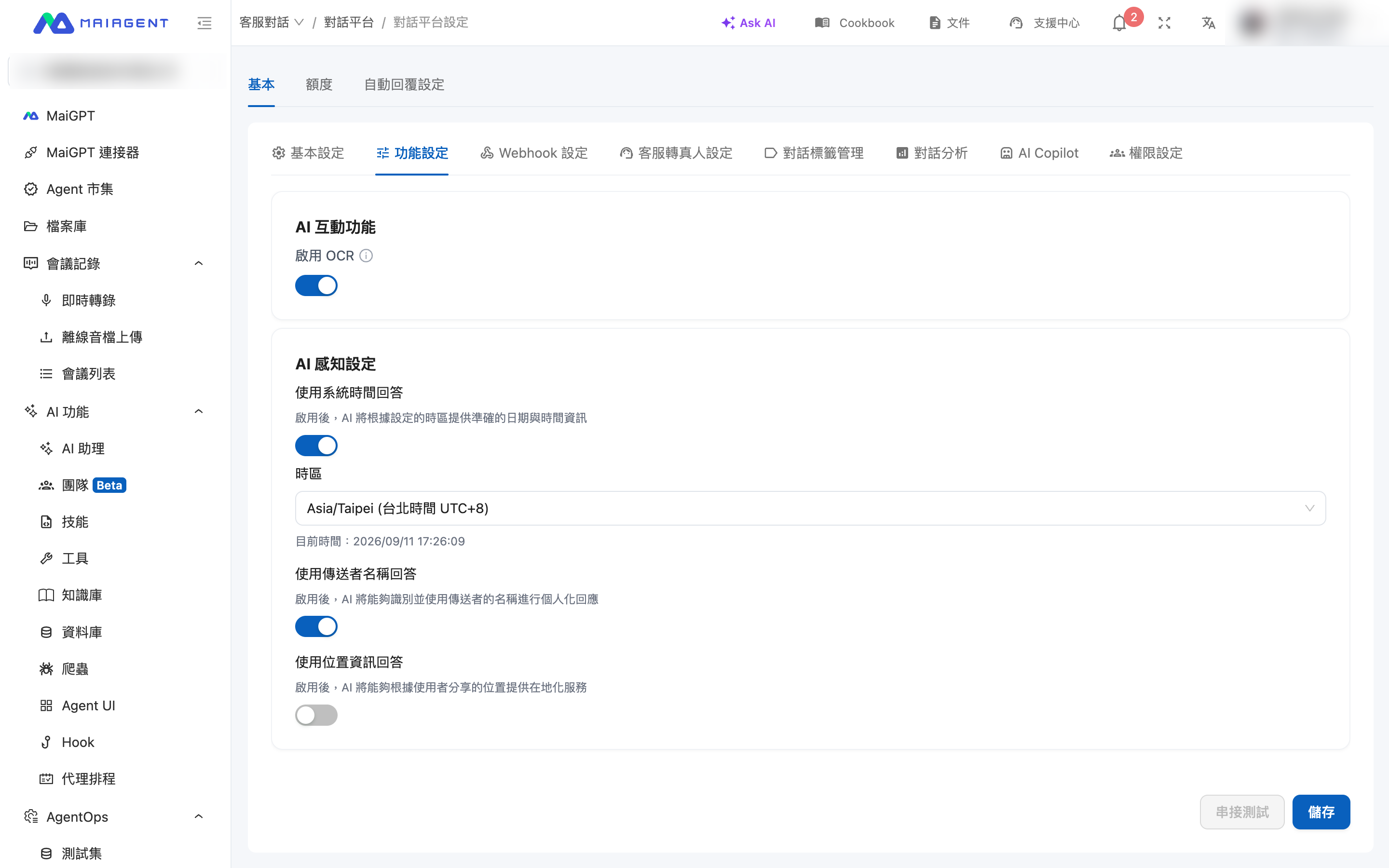
* [Feature Settings](https://docs.maiagent.ai/maiagent-user-guide/en/build/conversation-settings/platform-settings/function-settings.md): Basic features, AI interaction features, Hook processing indicators, question set option display mode, and AI awareness settings
* [Interaction Settings](https://docs.maiagent.ai/maiagent-user-guide/en/build/conversation-settings/platform-settings/interaction-settings.md): Greeting, conversation starters, conversation display settings, satisfaction surveys, and quota exhaustion messages

For integration steps for each platform, see its corresponding conversation platform integration page.

{% hint style="info" %}
When you create an Agent, the system automatically creates three built-in conversation platforms: <mark style="color:blue;">Web</mark>, <mark style="color:blue;">Internal</mark>, and <mark style="color:blue;">API</mark>. Before adjusting a switch, make sure you are editing the platform you actually use.
{% endhint %}

## 1. When to Use These Settings <a href="#when-to-use" id="when-to-use"></a>

A customer service manager connects the company's Agent to its official website and LINE Official Account. After launch, a colleague reports: “When I ask ‘What is today's date?’ on the website, the Agent answers correctly, but on LINE, it asks the user for the date.” The manager opens <mark style="color:blue;">Customer Conversations</mark> → <mark style="color:blue;">Conversation Platforms</mark> and finds that <mark style="color:blue;">Use System Time in Responses</mark> is on for the Web platform but off for LINE: each platform has its own settings. The manager enables the switch for LINE, confirms that the time zone is Taipei time, and saves. The Agent can now answer the date correctly on LINE, without any changes to its role instructions.

## 2. Open the Settings Page <a href="#open-settings" id="open-settings"></a>

Both routes lead to the same settings page:

* **From the conversation platform list**: In the left menu, click <mark style="color:blue;">Customer Conversations</mark> → <mark style="color:blue;">Conversation Platforms</mark>. Find the platform you want to adjust and click <mark style="color:blue;">Edit</mark> in the <mark style="color:blue;">Actions</mark> column. If you have many platforms, narrow the list with the filters above it. See [Filter the Conversation Platform List](#filter-platform-list) below.
* **From an Agent**: Go to <mark style="color:blue;">AI Features</mark> → <mark style="color:blue;">AI Assistants</mark>, select an Agent, and switch to the <mark style="color:blue;">Conversation Platforms</mark> tab. Click <mark style="color:blue;">Platform Settings</mark> on a platform card. When you finish, use <mark style="color:blue;">Back to AI Assistant Settings</mark> at the top of the page to return to the Agent.

### Filter the Conversation Platform List <a href="#filter-platform-list" id="filter-platform-list"></a>

When an organization enables official built-in Agents, each automatically comes with Web, Internal, and API conversation platforms. These appear in the same list as platforms for custom Agents. You can combine the filters above the list:

| Filter                                                                                                | Purpose                                                                                                                                                                                |
| ----------------------------------------------------------------------------------------------------- | -------------------------------------------------------------------------------------------------------------------------------------------------------------------------------------- |
| Search box (<mark style="color:blue;">Enter a conversation platform name, ID, or channel name</mark>) | Search by keywords in the name, ID, or channel name                                                                                                                                    |
| <mark style="color:blue;">All Channel Types</mark>                                                    | Show only platforms of a specific channel type, such as Web, LINE, or Messenger                                                                                                        |
| <mark style="color:blue;">All AI Assistants</mark>                                                    | Show only platforms linked to a specific Agent                                                                                                                                         |
| <mark style="color:blue;">Hide Official Built-in Assistants</mark>                                    | When selected, show only platforms for the organization's custom Agents. Hide all Web, Internal, and API platforms for official built-in Agents and update the total count accordingly |

* All conditions apply together. Selecting or clearing <mark style="color:blue;">Hide Official Built-in Assistants</mark> returns the list to page 1.
* When <mark style="color:blue;">Hide Official Built-in Assistants</mark> is selected, the <mark style="color:blue;">All AI Assistants</mark> dropdown also lists only the organization's custom Agents. If an official built-in Agent was selected, the selection is automatically cleared.
* Filters are preserved when you open pages such as platform settings or conversation platform analytics and return to the list. Click <mark style="color:blue;">Reset Filters</mark> to clear all conditions, including <mark style="color:blue;">Hide Official Built-in Assistants</mark>.
* Filters only affect which platforms appear in the list. They do not change any platform's enabled status or settings.

<figure><img src="https://1360999650-files.gitbook.io/~/files/v0/b/gitbook-x-prod.appspot.com/o/spaces%2F6v6TNkkOQVfRYfcNirHL%2Fuploads%2Fgit-blob-44e08878c5cff05675143518cbc9c0247e30da0c%2Fchannels-inbox-list-hide-builtin.png?alt=media" alt="Filters above the conversation platform list, with Hide Official Built-in Assistants selected"><figcaption><p>Select Hide Official Built-in Assistants to list only platforms for the organization's custom Agents</p></figcaption></figure>

{% hint style="info" %}
When assigning Agents or conversation platforms under <mark style="color:blue;">Organization Settings</mark> → <mark style="color:blue;">Organization Overview</mark> → <mark style="color:blue;">Management Actions</mark> → <mark style="color:blue;">Edit Role Permissions</mark>, the dialog provides the same <mark style="color:blue;">Hide Official Built-in Assistants</mark> filter. See [Role Permission Management: Filter and Hide Official Built-in Assistants in the Assignment Dialog](https://docs.maiagent.ai/maiagent-user-guide/en/org/roles/role-permission.md#assign-picker-filters).
{% endhint %}

## 3. Settings Page Structure <a href="#layout" id="layout"></a>

Three main tabs always appear at the top of the settings page: <mark style="color:blue;">Basic</mark>, <mark style="color:blue;">Quota</mark>, and <mark style="color:blue;">Auto-reply Settings</mark>. The <mark style="color:blue;">Basic</mark> tab uses one of two layouts, depending on the platform type:

* **Web, Internal, and API platforms**: Category navigation appears on the left, organized into four groups: General, Integration and Login, Advanced Features, and Management. Select a category to display its settings on the right. Use <mark style="color:blue;">Search Settings</mark> above the navigation to find a switch by keyword.
* **Messaging platforms such as LINE, Microsoft Teams, Slack, and Email**: A row of tabs at the top replaces the left navigation.

<figure><img src="https://1360999650-files.gitbook.io/~/files/v0/b/gitbook-x-prod.appspot.com/o/spaces%2F6v6TNkkOQVfRYfcNirHL%2Fuploads%2Fgit-blob-3a0615ef94f3169ee0ab32352109028ad18f986b%2Fplatform-settings-overview.png?alt=media" alt="Web platform settings page with three main tabs at the top and category navigation in four groups on the left"><figcaption><p>Web platform settings page: category navigation on the left and Basic Settings content on the right</p></figcaption></figure>

<figure><img src="https://1360999650-files.gitbook.io/~/files/v0/b/gitbook-x-prod.appspot.com/o/spaces%2F6v6TNkkOQVfRYfcNirHL%2Fuploads%2Fgit-blob-8ab3d429dc89c8119ff97eeddea40045be9ed077%2Fplatform-settings-line-function.png?alt=media" alt="LINE platform settings page with a row of tabs at the top, currently showing Feature Settings"><figcaption><p>Messaging platforms such as LINE use a tab bar at the top</p></figcaption></figure>

## 4. Tab Map <a href="#tab-map" id="tab-map"></a>

| Tab                                | What It Controls                                                                                                                                                                                                                                                                                                                                                                                                                                                                                                                                                                                                                                                                                                                           | Learn More                                                                                                                                                                                                                                                                                                    |
| ---------------------------------- | ------------------------------------------------------------------------------------------------------------------------------------------------------------------------------------------------------------------------------------------------------------------------------------------------------------------------------------------------------------------------------------------------------------------------------------------------------------------------------------------------------------------------------------------------------------------------------------------------------------------------------------------------------------------------------------------------------------------------------------------ | ------------------------------------------------------------------------------------------------------------------------------------------------------------------------------------------------------------------------------------------------------------------------------------------------------------- |
| **Basic Settings**                 | Platform name, linked Agent, and platform-specific fields (Web: return URL, custom domain, allowed embedding domains, public access URL; LINE: Channel credentials; Teams: Bot credentials, and more)                                                                                                                                                                                                                                                                                                                                                                                                                                                                                                                                      | [Basic Settings](https://docs.maiagent.ai/maiagent-user-guide/en/build/conversation-settings/platform-settings/basic-settings.md), integration pages for each platform                                                                                                                                        |
| **Appearance Settings**            | Conversation window logo, avatar, colors, and theme                                                                                                                                                                                                                                                                                                                                                                                                                                                                                                                                                                                                                                                                                        | [Appearance Settings](https://docs.maiagent.ai/maiagent-user-guide/en/build/conversation-settings/platform-settings/appearance-settings.md)                                                                                                                                                                   |
| **Response Loading Style**         | Text or animations shown in the conversation window while the AI generates a response, and how tool cards appear when the AI calls tools                                                                                                                                                                                                                                                                                                                                                                                                                                                                                                                                                                                                   | [Response Loading Style](https://docs.maiagent.ai/maiagent-user-guide/en/build/conversation-settings/platform-settings/loading-display.md)                                                                                                                                                                    |
| **Feature Settings**               | Feature switches for file uploads, document citations, OCR, question set option display mode, and AI awareness settings                                                                                                                                                                                                                                                                                                                                                                                                                                                                                                                                                                                                                    | [Feature Settings](https://docs.maiagent.ai/maiagent-user-guide/en/build/conversation-settings/platform-settings/function-settings.md)                                                                                                                                                                        |
| **Interaction Settings**           | Greeting, conversation starters, conversation display settings, satisfaction surveys, and quota exhaustion messages                                                                                                                                                                                                                                                                                                                                                                                                                                                                                                                                                                                                                        | [Interaction Settings](https://docs.maiagent.ai/maiagent-user-guide/en/build/conversation-settings/platform-settings/interaction-settings.md)                                                                                                                                                                 |
| **Login Settings**                 | Whether users must log in before chatting, and login methods                                                                                                                                                                                                                                                                                                                                                                                                                                                                                                                                                                                                                                                                               | [Conversation Platform Integration: Website](https://docs.maiagent.ai/maiagent-user-guide/en/build/choose-channel/web-chat/website.md#login-settings), [Chat Without Logging In Using a Contact Source ID](https://docs.maiagent.ai/maiagent-user-guide/en/build/choose-channel/web-chat/source-id-access.md) |
| **Webhook Settings**               | Send conversation events to your system. On API platforms, an additional <mark style="color:blue;">API Information</mark> card displays the Web Chat ID                                                                                                                                                                                                                                                                                                                                                                                                                                                                                                                                                                                    | [Webhook](https://docs.maiagent.ai/maiagent-user-guide/en/build/conversation-settings/webhook.md), [Web Chat ID for API Platforms](https://docs.maiagent.ai/maiagent-user-guide/en/build/conversation-settings/platform-settings/basic-settings.md#web-chat-id)                                               |
| **Human Handoff Settings**         | Handoff conditions, handoff messages, service hours, assignment, and notifications                                                                                                                                                                                                                                                                                                                                                                                                                                                                                                                                                                                                                                                         | [Human Handoff Settings](https://docs.maiagent.ai/maiagent-user-guide/en/build/conversation-settings/human-handoff.md)                                                                                                                                                                                        |
| **Data Collection**                | A pre-chat form that collects contact information before starting a conversation                                                                                                                                                                                                                                                                                                                                                                                                                                                                                                                                                                                                                                                           | [Web Chat Overview](https://docs.maiagent.ai/maiagent-user-guide/en/build/choose-channel/web-chat.md#pre-chat-form)                                                                                                                                                                                           |
| **Conversation Tag Management**    | Conversation tags available on this platform and the members responsible for each tag                                                                                                                                                                                                                                                                                                                                                                                                                                                                                                                                                                                                                                                      | [Conversation Tag Management](https://docs.maiagent.ai/maiagent-user-guide/en/build/conversation-settings/conversation-tags.md)                                                                                                                                                                               |
| **Conversation Analysis**          | Automatically analyze conversation content during human handoff, generate a summary, and apply category tags                                                                                                                                                                                                                                                                                                                                                                                                                                                                                                                                                                                                                               | [Conversation Analysis](https://docs.maiagent.ai/maiagent-user-guide/en/build/conversation-settings/conversation-analysis.md)                                                                                                                                                                                 |
| **AI Copilot**                     | Automatically generate suggested replies to incoming messages for human agents to reference                                                                                                                                                                                                                                                                                                                                                                                                                                                                                                                                                                                                                                                | [Customer Service Copilot](https://docs.maiagent.ai/maiagent-user-guide/en/serve/copilot.md#enable-copilot)                                                                                                                                                                                                   |
| **Permission Settings**            | Which roles' members can view and manage this platform. Use the transfer control to move the <mark style="color:blue;">Roles</mark> you want to authorize from left to right, then save (<mark style="color:blue;">Owner Roles</mark> always have access; <mark style="color:blue;">Default Roles</mark> are labeled separately). Only selected roles can see the platform in the conversation platform list. Editing access depends on the read/edit permissions for <mark style="color:blue;">Assign Conversation Platforms</mark> in role permissions. This section is also a tab in the platform creation form. Before submission, a prompt says, “Please review Permission Settings and confirm the assigned roles before submitting” | [Role Resource Access Permissions](https://docs.maiagent.ai/maiagent-user-guide/en/org/roles/group-resource-access.md), [Assign Conversation Platforms](https://docs.maiagent.ai/maiagent-user-guide/en/org/roles/role-permission.md#assign-inboxes)                                                          |
| **Quota** (main tab)               | Credits quota available to this platform                                                                                                                                                                                                                                                                                                                                                                                                                                                                                                                                                                                                                                                                                                   | [Conversation Platform Credits Quota Management](https://docs.maiagent.ai/maiagent-user-guide/en/others/credits/inbox-credit-quota.md)                                                                                                                                                                        |
| **Auto-reply Settings** (main tab) | AI auto-reply hours (24-hour replies or specified hours). Outside these hours, the AI neither replies nor initiates human handoff. Conversations with no assigned human agent that are not queued remain Unassigned for a human agent to take over; assigned or queued conversations stay as they are. Turning off all seven days enables human-only customer service. The Silent Skip section below lets you list phrases to which the AI gives no response at all                                                                                                                                                                                                                                                                        | [Conversation Platform Integration: Website](https://docs.maiagent.ai/maiagent-user-guide/en/build/choose-channel/web-chat/website.md#auto-reply-settings), [Silently Skip Specified Phrases](https://docs.maiagent.ai/maiagent-user-guide/en/build/choose-channel/web-chat/website.md#silent-skip-phrases)   |

For the tabs available on each platform, see the [platform support matrix in Section 6](#platform-matrix).

## 5. Feature Settings Summary <a href="#function-settings" id="function-settings"></a>

<mark style="color:blue;">Feature Settings</mark> has five sections on Web and API platforms. The Internal platform does not have Question Set Option Display Mode. Messaging platforms have only AI Interaction Features (<mark style="color:blue;">Enable OCR</mark>, <mark style="color:blue;">Reply Only When @Mentioned</mark>, and platform-specific switches) and AI Awareness Settings. For platform-specific switches, see [Feature Settings: Messaging Platform Switches](https://docs.maiagent.ai/maiagent-user-guide/en/build/conversation-settings/platform-settings/function-settings.md#messaging-platform-switches).

| Section                              | What It Controls                                                                                                                            |
| ------------------------------------ | ------------------------------------------------------------------------------------------------------------------------------------------- |
| **Basic Features**                   | Enable the platform, allow file uploads, allow conversation sharing, show connected services, and allow font size changes                   |
| **AI Interaction Features**          | Show cited documents, allow downloads of cited documents, enable OCR, show the thinking process, and allow users to adjust reasoning effort |
| **Hook Processing Indicators**       | Whether to display an indicator when a message is processed by a Hook                                                                       |
| **Question Set Option Display Mode** | Display options as floating buttons or an option panel when the AI asks a question                                                          |
| **AI Awareness Settings**            | Use system time, sender name, and location information in responses                                                                         |

For descriptions of each switch, time zone rules, and common questions, see [Feature Settings](https://docs.maiagent.ai/maiagent-user-guide/en/build/conversation-settings/platform-settings/function-settings.md).

## 6. Platform Support Matrix <a href="#platform-matrix" id="platform-matrix"></a>

| Tab                                                                                | Web / Internal     | API | LINE | Slack | WhatsApp | Other Messaging Platforms |
| ---------------------------------------------------------------------------------- | ------------------ | --- | ---- | ----- | -------- | ------------------------- |
| Appearance Settings, Response Loading Style, Interaction Settings, Data Collection | ✓                  | ✓   | —    | —     | —        | —                         |
| Login Settings                                                                     | ✓                  | —   | —    | —     | —        | —                         |
| Webhook Settings                                                                   | —                  | ✓   | ✓    | ✓     | —        | ✓                         |
| Feature Settings: all six sections                                                 | ✓                  | ✓   | —    | —     | —        | —                         |
| Feature Settings: Question Set Option Display Mode                                 | Web ✓ / Internal — | ✓   | —    | —     | —        | —                         |
| Feature Settings: OCR + AI Awareness Settings                                      | ✓                  | ✓   | ✓    | ✓     | ✓        | ✓                         |
| Use Location Information in Responses                                              | ✓                  | ✓   | ✓    | —     | —        | —                         |
| Human Handoff Settings                                                             | ✓                  | ✓   | ✓    | —     | ✓        | ✓                         |
| Conversation Analysis                                                              | ✓                  | ✓   | ✓    | —     | ✓        | ✓                         |
| Conversation Tag Management, AI Copilot, Permission Settings                       | ✓                  | ✓   | ✓    | ✓     | ✓        | ✓                         |

Other Messaging Platforms refers to Microsoft Teams, Telegram, FB Messenger, Instagram, Email, LINE WORKS, and Team+.

## Reset All Conversations on Messaging Platforms <a href="#reset-all-conversations" id="reset-all-conversations"></a>

LINE, Telegram, Microsoft Teams, Slack, Viber, Team+, Email, WhatsApp, FB Messenger / Instagram, and LINE WORKS all have a red <mark style="color:blue;">Reset All Conversations</mark> button at the bottom of the <mark style="color:blue;">Basic Settings</mark> tab. Clicking it opens a confirmation dialog: “Are you sure you want to reset all conversations on this conversation platform? This action cannot be undone.” After confirmation, the system starts a new conversation for **every** ongoing conversation on the platform and displays “Successfully reset N conversations.”

After a reset, each contact's next message goes into a new conversation. The Agent no longer includes the previous conversation history, effectively running a reset command for every user. Old conversations are not deleted and remain available under <mark style="color:blue;">All Conversations</mark>. Use this when:

* You have substantially rewritten role instructions or changed the knowledge base and do not want old conversation context to affect new responses
* Testing has finished and you want to clear test conversation context before launch

{% hint style="danger" %}
This action affects **all** users on the platform and cannot be undone. Run it during off-peak hours and notify the customer service team beforehand. To reset a single user, have the user enter the command configured in the platform's Reset Command setting instead.
{% endhint %}

## 7. Frequently Asked Questions <a href="#faq" id="faq"></a>

### Q: Why can't I find these switches in Agent settings? <a href="#faq-where" id="faq-where"></a>

These settings belong to the conversation platform. Open <mark style="color:blue;">Customer Conversations</mark> → <mark style="color:blue;">Conversation Platforms</mark>, or click <mark style="color:blue;">Platform Settings</mark> in the Agent's <mark style="color:blue;">Conversation Platforms</mark> tab.

### Q: Why does LINE still not know the date when Use System Time in Responses is enabled for the Web platform? <a href="#faq-per-platform" id="faq-per-platform"></a>

Each platform has its own settings. Enable it separately in the LINE platform's <mark style="color:blue;">Feature Settings</mark> tab. For time zone rules, see [Feature Settings](https://docs.maiagent.ai/maiagent-user-guide/en/build/conversation-settings/platform-settings/function-settings.md#timezone-resolution).

### Q: Why is a tab missing from my platform? <a href="#faq-missing-tab" id="faq-missing-tab"></a>

Different platform types support different tabs. See [Section 6](#platform-matrix). On Web platforms, the Advanced Features group appears only after you save the basic settings and finish creating the platform.

### Q: Do I need to embed or integrate the platform again after changing settings? <a href="#faq-resave" id="faq-resave"></a>

No. Changes take effect as soon as you click <mark style="color:blue;">Save</mark>. You do not need to reset the website embed code or messaging platform Webhooks.


---

# Agent Instructions
This documentation is published with GitBook. GitBook is the documentation platform designed so that both humans and AI agents can read, navigate, and reason over technical content effectively. Learn more at gitbook.com.

## Querying This Documentation
If you need additional information that is not directly available in this page, you can query the documentation by asking a question.

Perform an HTTP GET request on the following URL with the `ask` and `goal` query parameters:

```
GET https://docs.maiagent.ai/maiagent-user-guide/en/build/conversation-settings/platform-settings.md?ask=<question>&goal=<user_goal>
```

`ask` is the immediate question: it should be specific, self-contained, and written in natural language.
`goal` is what the user is ultimately trying to achieve, the reason they need the answer. Sharing it helps GitBook give you a better, more relevant answer. A goal is most helpful when it describes the outcome the user wants rather than restating the question. For example, with `ask=how do I create an API token`, a goal like `automate deployments from our CI pipeline` lets GitBook tailor the answer to that use case.

The response will contain a direct answer to the question and relevant excerpts and sources from the documentation.

Use this mechanism when the answer is not explicitly present in the current page, you need clarification or additional context, or you want to retrieve related documentation sections.