> For the complete documentation index, see [llms.txt](https://docs.maiagent.ai/llms.txt). Markdown versions of documentation pages are available by appending `.md` to page URLs; this page is available as [Markdown](https://docs.maiagent.ai/maiagent-user-guide/en/build/choose-channel/web-chat/markdown-rendering.md).
# Markdown Rendering
Message content rendering in Web Chat: how Markdown headings, lists, tables, code blocks, and links appear in the chat window, the optimizations, and administrator settings.
This article introduces the message content rendering optimizations in the Web Chat window, which make Agent responses clearer and easier to read.
## What Is Message Content Rendering?
Message content rendering refers to how Web Chat converts an Agent's text response into the visual presentation that users see. An Agent's response may include:
* **Plain text**: General text descriptions
* **Markdown formatting**: Headings, lists, bold, italics, and other formatting
* **Code blocks**: Code examples or commands
* **Tables**: Structured data presentation
* **Links**: External links or reference materials
Good rendering makes this content easier to read and understand.
## Optimization Items
### 1. Fully Upgraded Markdown Rendering Engine
Web Chat now uses an enhanced Markdown rendering engine that supports richer formatting and more precise rendering.
#### Supported Markdown Formats
| Format Type | Syntax Example | Rendering Description |
| --------------- | --------------------------------------------------------------------- | ---------------------------------------------------------------------------------------------------------------------------- |
| **Headings** | `# Heading 1`, `## Heading 2` | Clear heading hierarchy for dividing content into sections |
| **Bold** | `**bold text**` | Emphasizes key content |
| **Italic** | `*italic text*` | Secondary emphasis or supplementary notes |
| **Lists** | `- Item 1`, `1. Item 1` | Ordered or unordered lists |
| **Inline code** | `` `code` `` | Inline code or commands |
| **Code blocks** | ` ```code``` ` | Multi-line code with syntax highlighting support |
| **Tables** | `\| Column 1 \| Column 2 \|` | Structured data display |
| **Links** | `[link text](URL)` | Clickable hyperlinks |
| **Blockquotes** | `> quote content` | Quotations or special notes |
| **Images** | ``, `{width=200px}` | Displays an image; a `{…}` placed right after the URL sets the display size. See [Adjusting Image Display Size](#image-size) |
#### Link and File Link Behavior
* Links in responses always open in a **new tab**, so users don't leave the current conversation (the only exception is in-page anchors `#…`).
* When a link points to a PDF or another file, the browser decides how it opens: Chrome, Edge, and Safari open PDFs in a new tab with the built-in viewer, and URLs with a page number such as `https://example.com/manual.pdf#page=12` jump straight to that page; if the browser is set to download PDFs, the file is downloaded instead. Web Chat does not rewrite the URL or force a download.
* To have the Agent reply with a "text link plus page number" instead of an attachment: put the document URL (including the page number) in the `url` metadata of the knowledge base document or in the FAQ answer, and instruct the Agent in its role instructions to reply with Markdown links. See [Custom URL Mapping](/maiagent-user-guide/en/build/knowledge-base/tags-and-metadata.md#custom-url-mapping). Downloading cited documents from the sources is a separate mechanism, controlled by "Allow downloading cited documents" in [Function Settings](/maiagent-user-guide/en/build/conversation-settings/platform-settings/function-settings.md#ai-interaction).
#### Adjusting Image Display Size
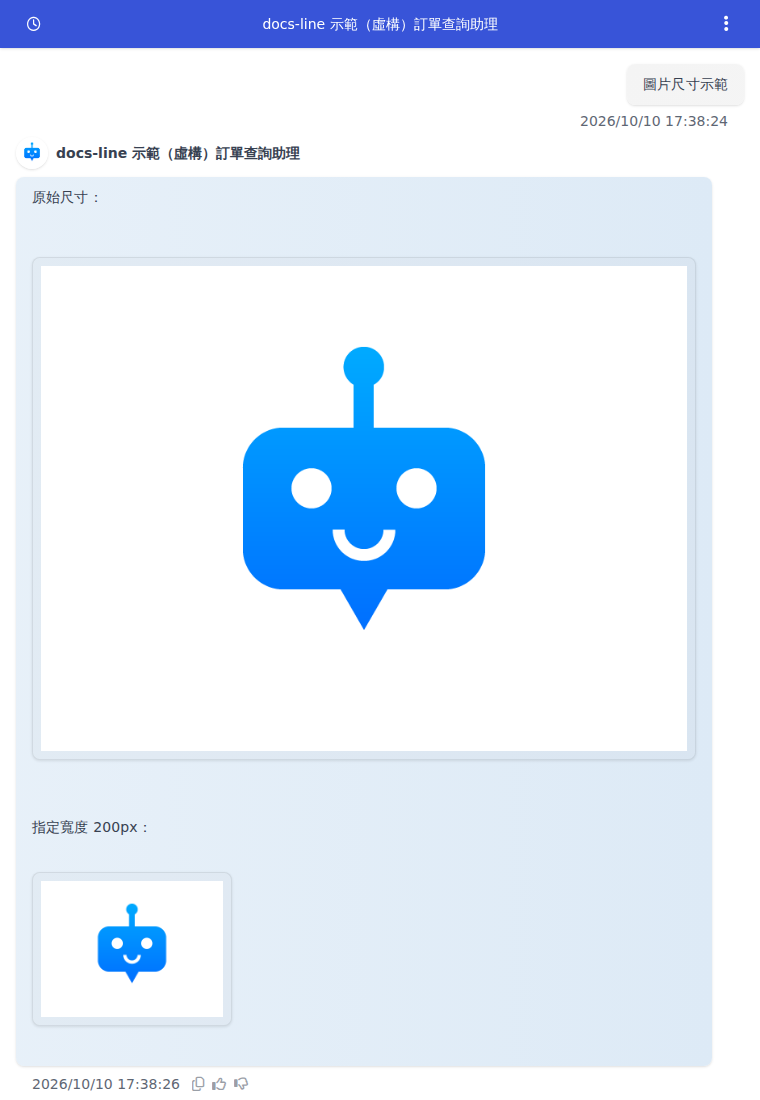
Markdown images in Agent responses are displayed at their original size by default, up to the width of the message column. Add `{width=…}` or `{height=…}` immediately after the closing parenthesis of the image URL to set the display size of that image. Both Web Chat and the back-office conversation view (for example, when you click Start Conversation from the Agent Marketplace) support this.
For example, a customer service manager at an e-commerce company noticed that when the Agent replied with product images, a single image filled the entire chat window and customers had to keep scrolling to see the text. She added an instruction to the Agent's role instructions to always output product images in the format `{width=200px}` (for where to enter this, see [Add Role Instructions to an Agent](/maiagent-user-guide/en/build/agent/add-system-prompt.md)). After that, product images shown to customers in Web Chat on the company website have a fixed width of 200px, and colleagues chatting with the same Agent in the back office see the same size.
```markdown
{width=200px}
{width=50%}
{width=300px height=200px}
```
| Rule | Description |
| ---------------------------------- | -------------------------------------------------------------------------------------------------------------------- |
| Available settings | Only `width` and `height`, always lowercase, each at most once, in any order |
| Units | `px` or `%`; the value must be greater than 0 and may include decimals (for example, `33.5%`); `%` cannot exceed 100 |
| Basis for percentages | `%` is calculated against the width of the message column |
| Setting both width and height | Separate the two settings with a space (`{width=300px height=200px}`), not a comma |
| Setting only one | The other dimension is adjusted automatically to keep the original aspect ratio |
| Position | `{` must immediately follow the `)` of the URL, with no space in between |
| Exceeding the message column width | The image is automatically scaled down to fit within the message column without distortion |
Web Chat: the same image without a specified size (top) and with {width=200px} (bottom)
Back-office conversation view: the same response, where the second image has a width of 200px
{% hint style="warning" %}
If anything inside `{…}` violates the rules in the table above (for example, `{width=150%}`, `{size=200px}`, a space between `)` and `{`, or a missing closing brace), the entire size setting is ignored: the image is displayed at its default size, and the `{…}` text appears as-is in the message. A `{width=…}` written inside code or a code block is also displayed as-is.
{% endhint %}
{% hint style="info" %}
Size settings only take effect in Web Chat and the back-office conversation view. Messaging channels such as LINE, Messenger, Instagram, and WhatsApp do not apply them, and the `{width=…}` after an image remains in the message as text. If the same Agent also serves these channels, we recommend not asking for the size syntax in the role instructions.
{% endhint %}
### 2. Dark Mode Visual Optimization
When an end user's device uses a dark theme, Web Chat automatically adjusts the visual presentation of message content to ensure clarity and readability on dark backgrounds.
#### Dark Mode Adjustments
1. **Text and background contrast**: Automatically adjusts text color for clear display on dark backgrounds
2. **Message feedback buttons**: Adjusts button colors and borders so they remain clear in dark mode
3. **Table visuals**: Adjusts table borders and background colors for improved readability
4. **Blockquote backgrounds**: Adjusts blockquote background tones to set them apart from the main content
### 3. Streaming Rendering Performance Improvements
Web Chat displays Agent responses through real-time streaming, so users don't need to wait for the complete response to be generated. This update optimizes streaming rendering performance:
* **Faster rendering**: Markdown formatting renders more quickly, reducing perceived latency
* **Improved smoothness**: Text appears character by character more smoothly, with no noticeable lag
* **Format accuracy**: Markdown formatting renders correctly even during streaming
{% hint style="success" %}
Users can see the content that has already been generated in real time while the Agent is still responding, without waiting for the complete answer.
{% endhint %}
## Practical Use Cases
### 💻 Technical Documentation Assistant
**Scenario**: When developers ask for code examples, the Agent provides responses that include code blocks.
**Optimization Effects**:
* Code blocks support syntax highlighting for easier reading
* Code displays clearly in dark mode
* Developers can copy and use the code directly
**Example Response**:
````
Here's an example of reading a CSV file in Python:
```python
import pandas as pd
df = pd.read_csv('data.csv')
print(df.head())
````
This code reads a CSV file and displays the first 5 rows.
```
### 📊 Data Analysis Assistant
**Scenario**:
Users ask for sales data analysis results, and the Agent presents them in a table.
**Optimization Effects**:
* Tables are clearly formatted with aligned columns
* Table borders and background colors adapt to dark mode
* Large datasets remain readable
**Example Response**:
```
Here are the top three selling products this quarter:
| Product Name | Units Sold | Revenue |
| ------------ | ---------- | -------- |
| Product A | 1,250 | $125,000 |
| Product B | 980 | $98,000 |
| Product C | 856 | $85,600 |
Sales data is as of the 20th of this month.
```
### 📚 Teaching Assistant
**Scenario**:
Students ask about learning steps, and the Agent explains them using an ordered list.
**Optimization Effects**:
* List items are clearly numbered
* Heading hierarchy is distinct, making the order of steps easy to follow
* Key content is emphasized in bold
**Example Response**:
```
## Recommended Steps for Learning Python
1. **Basic Syntax**
* Variables and data types
* Conditionals and loops
2. **Advanced Concepts**
* Functions and modules
* Object-oriented programming
3. **Hands-on Practice**
* Complete small projects
* Contribute to open source
We recommend spending 2-3 weeks on each step.
```
## Administrator Settings
### Markdown Rendering Settings
Web Chat's Markdown rendering is enabled by default. If your use case doesn't require Markdown formatting, you can adjust it in the settings:
1. Go to "Publish" → "Web Chat Settings"
2. Find the "Message Rendering" settings section
3. Select the rendering mode:
* **Full Markdown**: Supports all Markdown formats (default)
* **Basic formatting**: Supports only bold, italic, and links
* **Plain text**: Renders no formatting
### Dark Mode Settings
Dark mode is enabled automatically based on the user's device settings. If you want Web Chat to always use a light or dark theme:
1. Go to "Publish" → "Web Chat Settings"
2. Find the "Appearance" settings section
3. Select the theme mode:
* **Auto**: Based on the user's device settings (default)
* **Light**: Always use the light theme
* **Dark**: Always use the dark theme
For detailed Web Chat appearance settings, see: [Connect Chat Platform: Website](website.md)
## Performance Impact
### Rendering Performance
Performance impact of the optimized Markdown rendering engine:
* **Load time**: First load increases by approximately 0.1-0.2 seconds (virtually unnoticeable)
* **Memory usage**: Increases by approximately 1-2 MB (minimal impact on modern browsers)
* **Rendering speed**: Approximately 30% faster than the previous version
### Compatibility
The optimized rendering engine supports the following browsers:
* Chrome / Edge (version 90 or later)
* Firefox (version 88 or later)
* Safari (version 14 or later)
* Mobile browsers (iOS Safari, Android Chrome)
Older browser versions may not display some Markdown formats correctly. We recommend reminding users to update their browsers.
## Messaging Channels: Automatic Conversion to Plain Text
The Markdown rendering described on this page applies only to Web Chat, which can display rich text. LINE, Messenger, Instagram, and WhatsApp do not render Markdown. Agent responses are automatically converted before being sent to these four channels, so users receive clean text:
| Markdown | After Conversion |
| --- | --- |
| `# Heading`, `**bold**`, `*italic*`, `~~strikethrough~~` | Symbols removed, text only (WhatsApp bold uses its own `*bold*` style instead) |
| `[text](URL)` | "text URL" |
| Tables | Each row becomes one line: "- Column name: value / Column name: value" |
| Code blocks | Content only |
| Bullet lists, line breaks | Preserved |
| Images `` | Images that are sent separately as images are removed from the text; images that are not sent separately appear as "description URL" |
Only messages sent by the Agent are converted; text typed by human agents in the back office, LINE Flex cards, and quick reply buttons are sent as-is. The back-office conversation page and reports still store the model's original response. The Viber channel keeps its existing style conversion.
For example, a pharmacy chain's Agent serves both the website Web Chat and LINE, and organizes store business hours in a table when replying. Website visitors see a table; LINE users receive a bulleted list with one line per store, such as "- Store: Xinyi Branch / Business hours: 09:00–22:00", without a pile of `|` and `**` symbols, so there is no need to write a separate set of role instructions for LINE.
## FAQ
### Q1: Why doesn't my Agent's response have formatting?
Possible causes:
* The Agent is not using Markdown syntax
* Markdown rendering is disabled
* The browser version is too old
### Q2: What if some content is hard to see in dark mode?
Try the following:
1. Clear the browser cache
2. Refresh the page
3. Make sure you are using the latest browser version
### Q3: Can I customize the syntax highlighting colors for code blocks?
Currently, the syntax highlighting colors are fixed. Customization may be offered in a future version.
### Q4: How is long table content displayed?
Tables automatically support horizontal scrolling, so the content is displayed in full without affecting the layout of other content.
### Q5: Will rendering optimization affect display on mobile devices?
No. The rendering optimizations have also been adapted for mobile devices, ensuring clear display on small screens.
```
---
# Agent Instructions
This documentation is published with GitBook. GitBook is the documentation platform designed so that both humans and AI agents can read, navigate, and reason over technical content effectively. Learn more at gitbook.com.
## Querying This Documentation
If you need additional information that is not directly available in this page, you can query the documentation by asking a question.
Perform an HTTP GET request on the following URL with the `ask` and `goal` query parameters:
```
GET https://docs.maiagent.ai/maiagent-user-guide/en/build/choose-channel/web-chat/markdown-rendering.md?ask=&goal=
```
`ask` is the immediate question: it should be specific, self-contained, and written in natural language.
`goal` is what the user is ultimately trying to achieve, the reason they need the answer. Sharing it helps GitBook give you a better, more relevant answer. A goal is most helpful when it describes the outcome the user wants rather than restating the question. For example, with `ask=how do I create an API token`, a goal like `automate deployments from our CI pipeline` lets GitBook tailor the answer to that use case.
The response will contain a direct answer to the question and relevant excerpts and sources from the documentation.
Use this mechanism when the answer is not explicitly present in the current page, you need clarification or additional context, or you want to retrieve related documentation sections.