> For the complete documentation index, see [llms.txt](https://docs.maiagent.ai/llms.txt). Markdown versions of documentation pages are available by appending `.md` to page URLs; this page is available as [Markdown](https://docs.maiagent.ai/maiagent-user-guide/en/build/choose-channel/web-chat/maigpt-embed.md).

# Embed MaiGPT in Window Mode

Embed a full ChatGPT-style conversation interface directly into your website using MaiGPT window mode, with Deep Research and tool selection.

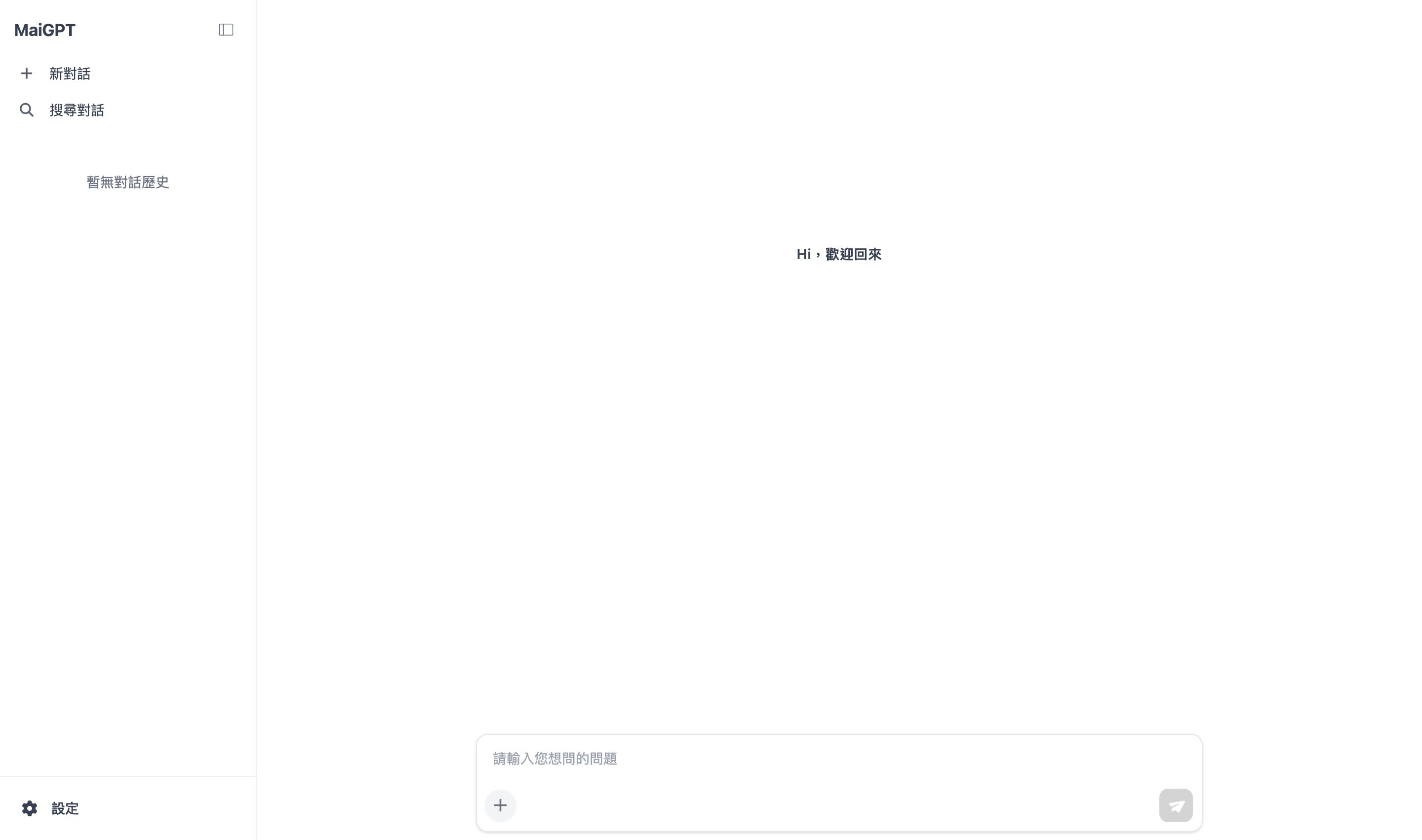
In addition to the common "floating button in the bottom-right corner," MaiAgent's Web Chat SDK introduces **MaiGPT window mode**, which lets you embed a **full ChatGPT-style conversation interface** (conversation history list on the left + main conversation area on the right) directly into any position on your own page as the primary UI, rather than a small widget tucked in a corner.

{% hint style="info" %}
This page explains how to embed MaiGPT window mode on your own website. If you have not yet created a Web Chat channel, please refer to [Connect a Conversation Channel: Website](/maiagent-user-guide/en/build/choose-channel/web-chat/website.md) to complete the basic setup first.
{% endhint %}

{% hint style="warning" %}
**MaiGPT window mode is not the same as the MaiGPT product.** Window mode only determines how the Web Chat interface looks: whichever Agent's Web Chat it is applied to, that Agent's role instructions, model, and tools are used. The built-in organization [MaiGPT](/maiagent-user-guide/en/work/maigpt.md) is a workspace for organization members to log in and use; the two are different things.
{% endhint %}

## <mark style="color:blue;">Where to Start? Get the Embed Code</mark> <a href="#where-to-start" id="where-to-start"></a>

The embed code on this page is obtained from [Basic Settings](/maiagent-user-guide/en/build/conversation-settings/platform-settings/basic-settings.md#public-url-and-embed). Follow the steps below:

{% stepper %}
{% step %}

### Open the Conversation Channel Settings

Under "<mark style="color:blue;">Customer Conversations > Conversation Channels</mark>", select your Web Chat channel and click "<mark style="color:blue;">Actions</mark>" to open the settings page.
{% endstep %}

{% step %}

### Click "Embed"

In <mark style="color:blue;">Basic Settings</mark>, find the Public Access URL section and click the "<mark style="color:blue;">Embed</mark>" button to open the embed window.

<figure><img src="https://1360999650-files.gitbook.io/~/files/v0/b/gitbook-x-prod.appspot.com/o/spaces%2F6v6TNkkOQVfRYfcNirHL%2Fuploads%2Fgit-blob-6651b11c4e50542297b13ca2af596a8a6bc1e51b%2Fmaigpt-embed-start-2-embed-button.png?alt=media" alt="Embed button in Basic Settings"><figcaption><p>Basic Settings > Embed</p></figcaption></figure>
{% endstep %}

{% step %}

### Select the MaiGPT Embed Method

Switch between the three embed methods at the top of the window and select "<mark style="color:blue;">MaiGPT</mark>":

| Embed Method | Description                                                 |
| ------------ | ----------------------------------------------------------- |
| JavaScript   | Loaded via `<script>`, the most common method               |
| Iframe       | Embedded directly via `<iframe>`                            |
| **MaiGPT**   | **The full ChatGPT-style interface described on this page** |

On the left side, you can adjust the embed container (`targetElement`), locale (`locale`), and title (`maigptTitle`).

<figure><img src="https://1360999650-files.gitbook.io/~/files/v0/b/gitbook-x-prod.appspot.com/o/spaces%2F6v6TNkkOQVfRYfcNirHL%2Fuploads%2Fgit-blob-389bc6aca11714bc271f35f3c015e9f6d8c81179%2Fmaigpt-embed-start-3-maigpt-tab.png?alt=media" alt="Embed window with MaiGPT method selected, real-time code preview on the right"><figcaption><p>Embed Window > Select MaiGPT > Real-time code preview on the right</p></figcaption></figure>
{% endstep %}

{% step %}

### Copy the Code and Paste It into Your Website

The <mark style="color:blue;">code preview</mark> on the right updates in real time based on the left-side settings. Click "<mark style="color:blue;">Copy</mark>" to get the embed code as shown below:

```html
<script>
  window.maiagentChatbotConfig = {
    webChatId: 'Your Web Chat ID',
    baseUrl: 'https://your-maiagent-domain/web-chats',
    enabledWindowModes: ['maigpt'],
    targetElement: '#maigpt-container',
  }
</script>
<script src="https://your-maiagent-domain/js/embed.min.js" defer></script>
```

For a full description of each parameter and the two layouts (embed container / bottom-right full-screen button), see [3. Embed Setup](#embed-setup) below.
{% endstep %}
{% endstepper %}

## <mark style="color:blue;">1. What Is MaiGPT Window Mode?</mark> <a href="#what-is-maigpt-mode" id="what-is-maigpt-mode"></a>

The Web Chat SDK provides four window modes, specified via `enabledWindowModes` in the embed configuration:

<table><thead><tr><th width="140">Window Mode</th><th>Description</th></tr></thead><tbody><tr><td><code>floating</code></td><td>Default mode. A floating button in the bottom-right corner that expands into a conversation window when clicked. Suitable for general customer service.</td></tr><tr><td><code>sidebar</code></td><td>Sidebar mode. The conversation window slides out from the side of the page.</td></tr><tr><td><code>inline</code></td><td>Inline mode. The conversation window is embedded within the page content area.</td></tr><tr><td><code>maigpt</code></td><td><strong>The mode described on this page</strong>. A full ChatGPT-style interface with the conversation history list expanded by default, suitable as the primary page UI.</td></tr></tbody></table>

Key features of MaiGPT window mode:

<figure><img src="https://1360999650-files.gitbook.io/~/files/v0/b/gitbook-x-prod.appspot.com/o/spaces%2F6v6TNkkOQVfRYfcNirHL%2Fuploads%2Fgit-blob-40da32c6e68a4607ef47a4430950a10cbb1765b5%2Fmaigpt-embed-overview.png?alt=media" alt="MaiGPT window mode interface overview"><figcaption><p>MaiGPT Window Mode: Conversation history list on the left + main conversation area on the right (ChatGPT style)</p></figcaption></figure>

* **Full interface**: The iframe fills the container you specify (or the entire browser window), with the conversation history list on the left and the main conversation area on the right
* **No floating button, cannot be minimized**: Once embedded, it becomes the main body of the page, with no collapsible corner button
* **Conversation history expanded by default**: Users can see past conversation records as soon as they arrive
* **Advanced feature access points**: The input area provides [Deep Research](#deep-research) and the [tool toggle](#tool-toggle)

## <mark style="color:blue;">2. Prerequisites</mark> <a href="#prerequisites" id="prerequisites"></a>

Before embedding MaiGPT window mode, please confirm the following:

1. **Your MaiAgent version supports MaiGPT window mode**: MaiGPT window mode is a new Web Chat SDK feature and requires both the SDK (`embed.min.js`) and the backend to be versions that support MaiGPT. Only then will the "<mark style="color:blue;">MaiGPT</mark>" option appear in the embed window.
2. **You have created a Web Chat channel** and obtained its **Web Chat ID** (see [Connect a Conversation Channel: Website](/maiagent-user-guide/en/build/choose-channel/web-chat/website.md)).
3. **Obtain the embed script**: Click the "<mark style="color:blue;">Embed</mark>" button on the conversation channel settings page to get the embed code.

{% hint style="info" %}
MaiAgent cloud service (`chat.maiagent.ai`) has MaiGPT window mode built in and ready to use. For private deployments or older versions, the "<mark style="color:blue;">MaiGPT</mark>" option may not appear in the embed window. Please confirm with MaiAgent and upgrade to a supported version.
{% endhint %}

## <mark style="color:blue;">3. Embed Setup</mark> <a href="#embed-setup" id="embed-setup"></a>

### 1. Basic Embed Code <a href="#basic-embed-code" id="basic-embed-code"></a>

The code copied from the embed window can be used as is (see [Get the Embed Code](#where-to-start) above). Paste it before the `</body>` tag on your website. `enabledWindowModes` is an array, and **the first element is the default window mode**. To use MaiGPT window mode, put `'maigpt'` as the first item.

### 2. Two Embed Methods <a href="#two-embed-methods" id="two-embed-methods"></a>

Whether you set `targetElement` determines how MaiGPT is displayed:

* **Embed in a specified container** (set `targetElement`): MaiGPT stays permanently in the block you specify as the main body of the page. No floating button is displayed, and window modes cannot be switched. Suitable for the main workspace of an AI portal or system.
* **Open full screen from a bottom-right button** (do not set `targetElement`): A button appears in the bottom-right corner of the page, and clicking it opens MaiGPT in full screen. You can close it from the top-right corner to return to the button. Suitable when you don't want to change the existing layout and just want to add an entry point.

<figure><img src="https://1360999650-files.gitbook.io/~/files/v0/b/gitbook-x-prod.appspot.com/o/spaces%2F6v6TNkkOQVfRYfcNirHL%2Fuploads%2Fgit-blob-fc00704a20ae5555852e51623ca7e220b7e0939f%2Fmaigpt-embed-fullscreen-button.png?alt=media" alt="When targetElement is not set, the SDK provides a floating button in the bottom-right corner"><figcaption><p>When <code>targetElement</code> is not set, a button appears in the bottom-right corner of the page, and clicking it opens full screen</p></figcaption></figure>

For the complete code for both methods, container height requirements, behavior when the container cannot be found, and how to embed in an SPA, engineers should refer to [MaiGPT Mode Embedding](https://docs.maiagent.ai/tech/serve/web-chat-sdk/web-chat-maigpt-mode) in the Technical Manual.

## <mark style="color:blue;">4. Configuration Parameter Reference</mark> <a href="#config-reference" id="config-reference"></a>

The code generated by the embed window already includes the required fields: `webChatId` and `baseUrl` are required, and MaiGPT will not appear without them; `enabledWindowModes` is set to `['maigpt']`. The optional fields you can adjust on the left are `targetElement` (embed container), `locale` (language), and `maigptTitle` (sidebar title, which displays `MaiGPT` by default).

For the types and descriptions of all fields, see [MaiGPT Mode Embedding: Full Parameter Reference](https://docs.maiagent.ai/tech/serve/web-chat-sdk/web-chat-maigpt-mode#config-reference) in the Technical Manual. The legacy `defaultWindowMode` field is no longer recommended; please use `enabledWindowModes` instead.

## <mark style="color:blue;">5. Interface and Features</mark> <a href="#ui-features" id="ui-features"></a>

### 1. Conversation History List <a href="#conversation-history" id="conversation-history"></a>

The left side of MaiGPT window mode features a persistent conversation history list (ChatGPT style), expanded by default. Users can:

* Browse and switch between past conversations
* Start a new conversation
* Collapse / expand the sidebar

### 2. Deep Research <a href="#deep-research" id="deep-research"></a>

When opened in MaiGPT window mode, a **Deep Research** entry point appears in the input area. Users can click Deep Research first and then send a message, and the Agent will perform deep research on that message.

Deep Research goes through the following states: `Not used → Started → Running → Completed / Failed`.

{% hint style="info" %}
While Deep Research is in progress (running), it cannot be triggered again; it can only be started again after it has "Completed" or "Failed".
{% endhint %}

### 3. Tool Toggle <a href="#tool-toggle" id="tool-toggle"></a>

When opened in MaiGPT window mode and the Agent has tools attached, users can check the tools they want to use this time in the tool menu, and the message they send will specify the checked tools. If none are checked, the Agent decides on its own from all available tools. Selections apply only to the current conversation.

### 4. Settings Menu <a href="#settings-menu" id="settings-menu"></a>

Click <mark style="color:blue;">Settings</mark> in the bottom-left corner to open the settings menu. The items actually displayed depend on the backend settings of that Web Chat, and may include:

* **Text language**: Switch the interface language
* **Text size**: Small / Medium / Large (requires the font size switching feature to be enabled in the backend)
* **Theme mode**: Auto / Light / Dark (requires theme mode switching to be enabled in the backend)
* **Voice language**: The language used for voice input

<figure><img src="https://1360999650-files.gitbook.io/~/files/v0/b/gitbook-x-prod.appspot.com/o/spaces%2F6v6TNkkOQVfRYfcNirHL%2Fuploads%2Fgit-blob-df95f8609d6e5be9f3815f068b7deba7e5a66872%2Fmaigpt-embed-settings.png?alt=media" alt="MaiGPT window mode settings menu"><figcaption><p>Settings menu (actual items depend on backend settings)</p></figcaption></figure>

## <mark style="color:blue;">6. Notes</mark> <a href="#notes" id="notes"></a>

{% hint style="info" %}

* **Responsive**: The MaiGPT layout supports both desktop and mobile devices, and supports dark mode.
* **Compatible with existing modes**: MaiGPT is a new window mode and does not affect the behavior of the existing `floating` / `sidebar` / `inline` modes; existing integrations require no changes.
  {% endhint %}


---

# Agent Instructions
This documentation is published with GitBook. GitBook is the documentation platform designed so that both humans and AI agents can read, navigate, and reason over technical content effectively. Learn more at gitbook.com.

## Querying This Documentation
If you need additional information that is not directly available in this page, you can query the documentation by asking a question.

Perform an HTTP GET request on the following URL with the `ask` and `goal` query parameters:

```
GET https://docs.maiagent.ai/maiagent-user-guide/en/build/choose-channel/web-chat/maigpt-embed.md?ask=<question>&goal=<user_goal>
```

`ask` is the immediate question: it should be specific, self-contained, and written in natural language.
`goal` is what the user is ultimately trying to achieve, the reason they need the answer. Sharing it helps GitBook give you a better, more relevant answer. A goal is most helpful when it describes the outcome the user wants rather than restating the question. For example, with `ask=how do I create an API token`, a goal like `automate deployments from our CI pipeline` lets GitBook tailor the answer to that use case.

The response will contain a direct answer to the question and relevant excerpts and sources from the documentation.

Use this mechanism when the answer is not explicitly present in the current page, you need clarification or additional context, or you want to retrieve related documentation sections.