> For the complete documentation index, see [llms.txt](https://docs.maiagent.ai/llms.txt). Markdown versions of documentation pages are available by appending `.md` to page URLs; this page is available as [Markdown](https://docs.maiagent.ai/maiagent-user-guide/en/build/choose-channel/web-chat.md).

# Web Chat Overview

This page introduces Web Chat interaction features and interface customization, so you can build a Web Chat service that matches your brand

On this page: [1. What Is Web Chat?](#what-is-webchat)｜[2. Build a Brand-Styled Web Chat Service](#branding)｜[3. Message Customization](#messages)｜[Stop a Reply in Progress](#stop-generating)｜[4. Diverse Q\&A Content](#multimodal-qa)｜[5. Conversation Memory and Sharing](#memory-and-sharing)｜[6. Choose Whether to Show Tools Used and Cited Documents](#display-tools-and-citations)｜[7. Conversation Access Control - A Secure and Controllable Chat Environment](#access-control)｜[8. Data Collection (Pre-chat Form)](#pre-chat-form)｜[What Happens When the Connection Fails?](#connection-failure)｜[Review Earlier Messages While a Reply Is Generating](#review-during-generation)

## <mark style="color:blue;">1. What Is Web Chat?</mark> <a href="#what-is-webchat" id="what-is-webchat"></a>

You can embed an Agent created in MaiAgent into your website to provide live customer support or other conversations. Web Chat also uses a **responsive design that adapts seamlessly to desktop, tablet, and mobile.**

MaiAgent currently offers the following three embedding methods:

### 1. Bottom-Right Corner Embed <a href="#embed-widget" id="embed-widget"></a>

* Embeds into your official website as a built-in smart assistant
* Does not interfere with normal browsing, and is available whenever needed
* Suitable for general customer service and inquiries

<figure><img src="https://1360999650-files.gitbook.io/~/files/v0/b/gitbook-x-prod.appspot.com/o/spaces%2F6v6TNkkOQVfRYfcNirHL%2Fuploads%2Fgit-blob-3880f664a77d58888b950e5e5612652da2b1fbcc%2F%E8%9E%A2%E5%B9%95%E6%93%B7%E5%8F%96%E7%95%AB%E9%9D%A2%202025-08-15%20125237.png?alt=media" alt=""><figcaption><p>Bottom-right embed (window can be dragged)</p></figcaption></figure>

### 2. Full-Screen Embed <a href="#embed-fullscreen" id="embed-fullscreen"></a>

* Provides a complete conversation experience
* Suitable for complex inquiries and service workflows
* Customizable design to meet your company's needs

<figure><img src="https://1360999650-files.gitbook.io/~/files/v0/b/gitbook-x-prod.appspot.com/o/spaces%2F6v6TNkkOQVfRYfcNirHL%2Fuploads%2Fgit-blob-84b25bce62e614b0545b739650995c0f8fc43225%2Fimage%20(116).png?alt=media" alt=""><figcaption><p>Full-screen embed demo</p></figcaption></figure>

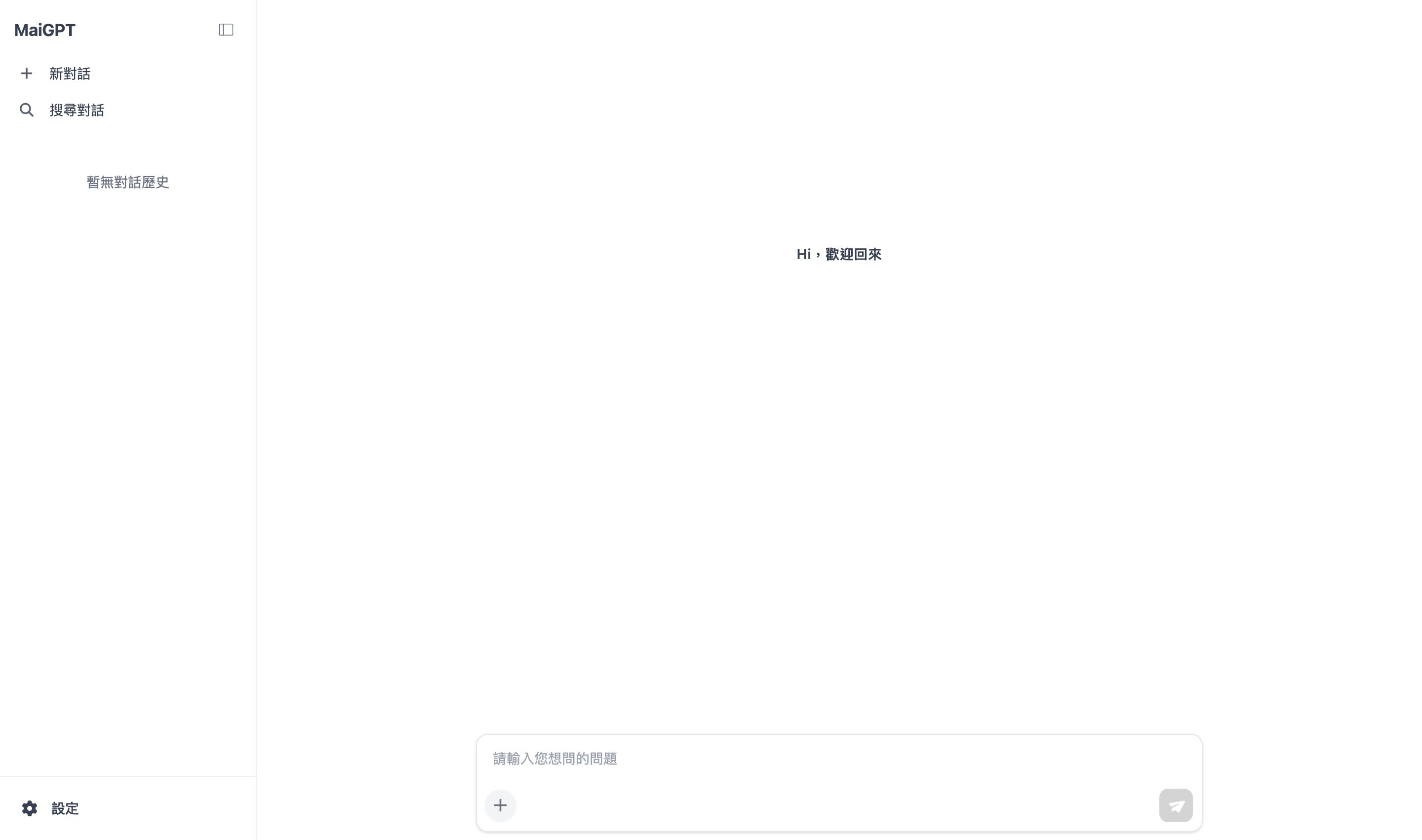
### 3. MaiGPT Window Mode Embed <a href="#embed-maigpt" id="embed-maigpt"></a>

* A complete ChatGPT-style chat interface (conversation history list on the left + main chat area on the right) that can be embedded directly into a page as the primary UI
* Can stay visible in a designated container, or expand to full screen when the floating button in the bottom-right corner is clicked
* Suitable as an AI portal, an internal knowledge hub, or the main chat interface of a product

<figure><img src="https://1360999650-files.gitbook.io/~/files/v0/b/gitbook-x-prod.appspot.com/o/spaces%2F6v6TNkkOQVfRYfcNirHL%2Fuploads%2Fgit-blob-40da32c6e68a4607ef47a4430950a10cbb1765b5%2Fmaigpt-embed-overview.png?alt=media" alt="MaiGPT window mode embed"><figcaption><p>MaiGPT window mode: a complete ChatGPT-style interface</p></figcaption></figure>

{% hint style="info" %}
MaiGPT window mode can be selected in the <mark style="color:blue;">Embed</mark> window of the chat platform settings. For the complete setup steps, see [MaiGPT Window Mode Embed](/maiagent-user-guide/en/build/choose-channel/web-chat/maigpt-embed.md).
{% endhint %}

### Window Modes Visitors Can Switch Themselves <a href="#visitor-window-modes" id="visitor-window-modes"></a>

In addition to the default <mark style="color:blue;">floating window</mark>, a bottom-right embed can also offer a <mark style="color:blue;">sidebar</mark> mode: the chat window snaps to the right side of the page and fills the full height, which suits asking questions while reading the page. After your web engineers enable both modes in the embed code, desktop visitors will see a <mark style="color:blue;">Switch window mode</mark> button in the title bar and can click it to switch between the two modes. Sidebar mode also has a <mark style="color:blue;">Collapse</mark> button to temporarily tuck the window away. There is also an inline mode, which lays the conversation directly inside a section of the page, and a mode that hides the floating button. Both are determined by the embed code; see the technical manual's [Web Chat Embedding and SDK: Window Modes](https://docs.maiagent.ai/tech/serve/web-chat-sdk#window-modes).

This design brings:

* **Immediacy**: Visitors get professional answers right away without waiting, improving the user experience
* **Convenience**: The floating button in the bottom-right corner does not interfere with normal browsing and is available whenever needed
* **Cost efficiency**: Agents serve 24/7, significantly reducing labor costs
* **Professional image**: Showcases your company's technical strength and service quality

## <mark style="color:blue;">2. Build a Brand-Styled Web Chat Service</mark> <a href="#branding" id="branding"></a>

MaiAgent offers customization features such as a custom logo, avatar, and Q\&A theme colors to help you build a brand-styled Web Chat service.

You can use the following to customize it:

1. Choose the Agent display name
2. Upload your company logo
3. Choose the Agent avatar
4. Choose the Web Chat theme color
5. Choose the message background color for Agent replies

With these features, you can create a Web Chat appearance of your own:

<div><figure><img src="https://1360999650-files.gitbook.io/~/files/v0/b/gitbook-x-prod.appspot.com/o/spaces%2F6v6TNkkOQVfRYfcNirHL%2Fuploads%2Fgit-blob-98048f7b5e57344d70831936ed727a91a00604c0%2Fimage%20(118).png?alt=media" alt=""><figcaption><p>Default style</p></figcaption></figure> <figure><img src="https://1360999650-files.gitbook.io/~/files/v0/b/gitbook-x-prod.appspot.com/o/spaces%2F6v6TNkkOQVfRYfcNirHL%2Fuploads%2Fgit-blob-256f1d936b5145c36cf8f1106d1f9dbd1fbd9103%2Fimage%20(119)%20(1).png?alt=media" alt=""><figcaption><p>Custom style</p></figcaption></figure></div>

This way, you can build a Web Chat service that matches your brand colors.

Web Chat shows the platform brand mark below the chat input area. Brand images on the login, sign-up, and loading screens are also displayed at a consistent aspect ratio, without being squashed or stretched.

<figure><img src="https://1360999650-files.gitbook.io/~/files/v0/b/gitbook-x-prod.appspot.com/o/spaces%2F6v6TNkkOQVfRYfcNirHL%2Fuploads%2Fgit-blob-08a452dcf190d99fb18802f136241351607d360a%2Fwebchat-brand-footer.png?alt=media" alt="Powered by and the MaiAgent brand mark shown below the Web Chat input area"><figcaption><p>The brand mark at the bottom of Web Chat stays clear and keeps its aspect ratio</p></figcaption></figure>

### Dark Mode Improvements <a href="#dark-mode" id="dark-mode"></a>

MaiAgent's Web Chat dark mode has been thoroughly optimized for a more comfortable visual experience:

**Dynamic color adjustment**

* Automatically adjusts the brightness of theme colors to stay clearly visible on dark backgrounds
* Intelligently adjusts text contrast to maintain the best readability
* Optimizes icon and button colors so they stand out more in dark mode

**Contrast optimization**

* Message bubble background colors are carefully designed to avoid visual fatigue
* Links and important information use high-contrast colors for clear recognition
* Border colors of the input box and buttons are optimized to improve usability

**Seamless switching**

* Users can switch between light and dark mode at any time
* The conversation content and interaction state are preserved when switching
* The system remembers the user's theme preference

Dark mode is especially suitable for:

* Use at night or in low-light environments
* Long conversations, to reduce eye strain
* Dark-themed designs that match your corporate brand

## <mark style="color:blue;">3. Message Customization</mark> <a href="#messages" id="messages"></a>

When visitors first enter the Web Chat service, you can freely set your Agent's greeting based on scenarios such as those below. The greeting is fixed text rather than AI-generated, so no like/dislike feedback buttons appear on the message, and it is not counted in the user satisfaction rate in [Usage Analytics](/maiagent-user-guide/en/build/agent/usage.md#user-satisfaction-rate).

### **1. Greeting Customization** <a href="#greeting" id="greeting"></a>

#### **Branded Greeting**

Set: "Welcome to our website! I'm your dedicated customer service assistant," to convey a professional corporate image and a friendly service attitude.

#### **Guided Opening**

Set: "I can help you look up product information, answer usage questions, and assist with order processing," to clearly tell users the scope of services available and build their trust in the service.

<figure><img src="https://1360999650-files.gitbook.io/~/files/v0/b/gitbook-x-prod.appspot.com/o/spaces%2F6v6TNkkOQVfRYfcNirHL%2Fuploads%2Fgit-blob-b21ad3d1aa1d753ca4a0e9b2b73af621c62e8e8c%2F%E8%9E%A2%E5%B9%95%E6%93%B7%E5%8F%96%E7%95%AB%E9%9D%A2%202025-08-15%20152318.png?alt=media" alt=""><figcaption><p>Custom greeting</p></figcaption></figure>

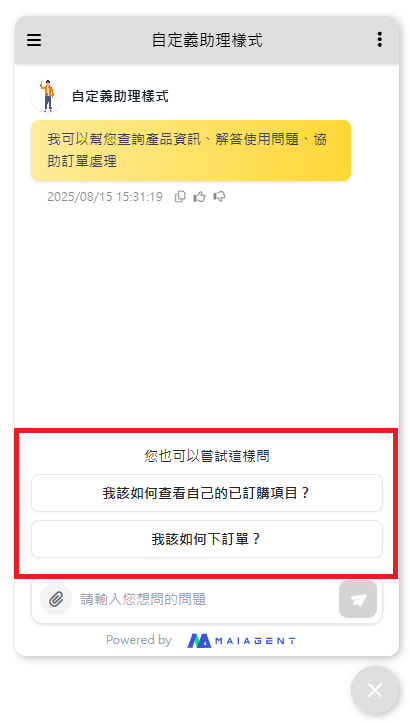
### 2. Guided Starter Questions <a href="#starter-questions" id="starter-questions"></a>

* Set "<mark style="color:blue;">Conversation starter questions</mark>" as quick options
* Users can click common questions directly without typing
* **Example questions**:
  * "How do I view the items I've ordered?"
  * "How do I place an order?"
  * "Membership points rules"
  * "Business hours"

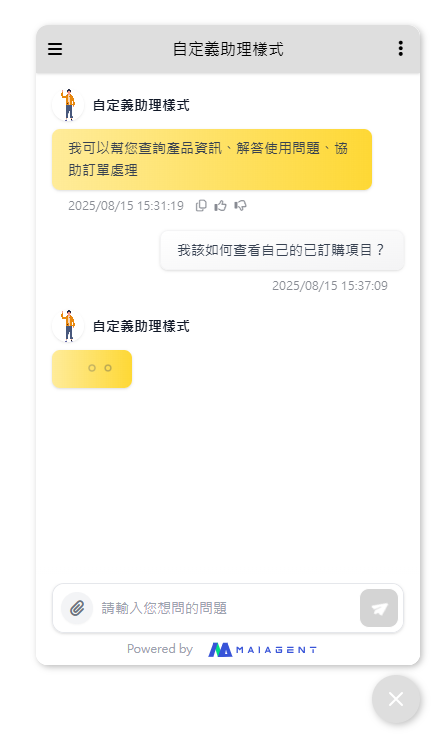
Users can start a conversation by clicking a starter question, which speeds up the Q\&A process:

<div><figure><img src="https://1360999650-files.gitbook.io/~/files/v0/b/gitbook-x-prod.appspot.com/o/spaces%2F6v6TNkkOQVfRYfcNirHL%2Fuploads%2Fgit-blob-ba6c8e8005961ff727708c56c2df863893c7e59b%2F%E8%9E%A2%E5%B9%95%E6%93%B7%E5%8F%96%E7%95%AB%E9%9D%A2%202025-08-15%20153127.png?alt=media" alt=""><figcaption><p>Starter question setup example</p></figcaption></figure> <figure><img src="https://1360999650-files.gitbook.io/~/files/v0/b/gitbook-x-prod.appspot.com/o/spaces%2F6v6TNkkOQVfRYfcNirHL%2Fuploads%2Fgit-blob-c2847c1a6f8cdbfe8c6066e8d85089987d336d56%2F%E8%9E%A2%E5%B9%95%E6%93%B7%E5%8F%96%E7%95%AB%E9%9D%A2%202025-08-15%20153719.png?alt=media" alt=""><figcaption><p>User clicks to start the conversation</p></figcaption></figure></div>

## Stop a Reply in Progress <a href="#stop-generating" id="stop-generating"></a>

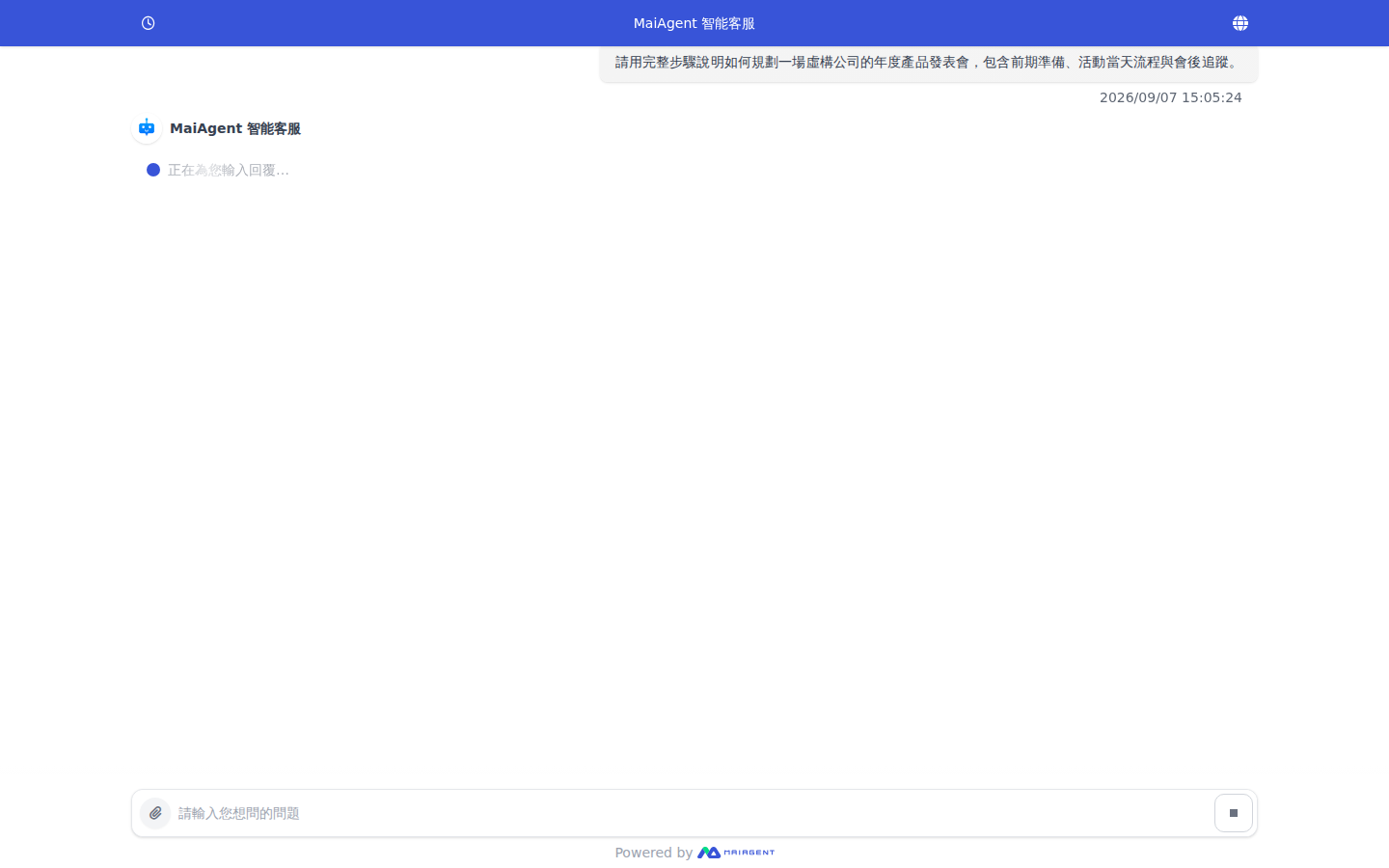
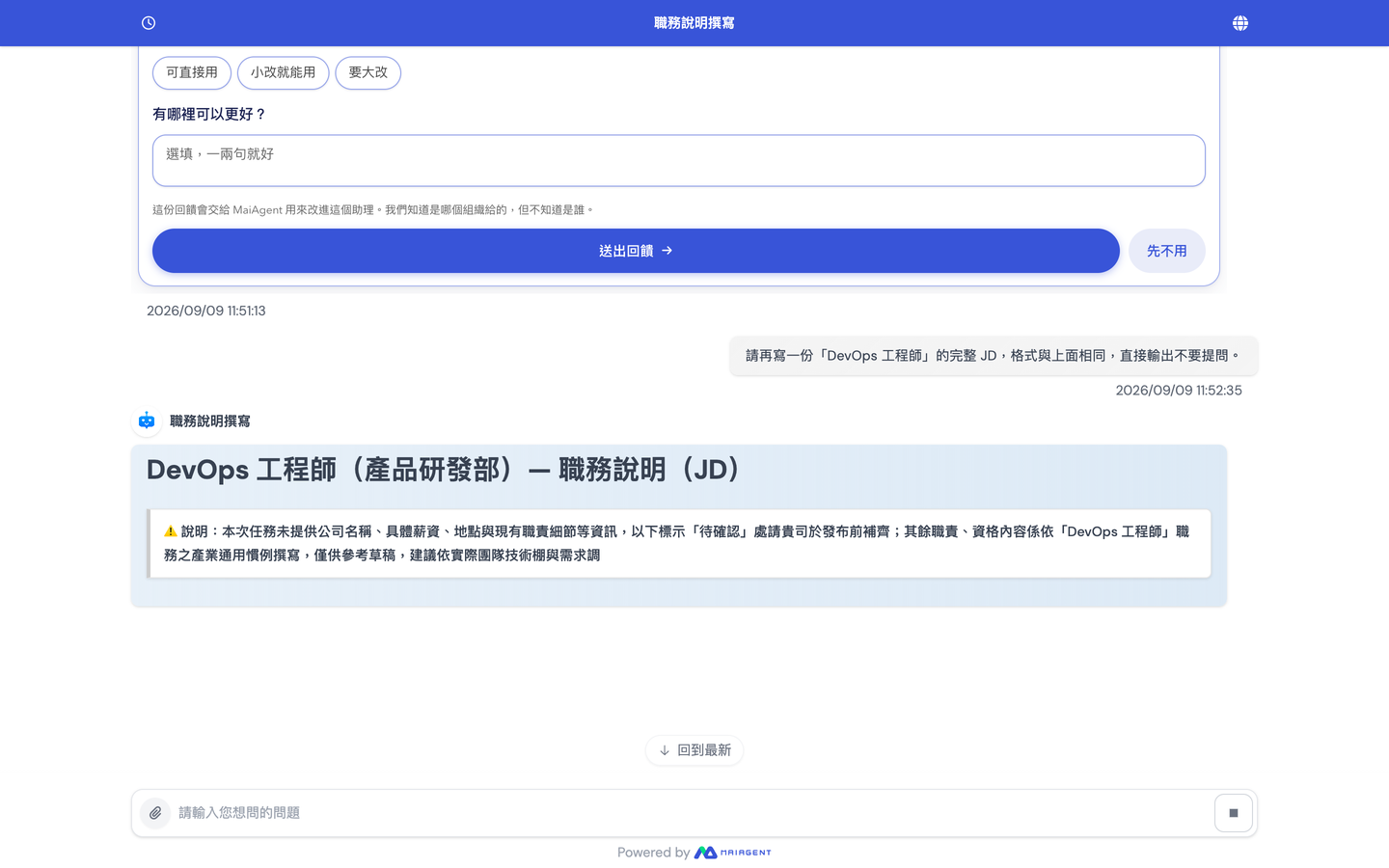
If you notice a mistake after sending a question, you don't have to wait for the Agent to finish the whole reply. While a reply is being generated, the send button on the right side of the input box turns into a square <mark style="color:blue;">Stop</mark> button. Click it to stop the current reply, then enter a corrected question.

For example, a support agent asks the Agent to plan an annual product launch event, and only after sending realizes they forgot to mention the event budget. They can click <mark style="color:blue;">Stop</mark> while the Agent is replying, then add the budget and headcount and ask again, avoiding the wait for content that doesn't meet their needs to finish generating.

### Stop a Reply <a href="#stop-current-response" id="stop-current-response"></a>

{% stepper %}
{% step %}

### 1. Find the Stop Button <a href="#find-stop-button" id="find-stop-button"></a>

After sending a question, wait for the Agent to start generating a reply. A square <mark style="color:blue;">Stop</mark> button then appears on the right side of the input box.

<figure><img src="https://1360999650-files.gitbook.io/~/files/v0/b/gitbook-x-prod.appspot.com/o/spaces%2F6v6TNkkOQVfRYfcNirHL%2Fuploads%2Fgit-blob-5b470980c305488984de0c77295cf0ef2ae6f57f%2Fwebchat-stop-response.png?alt=media" alt="While Web Chat is generating a reply, a square stop button appears on the right side of the input box"><figcaption><p>While a reply is being generated, click the stop button on the right side of the input box</p></figcaption></figure>
{% endstep %}

{% step %}

### 2. Stop and Ask Again <a href="#stop-and-ask-again" id="stop-and-ask-again"></a>

Click <mark style="color:blue;">Stop</mark>. "Reply interrupted" is shown below the stopped reply, and the right side of the input box immediately switches back to the send button, so you can enter a corrected question and send it again.
{% endstep %}
{% endstepper %}

{% hint style="info" %}
Stopping only interrupts the reply currently being generated. It does not delete the question you already sent or any earlier conversation history.
{% endhint %}

### Stop with the Keyboard: Press Esc <a href="#stop-with-esc" id="stop-with-esc"></a>

On a computer, pressing Esc while the cursor is in the input box has the same effect as clicking <mark style="color:blue;">Stop</mark>, so you don't need to move the mouse. Pressing Esc when no reply is being generated does nothing, and any text you were in the middle of typing in the input box is kept.

### Keep Sending Messages During a Reply: Message Queue <a href="#message-queue" id="message-queue"></a>

While the Agent is still replying, visitors on a computer can keep typing and press Enter to send. These messages are not sent to the Agent immediately. Instead, they line up in the "Will be sent in order after the reply completes (N)" list above the input box and are sent automatically, in order, once the current reply ends. During a reply, the button on the right side of the input box is <mark style="color:blue;">Stop</mark>, so queuing is done with the Enter key. For a queued message:

* Click it to put it back in the input box to edit and send again
* Click <mark style="color:blue;">Remove</mark> on the right to cancel it
* When the queue is full, you'll see the prompt "Up to N messages can be queued. Please wait for the reply to finish"

<figure><img src="https://1360999650-files.gitbook.io/~/files/v0/b/gitbook-x-prod.appspot.com/o/spaces%2F6v6TNkkOQVfRYfcNirHL%2Fuploads%2Fgit-blob-697fc31a977d189aef4631a049501e43b61e988d%2Fwebchat-message-queue.png?alt=media" alt="Above the input box, &#x22;Will be sent in order after the reply completes (1)&#x22; and one queued message are shown, with a remove button on the right; the button on the right side of the input box is the stop button"><figcaption><p>Messages sent with Enter during a reply are queued above the input box</p></figcaption></figure>

To make the Agent handle a new question right away, press <mark style="color:blue;">Stop</mark> or Esc first, then send it. Queued messages are kept when you stop, and are sent automatically once the interrupted reply has wrapped up (after about 10 seconds at most).

For example, a visitor on the official website's Web Chat asks the Agent to describe all of the platform's features in detail, and halfway through the reply thinks of wanting a bulleted list instead. They type "Please also summarize it as a bulleted list." and press Enter, and the message is queued. Then they press Esc to stop the lengthy reply, the screen shows "Reply interrupted," and a moment later the queued message is sent automatically and the Agent replies to this new message.

{% hint style="warning" %}
The following cases are not queued:

* **Messages with attachments**: If you attach a file and send during a reply, the screen shows the prompt "AI is replying," and both the text and the file stay in the input box to be sent after the reply ends. If you press <mark style="color:blue;">Stop</mark>, wait a moment (about 10 seconds at most) for the interrupted reply to wrap up.
* **Phones and tablets**: Enter in the input box inserts a line break, and during a reply the only button on the right is <mark style="color:blue;">Stop</mark>, so you must stop first or wait for the reply to finish before sending the next message.
  {% endhint %}

## <mark style="color:blue;">4. Diverse Q\&A Content</mark> <a href="#multimodal-qa" id="multimodal-qa"></a>

### 1. Multi-Language Support <a href="#multi-language" id="multi-language"></a>

Replies in the language the user uses, removing communication barriers.

* **Automatic detection**: Chooses the Agent's reply language based on the language the user types in

<figure><img src="https://1360999650-files.gitbook.io/~/files/v0/b/gitbook-x-prod.appspot.com/o/spaces%2F6v6TNkkOQVfRYfcNirHL%2Fuploads%2Fgit-blob-6ddc78047a3aef2815f71e26c3d498588224141c%2Fimage%20(127).png?alt=media" alt=""><figcaption></figcaption></figure>

**Manual switching**:

1. Choose the language in the Web Chat interface. See: [Multi-Language Support: Web Chat Chat Settings](/maiagent-user-guide/en/build/agent/multi-language-support.md#web-chat-language-settings).
2. Specify the Agent's reply language in the script (JavaScript) used when initializing Web Chat. See: [Technical Manual: Web Chat Embedding and SDK (`locale` setting)](https://docs.maiagent.ai/tech/serve/web-chat-sdk#config-basic).

{% hint style="info" %}
For the list of supported languages, see: [Multi-Language Support: Supported Language List](/maiagent-user-guide/en/build/agent/multi-language-support.md#supported-language-list)
{% endhint %}

### Voice Input and Voice Playback <a href="#voice-input-and-playback" id="voice-input-and-playback"></a>

Once voice services are enabled for an Agent, three additions appear on the Web Chat visitor side:

| Location                                                                      | Function                                                                                                                                                                                                                                                                                                                                                                                                                                                                                                                    |
| ----------------------------------------------------------------------------- | --------------------------------------------------------------------------------------------------------------------------------------------------------------------------------------------------------------------------------------------------------------------------------------------------------------------------------------------------------------------------------------------------------------------------------------------------------------------------------------------------------------------------- |
| <mark style="color:blue;">Microphone</mark> icon on the left of the input box | **Voice input**: Click once to start speaking and the screen shows "Listening." When you finish, the recognized result is sent automatically as a message                                                                                                                                                                                                                                                                                                                                                                   |
| <mark style="color:blue;">Voice</mark> in the settings menu                   | Choose the speech recognition language and provider: <mark style="color:blue;">Microsoft Azure</mark> (Mandarin, Simplified Chinese, English, Japanese, Korean, Thai, Vietnamese, Indonesian, Malay, Filipino, Burmese, Khmer, Lao, Singapore English), <mark style="color:blue;">Bronci</mark> (Taiwanese Hokkien), <mark style="color:blue;">Built-in</mark> (Mandarin, English; uses the browser's own speech recognition). The recognition language must match the language the visitor speaks for accurate recognition |
| <mark style="color:blue;">Voice playback</mark> in the settings menu          | When on, the Agent's replies are read aloud automatically; when off, only text is shown. On by default                                                                                                                                                                                                                                                                                                                                                                                                                      |

On desktop, the settings menu is the settings bar in the title bar; on mobile, it is the <mark style="color:blue;">⋮</mark> in the top-right corner.

{% hint style="info" %}
The voice input here works as "say a sentence, have it recognized as text, and send it." If the Agent has [Voice Assistant](/maiagent-user-guide/en/build/agent/voice-agent.md) enabled, a <mark style="color:blue;">headset</mark> icon also appears next to the input box, which lets you enter a real-time voice call. See [Voice Assistant: How Users Talk to It](/maiagent-user-guide/en/build/agent/voice-agent.md#how-users-talk).
{% endhint %}

### 2. Multimodal Q\&A <a href="#multimodal" id="multimodal"></a>

Besides text Q\&A, Agents can also support uploading different types of files:

* Spreadsheets: .xls, .xlsx, .csv, .ods
* Word-processing documents: .doc, .docx, .odt, .pdf, .md, .txt
* Presentations: .ppt, .pptx, .odp
* Web documents: .html, .htm
* Data formats: .json, .jsonl
* Audio files: .wav, .mp3, .m4a, .aac
* Video files: .mp4

{% hint style="info" %}
You can disallow users from uploading attachments and allow text-only conversations to keep conversations secure.
{% endhint %}

#### Image Content Handling

**Image recognition and analysis**

* **Uploaded image analysis**: Users can upload product images, and the AI automatically recognizes them and provides relevant information
* **Screenshot handling**: Supports screenshot analysis to help resolve usage problems
* **Image descriptions**: Automatically generates descriptions of image content and related suggestions

**Image reply features**

* **Product image display**: Replies include photos of the actual product
* **Step-by-step guide images**: Provides step-by-step operation screenshots

Example:

1. A user asks where to configure an Agent in MaiAgent, and the Agent responds with an image of the settings screen
2. The user sends a screenshot to ask the Agent to confirm whether the path is correct, and the Agent parses it correctly and responds

<div><figure><img src="https://1360999650-files.gitbook.io/~/files/v0/b/gitbook-x-prod.appspot.com/o/spaces%2F6v6TNkkOQVfRYfcNirHL%2Fuploads%2Fgit-blob-71263c2534efc1ba8bb19b493e761d88f0ef2c5f%2Fimage%20(122).png?alt=media" alt=""><figcaption><p>Agent responds with an image</p></figcaption></figure> <figure><img src="https://1360999650-files.gitbook.io/~/files/v0/b/gitbook-x-prod.appspot.com/o/spaces%2F6v6TNkkOQVfRYfcNirHL%2Fuploads%2Fgit-blob-c71336dcd8110e7f04f15a551ff3d4b3fd2dbdb1%2Fimage%20(123).png?alt=media" alt=""><figcaption><p>Agent parses the content of the user's screenshot</p></figcaption></figure></div>

#### Document Handling Capabilities

**Supported document formats**

* **PDF documents**: Automatically parses PDF content and answers related questions
* **Word documents**: Handles .doc/.docx files
* **Excel spreadsheets**: Analyzes spreadsheet data and provides insights
* **PowerPoint presentations**: Extracts presentation content and answers questions

**Document interaction features**

* **Document content queries**: Answers specific questions based on the uploaded document
* **Data analysis**: Automatically analyzes table data and provides statistics in table form
* **Document summaries**: Generates summaries of the key content of long documents

***

Example 1: Ask the Agent to present data in a table and provide reference links

<div><figure><img src="https://1360999650-files.gitbook.io/~/files/v0/b/gitbook-x-prod.appspot.com/o/spaces%2F6v6TNkkOQVfRYfcNirHL%2Fuploads%2Fgit-blob-b31d4a6935949e33bd1007689bb0fba9782f730f%2Fimage%20(132).png?alt=media" alt=""><figcaption><p>Information organized in a table</p></figcaption></figure> <figure><img src="https://1360999650-files.gitbook.io/~/files/v0/b/gitbook-x-prod.appspot.com/o/spaces%2F6v6TNkkOQVfRYfcNirHL%2Fuploads%2Fgit-blob-f7cd38de66136fd5b12b73f4f143fff7ae00aa30%2Fimage%20(133).png?alt=media" alt=""><figcaption><p>Providing external links</p></figcaption></figure></div>

Example 2: Ask the Agent to analyze sales data and provide a table-based breakdown

<figure><img src="https://1360999650-files.gitbook.io/~/files/v0/b/gitbook-x-prod.appspot.com/o/spaces%2F6v6TNkkOQVfRYfcNirHL%2Fuploads%2Fgit-blob-150fb2de65a75b631b5dcb1721f03e2c73ae297d%2Fimage%20(131).png?alt=media" alt=""><figcaption></figcaption></figure>

Example 3: Upload a docx file and ask the Agent to help analyze problems in the CV's writing

<figure><img src="https://1360999650-files.gitbook.io/~/files/v0/b/gitbook-x-prod.appspot.com/o/spaces%2F6v6TNkkOQVfRYfcNirHL%2Fuploads%2Fgit-blob-4354e35d4f0e524745e7859982782380ca89d980%2Fimage%20(134).png?alt=media" alt=""><figcaption></figcaption></figure>

{% hint style="success" %}
The Agent replies in Markdown format, laying out its responses in a well-organized way.
{% endhint %}

**Files delivered by the Agent**: When an Agent uses Code Interpreter to produce a file for the user, Web Chat shows a file card in the reply (file name, type, and a download button), and clicking the card previews the file directly. Files produced by sub-Agents in Agent Teams are presented the same way.

## <mark style="color:blue;">5. Conversation Memory and Sharing</mark> <a href="#memory-and-sharing" id="memory-and-sharing"></a>

### **1. Conversation History Memory** <a href="#chat-history" id="chat-history"></a>

To provide a continuous service experience, Web Chat automatically remembers the user's conversation history, so each conversation can build on previous ones.

**Scope of memory**

* **Conversation content**: Complete Q\&A records, including text, images, documents, and more
* **Service status**: Unfinished queries and pending questions

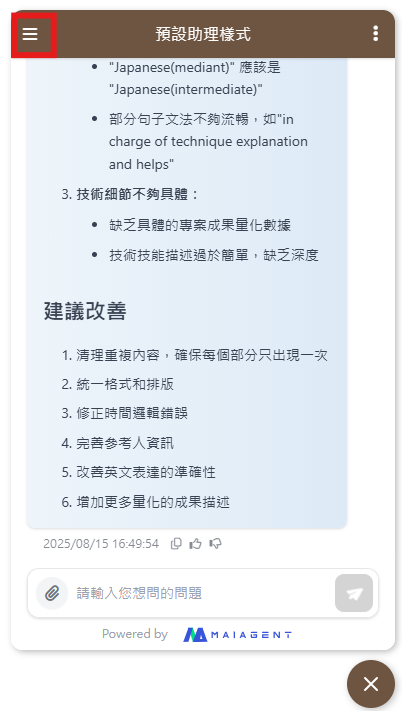
After "Show conversation history" is enabled (see [Interaction Settings](/maiagent-user-guide/en/build/conversation-settings/platform-settings/interaction-settings.md#conversation-display)), a <mark style="color:blue;">clock</mark> icon appears on the left of the title bar, and clicking it opens the conversation history sidebar:

<div><figure><img src="https://1360999650-files.gitbook.io/~/files/v0/b/gitbook-x-prod.appspot.com/o/spaces%2F6v6TNkkOQVfRYfcNirHL%2Fuploads%2Fgit-blob-516cd7f27f014ac3d1ccd66d011d495c1db67266%2F%E8%9E%A2%E5%B9%95%E6%93%B7%E5%8F%96%E7%95%AB%E9%9D%A2%202025-08-15%20171142.png?alt=media" alt=""><figcaption></figcaption></figure> <figure><img src="https://1360999650-files.gitbook.io/~/files/v0/b/gitbook-x-prod.appspot.com/o/spaces%2F6v6TNkkOQVfRYfcNirHL%2Fuploads%2Fgit-blob-e794f1deb35a654a2724917cd732fa298ed7ccb9%2Fimage%20(135).png?alt=media" alt=""><figcaption></figcaption></figure></div>

| Location                                                                        | Function                                                                                                                                                                                                                                                                                                                                                                                                                                        |
| ------------------------------------------------------------------------------- | ----------------------------------------------------------------------------------------------------------------------------------------------------------------------------------------------------------------------------------------------------------------------------------------------------------------------------------------------------------------------------------------------------------------------------------------------- |
| <mark style="color:blue;">Search conversations</mark> at the top of the sidebar | Opens the search panel, where entering a keyword filters conversations instantly; you can also click <mark style="color:blue;">New conversation</mark> directly in the panel                                                                                                                                                                                                                                                                    |
| <mark style="color:blue;">New conversation</mark> at the top of the sidebar     | Starts a brand-new conversation                                                                                                                                                                                                                                                                                                                                                                                                                 |
| Conversation list                                                               | Automatically grouped as <mark style="color:blue;">Today</mark> / <mark style="color:blue;">Yesterday</mark> / <mark style="color:blue;">Past 7 days</mark> / <mark style="color:blue;">Past 30 days</mark> / <mark style="color:blue;">Older</mark>; conversations that used [conversation handoff](/maiagent-user-guide/en/work/maigpt/chat/conversation-handoff.md) are marked "Handed off to" or "Continued from the original conversation" |
| <mark style="color:blue;">⋯</mark> on each conversation                         | <mark style="color:blue;">Rename</mark> (change the title) and <mark style="color:blue;">Delete</mark> (deleted after confirmation, cannot be undone); when the platform has conversation sharing enabled, there is also <mark style="color:blue;">Share</mark>, see [Conversation Sharing](#chat-sharing) below                                                                                                                                |

When conversation history is not enabled, the clock icon's position shows a <mark style="color:blue;">New conversation</mark> icon instead, so visitors can only start new conversations and cannot see past records.

The conversation memory feature can be used for:

* **Ongoing consultations**: A user asks, "What was the tent model you recommended last time?" and the AI can immediately recall and answer
* **Progress tracking**: A user says, "Continue the order inquiry from last time," and the AI automatically pulls up the relevant information
* **Personalized service**: Provides more precise recommendations and suggestions based on past conversations

{% hint style="info" %}
When a single conversation gets too long, you can enable "conversation handoff," which lets visitors ask the Agent to prepare a handoff summary and continue in a new conversation. For how to enable it in Web Chat and its limitations, see [Conversation Handoff: Enable in Web Chat](/maiagent-user-guide/en/work/maigpt/chat/conversation-handoff.md#enable-on-web-chat). To create a continuation conversation through the API, see the technical manual's [Conversation Handoff and Continuation Conversation API](https://docs.maiagent.ai/tech/serve/conversation-handoff-continuation).
{% endhint %}

### **2. Conversation Sharing** <a href="#chat-sharing" id="chat-sharing"></a>

When you want to share a conversation with a friend or colleague after consulting an Agent, or an internal team needs to collaborate on discussing a customer issue, you can use MaiAgent to generate a conversation sharing link:

<figure><img src="https://1360999650-files.gitbook.io/~/files/v0/b/gitbook-x-prod.appspot.com/o/spaces%2F6v6TNkkOQVfRYfcNirHL%2Fuploads%2Fgit-blob-5a43d6523e30f0539424a2d220e71f053420d7df%2Fimage%20(136).png?alt=media" alt=""><figcaption></figcaption></figure>

Click <mark style="color:blue;">Share</mark> in the top-right corner of the chat window, then click <mark style="color:blue;">Copy link</mark> in the "Public link for sharing the conversation" window and send it to the recipient. In the conversation history sidebar, <mark style="color:blue;">⋯</mark> → <mark style="color:blue;">Share</mark> on each conversation gets you the same kind of link.

**What the recipient sees**

* A read-only conversation page containing all messages in the conversation so far, including text, images, and attachments
* It opens without logging in, so share it only with people who should see it
* It is view-only, and you cannot continue typing on this page; to keep asking questions, return to the original Web Chat and open the conversation

{% hint style="info" %}
The sharing link presents only the conversation record itself and does not generate a summary or compile related resources.
{% endhint %}

Conversation record sharing can be used for:

* **Customer sharing**: "This camping gear recommendation is great, I'm sharing it with my mountaineering club"
* **Internal collaboration**: A support agent shares a complex issue with the technical support team
* **Training**: Share typical conversation cases as employee training material

### **3. Conversation Timeout Management** <a href="#chat-timeout" id="chat-timeout"></a>

To ensure conversation quality and system performance, Web Chat has an intelligent conversation timeout management mechanism:

**Smart filtering**

* **Automatically filters greetings**: The system recognizes and filters out opening greetings so they are not counted toward the conversation timeout
* **Correctly resets the message count**: When a conversation restarts, the message counter is reset correctly
* **Optimized timeout detection**: Only substantive conversation content is counted toward the timeout, giving more accurate conversation management

**Conversation continuity assurance**

* Ensures users are not timed out unexpectedly during normal conversations
* Conversations can continue after long periods of thinking or pauses
* The system intelligently determines whether the conversation is still in progress

**How it works in practice**

1. **Start the conversation**: The user sends a greeting (such as "Hello"), which the system does not count toward the timeout
2. **Enter the conversation**: The user starts asking substantive questions, and the timeout timer starts
3. **Conversation pause**: If the user steps away temporarily, the system keeps the conversation state
4. **Resume**: The user returns to continue the conversation, and the message count is updated correctly

This optimization makes the conversation experience smoother and more natural, so users don't need to worry about the conversation being interrupted because they took too long to think.

### **4. Message Actions: Edit, Feedback, and Branching** <a href="#message-actions" id="message-actions"></a>

Action icons appear when you hover over a message. They work the same way as in MaiGPT; for the full description, see [MaiGPT: Message Actions](/maiagent-user-guide/en/work/maigpt/chat.md#message-actions). The difference in Web Chat is **which visitors can see them**:

| Action                                                                                                                                   | Who can use it                                                       | Description                                                                                                                                                                                                                                                                                                                                                                                  |
| ---------------------------------------------------------------------------------------------------------------------------------------- | -------------------------------------------------------------------- | -------------------------------------------------------------------------------------------------------------------------------------------------------------------------------------------------------------------------------------------------------------------------------------------------------------------------------------------------------------------------------------------- |
| <mark style="color:blue;">Copy</mark>, <mark style="color:blue;">Like</mark>, and <mark style="color:blue;">Dislike</mark> on AI replies | All visitors                                                         | Dislike opens the "Provide feedback" window, where visitors select reasons and add other feedback before submitting. Feedback goes to the [Conversation Viewer](/maiagent-user-guide/en/serve/daily-operations/reply/conversation-viewer.md) in the back office and to the satisfaction statistics in [Usage Analytics](/maiagent-user-guide/en/build/agent/usage.md#user-satisfaction-rate) |
| <mark style="color:blue;">Edit message</mark> and version switching <mark style="color:blue;">‹ N / M ›</mark> on their own messages     | Logged-in visitors (the platform has [login](#login-config) enabled) | Editing deletes the messages that follow and has the Agent reply again; the edit cannot be submitted if the content hasn't changed                                                                                                                                                                                                                                                           |
| <mark style="color:blue;">Branch conversation</mark> on AI replies                                                                       | Logged-in visitors                                                   | Starts a separate conversation up to this reply, leaving the original conversation unaffected                                                                                                                                                                                                                                                                                                |

### **5. Connected Services** <a href="#connected-services" id="connected-services"></a>

When an Agent needs to access an external service on a visitor's behalf (for example, checking a calendar with the visitor's own account), it sends an authorization card in the conversation. Services the visitor has authorized can be viewed, re-authorized, or disconnected in one place from <mark style="color:blue;">Connected Services</mark> (the link icon) in the title bar. Only visitors with an identified identity (those who filled in the Pre-chat form, are logged in, or are identified by the website through a Source ID) can see this button. For the full description, see [Connected Services](/maiagent-user-guide/en/build/choose-channel/web-chat/connected-services.md).

## <mark style="color:blue;">6. Choose Whether to Show Tools Used and Cited Documents</mark> <a href="#display-tools-and-citations" id="display-tools-and-citations"></a>

### **1. Show the List of Tools Used** <a href="#show-tools" id="show-tools"></a>

You can choose whether users can see the list of tools the Agent uses while reasoning. If allowed, the following appears when the Agent generates a reply:

<figure><img src="https://1360999650-files.gitbook.io/~/files/v0/b/gitbook-x-prod.appspot.com/o/spaces%2F6v6TNkkOQVfRYfcNirHL%2Fuploads%2Fgit-blob-397b3d1960642ae0a98c9097422f2fa66f89c543%2Fimage%20(140).png?alt=media" alt=""><figcaption></figcaption></figure>

You can use this list to check whether the content of the tools the Agent used is correct.

If an MCP tool called by the Agent comes with an interactive interface, a directly operable card also appears below the reply. See [MCP Interactive Cards (MCP Apps)](/maiagent-user-guide/en/build/tools/mcp-apps.md).

### **2. Show the List of Cited Documents** <a href="#show-citations" id="show-citations"></a>

Every AI answer automatically generates a list of cited documents that clearly shows the sources of the information, improving the credibility and traceability of the answer.

**Display settings**

Enterprises can decide whether users can see the cited tools and the names of the reference documents. If display is enabled, the following list appears at the bottom of the Agent's response. Click "Cited node" to see the referenced document excerpts:

<figure><img src="https://1360999650-files.gitbook.io/~/files/v0/b/gitbook-x-prod.appspot.com/o/spaces%2F6v6TNkkOQVfRYfcNirHL%2Fuploads%2Fgit-blob-380a3f1aadb6212090fd6ed70f0c93d56a2224e9%2Fimage%20(139).png?alt=media" alt=""><figcaption></figcaption></figure>

Depending on the use case, you can choose whether to make citation information public:

* **Public customer service**: Show all citation information to build trust
* **Internal support**: Hide sensitive documents to protect confidential information
* **Educational institutions**: Show learning resources so students can look them up easily

## Side Panels Next to Replies: Canvas and Browser <a href="#side-panels" id="side-panels"></a>

An Agent's reply is not always just text. When it produces documents, charts, web pages, or maps, the desktop version opens a panel on the right side of the conversation, while the mobile version covers the entire conversation view. The panel can be closed, and a card for that output stays in the message so you can click it later to reopen the panel. This section describes the three panels that visitors may see.

### Canvas <a href="#web-chat-canvas" id="web-chat-canvas"></a>

When the Agent produces a Markdown document, Mermaid diagram, HTML, or React interactive page in Canvas form, the canvas opens automatically. The toolbar at the top of the panel:

| Button                                                                                               | What it does                                                                                                                                                                                                                                                    |
| ---------------------------------------------------------------------------------------------------- | --------------------------------------------------------------------------------------------------------------------------------------------------------------------------------------------------------------------------------------------------------------- |
| <mark style="color:blue;">Switch to code</mark> / <mark style="color:blue;">Switch to preview</mark> | Switch between the rendered view and the raw content                                                                                                                                                                                                            |
| <mark style="color:blue;">Console</mark>, <mark style="color:blue;">Reset code</mark>                | Available only for React interactive pages: view execution messages, and restore the code to the version the Agent originally produced                                                                                                                          |
| <mark style="color:blue;">Full screen</mark> / <mark style="color:blue;">Exit full screen</mark>     | Expand the canvas to fill the entire window                                                                                                                                                                                                                     |
| <mark style="color:blue;">Download</mark>                                                            | <mark style="color:blue;">Download original file</mark> (.md, .mmd, .html, or .jsx depending on the type) or <mark style="color:blue;">Download PDF</mark>; while the content is still compiling, "Available for download after compilation completes" is shown |
| <mark style="color:blue;">Close</mark>                                                               | Collapse the panel; the canvas card in the message can still be used to reopen it                                                                                                                                                                               |

On desktop, you can drag the left edge of the panel to adjust its width. The purposes of the canvas, suitable prompts, and export details are the same as in MaiGPT; see [Canvas](/maiagent-user-guide/en/work/maigpt/canvas.md).

### Map Canvas <a href="#map-canvas" id="map-canvas"></a>

When the Agent answers questions about places or itineraries (for example, restaurant recommendations or a three-day, two-night trip), it may use the map canvas instead: Google Maps with place markers on the left, and a list of place cards on the right (below on mobile).

* **Filter**: The <mark style="color:blue;">Filter</mark> dropdown filters by <mark style="color:blue;">Category</mark> (restaurants, cafés, lodging, attractions, shopping, nature, transportation, other), <mark style="color:blue;">Conditions</mark> (<mark style="color:blue;">Open now only</mark>, <mark style="color:blue;">4.5★ and above</mark>), and <mark style="color:blue;">Display</mark> (rating badges, name labels). When no places match, "No places match the filter criteria" is shown.
* **Multi-day itineraries**: When the itinerary is split into days, an <mark style="color:blue;">All</mark> / <mark style="color:blue;">Day N</mark> switcher appears at the top left of the map, and the list is grouped into morning, afternoon, evening, and unscheduled.
* **Place details**: Click a place card to open its details, which are divided into two tabs: <mark style="color:blue;">Overview</mark> (place introduction, address, website, phone number, business hours, and <mark style="color:blue;">Open</mark> / <mark style="color:blue;">Closed</mark>) and <mark style="color:blue;">Reviews</mark>. At the bottom are <mark style="color:blue;">Directions</mark>, <mark style="color:blue;">Call</mark>, <mark style="color:blue;">Open website</mark>, and <mark style="color:blue;">Open in Google Maps</mark>. Detailed information comes from Google; if it cannot be loaded, "Unable to retrieve details" is shown.

For the map canvas, <mark style="color:blue;">Switch to code</mark> shows the raw place data, and <mark style="color:blue;">Download original file</mark> saves it as .json.

### Browser Panel <a href="#browser-panel" id="browser-panel"></a>

When the Agent has the [Browser Tool](/maiagent-user-guide/en/build/agent/browser-tool.md) enabled and starts operating a web page, a <mark style="color:blue;">Browser</mark> panel appears on the right, showing in real time a screenshot of the page the Agent sees and the current URL. While the Agent is acting, <mark style="color:blue;">AI is operating</mark> is displayed; when there is no image yet, "Waiting for browser view…" is shown.

Visitors can step in when the Agent stops, for example to enter a verification code or username and password for the Agent, or to select an option:

* Click, double-click, right-click, or scroll directly on the screenshot, and the action is sent to the web page the Agent is operating.
* In the input box at the bottom of the panel, <mark style="color:blue;">Type text here and press Enter to send it to the browser</mark>: type text and press Enter to send it. When the input box is empty, keys such as Enter, Esc, or the arrow keys are also sent directly to the page. The input box is temporarily disabled while the Agent is operating.
* After you click <mark style="color:blue;">Close</mark> at the top right to collapse the panel, <mark style="color:blue;">Reopen browser view</mark> appears above the input box; click it to view the page again.

{% hint style="warning" %}
The usernames and passwords you enter in the panel are sent to the web page the Agent is operating. Enter them only if you trust the Agent and the enterprise behind it.
{% endhint %}

## <mark style="color:blue;">7. Conversation Access Control - A Secure and Controllable Chat Environment</mark> <a href="#access-control" id="access-control"></a>

### 1. Login Settings <a href="#login-config" id="login-config"></a>

**Mandatory login**

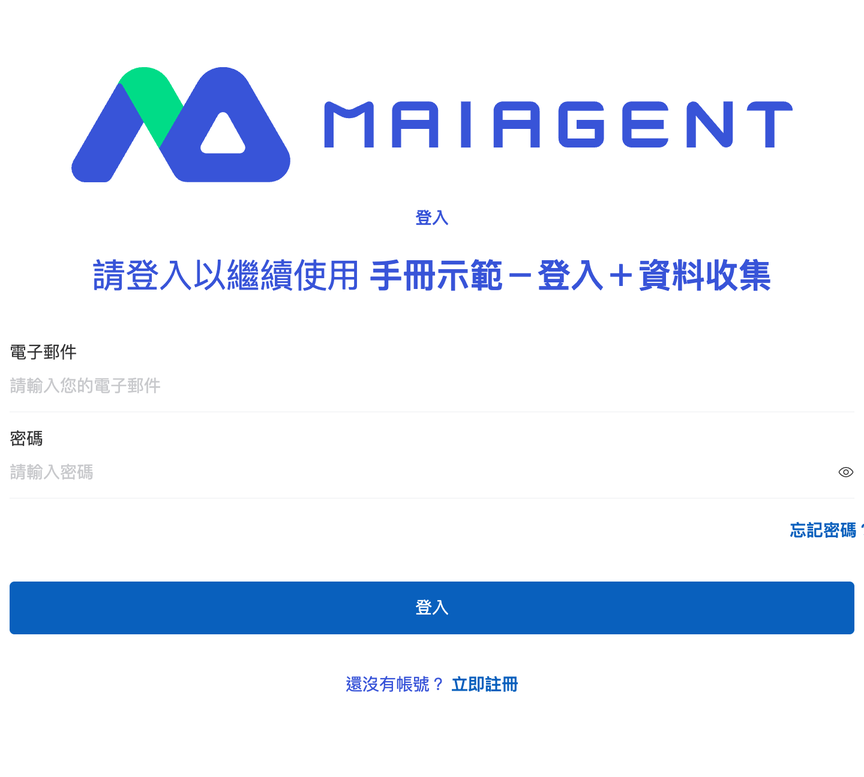
To ensure the security and controllability of conversations, enterprises can enable the login feature, requiring users to log in before they can use the Agent service. Once configured, visitors who click Web Chat first reach the login page, and only users who log in successfully can start a conversation with the Agent.

**Security benefits**

* **Identity verification**: Ensures every user in a conversation has a clear identity
* **Access control**: Provides the corresponding service content based on user identity
* **Conversation tracking**: Fully records each user's conversation history
* **Data protection**: Prevents unauthorized users from accessing sensitive information

### 2. Three Login Methods <a href="#login-methods" id="login-methods"></a>

**AD (Active Directory) login**

* **Use case**: For internal employees of an enterprise, integrating with the existing AD system
* **Features**: Single sign-on (SSO) with no extra account management
* **Setup**: Configure the AD server connection information and synchronization rules
* **In practice**: Employees log in directly with their company accounts and automatically receive the corresponding permissions

**Keycloak login**

* **Use case**: Enterprises that need complex identity management and support for multiple identity providers
* **Features**: Supports standard protocols such as OAuth2, SAML, and OpenID Connect
* **Setup**: Configure the Keycloak server, user pool, and identity providers
* **Extension**: Lets the Agent reuse the visitor's Keycloak login identity when calling MCP/API tools. See [Reuse the Keycloak Login Identity to Call Tools](#keycloak-token-passthrough)

**MaiAgent login**

* **Use case**: Simple user management needs and quick deployment
* **Features**: Built-in user management system that is simple and intuitive to use
* **Setup**: Create user accounts and permissions on the MaiAgent platform
* **In practice**: Build a dedicated login system for a specific user group
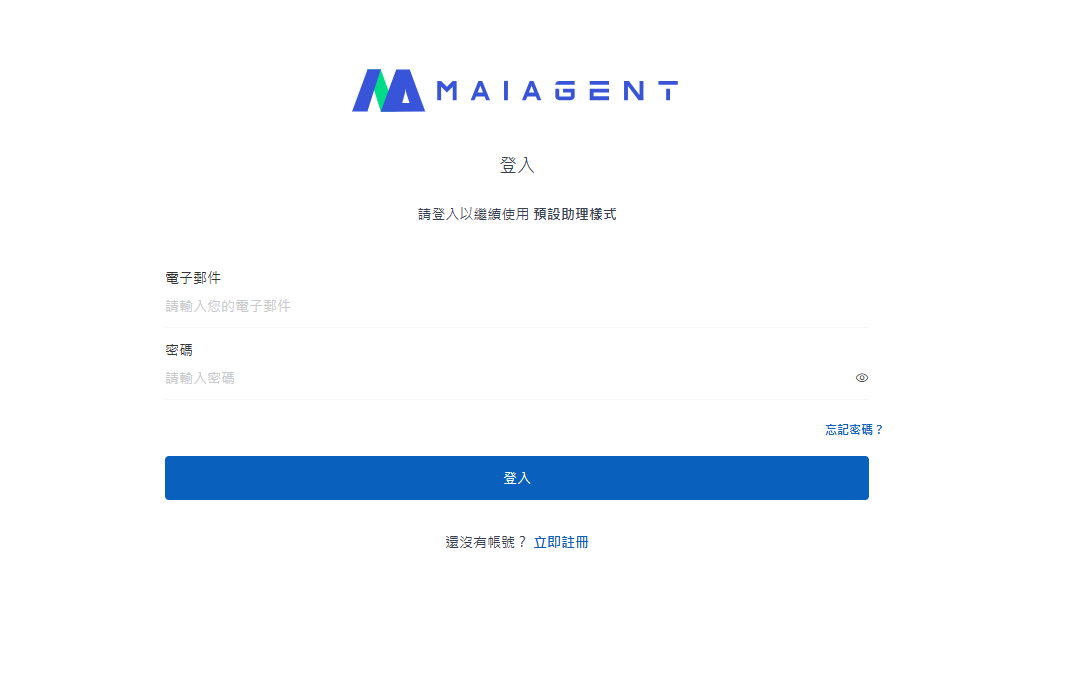
* **Visitor self-registration**: The login page has <mark style="color:blue;">Sign up now</mark> and <mark style="color:blue;">Forgot password?</mark>. The registration form is the same as the account application in the MaiAgent back office (real name, company name, company email, password, invitation code). It creates a MaiAgent platform account that can go straight back to the login page to log in to Web Chat; this account does not become a member of your organization and gets no back-office permissions. The page is protected by human verification; see [Other prompts visitors may see](#other-visitor-prompts) below.

Once enabled, the following screen appears before the conversation starts, requiring login:

<figure><img src="https://1360999650-files.gitbook.io/~/files/v0/b/gitbook-x-prod.appspot.com/o/spaces%2F6v6TNkkOQVfRYfcNirHL%2Fuploads%2Fgit-blob-64de17901f8cb6979d092e523f309cbf98c493d2%2F%E8%9E%A2%E5%B9%95%E6%93%B7%E5%8F%96%E7%95%AB%E9%9D%A2%202025-08-15%20174017.png?alt=media" alt=""><figcaption></figcaption></figure>

### 3. Reuse the Keycloak Login Identity to Call Tools <a href="#keycloak-token-passthrough" id="keycloak-token-passthrough"></a>

After a visitor logs in to Web Chat with Keycloak, when the Agent calls an [MCP tool](/maiagent-user-guide/en/build/tools/mcp-setup.md) or [API tool](/maiagent-user-guide/en/build/tools/setup_api_tool.md) on their behalf, it can automatically include **the visitor's own Keycloak login credential**. Once your backend system receives the request, it can use the same Keycloak to verify "who this is" and return only the data that person is authorized to see, without configuring a separate account for each tool or asking the visitor to log in again.

This feature is off by default; when it is off, how all tools are called remains completely unchanged.

#### Use Case <a href="#keycloak-token-passthrough-scenario" id="keycloak-token-passthrough-scenario"></a>

An enterprise's internal service portal manages employee accounts with Keycloak and uses Web Chat as an Agent for employees only. The IT administrator enables this feature on the chat platform and adds the host of the company's leave system to the allowlist. After an employee logs in to Web Chat and asks, "How many days of annual leave do I have left?", the Agent calls the leave system's API tool, and the request carries that employee's own login credential. The leave system identifies the employee from the credential and returns only their attendance and leave data. When a different employee asks, they get that employee's own data.

#### Prerequisites <a href="#keycloak-token-passthrough-prerequisites" id="keycloak-token-passthrough-prerequisites"></a>

* The organization has completed [Keycloak integration](/maiagent-user-guide/en/org/sso/sso-keycloak.md). Visitors must be members of this organization; when they log in for the first time through the Keycloak configured for this organization, the system automatically creates an account and adds them to the organization (see [Third-party login: first login](/maiagent-user-guide/en/org/sso.md#first-login)).
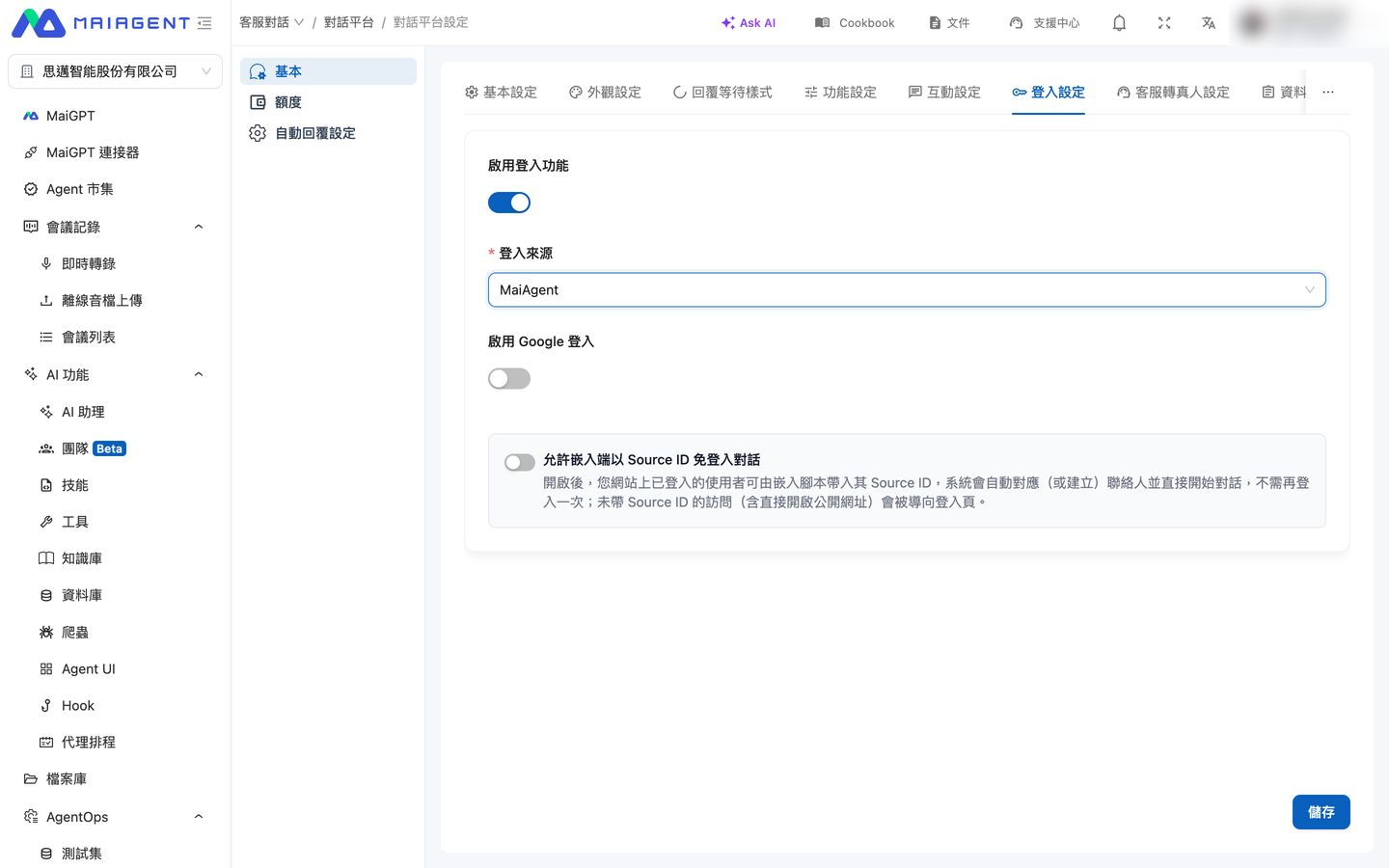
* In the chat platform's "<mark style="color:blue;">Login settings</mark>", "<mark style="color:blue;">Enable login</mark>" is turned on, and "<mark style="color:blue;">Login source</mark>" is set to Keycloak.
* The MCP/API tool that will receive the credential has been created and assigned to the Agent used by this chat platform, and the receiving system can verify credentials issued by your Keycloak Realm.

#### Setup Steps <a href="#keycloak-token-passthrough-steps" id="keycloak-token-passthrough-steps"></a>

Where to configure: In the left menu, go to "<mark style="color:blue;">Customer Service > Chat Platforms</mark>", select a website-type chat platform, and open the "<mark style="color:blue;">Login settings</mark>" tab. After you select Keycloak as the login source, this section appears below.

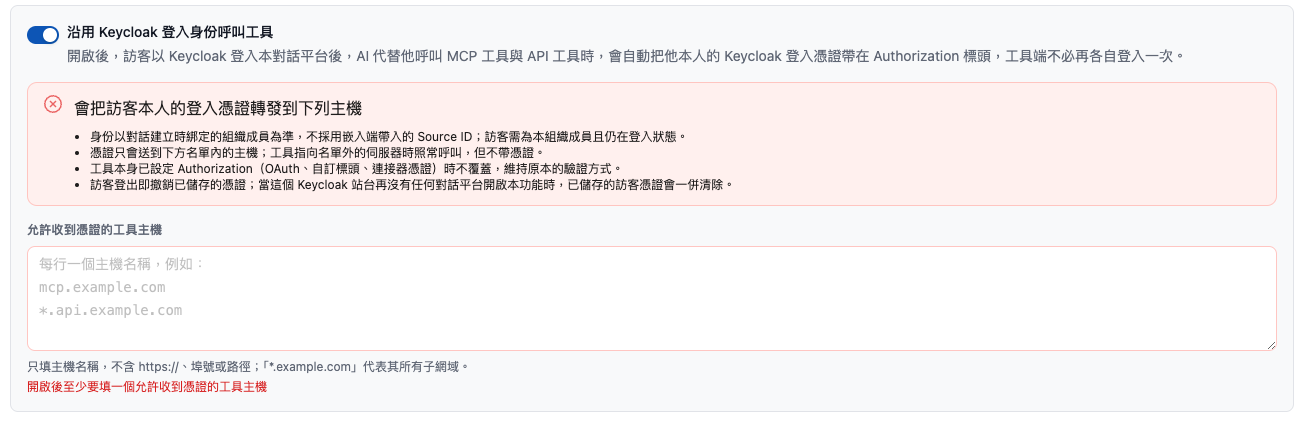
1. Turn on "<mark style="color:blue;">Reuse Keycloak login identity to call tools</mark>".
2. Read the red warning below the switch, "<mark style="color:blue;">The visitor's own login credential will be forwarded to the following hosts</mark>", and make sure you understand where the credential goes.
3. In "<mark style="color:blue;">Tool hosts allowed to receive the credential</mark>", enter the tool hosts that should receive the credential, one per line (commas are also accepted as separators):
   * Enter only the hostname, without `https://`, a port, or a path, for example `mcp.example.com`.
   * `*.example.com` matches `example.com` itself and all of its subdomains; a hostname without `*.` matches only the exact same host.
   * Hostnames are matched against the tool's "MCP server URL" or "API URL".
4. Save the settings.

<figure><img src="https://1360999650-files.gitbook.io/~/files/v0/b/gitbook-x-prod.appspot.com/o/spaces%2F6v6TNkkOQVfRYfcNirHL%2Fuploads%2Fgit-blob-affd050ebc568fa2c5cad82c542d3f53cefe8493%2Fwebchat-keycloak-token-passthrough.png?alt=media" alt="The warning and allowed host list after enabling Reuse Keycloak login identity to call tools"><figcaption><p>After it is enabled, the credential forwarding warning appears, and you must enter the tool hosts allowed to receive the credential</p></figcaption></figure>

When you turn on the switch, the list must contain at least one host. If the list is empty or contains an invalid hostname, the screen shows "<mark style="color:blue;">At least one tool host allowed to receive the credential is required after enabling</mark>" or "<mark style="color:blue;">The following are not valid hostnames</mark>", and the settings are not submitted.

{% hint style="warning" %}
**After it is enabled, visitors need to log in again once.** The platform saves the Keycloak credential only when the visitor logs in, and only while a chat platform has this feature enabled. For visitors who were already logged in before it was enabled, ask them to log out and log in again; only then will later tool calls carry the credential.
{% endhint %}

#### What the Receiving System Gets <a href="#keycloak-token-passthrough-request" id="keycloak-token-passthrough-request"></a>

When the Agent calls an MCP/API tool on a host in the list, the request carries an additional HTTP header:

```
Authorization: Bearer <visitor's Keycloak access token>
```

This is a standard access token issued by your Keycloak Realm to that visitor. The engineer handling the integration can identify the user in the usual way of verifying Keycloak tokens (verify the signature, and check the expiration time and the Realm). When the credential expires, the platform first renews it with the same Keycloak using the visitor's login session before sending the request, so the tool side does not need to handle renewal.

#### When the Credential Is and Isn't Sent <a href="#keycloak-token-passthrough-behavior" id="keycloak-token-passthrough-behavior"></a>

| Situation                                                                                                                                                                                 | Result                                                                                                                                                                              |
| ----------------------------------------------------------------------------------------------------------------------------------------------------------------------------------------- | ----------------------------------------------------------------------------------------------------------------------------------------------------------------------------------- |
| The visitor logged in with Keycloak and is still logged in, and the tool host is in the list                                                                                              | The visitor's own credential is included                                                                                                                                            |
| The tool host is not in the list                                                                                                                                                          | The call proceeds as usual without the credential                                                                                                                                   |
| The tool already has an `Authorization` configured (OAuth, an API tool's headers, [contact MCP credentials](/maiagent-user-guide/en/build/tools/setup-contacts-mcp-credentials.md), etc.) | Not overridden; the tool's original authentication method is kept                                                                                                                   |
| The visitor has logged out, or is not a member of this organization                                                                                                                       | The credential is not included                                                                                                                                                      |
| The visitor enters the conversation through [Source ID login-free access](/maiagent-user-guide/en/build/choose-channel/web-chat/source-id-access.md)                                      | The credential is not included; identity is based on the organization member bound when the conversation was created, and the Source ID passed in by the embedding side is not used |
| The switch is off                                                                                                                                                                         | Same as when this feature is not enabled                                                                                                                                            |

{% hint style="danger" %}
What is forwarded is the visitor's complete login credential, and the receiving system can use the visitor's identity to access other services protected by the same Keycloak. Add to the list only hosts that you trust and that genuinely need to identify the user, and avoid overly broad wildcards.
{% endhint %}

{% hint style="info" %}
When a visitor logs out, the platform revokes the saved credential. When no chat platform on the same Keycloak site has this feature enabled any longer (the switch is turned off, a different login source is used, or the chat platform is deleted), the platform also clears all saved visitor credentials.
{% endhint %}

## <mark style="color:blue;">8. Data Collection (Pre-chat Form)</mark> <a href="#pre-chat-form" id="pre-chat-form"></a>

After data collection is enabled, visitors see a form before they start a conversation and must complete it to enter the conversation. What they fill in is written to that visitor's [contact](/maiagent-user-guide/en/serve/daily-operations/contact.md), so customer service can see it directly on the conversation page. It suits scenarios where you need to know who the other party is first, for example distributor service that collects a company name and tax ID number, or event inquiries that collect a name and email.

### 1. Configure the Data Collection Form <a href="#pre-chat-config" id="pre-chat-config"></a>

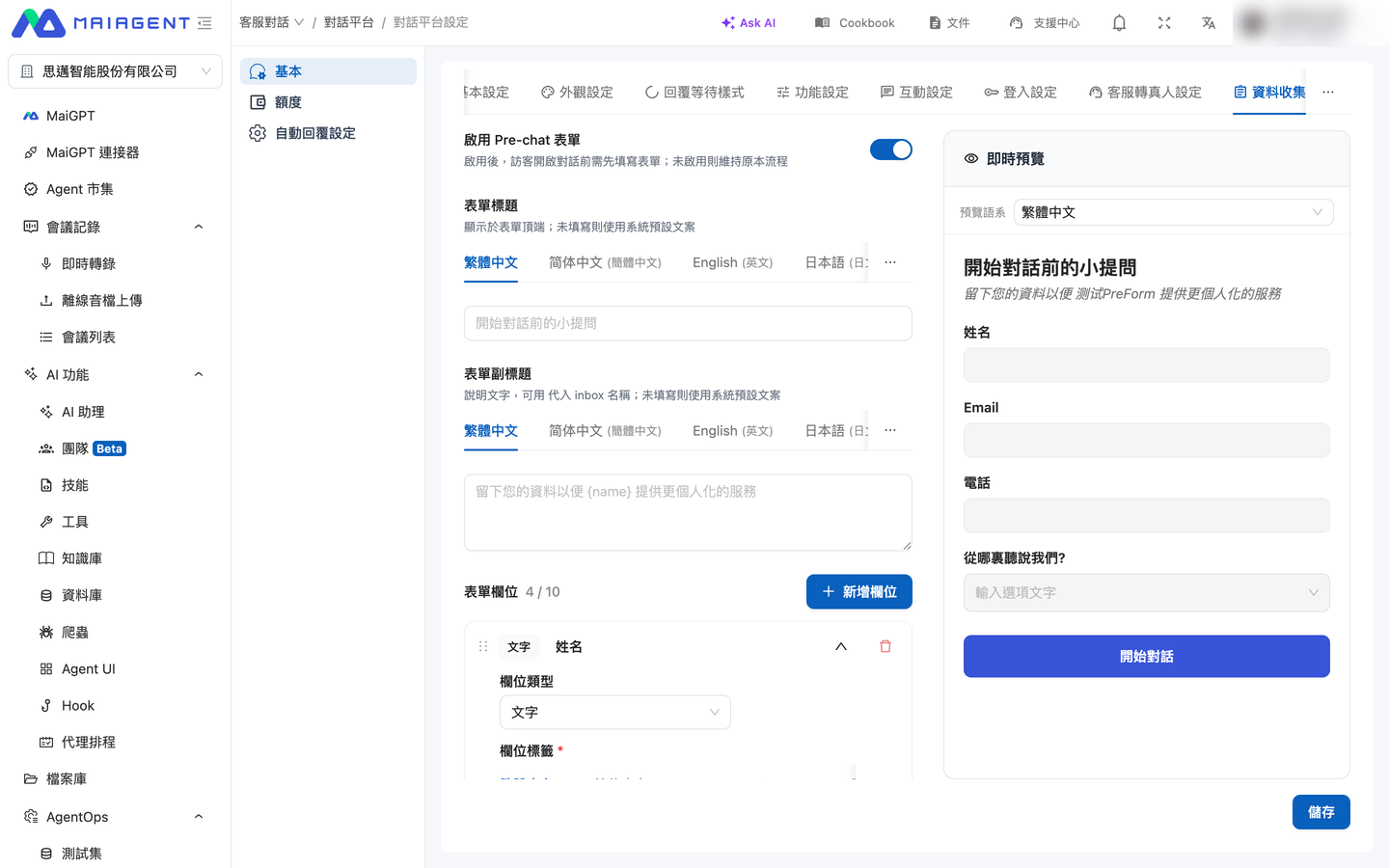
Path: <mark style="color:blue;">Customer Service</mark> → <mark style="color:blue;">Chat Platforms</mark> → select the Web Chat chat platform → <mark style="color:blue;">Data Collection</mark> tab.

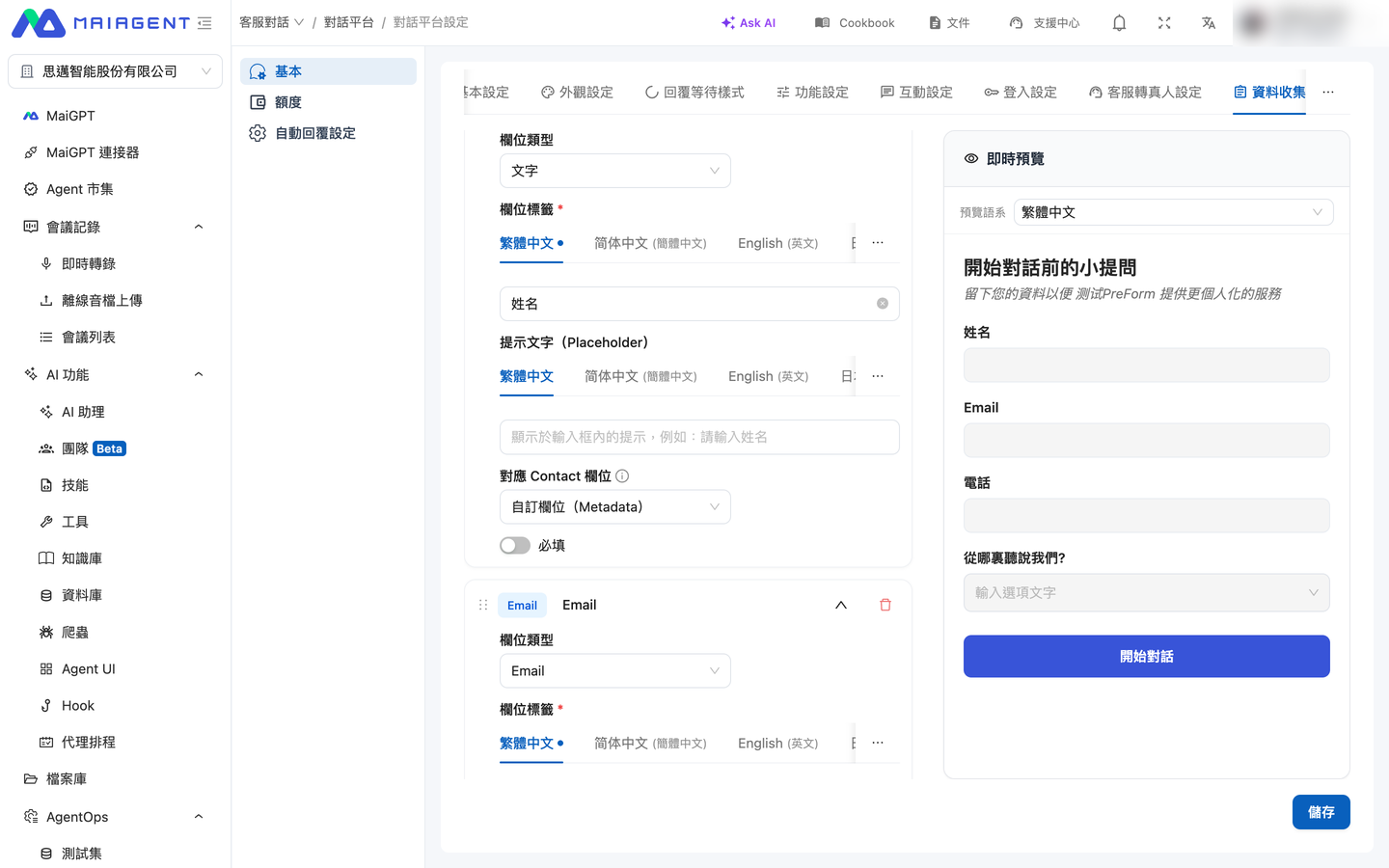
<figure><img src="https://1360999650-files.gitbook.io/~/files/v0/b/gitbook-x-prod.appspot.com/o/spaces%2F6v6TNkkOQVfRYfcNirHL%2Fuploads%2Fgit-blob-fa62f86ab7ff682fcd9c0907a8a126acf6672991%2Fweb-chat-prechat-settings.png?alt=media" alt="Data Collection tab"><figcaption><p>The "Data Collection" tab: the left side has the switch, title, and fields, and the "Live preview" on the right shows the form's appearance in sync</p></figcaption></figure>

{% stepper %}
{% step %}

### Enable the Form <a href="#pre-chat-enable-form" id="pre-chat-enable-form"></a>

Turn on <mark style="color:blue;">Enable Pre-chat form</mark>. When it is not enabled, visitors go straight into the conversation, as before.
{% endstep %}

{% step %}

### Set the Title and Subtitle (Optional) <a href="#pre-chat-form-title" id="pre-chat-form-title"></a>

* <mark style="color:blue;">Form title</mark>: Displayed at the top of the form. If left blank, the default system text "A quick question before we start" is used.
* <mark style="color:blue;">Form subtitle</mark>: The description text of the form. You can use `{name}` to insert the chat platform name. If left blank, the default text "Leave your information so {name} can serve you in a more personalized way" is used.

Both support multiple languages; switch the language tab to fill them in separately.
{% endstep %}

{% step %}

### Add Fields <a href="#pre-chat-add-fields" id="pre-chat-add-fields"></a>

Click <mark style="color:blue;">Add field</mark>. Each field has the following settings:

| Setting                                               | Description                                                                                                                                                                                                                                                                                  |
| ----------------------------------------------------- | -------------------------------------------------------------------------------------------------------------------------------------------------------------------------------------------------------------------------------------------------------------------------------------------- |
| <mark style="color:blue;">Field type</mark>           | Four types: Text, Email, Phone, and Dropdown                                                                                                                                                                                                                                                 |
| <mark style="color:blue;">Field label</mark>          | The field name visitors see; can be filled in separately for each language                                                                                                                                                                                                                   |
| <mark style="color:blue;">Placeholder</mark>          | The gray hint text inside the field                                                                                                                                                                                                                                                          |
| <mark style="color:blue;">Required</mark>             | When checked, visitors cannot submit without filling it in                                                                                                                                                                                                                                   |
| <mark style="color:blue;">Map to Contact field</mark> | Determines where the data is written on the contact: <mark style="color:blue;">Name (Contact.name)</mark>, <mark style="color:blue;">Email (Contact.email)</mark>, <mark style="color:blue;">Phone (Contact.phoneNumber)</mark>, or <mark style="color:blue;">Custom field (Metadata)</mark> |

The Dropdown type also has an <mark style="color:blue;">Options</mark> list, and you can check <mark style="color:blue;">Allow "Other" custom input</mark> so that visitors can type their own content after choosing "Other".

<figure><img src="https://1360999650-files.gitbook.io/~/files/v0/b/gitbook-x-prod.appspot.com/o/spaces%2F6v6TNkkOQVfRYfcNirHL%2Fuploads%2Fgit-blob-6003c1d8c3373fe2ad0ab3686474f5c2d61d442e%2Fweb-chat-prechat-field-editor.png?alt=media" alt="Field editor"><figcaption><p>Each field can be configured with a field type, field label (multilingual), placeholder, mapped Contact field, and required setting</p></figcaption></figure>

Fields can be reordered by dragging, and a form can have up to 10 fields. The preview area on the right shows the form's appearance in real time, and you can switch the <mark style="color:blue;">Preview language</mark> to check each language version.
{% endstep %}

{% step %}

### Save <a href="#pre-chat-save-form" id="pre-chat-save-form"></a>

After confirming the preview looks correct, save, and it takes effect on Web Chat immediately.
{% endstep %}
{% endstepper %}

{% hint style="info" %}
**Restrictions on mapping to Contact fields**

* Name can map only to a "Text" field, Email only to an "Email" field, and Phone only to a "Phone" field; a mismatched type shows a disabled notice.
* Name, Email, and Phone can each be mapped by only one form field. For other fields (such as tax ID number or company name), choose "Custom field (Metadata)".
  {% endhint %}

### 2. Visitor Flow <a href="#pre-chat-visitor-flow" id="pre-chat-visitor-flow"></a>

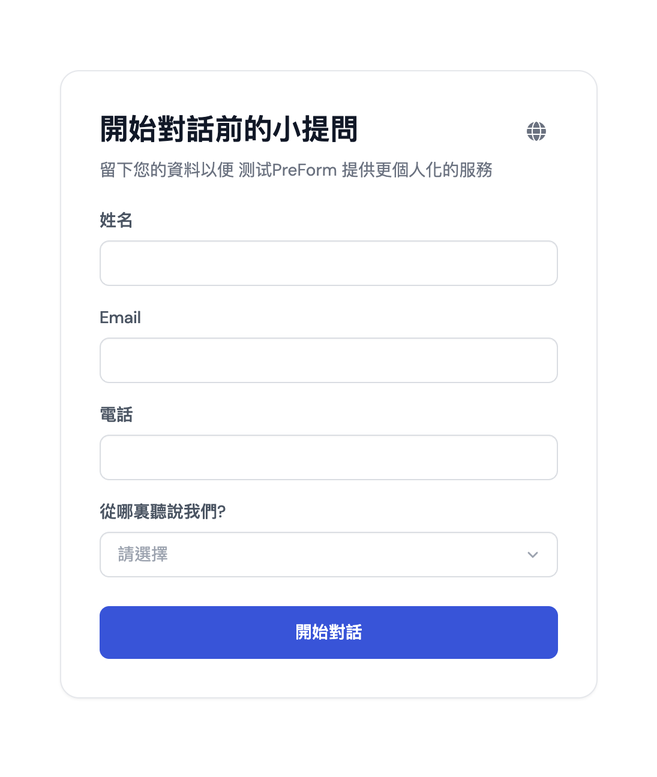
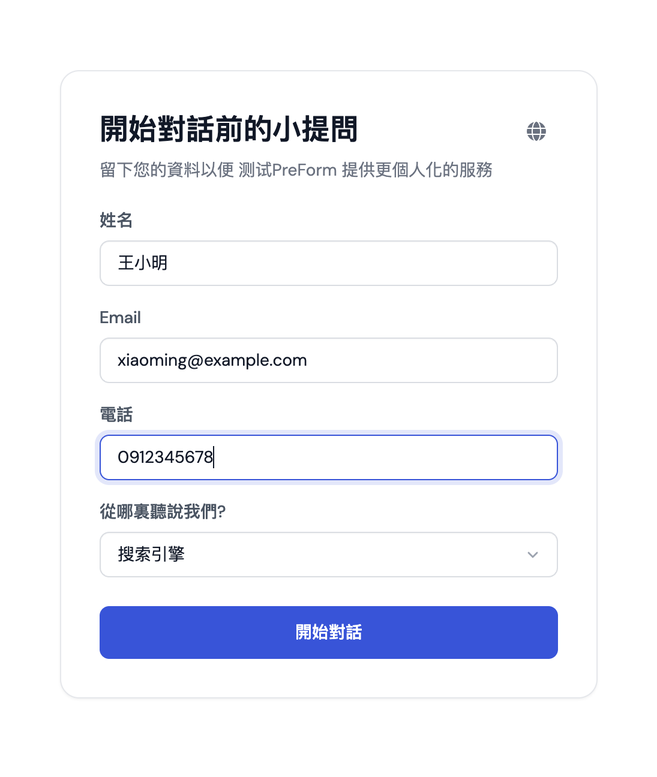
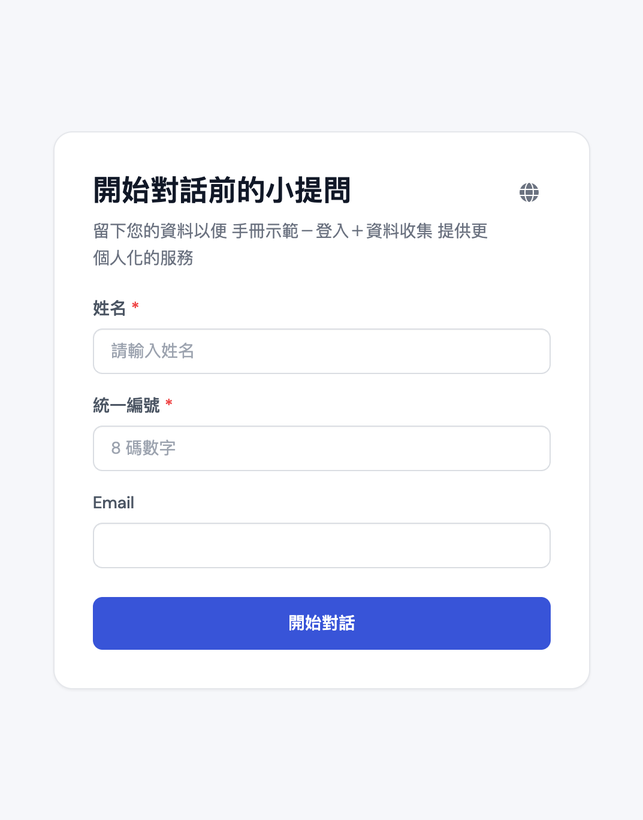
When a visitor opens Web Chat, they first see the form screen: the title, subtitle, the fields you configured, and a language switcher at the top right. After filling it in, they click <mark style="color:blue;">Start chat</mark> to enter the conversation.

<div><figure><img src="https://1360999650-files.gitbook.io/~/files/v0/b/gitbook-x-prod.appspot.com/o/spaces%2F6v6TNkkOQVfRYfcNirHL%2Fuploads%2Fgit-blob-72d96183b2932a7f3a53fa26e25b0c44693d9976%2Fweb-chat-prechat-form.png?alt=media" alt="The form visitors see"><figcaption><p>Visitors see the form first when they open Web Chat</p></figcaption></figure> <figure><img src="https://1360999650-files.gitbook.io/~/files/v0/b/gitbook-x-prod.appspot.com/o/spaces%2F6v6TNkkOQVfRYfcNirHL%2Fuploads%2Fgit-blob-80e055ba2910bb69258325f5f6f23ee481ba7342%2Fweb-chat-prechat-form-filled.png?alt=media" alt="Form completed"><figcaption><p>After filling it in, click "Start chat"</p></figcaption></figure></div>

* If a required field is empty or the Email or phone format is incorrect, an error appears below the field and the form cannot be submitted.
* After the same browser has filled in the form once, it is not asked again when opening the same Web Chat later.
* If a visitor wants to correct their information, they can click <mark style="color:blue;">Refill information</mark> from the <mark style="color:blue;">⋮</mark> menu at the top right of Web Chat, and the form appears again.

<figure><img src="https://1360999650-files.gitbook.io/~/files/v0/b/gitbook-x-prod.appspot.com/o/spaces%2F6v6TNkkOQVfRYfcNirHL%2Fuploads%2Fgit-blob-cc226e66c15e542470c95f0dd2b494f604ad81ec%2Fweb-chat-prechat-menu-refill.png?alt=media" alt="Refill information"><figcaption><p>"Refill information" in the ⋮ menu at the top right</p></figcaption></figure>

### 3. Combined with Login: Data Mapped to the Login Account <a href="#pre-chat-with-login" id="pre-chat-with-login"></a>

If the same Web Chat has both [login](#login-config) and data collection enabled, the flow is: **log in → fill in the form → start the conversation**. The information the user fills in is attached to their login account, not to the browser.

<figure><img src="https://1360999650-files.gitbook.io/~/files/v0/b/gitbook-x-prod.appspot.com/o/spaces%2F6v6TNkkOQVfRYfcNirHL%2Fuploads%2Fgit-blob-b190160bed2cd104cb0e87160c4a63c047689a70%2Fweb-chat-prechat-login-settings.png?alt=media" alt="Login Settings tab"><figcaption><p>The "Login settings" tab: turn on "Enable login" and choose the login source; it is independent of the "Data Collection" tab</p></figcaption></figure>

<div><figure><img src="https://1360999650-files.gitbook.io/~/files/v0/b/gitbook-x-prod.appspot.com/o/spaces%2F6v6TNkkOQVfRYfcNirHL%2Fuploads%2Fgit-blob-f9c71c232b1bbdd9ee1880cf922a6361d2420e5e%2Fweb-chat-prechat-login-page.png?alt=media" alt="Login screen"><figcaption><p>① Opening Web Chat shows the login screen first</p></figcaption></figure> <figure><img src="https://1360999650-files.gitbook.io/~/files/v0/b/gitbook-x-prod.appspot.com/o/spaces%2F6v6TNkkOQVfRYfcNirHL%2Fuploads%2Fgit-blob-020c77245a78280ffc81ed879bdb2a9613f3cdeb%2Fweb-chat-prechat-login-form.png?alt=media" alt="Form after login"><figcaption><p>② The data collection form appears only after login</p></figcaption></figure></div>

| Situation                                                                                             | Web Chat behavior                                                                                 |
| ----------------------------------------------------------------------------------------------------- | ------------------------------------------------------------------------------------------------- |
| The account is used for the first time and has not filled in the form                                 | The form appears after login; after submission, a contact corresponding to the account is created |
| The same account logs in on a different device or browser                                             | The form no longer appears, and the conversation starts directly with the account's existing data |
| This device previously filled in the form while not logged in, and the account itself has no data yet | A "Is this your information?" confirmation screen appears (see the description below)             |
| The account already has data, and this device also has a separate entry filled in while not logged in | The account's data takes precedence, with no prompt and no merge                                  |
| A logged-in user clicks <mark style="color:blue;">Refill information</mark>                           | The existing contact on the account is updated, and no extra one is created                       |

**Confirmation screen: Is this your information?**

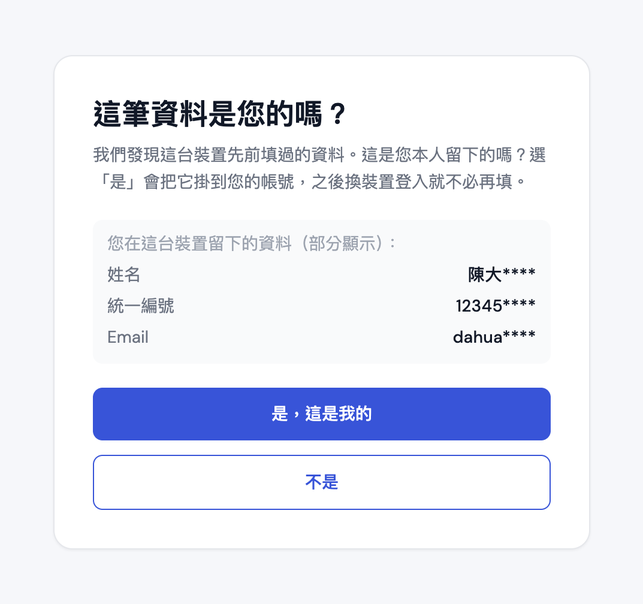
When someone previously filled in the form on this device without logging in, and the account now logged in has no data yet, the form does not appear directly after login. Instead, a confirmation screen appears first. It lists what was previously filled in on this device (partially masked) and offers two buttons:

* <mark style="color:blue;">Yes, this is mine</mark>: Attaches that data to the current account. After that, the same account does not need to fill it in again when logging in on any device.
* <mark style="color:blue;">No</mark>: Does not merge; the original data stays as it was, and the form then appears for the user to fill in once themselves.

<figure><img src="https://1360999650-files.gitbook.io/~/files/v0/b/gitbook-x-prod.appspot.com/o/spaces%2F6v6TNkkOQVfRYfcNirHL%2Fuploads%2Fgit-blob-f8d35bfa6b85a7ec60a08eb8e73cc09904338eb6%2Fweb-chat-prechat-claim.png?alt=media" alt="Is this your information? confirmation screen"><figcaption><p>The confirmation screen masks part of the content, so users can only tell whether the data was left by themselves</p></figcaption></figure>

{% hint style="info" %}

* Web Chat without login enabled is not affected; it still uses the browser to determine whether the form has been filled in.
* The system does not automatically fill in the form from account data. The first time an account is used, the user is still asked to fill in the form once, even if the back office already has their data.
  {% endhint %}

Once the conversation starts, both the Agent and the customer service back office see the contact that corresponds to this account:

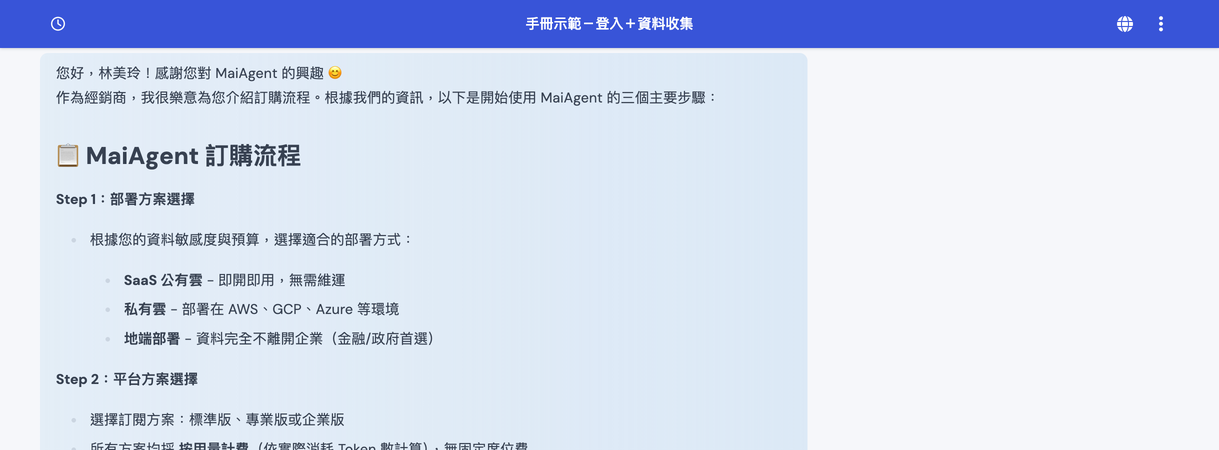
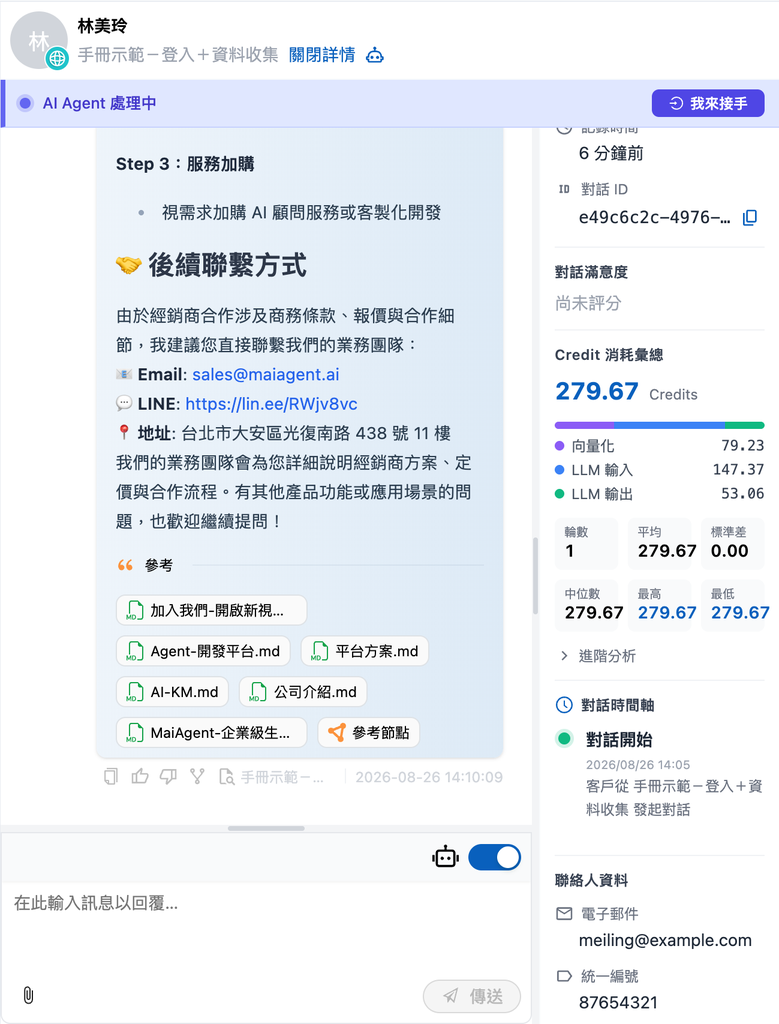
<div><figure><img src="https://1360999650-files.gitbook.io/~/files/v0/b/gitbook-x-prod.appspot.com/o/spaces%2F6v6TNkkOQVfRYfcNirHL%2Fuploads%2Fgit-blob-f9a99f4c93d7d3395efb4d6f27175d2469857745%2Fweb-chat-prechat-login-chat.png?alt=media" alt="Conversation after login"><figcaption><p>The Agent addresses the user by the name entered in the form</p></figcaption></figure> <figure><img src="https://1360999650-files.gitbook.io/~/files/v0/b/gitbook-x-prod.appspot.com/o/spaces%2F6v6TNkkOQVfRYfcNirHL%2Fuploads%2Fgit-blob-3236973f772f1fb9b44df23cb6812d8c0980bac6%2Fweb-chat-prechat-conversation-login.png?alt=media" alt="Back-office conversation page"><figcaption><p>The back-office conversation page shows the contact and the tax ID number received from the form</p></figcaption></figure></div>

### 4. View the collected data in the back office <a href="#pre-chat-view-data" id="pre-chat-view-data"></a>

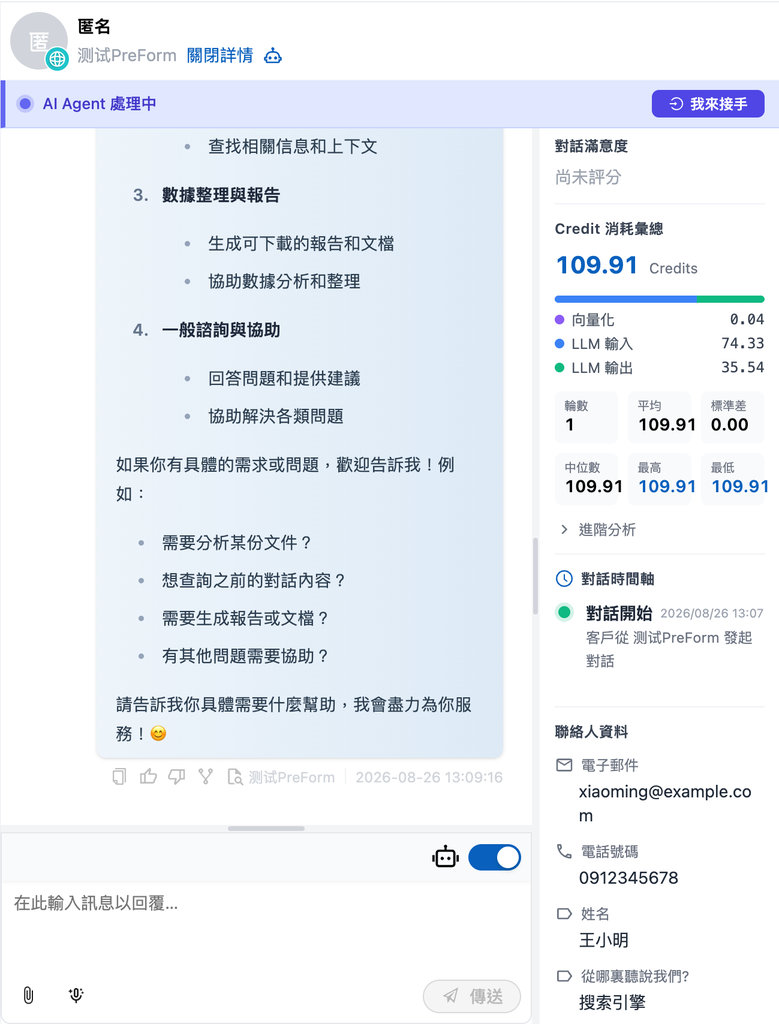
**View in a conversation**: <mark style="color:blue;">Customer Service Conversations</mark> → <mark style="color:blue;">All Conversations</mark> → open a conversation. The <mark style="color:blue;">Contact Information</mark> section on the right lists each item received from the form. Fields mapped to Email and phone are shown as "Email" and "Phone Number", and custom fields are shown with the field labels you set.

<figure><img src="https://1360999650-files.gitbook.io/~/files/v0/b/gitbook-x-prod.appspot.com/o/spaces%2F6v6TNkkOQVfRYfcNirHL%2Fuploads%2Fgit-blob-efe6eb93e6c245a6c4dd2e98e793cc07bd69668f%2Fweb-chat-prechat-conversation-contact.png?alt=media" alt="Contact information section on the right side of the conversation page"><figcaption><p>The "Contact Information" section on the right side of the conversation page lists each item received from the form</p></figcaption></figure>

{% hint style="info" %}
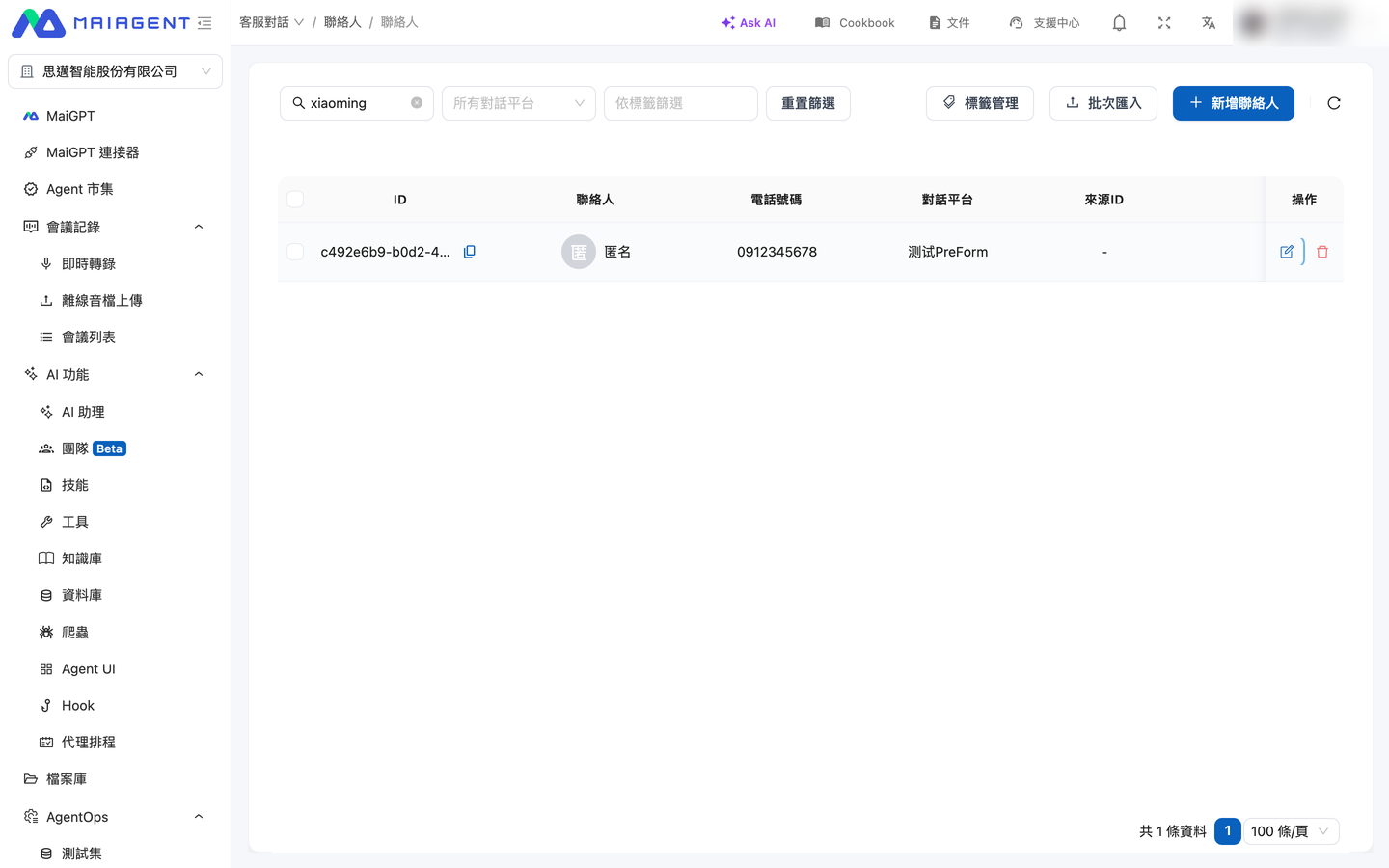
The "Contact" column in the contact list shows the Contact's name. If the form's name field is mapped to "Custom field (Metadata)" instead of "Name (Contact.name)", contacts of visitors who are not logged in appear as "Anonymous", and the name appears only in the custom attributes. To see visitor names directly in the list, map the name field to "Name (Contact.name)".
{% endhint %}

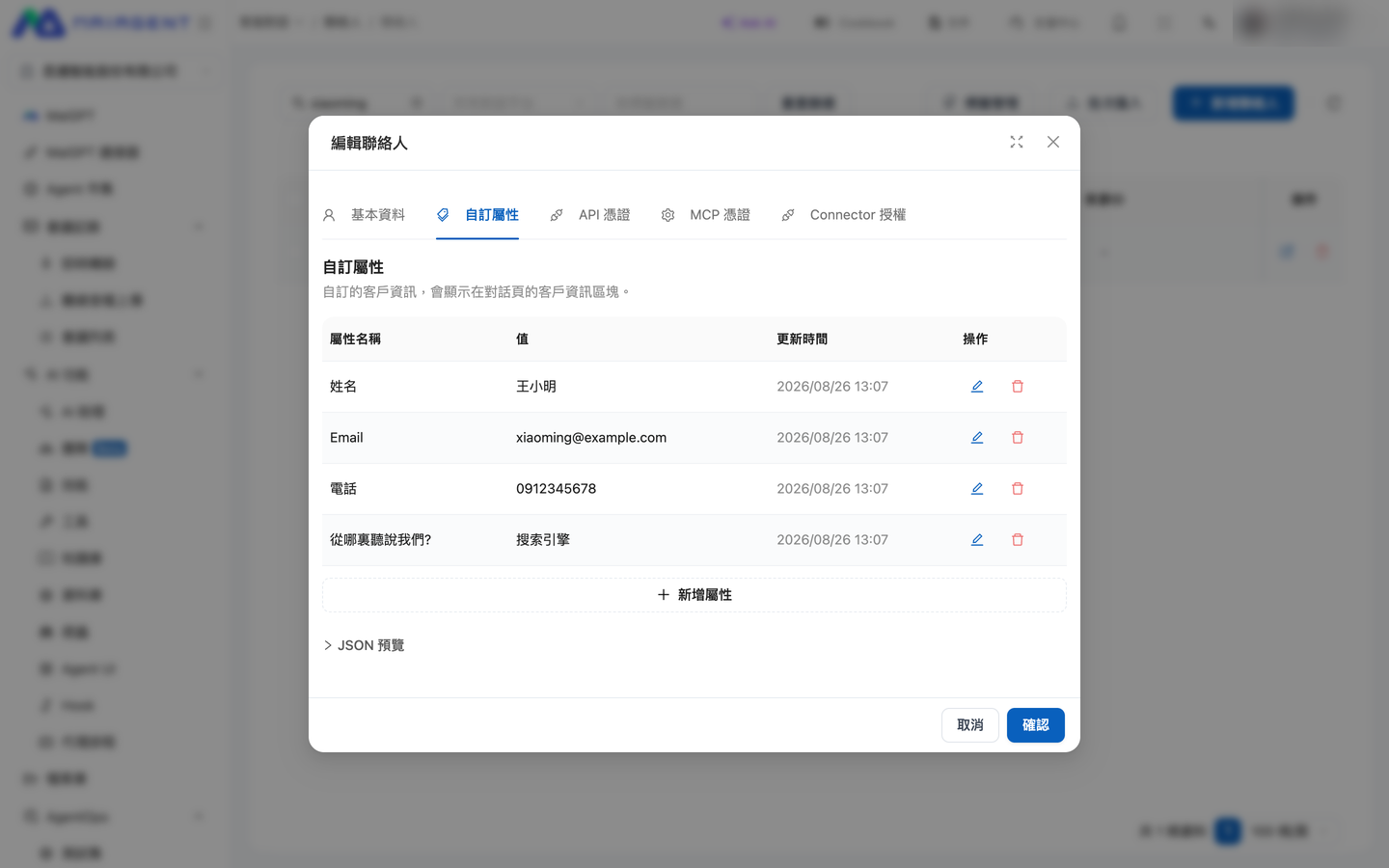
**View on the contact page**: <mark style="color:blue;">Customer Service Conversations</mark> → <mark style="color:blue;">Contacts</mark> → open a contact. The <mark style="color:blue;">Basic Information</mark> tab shows the name and phone number, and the <mark style="color:blue;">Custom Attributes</mark> tab shows the other form fields.

<div><figure><img src="https://1360999650-files.gitbook.io/~/files/v0/b/gitbook-x-prod.appspot.com/o/spaces%2F6v6TNkkOQVfRYfcNirHL%2Fuploads%2Fgit-blob-45f6d1ebb32ce47284176306f8353e503c88539c%2Fweb-chat-prechat-contacts-list.png?alt=media" alt="Contact list"><figcaption><p>The contact list can be searched by name, Email, or phone number</p></figcaption></figure> <figure><img src="https://1360999650-files.gitbook.io/~/files/v0/b/gitbook-x-prod.appspot.com/o/spaces%2F6v6TNkkOQVfRYfcNirHL%2Fuploads%2Fgit-blob-9bc3a0bf13c97c7eed1f5223b76a9bca113962f5%2Fweb-chat-prechat-contact-attributes.png?alt=media" alt="Custom Attributes tab"><figcaption><p>The "Custom Attributes" tab lists the value of each form field</p></figcaption></figure></div>

Data filled in by a logged-in user is mapped to their account and is no longer an ownerless anonymous contact. The contact name depends on the form settings: if a name field is mapped to "Name (Contact.name)", the name entered in the form is shown; if there is no name field, the name of the logged-in account is shown.

## Other prompts visitors may see <a href="#other-visitor-prompts" id="other-visitor-prompts"></a>

The following prompts occasionally appear in conversations but do not require any administrator configuration. They are collected here to help you answer visitors' questions:

| Screen                                                                                                                           | When it appears                                                                                                                                                                                                                                                                                           | What to do                                                                                                                                                                                                                      |
| -------------------------------------------------------------------------------------------------------------------------------- | --------------------------------------------------------------------------------------------------------------------------------------------------------------------------------------------------------------------------------------------------------------------------------------------------------- | ------------------------------------------------------------------------------------------------------------------------------------------------------------------------------------------------------------------------------- |
| The human verification box on the login, sign-up, and password reset pages; "Too many requests. Please try again later."         | Web Chat with login enabled adds Cloudflare Turnstile verification to these three pages; sending too many requests in a short time (for example, opening new conversations or sending messages in quick succession) triggers rate limiting                                                                | Submit after the verification box is checked; if rate limited, wait a moment and try again                                                                                                                                      |
| Bottom panel "Install {App name} App"                                                                                            | When the standalone full-screen page is opened in a mobile browser, Web Chat can be added to the home screen and used as an app. Android shows <mark style="color:blue;">Install now</mark>; Safari on iPhone shows the "Add to Home Screen" steps, and other iPhone browsers suggest switching to Safari | If you do not want to install it, tap <mark style="color:blue;">Remind me next time</mark> and it will not appear again for a day; it is not shown when already opened as an installed app                                      |
| "Content too long (N characters total), displayed as plain text" + <mark style="color:blue;">Show full content</mark>            | When a single reply exceeds 50,000 characters (or a single line exceeds 2,000 characters), Markdown formatting is no longer applied and only the first 2,000 characters are shown                                                                                                                         | Click <mark style="color:blue;">Show full content</mark> to expand, and <mark style="color:blue;">Collapse</mark> to collapse again                                                                                             |
| "Content too large (N characters total), showing only the beginning"                                                             | The JSON data returned by a tool is too large                                                                                                                                                                                                                                                             | The display is simply truncated; the Agent has received the complete data                                                                                                                                                       |
| "Earlier long messages have been partially omitted (about N characters total); the assistant may not have seen the full content" | When a conversation is very long, the system omits earlier long messages to keep the context length under control                                                                                                                                                                                         | If you need the Agent to refer to that content, paste the relevant passage again; you can also use [Conversation Handoff Summary](/maiagent-user-guide/en/work/maigpt/chat/conversation-handoff.md) to start a new conversation |
| A small label next to a reply: "This reply was generated by team member "{name}""                                                | The Agent belongs to an [Agent Team](/maiagent-user-guide/en/build/teams.md), and this reply was answered by one of the member Agents in the team                                                                                                                                                         | No action needed                                                                                                                                                                                                                |
| "Delegating to / Handing off to / Switching to {Agent}", sub-agent task card                                                     | In multi-Agent collaboration, the main Agent hands a task to a sub-agent to execute                                                                                                                                                                                                                       | The card shows replying / completed; just wait for it to finish                                                                                                                                                                 |
| "Locating...", "Unable to get your location. Please enable location permission in settings", "Location obtained successfully"    | An administrator has enabled [Location Information](/maiagent-user-guide/en/build/conversation-settings/platform-settings/function-settings.md#gps-location), and the browser asks for location permission                                                                                                | Allow location access before sending; if denied, the Agent still replies, just without location information                                                                                                                     |
| "Connect {service}" authorization card                                                                                           | The Agent needs to access an external service with the visitor's own account                                                                                                                                                                                                                              | See [Connected Services](/maiagent-user-guide/en/build/choose-channel/web-chat/connected-services.md)                                                                                                                           |
| Video generation card (queued / generating / estimated 60–90 seconds)                                                            | The Agent uses the video generation tool                                                                                                                                                                                                                                                                  | Just wait for it to finish; see [AI Video Generation](/maiagent-user-guide/en/work/maigpt/video.md) for details                                                                                                                 |

## What should I do when the connection fails? <a href="#connection-failure" id="connection-failure"></a>

For example, a website administrator receives a report from a visitor that Web Chat shows a connection failure when opened. The visitor should first wait for the system to retry automatically; if the error screen still appears, they should capture the full screen, including the failed stage, the error category, and the time of occurrence, and send it to the administrator so the administrator can diagnose the problem faster.

When Web Chat loads the Agent settings and encounters a network interruption, it first retries automatically, and the screen stays in the loading state during this time. If the connection still fails after retrying, the error screen shows:

* The loading stage that failed
* The error category, together with the HTTP status code when there is one
* The local time when the error occurred

<figure><img src="https://1360999650-files.gitbook.io/~/files/v0/b/gitbook-x-prod.appspot.com/o/spaces%2F6v6TNkkOQVfRYfcNirHL%2Fuploads%2Fgit-blob-e24edbd1a83fd7f69430443a8a74158aeb6a117b%2Fweb-chat-connection-failure-network.png?alt=media" alt="Web Chat showing a network connection failure diagnostic at the stage of loading the Agent settings"><figcaption><p>After automatic retries still fail, the screen lists the failed stage, the error category, and the time of occurrence</p></figcaption></figure>

If the system has received an HTTP error status code, the server has responded; in this case no automatic retry is performed, and the diagnostic error screen is shown directly.

{% hint style="info" %}
First confirm that the device can access the internet normally, then click <mark style="color:blue;">Retry</mark> on the error screen. If the problem persists, keep the full diagnostic information when taking a screenshot, and avoid showing conversation content or personal data on the screen.
{% endhint %}

## Reviewing earlier messages while a reply is being generated <a href="#review-during-generation" id="review-during-generation"></a>

While the Agent is still generating a reply, visitors can scroll up to review earlier messages. The reply continues to be generated below, but the screen stays where the visitor scrolled to and is not pulled away by newly appearing text; once the view moves away from the latest progress, <mark style="color:blue;">Back to latest</mark> appears above the input box.

### Usage scenario <a href="#generation-scroll-scenario" id="generation-scroll-scenario"></a>

A visitor asks the Agent to compare several options at once. Before the answer is finished, she wants to go back and check the price of the first option, so she scrolls up—the screen stays in place and does not jump away as more text keeps appearing. After checking, she clicks <mark style="color:blue;">Back to latest</mark>, the screen returns to the position of the last question, and she continues reading the rest of the comparison.

### How to use <a href="#generation-scroll-steps" id="generation-scroll-steps"></a>

{% stepper %}
{% step %}

### 1. Scroll up <a href="#scroll-up-during-generation" id="scroll-up-during-generation"></a>

While the Agent is generating a reply, scroll up with the mouse wheel, a touch gesture, or by dragging the scrollbar.
{% endstep %}

{% step %}

### 2. Read in place <a href="#read-in-place" id="read-in-place"></a>

The screen stays where you scrolled to, and new content being generated does not change your current position.

<figure><img src="https://1360999650-files.gitbook.io/~/files/v0/b/gitbook-x-prod.appspot.com/o/spaces%2F6v6TNkkOQVfRYfcNirHL%2Fuploads%2Fgit-blob-537d8652530560963f91fe83d44727c547068051%2Fwebchat-back-to-latest.png?alt=media" alt="Web Chat scrolled up while a reply is being generated, with &#x22;Back to latest&#x22; shown above the input box"><figcaption><p>The reply is still being generated (the square stop button is on the right of the input box); after scrolling up, "Back to latest" appears above the input box</p></figcaption></figure>
{% endstep %}

{% step %}

### 3. Back to latest <a href="#press-back-to-latest" id="press-back-to-latest"></a>

Click <mark style="color:blue;">Back to latest</mark>, and the screen returns to the position of the last question and resumes automatically following the latest content.
{% endstep %}
{% endstepper %}


---

# Agent Instructions
This documentation is published with GitBook. GitBook is the documentation platform designed so that both humans and AI agents can read, navigate, and reason over technical content effectively. Learn more at gitbook.com.

## Querying This Documentation
If you need additional information that is not directly available in this page, you can query the documentation by asking a question.

Perform an HTTP GET request on the following URL with the `ask` and `goal` query parameters:

```
GET https://docs.maiagent.ai/maiagent-user-guide/en/build/choose-channel/web-chat.md?ask=<question>&goal=<user_goal>
```

`ask` is the immediate question: it should be specific, self-contained, and written in natural language.
`goal` is what the user is ultimately trying to achieve, the reason they need the answer. Sharing it helps GitBook give you a better, more relevant answer. A goal is most helpful when it describes the outcome the user wants rather than restating the question. For example, with `ask=how do I create an API token`, a goal like `automate deployments from our CI pipeline` lets GitBook tailor the answer to that use case.

The response will contain a direct answer to the question and relevant excerpts and sources from the documentation.

Use this mechanism when the answer is not explicitly present in the current page, you need clarification or additional context, or you want to retrieve related documentation sections.