> For the complete documentation index, see [llms.txt](https://docs.maiagent.ai/llms.txt). Markdown versions of documentation pages are available by appending `.md` to page URLs; this page is available as [Markdown](https://docs.maiagent.ai/maiagent-user-guide/en/build/choose-channel/slack.md).

# Connect a Conversation Platform: Slack

Connect the Slack chat platform. Create a Slack App from an App Manifest, configure Bot permissions and Event Subscriptions, and let employees chat with the Agent through Slack direct messages or chan

## Pre-Connection Checklist <a href="#pre-integration-checklist" id="pre-integration-checklist"></a>

* An "AI Assistant" has been created on the [MaiAgent platform](https://admin.maiagent.ai/)
* You have administrator permissions for a Slack Workspace

## Quick Install: Use an App Manifest <a href="#quick-install-app-manifest" id="quick-install-app-manifest"></a>

Go to the [Slack API](https://api.slack.com/apps), click <mark style="color:blue;">Create New App</mark>, select <mark style="color:blue;">From a manifest</mark>, and choose the Workspace where you want to install the App. Switch to the <mark style="color:blue;">YAML</mark> tab and paste the complete manifest below:

```yaml
display_information:
  name: MaiAgentBot
features:
  app_home:
    messages_tab_enabled: true
    messages_tab_read_only_enabled: false
  bot_user:
    display_name: MaiAgentBot
    always_online: false
oauth_config:
  scopes:
    bot:
      - chat:write
      - users:read
      - im:history
      - channels:history
      - groups:history
      - files:read
      - app_mentions:read
settings:
  org_deploy_enabled: false
  socket_mode_enabled: false
  token_rotation_enabled: false
```

`MaiAgentBot` is an example name; you can customize `display_information.name` and `features.bot_user.display_name` before creating the App.

{% hint style="info" %}
After creating the App with a manifest, you can skip Steps 1 to 3 of the step-by-step guide below (create the App, configure scopes, enable App Home). You still need to start from Step 4 to create the chat platform in MaiAgent, obtain the Webhook URL, and then complete the Event Subscriptions in Step 5. The Request URL is only generated after the MaiAgent chat platform has been created.
{% endhint %}

## Step 1: Create a Slack App <a href="#step-create-slack-app" id="step-create-slack-app"></a>

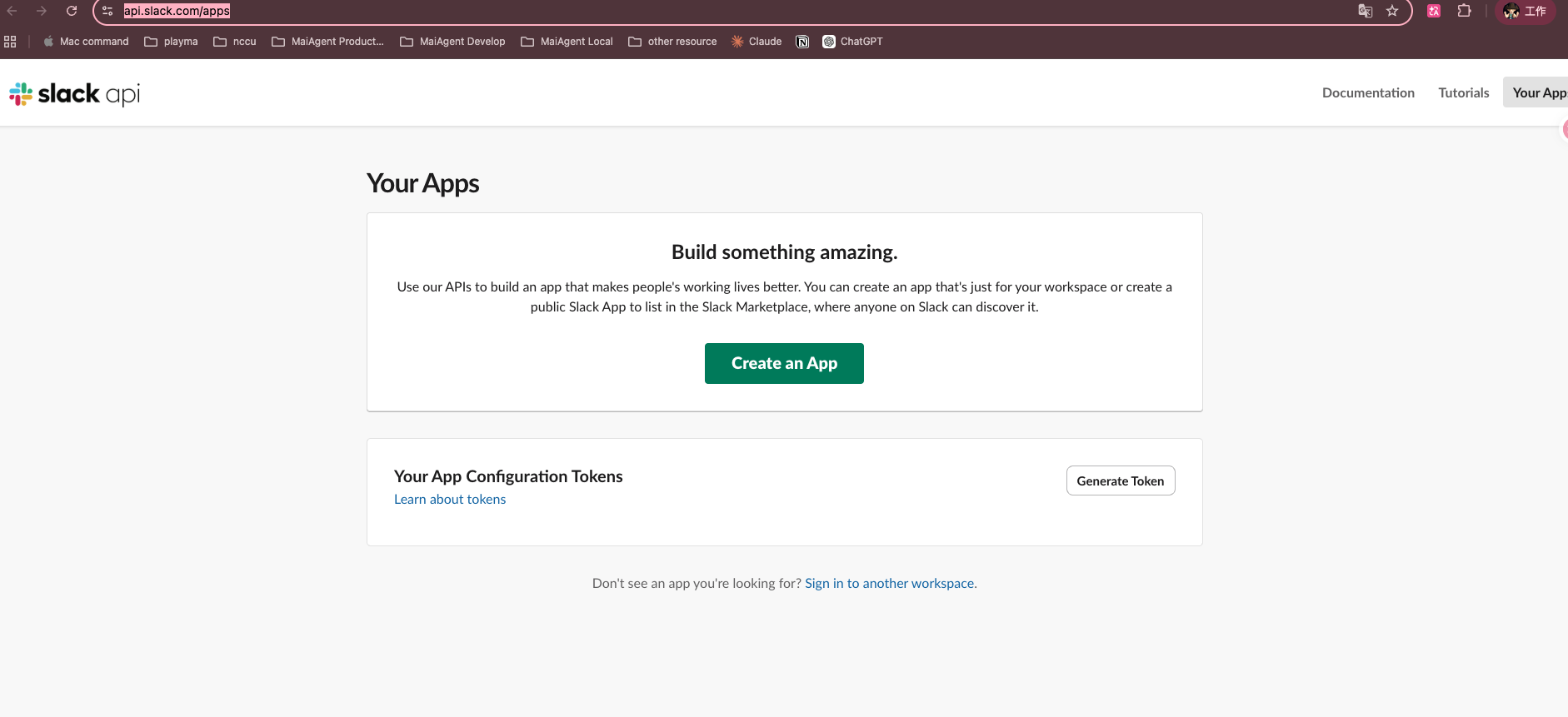
### 1. Go to the Slack API to create an App <a href="#step-go-to-slack-api" id="step-go-to-slack-api"></a>

Go to <https://api.slack.com/apps> and click <mark style="color:blue;">Create an App</mark>.

<figure><img src="https://1360999650-files.gitbook.io/~/files/v0/b/gitbook-x-prod.appspot.com/o/spaces%2F6v6TNkkOQVfRYfcNirHL%2Fuploads%2Fgit-blob-ce0387658ad808d5a696fcaf41634fbc7876aab5%2Fslack-api-your-apps.png?alt=media" alt=""><figcaption><p>Slack API — Your Apps page</p></figcaption></figure>

### 2. Select From scratch <a href="#step-create-from-scratch" id="step-create-from-scratch"></a>

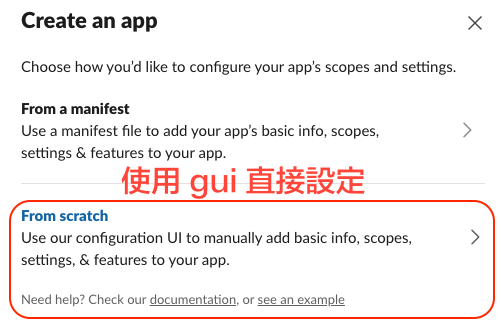
Select <mark style="color:blue;">From scratch</mark> to configure the App manually through the graphical interface.

<figure><img src="https://1360999650-files.gitbook.io/~/files/v0/b/gitbook-x-prod.appspot.com/o/spaces%2F6v6TNkkOQVfRYfcNirHL%2Fuploads%2Fgit-blob-ef198579b66f80f26f2a9ff794bb4f55b74c9da2%2Fslack-create-app-scratch.png?alt=media" alt=""><figcaption><p>Select the From scratch creation method</p></figcaption></figure>

### 3. Enter the App name and Workspace <a href="#step-fill-app-name-and-workspace" id="step-fill-app-name-and-workspace"></a>

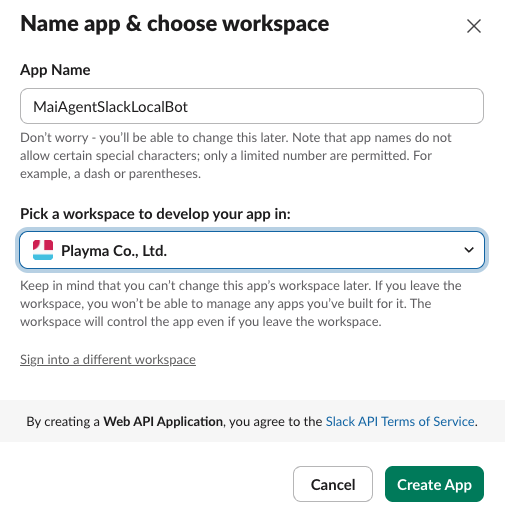
Enter an App name (for example, `MaiAgentBot`), select the Slack Workspace where you want to install it, and click <mark style="color:blue;">Create App</mark>.

<figure><img src="https://1360999650-files.gitbook.io/~/files/v0/b/gitbook-x-prod.appspot.com/o/spaces%2F6v6TNkkOQVfRYfcNirHL%2Fuploads%2Fgit-blob-0608dfa14ee9002008deb49bc7af2d9491057e78%2Fslack-create-app-name.png?alt=media" alt=""><figcaption><p>Enter the App name and select the Workspace</p></figcaption></figure>

### 4. Get the Signing Secret <a href="#step-get-signing-secret" id="step-get-signing-secret"></a>

After the App is created, go to the <mark style="color:blue;">Basic Information</mark> page, find the <mark style="color:blue;">Signing Secret</mark> in the **App Credentials** section, click <mark style="color:blue;">Show</mark>, and copy it for later use.

***

## Step 2: Configure Bot Permissions <a href="#step-configure-bot-permissions" id="step-configure-bot-permissions"></a>

### 1. Go to OAuth & Permissions <a href="#step-go-to-oauth-permissions" id="step-go-to-oauth-permissions"></a>

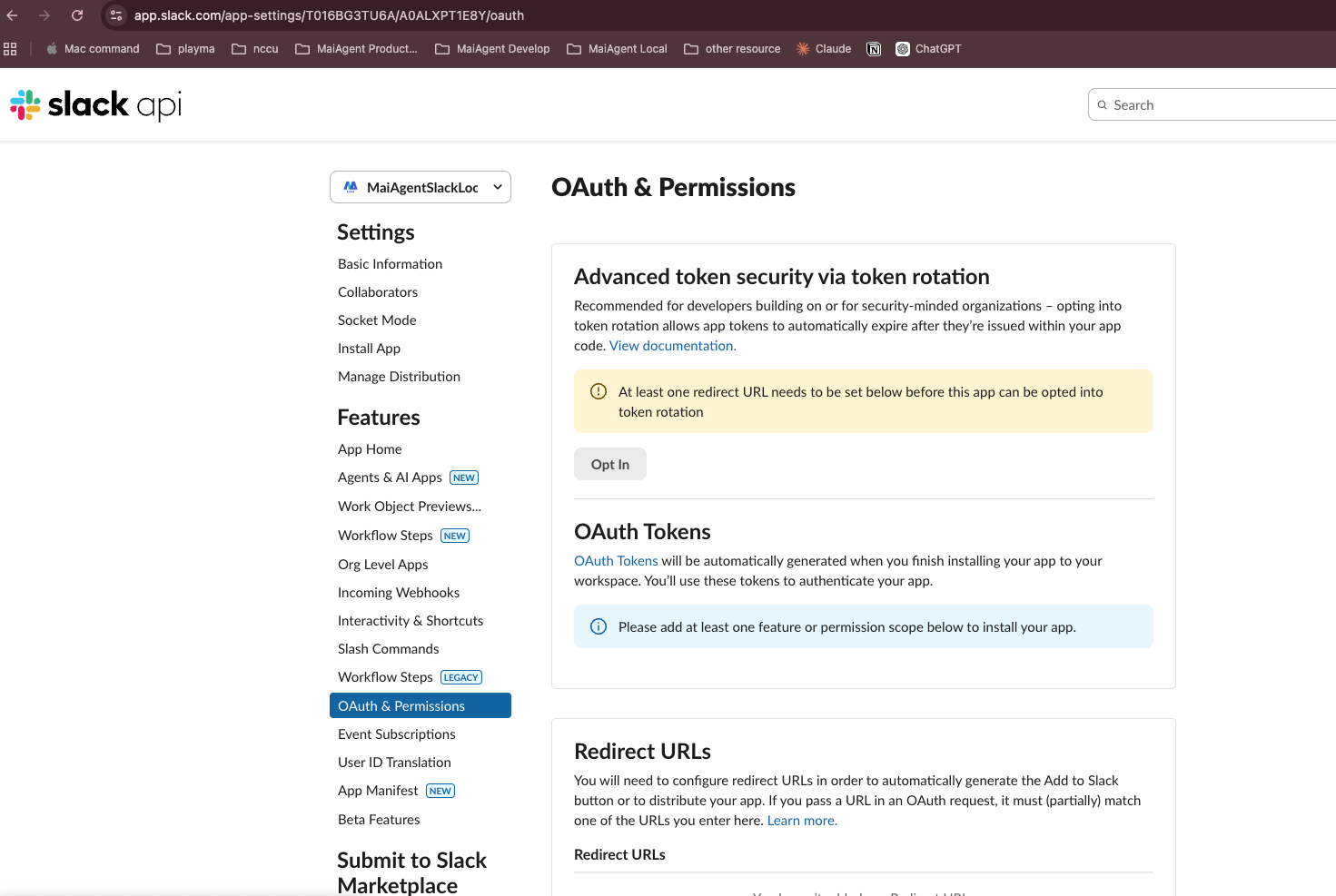
In the left menu, click <mark style="color:blue;">OAuth & Permissions</mark>.

<figure><img src="https://1360999650-files.gitbook.io/~/files/v0/b/gitbook-x-prod.appspot.com/o/spaces%2F6v6TNkkOQVfRYfcNirHL%2Fuploads%2Fgit-blob-ccce8cfe52662eba88dc58278f7ab3fb48e34e29%2Fslack-oauth-permissions.png?alt=media" alt=""><figcaption><p>OAuth &#x26; Permissions page</p></figcaption></figure>

### 2. Add Bot Token Scopes <a href="#step-add-bot-token-scopes" id="step-add-bot-token-scopes"></a>

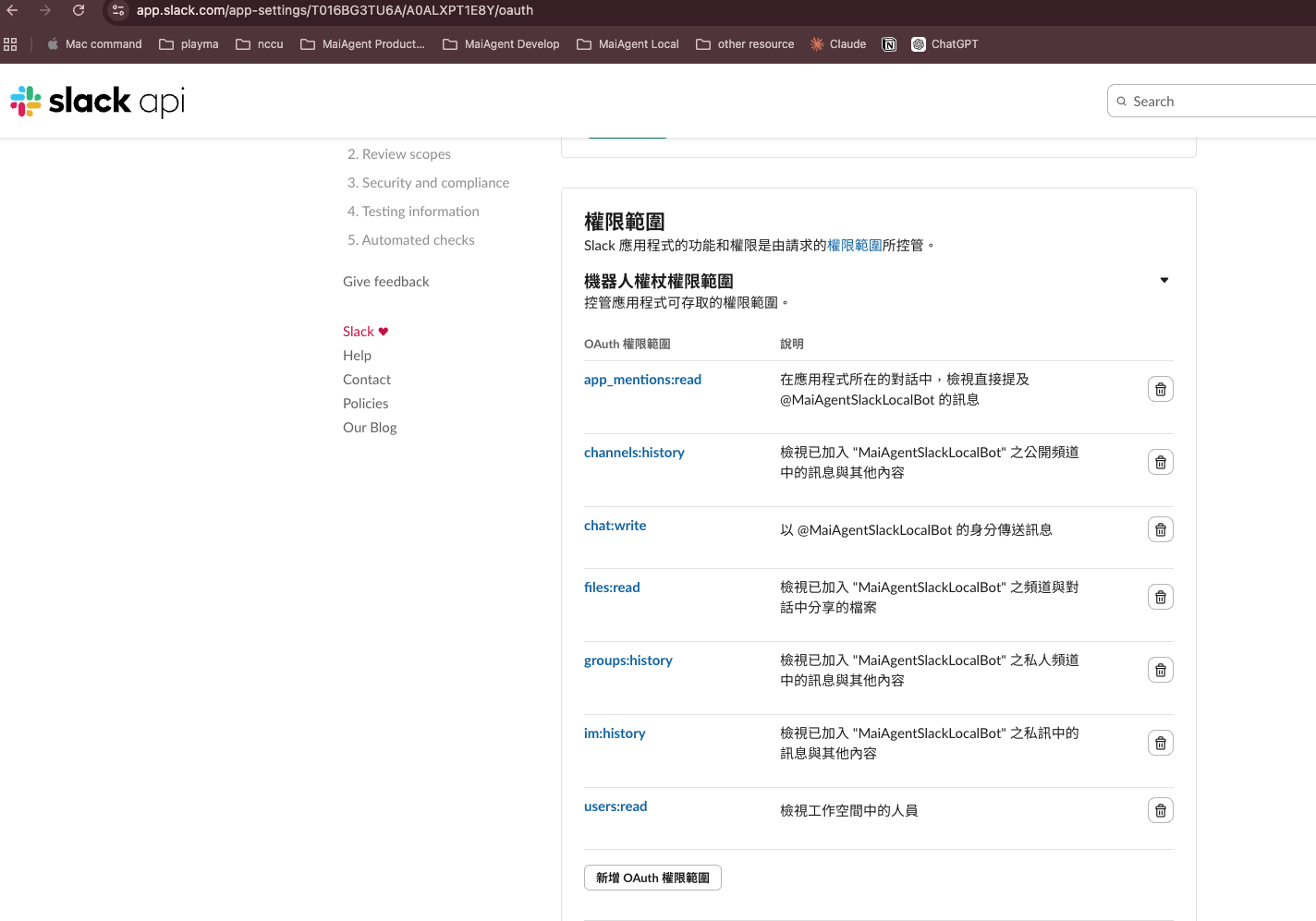
Scroll down to the **Bot Token Scopes** section, click <mark style="color:blue;">Add an OAuth Scope</mark>, and add the following permissions one by one:

| Scope               | Description                              |
| ------------------- | ---------------------------------------- |
| `app_mentions:read` | Read messages that @mention the bot      |
| `channels:history`  | Read message history in public channels  |
| `chat:write`        | Send messages                            |
| `files:read`        | Read files (images/documents)            |
| `groups:history`    | Read message history in private channels |
| `im:history`        | Read message history in direct messages  |
| `mpim:history`      | Read history in group direct messages    |

<figure><img src="https://1360999650-files.gitbook.io/~/files/v0/b/gitbook-x-prod.appspot.com/o/spaces%2F6v6TNkkOQVfRYfcNirHL%2Fuploads%2Fgit-blob-ad151db9b82446f54dd72069c0a929050cc67403%2Fslack-bot-scopes.png?alt=media" alt=""><figcaption><p>Bot Token Scopes configuration</p></figcaption></figure>

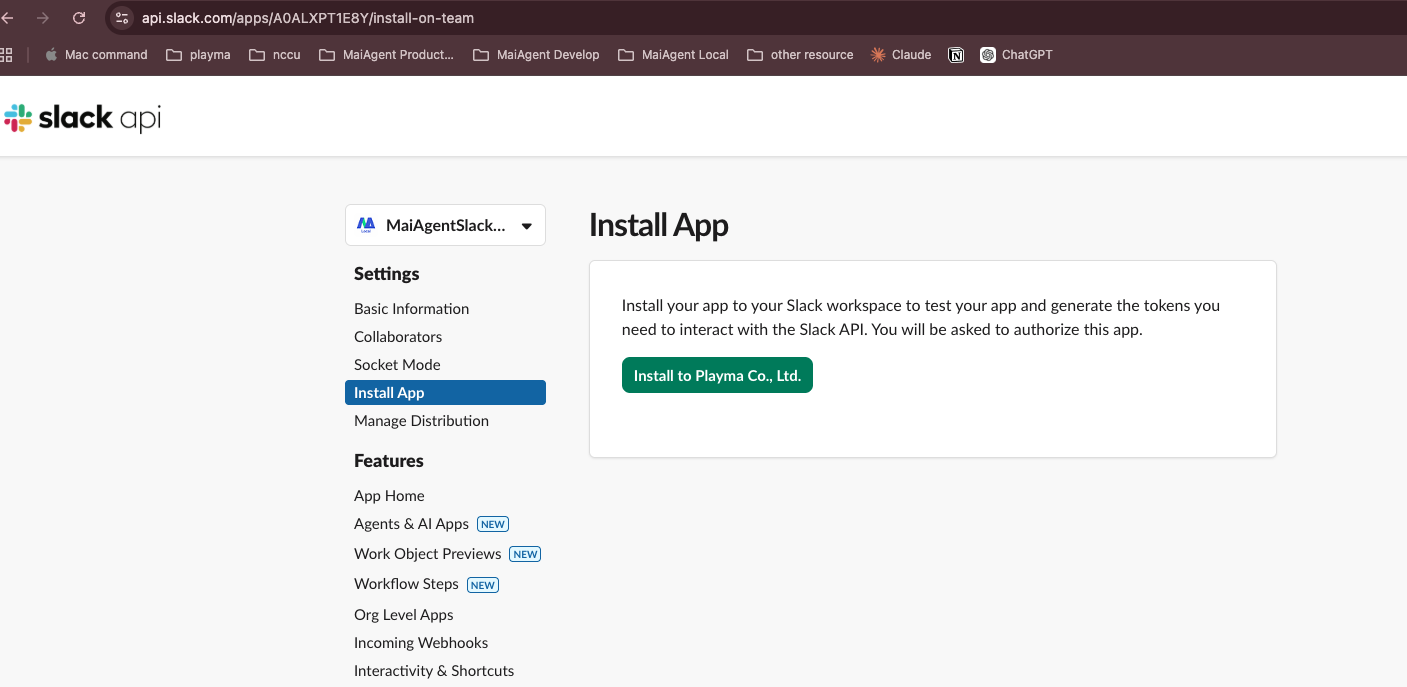
### 3. Install the App to the Workspace <a href="#step-install-app-to-workspace" id="step-install-app-to-workspace"></a>

Scroll back to the top of the page and click <mark style="color:blue;">Install to Workspace</mark> (or Reinstall to Workspace).

<figure><img src="https://1360999650-files.gitbook.io/~/files/v0/b/gitbook-x-prod.appspot.com/o/spaces%2F6v6TNkkOQVfRYfcNirHL%2Fuploads%2Fgit-blob-5b4dc93fd2fa5c1286e543b1825cfd92049da9e9%2Fslack-install-app.png?alt=media" alt=""><figcaption><p>Install App page</p></figcaption></figure>

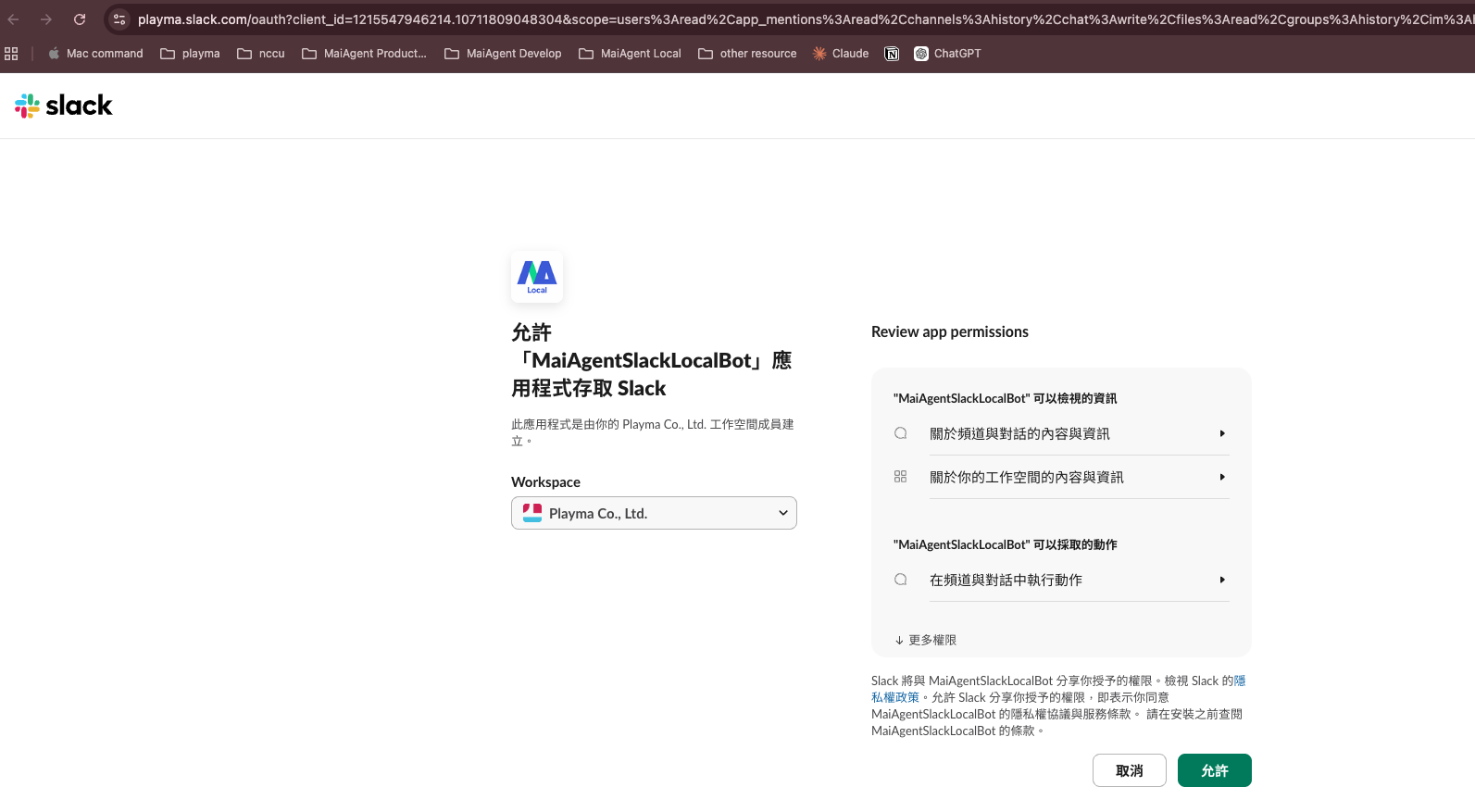
Slack redirects you to the authorization page. After reviewing the permissions, click <mark style="color:blue;">Allow</mark>.

<figure><img src="https://1360999650-files.gitbook.io/~/files/v0/b/gitbook-x-prod.appspot.com/o/spaces%2F6v6TNkkOQVfRYfcNirHL%2Fuploads%2Fgit-blob-daf77d582ca9b5f01416b59e0c1c2733cf9b8d4d%2Fslack-authorize.png?alt=media" alt=""><figcaption><p>Authorize the App to access the Workspace</p></figcaption></figure>

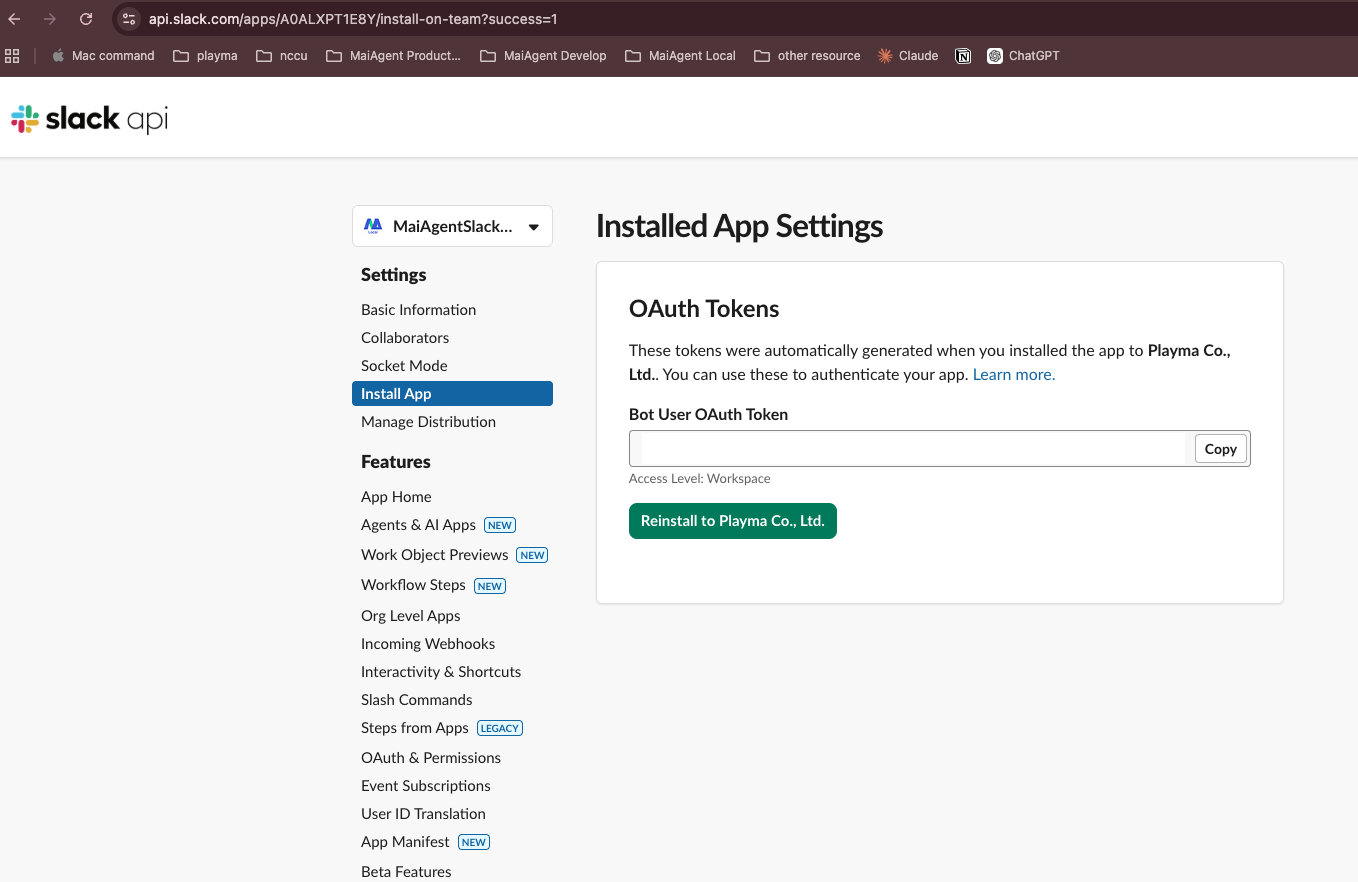
### 4. Copy the Bot User OAuth Token <a href="#step-copy-bot-user-oauth-token" id="step-copy-bot-user-oauth-token"></a>

After installation, return to the <mark style="color:blue;">OAuth & Permissions</mark> page and copy the <mark style="color:blue;">Bot User OAuth Token</mark> (in the format `xoxb-...`).

<figure><img src="https://1360999650-files.gitbook.io/~/files/v0/b/gitbook-x-prod.appspot.com/o/spaces%2F6v6TNkkOQVfRYfcNirHL%2Fuploads%2Fgit-blob-0497bc9b32949a666883cab21c8da7cdbc013795%2Fslack-bot-token.png?alt=media" alt=""><figcaption><p>Copy the Bot User OAuth Token</p></figcaption></figure>

***

## Step 3: Configure App Home (Enable Direct Messages) <a href="#step-configure-app-home" id="step-configure-app-home"></a>

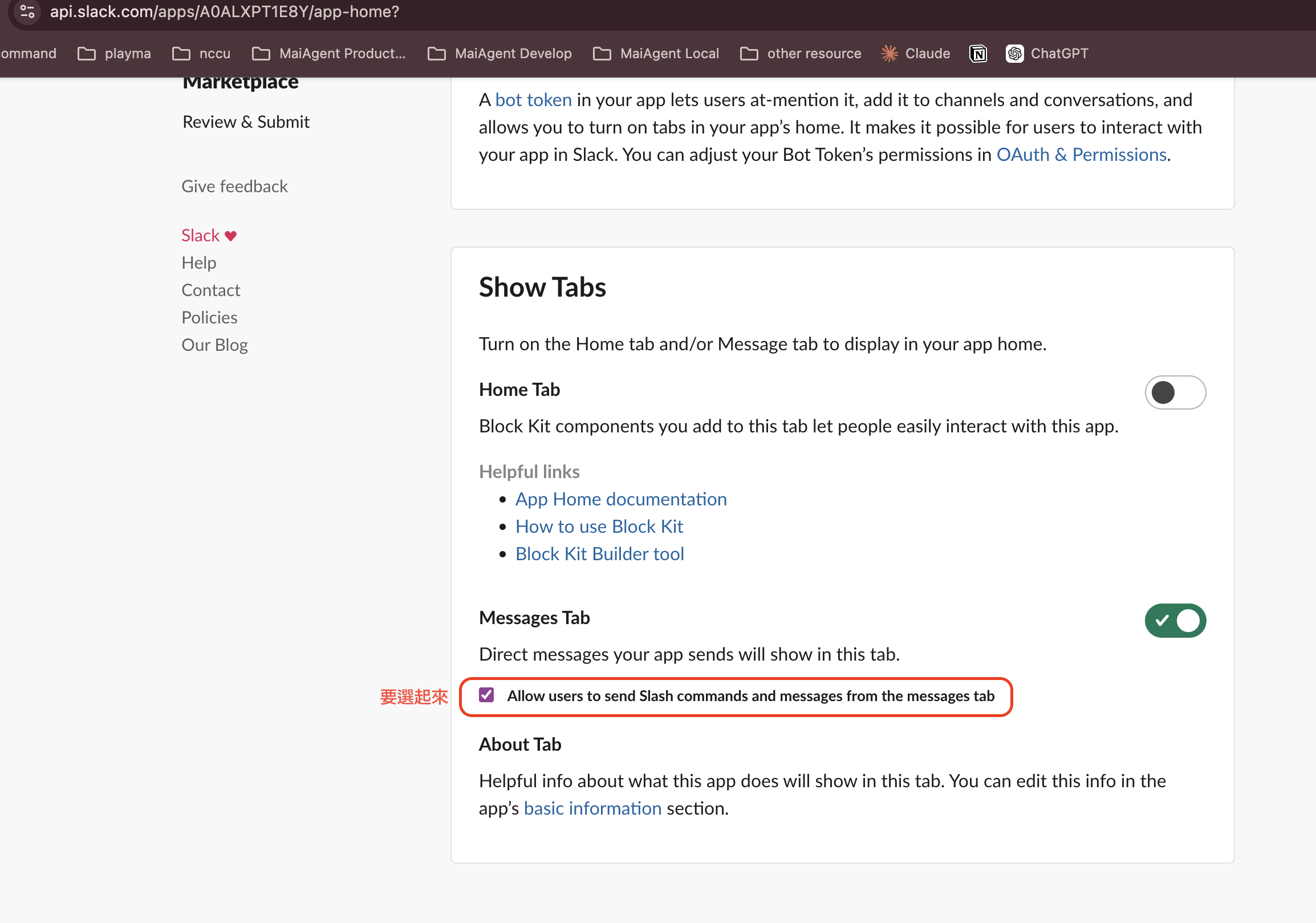
Go to the <mark style="color:blue;">App Home</mark> page in the left menu. In the **Show Tabs** section:

1. Turn on <mark style="color:blue;">Messages Tab</mark>
2. Check <mark style="color:blue;">Allow users to send Slash commands and messages from the messages tab</mark>

<figure><img src="https://1360999650-files.gitbook.io/~/files/v0/b/gitbook-x-prod.appspot.com/o/spaces%2F6v6TNkkOQVfRYfcNirHL%2Fuploads%2Fgit-blob-2d94bf960a8fc3380a7d7558b963b1047874fd5e%2Fslack-app-home-messages.png?alt=media" alt=""><figcaption><p>Enable the Messages Tab so users can send direct messages to the Bot</p></figcaption></figure>

{% hint style="warning" %}
You must complete this step; otherwise, users cannot interact with the Bot through direct messages.
{% endhint %}

***

## Step 4: Create a Slack Chat Platform in MaiAgent <a href="#step-create-slack-channel-in-maiagent" id="step-create-slack-channel-in-maiagent"></a>

### 1. Go to Connect Chat Platform <a href="#step-go-to-channel-integration" id="step-go-to-channel-integration"></a>

In the MaiAgent left menu, click <mark style="color:blue;">Chat Platforms</mark>, click <mark style="color:blue;">Connect Chat Platform</mark> in the upper right corner, and select <mark style="color:blue;">Slack</mark>.

### 2. Fill in the basic settings <a href="#step-fill-basic-settings" id="step-fill-basic-settings"></a>

| Field                    | Description                                            |
| ------------------------ | ------------------------------------------------------ |
| **Name**                 | Give this integration a name (required)                |
| **AI Assistant**         | Select the Agent to bind                               |
| **Bot User OAuth Token** | Paste the Bot Token obtained in Step 2 (required)      |
| **Signing Secret**       | Paste the Signing Secret obtained in Step 1 (required) |

### 3. Verify credentials <a href="#step-verify-credentials" id="step-verify-credentials"></a>

Click the <mark style="color:blue;">Verify Credentials</mark> button to confirm that the Token and Secret are correct.

### 4. Chat room settings <a href="#step-chat-room-settings" id="step-chat-room-settings"></a>

| Setting                                    | Description                                                                 |
| ------------------------------------------ | --------------------------------------------------------------------------- |
| **Respond only when @mentioned in groups** | When enabled, the Bot responds in group channels only when it is @mentioned |
| **Enable reset command**                   | When enabled, users can restart the conversation with a command             |

### 5. Save and get the Webhook URL <a href="#step-save-and-get-webhook-url" id="step-save-and-get-webhook-url"></a>

Click <mark style="color:blue;">Connect Chat Platform</mark> to finish creating it. The system generates a **Webhook URL**; copy it for later use.

***

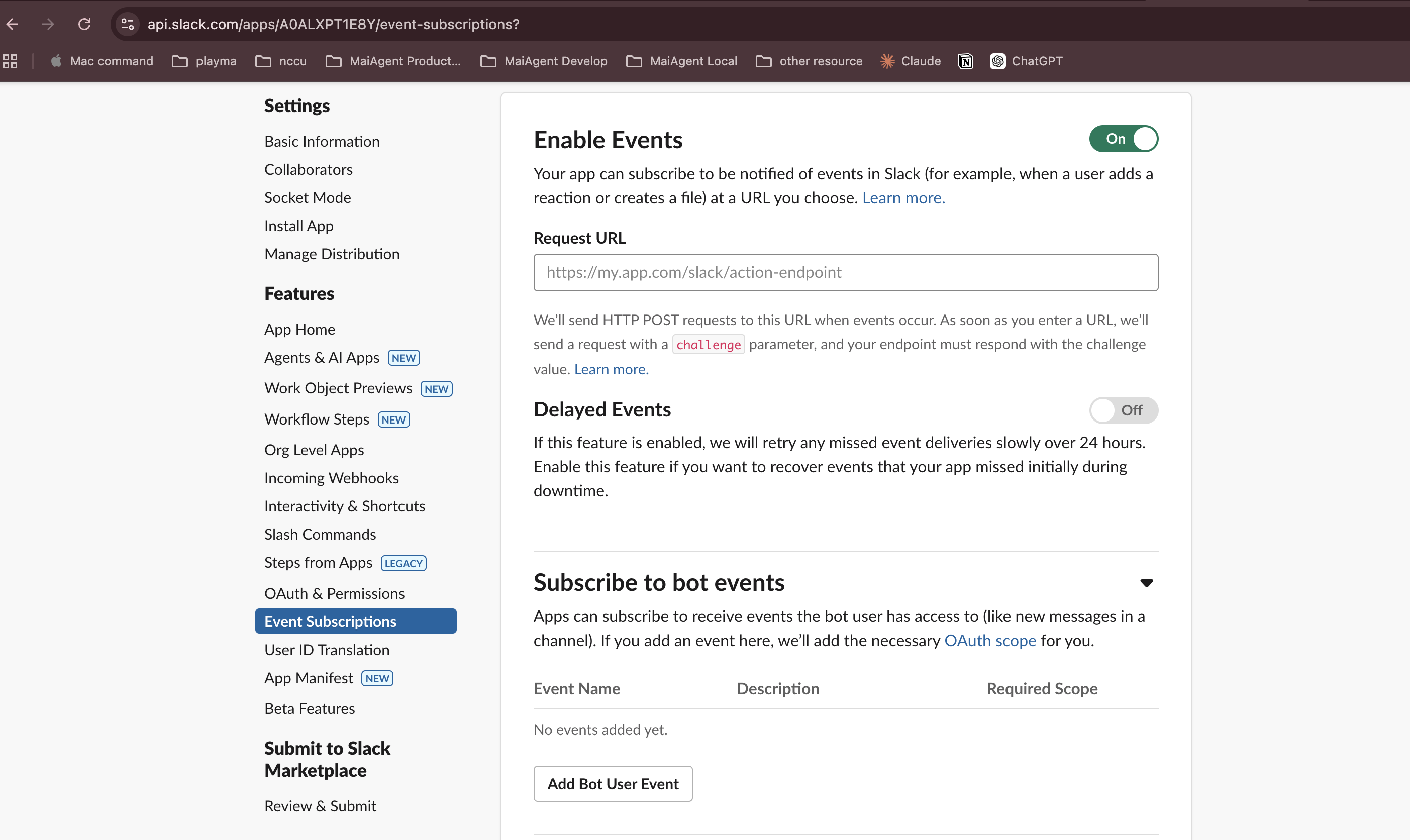
## Step 5: Return to the Slack App to Configure Event Subscriptions <a href="#step-configure-event-subscriptions" id="step-configure-event-subscriptions"></a>

### 1. Enable Events <a href="#step-enable-events" id="step-enable-events"></a>

In the Slack App left menu, click <mark style="color:blue;">Event Subscriptions</mark> and turn on <mark style="color:blue;">Enable Events</mark>.

<figure><img src="https://1360999650-files.gitbook.io/~/files/v0/b/gitbook-x-prod.appspot.com/o/spaces%2F6v6TNkkOQVfRYfcNirHL%2Fuploads%2Fgit-blob-589c809a1adab5265cedad08dadedf9699b1cfeb%2Fslack-event-subscriptions.png?alt=media" alt=""><figcaption><p>Event Subscriptions settings page</p></figcaption></figure>

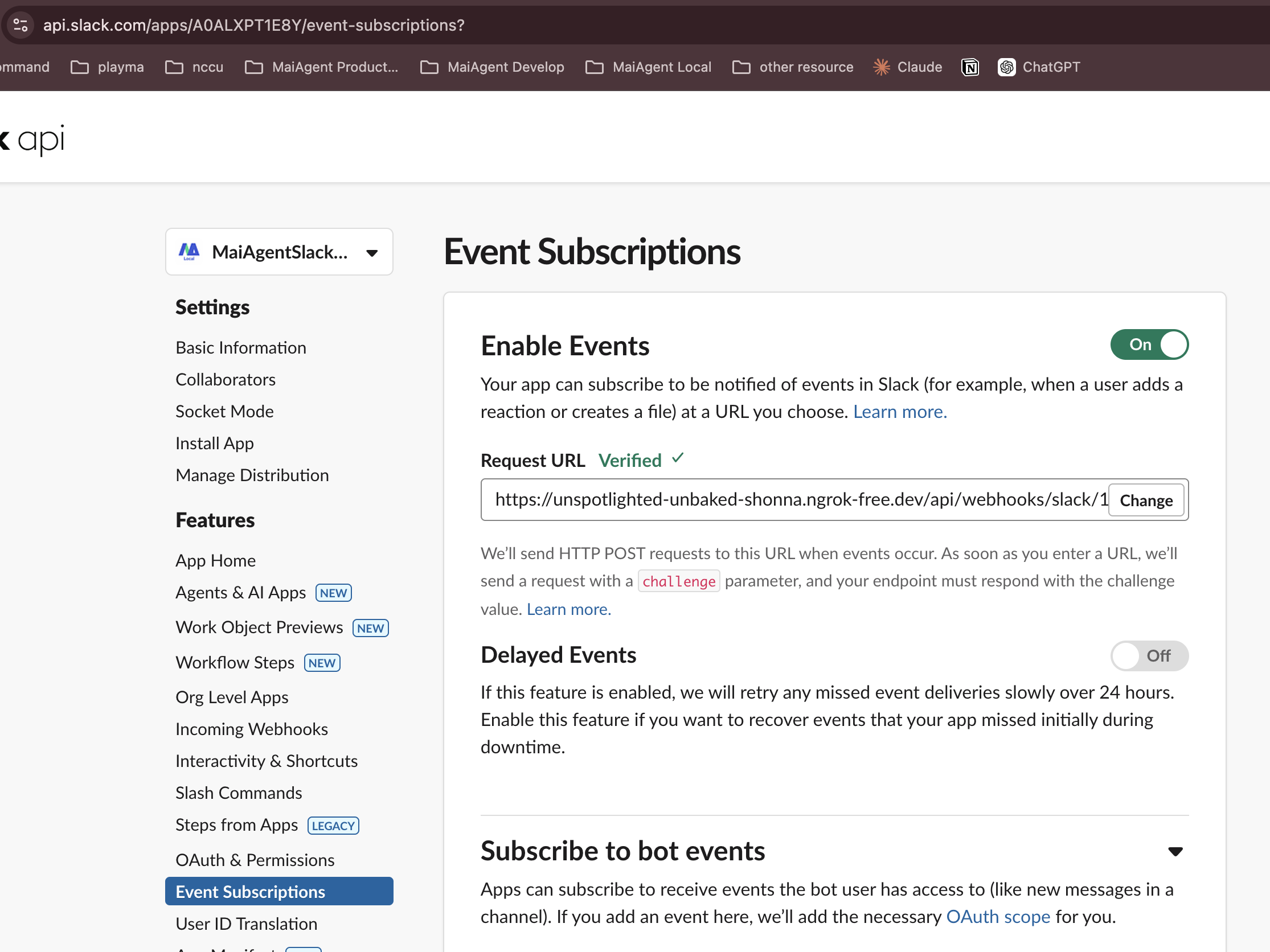
### 2. Paste the Request URL <a href="#step-paste-request-url" id="step-paste-request-url"></a>

Paste the **Webhook URL** generated by MaiAgent into the <mark style="color:blue;">Request URL</mark> field. Slack verifies it automatically, and <mark style="color:green;">Verified ✓</mark> indicates that the setup succeeded.

<figure><img src="https://1360999650-files.gitbook.io/~/files/v0/b/gitbook-x-prod.appspot.com/o/spaces%2F6v6TNkkOQVfRYfcNirHL%2Fuploads%2Fgit-blob-0166cb7b78b16d9424fb3d506b972ab76f6ed744%2Fslack-event-verified.png?alt=media" alt=""><figcaption><p>Request URL verified successfully</p></figcaption></figure>

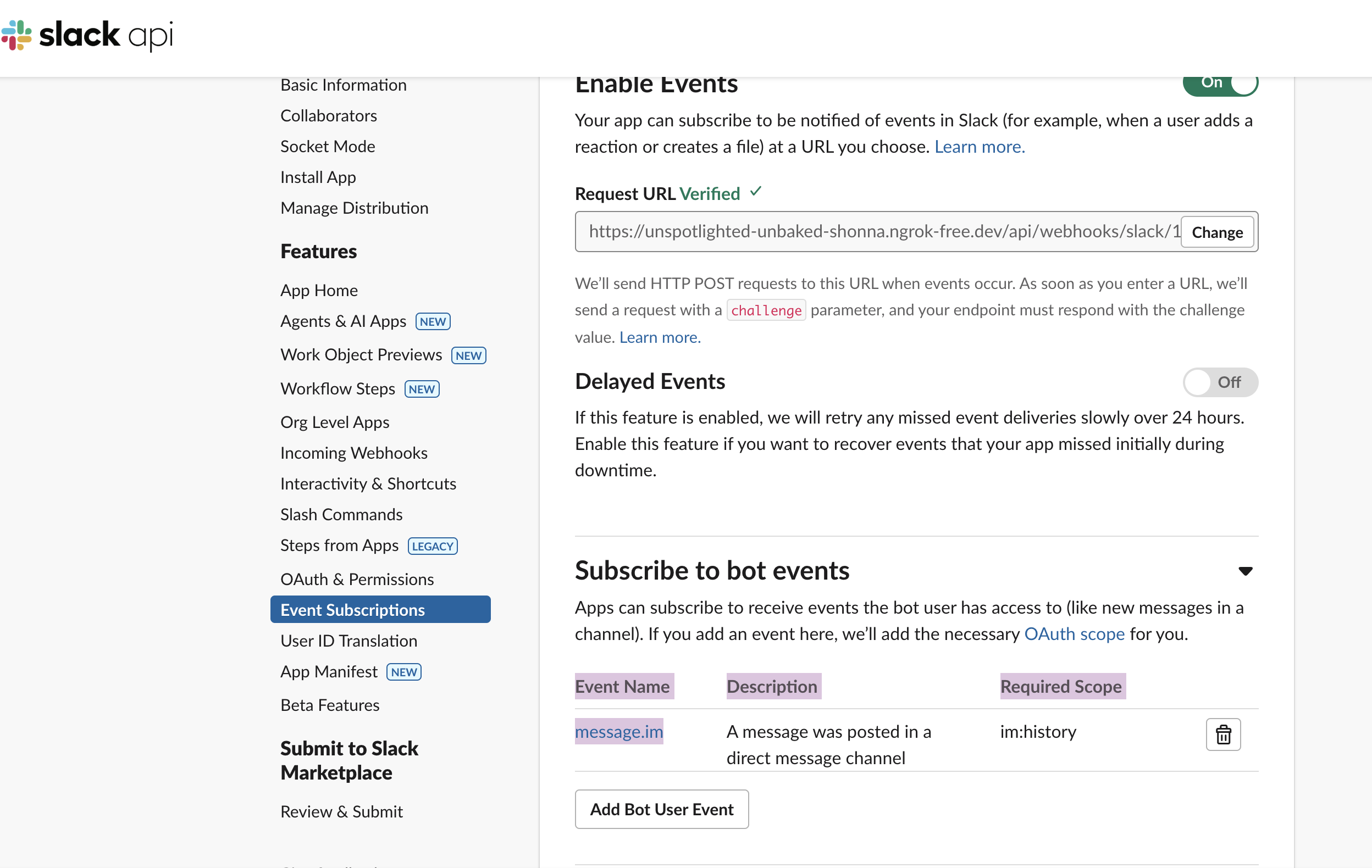
### 3. Subscribe to Bot Events <a href="#step-subscribe-bot-events" id="step-subscribe-bot-events"></a>

Expand the **Subscribe to bot events** section, click <mark style="color:blue;">Add Bot User Event</mark>, and add the following events:

| Event              | Description                           |
| ------------------ | ------------------------------------- |
| `message.im`       | New messages in direct messages       |
| `message.channels` | New messages in public channels       |
| `message.groups`   | New messages in private channels      |
| `message.mpim`     | New messages in group direct messages |
| `app_mention`      | @mentioned in a channel               |

<figure><img src="https://1360999650-files.gitbook.io/~/files/v0/b/gitbook-x-prod.appspot.com/o/spaces%2F6v6TNkkOQVfRYfcNirHL%2Fuploads%2Fgit-blob-a739fd3cc31beba2fbb8aa335c6a9ca7bb6fd79f%2Fslack-event-bot-events.png?alt=media" alt=""><figcaption><p>Subscribe to Bot Events</p></figcaption></figure>

### 4. Save changes <a href="#step-save-changes" id="step-save-changes"></a>

Click <mark style="color:blue;">Save Changes</mark> to finish the configuration.

{% hint style="warning" %}
After saving, Slack may ask you to reinstall the App. Click the prompt at the top of the page to reinstall and apply the new permissions.
{% endhint %}

***

## Getting Started <a href="#getting-started" id="getting-started"></a>

Once the integration is complete, you can interact with the Agent in the following ways:

### Direct message conversations <a href="#direct-message-conversation" id="direct-message-conversation"></a>

Send a direct message to the Bot in Slack, and the Agent replies automatically. Text, images, and files are supported.

### File upload and analysis <a href="#file-upload-and-analysis" id="file-upload-and-analysis"></a>

Users can upload files such as Excel and PDF in a conversation. The Agent can read the file contents and answer related questions.

### Channel @mentions <a href="#channel-mention" id="channel-mention"></a>

In a channel, type `@BotName your question`, and the Agent replies in the channel.

{% hint style="info" %}
To add the Bot to a specific channel, type `/invite @BotName` in that channel, or add it from the channel settings → Integrations → Add apps.
{% endhint %}


---

# Agent Instructions
This documentation is published with GitBook. GitBook is the documentation platform designed so that both humans and AI agents can read, navigate, and reason over technical content effectively. Learn more at gitbook.com.

## Querying This Documentation
If you need additional information that is not directly available in this page, you can query the documentation by asking a question.

Perform an HTTP GET request on the following URL with the `ask` and `goal` query parameters:

```
GET https://docs.maiagent.ai/maiagent-user-guide/en/build/choose-channel/slack.md?ask=<question>&goal=<user_goal>
```

`ask` is the immediate question: it should be specific, self-contained, and written in natural language.
`goal` is what the user is ultimately trying to achieve, the reason they need the answer. Sharing it helps GitBook give you a better, more relevant answer. A goal is most helpful when it describes the outcome the user wants rather than restating the question. For example, with `ask=how do I create an API token`, a goal like `automate deployments from our CI pipeline` lets GitBook tailor the answer to that use case.

The response will contain a direct answer to the question and relevant excerpts and sources from the documentation.

Use this mechanism when the answer is not explicitly present in the current page, you need clarification or additional context, or you want to retrieve related documentation sections.