> For the complete documentation index, see [llms.txt](https://docs.maiagent.ai/llms.txt). Markdown versions of documentation pages are available by appending `.md` to page URLs; this page is available as [Markdown](https://docs.maiagent.ai/maiagent-user-guide/en/build/choose-channel/line.md).
# Connect a Conversation Platform: LINE
Connect a LINE Official Account: get the Channel ID, Channel Secret, and Channel Access Token, set the Webhook URL, and optionally open Web Chat inside LINE with LIFF.
## Pre-Connection Checklist
* An "AI Assistant" has been created on the [MaiAgent platform](https://admin.maiagent.ai/)
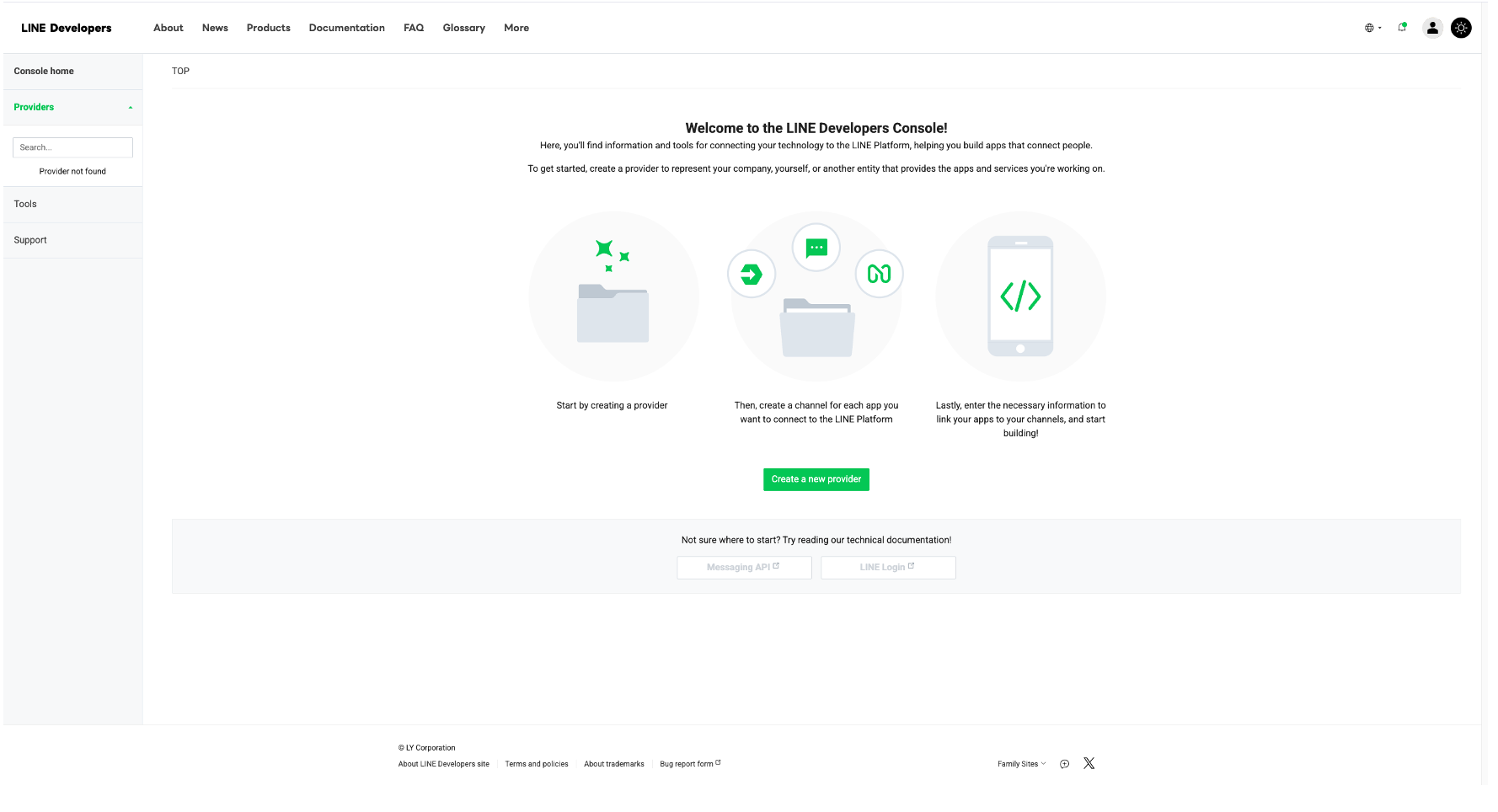
* A "Provider" and a LINE Official Account have been created on the [LINE Developers](https://developers.line.biz/zh-hant/) console
## Start Connection
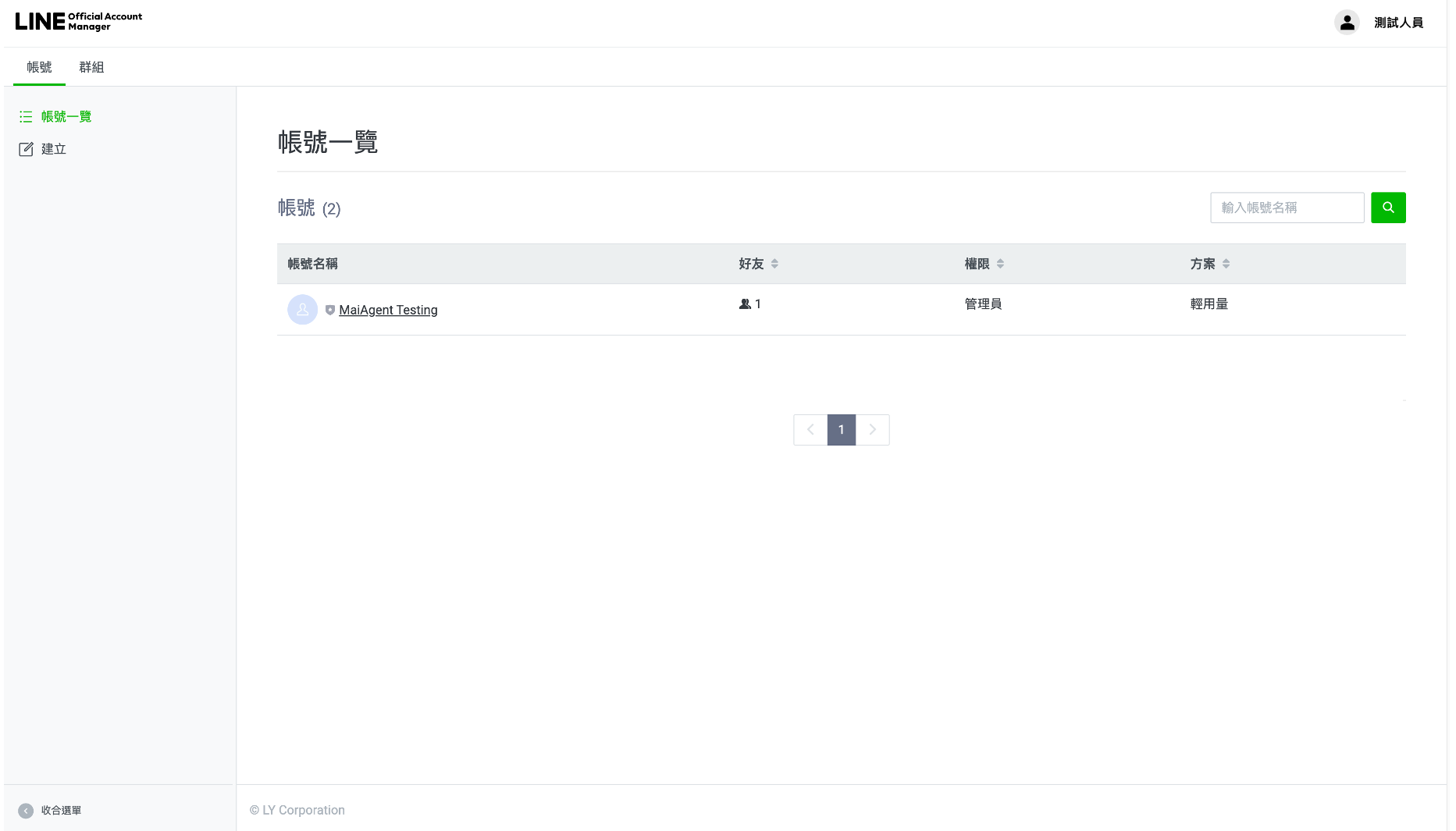
### 1. Go to and select the official account you want to connect
Click MaiAgent Testing:
After clicking, you will enter the official account settings page:
### 2. Click Settings in the upper right corner
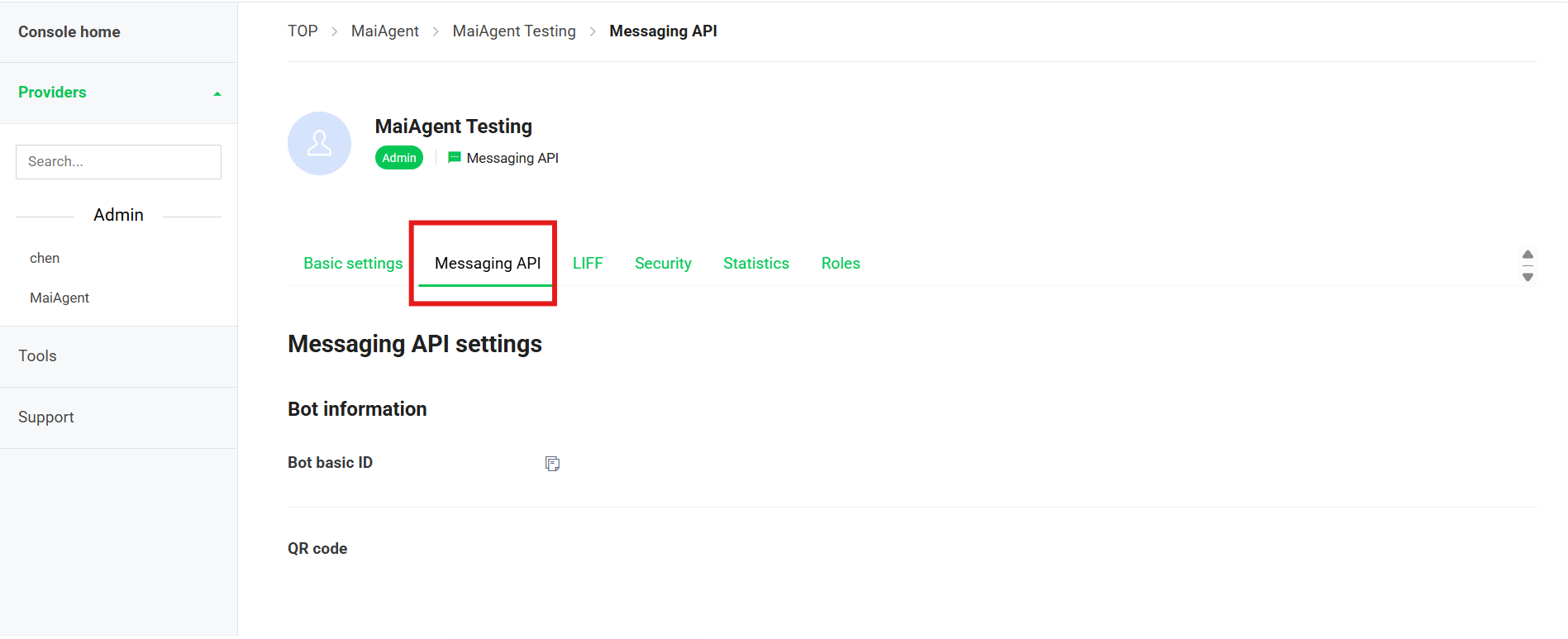
Then, on the following page, click Messaging API in the left menu:
### 3. Enable the Messaging API service
a. Click Enable Messaging API
b. Select the Provider you just created (if you haven't created one yet, you can still create a Provider on this page)
After selecting, click Agree
c. Enter a privacy policy and other documents (optional)
Next, you can enter the URLs of your company's privacy policy and other documents. When finished, click "OK" to go to the final confirmation step.
{% hint style="danger" %}
Before clicking OK, double-check that you have selected the correct Provider. It cannot be changed after you click OK.
{% endhint %}
### 4. Get the Channel ID, Channel Secret, and Channel Access Token
a. After clicking OK, you can get the Channel ID and Channel secret of the Messaging API service:
b. Return to the [LINE Developers ](https://developers.line.biz/console/)page to get the Channel Access Token
Open the MaiAgent Provider you just created
c. Find the MaiAgent Testing Channel you just created and click to open it
d. Switch to the Messaging API tab and scroll down to the Channel access token section
e. Issue the Channel access token and copy it
If you have not issued a Channel access token yet, click Issue:
You can then copy and use your Channel access token:
### 5. Go to your MaiAgent chat platforms and select LINE
a. Click Connect Chat Platform in the upper right corner
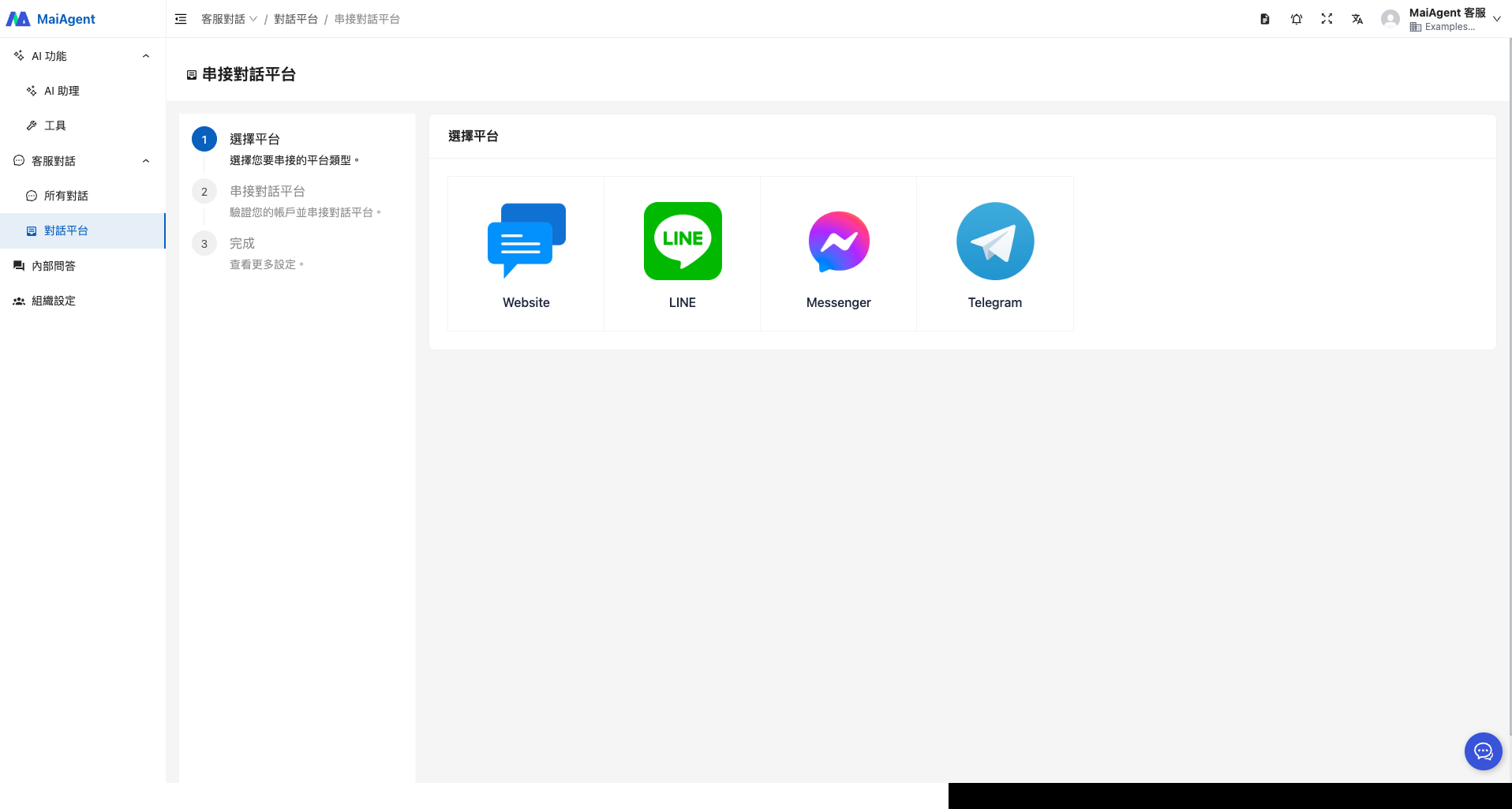
b. Select LINE as the platform to connect
### 6. Enter a name, select an Agent, and paste the **Channel ID, Channel Secret, and** Channel Access Token you just obtained
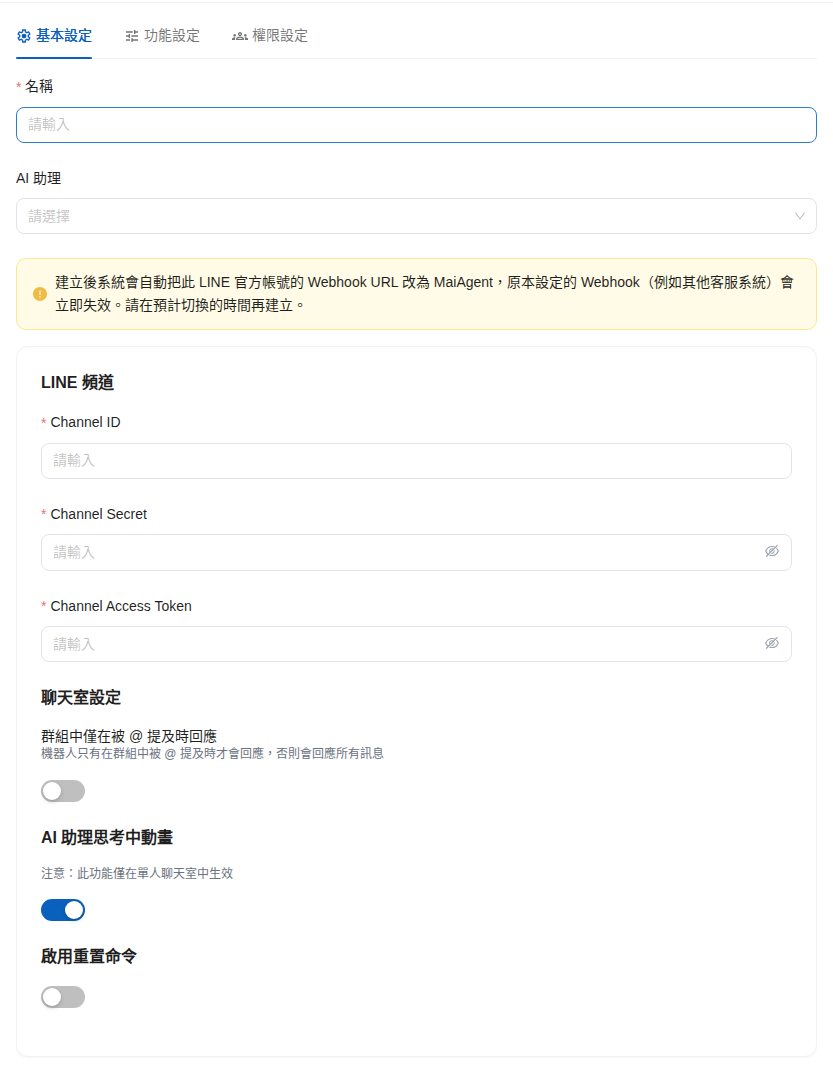
The creation form has three tabs: Basic Settings, Feature Settings, and Permission Settings. Fill in the following on Basic Settings:
| Field | Description |
| ----------------------------------------------------------------------------------------------------- | ----------------------------------------------------------------------------------------------------------------------------------------------------------------------------------------------------------------------------------------------------------------------------------------------------------------------------- |
| Name | The name this chat platform displays in the admin console |
| AI Assistant | Select the Agent to connect (the one marked "Default" is the organization's default Agent) |
| LINE Channel | Paste the Channel ID, Channel Secret, and Channel Access Token you just obtained |
| Chat Room Settings › Respond only when @mentioned in groups | When on, the Agent responds only to messages that @mention it in LINE groups; when off, it responds to all messages in the group. See [Using in LINE Groups](#line-group) |
| AI Assistant Thinking Animation | On by default. After a user sends a message in a one-on-one chat, LINE immediately shows a loading animation until the Agent's reply is sent (up to 60 seconds). The screen notes that this feature only works in one-on-one chats and is not shown in groups. See [AI Assistant Thinking Animation](#line-loading-animation) |
| Enable Reset Command, Reset Command | When on, you can add one or more command texts (for example, "Start over"); when a user sends one of these texts in LINE, a new conversation is started for that user |
The Feature Settings tab has AI Interaction Features (Enable OCR) and AI Awareness Settings (Answer using system time + time zone, Answer using sender name). For their meaning, see [Feature Settings](/maiagent-user-guide/en/build/conversation-settings/platform-settings/function-settings.md#messaging-platform-switches). On the Permission Settings tab, choose which roles can see this platform; see [Chat Platform Settings Overview](/maiagent-user-guide/en/build/conversation-settings/platform-settings.md#tab-map). All of these can still be changed on the platform settings page after creation.
After filling in the credentials, you can first click Test Connection to confirm that LINE accepts the credentials (a successful test shows "Connection successful"), then click the "Connect Chat Platform" button in the lower right corner, and the chat platform is ready.
When creating a LINE chat platform, the AI Assistant Thinking Animation is on by default
#### AI Assistant Thinking Animation
This is the loading animation provided by LINE: after a user sends a message to the official account in a one-on-one chat, a loading animation first appears in the chat so the user knows the Agent is processing and does not think nothing is happening while waiting for a reply. The animation disappears when the Agent's reply is sent, and is shown for up to 60 seconds.
* **On by default**: It is on by default for newly created LINE chat platforms; existing LINE chat platforms have also been switched to on.
* **Shown only when the Agent replies automatically**: The animation is not shown when the conversation has been taken over by a human agent, automatic replies are turned off, or the current time is outside the automatic reply hours.
* **Not shown in groups**: LINE supports this animation only in one-on-one chats; groups and multi-person chat rooms are not affected.
If you do not want the animation, go to Chat Platforms, open the LINE platform, turn off AI Assistant Thinking Animation on the Basic Settings tab, and click Save.
### 7. Get the Webhook URL
Go to Chat Platforms, select the LINE channel you just created, click Actions, and get the Webhook URL in the API section
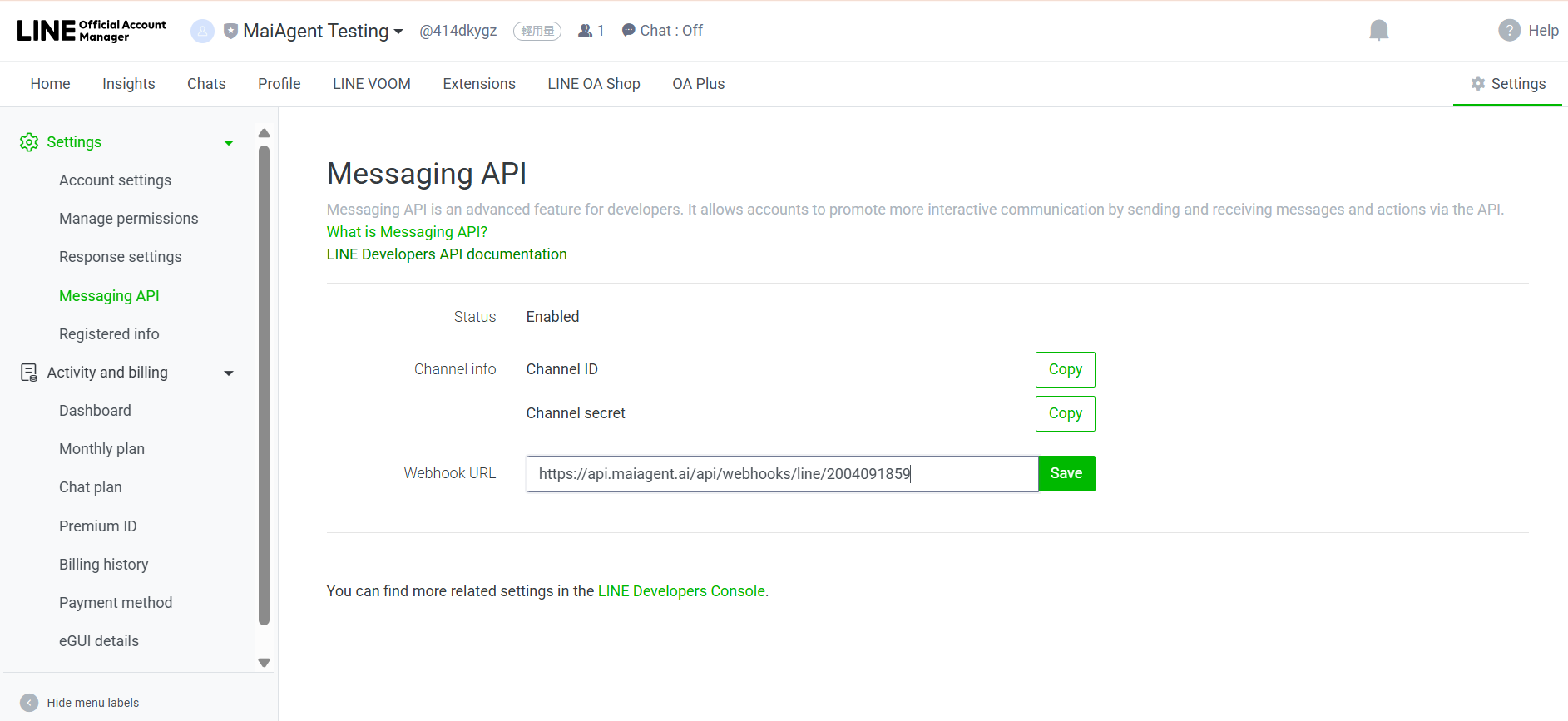
### 8. At , click "Settings/Messaging API" and paste the Webhook URL you just obtained
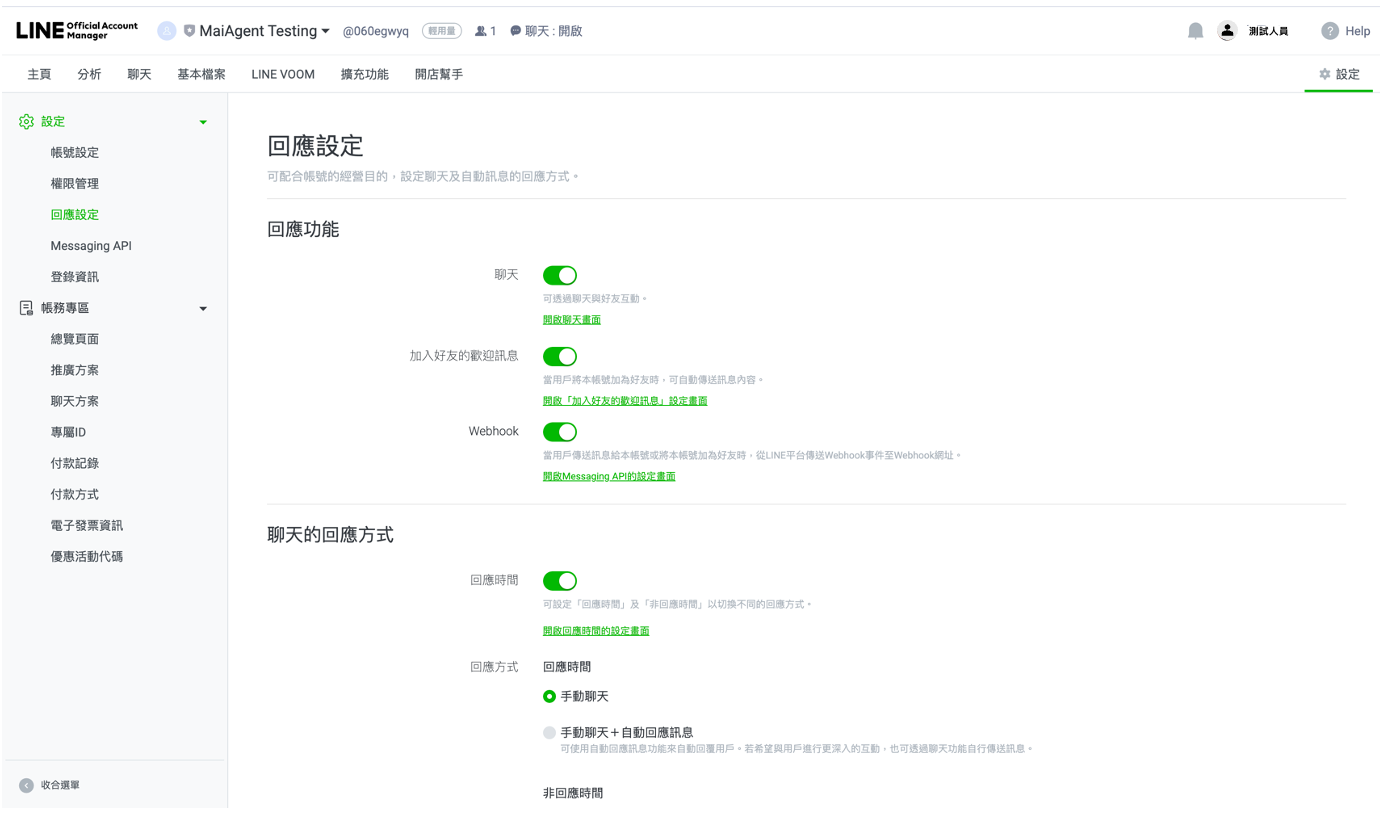
### 9. Adjust response settings: turn on Webhook and turn off auto-response messages
LINE Official Accounts have auto-response messages turned on by default. If you do not turn them off, LINE first replies with a default text when a user sends a message (for example, "Sorry, this account cannot reply to users' messages individually"). See [Receiving an Auto-Response Message from LINE](#line-auto-response).
Go to [LINE Official Account Manager](https://manager.line.biz/), click Settings in the upper right, then click Response settings on the left. You can also reach the same page from the Messaging API tab of the channel in [LINE Developers](https://developers.line.biz/console/) by clicking Edit next to Auto-reply messages.
Configure the settings as shown in the table below:
| Item | Setting | Description |
| ---------------------------------------------------------------------------------------------------------------------- | -------------------------------------------------------------------------------------------------------------------------------------------------------------------- | ------------------------------------------------------------------------------------------------------------------------------------ |
| Webhook | On | When off, LINE does not forward messages to MaiAgent |
| Auto-response messages (the switch when Chat is off) | Off | When on, LINE replies with a default text on its own |
| Response method (the option when Chat is on) | Select Manual chat for both Response hours and Non-response hours | If you select an option that includes "Auto-response messages", LINE replies on its own during that period |
| Greeting message | As needed | Sent by LINE when a user adds the account as a friend; the content is edited in the LINE admin console and is unrelated to the Agent |
Chat can be either on or off when used with MaiAgent. When on, support staff can see conversations in the LINE admin console and reply manually, and the Agent still replies to the same message as usual.
{% hint style="warning" %}
When the Response hours switch is on, the response method is split into two groups: "Response hours" and "Non-response hours". Select Manual chat for both groups; if you change only the response hours, auto-response messages will still appear in the evenings and on holidays.
{% endhint %}
Settings when Chat is on: Webhook on and the response method set to Manual chat; scroll down to confirm that Non-response hours is also set to Manual chat
### **10. Verify that the connection is successful**
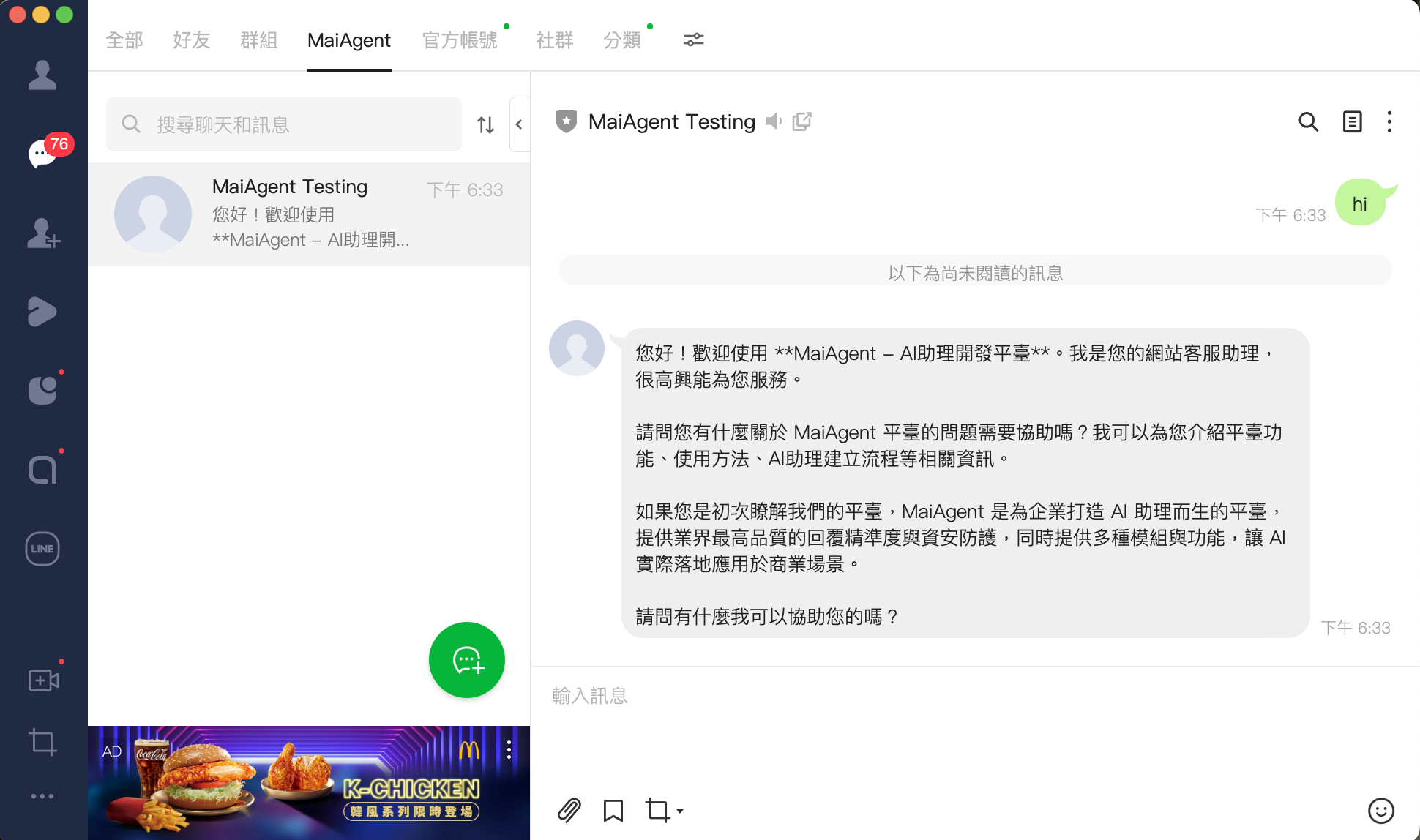
You can try adding your own LINE Official Account as a friend and chatting with the Agent
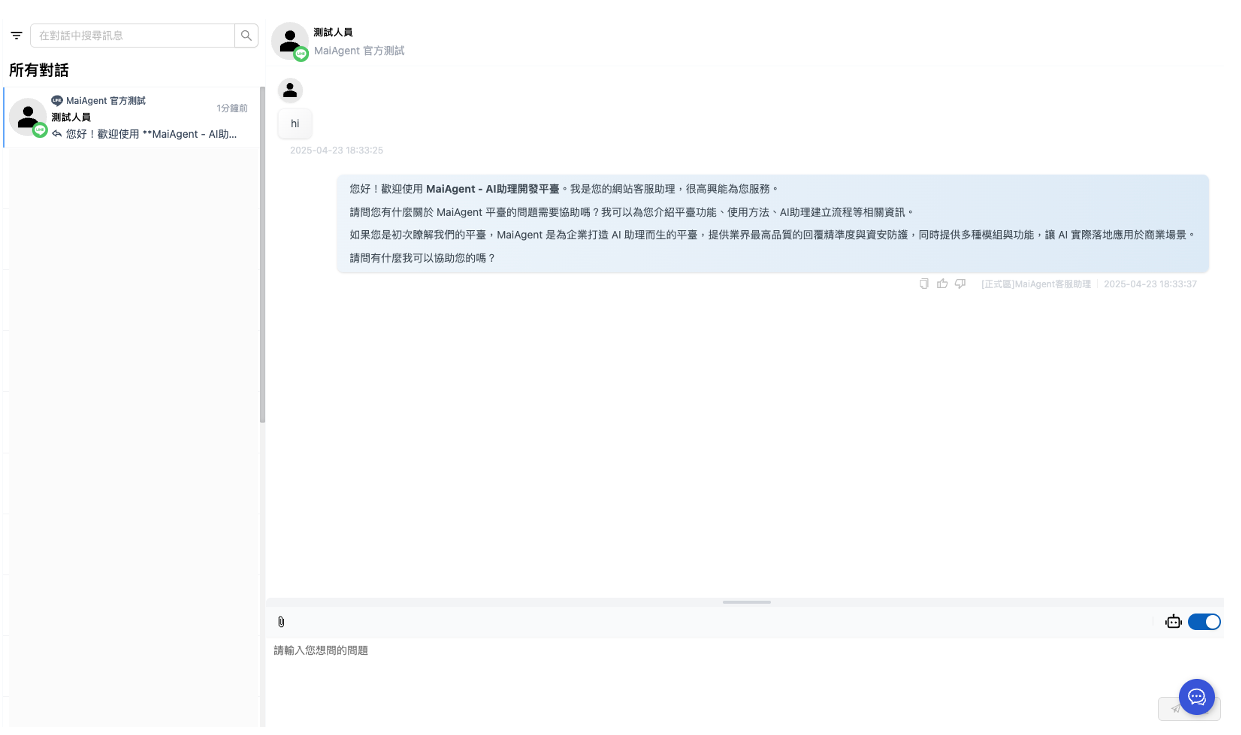
If the conversation can be viewed at and in All Conversations in MaiAgent, the connection is successful!
## Open Web Chat inside LINE (LINE LIFF)
If you want users to open the web chat window directly inside LINE (for example, from a rich menu, carrying the LINE identity), you can embed Web Chat with LINE LIFF. This requires creating a LIFF App in LINE Developers and setting its URL. For the steps, see the technical manual's [LINE LIFF: What is LINE LIFF](https://docs.maiagent.ai/tech/serve/whatislineliff).
## Monthly Message Quota
A LINE Official Account has a monthly limit on the number of messages it can push (depending on the plan you purchased from LINE). Open the Basic Settings tab of the LINE chat platform; the Monthly Message Quota card at the top queries LINE in real time and shows the Monthly Quota, Used This Month, and Remaining (plans with no limit show "Unlimited"). When the quota is used up, the card turns red with the warning "This month's LINE message quota has been used up": **during this period, neither AI nor human agent replies can reach LINE users**, and the corresponding messages on the conversation page are marked [Not delivered](/maiagent-user-guide/en/serve/daily-operations/reply.md#delivery-failed). Upgrade your plan in LINE Official Account Manager, or wait for the quota to reset next month.
For example, during an end-of-month promotion, an e-commerce customer service manager finds that some customers are complaining that they asked about their orders in LINE but received no reply. Checking All Conversations, the Agent's replies show "Not delivered: This month's LINE message quota has been used up" beneath them. After confirming in the LINE chat platform's Basic Settings that the monthly message quota is used up, the manager upgrades the plan in LINE Official Account Manager, and subsequent replies are sent normally.
## Message Format and Consecutive Messages
* **Markdown is automatically converted to plain text**: LINE does not render Markdown, so headings, bold/italic, links, tables, code, and other syntax in the Agent's replies are automatically converted to clean plain text before being sent to LINE (links become "text URL", and each table row becomes one bulleted line). You do not need to tell the Agent not to use Markdown in the role instructions. Text typed by human agents, Flex cards, and quick reply buttons are not affected. For details, see [Message Content Rendering Optimization: Messaging Channels](/maiagent-user-guide/en/build/choose-channel/web-chat/markdown-rendering.md#messaging-channels-plain-text)
* **Consecutive messages are merged into one turn**: When a user sends several images in a row in a one-on-one chat, or sends an image and then types text, the Agent waits for the whole series of messages to arrive and answers once (for messages containing only images or files, it answers about 4 seconds after the last message with no new messages, for at most about 20 seconds; it replies immediately when text is received; when multiple images are selected at once, it waits for the whole set to arrive), instead of replying to each image separately. Only one turn is processed at a time per conversation, and new messages that arrive before the previous turn finishes are queued behind it. Voice, stickers, videos, and locations are treated like text and answered immediately, and group conversations keep their original behavior
## Using in LINE Groups
After you add the official account to a LINE group, the Agent replies to every message in the group by default. To make the Agent reply only when addressed, go to All Conversations, open the group conversation, and turn on the "Respond only when @mentioned in groups" switch above the input box. See [All Conversations](/maiagent-user-guide/en/serve/daily-operations/reply.md).
Once enabled, group members can address the Agent in two ways:
| Method | How | Description |
| ----------- | --------------------------------------------------------------------------- | ------------------------------------------------------------------------------------------------------------------- |
| @ mention | Include "@official account display name" in the message | The name must exactly match the display name of the LINE Official Account |
| Quote reply | Press LINE's "Reply" on a message the Agent previously sent, then type text | No separate @ is needed. When the LINE desktop app cannot @ an official account, this is the most convenient method |
Rules for quote replies:
* Only quoting a **message sent by the Agent** counts as addressing it; quoting other members' messages does not trigger a reply.
* Only **text messages** count as addressing it. Replying to an Agent message with a sticker does not trigger a reply and does not consume Credits.
* The Agent's replies in a group are attached as quotes beneath the question message, making it easy to tell who is being answered. If the reply is slow and exceeds the time LINE allows for an immediate reply, it is sent as a regular message without a quote.
* One-on-one chats are not affected by these rules: the Agent replies to every message, and replies do not include a quote.
## What to Check, in Order, When the Agent Does Not Reply
When a user sends a message in LINE but the Agent does not reply, first go to All Conversations in MaiAgent to see whether the message arrived, then continue based on the result.
**The message does not appear in "All Conversations"** (MaiAgent did not receive it):
1. In the Messaging API settings of LINE Official Account Manager, check that the Webhook URL is the one provided by MaiAgent and has not been changed by another service; see [Step 8](#step-set-webhook-url-in-line). An official account can have only one Webhook URL.
2. Check that Webhook is turned on in the LINE response settings; see [Step 9](#step-configure-messaging-api-channel).
3. Check that the Channel ID, Channel Secret, and Channel Access Token entered in the MaiAgent chat platform match those in LINE Developers. If you reissue the Token or Secret on the LINE side, update them in MaiAgent.
**The message arrived, but the Agent did not reply**:
1. Check whether Auto Reply is turned off for this conversation, or whether the conversation has been taken over by a human agent. The Agent does not reply during a takeover; after handling, switch the conversation back to AI. See [All Conversations](/maiagent-user-guide/en/serve/daily-operations/reply.md#handoff-actions).
2. Check whether the current time falls within the automatic reply hours set on the chat platform; see [Website: Auto-Reply Settings](/maiagent-user-guide/en/build/choose-channel/web-chat/website.md#auto-reply-settings).
3. For group conversations, check whether "Respond only when @mentioned in groups" is turned on. When on, the Agent replies only if the official account is @mentioned or an Agent message is quoted; see [Using in LINE Groups](#line-group).
4. Check whether Enabled on the chat platform has been turned off; see [Feature Settings](/maiagent-user-guide/en/build/conversation-settings/platform-settings/function-settings.md#basic-functions).
5. Check whether the organization's Credits or this chat platform's quota has been used up. When the chat platform's quota is used up, the Agent pauses replies and users receive only a quota notice message; see [Chat Platform Credits Quota Management](/maiagent-user-guide/en/others/credits/inbox-credit-quota.md#quota-exceeded-behavior).
6. If you have configured [Hook Message Interception](/maiagent-user-guide/en/build/hook.md), check the [Hook Execution Logs](/maiagent-user-guide/en/build/hook/execution-logs.md) to confirm whether the message was blocked.
If everything above is normal and there is still no reply, note the conversation time and conversation URL and contact your MaiAgent representative for help.
## Receiving an Auto-Response Message from LINE
If a user receives the following text after sending a message, the LINE Official Account's auto-response message is still on. This text is sent by LINE, not by the Agent:
> Thank you for your message!\
> Sorry, this account cannot reply to users' messages individually.\
> Please look forward to our next broadcast.
How to fix it:
1. Follow [Step 9](#step-configure-messaging-api-channel) to turn off Auto-response messages. When Chat is on, set the response method for both Response hours and Non-response hours to Manual chat.
2. Confirm that Webhook is still on.
3. Send another message to test. When the settings are correct, you receive only the Agent's reply.
While Webhook is on, MaiAgent still receives and replies to messages, so before the settings are corrected, users may see both this text and the Agent's reply.
## User-Shared Locations
When a user shares a place in LINE using "Location", MaiAgent receives it into the conversation as a message: the message content is the place name and address (shown as "📍 Shared a location" if LINE does not provide them), and the latitude and longitude are recorded separately in the message's metadata (`latitude`, `longitude`).
To have the Agent answer based on the user's location (for example, recommending the nearest store), turn on the switch under [Feature Settings → Answer using location information](/maiagent-user-guide/en/build/conversation-settings/platform-settings/function-settings.md#gps-location) for this LINE chat platform. Once enabled, the Agent's replies include a "📍 Share location" quick reply button, and the user can tap it to send their current location to the Agent.
## ⚠️ Important Notes
**Limitations**
* A LINE group can have only one Agent added
* A newly added Agent causes the previous one to be removed automatically
### Sharing the Official Account with Other LINE Back-Office Services
A LINE Official Account can have only one Webhook URL at a time. If you set the Webhook directly to MaiAgent, LINE events are sent directly to MaiAgent and are not delivered to your existing third-party back office at the same time. As a result, features of the third-party back office that originally depend on the Webhook (for example, follow/block events, keyword filtering and tagging, delivery events, or conversation records) may no longer receive data; the actual impact still depends on that service's implementation.
Conversations that MaiAgent receives and processes are retained in MaiAgent's "All Conversations". If the existing third-party back office must also retain the features above, we recommend confirming the integration architecture before the official switchover. A common approach is to make the third-party service the LINE Webhook entry point, have it finish event and keyword processing first, and then forward the messages that need an AI reply to MaiAgent. This approach requires a custom integration, and the original LINE request body and the `X-Line-Signature` header must be preserved; the same reply token can also be used only once, so avoid having the two services reply to the same event twice.
MaiAgent's LINE replies are not limited to plain text. In addition to text and images, [FlexMessage cards and interactive buttons](/maiagent-user-guide/en/build/tools/agent-ui.md) configured in Agent UI are also supported, and you can guide users with image-and-text options. What is actually displayed depends on the Agent and Agent UI settings.
---
# Agent Instructions
This documentation is published with GitBook. GitBook is the documentation platform designed so that both humans and AI agents can read, navigate, and reason over technical content effectively. Learn more at gitbook.com.
## Querying This Documentation
If you need additional information that is not directly available in this page, you can query the documentation by asking a question.
Perform an HTTP GET request on the following URL with the `ask` and `goal` query parameters:
```
GET https://docs.maiagent.ai/maiagent-user-guide/en/build/choose-channel/line.md?ask=&goal=
```
`ask` is the immediate question: it should be specific, self-contained, and written in natural language.
`goal` is what the user is ultimately trying to achieve, the reason they need the answer. Sharing it helps GitBook give you a better, more relevant answer. A goal is most helpful when it describes the outcome the user wants rather than restating the question. For example, with `ask=how do I create an API token`, a goal like `automate deployments from our CI pipeline` lets GitBook tailor the answer to that use case.
The response will contain a direct answer to the question and relevant excerpts and sources from the documentation.
Use this mechanism when the answer is not explicitly present in the current page, you need clarification or additional context, or you want to retrieve related documentation sections.
.png?alt=media)
.png?alt=media)
.png?alt=media)
.png?alt=media)
.png?alt=media)
.png?alt=media)
.png?alt=media)
.png?alt=media)
.png?alt=media)
.png?alt=media)
.png?alt=media)
.png?alt=media)
.png?alt=media)