> For the complete documentation index, see [llms.txt](https://docs.maiagent.ai/llms.txt). Markdown versions of documentation pages are available by appending `.md` to page URLs; this page is available as [Markdown](https://docs.maiagent.ai/maiagent-user-guide/en/build/agent/setup.md).

# Create an Agent

Steps for creating an Agent and the purpose of each tab on the Agent settings page

This page walks you through creating an Agent from scratch. Before you start, review the settings map below to see what each tab controls and where to find the details.

## Settings Map <a href="#settings-map" id="settings-map"></a>

The settings dialog that opens when you create an Agent and the “<mark style="color:blue;">Settings</mark>” tab you open later from the Agent list share the same navigation on the left: 5 groups with 12 tabs in total.

| Group                                                     | Tab                                                      | What it controls                                                                                                                                                                                                                                                                                         | Details                                                                                                                                                                                                                                                                                 |
| --------------------------------------------------------- | -------------------------------------------------------- | -------------------------------------------------------------------------------------------------------------------------------------------------------------------------------------------------------------------------------------------------------------------------------------------------------- | --------------------------------------------------------------------------------------------------------------------------------------------------------------------------------------------------------------------------------------------------------------------------------------- |
| <mark style="color:blue;">Basic</mark>                    | <mark style="color:blue;">Basic Settings</mark>          | Name, <mark style="color:blue;">LLM Model</mark>, and <mark style="color:blue;">Fallback Model Group</mark>; <mark style="color:blue;">Thinking Effort</mark> also appears when the model supports it                                                                                                    | [Select a model](#language-model-settings), [Model access permissions](/maiagent-user-guide/en/org/model-access.md)                                                                                                                                                                     |
| <mark style="color:blue;">Basic</mark>                    | <mark style="color:blue;">Response Mode Settings</mark>  | Response mode, <mark style="color:blue;">System Prompt</mark>, <mark style="color:blue;">Enable Inline Citations</mark>, and response templates for template and hybrid modes; <mark style="color:blue;">Voice Assistant Settings</mark> are also here if your organization has enabled voice assistants | [Response modes](#select-answer-mode-to-build-prompt), [Voice assistants](/maiagent-user-guide/en/build/agent/voice-agent.md)                                                                                                                                                           |
| <mark style="color:blue;">Knowledge and Data</mark>       | <mark style="color:blue;">Knowledge Base Settings</mark> | Select the knowledge bases the Agent references when answering                                                                                                                                                                                                                                           | [Configure knowledge bases](#rag-settings), [Knowledge bases](/maiagent-user-guide/en/build/knowledge-base.md)                                                                                                                                                                          |
| <mark style="color:blue;">Knowledge and Data</mark>       | <mark style="color:blue;">Tag Filtering</mark>           | Limit the Agent to files that match the tag conditions                                                                                                                                                                                                                                                   | [Knowledge base tag filtering](/maiagent-user-guide/en/build/agent/label-filter.md)                                                                                                                                                                                                     |
| <mark style="color:blue;">Knowledge and Data</mark>       | <mark style="color:blue;">Database Settings</mark>       | Link databases to query with Text to SQL (Agent mode only)                                                                                                                                                                                                                                               | [Create and configure databases](/maiagent-user-guide/en/build/database/create-database.md)                                                                                                                                                                                             |
| <mark style="color:blue;">Capability Extensions</mark>    | <mark style="color:blue;">Tools</mark>                   | Select tools the Agent can call (Agent mode only)                                                                                                                                                                                                                                                        | [Configure tools for an Agent](/maiagent-user-guide/en/build/tools/configure_tools.md)                                                                                                                                                                                                  |
| <mark style="color:blue;">Capability Extensions</mark>    | <mark style="color:blue;">MaiGPT Connectors</mark>       | Bind connectors for use in all conversations with this Agent (Agent mode only)                                                                                                                                                                                                                           | [Manage connectors (administrators)](/maiagent-user-guide/en/work/maigpt/connectors/connectors-admin.md)                                                                                                                                                                                |
| <mark style="color:blue;">Capability Extensions</mark>    | <mark style="color:blue;">Skill Settings</mark>          | Attach skills for the Agent to use                                                                                                                                                                                                                                                                       | [Skills](/maiagent-user-guide/en/build/skills.md)                                                                                                                                                                                                                                       |
| <mark style="color:blue;">Capability Extensions</mark>    | <mark style="color:blue;">Hook</mark>                    | Apply Hooks that run when a user message is received, after an AI response is generated, or after a conversation ends (shown only if you have Hook access permissions)                                                                                                                                   | [Add and configure Hooks](/maiagent-user-guide/en/build/hook/setup.md)                                                                                                                                                                                                                  |
| <mark style="color:blue;">Interface and Experience</mark> | <mark style="color:blue;">Agent UI</mark>                | Select interactive components the Agent can output in responses (Agent mode only)                                                                                                                                                                                                                        | [Agent UI](/maiagent-user-guide/en/build/tools/agent-ui.md)                                                                                                                                                                                                                             |
| <mark style="color:blue;">Management and Advanced</mark>  | <mark style="color:blue;">Permission Settings</mark>     | Specify which roles' members can use this Agent                                                                                                                                                                                                                                                          | [Pre-assign Agent permissions](#pre-assign-agent-permissions)                                                                                                                                                                                                                           |
| <mark style="color:blue;">Management and Advanced</mark>  | <mark style="color:blue;">Advanced Settings</mark>       | Maximum number of retrieval chunks, output length controls, Agent workflow settings, conversation memory settings (including Embedding and Reranker models), persistent memory, automatic evaluations, and more; default values usually suffice                                                          | [Response length and Agent execution limits](/maiagent-user-guide/en/build/agent/custom-max-tokens.md), [Cross-conversation retrieval](/maiagent-user-guide/en/build/agent/cross-conversation-search.md), [Persistent memory](/maiagent-user-guide/en/build/agent/persistent-memory.md) |

{% hint style="info" %}
Tabs marked “Agent mode only” remain accessible in other response modes, but display only a notice and a <mark style="color:blue;">Go to Response Mode Settings</mark> button. Switch to Agent mode to configure them.
{% endhint %}

### Tabs at the Top of the Settings Page <a href="#page-tabs" id="page-tabs"></a>

After creating an Agent, open it from the Agent list to see the following tabs at the top of the page:

| Tab                                                     | What it controls                                                                                                                                                                                                        | Details                                                                           |
| ------------------------------------------------------- | ----------------------------------------------------------------------------------------------------------------------------------------------------------------------------------------------------------------------- | --------------------------------------------------------------------------------- |
| <mark style="color:blue;">Settings</mark>               | The 12 tabs in the settings map above                                                                                                                                                                                   | This page                                                                         |
| <mark style="color:blue;">Usage Analytics</mark>        | This Agent's <mark style="color:blue;">Usage Statistics</mark>; <mark style="color:blue;">Monitoring Metrics</mark> are also available if you have <mark style="color:blue;">AI Assistant Monitoring Permissions</mark> | [Agent usage analytics](/maiagent-user-guide/en/build/agent/usage.md)             |
| <mark style="color:blue;">Conversation Platforms</mark> | Conversation platforms connected to this Agent (websites, LINE, etc.)                                                                                                                                                   | [Connect conversation platforms](/maiagent-user-guide/en/build/choose-channel.md) |
| <mark style="color:blue;">API Integration</mark>        | Instructions for calling this Agent programmatically                                                                                                                                                                    | [Developer tools](/maiagent-user-guide/en/org/developer.md#integration-docs)      |
| <mark style="color:blue;">Webhook</mark>                | Push this Agent's responses to your own system                                                                                                                                                                          | [Webhook](/maiagent-user-guide/en/build/conversation-settings/webhook.md)         |

## 1. **Create an Agent** <a href="#create-ai-agent" id="create-ai-agent"></a>

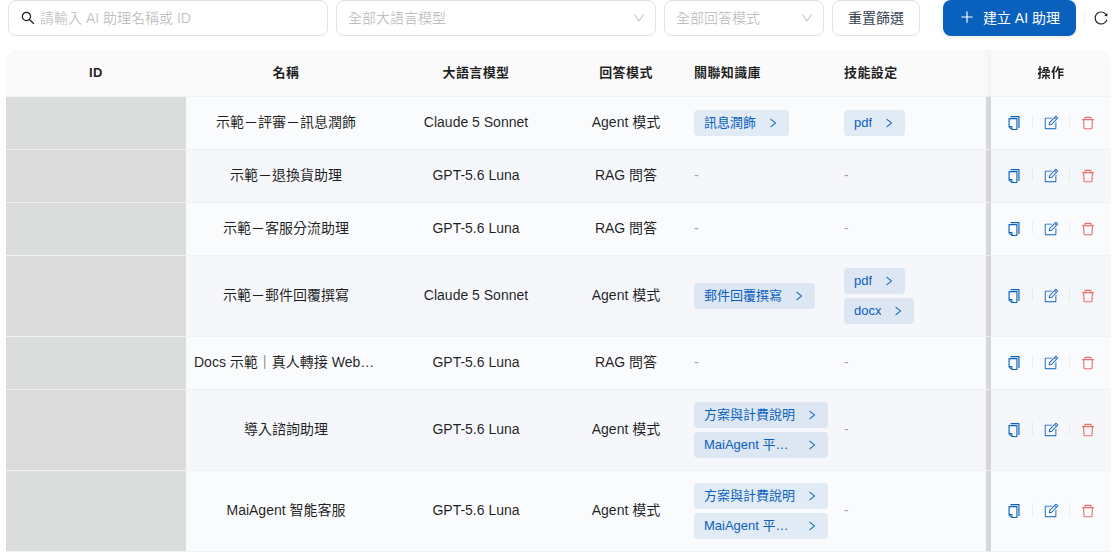
In the left sidebar, go to “<mark style="color:blue;">AI Features</mark>” → “<mark style="color:blue;">AI Assistants</mark>”, then click “<mark style="color:blue;">Create AI Assistant</mark>” in the upper right.

<figure><img src="https://1360999650-files.gitbook.io/~/files/v0/b/gitbook-x-prod.appspot.com/o/spaces%2F6v6TNkkOQVfRYfcNirHL%2Fuploads%2Fgit-blob-87b5a1243ec25ab81a5f9c010df5c95917736f43%2Fagent-builder-list.png?alt=media" alt="Agent list showing columns for name, large language model, response mode, and more, with a Create Agent button in the upper right and action buttons on the right of each row"><figcaption><p>The “Create AI Assistant” button in the upper right of the Agent list</p></figcaption></figure>

### List Filters and Columns <a href="#agent-list-filters-and-columns" id="agent-list-filters-and-columns"></a>

Above the list, enter an Agent name or ID to search, and narrow the results using the “<mark style="color:blue;">All Large Language Models</mark>” and “<mark style="color:blue;">All Response Modes</mark>” dropdowns. Each row displays:

| Column                                                | Description                                                                                                                                                                                    |
| ----------------------------------------------------- | ---------------------------------------------------------------------------------------------------------------------------------------------------------------------------------------------- |
| <mark style="color:blue;">ID</mark>                   | The Agent's identifier, used for API integration and issue reporting                                                                                                                           |
| <mark style="color:blue;">Name</mark>                 | The name entered in Basic Settings                                                                                                                                                             |
| <mark style="color:blue;">Large Language Model</mark> | The LLM model selected in Basic Settings                                                                                                                                                       |
| <mark style="color:blue;">Response Mode</mark>        | RAG Q\&A, Agent mode, template, or hybrid                                                                                                                                                      |
| <mark style="color:blue;">Knowledge Base</mark>       | Linked knowledge bases                                                                                                                                                                         |
| <mark style="color:blue;">Skills</mark>               | Attached skills                                                                                                                                                                                |
| <mark style="color:blue;">Last Updated</mark>         | The time the settings were last saved                                                                                                                                                          |
| <mark style="color:blue;">Actions</mark>              | <mark style="color:blue;">Edit</mark>, <mark style="color:blue;">Duplicate</mark>, and <mark style="color:blue;">Delete</mark>; see [Duplicate and delete Agents](#duplicate-and-delete-agent) |

The list does not support multiple selection or batch actions. Open each Agent's settings individually to update multiple Agents.

## **2. Name Your Agent** <a href="#name-your-ai-agent" id="name-your-ai-agent"></a>

Click “<mark style="color:blue;">Basic Settings</mark>” in the creation dialog's left navigation, then enter the Agent's name in the “<mark style="color:blue;">Name</mark>” field. Choose a name based on the Agent's primary task, such as XX AI Customer Service, XX Regulatory Lookup Assistant, or XX Smart Project Assistant.

An account can create multiple Agents (the limit depends on your purchased plan). Agent names must be unique within an organization; see [Names must be unique within an organization](#unique-agent-name).

<figure><img src="https://1360999650-files.gitbook.io/~/files/v0/b/gitbook-x-prod.appspot.com/o/spaces%2F6v6TNkkOQVfRYfcNirHL%2Fuploads%2Fgit-blob-4cb47f5b44486da5aa446869abac0d95ab37ed68%2Fagent-builder-create-basic.png?alt=media" alt="Create Agent dialog with Basic Settings selected in the left navigation; the name field on the right contains “Demo Website Customer Service Assistant”, with LLM Model below"><figcaption><p>Enter the Agent name in Basic Settings</p></figcaption></figure>

### Names Must Be Unique Within an Organization <a href="#unique-agent-name" id="unique-agent-name"></a>

Every Agent in an organization must have a different name so you can distinguish them in dropdowns that display only names, such as Agent schedules. When creating an Agent, [duplicating an Agent](#duplicate-agent), or changing a name in “<mark style="color:blue;">Basic Settings</mark>”, submitting a name that matches another Agent in the list is blocked. Red text below the name field reads “An AI assistant with this name already exists in this organization. Please use a different name.”

The dialog stays open and retains the other settings you have entered. Once you change the name to a unique one, the red text disappears automatically and you can submit again. If you are on another tab when you submit (such as “<mark style="color:blue;">Permission Settings</mark>”), the page automatically switches back to “<mark style="color:blue;">Basic Settings</mark>” to show the notice.

<figure><img src="https://1360999650-files.gitbook.io/~/files/v0/b/gitbook-x-prod.appspot.com/o/spaces%2F6v6TNkkOQVfRYfcNirHL%2Fuploads%2Fgit-blob-b619de20ab9c129019728c4184187ff2ff00863c%2Fagent-builder-name-duplicate-create.png?alt=media" alt="Basic Settings in the Create AI Assistant dialog, with the name field highlighted in red and red text below stating that an AI assistant with this name already exists in this organization and a different name is required"><figcaption><p>When the name matches an existing Agent in the organization, a red notice appears below the name field</p></figcaption></figure>

The system compares names as follows:

| Situation                                                                          | Result                                                                                                           |
| ---------------------------------------------------------------------------------- | ---------------------------------------------------------------------------------------------------------------- |
| Extra spaces before or after the name                                              | Leading and trailing spaces are removed before comparison; a match with an existing name is blocked              |
| Only English capitalization differs (for example, `Support Bot` and `support bot`) | Treated as different names and can be saved; changing only the capitalization of your own name can also be saved |
| The name matches a deleted Agent                                                   | Allowed; deleted Agents are excluded from comparison                                                             |
| The name is unchanged when saving                                                  | The name is not checked; other settings can be saved normally                                                    |

{% hint style="info" %}
Agents that already shared a name before this rule was introduced are not renamed automatically, and settings other than their names can still be updated normally. Only when you change one of their names must the new name differ from other Agents. We recommend gradually giving them names that are easy to distinguish.
{% endhint %}

## 3. Choose RAG for a Smarter Agent and More Accurate Answers <a href="#select-rag-for-smarter-responses" id="select-rag-for-smarter-responses"></a>

### What Is RAG? <a href="#what-is-rag" id="what-is-rag"></a>

Think of RAG as a combination of “an assistant who excels at conversation + a librarian who excels at research”.

A regular Agent is like someone with an excellent memory and storytelling skills, but can only share knowledge they have learned before. With RAG technology, the Agent **visits the library to find the latest information** before answering a question, then summarizes what it finds in its own words to give you a clear response.

On the MaiAgent platform, this “library” is our **knowledge base**. The Agent uses RAG technology to find relevant information in the knowledge base, making its answers more accurate, timely, and suited to your needs.

The next section explains how to configure knowledge bases.

{% hint style="info" %}
MaiAgent's knowledge base retrieval combines semantic search, keyword search, and reranking (Reranker). Tag filtering can also narrow the search scope so the Agent finds the most relevant passages before answering.
{% endhint %}

### Configure Knowledge Bases <a href="#rag-settings" id="rag-settings"></a>

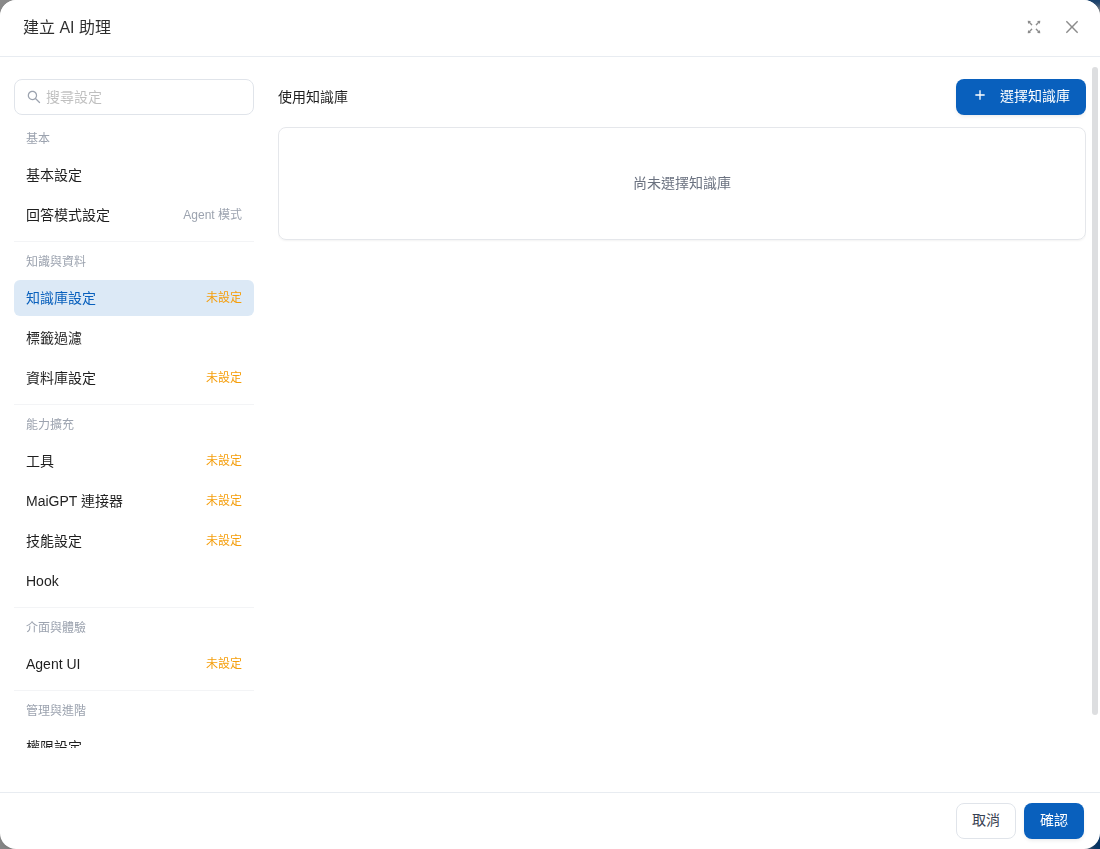
Agents use RAG (Retrieval-Augmented Generation) through knowledge bases. Click “<mark style="color:blue;">Knowledge Base Settings</mark>” in the creation dialog's left navigation, then click “<mark style="color:blue;">Select Knowledge Base</mark>” to specify the knowledge bases the Agent should reference.

<figure><img src="https://1360999650-files.gitbook.io/~/files/v0/b/gitbook-x-prod.appspot.com/o/spaces%2F6v6TNkkOQVfRYfcNirHL%2Fuploads%2Fgit-blob-9e0983bd7da5ac4051446448c7dec0329c792a4a%2Fagent-builder-create-knowledge-base.png?alt=media" alt="Create Agent dialog with Knowledge Base Settings selected in the left navigation; the right side shows Use Knowledge Base and a Select Knowledge Base button, with no knowledge base selected yet"><figcaption><p>Select the knowledge bases the Agent should reference in Knowledge Base Settings</p></figcaption></figure>

{% hint style="success" %}
Compared with OpenAI RAG, MaiAgent RAG offers more additional features, flexibly supports different deployment requirements, handles a wider range of data formats, and provides a more powerful retrieval and generation experience.

For a detailed comparison, see [**What Is RAG? A Comparison of MaiAgent RAG and OpenAI RAG**](https://docs.maiagent.ai/tech/quickstart/rag)
{% endhint %}

### Configure FAQ Priority <a href="#configure-faq-priority" id="configure-faq-priority"></a>

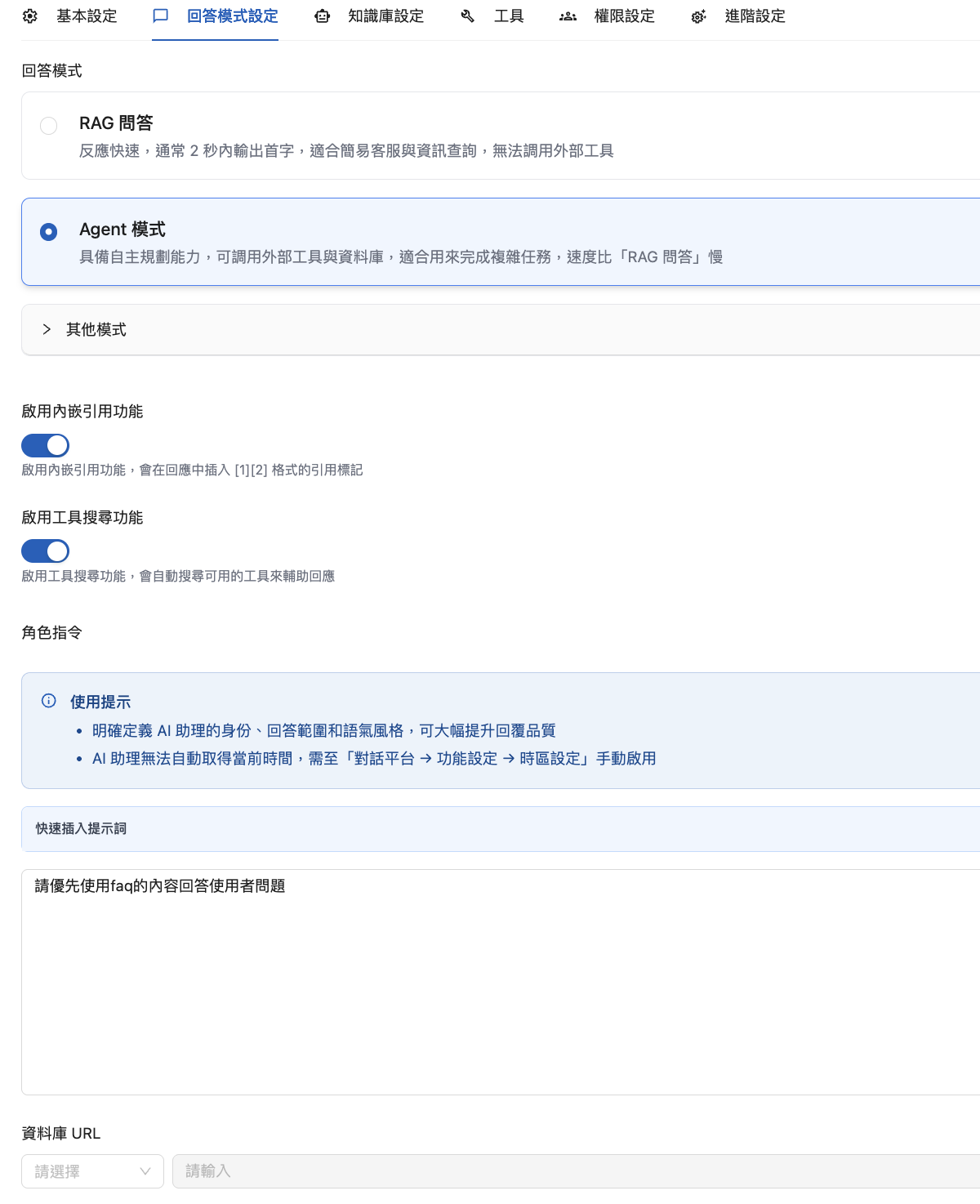
To ensure accurate and consistent Agent responses, you can enable “FAQ Priority”. When this feature is enabled and the knowledge base contains both FAQ content and other documents, the LLM prioritizes FAQ content when answering questions so its responses follow the standard answers you have established.

**Benefits:**

* **Improve response accuracy**: When the knowledge base contains both FAQs and other documents, prioritizing verified FAQ content reduces potentially inaccurate answers generated by the AI itself
* **Ensure consistent responses**: All users receive the same standard FAQ answers, maintaining service quality
* **Reduce hallucination risk**: Prioritizing standard FAQ answers prevents the AI from generating fabricated or incorrect information

**Setup:**

1. Click “<mark style="color:blue;">Response Mode Settings</mark>” in the settings page's left navigation
2. In the “<mark style="color:blue;">System Prompt</mark>” field, enter the following instruction:

   ```
   Please prioritize FAQ content when answering user questions
   ```

<figure><img src="https://1360999650-files.gitbook.io/~/files/v0/b/gitbook-x-prod.appspot.com/o/spaces%2F6v6TNkkOQVfRYfcNirHL%2Fuploads%2Fgit-blob-92ee49f4ae858e5acf050b9794a4c06251267279%2F%E6%88%AA%E5%9C%96%202026-01-06%20%E4%B8%8B%E5%8D%882.08.02.png?alt=media" alt=""><figcaption></figcaption></figure>

{% hint style="info" %}
When this feature is enabled and the knowledge base contains both FAQ content and other documents, the Agent prioritizes FAQ content when answering questions. If no relevant FAQ content is found, the Agent still answers using other knowledge base documents or general knowledge.
{% endhint %}

## **4.** Select a Model to Give Your Agent a Smart Brain! <a href="#select-model-for-ai-agent" id="select-model-for-ai-agent"></a>

### Why Select a Language Model? <a href="#language-model-selection-purpose" id="language-model-selection-purpose"></a>

An Agent's performance depends largely on its brain—the language model (LLM) it uses. In this step, choose different types of models to suit your needs. Your choice affects response speed, comprehension, and the depth and naturalness of answers.

Choosing the right model helps your Agent work efficiently and delivers the best experience for your use case!

{% hint style="info" %}
[**Key Factors When Choosing a Large Language Model**](https://docs.maiagent.ai/tech/quickstart/llm)
{% endhint %}

### Configure the Language Model <a href="#language-model-settings" id="language-model-settings"></a>

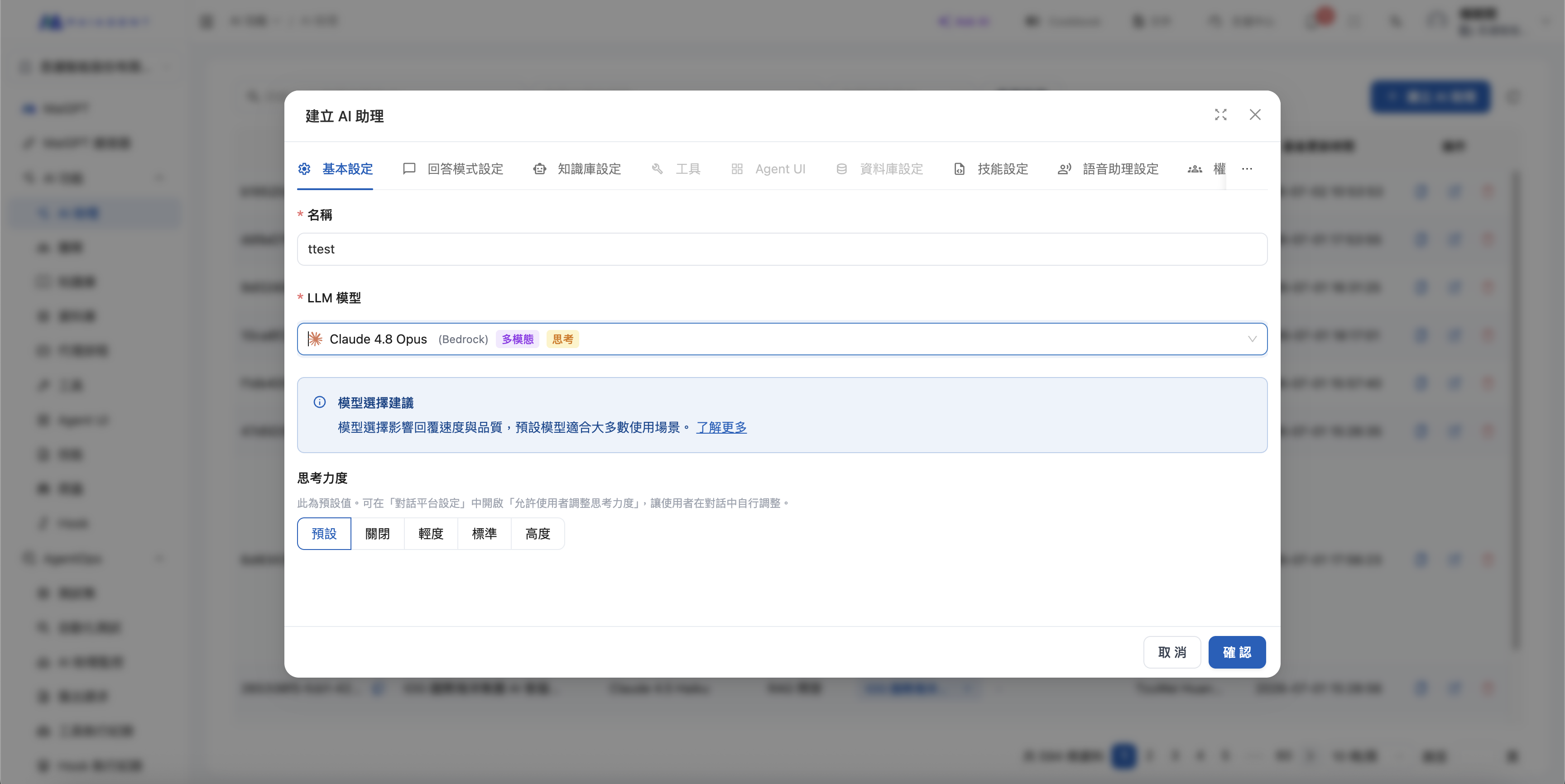
Click “<mark style="color:blue;">Basic Settings</mark>” in the left navigation. The “<mark style="color:blue;">LLM Model</mark>” dropdown lets you choose from different large language models. Available models depend on your organization's [model access permissions](/maiagent-user-guide/en/org/model-access.md); the platform sets the model marked as default. Compare each model's Credits pricing, speed, specifications, and retirement date on the [Model Access Permissions](/maiagent-user-guide/en/org/model-access.md#compare-price-speed-specs) page.

The dropdown has two groups: “<mark style="color:blue;">Models</mark>” at the top lists individual models, while “<mark style="color:blue;">Fallback Model Groups</mark>” below lists [AI Gateway fallback groups](/maiagent-user-guide/en/build/ai-gateway.md#fallback-groups). When you select a fallback group, its models take turns handling responses in sequence, and the “<mark style="color:blue;">Thinking Effort</mark>” setting is hidden.

#### Understand the Capability Labels in the Dropdown <a href="#model-capability-labels" id="model-capability-labels"></a>

The model catalog changes as models are added and removed, so this guide does not provide a separate comparison table. Check the labels on each model's row in the dropdown to see what it supports:

| What you see                                          | Meaning                                                                                                             |
| ----------------------------------------------------- | ------------------------------------------------------------------------------------------------------------------- |
| Parentheses after the model name                      | The inference provider (for example, AWS Bedrock or Azure OpenAI)                                                   |
| <mark style="color:blue;">Default</mark> label        | The platform's default model                                                                                        |
| <mark style="color:blue;">Multimodal</mark> label     | Understands images; choose this type of model if images will be uploaded in conversations                           |
| <mark style="color:blue;">Thinking</mark> label       | Supports thinking effort; selecting it reveals the “<mark style="color:blue;">Thinking Effort</mark>” setting below |
| <mark style="color:blue;">Custom</mark> label         | A model your organization has connected through AI Gateway                                                          |
| <mark style="color:blue;">Fallback Group</mark> label | This row is a fallback model group rather than an individual model                                                  |
| Image icon on the second line                         | Blue indicates multimodal support; gray indicates no support. Hovering shows “Multimodal: Supported/Not Supported”  |
| Number on the second line                             | The model's context length (the number of tokens it can process at once)                                            |

The dropdown currently does not indicate whether a model supports tool calling (required for Agent mode and skills). If conversation logs show an error such as “Model does not support tool calling” after switching to Agent mode, select another model.

<figure><img src="https://1360999650-files.gitbook.io/~/files/v0/b/gitbook-x-prod.appspot.com/o/spaces%2F6v6TNkkOQVfRYfcNirHL%2Fuploads%2Fgit-blob-f0d9543176253c8e3ea6621231ab4bae5cb1a6b9%2F%E6%88%AA%E5%9C%96%202026-07-02%20%E4%B8%8A%E5%8D%8811.30.18.png?alt=media" alt=""><figcaption></figcaption></figure>

### Set Thinking Effort <a href="#thinking-effort" id="thinking-effort"></a>

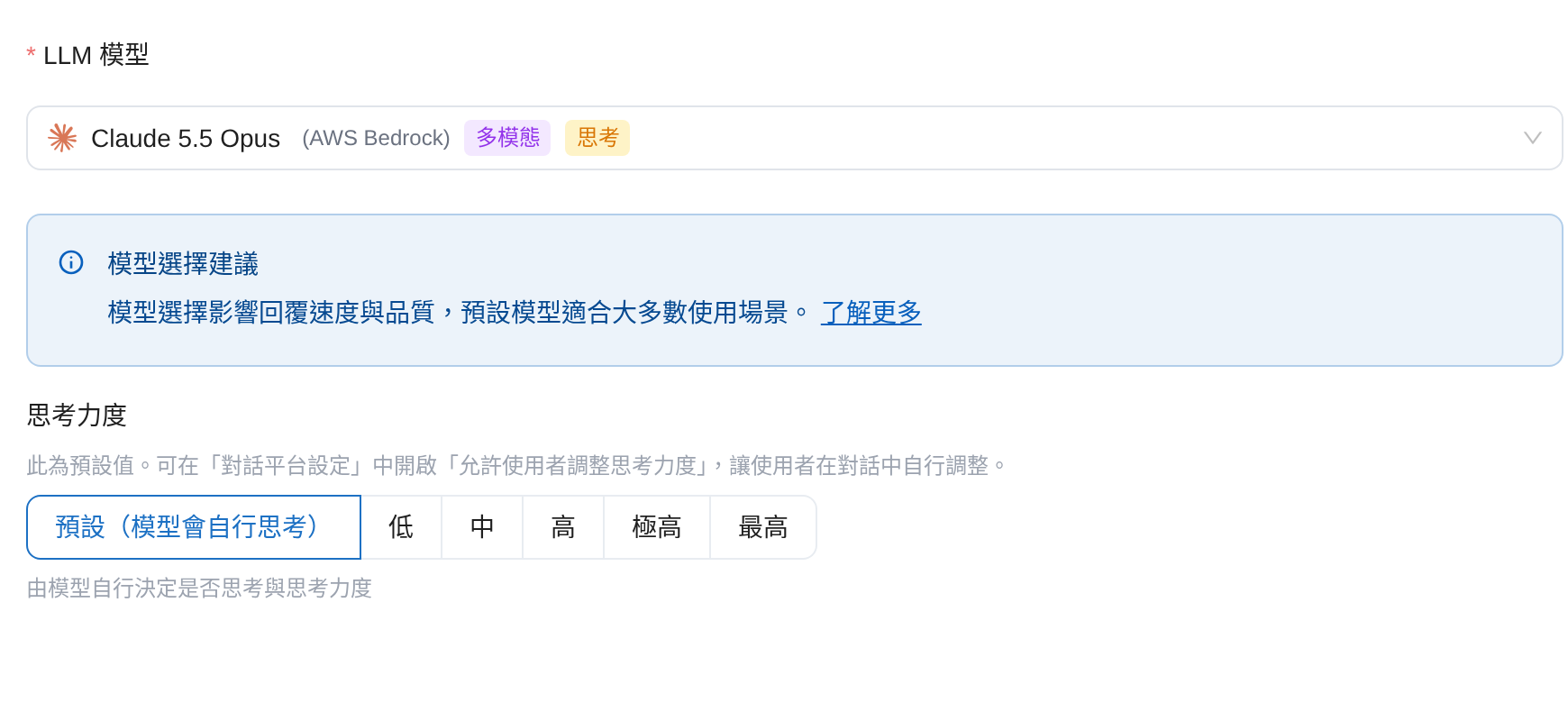
When you select a model that supports thinking (marked with the “<mark style="color:blue;">Thinking</mark>” label in the dropdown), “<mark style="color:blue;">Thinking Effort</mark>” appears below “<mark style="color:blue;">LLM Model</mark>”. It determines how deeply the Agent reasons before answering. This is the Agent's default level, used when the user has not chosen a different level in the conversation.

The options include “<mark style="color:blue;">Default</mark>” and **the levels supported by the current model**. From lowest to highest, the levels are <mark style="color:blue;">Off</mark>, <mark style="color:blue;">Minimal</mark>, <mark style="color:blue;">Low</mark>, <mark style="color:blue;">Medium</mark>, <mark style="color:blue;">High</mark>, <mark style="color:blue;">Extra High</mark>, and <mark style="color:blue;">Maximum</mark>. Higher levels mean deeper reasoning, slower responses, and greater Credits consumption. Clicking an option displays its description below.

“<mark style="color:blue;">Default</mark>” and “<mark style="color:blue;">Off</mark>” include annotations reflecting the model's actual behavior, so you know how the selection affects response speed:

| Option                                                                            | Description                                                                                                                                                                                                                                                                  |
| --------------------------------------------------------------------------------- | ---------------------------------------------------------------------------------------------------------------------------------------------------------------------------------------------------------------------------------------------------------------------------- |
| <mark style="color:blue;">Default</mark>                                          | No level is specified. Depending on the model's actual behavior, it appears as <mark style="color:blue;">Default (No Thinking · Fastest)</mark> or <mark style="color:blue;">Default (Model Decides Whether to Think)</mark>                                                 |
| <mark style="color:blue;">Off</mark>                                              | No thinking; available only if the model can disable thinking. For models that do not think by default, it appears as <mark style="color:blue;">Off (Same as Default)</mark>; for models that think by default, it appears as <mark style="color:blue;">Off (Fastest)</mark> |
| <mark style="color:blue;">Minimal</mark>–<mark style="color:blue;">Maximum</mark> | Enables thinking. Each level's description reads “Enables thinking: Adds approximately 1–3 seconds per model call, depending on the model”                                                                                                                                   |

{% hint style="warning" %}
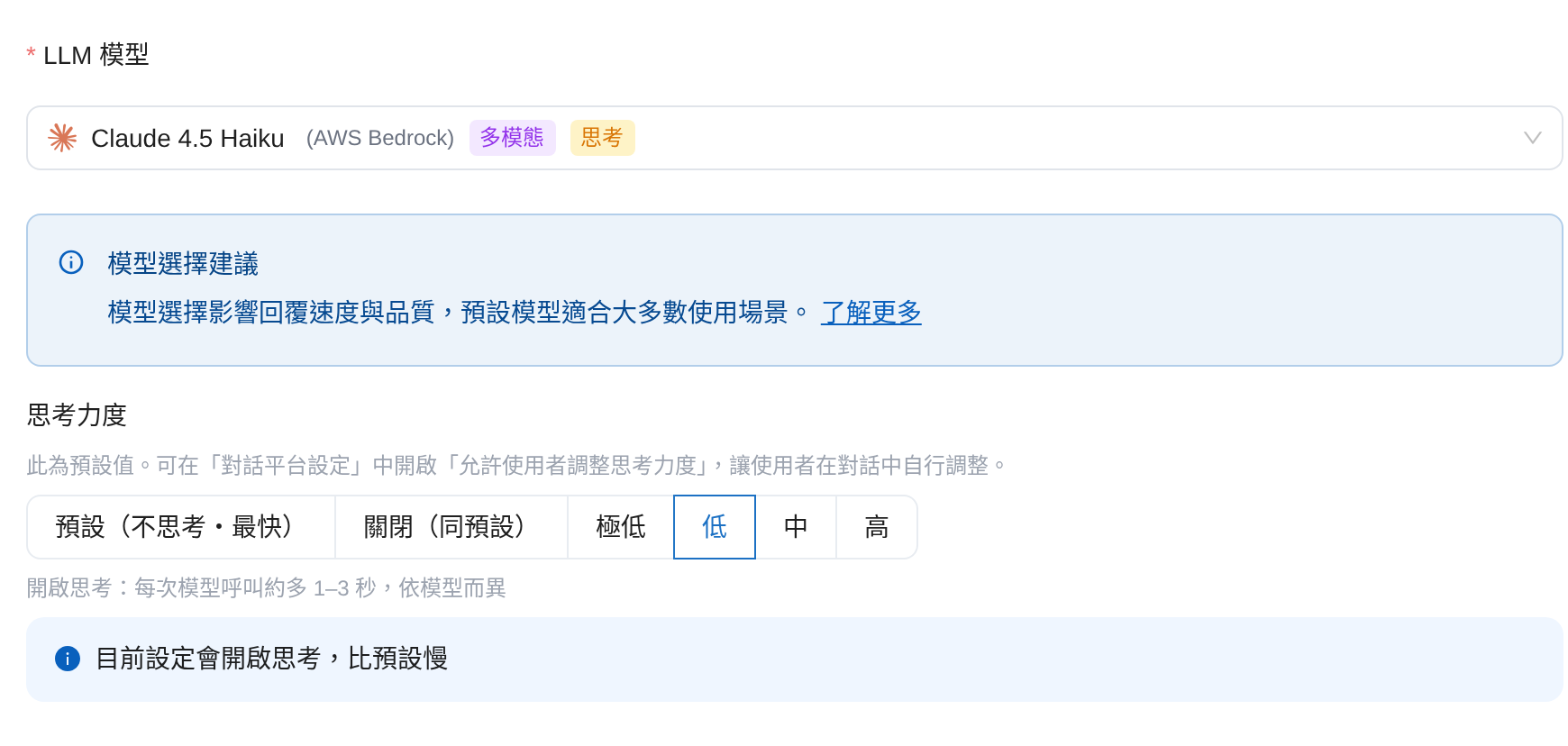
**“Low” is not necessarily faster than “Default”.** For models that do not think by default (displayed as <mark style="color:blue;">Default (No Thinking · Fastest)</mark>), any thinking level enables thinking and is slower than the default. The settings page then warns “The current setting enables thinking and is slower than the default”. If you just want faster responses, keep <mark style="color:blue;">Default</mark>.
{% endhint %}

For example, a store lookup Agent uses Claude 4.5 Haiku. The administrator assumes that setting thinking effort to <mark style="color:blue;">Low</mark> will speed up responses, but sees “The current setting enables thinking and is slower than the default” after selecting it. Since this model's <mark style="color:blue;">Default</mark> is labeled “No Thinking · Fastest”, the administrator switches back to <mark style="color:blue;">Default</mark> and saves, keeping responses at their fastest.

Models support different levels, and the interface lists only the options available for the current model. For example:

* **Claude 4.5 Haiku**: Supports <mark style="color:blue;">Off</mark> and <mark style="color:blue;">Minimal</mark>, up to <mark style="color:blue;">High</mark>
* **Claude 5.5 Opus**: Cannot disable thinking, so <mark style="color:blue;">Off</mark> is unavailable. The lowest level is <mark style="color:blue;">Low</mark>, but <mark style="color:blue;">Extra High</mark> and <mark style="color:blue;">Maximum</mark> are available

<figure><img src="https://1360999650-files.gitbook.io/~/files/v0/b/gitbook-x-prod.appspot.com/o/spaces%2F6v6TNkkOQVfRYfcNirHL%2Fuploads%2Fgit-blob-7243cb31dea4817063a7532182f4d916085d4061%2Fagent-thinking-effort-haiku.png?alt=media" alt="Claude 4.5 Haiku selected as the LLM model, with thinking effort options Default (No Thinking · Fastest), Off (Same as Default), Minimal, Low, Medium, and High; Low is selected, with a notice below that the current setting enables thinking and is slower than the default"><figcaption><p>Claude 4.5 Haiku: Offers “Off” and “Minimal”, up to “High”; selecting a thinking level displays a notice that it is slower than the default</p></figcaption></figure>

<figure><img src="https://1360999650-files.gitbook.io/~/files/v0/b/gitbook-x-prod.appspot.com/o/spaces%2F6v6TNkkOQVfRYfcNirHL%2Fuploads%2Fgit-blob-20fd2bd98243553337c6963a805c605362a64605%2Fagent-thinking-effort-no-off.png?alt=media" alt="Claude 5.5 Opus selected as the LLM model, with thinking effort options Default (Model Decides Whether to Think), Low, Medium, High, Extra High, and Maximum; Default is selected, with a description below that the model decides whether to think and how much effort to use"><figcaption><p>Claude 5.5 Opus: No “Off” option; supports “Extra High” and “Maximum”; the model decides whether to think by default</p></figcaption></figure>

{% hint style="info" %}
**Levels When Switching Models**

* When switching to another model that supports thinking, the selected level is retained. If the new model does not support that level, the interface displays the level actually applied, which is also used for responses: the closest level supported by the new model that does not exceed the original level. If the new model's lowest level is still higher than the original level, its lowest level is used. For example, selecting <mark style="color:blue;">Maximum</mark> in Claude 5.5 Opus and switching to Claude 4.5 Haiku displays <mark style="color:blue;">High</mark>; selecting <mark style="color:blue;">Minimal</mark> in Claude 4.5 Haiku and switching to Claude 5.5 Opus displays <mark style="color:blue;">Low</mark>.
* When switching to a model that does not support thinking, “<mark style="color:blue;">Thinking Effort</mark>” is hidden and the selected thinking level resets to <mark style="color:blue;">Default</mark>.
  {% endhint %}

To let users adjust this in conversations, enable <mark style="color:blue;">Allow Users to Adjust Thinking Effort</mark> in the conversation platform's [Function Settings](/maiagent-user-guide/en/build/conversation-settings/platform-settings/function-settings.md#ai-interaction). For Web Chat, also enable <mark style="color:blue;">Show Thinking Process</mark> so the thinking effort button appears below the input box; see [The Web Chat thinking effort button](/maiagent-user-guide/en/build/conversation-settings/platform-settings/function-settings.md#web-chat-thinking-effort). MaiGPT does not require these two switches. Users can adjust the level in the input box when a model that supports thinking is selected; see [MaiGPT conversations: Thinking effort](/maiagent-user-guide/en/work/maigpt/chat.md#deep-thinking).

For example, an e-commerce customer service supervisor's order lookup Agent uses Claude 4.5 Haiku, and most visitors ask simple questions such as “Has my package shipped?” She selects <mark style="color:blue;">Minimal</mark> under “<mark style="color:blue;">Thinking Effort</mark>” in “<mark style="color:blue;">Basic Settings</mark>” and saves, then enables both <mark style="color:blue;">Show Thinking Process</mark> and <mark style="color:blue;">Allow Users to Adjust Thinking Effort</mark> in the Web Chat platform's function settings. When visitors start a new conversation, the thinking effort button below the input box shows <mark style="color:blue;">Minimal</mark>. For more complex questions such as refund calculations, visitors can switch to <mark style="color:blue;">High</mark> before asking.

## 5. Create a System Prompt for Your Use Case <a href="#create-system-prompt-for-use-case" id="create-system-prompt-for-use-case"></a>

To tailor an Agent to different application needs, configure a “System Prompt” so the AI's response style and content suit your use case.

{% hint style="info" %}
[What is a system prompt? Where can I find example templates?](/maiagent-user-guide/en/build/agent/system-prompt.md)

[AI tool for generating role-based assistants](https://chat.maiagent.ai/web-chats/eb2c95ef-f022-4716-92aa-ec0d3ffbc80b/conversations/bc7ed5e6-b3cb-4c91-a465-a4e439c06db4)
{% endhint %}

### Response Mechanism for Reducing Hallucinations <a href="#hallucination-free-generative-ai-response" id="hallucination-free-generative-ai-response"></a>

MaiAgent's response mechanism helps AI maintain high accuracy when answering questions. When faced with uncertainty or questions beyond its knowledge, it openly acknowledges its limitations instead of fabricating answers, providing users with a more reliable and trustworthy AI interaction experience. Its importance for industry and public sector applications is outlined below:

{% tabs %}
{% tab title="Industry applications" %}
**Financial services:**

When providing investment advice or risk assessments, AI must base its analysis on verified data to avoid false information leading to incorrect investment decisions. When information is insufficient or uncertain, the system explicitly says so to support reliable investment decisions.

**Healthcare:**

When assisting with medical diagnosis or medication inquiries, AI systems must strictly follow established medical knowledge and must not invent advice that could mislead patients. For new or unverified medical information, the system clearly indicates that further professional consultation is needed.

**Manufacturing:**

In applications such as production process optimization and quality control, AI must base its recommendations on actual production data and validated methods to avoid production losses caused by inaccurate predictions.

**Education**:

When supporting teaching or answering students' questions, AI needs to provide accurate knowledge rather than incorrect information that could mislead learning. For complex or ambiguous concepts, the system acknowledges the limits of its understanding.

**Legal services:**

When providing legal information and advice, AI must rely on existing laws and precedents rather than speculative advice that could pose legal risks. The system clearly identifies matters that require further confirmation by a professional lawyer.

**Customer service inquiries:**

When handling customer inquiries, AI must provide accurate product information and service descriptions. For questions it cannot resolve with certainty, it immediately refers customers to the relevant professionals to avoid misleading them.
{% endtab %}

{% tab title="Public sector applications" %}
**Government policy inquiries:**

When providing policy information and service guidance to the public, AI must answer based on current, accurate regulations and administrative procedures to avoid outdated or incorrect information. For complex questions or those requiring professional judgment, the system clearly recommends seeking assistance from the relevant department.

**Public service decisions:**

When assisting governments in evaluating decisions about public infrastructure, social welfare, and similar matters, AI must analyze real data and research and clearly explain uncertain predictions to support reliable policymaking.

**Emergency response management:**

When handling emergencies such as natural disasters or public health incidents, AI systems must provide accurate information and guidance. They must not generate false information that could mislead the public and undermine disaster prevention and response.
{% endtab %}
{% endtabs %}

### Choose a suitable response mode to build your instructions <a href="#select-answer-mode-to-build-prompt" id="select-answer-mode-to-build-prompt"></a>

Click <mark style="color:blue;">“Response Mode Settings”</mark> in the left navigation on the Agent settings page. Options range from free conversation to highly structured responses to meet different business needs. Each mode has its own features and suitable applications, so you can choose flexibly based on your use case.

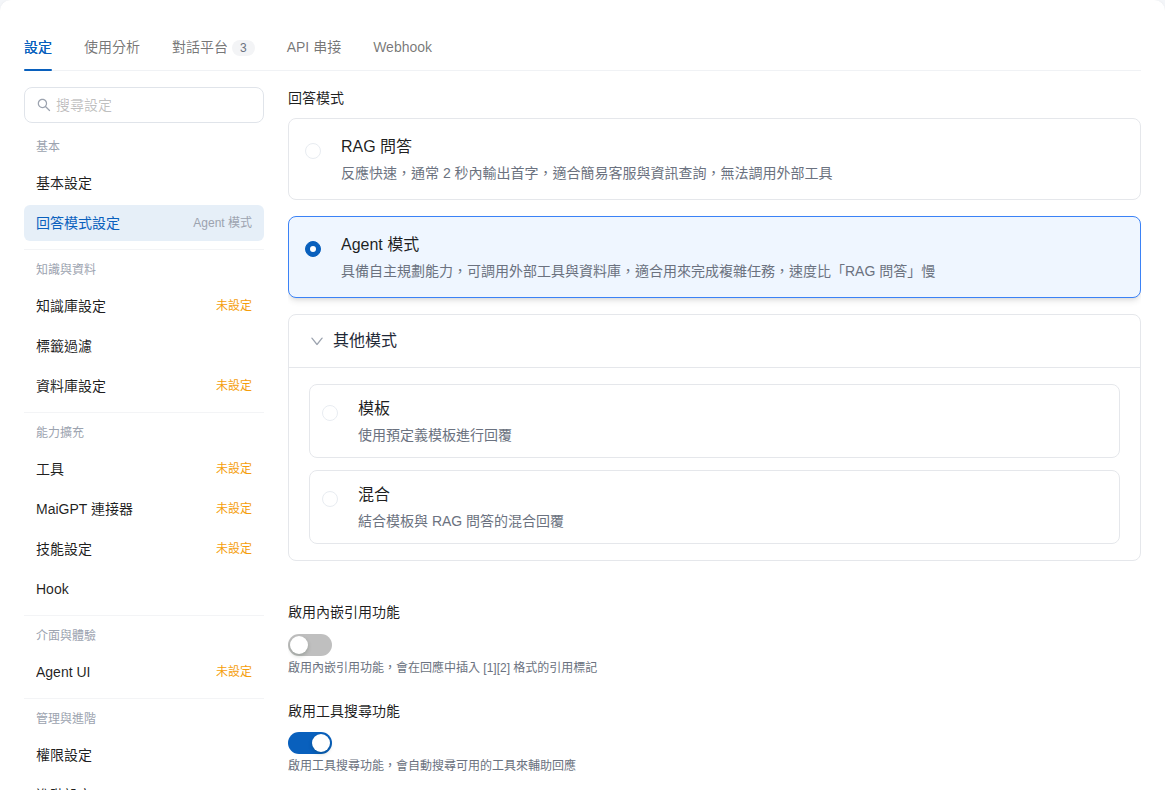
The available response modes are <mark style="color:blue;">RAG Q\&A</mark>, <mark style="color:blue;">Agent Mode</mark>, and <mark style="color:blue;">Template</mark> and <mark style="color:blue;">Hybrid</mark> under <mark style="color:blue;">Other Modes</mark>. Newly created Agents default to <mark style="color:blue;">Agent Mode</mark>.

<figure><img src="https://1360999650-files.gitbook.io/~/files/v0/b/gitbook-x-prod.appspot.com/o/spaces%2F6v6TNkkOQVfRYfcNirHL%2Fuploads%2Fgit-blob-d8c57203a17ef895fde313b581c86aec8895c567%2Fagent-builder-reply-mode-options.png?alt=media" alt="Response mode options: RAG Q&#x26;A and Agent Mode, with Template and Hybrid shown after expanding Other Modes"><figcaption><p>Expand “Other Modes” to see all four response modes</p></figcaption></figure>

{% hint style="info" %}
The “Workflow” response mode is no longer available. Agents that previously used Workflow mode have been automatically switched to <mark style="color:blue;">RAG Q\&A</mark> mode.
{% endhint %}

{% tabs %}
{% tab title="Response mode: RAG Q\&A" %}
**Suitable use cases**

Answer questions freely. AI generates the most suitable response based on the context and knowledge base content. Suitable for most Q\&A scenarios

**Procedure**

Click “<mark style="color:blue;">Response Mode Settings</mark>” in the left navigation, select <mark style="color:blue;">“RAG Q\&A”</mark> as the response mode, and enter the instructions you have defined for this Agent in the “<mark style="color:blue;">Role Instructions</mark>” field. If the model supports it, use “<mark style="color:blue;">Output Format</mark>” to select plain text or JSON output. See [Output format: plain text or JSON Schema](#output-format-json-schema) for details.

<figure><img src="https://1360999650-files.gitbook.io/~/files/v0/b/gitbook-x-prod.appspot.com/o/spaces%2F6v6TNkkOQVfRYfcNirHL%2Fuploads%2Fgit-blob-95d9ce5caa9d8ad5a3b9f4abb0d9b8880cc14cfe%2Fagent-builder-reply-mode-rag.png?alt=media" alt="Response Mode Settings: RAG Q&#x26;A selected, with Role Instructions and Output Format fields below"><figcaption><p>After selecting RAG Q&#x26;A, enter role instructions and choose an output format</p></figcaption></figure>

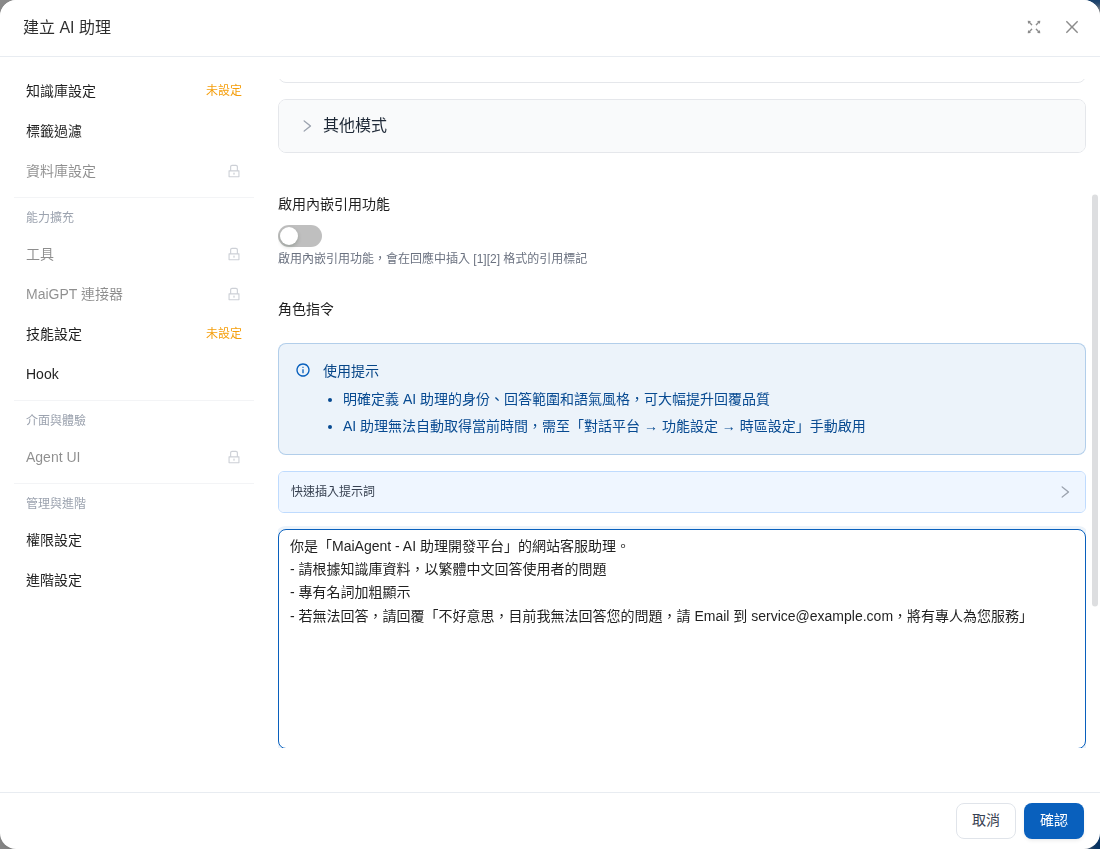
**Use case: website customer service assistant**

To create a website customer service assistant for “MaiAgent - Agent Development Platform,” enter the AI's response settings in the “Role Instructions” field to clearly define its response style and scope of responsibilities

<figure><img src="https://1360999650-files.gitbook.io/~/files/v0/b/gitbook-x-prod.appspot.com/o/spaces%2F6v6TNkkOQVfRYfcNirHL%2Fuploads%2Fgit-blob-889916bc42d32b39304aa6a21519d3ed92630f30%2Fagent-builder-create-role-instruction.png?alt=media" alt="Response Mode Settings in the Create Agent dialog: the Role Instructions field contains response settings for a website customer service assistant"><figcaption><p>Enter the website customer service assistant's response settings in the Role Instructions field</p></figcaption></figure>
{% endtab %}

{% tab title="Response mode: Template" %}
When you select “<mark style="color:blue;">**Response Mode: Template**</mark>,” your Agent greatly reduces hallucinated responses because it answers strictly according to the knowledge base and FAQ content you have created. It answers through classification rather than asking an LLM to generate content. Using a template system minimizes the risk of hallucination.

**Suitable use cases**

Scenarios that require a consistent response format, such as standard inquiry procedures and reports.

**Example procedure**

Suppose you want to create a “Municipal Service Hotline” customer service Agent to respond to residents' municipal service questions in real time.

**1. Click “**<mark style="color:blue;">**Response Mode Settings**</mark>**” in the left navigation, expand&#x20;**<mark style="color:blue;">**“Other Modes”**</mark>**&#x20;and select&#x20;**<mark style="color:blue;">**“Template”**</mark>

<figure><img src="https://1360999650-files.gitbook.io/~/files/v0/b/gitbook-x-prod.appspot.com/o/spaces%2F6v6TNkkOQVfRYfcNirHL%2Fuploads%2Fgit-blob-ee9beee4833a61e1ad64638fbdc439c07b867ca7%2Fagent-builder-reply-mode-template.png?alt=media" alt="Response Mode Settings: Other Modes expanded and Template selected, showing Response Template and Unable to Respond Template fields below"><figcaption><p>Select Template to display the Response Template and Unable to Respond Template fields</p></figcaption></figure>

**2. Enter a response template (use the template system to generate answers)**

If you have not yet created a knowledge base and FAQ, the response template instructions default to the following.

We recommend adding a knowledge base or FAQ first to use response templates. The format **must be a tabular file such as Excel, CSV, json, or jsonl.**

<figure><img src="https://1360999650-files.gitbook.io/~/files/v0/b/gitbook-x-prod.appspot.com/o/spaces%2F6v6TNkkOQVfRYfcNirHL%2Fuploads%2Fgit-blob-c2c3b6aac1f66b06a9f5864572950c5a9c074f50%2Fimage%20(56).png?alt=media" alt=""><figcaption></figcaption></figure>

For this example, I have an Agent named “Municipal Service Hotline” and have added “Municipal Service FAQ” to the knowledge base.

The FAQ fields include question, answer, agency, category, and publication time

We recommend uploading tabular files such as **Excel, CSV, json, or jsonl**, with fields that have **headers and corresponding content**.

![](https://1360999650-files.gitbook.io/~/files/v0/b/gitbook-x-prod.appspot.com/o/spaces%2F6v6TNkkOQVfRYfcNirHL%2Fuploads%2Fgit-blob-b461f55433989c2f04cbd8eb6a41851e710e822a%2Fimage%20\(62\).png?alt=media)

Return to the response template editor and click “<mark style="color:blue;">**Initialize Response Template**</mark>” in the upper right. The system generates a sample response based on the document you just uploaded to the knowledge base, for example:

```
Your question is related to the following information:

[loop: 市政服務 FAQ.xlsx]
{@loopIndex}. Question: {問題} Answer: {答案} Agency: {機關} Category: {分類} Publication time: {發布時間}
[endloop]

Thank you for your inquiry.
```

You can now edit and format the response text.

The \[] {} portions are system instructions, so only edit the text.

📍 **Loop: Enter the corresponding document filename (specify which document to use to generate responses)**

I modified the following:

* [x] Content of the “**opening message”**
* [x] **“Question” content**
* [x] **“Category” content**
* [x] **Removed “Agency”**
* [x] **Closing message content**
* [x] **Line breaks and layout**

When we return to the Agent Q\&A interface and ask a related question, the Agent responds strictly according to the **template format** we just edited and the **FAQ document content**.

**3. Enter an unable to respond template**

If the Agent determines that no relevant information is available, it responds using the “<mark style="color:blue;">**Unable to Respond Template**</mark>.”

Finally, click “<mark style="color:blue;">**Save**</mark>.”

<figure><img src="https://1360999650-files.gitbook.io/~/files/v0/b/gitbook-x-prod.appspot.com/o/spaces%2F6v6TNkkOQVfRYfcNirHL%2Fuploads%2Fgit-blob-ac3c2e9f4d87adc11a473249038a9d7befea7b27%2Fagent-builder-reply-mode-template-fallback.png?alt=media" alt="Response Template and Unable to Respond Template fields, with the Save button in the lower right"><figcaption><p>Enter an unable to respond template, then click Save</p></figcaption></figure>
{% endtab %}

{% tab title="Response mode: Hybrid" %}
**Suitable use cases**

Combine RAG Q\&A with templates: some content uses a template format, while the rest is answered freely. Suitable for scenarios requiring partially structured responses.

**Recommendations**

Role instructions may conflict with “Response Mode: Template,” so when selecting “Response Mode: Hybrid,” we recommend writing role instructions as broad principles.

For example, define the role's tasks, interaction principles, communication attitude, and so on.

<figure><img src="https://1360999650-files.gitbook.io/~/files/v0/b/gitbook-x-prod.appspot.com/o/spaces%2F6v6TNkkOQVfRYfcNirHL%2Fuploads%2Fgit-blob-cfb9167a4846ec52018f7ae6ca99395e141d0617%2Fagent-builder-reply-mode-hybrid.png?alt=media" alt="Response Mode Settings: Other Modes expanded and Hybrid selected, with Role Instructions and Response Template fields below"><figcaption><p>Role Instructions and Response Template appear together when Hybrid is selected</p></figcaption></figure>
{% endtab %}

{% tab title="Response mode: Agent Mode" %}
**Suitable use cases**

In everyday business operations, employees often need to organize information, analyze data, and prepare reports and analytical summaries for routine business needs or tasks assigned by their managers. Common questions include:

* “Which product sold the most last month?”
* “List all customers with sales over 100,000”
* “What has the revenue trend been over the last three months?”

When nontechnical staff handle these questions, they often rely on data teams to write SQL queries, making the process time-consuming and inefficient.

With MaiAgent's Agent Mode, the system can now use the Text to SQL tool to automatically convert natural language questions into SQL queries, query the database in real time, and quickly provide analysis results.

{% hint style="info" %}
For an introduction to Text to SQL, see: [Text to SQL](/maiagent-user-guide/en/build/database/text2sql.md)
{% endhint %}

This feature is particularly useful for scenarios requiring <mark style="color:blue;">**real-time queries and data insights**</mark>, such as report analysis, operational metric tracking, and data queries. It helps nontechnical users access data easily and make decisions driven by data more intuitively and efficiently.

**Text to SQL procedure**

1. Click “Response Mode Settings” in the left navigation and select <mark style="color:blue;">**“Agent Mode”**</mark> as the response mode

<figure><img src="https://1360999650-files.gitbook.io/~/files/v0/b/gitbook-x-prod.appspot.com/o/spaces%2F6v6TNkkOQVfRYfcNirHL%2Fuploads%2Fgit-blob-4720e2275f9ff8972360e8724ed7521dff892a68%2Fagent-builder-reply-mode-agent.png?alt=media" alt="Response Mode Settings: Agent Mode selected, with Database Settings, Tools, and other items in the left navigation"><figcaption><p>Select Agent Mode</p></figcaption></figure>

2. Click “Database Settings” in the left navigation, then click “Select Database” to link an existing database. Create databases from “<mark style="color:blue;">AI Features</mark>” → “<mark style="color:blue;">Database</mark>” in the left menu. Upload a spreadsheet to create a MaiAgent database, or connect an external database such as PostgreSQL, MySQL, SQL Server, Oracle, or SynxDB. For instructions, see [Create and configure a database](/maiagent-user-guide/en/build/database/create-database.md)

**Use case: querying e-commerce product sales data**

Suppose you are a marketer at an e-commerce platform and want to quickly query data such as product sales

First, click “Response Mode Settings” in the left navigation and select <mark style="color:blue;">**“Agent Mode”**</mark> as the response mode

<figure><img src="https://1360999650-files.gitbook.io/~/files/v0/b/gitbook-x-prod.appspot.com/o/spaces%2F6v6TNkkOQVfRYfcNirHL%2Fuploads%2Fgit-blob-4720e2275f9ff8972360e8724ed7521dff892a68%2Fagent-builder-reply-mode-agent.png?alt=media" alt="Response Mode Settings: Agent Mode selected, with Database Settings, Tools, and other items in the left navigation"><figcaption><p>Select Agent Mode</p></figcaption></figure>

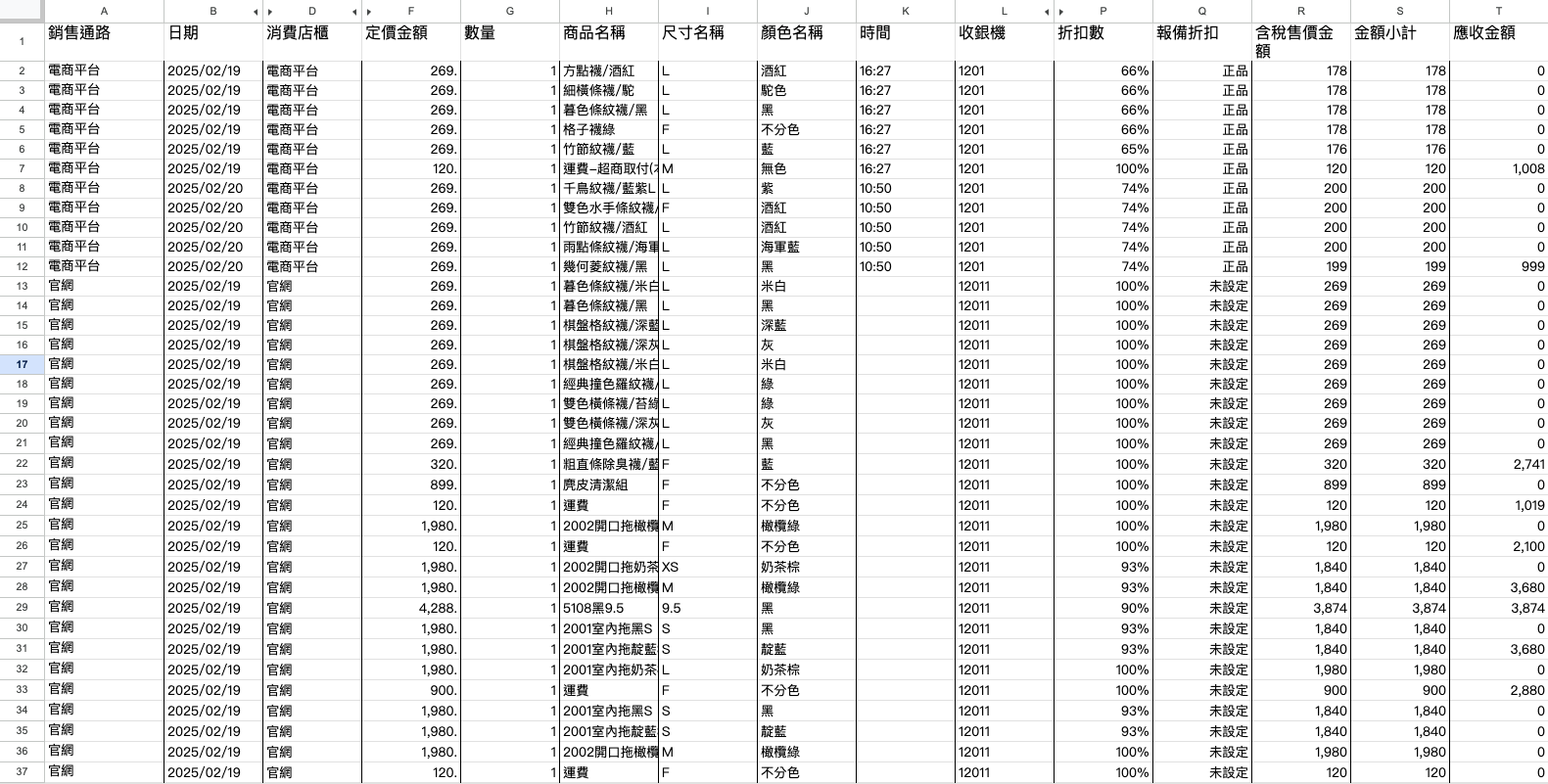
Next, use “<mark style="color:blue;">Database</mark>” to create a MaiAgent database and upload an Excel file. The system automatically converts it into a queryable table

{% hint style="info" %}
For details about MaiAgent databases, see: [Text to SQL with a MaiAgent database](/maiagent-user-guide/en/build/database/text-to-sql-maiagent.md)
{% endhint %}

<figure><img src="https://1360999650-files.gitbook.io/~/files/v0/b/gitbook-x-prod.appspot.com/o/spaces%2F6v6TNkkOQVfRYfcNirHL%2Fuploads%2Fgit-blob-b9e56bbbf14ebaca0880a2190930e59267e0261d%2F%E6%88%AA%E5%9C%96%202025-04-23%20%E4%B8%8B%E5%8D%883.01.50.png?alt=media" alt=""><figcaption></figcaption></figure>

You can also ask your company's technical staff for MySQL or PostgreSQL connection information, then use “<mark style="color:blue;">Database</mark>” to create an external database (see [Create and configure a database](/maiagent-user-guide/en/build/database/create-database.md)).

Next, click “<mark style="color:blue;">Database Settings</mark>” in the Agent settings left navigation, click “<mark style="color:blue;">Select Database</mark>” to link that database, and click Save.

<figure><img src="https://1360999650-files.gitbook.io/~/files/v0/b/gitbook-x-prod.appspot.com/o/spaces%2F6v6TNkkOQVfRYfcNirHL%2Fuploads%2Fgit-blob-209e26ccc4634848c63dc94eb4d3c71c5d55686b%2Fagent-builder-create-database.png?alt=media" alt="Database Settings selected in the left navigation; the right side shows usage tips, linked databases, and a Select Database button, with no database currently selected"><figcaption><p>Link the database to query in Database Settings</p></figcaption></figure>

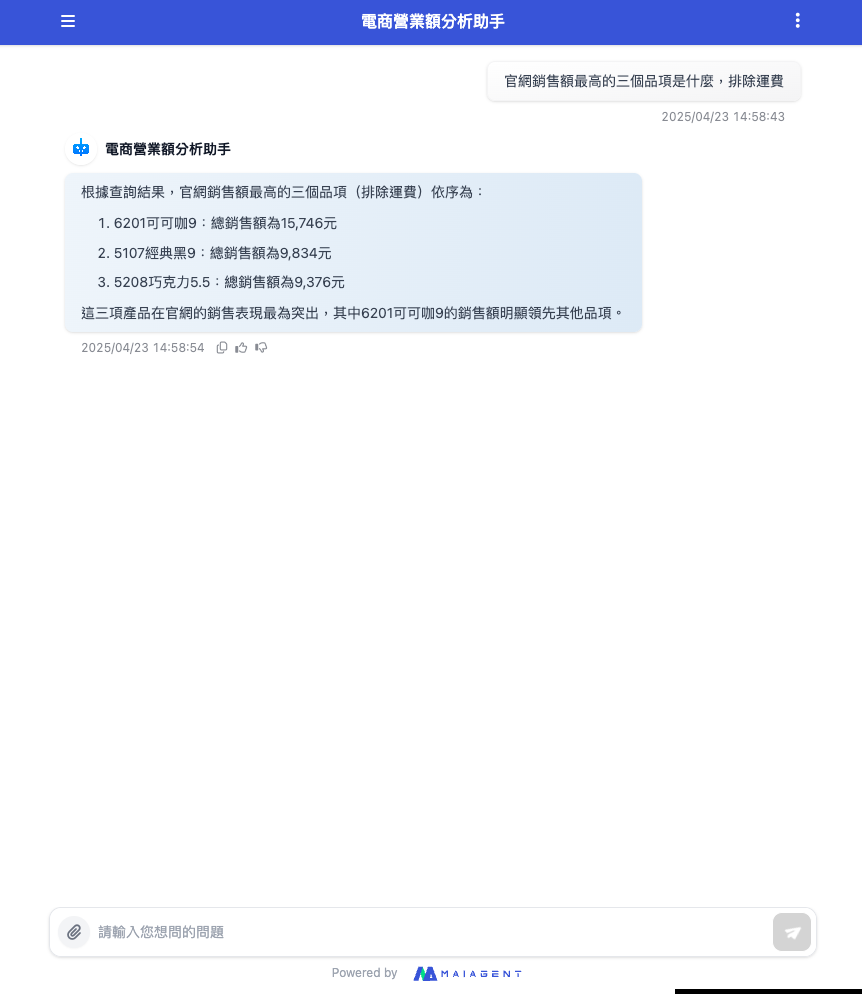
Once setup is complete, enter a question in the Agent Q\&A interface, for example

“What are the three items with the highest sales on the official website, excluding shipping fees?”

<figure><img src="https://1360999650-files.gitbook.io/~/files/v0/b/gitbook-x-prod.appspot.com/o/spaces%2F6v6TNkkOQVfRYfcNirHL%2Fuploads%2Fgit-blob-304f6095eb36c1686b12e9d0a28b305aeca1bd18%2F%E6%88%AA%E5%9C%96%202025-04-23%20%E4%B8%8B%E5%8D%883.00.14.png?alt=media" alt=""><figcaption></figcaption></figure>
{% endtab %}
{% endtabs %}

### Output format: plain text or JSON Schema <a href="#output-format-json-schema" id="output-format-json-schema"></a>

When the response mode is <mark style="color:blue;">RAG Q\&A</mark> and the selected LLM model supports structured output, “<mark style="color:blue;">Output Format</mark>” appears below the role instructions:

* <mark style="color:blue;">Plain Text Output</mark> (default): standard conversational responses.
* <mark style="color:blue;">JSON Output</mark>: selecting this displays the “<mark style="color:blue;">Output Format JSON Schema</mark>” field. After you paste a JSON Schema, every response from the Agent is JSON conforming to that structure. This is useful when responses need to be parsed by a program, such as extracting form fields from a conversation or classifying questions.

How to fill it in:

* The content must be valid JSON; otherwise, saving displays “Invalid output format JSON.”
* Use `"type": "object"` at the outermost level, and list each field's `type` and `description` in `properties`. Clearer descriptions help the Agent fill in more accurate values. You can adapt the `Person` example shown when the field is empty:

```json
{
  "title": "Person",
  "type": "object",
  "properties": {
    "name": { "type": "string", "description": "The person's name." },
    "age": { "type": "integer", "description": "Age in years which must be equal to or greater than zero." }
  }
}
```

* Put every field inside `properties` and specify its `type`. If you paste only a sample response payload (such as `{"answer": "string"}`), the content does not define any fields and saving is rejected. See [Error message when pasting sample data](#output-format-no-fields-error) below.
* If “Output Format” is not visible, the current model does not support JSON output, or the response mode is not RAG Q\&A; switch to another model.

{% hint style="info" %}
Role instructions and knowledge base retrieval still apply to JSON output. This mode is typically used with [API integration](/maiagent-user-guide/en/org/developer.md#integration-docs), where your program parses the returned JSON. Users on regular conversation platforms see the raw JSON directly.
{% endhint %}

#### Error message when pasting sample data <a href="#output-format-no-fields-error" id="output-format-no-fields-error"></a>

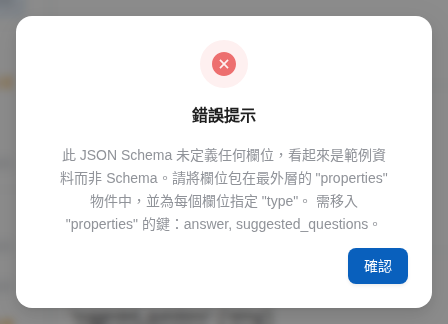
“<mark style="color:blue;">Output Format JSON Schema</mark>” expects a schema describing the fields rather than a sample of what the response looks like. If you paste sample data directly, it may be valid JSON but defines no fields, so the Agent has no way to know what to output. Clicking “<mark style="color:blue;">Save</mark>” opens an “<mark style="color:blue;">Error Message</mark>” dialog listing the keys that need to move into `properties`:

> This JSON Schema does not define any fields and appears to be sample data rather than a schema. Wrap the fields in the outermost "properties" object and specify a "type" for each field. Keys to move into "properties": answer, suggested\_questions.

<figure><img src="https://1360999650-files.gitbook.io/~/files/v0/b/gitbook-x-prod.appspot.com/o/spaces%2F6v6TNkkOQVfRYfcNirHL%2Fuploads%2Fgit-blob-420bb4beff810fc4039e061a3df2c0492f561bac%2Fagent-output-format-example-payload.png?alt=media" alt="Output Format set to JSON Output; the Output Format JSON Schema field contains sample data with only the answer and suggested_questions keys"><figcaption><p>Sample data pasted instead of a schema</p></figcaption></figure>

<figure><img src="https://1360999650-files.gitbook.io/~/files/v0/b/gitbook-x-prod.appspot.com/o/spaces%2F6v6TNkkOQVfRYfcNirHL%2Fuploads%2Fgit-blob-2647103190d431af19b355a59484f7f997664989%2Fagent-output-format-no-fields-error.png?alt=media" alt="Error Message dialog: the JSON Schema defines no fields and appears to be sample data rather than a schema; keys to move into properties are answer, suggested_questions"><figcaption><p>The error message on saving lists the keys to move into properties</p></figcaption></figure>

Move the listed keys into `properties`, add a `type` for each key (and preferably a `description`), and click “<mark style="color:blue;">Save</mark>” again. Here is the corrected example:

```json
{
  "type": "object",
  "properties": {
    "answer": { "type": "string", "description": "Response to the customer" },
    "suggested_questions": {
      "type": "array",
      "items": { "type": "string" },
      "description": "Suggested follow-up questions for the customer"
    }
  },
  "required": ["answer", "suggested_questions"]
}
```

**Use case**: Alex, an engineer at e-commerce company Acme, wants the customer service Agent to return “answer” and “suggested follow-up questions” fields so the website can display them as buttons. He selects “<mark style="color:blue;">JSON Output</mark>” under “<mark style="color:blue;">Output Format</mark>,” pastes an existing sample response `{"answer": "string", "suggested_questions": ["string"]}` directly into the field, and clicks Save. An error message says that `answer` and `suggested_questions` need to move into `properties`. He converts it into a schema as shown above and saves again. The screen displays “<mark style="color:blue;">Saved Successfully</mark>,” completing the output format setup.

{% hint style="warning" %}
Agents that previously saved sample data as their output format will see the same error message when they change any setting (even one unrelated to output format) and click “<mark style="color:blue;">Save</mark>.” First correct “<mark style="color:blue;">Output Format JSON Schema</mark>” to use a proper schema. If JSON output is not needed, select “<mark style="color:blue;">Plain Text Output</mark>” to save instead.
{% endhint %}

### Agent Mode options: Normal Mode and Canvas Mode <a href="#agent-mode-normal-vs-canvas" id="agent-mode-normal-vs-canvas"></a>

After selecting <mark style="color:blue;">Agent Mode</mark>, an “<mark style="color:blue;">Agent Mode</mark>” section and several built-in tool switches appear below the role instructions (Code Interpreter, Browser Tool, and Image Search; see [Built-in tool switches in Agent Mode](/maiagent-user-guide/en/build/tools/configure_tools.md#agent-mode-builtin-switches)). “Agent Mode” has two options:

| Option                                                 | Description on screen                                         | When to choose it                                                                                                                                                                                                             |
| ------------------------------------------------------ | ------------------------------------------------------------- | ----------------------------------------------------------------------------------------------------------------------------------------------------------------------------------------------------------------------------- |
| <mark style="color:blue;">Normal Mode</mark> (default) | AI autonomously completes tasks using instructions and tools. | Most Q\&A, information lookup, and tool calling scenarios                                                                                                                                                                     |
| <mark style="color:blue;">Canvas Mode (Canvas)</mark>  | Executes complex tasks through visual workflow orchestration. | When the Agent needs to create finished outputs such as webpages, interactive reports, or charts; results appear in a Canvas beside the conversation, where users can switch between preview and source code or download them |

Canvas Mode is available only when the selected model supports tool calling. Your organization plan may also limit available Agent modes; remember to click <mark style="color:blue;">Save</mark> after switching. See [Canvas](/maiagent-user-guide/en/work/maigpt/canvas.md) for how Canvas is displayed, and [Text to SQL with a MaiAgent database](/maiagent-user-guide/en/build/database/text-to-sql-maiagent.md) for an example of generating visual reports with Text to SQL.

## 6. Pre-assign Agent permissions <a href="#pre-assign-agent-permissions" id="pre-assign-agent-permissions"></a>

{% hint style="info" %}
[RABC-based permission management architecture and explanation](/maiagent-user-guide/en/org/roles/role-permission.md)
{% endhint %}

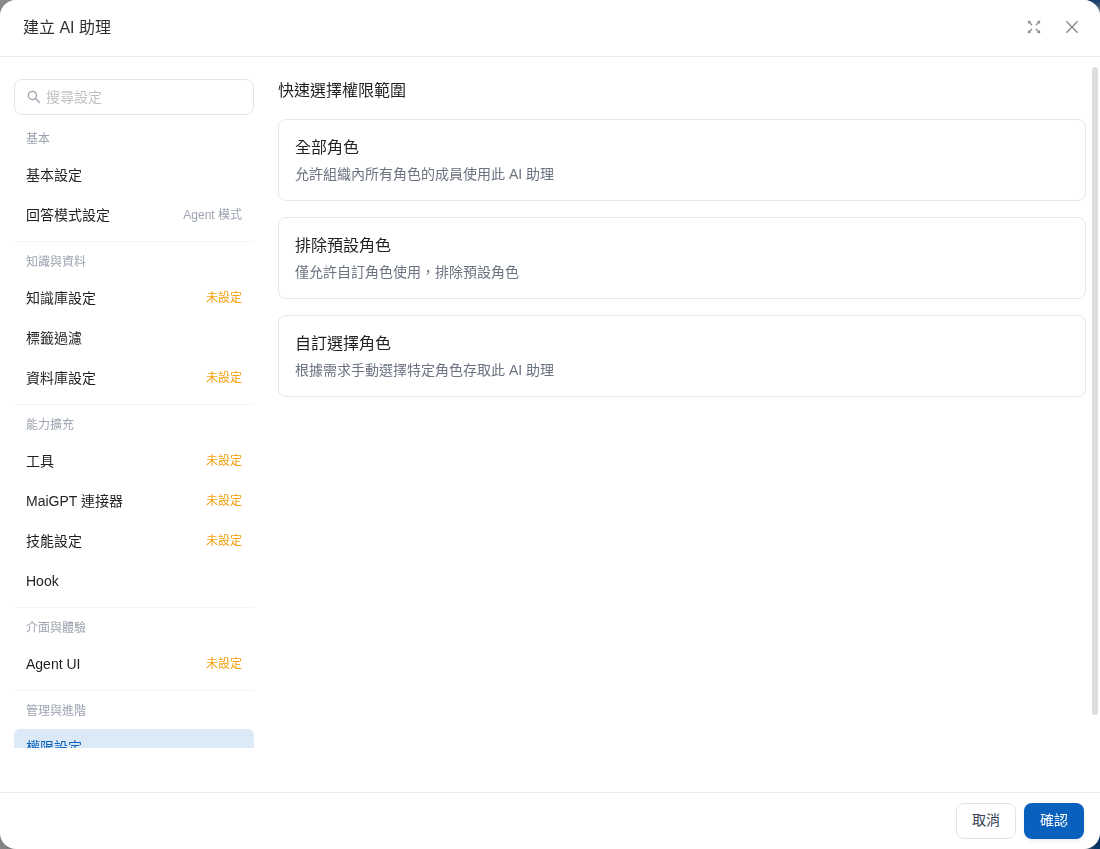
Click “<mark style="color:blue;">Permission Settings</mark>” in the left navigation to specify which roles' members can use the Agent by default. Under “<mark style="color:blue;">Quick Permission Scope Selection</mark>,” choose <mark style="color:blue;">All Roles</mark>, <mark style="color:blue;">Exclude Default Role</mark>, or <mark style="color:blue;">Select Custom Roles</mark> according to your use case.

<figure><img src="https://1360999650-files.gitbook.io/~/files/v0/b/gitbook-x-prod.appspot.com/o/spaces%2F6v6TNkkOQVfRYfcNirHL%2Fuploads%2Fgit-blob-1d1403d3c009175117908a7cee8af19f3e57f045%2Fagent-builder-create-permissions.png?alt=media" alt="Create Agent dialog: Permission Settings selected in the left navigation; Quick Permission Scope Selection on the right offers All Roles, Exclude Default Role, and Select Custom Roles"><figcaption><p>Select which roles can use this Agent in Permission Settings</p></figcaption></figure>

### Who can see the Agent after creation <a href="#who-can-see-new-agent" id="who-can-see-new-agent"></a>

Agents have no “draft” or “unpublished” state. After you click <mark style="color:blue;">Confirm</mark> to create an Agent, it appears in the Agent list. Visibility is determined by these permission settings:

* **Organization owner**: can always see all Agents.
* **Other members**: can see and use the Agent only if their role is selected in its permission settings. If the creator is not the owner, they must select at least one role they belong to that has <mark style="color:blue;">AI Assistant Permissions</mark>; otherwise, creation is not allowed.
* **While you are still configuring it and do not want others to use it**: select only your team's role first, then return to <mark style="color:blue;">Permission Settings</mark> after testing to add other roles.

Whether external visitors can use this Agent is separately determined by the conversation platform's <mark style="color:blue;">Enabled</mark> setting. See [Feature settings](/maiagent-user-guide/en/build/conversation-settings/platform-settings/function-settings.md#activation-default-and-permission). For the rules linking roles to resources, see [Role resource visibility control](/maiagent-user-guide/en/org/roles/group-resource-visibility.md).

## 7. Finish creating your Agent <a href="#complete-ai-agent-setup" id="complete-ai-agent-setup"></a>

After completing the steps above, click the blue “<mark style="color:blue;">Confirm</mark>” button in the lower right of the dialog to finish setup 🎉.

## Duplicate and delete Agents <a href="#duplicate-and-delete-agent" id="duplicate-and-delete-agent"></a>

In the “<mark style="color:blue;">Actions</mark>” column on the right of each row in the Agent list, you can find “<mark style="color:blue;">Duplicate</mark>” and “<mark style="color:blue;">Delete</mark>” in addition to “<mark style="color:blue;">Edit</mark>.”

### Synchronize conversation platform names when renaming <a href="#sync-channel-names" id="sync-channel-names"></a>

After changing the Agent name in <mark style="color:blue;">Basic Settings</mark> and saving, if the Agent has conversation platforms whose names can be updated together, a “<mark style="color:blue;">Synchronize Conversation Platform Names</mark>” dialog asks whether to update the listed platform names as well. Select the platforms to rename and click “<mark style="color:blue;">Update Together</mark>.” Click “<mark style="color:blue;">Change Assistant Name Only</mark>” to keep each platform's original name. The built-in “Internal Conversation” and “API” platforms are updated automatically and do not appear in the list. If the list is empty, the dialog displays “No conversation platforms need a linked name update.”

The new name must also be unique among Agents in the organization. See [Names must be unique within the organization](#unique-agent-name).

### Duplicate an Agent <a href="#duplicate-agent" id="duplicate-agent"></a>

Click “<mark style="color:blue;">Duplicate</mark>” to open the “<mark style="color:blue;">Duplicate AI Assistant</mark>” dialog. It shows the “<mark style="color:blue;">Source AI Assistant</mark>” and prefills “<mark style="color:blue;">New AI Assistant Name</mark>” with “Original Name Copy.” Change the name and click “<mark style="color:blue;">Confirm</mark>”; the new Agent immediately appears in the list.

The new Agent’s name must also be unique within the organization. If you remove “Copy” from the end of the prefilled name and use the source Agent’s name, clicking “<mark style="color:blue;">Confirm</mark>” displays a red warning below the name field, and the dialog stays open. Enter a different name to proceed. See [Agent names must be unique within the organization](#unique-agent-name) for the rules.

<figure><img src="https://1360999650-files.gitbook.io/~/files/v0/b/gitbook-x-prod.appspot.com/o/spaces%2F6v6TNkkOQVfRYfcNirHL%2Fuploads%2Fgit-blob-1de152b9af75453d74d111386e187171700591fd%2Fagent-builder-name-duplicate-copy.png?alt=media" alt="Duplicate AI Assistant dialog: the new AI assistant name matches the source AI assistant’s name, and a red warning below the field says that an AI assistant with this name already exists in the organization and asks you to use a different name"><figcaption><p>Using the original name when duplicating displays a warning below the new AI assistant name field</p></figcaption></figure>

Duplicating preserves the original Agent’s settings (response mode, role instructions, model, advanced settings, etc.) and its links to knowledge bases and skills. Conversation platforms, conversation history, and usage statistics are not copied. Use the duplicate to test new role instructions or models before applying them to the production Agent.

### Delete an Agent <a href="#delete-agent" id="delete-agent"></a>

Click “<mark style="color:blue;">Delete</mark>” to open the “<mark style="color:blue;">Delete AI Assistant and Linked Conversation Platforms</mark>” dialog, which lists all “<mark style="color:blue;">Linked Conversation Platforms</mark>” under this Agent. After you click “<mark style="color:blue;">Confirm Deletion</mark>”:

* **The Agent and the listed conversation platforms are deleted together**: connected conversation platforms, such as websites and LINE, are deleted along with the Agent. You cannot keep only the platforms.
* **Conversation history is retained**: conversation records on these platforms remain available under “<mark style="color:blue;">Customer Service Conversations</mark>” → “<mark style="color:blue;">All Conversations</mark>”.
* **This action cannot be undone**: the Agent’s settings cannot be restored after deletion. To keep a copy of the settings for reference, use “Duplicate” above to create a duplicate first.

{% hint style="info" %}
Each Agent has two system-managed built-in platforms: “<mark style="color:blue;">Internal Conversation</mark>” and “<mark style="color:blue;">API</mark>”. They cannot be deleted individually from the conversation platform list and are deleted only when the Agent is deleted.
{% endhint %}


---

# Agent Instructions
This documentation is published with GitBook. GitBook is the documentation platform designed so that both humans and AI agents can read, navigate, and reason over technical content effectively. Learn more at gitbook.com.

## Querying This Documentation
If you need additional information that is not directly available in this page, you can query the documentation by asking a question.

Perform an HTTP GET request on the following URL with the `ask` and `goal` query parameters:

```
GET https://docs.maiagent.ai/maiagent-user-guide/en/build/agent/setup.md?ask=<question>&goal=<user_goal>
```

`ask` is the immediate question: it should be specific, self-contained, and written in natural language.
`goal` is what the user is ultimately trying to achieve, the reason they need the answer. Sharing it helps GitBook give you a better, more relevant answer. A goal is most helpful when it describes the outcome the user wants rather than restating the question. For example, with `ask=how do I create an API token`, a goal like `automate deployments from our CI pipeline` lets GitBook tailor the answer to that use case.

The response will contain a direct answer to the question and relevant excerpts and sources from the documentation.

Use this mechanism when the answer is not explicitly present in the current page, you need clarification or additional context, or you want to retrieve related documentation sections.