> For the complete documentation index, see [llms.txt](https://docs.maiagent.ai/llms.txt). Markdown versions of documentation pages are available by appending `.md` to page URLs; this page is available as [Markdown](https://docs.maiagent.ai/maiagent-user-guide/en/build/agent/schedule/schedule-setup.md).

# Set Up Agent Schedules

Create an agent schedule from start to finish (scheduled tasks and proactive notifications): select an Agent, write a prompt, set the schedule, and configure delivery.

{% hint style="info" %}
This page shows how to create an agent schedule. If you are unfamiliar with what agent schedules are for, read [Agent Schedules](/maiagent-user-guide/en/build/agent/schedule.md) first.
{% endhint %}

On this page: [Prerequisites](#prerequisites)｜[Open Agent Schedules](#navigate-to-schedule)｜[Create a Schedule](#create-schedule)｜[What Happens After Saving?](#after-save)｜[Where Do Results Go?](#where-results-go)｜[Complete Example: Daily Customer Support Summary](#example-daily-summary)｜[Manage Existing Schedules](#manage-schedules)｜[View Execution Logs](#view-executions)｜[FAQ](#faq)｜[Related Reading](#related)

## Prerequisites <a href="#prerequisites" id="prerequisites"></a>

Before creating a schedule, confirm the following:

1. **You have created an Agent whose response mode is Agent mode** — Agent schedules only support Agent mode. Agents in other modes do not appear in the menu
2. **The Agent is connected to at least one conversation platform** — The schedule runs the Agent using a conversation platform as its container
3. **You have permission to access Agent Schedules** — If you cannot see the “Agent Schedules” menu, contact your organization administrator to check your permissions

## Open Agent Schedules <a href="#navigate-to-schedule" id="navigate-to-schedule"></a>

In the left menu, click <mark style="color:blue;">AI Features</mark> → <mark style="color:blue;">Agent Schedules</mark>. The schedule list appears:

<figure><img src="https://1360999650-files.gitbook.io/~/files/v0/b/gitbook-x-prod.appspot.com/o/spaces%2F6v6TNkkOQVfRYfcNirHL%2Fuploads%2Fgit-blob-f0e4bfd3346dd4ec61fc9c9610c6514cdb359577%2Fschedule-schedule-list.png?alt=media" alt="Schedule list: the toolbar shows schedule quota usage of 0 out of 50, capacity for 50 more schedules, and the Add Schedule button. Below are the schedule name, AI assistant, execution mode, schedule, delivery method, last execution, and status"><figcaption><p>Schedule list: the toolbar shows the schedule quota, and the list shows each schedule's status, execution mode, delivery method, and last execution time</p></figcaption></figure>

List columns:

| Column              | Description                                                                                                                           |
| ------------------- | ------------------------------------------------------------------------------------------------------------------------------------- |
| **Name**            | A name that identifies the schedule                                                                                                   |
| **AI Assistant**    | The Agent used by this schedule                                                                                                       |
| **Execution Mode**  | Context mode or independent mode                                                                                                      |
| **Schedule**        | Schedule type (Cron, interval, one\_shot) and time                                                                                    |
| **Delivery Method** | 💬 indicates delivery to a conversation, 🔗 indicates a Webhook, and `auto` indicates an automatically created dedicated conversation |
| **Last Execution**  | The most recent execution time                                                                                                        |
| **Status**          | Active / Paused                                                                                                                       |

## Create a Schedule <a href="#create-schedule" id="create-schedule"></a>

### 1. Click Add Schedule <a href="#step-new-schedule" id="step-new-schedule"></a>

Click <mark style="color:blue;">Add Schedule</mark> in the upper right to open the form. The form has four tabs: **Basic Information**, **Prompt**, **Schedule Settings**, and **Delivery Settings**.

### 2. Fill In Basic Information <a href="#step-basic-info" id="step-basic-info"></a>

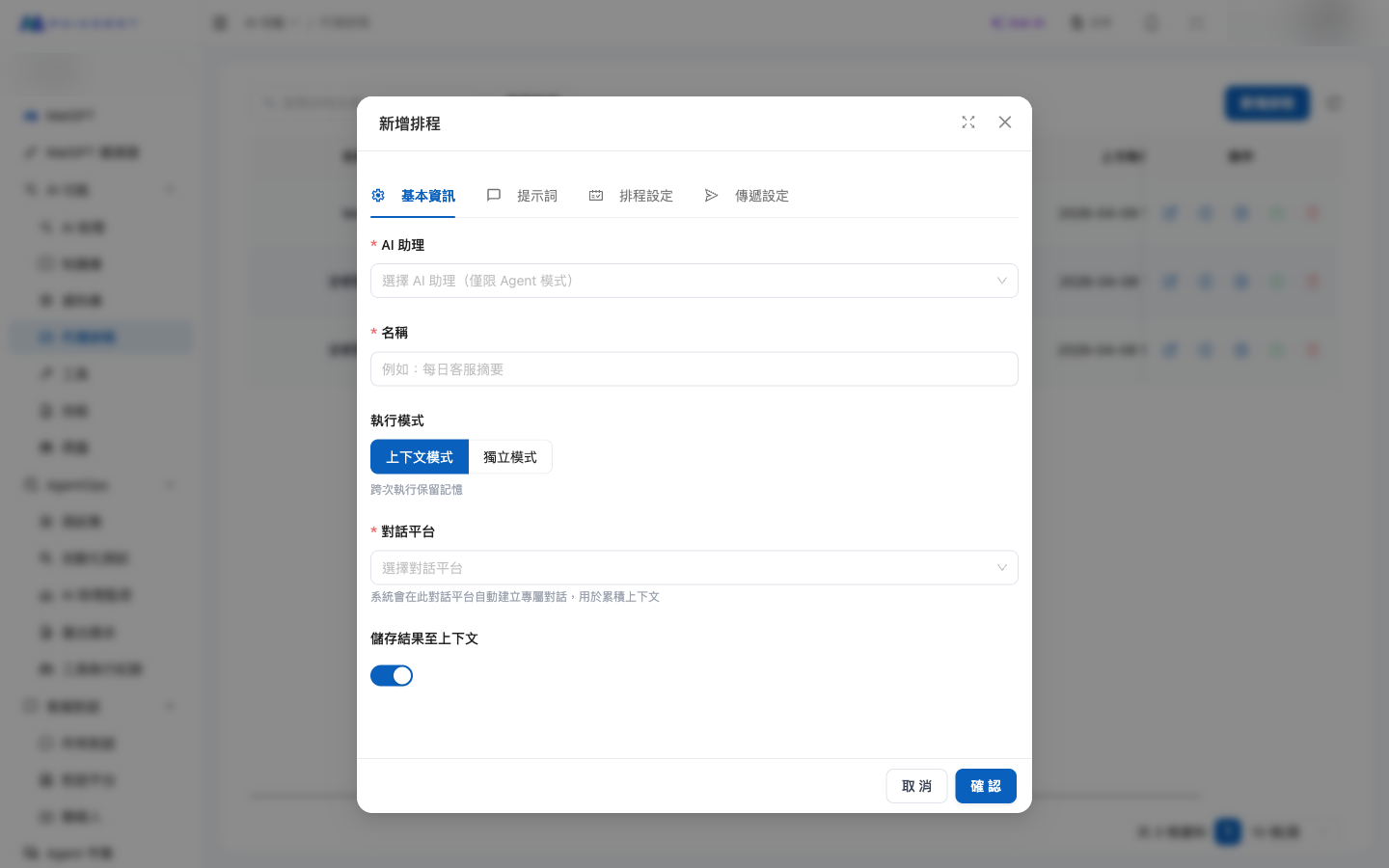
<figure><img src="https://1360999650-files.gitbook.io/~/files/v0/b/gitbook-x-prod.appspot.com/o/spaces%2F6v6TNkkOQVfRYfcNirHL%2Fuploads%2Fgit-blob-d20edd30ef9703714f9116b7d7ed67bb4282e9e2%2Fschedule-modal-basic.png?alt=media" alt="Basic Information tab"><figcaption><p>Basic Information tab: select an Agent, give the schedule a name, and choose an execution mode and conversation platform</p></figcaption></figure>

| Field                       | Required | Description                                                                                                                                                                                    |
| --------------------------- | -------- | ---------------------------------------------------------------------------------------------------------------------------------------------------------------------------------------------- |
| **AI Assistant**            | ✅        | Select an existing Agent (only Agents in Agent mode are shown)                                                                                                                                 |
| **Name**                    | ✅        | A name that identifies the schedule, such as “Daily Customer Support Summary”                                                                                                                  |
| **Execution Mode**          | ✅        | Choose context mode or independent mode                                                                                                                                                        |
| **Conversation Platform**   | ✅        | The conversation platform container used during execution; context mode uses it to accumulate Agent memory (used by the backend and does not appear in the customer support conversation list) |
| **Save Results to Context** | —        | Only shown in context mode. **Only affects memory for the next execution** (it does not affect whether you can view results—all previous responses are retained on the execution logs page)    |

**Which execution mode should you choose?**

* **Context mode**: Retains memory across executions. Suitable for tasks that accumulate information, such as tracking complaint resolution progress or monitoring trends in data.
* **Independent mode**: Starts from scratch each time without memory of the previous execution. Suitable for independent recurring tasks, such as daily reports or periodic statistics.

{% hint style="warning" %}
**The AI Assistant, Execution Mode, and Conversation Platform fields cannot be changed after creation.** To change them, delete the schedule and create it again. Other fields (name, prompt, schedule time, and delivery method) can be edited at any time.
{% endhint %}

### 3. Write a Prompt <a href="#step-prompt" id="step-prompt"></a>

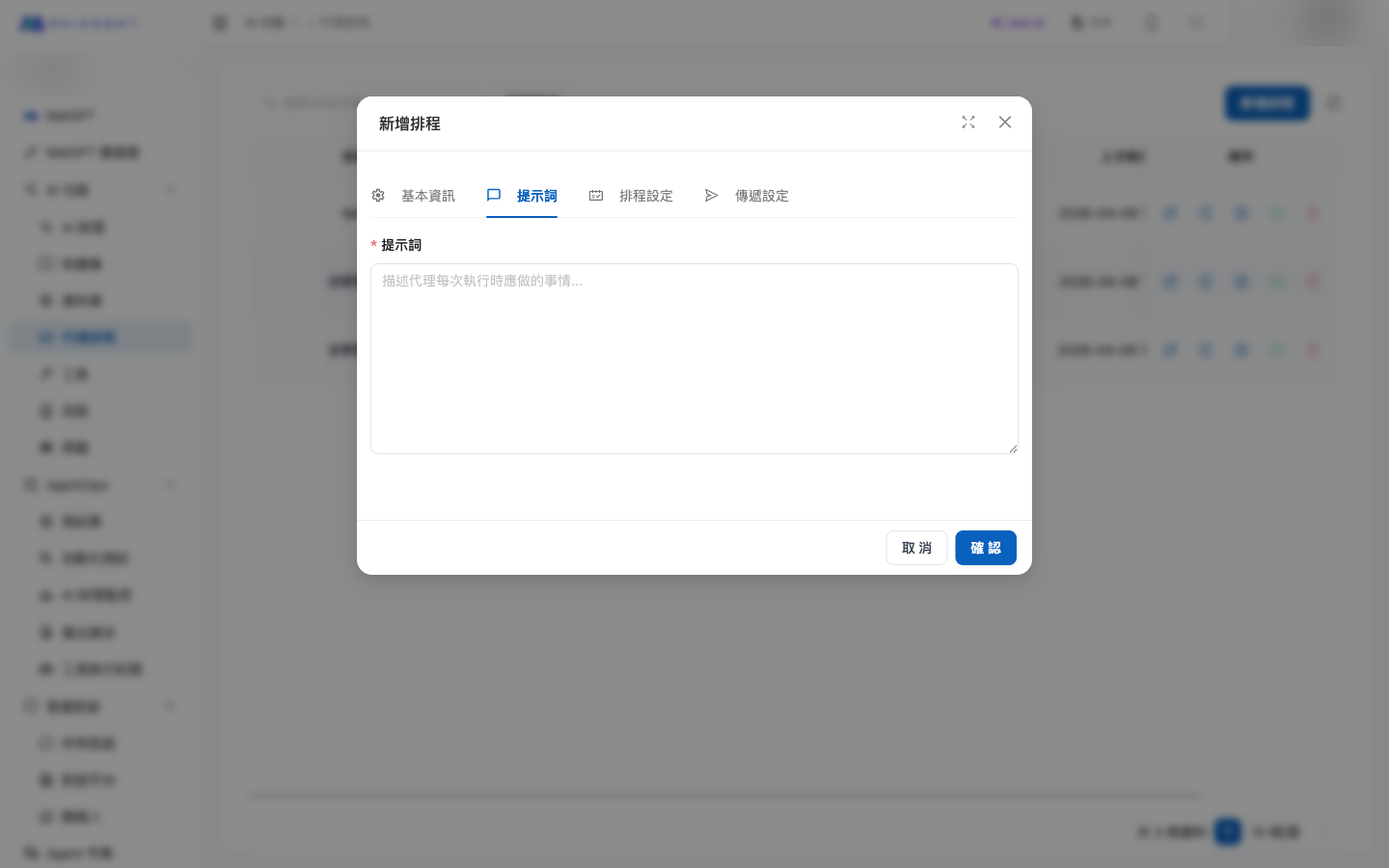
<figure><img src="https://1360999650-files.gitbook.io/~/files/v0/b/gitbook-x-prod.appspot.com/o/spaces%2F6v6TNkkOQVfRYfcNirHL%2Fuploads%2Fgit-blob-c151e1cf1f919b061bb0054f588639fa0834beac%2Fschedule-modal-prompt.png?alt=media" alt="Prompt tab"><figcaption><p>Prompt tab: describe the task the Agent should complete on each execution</p></figcaption></figure>

In the prompt field, describe what the Agent should do **on each execution**. The prompt is passed to the Agent as an instruction, and the Agent uses its attached tools and skills to complete the task.

**Example prompt:**

```
Find all unresolved customer complaints from the past 24 hours,
sort them by priority, and create a bulleted summary.
For any “High” priority cases, also add the label “⚠️ Urgent”.
```

Tips for writing prompts:

* Clearly describe the task objective and output format
* If the Agent needs to use a specific tool, guide it in the prompt (for example, “Query the orders table in the database”)
* Avoid relying on external state other than the current time; each execution should be an independent task (unless you use context mode)

### 4. Set the Schedule Time <a href="#step-schedule-config" id="step-schedule-config"></a>

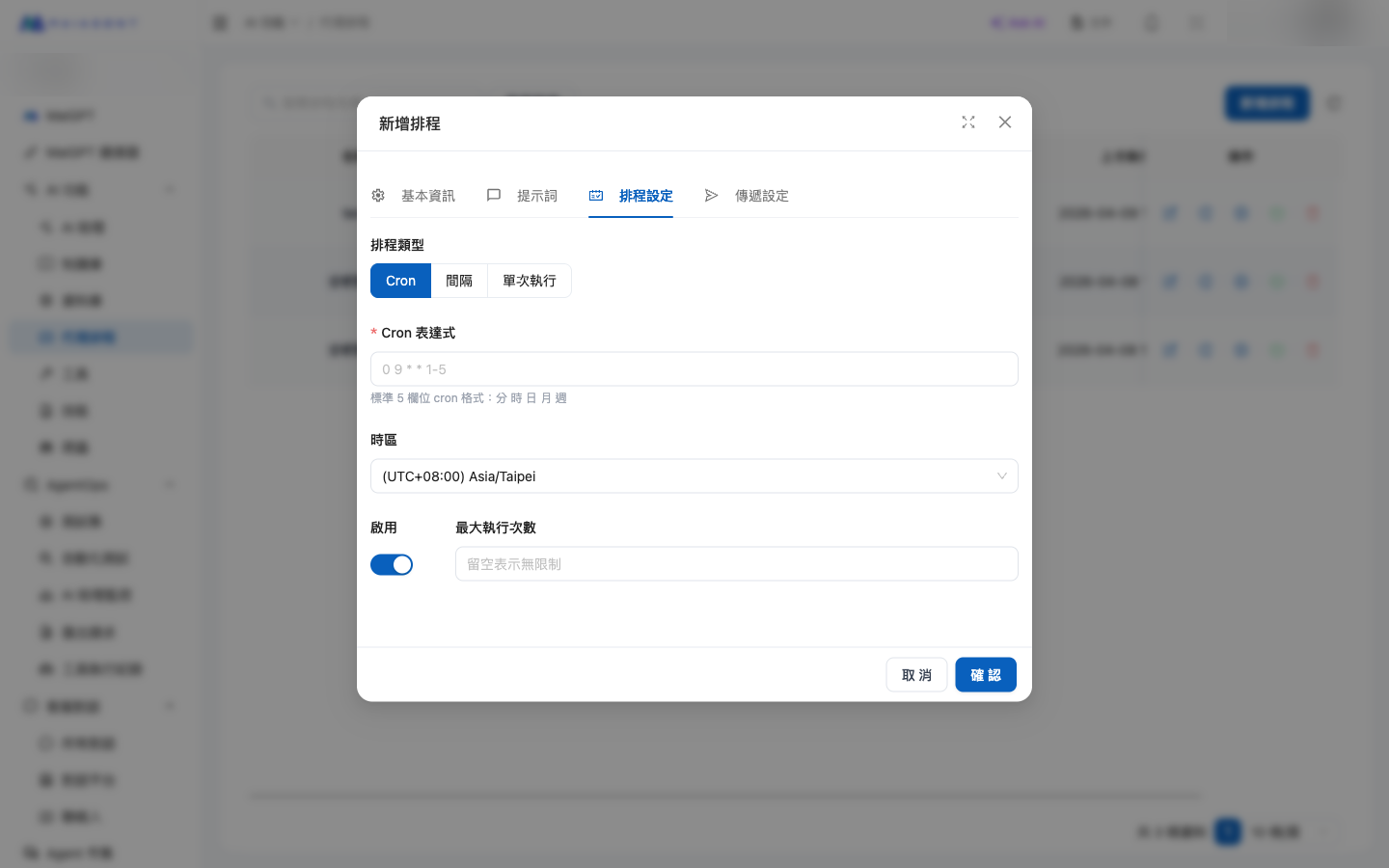
<figure><img src="https://1360999650-files.gitbook.io/~/files/v0/b/gitbook-x-prod.appspot.com/o/spaces%2F6v6TNkkOQVfRYfcNirHL%2Fuploads%2Fgit-blob-e3e646a9c0a52dde2101b4551738838518ff410c%2Fschedule-modal-schedule-cron.png?alt=media" alt="Schedule settings: Cron"><figcaption><p>Cron mode: use a standard five-field Cron expression to specify exact times</p></figcaption></figure>

There are three schedule types:

{% tabs %}
{% tab title="Cron" %}
Use a standard five-field Cron expression to specify exact times: `minute hour day month weekday`.

| Expression    | Meaning                                    |
| ------------- | ------------------------------------------ |
| `0 9 * * 1-5` | At 9:00 AM, Monday through Friday          |
| `0 */2 * * *` | Every 2 hours, on the hour                 |
| `30 8 * * *`  | At 8:30 AM every day                       |
| `0 0 1 * *`   | At midnight on the first day of each month |

Use this with the “Time Zone” field, which defaults to `Asia/Taipei` (Taipei time).
{% endtab %}

{% tab title="Interval" %}
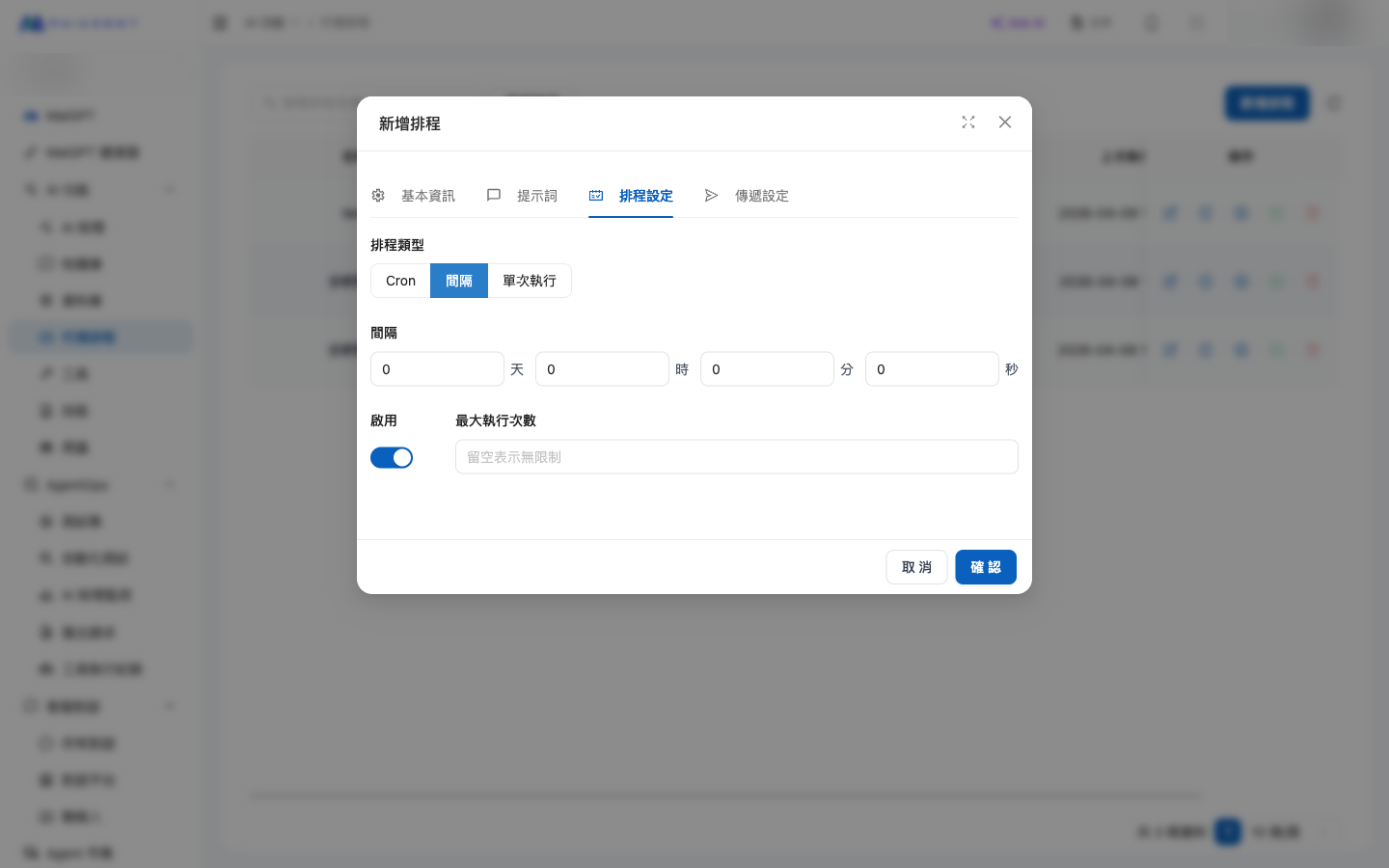
Run at a fixed interval, using a combination of four fields: days, hours, minutes, and seconds:

<figure><img src="https://1360999650-files.gitbook.io/~/files/v0/b/gitbook-x-prod.appspot.com/o/spaces%2F6v6TNkkOQVfRYfcNirHL%2Fuploads%2Fgit-blob-40fca6620a32db4946434124859a54f5a7c0f053%2Fschedule-modal-schedule-interval.png?alt=media" alt="Schedule settings: interval"><figcaption><p>Interval mode: combine the days, hours, minutes, and seconds fields</p></figcaption></figure>

* The interval must be **at least 1 second**
* For example, to run “every 30 minutes”, enter `30` in the “Minutes” field and `0` in the other fields
* Interval mode does not use the time zone field (because the time is relative rather than absolute)
  {% endtab %}

{% tab title="One-Time Execution" %}
Run once at the specified time, after which the schedule ends automatically:

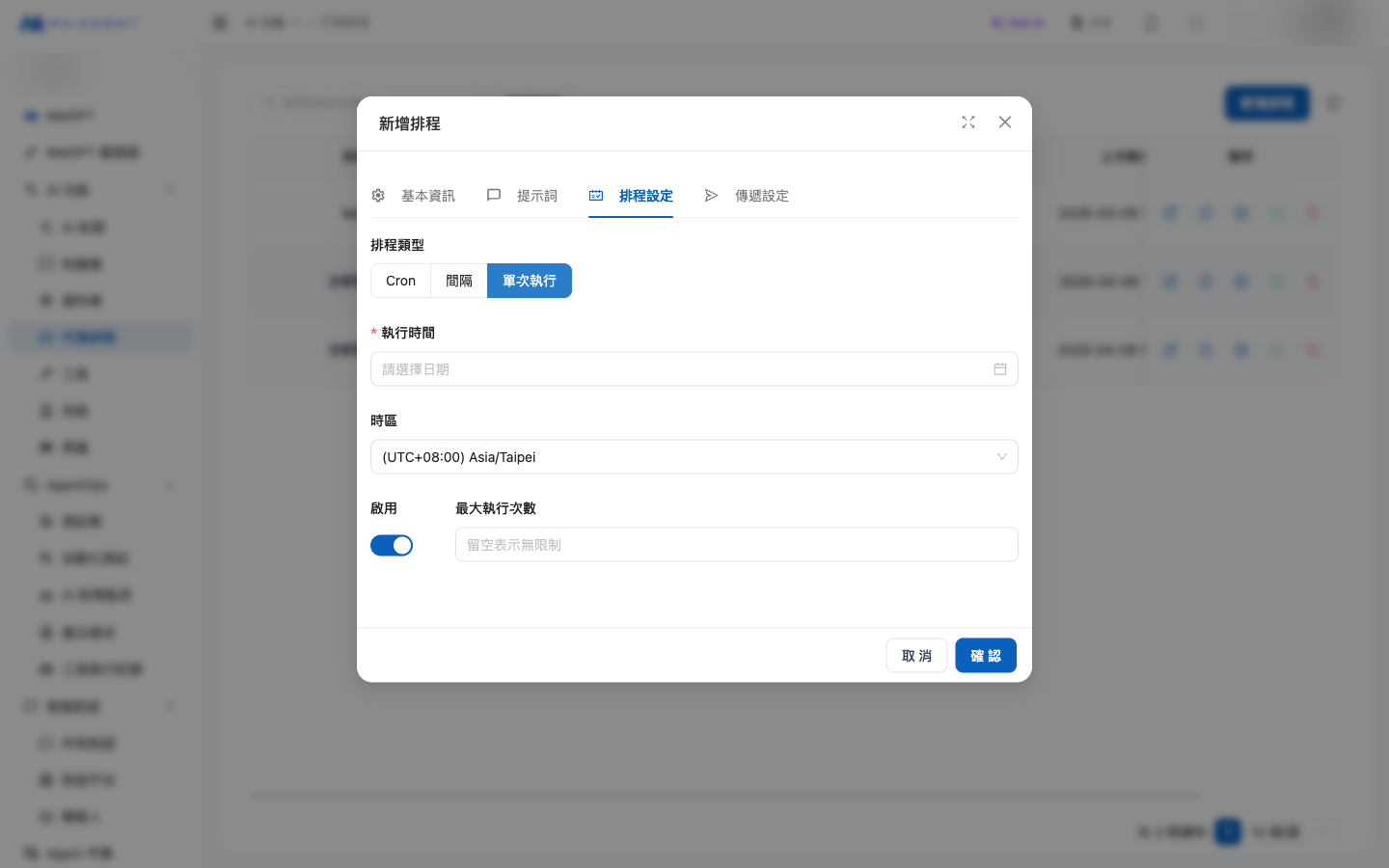
<figure><img src="https://1360999650-files.gitbook.io/~/files/v0/b/gitbook-x-prod.appspot.com/o/spaces%2F6v6TNkkOQVfRYfcNirHL%2Fuploads%2Fgit-blob-115f6e89531179e2d65faee251b9b3df6bc8c20e%2Fschedule-modal-schedule-oneshot.png?alt=media" alt="Schedule settings: one-time execution"><figcaption><p>One-time execution: select a specific date and time; the schedule ends after execution</p></figcaption></figure>

* Select a date and time with precision to the second
* Use this with the “Time Zone” field
* After execution, the schedule remains in the list for viewing logs, but will not run again
  {% endtab %}
  {% endtabs %}

**Other fields:**

| Field                  | Description                                                                                                                                                                                                                                                                                                                |
| ---------------------- | -------------------------------------------------------------------------------------------------------------------------------------------------------------------------------------------------------------------------------------------------------------------------------------------------------------------------- |
| **Enabled**            | Whether to activate the schedule immediately. When off, the schedule is “Paused” and will not trigger                                                                                                                                                                                                                      |
| **Maximum Executions** | Limits how many times the schedule can run. Once reached, it stops triggering and no longer counts toward the [schedule quota](#schedule-quota). Its status first shows “Completed” and changes to “Paused” at the next scheduled time. Increase the maximum executions before enabling it again. Leave blank for no limit |

### 5. Set the Delivery Method <a href="#step-delivery" id="step-delivery"></a>

Where should results be sent after execution? Configure this on this tab.

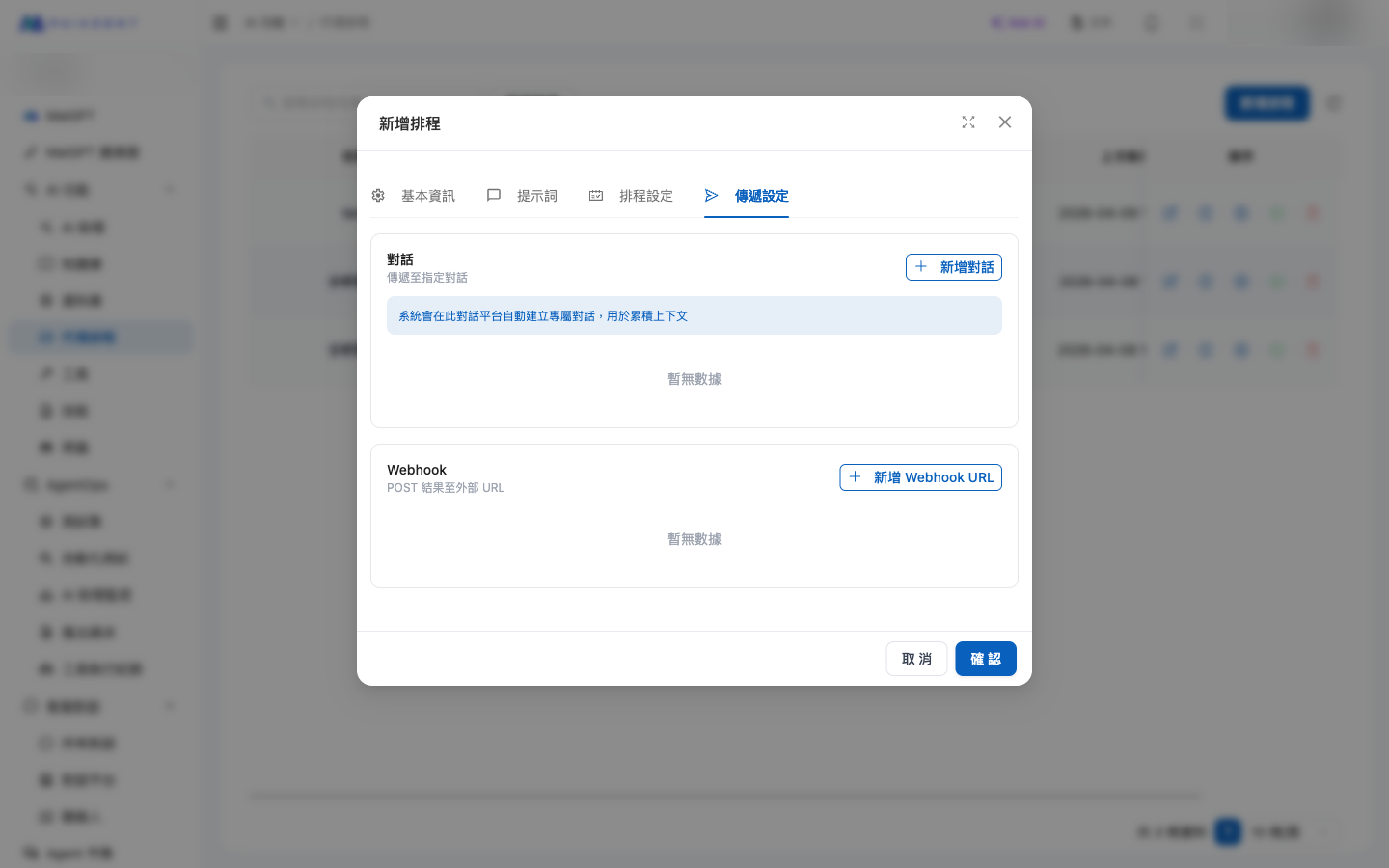
<figure><img src="https://1360999650-files.gitbook.io/~/files/v0/b/gitbook-x-prod.appspot.com/o/spaces%2F6v6TNkkOQVfRYfcNirHL%2Fuploads%2Fgit-blob-02edc077f379d539dc3d1a1a4ab016dff1695d19%2Fschedule-modal-delivery.png?alt=media" alt="Delivery Settings tab"><figcaption><p>Delivery settings: configure multiple conversation targets and multiple Webhook URLs</p></figcaption></figure>

{% hint style="info" %}
This page sets **where results are proactively delivered** (specified conversations or Webhook receivers). Even without any delivery targets, the full results of each execution are still retained on the <mark style="color:blue;">Execution Logs</mark> page; they simply are not pushed elsewhere.
{% endhint %}

#### Conversations <a href="#delivery-conversation" id="delivery-conversation"></a>

Click <mark style="color:blue;">Add Conversation</mark> and select a conversation from the menu. Results are sent as bot messages. You can add multiple conversations.

#### Webhook <a href="#delivery-webhook" id="delivery-webhook"></a>

Click <mark style="color:blue;">Add Webhook URL</mark>. Results are sent in a POST request to your external URL (which must start with `http://` or `https://`). Common uses include:

* Integrating with Slack / Discord / LINE
* Writing to your own system for further processing
* Triggering other automation workflows

{% hint style="warning" %}
You can leave delivery targets unset; execution results will always remain on the <mark style="color:blue;">Execution Logs</mark> page. However, to have your team or colleagues receive results automatically (for example, in Slack), you must configure at least one conversation or Webhook; otherwise, no one will be notified.
{% endhint %}

### 6. Save and Enable <a href="#step-save" id="step-save"></a>

Click <mark style="color:blue;">Confirm</mark> to save. If the “Enabled” toggle is on, the schedule immediately starts triggering according to its configured times.

## What Happens After Saving? <a href="#after-save" id="after-save"></a>

After saving the schedule, you will immediately see these changes:

1. **The modal closes, and the schedule appears in the list**
   * Its status shows “Active” (a green tag), or “Paused” (if the Enabled toggle is off)
   * “Last Execution” is empty until the first trigger, when it updates to the execution time
2. **The system performs two actions in the background** (there is no visible UI change)
   * Registers the schedule with the backend scheduler so it triggers automatically at the configured time
   * In context mode, also creates an internal conversation container to accumulate Agent memory (this container does not appear in the <mark style="color:blue;">Customer Support Conversations</mark> list)
3. **Wait for the schedule to trigger**
   * **Cron / Interval**: Runs automatically at the configured times. For example, Cron `0 9 * * 1-5` triggers at the next 9:00 AM on a Monday through Friday
   * **One-time execution**: Runs once at the configured time
   * Do not want to wait? Click ▶️ <mark style="color:blue;">Run Now</mark> in the list to trigger a test execution immediately
4. **During execution**
   * The status in the list remains “Active”, and “Last Execution” updates with each execution time
   * Each execution creates an entry on the <mark style="color:blue;">Execution Logs</mark> page (including the full Agent response)
   * If you added conversations or Webhooks in “Delivery Settings”, the results are also sent to those targets
   * For details on viewing results, see “[Where Do Results Go?](#where-results-go)” below
5. **When the task ends**
   * When “Maximum Executions” is reached → the status shows “Completed” or “Paused”; the schedule stops triggering and no longer counts toward the schedule quota
   * When a one-time execution finishes → the schedule remains in the list but no longer triggers

### Schedule Quota <a href="#schedule-quota" id="schedule-quota"></a>

Each organization has a limit on the number of simultaneously “Active” schedules. To the left of <mark style="color:blue;">Add Schedule</mark>, the list toolbar shows <mark style="color:blue;">Schedule Quota: N in use / Limit N, N more available</mark>. This updates immediately after adding, deleting, pausing, enabling, or manually running a schedule. Only “Active” schedules count toward the quota. “Paused” and “Completed” schedules (those that have reached their maximum executions, with the tooltip “Does not count toward the schedule quota”) do not count. When the quota is full, <mark style="color:blue;">Add Schedule</mark> and “Enable” for paused schedules are disabled, with the tooltip “Limit of N schedules reached. Delete or pause another schedule first.”

For example, a marketing team has schedules for weekly newsletters and daily competitor summaries. When they try to add a “Month-End Sales Summary”, <mark style="color:blue;">Add Schedule</mark> is disabled. The quota shows “0 more available”, so they pause the “Singles' Day Campaign Daily Report” they no longer need. This immediately frees up one slot for the new schedule. Schedules that have reached their maximum executions do not need to be deleted and do not count toward the quota.

## Where Do Results Go? <a href="#where-results-go" id="where-results-go"></a>

After a schedule runs, the Agent's response appears in the following locations. **The execution logs page is the main place to view history**—regardless of execution mode, each completed run leaves its full content here. Other locations depend on your delivery settings.

### 1. Execution Logs Page (Main Viewing Location) <a href="#result-execution-log" id="result-execution-log"></a>

Each execution creates a log entry. This is the most reliable way to view past results.

**How to open it:**

<mark style="color:blue;">Agent Schedules</mark> list → Click 🕘 <mark style="color:blue;">View Execution Logs</mark> in the schedule's row → Open the execution history page → Click 👁 <mark style="color:blue;">View Details</mark> on the right of an entry

**You will see:**

* Execution status (Succeeded / Failed / Partially Succeeded)
* Start and completion times
* The full Agent response (retained here even if subsequent delivery fails)
* Error messages if the execution fails

### 2. Specified Conversations (Added in Delivery Settings) <a href="#result-target-conversations" id="result-target-conversations"></a>

Results are sent to these conversations as Agent messages, just like the messages customers or colleagues see.

**How to find them:**

<mark style="color:blue;">Customer Support Conversations</mark> → Open the conversation you added in delivery settings → The message appears at the latest position.

### 3. Webhook URLs (Added in Delivery Settings) <a href="#result-webhooks" id="result-webhooks"></a>

Results are sent to your external URL via HTTP POST, with a **JSON body**:

```json
{
  "content": "The full response generated by the Agent"
}
```

**Technical details:**

* Content-Type: `application/json`
* Timeout: 30 seconds (the Webhook receiver must respond with 2xx within 30 seconds, otherwise delivery is considered failed)
* Failures are recorded under “Error Message” in the execution log (the execution status becomes “Partially Succeeded”), but are not retried

### What Does the “Save Results to Context” Toggle Do? <a href="#save-context-effect" id="save-context-effect"></a>

This toggle **only affects memory for the next execution in context mode**. It does not affect whether you can view results.

| Setting          | Effect on the Next Execution                                                                                                                       |
| ---------------- | -------------------------------------------------------------------------------------------------------------------------------------------------- |
| **On** (default) | The previous prompt and Agent response are included as conversation history in the next execution, allowing the Agent to continue with the context |
| **Off**          | Each execution still uses context mode, but no messages are retained, making it similar to independent mode                                        |

Regardless of the toggle, **the execution logs page retains the full response from each execution**—this setting does not affect your ability to view history.

### Summary: Result Visibility <a href="#result-summary" id="result-summary"></a>

| Execution Mode / Setting                         | Execution Logs Page | Specified Conversations | Webhook         | Agent Memory Across Executions |
| ------------------------------------------------ | ------------------- | ----------------------- | --------------- | ------------------------------ |
| Context mode + Save Results to Context (default) | ✅                   | ✅ If configured         | ✅ If configured | ✅ Retained                     |
| Context mode + Do not save results               | ✅                   | ✅ If configured         | ✅ If configured | ❌ No memory                    |
| Independent mode                                 | ✅                   | ✅ If configured         | ✅ If configured | ❌ No memory                    |

{% hint style="info" %}
**Why is there no entry point for a “dedicated conversation”?** Context mode creates a dedicated backend conversation to accumulate memory, but this conversation **currently does not appear in the&#x20;**<mark style="color:blue;">**Customer Support Conversations**</mark>**&#x20;list**. It is an internal system container, not a conversation for human support agents to handle. View historical results in <mark style="color:blue;">Execution Logs</mark>.
{% endhint %}

## Complete Example: Daily Customer Support Summary <a href="#example-daily-summary" id="example-daily-summary"></a>

This end-to-end example shows how to create a schedule that automatically summarizes the previous day's customer support issues at 9:00 AM every day and sends the results to Slack.

### Scenario <a href="#example-scenario" id="example-scenario"></a>

Before work each morning, you want the Agent to summarize all unresolved complaints from yesterday and send the summary to the team's Slack #customer-support channel, so the support manager sees it as soon as they open Slack.

### Preparation <a href="#example-prerequisites" id="example-prerequisites"></a>

* An Agent whose response mode is Agent mode, with tools attached for querying complaint data (such as a database tool or customer support system API tool)
* A connected conversation platform (used as the execution container)
* A Slack incoming webhook URL (to receive results)

### Configuration <a href="#example-config" id="example-config"></a>

**Basic Information:**

| Field                 | Value                                                                                           |
| --------------------- | ----------------------------------------------------------------------------------------------- |
| Agent                 | `Customer Support AI Manager`                                                                   |
| Name                  | `Daily Complaint Summary - 9:00`                                                                |
| Execution Mode        | Independent mode (each day's summary is independent, with no need to remember the previous day) |
| Conversation Platform | `Internal Customer Support`                                                                     |

**Prompt:**

```
Find all customer complaints from the past 24 hours (ending at midnight today)
with a status of “Unresolved” or “In Progress”,
sort them by priority (High → Medium → Low), and create a summary:

## Format
### 🔴 High Priority (X cases)
- [#Case number] Customer name — One-sentence description

### 🟡 Medium Priority (X cases)
...

### 🟢 Low Priority (X cases)
...

End with a one-line summary: “X cases pending in total, including X high-priority cases that need attention today”.
```

**Schedule Settings:**

* Schedule type: `Cron`
* Cron expression: `0 9 * * 1-5` (9:00 AM, Monday through Friday)
* Time zone: `Asia/Taipei`
* Enabled: On
* Maximum executions: Leave blank (run continuously)

**Delivery Settings:**

* Conversations: Do not add extra conversations (the execution logs page already retains the full Agent output, so there is no need to take up space in customer support conversations)
* Webhook URL: `https://hooks.slack.com/services/T00000000/B00000000/XXXXXXXX`

### After Saving <a href="#example-after-save" id="example-after-save"></a>

1. **Monday at 9:00 AM (first trigger)**: The schedule triggers automatically, and the Agent starts querying and summarizing
2. **Within about 30 seconds (depending on the Agent's processing speed)**:
   * The team's Slack #customer-support channel receives the summary via Webhook (the POST body is `{"content": "..."}`)
   * “Last Execution” in the schedule list updates to `2026-04-20 09:00:12`
3. **Want to review what the Agent generated?** There are two places:
   * **Execution logs page** (main entry point): <mark style="color:blue;">Agent Schedules</mark> → Click the schedule's 🕘 → Click 👁 → View the full bot response and token usage
   * **Slack**: Go directly to the #customer-support channel (your configured Webhook receiver)
4. **Tuesday, Wednesday… execution continues**: Triggers automatically at 9:00 AM every workday without further manual intervention

### How to Troubleshoot Problems <a href="#example-troubleshooting" id="example-troubleshooting"></a>

* **No message in Slack** → First check the execution status on the execution logs page. If it is “Failed”, read the error message. If it is “Succeeded” but Slack received nothing, check the Webhook URL and whether Slack has a rate limit
* **The summary is not what you expected** → View the Agent's actual output in the execution details, then adjust the prompt
* **The schedule did not trigger** → See “FAQ” below

## Manage Existing Schedules <a href="#manage-schedules" id="manage-schedules"></a>

Back in the schedule list, the actions on the right of each row provide these functions:

| Icon   | Function                | Description                                                                                                                     |
| ------ | ----------------------- | ------------------------------------------------------------------------------------------------------------------------------- |
| ✏️     | **Edit**                | Modify the schedule (except AI Assistant, Execution Mode, and Conversation Platform)                                            |
| 🕘     | **View Execution Logs** | Open the schedule's execution history page                                                                                      |
| ▶️     | **Run Now**             | Trigger an execution immediately without waiting for the scheduled time                                                         |
| ⏸️ / ⏻ | **Pause / Enable**      | Toggle the schedule's enabled status; enabling is unavailable when the organization's [schedule quota](#schedule-quota) is full |
| 🗑     | **Delete**              | Delete the schedule. Its execution logs are also removed                                                                        |

### Run Now <a href="#run-now" id="run-now"></a>

“Run Now” is the fastest way to test whether a schedule is configured correctly. After clicking it:

1. The system immediately triggers one execution without affecting the original schedule times
2. A “Schedule triggered” notification appears
3. Open “View Execution Logs” to check the results

### Pause and Enable <a href="#pause-resume" id="pause-resume"></a>

Pausing stops the schedule from triggering while retaining its settings and execution logs. You can enable it again at any time.

## View Execution Logs <a href="#view-executions" id="view-executions"></a>

Click 🕘 in the list to open the execution logs page:

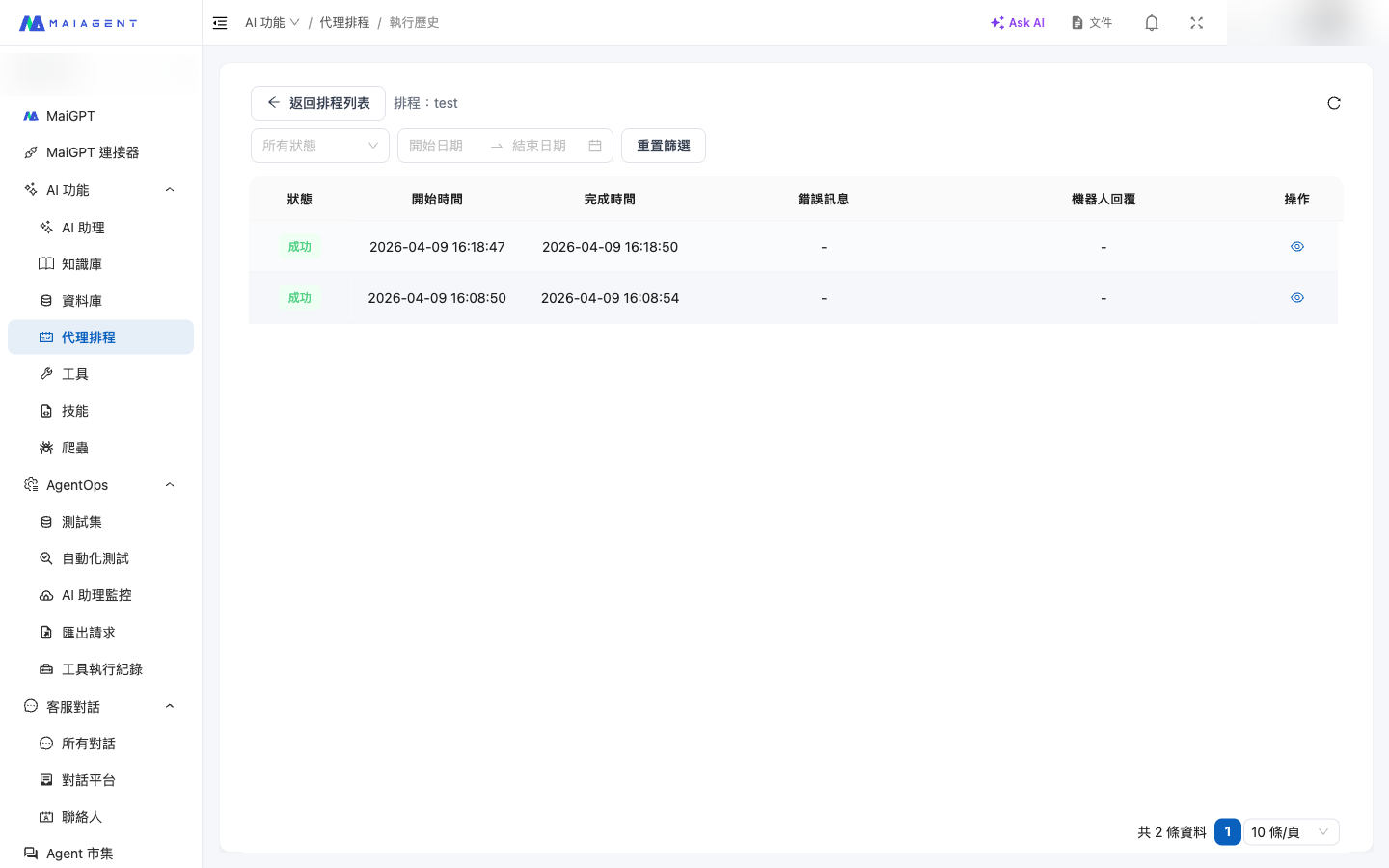
<figure><img src="https://1360999650-files.gitbook.io/~/files/v0/b/gitbook-x-prod.appspot.com/o/spaces%2F6v6TNkkOQVfRYfcNirHL%2Fuploads%2Fgit-blob-7f87fa92925c95a1ee60162a787f99abc18d04b2%2Fschedule-executions-list.png?alt=media" alt="Execution log list"><figcaption><p>Execution logs page: filter by status and date range, and view the results of each execution</p></figcaption></figure>

### Filters <a href="#filter-executions" id="filter-executions"></a>

* **Status**: Pending / Running / Succeeded / Failed
* **Date Range**: Specify a start and end date

### Field Descriptions <a href="#execution-fields" id="execution-fields"></a>

| Field               | Description                                                                |
| ------------------- | -------------------------------------------------------------------------- |
| **Status**          | Pending (queued), Running, Succeeded, Failed                               |
| **Start Time**      | When the Agent started execution                                           |
| **Completion Time** | When execution ended                                                       |
| **Error Message**   | The reason for failure, if execution failed                                |
| **Bot Response**    | The response generated by the Agent (view the full content in the details) |

### View Execution Details <a href="#execution-detail" id="execution-detail"></a>

Click 👁 on the right of each row to open the details dialog, where you can view execution status, start and completion times, the full bot response, and error messages.

## FAQ <a href="#faq" id="faq"></a>

<details>

<summary>Why did the schedule not trigger?</summary>

Possible reasons:

1. The schedule is “Paused”—check the status column in the list
2. “Maximum Executions” has been reached—the status shows “Completed” or “Paused” and no further executions trigger; increase the maximum executions before enabling it again
3. The Cron expression or time zone is incorrect—check the edit page
4. A one-time schedule has already run—one-time execution triggers only once

Try “Run Now” first to confirm the schedule can execute correctly, then troubleshoot the time settings.

</details>

<details>

<summary>Why can I not select my Agent?</summary>

Agent schedules **only support Agents in Agent mode**. If your Agent uses Chatbot mode or another mode, it will not appear in the menu. Check its mode on the Agent settings page before creating a schedule.

</details>

<details>

<summary>Where can I see what the Agent generated after a schedule runs?</summary>

The main entry point is <mark style="color:blue;">Agent Schedules</mark> → Click 🕘 <mark style="color:blue;">View Execution Logs</mark> for the schedule → Click 👁 on an entry. The details show the full Agent response.

If you configured delivery targets (conversations / Webhooks), a copy is also sent there:

* Specified conversation: Open that conversation to view the message
* Webhook: View the POST body at your external receiver

</details>

<details>

<summary>After enabling “Save Results to Context”, where can I view that conversation?</summary>

**This toggle does not affect whether you can view results**—all previous responses are always retained on the execution logs page.

It only affects whether the Agent remembers what happened in the previous execution:

* On (default): The Agent uses the same backend conversation container to accumulate memory and continue with the context in the next execution
* Off: No messages are retained between executions, making it similar to independent mode

This backend conversation container currently does not appear in the <mark style="color:blue;">Customer Support Conversations</mark> list. It is for internal system use, not for human support agents to handle.

</details>

<details>

<summary>What data format does a Webhook receive?</summary>

A POST request with Content-Type `application/json` and this body structure:

```json
{
  "content": "The full response generated by the Agent (plain text)"
}
```

The timeout is 30 seconds, with no retries. The Webhook receiver should respond with a 2xx status code within 30 seconds; otherwise, that delivery is recorded as failed (but the full Agent response is still retained on the execution logs page).

</details>

<details>

<summary>What exactly is the difference between independent mode and context mode?</summary>

The main difference is **whether the Agent can see the previous conversation history during execution**:

* **Context mode**: Accumulates messages in the same backend conversation. On its next run, the Agent can see prompts and responses from previous runs and continue its reasoning (suitable for tasks that need to track trends, avoid repetition, or build up context)
* **Independent mode**: Creates a temporary conversation for each run and deletes it immediately afterward. The Agent starts from scratch each time, with no knowledge of what happened before (suitable for tasks with independent daily outputs, such as daily reports)

Results from **both modes are saved on the execution records page**—the difference is whether the Agent has memory while working, rather than whether you can look up past results.

</details>

## Further Reading <a href="#related" id="related"></a>

* [Agent Scheduling](/maiagent-user-guide/en/build/agent/schedule.md) — An introduction to agent scheduling
* [Agent (AI Assistant)](/maiagent-user-guide/en/build/agent.md) — Create an Agent with its response mode set to Agent mode
* [Connect a Conversation Platform: Website](/maiagent-user-guide/en/build/choose-channel/web-chat/website.md) — Set up a conversation platform (using a website as an example)


---

# Agent Instructions
This documentation is published with GitBook. GitBook is the documentation platform designed so that both humans and AI agents can read, navigate, and reason over technical content effectively. Learn more at gitbook.com.

## Querying This Documentation
If you need additional information that is not directly available in this page, you can query the documentation by asking a question.

Perform an HTTP GET request on the following URL with the `ask` and `goal` query parameters:

```
GET https://docs.maiagent.ai/maiagent-user-guide/en/build/agent/schedule/schedule-setup.md?ask=<question>&goal=<user_goal>
```

`ask` is the immediate question: it should be specific, self-contained, and written in natural language.
`goal` is what the user is ultimately trying to achieve, the reason they need the answer. Sharing it helps GitBook give you a better, more relevant answer. A goal is most helpful when it describes the outcome the user wants rather than restating the question. For example, with `ask=how do I create an API token`, a goal like `automate deployments from our CI pipeline` lets GitBook tailor the answer to that use case.

The response will contain a direct answer to the question and relevant excerpts and sources from the documentation.

Use this mechanism when the answer is not explicitly present in the current page, you need clarification or additional context, or you want to retrieve related documentation sections.