> For the complete documentation index, see [llms.txt](https://docs.maiagent.ai/llms.txt). Markdown versions of documentation pages are available by appending `.md` to page URLs; this page is available as [Markdown](https://docs.maiagent.ai/maiagent-user-guide/en/build/agent/schedule.md).
# Agent Scheduling
## What Is This?
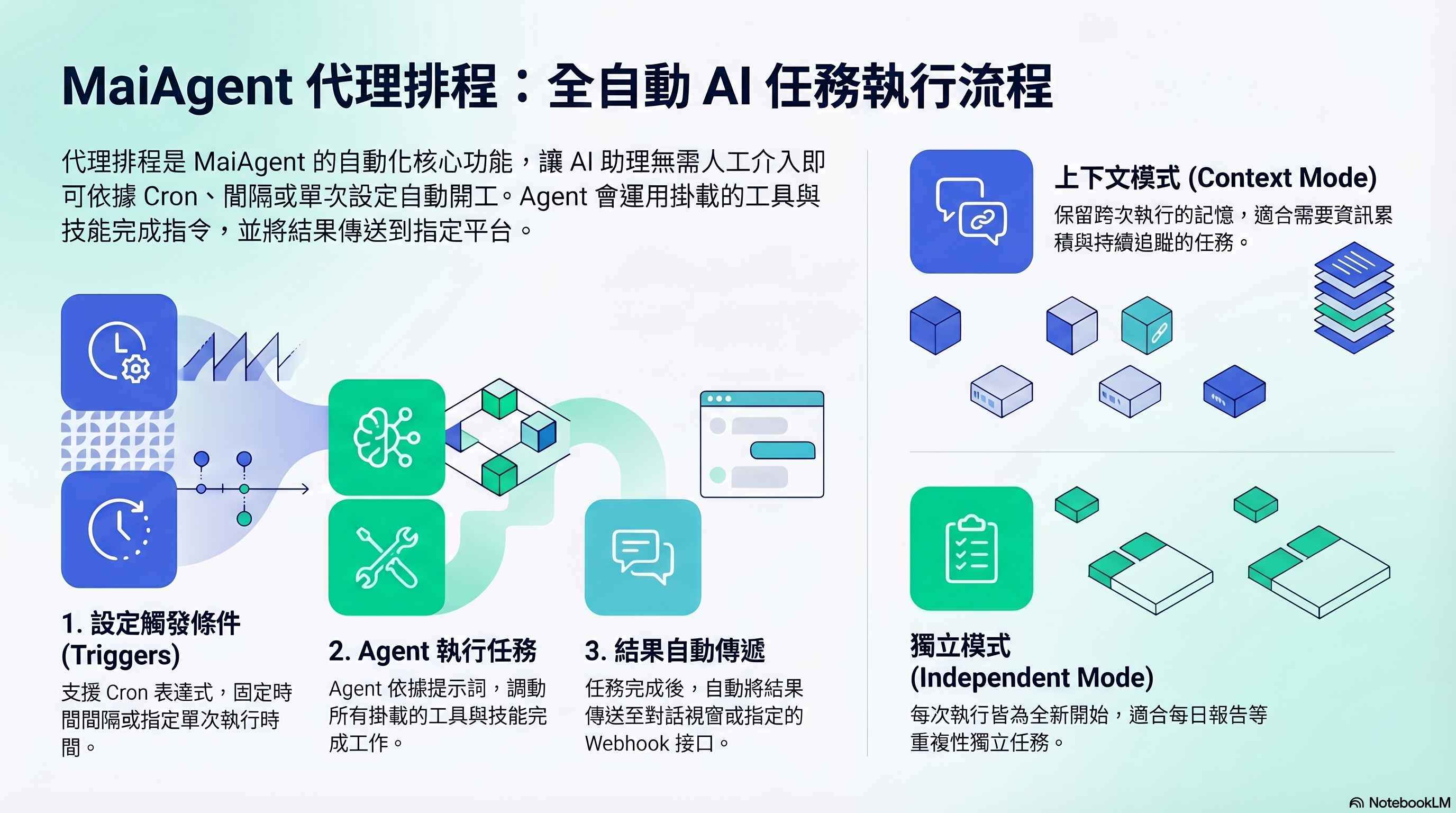
Agent Scheduling lets an Agent execute tasks automatically on a set schedule without waiting for someone to ask a question. You provide a prompt, set a schedule, and the Agent runs on time and delivers results to the specified destination.
Think of it as setting an alarm clock for the Agent — when the time comes, it gets to work automatically.
## When Do You Need This?
* **Periodic Reports**: Compile yesterday's customer service summary every morning at 9 AM
* **Monitoring Checks**: Check system status every hour and send notifications if anomalies are detected
* **Data Processing**: Compile last week's sales data every Monday
* **One-Time Tasks**: Execute a specific action at a designated time
## Schedule Types
| Type | Description | Example |
| ------------ | ---------------------------------------- | --------------------------------------------- |
| **Cron** | Set precise times using Cron expressions | `0 9 * * 1-5` (Monday through Friday at 9 AM) |
| **Interval** | Execute at fixed intervals | Every 30 minutes, every 2 hours |
| **One-Time** | Execute once at a specified time | 2026-04-15 14:00 |
## Execution Modes
| Mode | Description | Best For |
| -------------------- | ----------------------------------------------------------------------------- | ---------------------------------------------------------------------- |
| **Context Mode** | Retains memory across executions; each run can continue from the previous one | Tasks that require accumulated information (e.g., continuous tracking) |
| **Independent Mode** | Starts fresh each time with no memory from previous runs | Standalone repetitive tasks (e.g., daily reports) |
## Result Delivery
After execution, results can be sent to:
* **Conversation**: Sent to a specified conversation on a messaging platform
* **Webhook**: POST to your external URL (integrate with Slack, LINE, etc.)
> **Advanced Note**: Agent Scheduling only supports AI assistants in Agent mode. When the schedule runs, the Agent uses your configured prompt as instructions and leverages all its attached tools and skills to complete the task.
## What Do I Need to Do?
1. **Select an Agent** — Choose an existing Agent (must be in Agent mode)
2. **Write a Prompt** — Describe what the Agent should do each time it runs
3. **Set the Schedule** — Choose the schedule type and time
4. **Configure Delivery** — Decide where results should be sent
5. **Enable** — Turn on the schedule to start automatic execution
## Next Steps
For complete step-by-step instructions, see [How to Set Up Agent Scheduling](/maiagent-user-guide/en/build/agent/schedule/schedule-setup.md).
---
# Agent Instructions
This documentation is published with GitBook. GitBook is the documentation platform designed so that both humans and AI agents can read, navigate, and reason over technical content effectively. Learn more at gitbook.com.
## Querying This Documentation
If you need additional information that is not directly available in this page, you can query the documentation by asking a question.
Perform an HTTP GET request on the following URL with the `ask` and `goal` query parameters:
```
GET https://docs.maiagent.ai/maiagent-user-guide/en/build/agent/schedule.md?ask=&goal=
```
`ask` is the immediate question: it should be specific, self-contained, and written in natural language.
`goal` is what the user is ultimately trying to achieve, the reason they need the answer. Sharing it helps GitBook give you a better, more relevant answer. A goal is most helpful when it describes the outcome the user wants rather than restating the question. For example, with `ask=how do I create an API token`, a goal like `automate deployments from our CI pipeline` lets GitBook tailor the answer to that use case.
The response will contain a direct answer to the question and relevant excerpts and sources from the documentation.
Use this mechanism when the answer is not explicitly present in the current page, you need clarification or additional context, or you want to retrieve related documentation sections.