For the complete documentation index, see llms.txt. This page is also available as Markdown.

AI Assistant Features

Purpose and Use Cases of AI Assistants

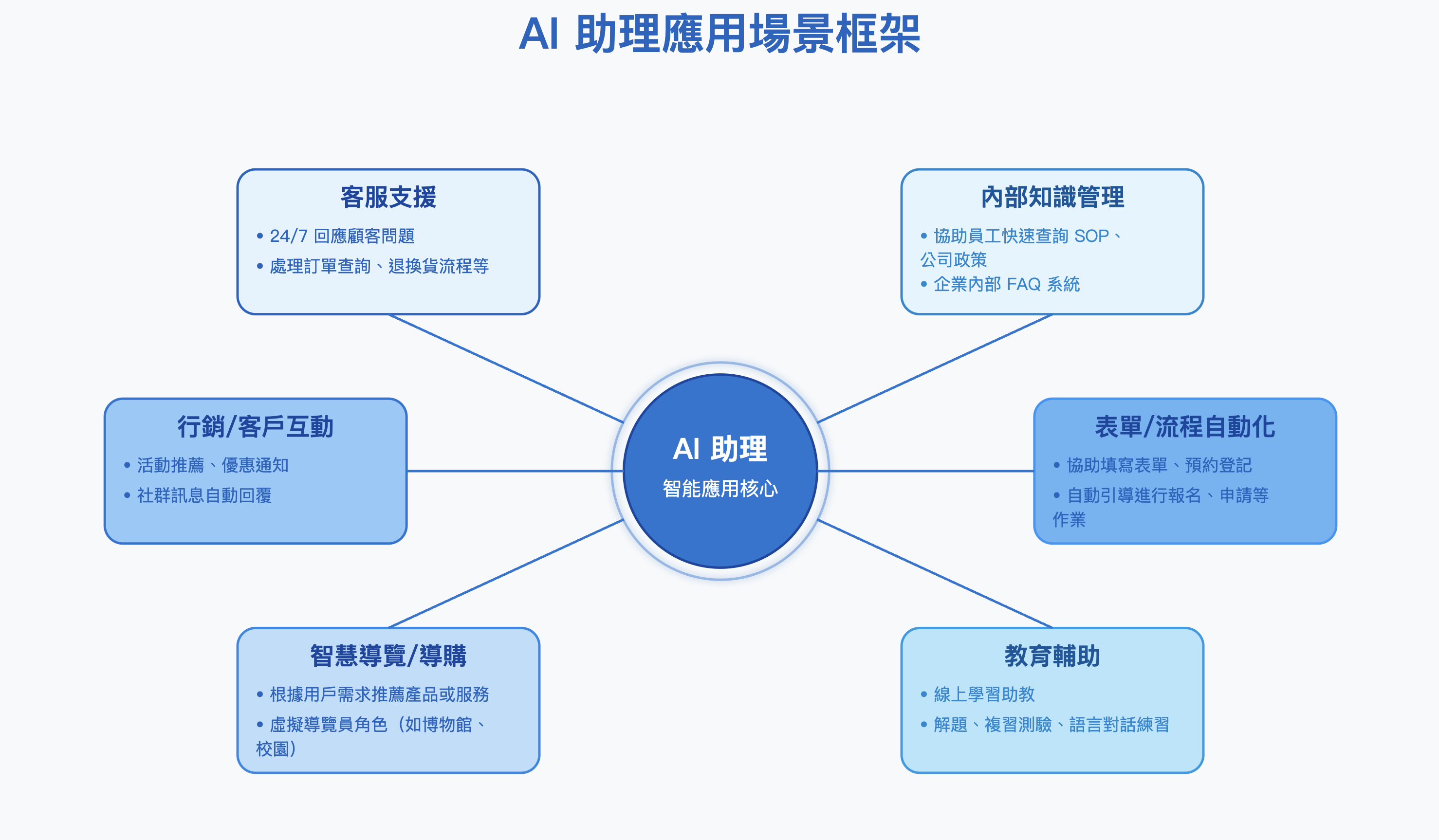
AI assistants can be widely applied across diverse industries and use cases, helping enterprises automate repetitive tasks and improve operational efficiency, allowing teams to focus on high-value work and core strengths.

Below are common examples of AI assistant applications in enterprise workflows:

AI assistants can be applied across various industries, leveraging intelligent automation and real-time interaction to help enterprises optimize processes, improve service quality, and enhance user experience. The following table lists common AI assistant use cases by industry for reference.

Industry
Use Cases

E-commerce & Retail

Intelligent customer service, product recommendations, return process handling

Finance & Insurance

Policy inquiries, financial planning recommendations, risk Q&A

Education

Course teaching assistant, learning diagnostics, language practice

Healthcare

Health consultations, appointment scheduling, patient education support

Government

Public service inquiries, policy Q&A, public feedback

Manufacturing

Internal knowledge management, maintenance operation guides

Travel & Tourism

Itinerary recommendations, guided tours, real-time Q&A support

Four Stages of MaiAgent AI Assistant Setup

The MaiAgent AI assistant setup process consists of four stages. Below is a brief description of the goals and features for each stage. Complete step-by-step instructions are provided in the following sections.

1. Create a New AI Assistant

Customize the AI assistant to your needs: select an appropriate language model, connect a knowledge base for RAG (Retrieval-Augmented Generation) in Knowledge Base Settings, and define the assistant’s role and tasks to build an intelligent assistant suited to your business.

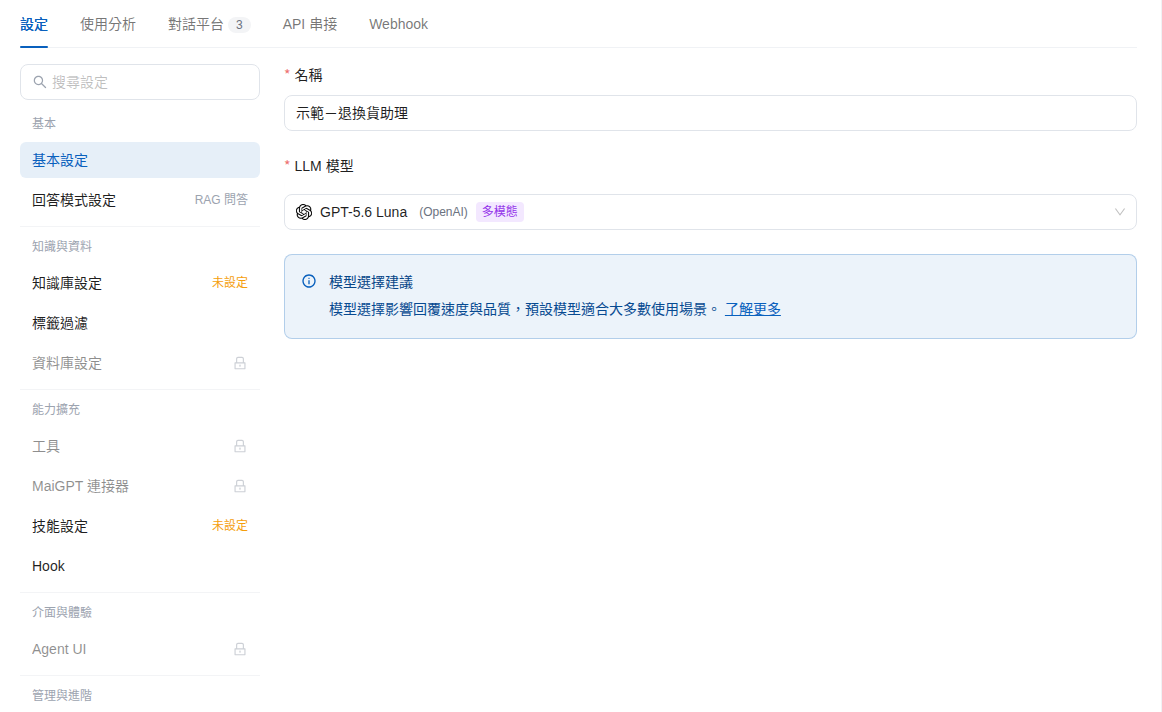
On the AI assistant’s Settings page, the left menu groups options under Basic, Knowledge & Data, Capability Extensions, Interface & Experience, and Management & Advanced. These include Basic Settings, Response Mode Settings, Knowledge Base Settings, and Permission Settings.

AI assistant Settings page with Settings, Usage Analytics, Conversation Platforms, API Integration, and Webhook tabs at the top and grouped settings on the left
AI assistant Settings page and groups in the left menu

2. Provide Reference Materials for the AI Assistant

Build a solid knowledge foundation for the AI assistant by configuring a Knowledge Base, creating FAQ entries in it, or using a Crawler to import webpages. This further improves the accuracy and usefulness of responses.

3. Launch the AI Assistant

Decide whether to make the AI assistant publicly available or restrict it to internal use. The Conversation Platforms tab offers three built-in entry points: Web Widget (public, with embed code for your company website), Internal Chat (internal), and API. To serve customers through LINE, Messenger, or other channels, click Connect Channel to integrate with your existing platforms.

Conversation Platforms tab showing the built-in Web Widget, Internal Chat, and API channels and a Connect Channel button
Built-in channels and Connect Channel on the Conversation Platforms tab

4. Track AI Assistant Performance

Use All Conversations, the AI assistant’s Usage Analytics (including monitoring metrics such as response quality scores), and Webhook to track performance and guide ongoing improvements to the assistant and user experience.

Before you start building an AI assistant, consider reading these helpful articles!

👨‍👩‍👧‍👦What Are Role Instructions?

Last updated

Was this helpful?