> For the complete documentation index, see [llms.txt](https://docs.maiagent.ai/llms.txt). Markdown versions of documentation pages are available by appending `.md` to page URLs; this page is available as [Markdown](https://docs.maiagent.ai/maiagent-user-guide/en/build/agent/custom-max-tokens.md).

# Response Length and Agent Execution Limits

Set the maximum length of each Agent response (maximum output tokens), the tool call limit in Agent mode (maximum iterations, default 20), and the execution timeout; learn what users see when the tool

The Agent's <mark style="color:blue;">Advanced Settings</mark> include two groups of limits:

* **Response length**: <mark style="color:blue;">Maximum Output Tokens</mark> limits how much the AI can write in each response. The explanation starts with [Feature Introduction](#feature-introduction) below.
* **Agent execution limits**: <mark style="color:blue;">Maximum Iterations</mark> (the tool call limit, default 20) and <mark style="color:blue;">Execution Timeout (Seconds)</mark> limit how many rounds of tool calls an Agent in Agent mode can make per message and how long it can run. To find out "how many tool calls are allowed" or understand the message "The tool usage limit for this turn has been reached," go directly to [Agent Execution Limits](#agent-iteration-timeout-relationship).

### Feature Introduction <a href="#feature-introduction" id="feature-introduction"></a>

The custom output token limit lets you precisely control the maximum length of each Agent response. Adjust this setting for different use cases to produce brief summaries or detailed explanations while effectively controlling token costs.

{% hint style="info" %}
**About Tokens**

Tokens are the basic units AI models use to process text. In general:

* Chinese: 1 character is approximately 1.5-2 tokens
* English: 1 word is approximately 1-1.5 tokens
* Punctuation also counts toward the token total
  {% endhint %}

***

### Configure the Output Token Limit <a href="#configure-token-output-limit" id="configure-token-output-limit"></a>

#### Navigate to the Settings Page <a href="#navigate-to-settings" id="navigate-to-settings"></a>

1. Click "<mark style="color:blue;">AI Assistants</mark>" in the left menu
2. In the list, click "<mark style="color:blue;">Edit</mark>" to the right of the Agent you want to configure
3. In the left navigation of the "<mark style="color:blue;">Settings</mark>" tab, click "<mark style="color:blue;">Advanced Settings</mark>" under "<mark style="color:blue;">Management & Advanced</mark>"

#### Adjust the Token Limit <a href="#adjust-token-limit" id="adjust-token-limit"></a>

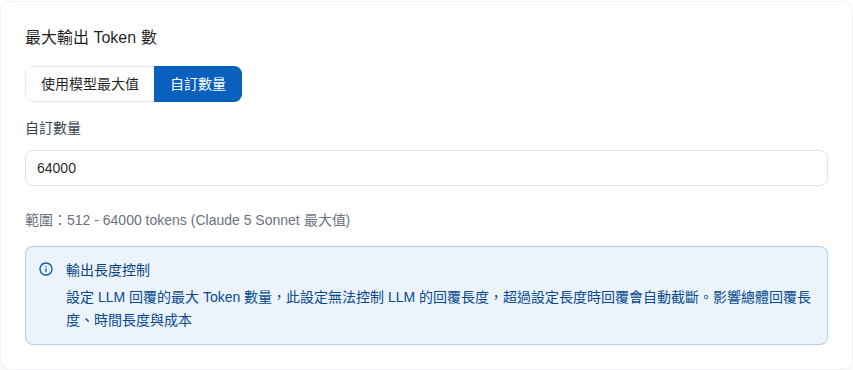
1. **Select a token limit mode**
   * "<mark style="color:blue;">Use Model Maximum</mark>": Apply the maximum output tokens supported by the selected model (default)
   * "<mark style="color:blue;">Custom Amount</mark>": Specify your own limit
2. **Enter a custom value (when "Custom Amount" is selected)**
   * Enter the desired value in the numeric input field
   * The allowed range depends on the selected model. The interface displays the model's allowed range in real time (for example, "Range: 512 - 64000 tokens" in the image below)
3. **Save the settings**
   * Click the "<mark style="color:blue;">Save</mark>" button
   * Settings take effect immediately; there is no need to restart the Agent

<figure><img src="https://1360999650-files.gitbook.io/~/files/v0/b/gitbook-x-prod.appspot.com/o/spaces%2F6v6TNkkOQVfRYfcNirHL%2Fuploads%2Fgit-blob-cb789624285313a34f8f8026b39a6c577512d2a4%2Fbuild-custom-max-tokens.png?alt=media" alt="Advanced Settings: Maximum Output Tokens"><figcaption><p>The "Maximum Output Tokens" section: select "Custom Amount" and enter a limit; the range allowed by the current model appears below</p></figcaption></figure>

{% hint style="warning" %}
**Notes**

* Setting the limit too low may truncate responses and affect completeness
* Setting the limit too high increases token costs
* Adjust it to your actual needs and test to find the best balance
  {% endhint %}

***

### Recommended Settings <a href="#recommended-settings" id="recommended-settings"></a>

The following token limits are recommended for different use cases:

<table><thead><tr><th width="200">Use Case</th><th width="150">Recommended Tokens</th><th>Description</th></tr></thead><tbody><tr><td><strong>Brief Q&#x26;A</strong></td><td>256 - 512</td><td>Suitable for quick answers, such as FAQ bots<br>Approximately 100-200 Chinese characters</td></tr><tr><td><strong>General Customer Service</strong></td><td>512 - 1024</td><td>Balances detail and cost<br>Approximately 200-400 Chinese characters</td></tr><tr><td><strong>Professional Consultation</strong></td><td>1024 - 2048</td><td>Provides detailed explanations and solutions<br>Approximately 400-800 Chinese characters</td></tr><tr><td><strong>Content Generation</strong></td><td>2048 - 4096</td><td>Generates long articles or reports<br>Approximately 800-1600 Chinese characters</td></tr><tr><td><strong>Code Generation</strong></td><td>1024 - 2048</td><td>Produces complete code snippets<br>Including comments and explanations</td></tr></tbody></table>

***

### Use Case Examples <a href="#use-case-examples" id="use-case-examples"></a>

#### Scenario 1: FAQ Quick Response Bot <a href="#scenario-1-faq-quick-response-bot" id="scenario-1-faq-quick-response-bot"></a>

**Requirement**: Provide brief, clear answers to frequently asked customer questions without lengthy explanations

**Configuration**:

* Output token limit: 256-512
* System prompt: "Answer questions briefly and clearly in no more than 3 sentences"
* Expected result: Fast responses with lower token consumption

**Example conversation**:

```
User: What are your business hours?
AI: Our business hours are Monday to Friday, 9:00 AM to 6:00 PM,
Saturday, 10:00 AM to 5:00 PM, and we are closed on Sundays.
```

#### Scenario 2: Detailed Technical Support <a href="#scenario-2-technical-support-detailed-explanation" id="scenario-2-technical-support-detailed-explanation"></a>

**Requirement**: Provide detailed step-by-step instructions for users experiencing technical issues

**Configuration**:

* Output token limit: 1024-2048
* System prompt: "Provide detailed step-by-step instructions that users can follow"
* Expected result: Complete troubleshooting guidance

**Example conversation**:

```
User: What should I do if the software won't start?
AI: Follow these steps to troubleshoot:

1. Check system requirements
   - Operating system: Windows 10 or later
   - Memory: At least 4GB
   - Disk space: At least 2GB

2. Reinstall the software
   - Uninstall the existing version (Control Panel > Programs)
   - Download the latest version [link]
   - Run the installer as an administrator

3. Check firewall settings
   - Add the software to the exception list
   - Allow the software to access the network

If these steps do not resolve the issue, please provide a screenshot of the error message so we can assist further.
```

#### Scenario 3: Content Summary Generation <a href="#scenario-3-content-summary-generation" id="scenario-3-content-summary-generation"></a>

**Requirement**: Extract key points from long articles

**Configuration**:

* Output token limit: 512-768
* System prompt: "Organize the key points into 3-5 items, with no more than 2 sentences per item"
* Expected result: Concise summaries that are easy to understand quickly

***

### Relationship with Other Settings <a href="#relationship-with-other-settings" id="relationship-with-other-settings"></a>

#### System Prompt <a href="#system-prompt-settings" id="system-prompt-settings"></a>

Even with a high token limit, the system prompt can still constrain response length:

```
Good example:
"Answer concisely unless the user requests a detailed explanation"

Poor example:
"Answer every question in as much detail as possible" (may lead to excessively long responses)
```

#### Model Selection <a href="#model-selection" id="model-selection"></a>

Different models support different maximum output token counts. When you change the model used by the Agent, the customizable range changes accordingly. The range hint in the interface shows the lower and upper limits for the currently selected model. Selecting "Use Model Maximum" automatically applies that model's maximum.

***

### Agent Execution Limits: Tool Call Rounds and Execution Timeout <a href="#agent-iteration-timeout-relationship" id="agent-iteration-timeout-relationship"></a>

{% hint style="info" %}
This section applies only to Agents whose **response mode is set to "Agent Mode"**. This section does not appear in Advanced Settings for Agents using other response modes.
{% endhint %}

An Agent in Agent mode decides which tools to call and how many rounds of reasoning it needs to answer a question. To prevent it from running indefinitely, <mark style="color:blue;">Agent Workflow Settings</mark> in <mark style="color:blue;">Advanced Settings</mark> provide two independent "brakes":

* **Maximum Iterations** (tool call limit): The maximum number of "think → call tools → receive results" rounds the Agent can perform when answering a message. The range is 1–100, with a default of 20. A round can call multiple tools at once, so the limit is counted in rounds and resets when the user sends the next message. When <mark style="color:blue;">Enable Tool Search</mark> is enabled (the default), rounds used solely to search for available tools do not count toward the limit
* **Execution Timeout (Seconds)**: The maximum time an Agent can run while answering one message. The range is 30–1200 seconds, with a default of 600 seconds

#### What Happens When the Tool Call Limit Is Reached <a href="#when-tool-limit-reached" id="when-tool-limit-reached"></a>

After the last round is used, the Agent stops calling tools, prepares a response using the information already obtained, and adds the following line at the end:

> This response has reached the tool usage limit for this turn and may be incomplete. Send a follow-up message to continue.

If the Agent has not written any content at that point, the response will be "I reached the tool usage limit for this turn before completing the task. Please try again or narrow the scope of your question." Both cases mean the configured limit has taken effect, rather than a system error. The user can send another message asking the Agent to continue, and administrators can increase <mark style="color:blue;">Maximum Iterations</mark> (also check the timeout, as explained below).

#### How Do the Two Settings Interact? <a href="#how-they-interact" id="how-they-interact"></a>

**These settings are independent, with no conversion formula; whichever threshold is reached first determines the outcome.** If the timeout is reached first, the conversation is forcibly interrupted. If the iteration limit is reached first, the Agent generates a summary response, and this is not treated as an error.

<figure><img src="https://1360999650-files.gitbook.io/~/files/v0/b/gitbook-x-prod.appspot.com/o/spaces%2F6v6TNkkOQVfRYfcNirHL%2Fuploads%2Fgit-blob-8ecbaed6be78c2706aebf7f03c456c047546bc30%2Fagent-iteration-warning.png?alt=media" alt="Execution timeout warning"><figcaption><p>Example of the yellow warning triggered by a 100-second timeout ÷ 20 iterations (a budget of only 5 seconds per iteration)</p></figcaption></figure>

#### Custom Timeout Message <a href="#agent-timeout-message" id="agent-timeout-message"></a>

"<mark style="color:blue;">Custom Timeout Message</mark>" at the bottom of <mark style="color:blue;">Agent Workflow Settings</mark> determines the text users see when execution is interrupted by a timeout. The on-screen description says, "Shown to users only when the Agent workflow times out. Leave blank to use the system default message." You can enter a message such as "The system is busy. Please try again later," or suggest asking a smaller question. The iteration limit notice has fixed wording and is not affected by this field.

### Other Switches in Advanced Settings <a href="#other-advanced-switches" id="other-advanced-switches"></a>

The same <mark style="color:blue;">Advanced Settings</mark> tab includes several other switches related to response length and cost. The defaults are generally sufficient:

| Location                     | Switch                                                                                                                       | On-screen Description and Usage                                                                                                                                                                                                                                                                                 |
| ---------------------------- | ---------------------------------------------------------------------------------------------------------------------------- | --------------------------------------------------------------------------------------------------------------------------------------------------------------------------------------------------------------------------------------------------------------------------------------------------------------- |
| Knowledge Base Settings      | <mark style="color:blue;">Force Full Retrieval Scope</mark>                                                                  | When enabled, ignores the model's automatically chosen retrieval count and always returns the full number of results configured in "Maximum Retrieval Chunks"; suitable for knowledge bases with long tables or other content that requires more chunks to display in full. Increases input tokens per response |
| Conversation Memory Settings | <mark style="color:blue;">Tool Result Truncation</mark>, <mark style="color:blue;">Maximum Characters per Tool Result</mark> | Automatically truncates oversized tool results (such as web search results or code execution output) to prevent memory growth; results exceeding the limit retain content from both the beginning and the end. Enable it when tools frequently return entire HTML pages or large amounts of data                |
| After Persistent Memory      | <mark style="color:blue;">Enable Claude Streaming Auto-retry</mark>                                                          | Automatically aborts stalled Claude streaming calls (when the first chunk does not arrive or transmission is interrupted) and retries once in non-streaming mode. Each retry incurs another charge for the same prompt; enable it only when Claude responses frequently stall                                   |
| At the Bottom                | <mark style="color:blue;">Enable Automatic Evaluation</mark>                                                                 | When enabled, uses an LLM to automatically score the quality of each conversation in <mark style="color:blue;">AI Assistant Monitoring</mark>. This consumes the organization's usage quota. See [Automatic Evaluation and Agent Monitoring](/maiagent-user-guide/en/build/agent-ops/evaluations.md)            |

For <mark style="color:blue;">Vector Memory</mark>, <mark style="color:blue;">Cross-conversation Search</mark>, and the Embedding/Reranker models in Conversation Memory Settings, see [Cross-conversation Search](/maiagent-user-guide/en/build/agent/cross-conversation-search.md#other-memory-settings).

***

### Cost Optimization Recommendations <a href="#cost-optimization-recommendations" id="cost-optimization-recommendations"></a>

#### Calculate Token Consumption <a href="#calculate-token-consumption" id="calculate-token-consumption"></a>

Token consumption for a conversation includes:

* **Input tokens**: User question + conversation history + system prompt
* **Output tokens**: AI response (constrained by this setting)

**Example calculation**:

```
Input: User question 50 tokens + conversation history 200 tokens + system prompt 100 tokens = 350 tokens
Output: AI response (limit set to 512 tokens)
Total: 350 + 512 = 862 tokens (maximum)
```

#### Optimization Strategies <a href="#optimization-strategies" id="optimization-strategies"></a>

1. **Adjust for the use case**
   * Use a low token limit for simple questions
   * Increase the limit only for complex questions
2. **Avoid unnecessarily long responses**
   * Explicitly request concise answers in the system prompt
   * Use multi-turn conversations instead of one long response
3. **Review usage regularly**
   * Go to the Agent's "<mark style="color:blue;">Usage Analysis</mark>" → "<mark style="color:blue;">Usage Statistics</mark>" to review token usage and conversation character count trends
   * Adjust settings to optimize costs

{% hint style="info" %}
For detailed cost calculations and optimization recommendations, see [Usage Calculation](/maiagent-user-guide/en/others/usage.md).
{% endhint %}

***

### Frequently Asked Questions <a href="#faq" id="faq"></a>

#### Q: Will AI Responses Be Forcibly Truncated After Setting a Token Limit? <a href="#q-will-ai-response-be-cut-off-after-setting-token-limit" id="q-will-ai-response-be-cut-off-after-setting-token-limit"></a>

**A**: Yes. When an AI-generated response reaches the token limit, it stops at that point, which may leave a sentence incomplete. We recommend:

* Set an appropriate limit (not too low)
* Ask the model in the system prompt to "end naturally before reaching the character limit"

#### Q: How Can I Find Out How Many Tokens My Agent Uses on Average? <a href="#q-how-to-check-average-token-usage" id="q-how-to-check-average-token-usage"></a>

**A**: Open the Agent's "<mark style="color:blue;">Usage Analysis</mark>" tab and switch to "<mark style="color:blue;">Usage Statistics</mark>". The <mark style="color:blue;">Token Usage</mark> chart lists token counts for each model used by this Agent and total token usage by date. See [Usage Analysis](/maiagent-user-guide/en/build/agent/usage.md) for a description of the chart.

#### Q: Does a Higher Token Limit Slow Down Responses? <a href="#q-does-higher-token-limit-slow-down-responses" id="q-does-higher-token-limit-slow-down-responses"></a>

**A**: It has a slight effect. Longer responses take more time to generate, but the difference is usually small (within a few seconds). The main factors remain:

* Model selection
* Network connection speed
* Server load

#### Q: Do Different Languages Need Different Token Limits? <a href="#q-different-languages-need-different-token-limits" id="q-different-languages-need-different-token-limits"></a>

**A**: Moderate adjustments are recommended:

* **Chinese**: The same character count consumes more tokens, so you can raise the limit slightly
* **English**: More token-efficient, so a lower limit can be used
* **Multilingual environments**: A higher limit is recommended for flexibility

#### Q: Does the Token Limit Affect Knowledge Base Retrieval Results? <a href="#q-does-token-limit-affect-knowledge-base-retrieval" id="q-does-token-limit-affect-knowledge-base-retrieval"></a>

**A**: It does not directly affect retrieval, but it affects how the results are presented:

* **High token limit**: Can cite more knowledge base snippets
* **Low token limit**: Cites only the most relevant snippets

#### Q: How Many Rounds of Tool Calls Can an Agent Make When Answering One Message? <a href="#q-max-tool-calls" id="q-max-tool-calls"></a>

**A**: This is determined by <mark style="color:blue;">Maximum Iterations</mark>, which defaults to 20 rounds and can be increased to 100 rounds. It resets for each user message. When the limit is exhausted, the response ends with "This response has reached the tool usage limit for this turn and may be incomplete. Send a follow-up message to continue." This means the limit has taken effect, rather than a malfunction. See [What Happens When the Tool Call Limit Is Reached](#when-tool-limit-reached).

#### Q: If I Increase Maximum Iterations, Must I Also Increase the Execution Timeout? <a href="#q-do-i-need-to-raise-timeout-with-iterations" id="q-do-i-need-to-raise-timeout-with-iterations"></a>

**A**: This is strongly recommended, but the system does not require it. The settings are independent: you can save a higher iteration limit without changing the timeout, but execution may be forcibly interrupted by the timeout before reaching your configured iteration limit. Adjust both settings so that "Execution Timeout ÷ Maximum Iterations ≥ 15 seconds" to avoid triggering the yellow warning.

#### Q: How Do a Timeout and Exhausted Iterations Differ for the User? <a href="#q-timeout-vs-max-iterations-difference" id="q-timeout-vs-max-iterations-difference"></a>

**A**: They differ significantly. When the iteration limit is reached first, the Agent summarizes the information it has gathered into a response, and the conversation ends normally. When the execution timeout is triggered first, the conversation is forcibly interrupted and marked as an error. The user sees only any content generated before the timeout (if any), plus the timeout message, without a prepared summary response. Credits already consumed are not refunded.

***

### Testing and Adjustment <a href="#testing-and-adjustment" id="testing-and-adjustment"></a>

#### Testing Process <a href="#testing-process" id="testing-process"></a>

1. **Set an initial value**
   * Start with a recommended value (such as 1024)
2. **Run test conversations**
   * Enter typical user questions
   * Observe response length and completeness
3. **Evaluate the results**
   * Is the response complete?
   * Does it contain unnecessary detail?
   * Is token consumption reasonable?
4. **Adjust gradually**
   * Too long → lower the token limit
   * Too short/truncated → raise the token limit
5. **Monitor continuously**
   * Review usage regularly
   * Fine-tune according to actual needs

#### Test Examples <a href="#testing-examples" id="testing-examples"></a>

```
Test 1: Token limit 256
User: Please introduce your company
AI: We are a company focused on AI technology, providing enterprise chatbot solutions. [Response truncated]
Evaluation: Too short; increase the limit

Test 2: Token limit 1024
User: Please introduce your company
AI: We are a company focused on AI technology...[Complete, detailed introduction]...Contact us to learn more.
Evaluation: Appropriate; use this setting
```

***

### Related Features <a href="#related-features" id="related-features"></a>

{% hint style="info" %}
**Additional Features**

* [Create an Agent](/maiagent-user-guide/en/build/agent/setup.md)
* [System Prompt Design Guide](/maiagent-user-guide/en/build/agent/system-prompt.md)
* [Usage Calculation](/maiagent-user-guide/en/others/usage.md)
* [Usage Analysis](/maiagent-user-guide/en/build/agent/usage.md)
  {% endhint %}


---

# Agent Instructions
This documentation is published with GitBook. GitBook is the documentation platform designed so that both humans and AI agents can read, navigate, and reason over technical content effectively. Learn more at gitbook.com.

## Querying This Documentation
If you need additional information that is not directly available in this page, you can query the documentation by asking a question.

Perform an HTTP GET request on the following URL with the `ask` and `goal` query parameters:

```
GET https://docs.maiagent.ai/maiagent-user-guide/en/build/agent/custom-max-tokens.md?ask=<question>&goal=<user_goal>
```

`ask` is the immediate question: it should be specific, self-contained, and written in natural language.
`goal` is what the user is ultimately trying to achieve, the reason they need the answer. Sharing it helps GitBook give you a better, more relevant answer. A goal is most helpful when it describes the outcome the user wants rather than restating the question. For example, with `ask=how do I create an API token`, a goal like `automate deployments from our CI pipeline` lets GitBook tailor the answer to that use case.

The response will contain a direct answer to the question and relevant excerpts and sources from the documentation.

Use this mechanism when the answer is not explicitly present in the current page, you need clarification or additional context, or you want to retrieve related documentation sections.
