> For the complete documentation index, see [llms.txt](https://docs.maiagent.ai/llms.txt). Markdown versions of documentation pages are available by appending `.md` to page URLs; this page is available as [Markdown](https://docs.maiagent.ai/maiagent-user-guide/en/build/agent/browser-tool.md).
# Browser Tool (Browser Interaction)
Browser operation tool (browser tool / browser automation, also known as Browser Use or Computer Use): lets an Agent open web pages in real time, click buttons, fill out forms, and interpret screensho
## What is it?
Browser Tool lets an Agent **control a browser**: navigate to web pages, click buttons, fill out forms, and scroll on its own. It uses screenshots to “see” the current page and decide what to do next.
The industry also commonly calls this capability **Browser Use** or **Computer Use**. Common Chinese terms refer to browser tools, browser operations, browser automation, and web automation. MaiAgent's Browser Tool is built into the Agent. Once enabled, it can be used directly in conversations without connecting an external service.
## What can it do?
* **Navigation and exploration**: Open a specified URL and follow links from page to page
* **Interact with page elements**: Click, double-click, enter text, press keys, and scroll
* **Visual understanding**: Capture a screenshot after each action so the Agent can decide its next step based on what it sees
* **Multistep tasks**: Complete sequences such as login → search → filter → retrieve information
## How does it differ from tools and Code Interpreter?
| | Tools (API / MCP) | Code Interpreter | Browser Tool |
| -------------------------- | ------------------------------------------------ | ------------------------------------------------------ | ----------------------------------- |
| **What it operates on** | Backend services / APIs | A programming environment in a sandbox | A real browser and web pages |
| **Can it see the screen?** | No (JSON responses only) | It can see sandbox output | **Yes** (screenshots) |
| **Suitable tasks** | Structured data queries and predefined API calls | Calculations, file processing, and document generation | Services with web pages but no APIs |
**Quick guide**: The service has an API → tools; you need calculations or file generation → Code Interpreter; only a web page is available to interact with → Browser Tool.
## When to use it
* Internal systems without public APIs that provide a Web UI
* Retrieving information from third-party websites that require login or interaction
* Automating web workflows across pages and steps (searching, filtering, downloading)
* Anything a person would do in a browser that you want an Agent to complete automatically
## Things to keep in mind
* **Optimized for Claude models**: Browser Tool relies on the model's ability to interpret screenshots. Claude models perform best; other models may produce inconsistent results.
* **Works best with same-origin pages**: Some operations may be restricted on pages with cross-origin iframes or strict CSP policies.
* **Execution takes time**: Each step requires page loading, a screenshot, and reasoning. Tasks with multiple consecutive steps take longer than a single API call, so design realistic workflows.
## What do I need to do?
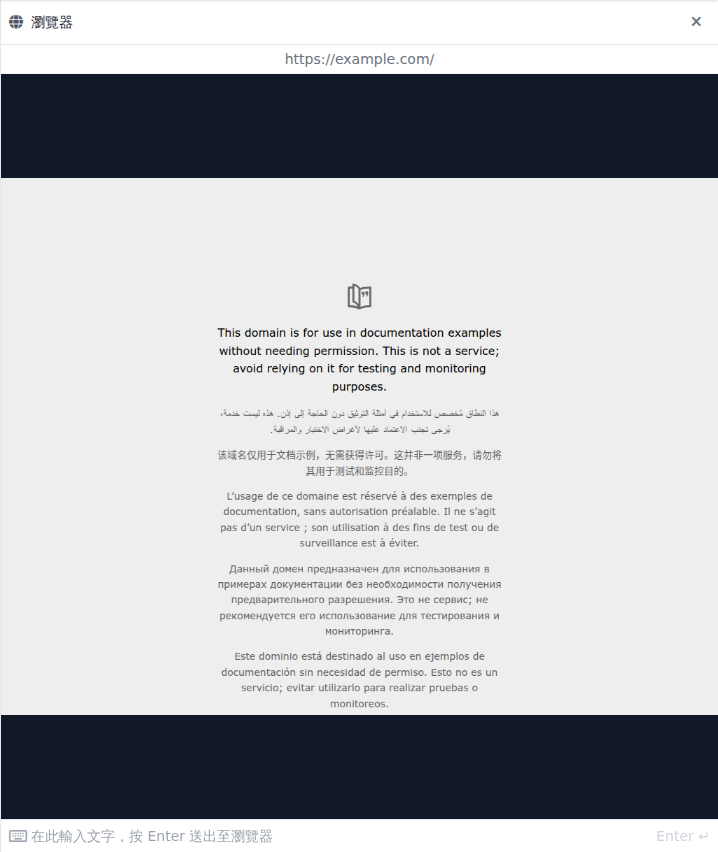
A customer service supervisor wants to check whether an Agent can read public web pages. She enables Browser Tool in the test Agent's “Reply Mode Settings,” saves the settings, and asks the Agent to open a public URL in Web Chat. When the Agent performs browser operations, a browser panel appears beside the conversation, displaying the current URL and page view.
{% stepper %}
{% step %}
### 1. Open Reply Mode Settings
Go to AI Features → AI Assistants, open the Agent you want to configure, and click Reply Mode Settings. The Browser Tool toggle appears only when you use Agent Mode.
{% endstep %}
{% step %}
### 2. Enable and save
Enable Browser Tool. Select a recommended Claude model in Basic Settings, then click Save.
Enable Browser Tool in Reply Mode Settings
{% endstep %}
{% step %}
### 3. Test a public web page
Open a conversation with this Agent and ask it to “Use the browser tool to open . Confirm that browser operations appear in the conversation and that the panel shows the current URL and web page view.
{% endstep %}
{% endstepper %}
## The browser panel in conversations
When the Agent starts interacting with a web page, both Web Chat and the admin conversation page open a Browser panel beside the reply. It displays the screenshots the Agent sees and the current URL in real time, with AI operating shown while the Agent is taking action.
Users can intervene directly when the Agent pauses: click or scroll on the screenshot, or enter text in the input box at the bottom of the panel and press Enter to send it to the web page. This lets users complete steps the Agent cannot handle, such as entering a verification code, their own login credentials, or a one-time verification code. The Agent then continues the task. After the panel is closed, Reopen browser view appears above the input box.
Use this capability when designing tasks: at login or verification steps, have the Agent pause and ask the user to enter the information in the panel. Do not put login credentials in prompts or the knowledge base. For details on visitor-side operations, see [Web Chat: Browser Panel](/maiagent-user-guide/en/build/choose-channel/web-chat.md#browser-panel).
The browser panel in Web Chat displays the public web page the Agent is browsing
---
# Agent Instructions
This documentation is published with GitBook. GitBook is the documentation platform designed so that both humans and AI agents can read, navigate, and reason over technical content effectively. Learn more at gitbook.com.
## Querying This Documentation
If you need additional information that is not directly available in this page, you can query the documentation by asking a question.
Perform an HTTP GET request on the following URL with the `ask` and `goal` query parameters:
```
GET https://docs.maiagent.ai/maiagent-user-guide/en/build/agent/browser-tool.md?ask=&goal=
```
`ask` is the immediate question: it should be specific, self-contained, and written in natural language.
`goal` is what the user is ultimately trying to achieve, the reason they need the answer. Sharing it helps GitBook give you a better, more relevant answer. A goal is most helpful when it describes the outcome the user wants rather than restating the question. For example, with `ask=how do I create an API token`, a goal like `automate deployments from our CI pipeline` lets GitBook tailor the answer to that use case.
The response will contain a direct answer to the question and relevant excerpts and sources from the documentation.
Use this mechanism when the answer is not explicitly present in the current page, you need clarification or additional context, or you want to retrieve related documentation sections.