Create an AI Assistant with the Agent Template Library
Choose an official template from the Agent Template Library, preview a sample conversation, and apply it with one click to create an editable, organization-owned AI assistant whose instructions, knowl
The Agent Template Library turns Agents designed by MaiAgent into templates. Preview a template's sample conversation, then click Apply if it fits your needs. The system creates an editable AI assistant in your organization. You can then adjust its role instructions, knowledge base, and tools to suit your company.
Template Library vs. Agent Marketplace
Both offer official Agents from the same source. The difference is whether you can edit the Agent after adding it:
What you get
A locked official assistant
An editable organization-owned assistant
Role instructions / tools / model
Cannot be changed
Can be changed freely
Version updates
Automatically follows the latest official version
Keeps the version you applied; later official updates do not overwrite it
Counts toward
Limit on concurrently enabled official built-in Agents
Plan limit on the number of AI assistants
In short: Use the Agent Marketplace if you want an official Agent that works out of the box and is maintained for you. Use the Agent Template Library if you want to customize an official design. For the Agent Marketplace, see Use Official Built-in Agents.
Example Use Case
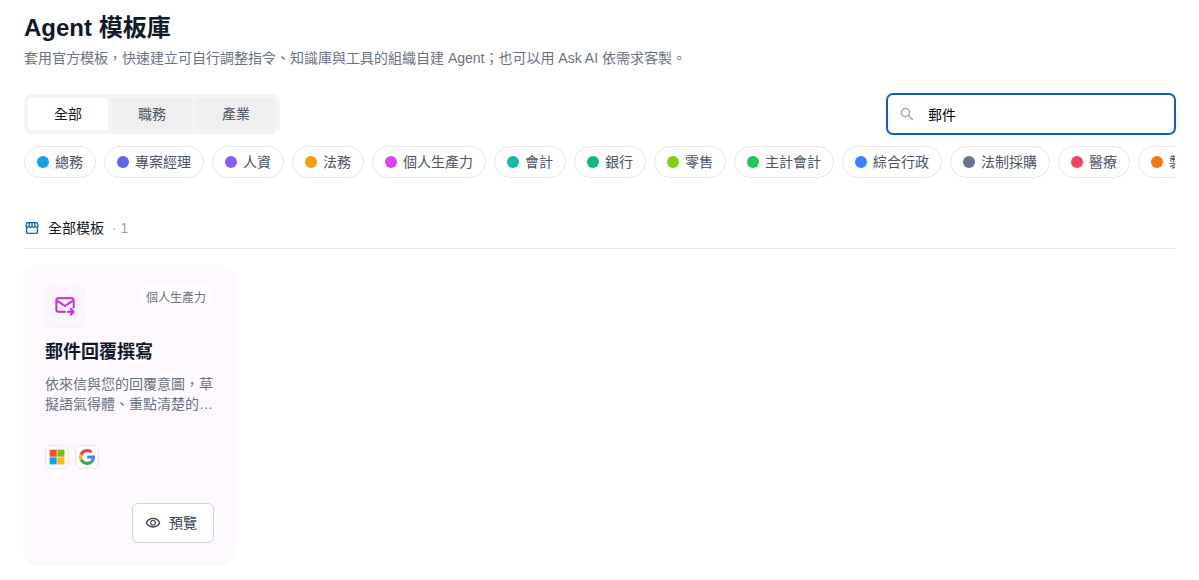
Lin, a sales manager at a trading company, wants the team to answer customer emails in a consistent tone with clear key points, but does not want to write role instructions from scratch. In the Agent Template Library, Lin searches for “email” and finds the “Email Reply Writer” template. Lin previews the sample conversation and confirms that it summarizes the incoming email and checks the tone and version before drafting a reply. Lin then clicks Apply. The system creates an AI assistant with the same name and a dedicated knowledge base. Next, Lin clicks Go to AI Assistant Settings, renames the assistant to the team's preferred name, and saves it. Lin can then upload the company's quotation guidelines to the assistant's knowledge base and adjust its role instructions so replies better match company practice.
Steps
1. Open the Agent Template Library
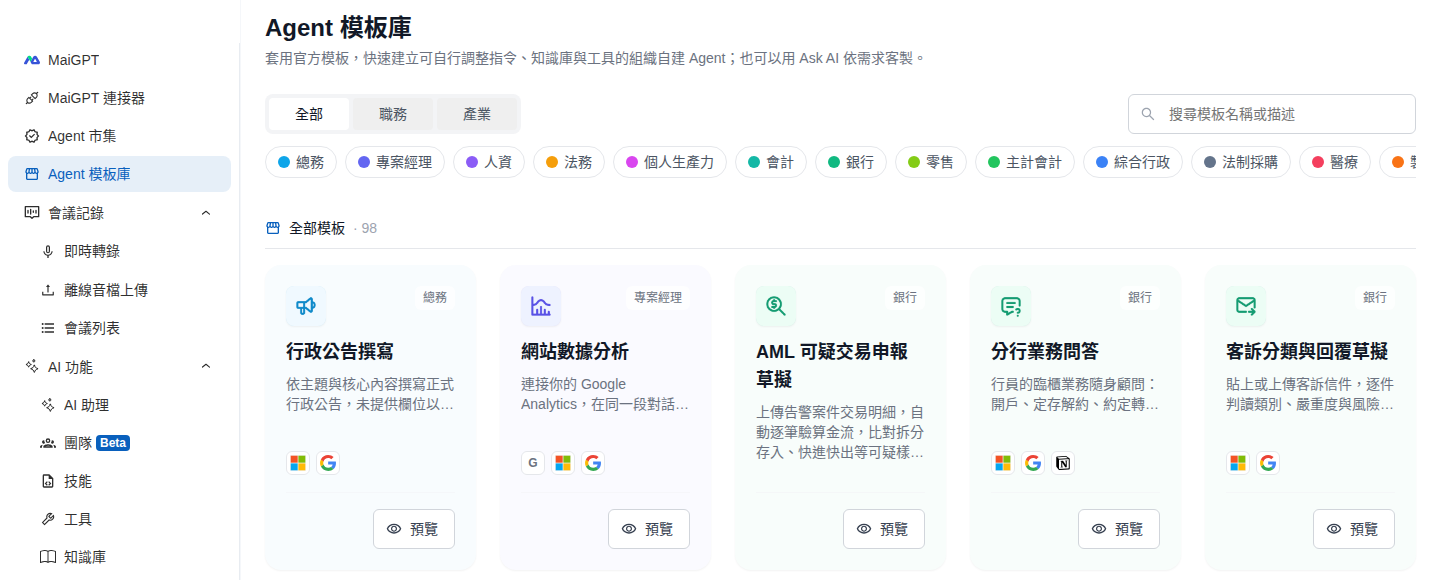
Click Agent Template Library in the left menu. The page displays all available official templates as cards. Each card shows the template name, category, and description. If a template uses MaiGPT connectors, such as Microsoft or Google, the corresponding connector icons appear on the card.

2. Filter or search for templates
Switch between All, Role, and Industry at the top, then select a category tag below, such as Legal or Banking, to narrow the results.
Use Search template names or descriptions in the upper-right corner to find a template by keyword.

3. Preview a template
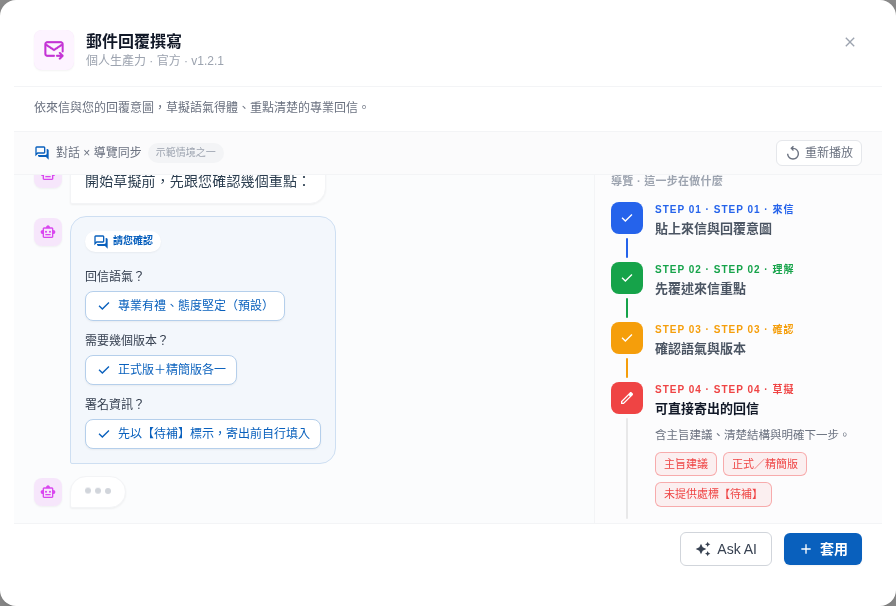
Click a card or its Preview button to open the preview window:
A sample conversation plays on the left so you can see how the Agent interacts with users. Click Replay to watch it again from the beginning.
The guide on the right follows the conversation and explains each step.
An Apply button appears at the bottom. If your organization has enabled the Ask AI assistant in the admin console, Ask AI also appears. You can ask AI to suggest how to customize the template.

4. Apply the template
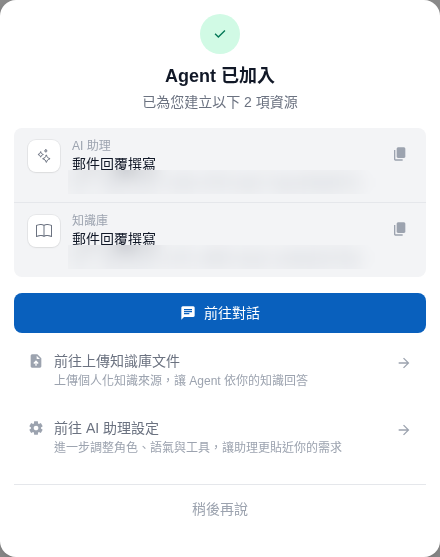
Click Apply in the preview window. After creation, an Agent Added window lists the resources created:
AI assistant: It has the same name as the template. If your organization already has an assistant with that name, the system automatically adds a number to the name.
Knowledge base: A dedicated knowledge base with the same name, already linked to the assistant.
You can go straight to the next step from this window:
Go to Conversation: Try chatting with the new assistant immediately.
Go to Upload Knowledge Base Documents: Add your company's documents to its dedicated knowledge base.
Go to AI Assistant Settings: Adjust the name, role instructions, tools, and other settings.
Maybe Later: Close the window and find the assistant later in the AI Assistants list.

Each time you apply a template, a new AI assistant is created and counted toward your plan's AI assistant limit. If the limit has been reached, you will see “The creation limit has been reached. Upgrade your plan or contact an administrator.” For plan limits, see Trial and Subscription Plans.
5. Customize the assistant
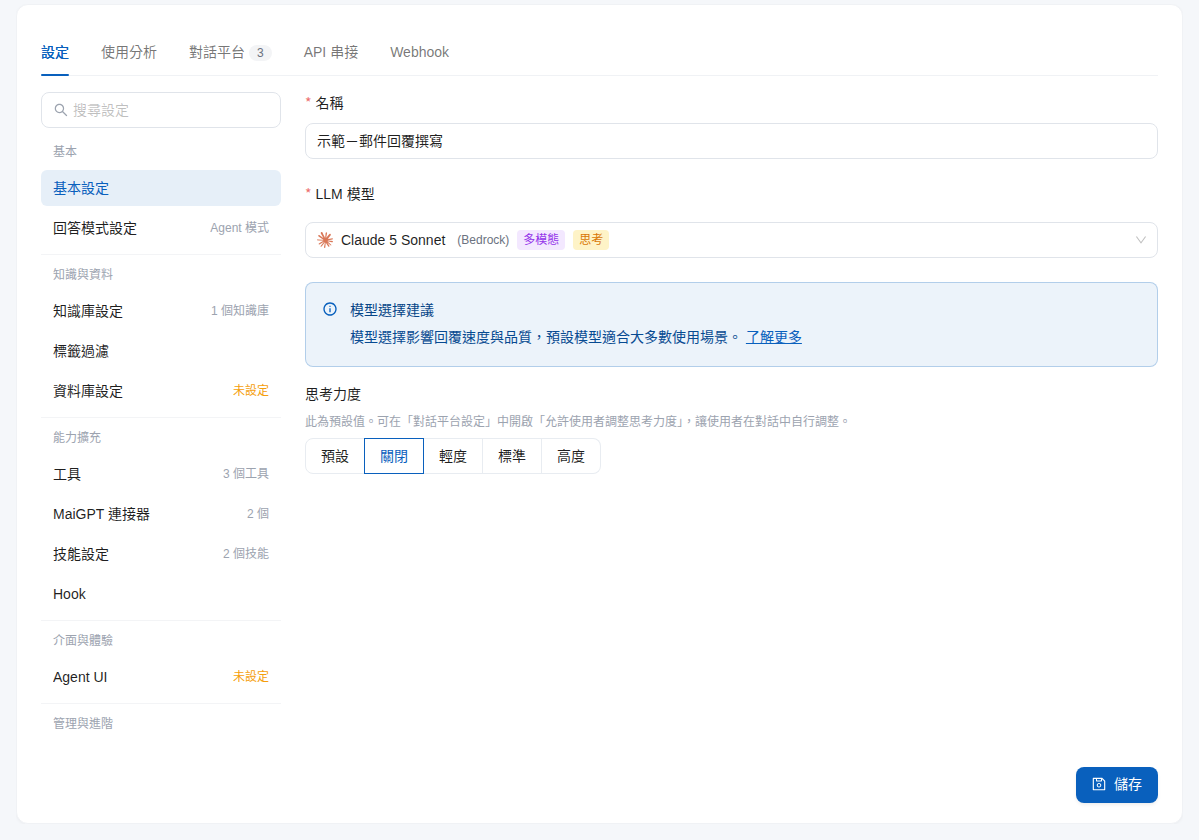
Click Go to AI Assistant Settings to open the new assistant's settings page. Like an assistant you create yourself, you can change its Name and LLM model. You can also use the left menu to adjust Knowledge Base Settings, Tools, MaiGPT Connectors, and Skill Settings. The tools, skills, and connectors included in the template are already attached. Click Save after making changes.

For details on each setting, see Create an AI Assistant and Add Role Instructions to an AI Assistant.
Last updated
Was this helpful?