> For the complete documentation index, see [llms.txt](https://docs.maiagent.ai/llms.txt). Markdown versions of documentation pages are available by appending `.md` to page URLs; this page is available as [Markdown](https://docs.maiagent.ai/maiagent-user-guide/en/build/agent-ops/evaluations.md).

# Automated Evaluation and AI Assistant Monitoring

Automate testing and real-time monitoring of AI Assistant response quality, performance metrics, and costs

## Automated Evaluation <a href="#auto-evaluation" id="auto-evaluation"></a>

The automated evaluation feature allows you to use pre-built test datasets to automatically test AI Assistant response quality. The system sends test questions to the AI Assistant, compares actual responses with expected responses, and generates detailed evaluation reports.

### Access Automated Evaluation <a href="#access-auto-evaluation" id="access-auto-evaluation"></a>

Go to "<mark style="color:blue;">AgentOps</mark>" in the left sidebar, then click "<mark style="color:blue;">Automated Testing</mark>".

The page displays all evaluation records, including evaluation name, test dataset, AI Assistant, success rate, average response time, and creation time.

### Create and Run a Test <a href="#create-and-run-test" id="create-and-run-test"></a>

1. Ensure you have created a test dataset (refer to [Test Dataset Management](/maiagent-user-guide/en/build/agent-ops/test-datasets.md))
2. Click the "<mark style="color:blue;">Create Test</mark>" button
3. Fill in the evaluation name and description, then select the test dataset and AI Assistant
4. Click "<mark style="color:blue;">Start Evaluation</mark>" and the system will automatically execute all test cases

{% hint style="info" %}
Evaluation execution time depends on the number of test cases. Typically, 50 test cases take approximately 2-3 minutes.
{% endhint %}

### Use Custom Evaluation Metrics <a href="#custom-evaluation-metrics" id="custom-evaluation-metrics"></a>

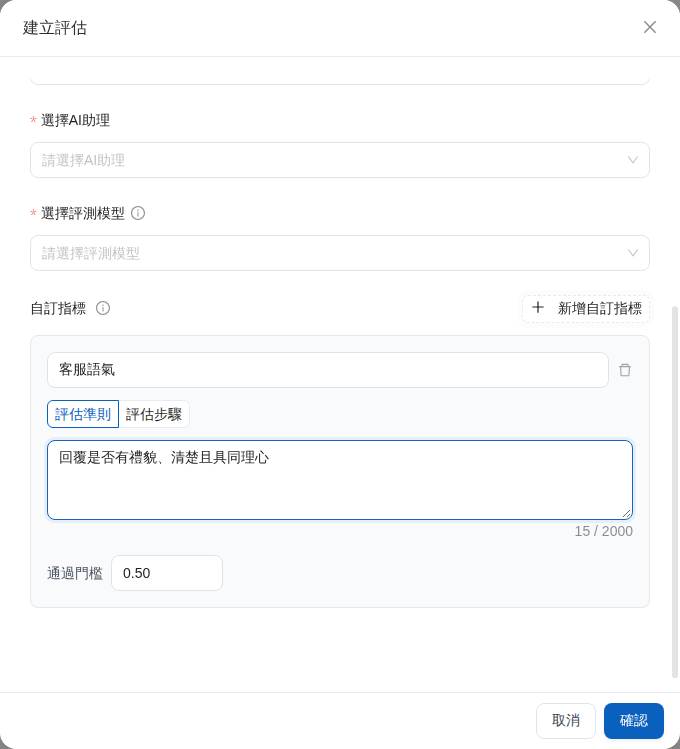
In addition to built-in metrics, you can define your team's own scoring criteria using natural language. For example, Mai, a customer service manager, wants to verify whether the customer service assistant remains polite and empathetic. She creates a "Customer Service Tone" metric, enters the evaluation criteria, and sets a passing threshold. After the evaluation is complete, she can view each case's "Customer Service Tone" score in the results and identify responses that need adjustment.

{% stepper %}
{% step %}
When creating an evaluation, complete the basic settings, including the name, test dataset, AI Assistant, and evaluation model.
{% endstep %}

{% step %}
In the "<mark style="color:blue;">Custom Metrics</mark>" section, click "<mark style="color:blue;">Add Custom Metric</mark>", then enter an easily identifiable metric name and evaluation criteria.
{% endstep %}

{% step %}
Adjust the passing threshold according to your team's quality standards, then click "<mark style="color:blue;">Confirm</mark>" to start the evaluation.
{% endstep %}
{% endstepper %}

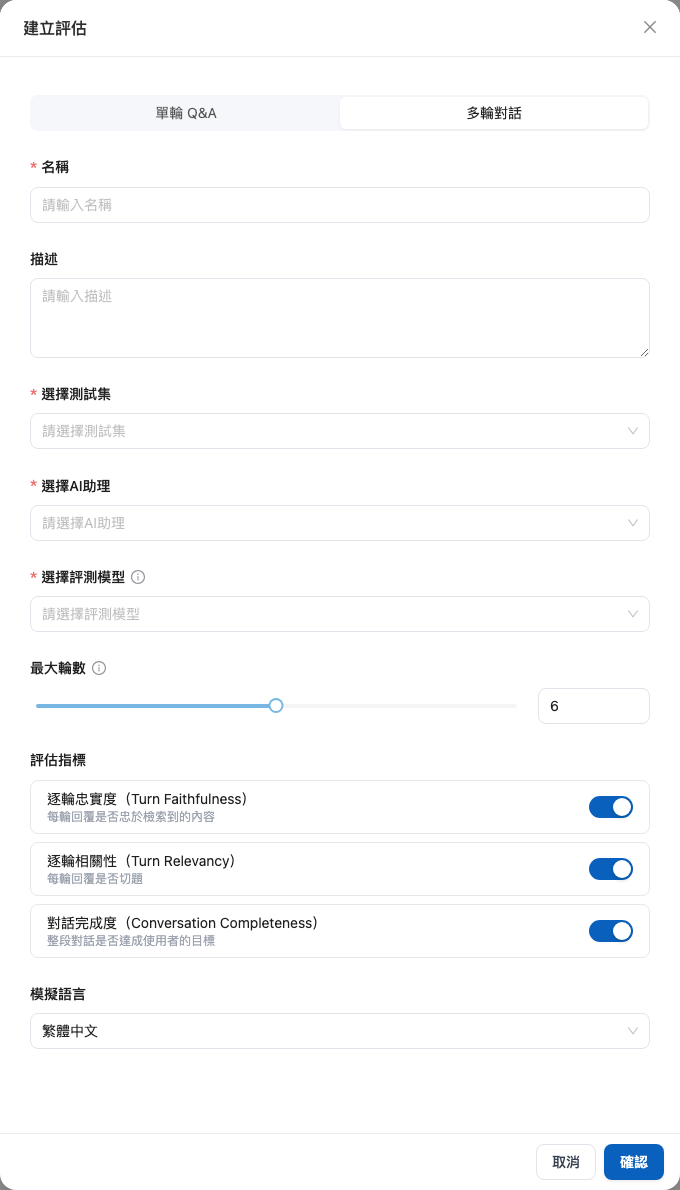
<figure><img src="https://1360999650-files.gitbook.io/~/files/v0/b/gitbook-x-prod.appspot.com/o/spaces%2F6v6TNkkOQVfRYfcNirHL%2Fuploads%2Fgit-blob-43ed547b1eec12101661f11efa05ddfa646c6a4d%2Fevaluation-multi-turn-settings.png?alt=media" alt="Multi-turn conversation settings in the create evaluation dialog"><figcaption><p>After switching to multi-turn conversations, you can set the maximum number of turns, three evaluation metrics, and the simulation language</p></figcaption></figure>

<figure><img src="https://1360999650-files.gitbook.io/~/files/v0/b/gitbook-x-prod.appspot.com/o/spaces%2F6v6TNkkOQVfRYfcNirHL%2Fuploads%2Fgit-blob-d56c6a2a2384f1f8aab3561aa424ae4364d3f37e%2Fevaluation-custom-metric.png?alt=media" alt="Custom metric settings in the create evaluation dialog"><figcaption><p>Set evaluation criteria for customer service tone using natural language</p></figcaption></figure>

{% hint style="info" %}
The system compares names without regard to letter case. A custom metric cannot duplicate any of the 11 built-in metrics. If a name conflicts, use a name that expresses your team's evaluation objective.
{% endhint %}

### Evaluate Multi-turn Conversations <a href="#multi-turn-evaluation" id="multi-turn-evaluation"></a>

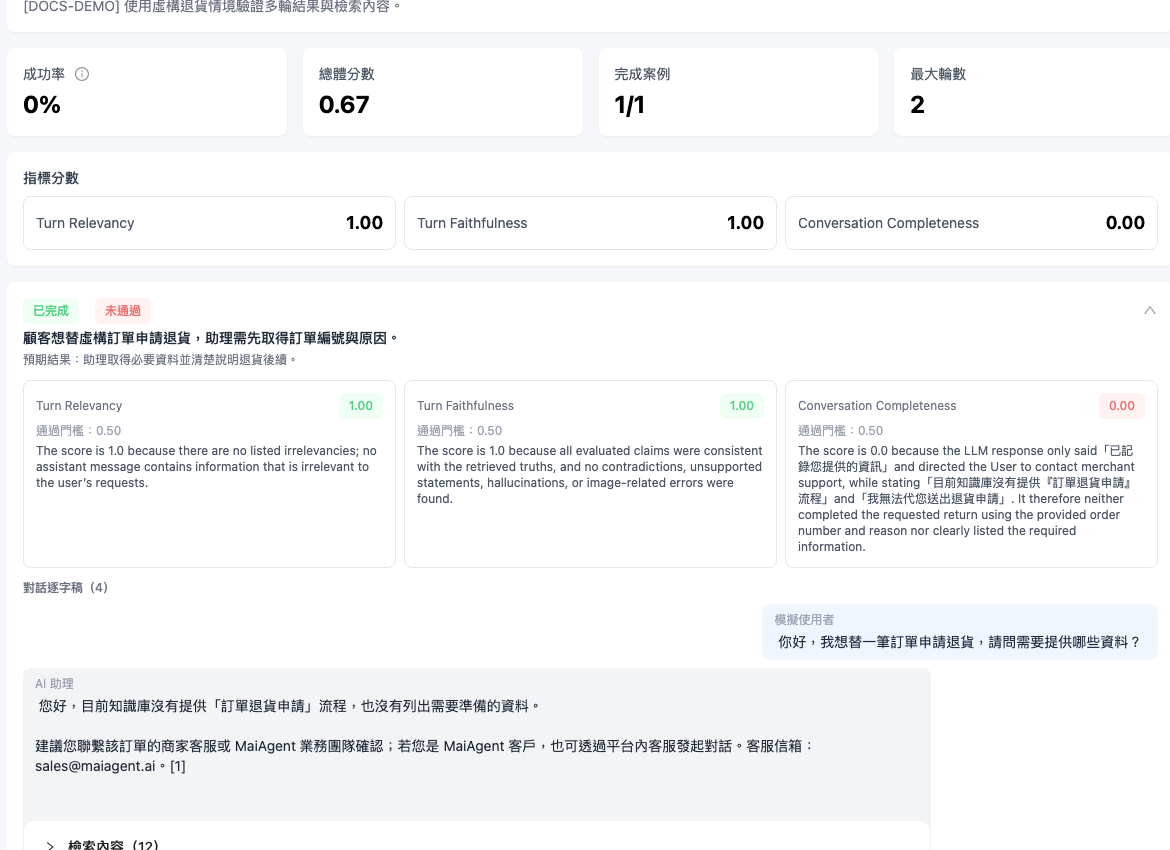
Multi-turn evaluation is ideal for testing tasks that require back-and-forth confirmation. For example, Mei, a quality manager, wants the assistant to ask for the order number first, confirm the reason for the return, and then explain the next steps. She creates a multi-turn test case, enters the scenario and expected result, and runs the evaluation. When it is complete, she can expand the conversation transcript to review every response and the Knowledge Base content retrieved during each turn, instead of looking only at the final answer.

{% stepper %}
{% step %}
First, go to "<mark style="color:blue;">Test Datasets</mark>" and open the target test dataset. Add a scenario, expected result, and simulated user persona to the multi-turn test case.
{% endstep %}

{% step %}
Return to "<mark style="color:blue;">Automated Testing</mark>", click "<mark style="color:blue;">Create Evaluation</mark>", and switch to "<mark style="color:blue;">Multi-turn Conversation</mark>".
{% endstep %}

{% step %}
Select the test dataset, AI Assistant, and evaluation model. Set the maximum number of turns, evaluation metrics, and simulation language, then start the evaluation. At least one evaluation metric must be enabled.
{% endstep %}

{% step %}
After the evaluation is complete, open the results and select an individual case to expand its details. Review the metric scores, conversation transcript, and "<mark style="color:blue;">Retrieved Content</mark>" for each turn. If an individual case fails, its error is displayed separately without hiding the results of other cases.
{% endstep %}
{% endstepper %}

<figure><img src="https://1360999650-files.gitbook.io/~/files/v0/b/gitbook-x-prod.appspot.com/o/spaces%2F6v6TNkkOQVfRYfcNirHL%2Fuploads%2Fgit-blob-123f84448a9ae205a2a7adcc1f96b8a63ceaf02d%2Fevaluation-multi-turn-results.png?alt=media" alt="Metrics, transcript, and retrieved content shown after expanding a completed multi-turn evaluation case"><figcaption><p>Expand a case to review the assistant's response and the Knowledge Base content used in each turn</p></figcaption></figure>

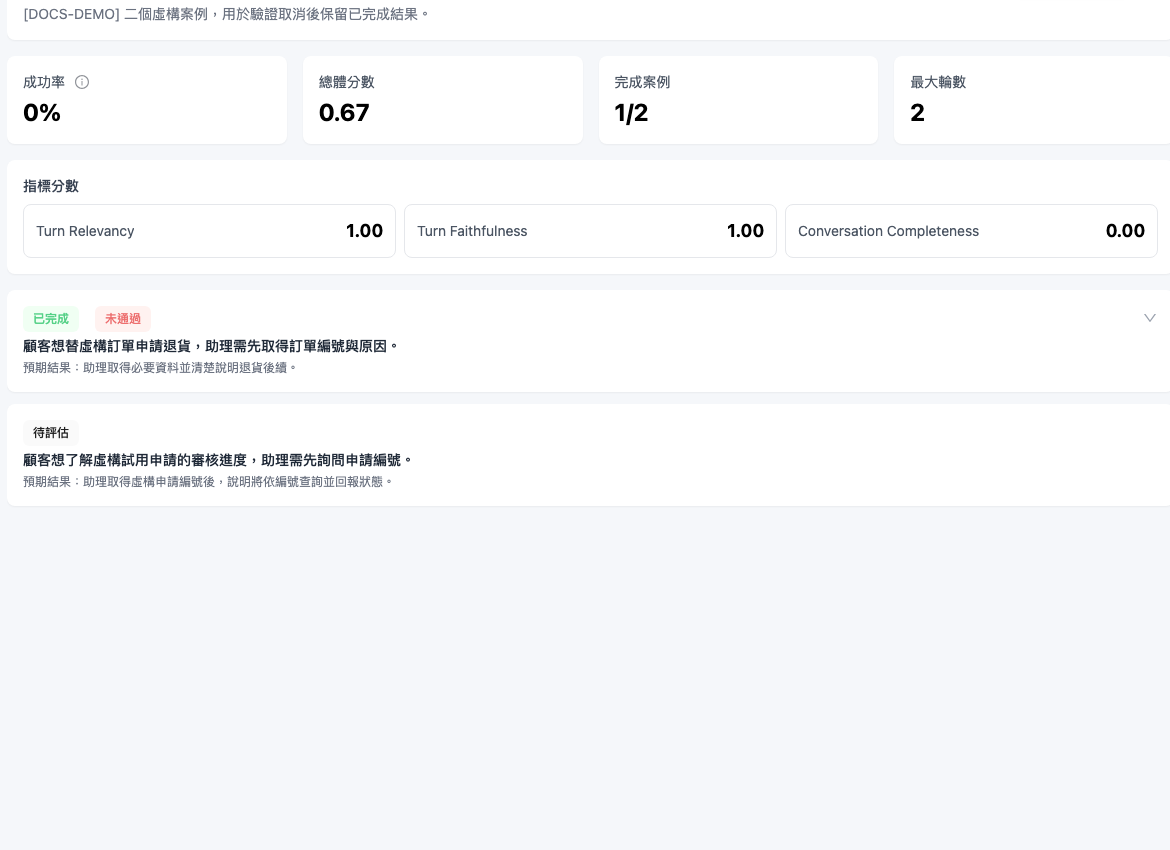
If you no longer need an ongoing multi-turn evaluation, click "<mark style="color:blue;">Cancel Evaluation</mark>" in the evaluation details and confirm. The system stops processing subsequent cases after the current case is complete. Scores and transcripts for completed cases are retained, the status is shown as "<mark style="color:blue;">Partially Completed</mark>", and unprocessed cases are shown as "<mark style="color:blue;">Pending Evaluation</mark>".

<figure><img src="https://1360999650-files.gitbook.io/~/files/v0/b/gitbook-x-prod.appspot.com/o/spaces%2F6v6TNkkOQVfRYfcNirHL%2Fuploads%2Fgit-blob-926b7035060aac6e77573489d86fb8297fab864f%2Fevaluation-multi-turn-cancel.png?alt=media" alt="Partially completed status after canceling a multi-turn evaluation"><figcaption><p>Completed cases are retained after cancellation, while unprocessed cases remain pending evaluation</p></figcaption></figure>

### View Evaluation Results <a href="#view-evaluation-results" id="view-evaluation-results"></a>

Click on an evaluation record to view the detailed report:

The detailed report includes:

* **Success Rate**: Percentage of test cases that passed
* **AI Insights**: Automatically generated evaluation summary and improvement suggestions
* **Metric Statistics**: Quality scores, response relevance, and other metrics
* **Test Case Details**: Expected response, actual response, score, and status for each question

**Success Rate Reference Benchmarks:**

| AI Assistant Type              | Recommended Success Rate |
| ------------------------------ | ------------------------ |
| Product Inquiry Assistant      | ≥ 95%                    |
| Customer Support Assistant     | ≥ 90%                    |
| General Conversation Assistant | ≥ 80%                    |

{% hint style="info" %}
For more information about insight reports, refer to: [Evaluation Insight Reports](/maiagent-user-guide/en/build/agent-ops/evaluation-insights.md)
{% endhint %}

### Manage Evaluation Records <a href="#manage-evaluation-records" id="manage-evaluation-records"></a>

* **Search and Filter**: Filter records by test dataset, AI Assistant, or keywords
* **Re-run**: After modifying the Knowledge Base or AI settings, re-run tests to verify improvements
* **Export**: Export evaluation results in Excel format

#### Edit the Evaluation Name and Description <a href="#edit-evaluation-name-description" id="edit-evaluation-name-description"></a>

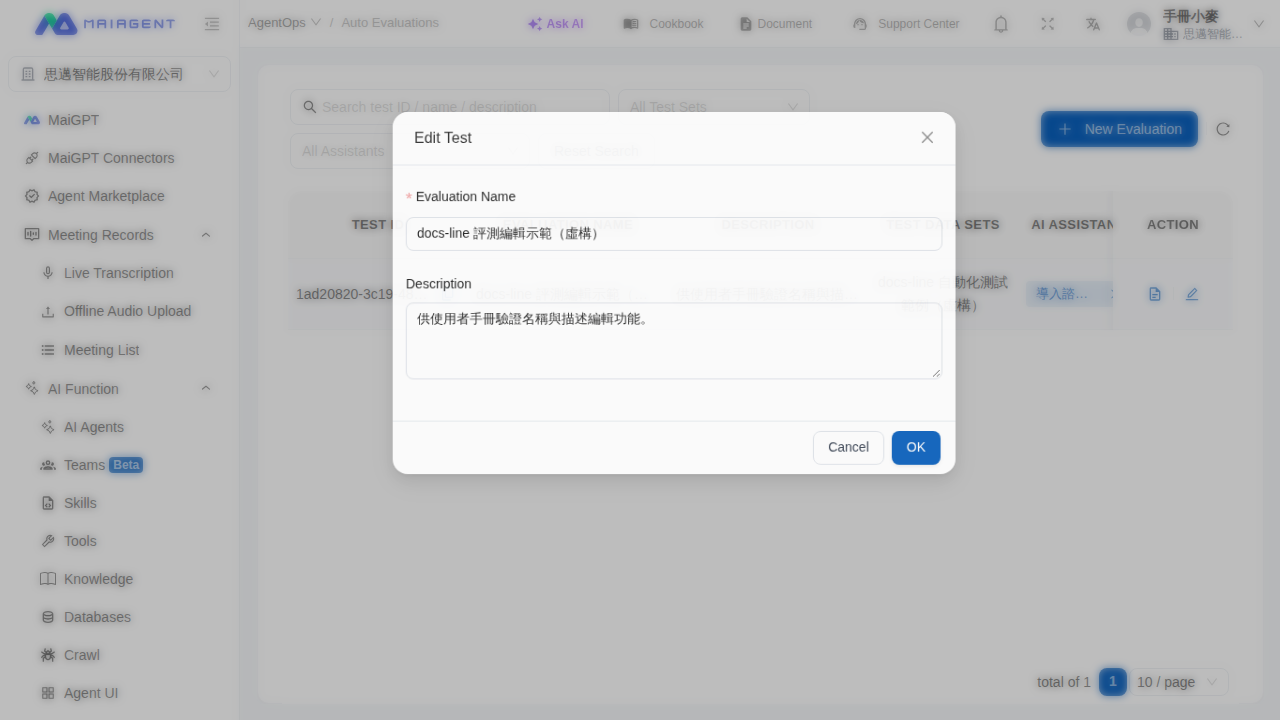
After a test is complete, you can still edit its evaluation name and description without deleting or rerunning the test. The test dataset, AI Assistant, evaluation results, and execution status remain unchanged.

For example, after Mai created a weekly customer service quality test, she noticed that the week number in the evaluation name was incorrect. She opened the edit dialog from the automated testing list, corrected the name, and added the test objective. After she saved the changes, the list immediately displayed the updated information while retaining the original test results.

{% stepper %}
{% step %}

### Open the Automated Testing List

From the left menu, go to “<mark style="color:blue;">AgentOps</mark>” → “<mark style="color:blue;">Automated Testing</mark>”.
{% endstep %}

{% step %}

### Open the Edit Dialog

Find the evaluation you want to update, then click the “<mark style="color:blue;">Edit</mark>” icon in the “<mark style="color:blue;">Actions</mark>” column for that row.
{% endstep %}

{% step %}

### Edit and Save

Edit the “<mark style="color:blue;">Evaluation Name</mark>” or “<mark style="color:blue;">Description</mark>”, then click “<mark style="color:blue;">Confirm</mark>”. The evaluation name is required and can contain up to 200 characters; the description may be left blank.
{% endstep %}
{% endstepper %}

<figure><img src="https://1360999650-files.gitbook.io/~/files/v0/b/gitbook-x-prod.appspot.com/o/spaces%2F6v6TNkkOQVfRYfcNirHL%2Fuploads%2Fgit-blob-574e934d25a9ff140f8191df9c4bef52ccbdf9a2%2Fagentops-edit-evaluation.png?alt=media" alt="Edit test dialog in the automated testing list, where you can update the evaluation name and description"><figcaption><p>The edit dialog is prefilled with the current evaluation name and description</p></figcaption></figure>

{% hint style="info" %}
You can edit the name and description of evaluations that are running, completed, or failed. This action only updates the identifying information and does not rerun the test.
{% endhint %}

***

## AI Assistant Monitoring <a href="#ai-agent-monitoring" id="ai-agent-monitoring"></a>

AI Assistant Monitoring provides real-time conversation operational data, allowing you to gain deep insight into the processing details, performance metrics, and quality scores of each conversation.

### Access AI Assistant Monitoring <a href="#access-ai-agent-monitoring" id="access-ai-agent-monitoring"></a>

Go to "<mark style="color:blue;">AgentOps</mark>" in the left sidebar, then click "<mark style="color:blue;">AI Assistant Monitoring</mark>".

### Monitoring Field Descriptions <a href="#monitoring-field-descriptions" id="monitoring-field-descriptions"></a>

| Field                         | Description                                                                                                                                                                                                    |
| ----------------------------- | -------------------------------------------------------------------------------------------------------------------------------------------------------------------------------------------------------------- |
| User Input Message            | The question sent by the user to the AI                                                                                                                                                                        |
| Output Message                | The AI Assistant's response content                                                                                                                                                                            |
| AI Assistant                  | The name of the AI Assistant that handled the conversation                                                                                                                                                     |
| User Feedback                 | Thumbs up 👍 or thumbs down 👎                                                                                                                                                                                 |
| Faithfulness Score            | Whether the response is faithful to the Knowledge Base content                                                                                                                                                 |
| Response Relevance Score      | The degree of relevance between the response and the question                                                                                                                                                  |
| Response Time                 | The total time for the AI to generate a response                                                                                                                                                               |
| LLM Processing Reasoning Time | The time spent on LLM reasoning and response generation                                                                                                                                                        |
| Total Token Count             | Total tokens consumed in the conversation (including question and answer)                                                                                                                                      |
| LLM                           | The name of the language model used                                                                                                                                                                            |
| User                          | The user who initiated the conversation                                                                                                                                                                        |
| Source                        | Whether the record is an <mark style="color:blue;">Interactive Conversation</mark> (a user asks a question) or a <mark style="color:blue;">Scheduled Run</mark> (automatically triggered by an agent schedule) |
| Member                        | The organization member who initiated the conversation; displays “—” when no member is associated with it (for example, a scheduled run)                                                                       |

### View Image Search Usage <a href="#view-image-search-usage" id="view-image-search-usage"></a>

When an AI Assistant uses image search in the Knowledge Base, the system separately records image embedding usage. You can review an individual conversation record to see which resources were used for that response:

{% stepper %}
{% step %}
Go to <mark style="color:blue;">AgentOps</mark> → <mark style="color:blue;">AI Assistant Monitoring</mark>, then switch to <mark style="color:blue;">Conversation Records</mark>.
{% endstep %}

{% step %}
Find the response you want to review, then click <mark style="color:blue;">Details</mark> on the far right.
{% endstep %}

{% step %}
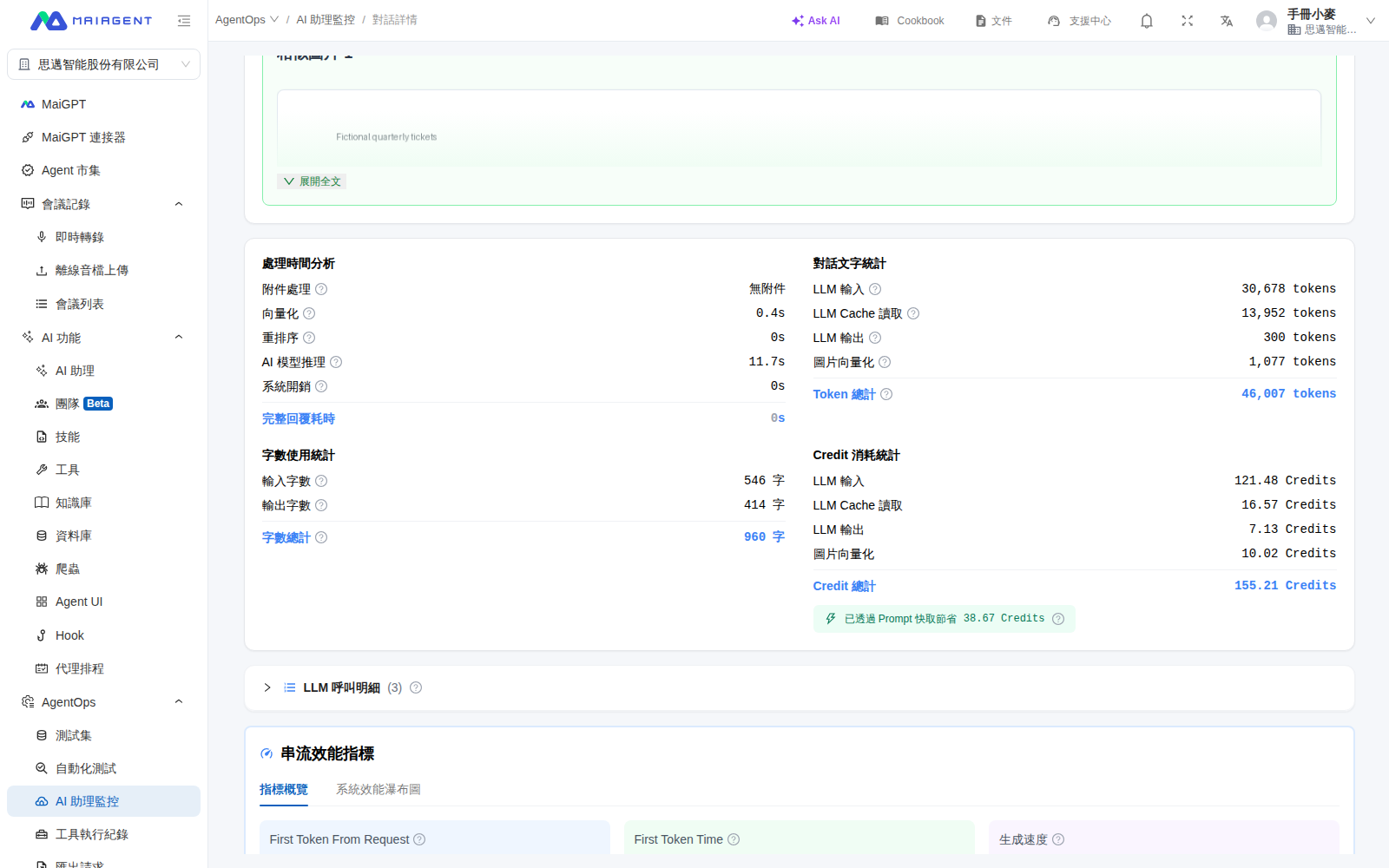
Scroll down to view the Token and Credit breakdown. Standard text embedding is listed under <mark style="color:blue;">Embedding</mark>. If the response used image search, <mark style="color:blue;">Image Embedding</mark> is also displayed, and the Token and Credit totals include this item.
{% endstep %}
{% endstepper %}

<figure><img src="https://1360999650-files.gitbook.io/~/files/v0/b/gitbook-x-prod.appspot.com/o/spaces%2F6v6TNkkOQVfRYfcNirHL%2Fuploads%2Fgit-blob-fe269be3872092ab4473c8eb46b0192090b76469%2Fagentops-prod-image-embedding-breakdown.png?alt=media" alt="Usage and Credit breakdown for an individual conversation in AI Assistant Monitoring"><figcaption><p>Usage breakdown for an individual conversation; “Image Embedding” appears only when the response actually used image search</p></figcaption></figure>

{% hint style="info" %}
If <mark style="color:blue;">Image Embedding</mark> is not displayed, it does not mean the record is missing. This item appears only when the response actually incurs image embedding usage. When image search is not used, the screen continues to show the standard embedding breakdown.
{% endhint %}

For example, Mai's customer service manager asks the product assistant to identify the appearance of a component from catalog images. After testing, she opens the conversation details and sees the image embedding usage and corresponding Credits. This allows her to distinguish the cost of image search from standard text retrieval before deciding whether to adjust the image catalog or assistant settings.

### Search and Filter <a href="#search-and-filter" id="search-and-filter"></a>

* **Keyword Search**: Search input/output messages or usernames
* **LLM Filter**: Select a specific language model to compare performance across different models
* **AI Assistant Filter**: Select a specific assistant to track its operational status
* **Time Range**: Select last 7 days, 30 days, 90 days, or a custom date range
* **Export**: Export monitoring data in Excel or CSV format
* **Source Filter**: Show only <mark style="color:blue;">Interactive Conversations</mark> or <mark style="color:blue;">Scheduled Runs</mark>
* **Member Filter**: Select one or more organization members and show only conversations they initiated

### Filter Conversation Records by Member and Source <a href="#filter-by-member-and-source" id="filter-by-member-and-source"></a>

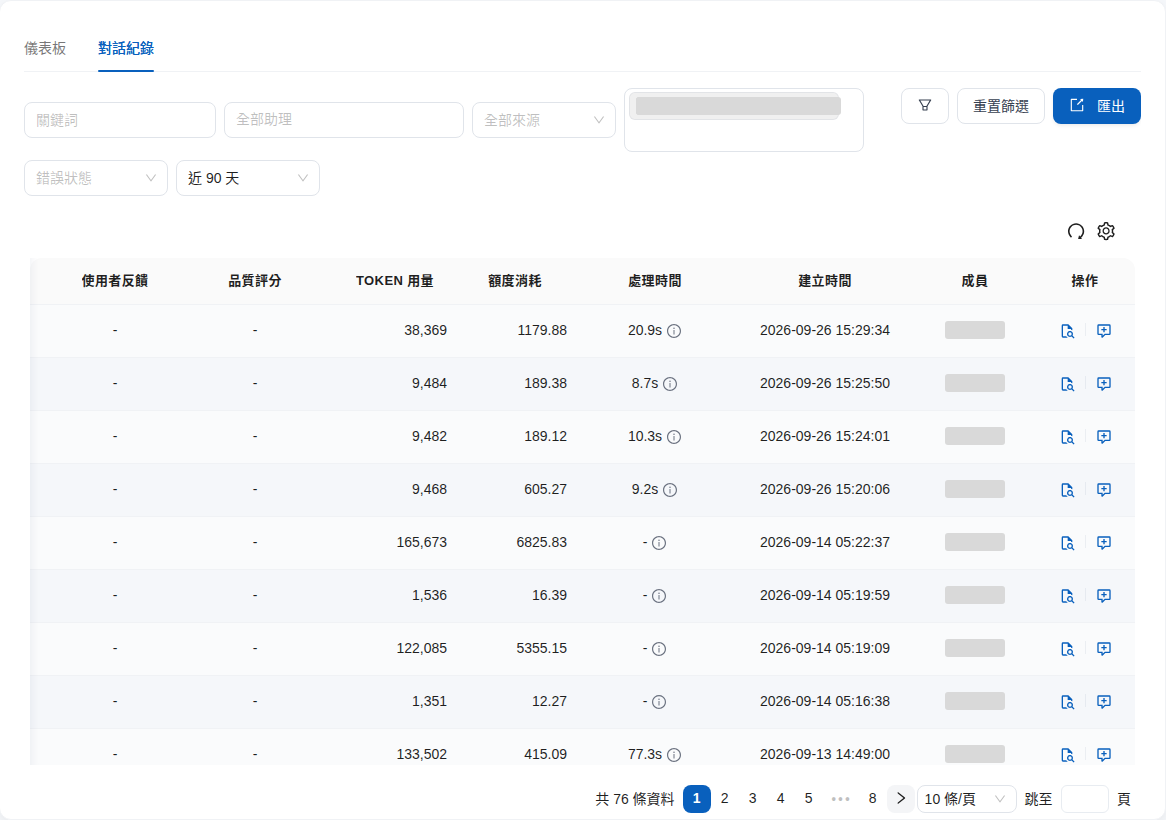
The filter bar in <mark style="color:blue;">Conversation Records</mark> includes <mark style="color:blue;">All Sources</mark> and <mark style="color:blue;">All Members</mark> dropdowns by default. The list also has <mark style="color:blue;">Source</mark> and <mark style="color:blue;">Member</mark> columns, so you can see who asked a question and whether a person or a schedule initiated the run.

For example, a customer service manager wants to understand how a new colleague has used the internal AI Assistant over the past few weeks. She opens Conversation Records, sets <mark style="color:blue;">Source</mark> to <mark style="color:blue;">Interactive Conversation</mark> to exclude scheduled records, and selects the colleague under <mark style="color:blue;">All Members</mark>. The list now shows only that colleague's conversations. After reviewing them, she clicks <mark style="color:blue;">Export</mark> to share the same list with the training team without asking an engineer to retrieve the data.

#### 1. Filter by Member <a href="#filter-by-member" id="filter-by-member"></a>

Go to <mark style="color:blue;">AgentOps</mark> → <mark style="color:blue;">AI Assistant Monitoring</mark> in the left menu, switch to <mark style="color:blue;">Conversation Records</mark>, and click <mark style="color:blue;">All Members</mark>. Select the members you want to view; you can select multiple members or search by keyword.

<figure><img src="https://1360999650-files.gitbook.io/~/files/v0/b/gitbook-x-prod.appspot.com/o/spaces%2F6v6TNkkOQVfRYfcNirHL%2Fuploads%2Fgit-blob-532df5b2ceb0432db04c3728927a28a71179896b%2Fagentops-records-member-filter.png?alt=media" alt="Member dropdown expanded in the conversation records filter bar"><figcaption><p>Select members from the All Members dropdown (member names and email addresses are obscured)</p></figcaption></figure>

The list then shows only conversations initiated by those members. You can combine this filter with keyword, AI Assistant, error status, date, and other filters. The <mark style="color:blue;">Member</mark> column on the right shows the member associated with each record.

<figure><img src="https://1360999650-files.gitbook.io/~/files/v0/b/gitbook-x-prod.appspot.com/o/spaces%2F6v6TNkkOQVfRYfcNirHL%2Fuploads%2Fgit-blob-c5ee5ba8dfcba2b1a33c9bf2793fdb9132f07aac%2Fagentops-records-member-column.png?alt=media" alt="Conversation records list filtered by member, showing the Member column"><figcaption><p>After filtering for one member, the Member column on the right shows the associated member for each record (obscured)</p></figcaption></figure>

#### 2. Filter Scheduled Runs by Source <a href="#filter-scheduled-runs" id="filter-scheduled-runs"></a>

Tasks run automatically through <mark style="color:blue;">Agent Schedules</mark> also appear in Conversation Records. Their <mark style="color:blue;">Source</mark> is labeled <mark style="color:blue;">Scheduled Run</mark>, while records from users' questions are labeled <mark style="color:blue;">Interactive Conversation</mark>. Click <mark style="color:blue;">All Sources</mark> to show only one of these types.

<figure><img src="https://1360999650-files.gitbook.io/~/files/v0/b/gitbook-x-prod.appspot.com/o/spaces%2F6v6TNkkOQVfRYfcNirHL%2Fuploads%2Fgit-blob-9f4f5b71c7c5c93e9473fc9fa7c2fd4083315d95%2Fagentops-records-scheduled-filter.png?alt=media" alt="Conversation records with Source filtered to scheduled runs"><figcaption><p>When Scheduled Run is selected as the source, the member filter and Export button are disabled; hovering over Export shows the reason</p></figcaption></figure>

{% hint style="info" %}
**Limitations when “Scheduled Run” is selected**

* Scheduled runs have no associated member or user feedback, so the <mark style="color:blue;">Member</mark> and <mark style="color:blue;">Rating</mark> filters are disabled and cleared.
* <mark style="color:blue;">Export</mark> currently supports only interactive conversations. When the source is <mark style="color:blue;">Scheduled Run</mark>, the button is disabled. Clear the source filter before exporting.
* <mark style="color:blue;">Dashboard</mark> statistics include only interactive conversations. View scheduled runs in <mark style="color:blue;">Conversation Records</mark>.
  {% endhint %}

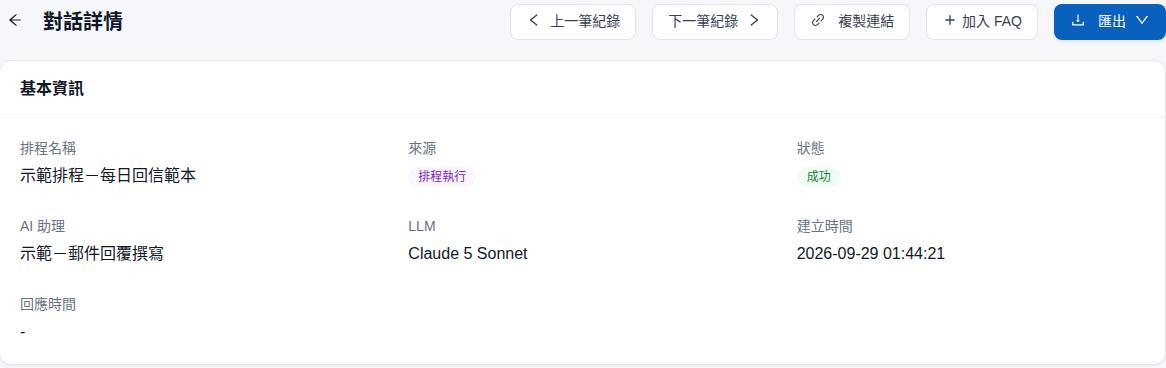
Click <mark style="color:blue;">Details</mark> on a scheduled run record. <mark style="color:blue;">Basic Information</mark> shows the <mark style="color:blue;">Schedule Name</mark>, <mark style="color:blue;">Source</mark>, and <mark style="color:blue;">Status</mark> for that run. <mark style="color:blue;">Identification Information</mark> also shows the <mark style="color:blue;">Schedule ID</mark>, so you can identify which schedule created the record.

<figure><img src="https://1360999650-files.gitbook.io/~/files/v0/b/gitbook-x-prod.appspot.com/o/spaces%2F6v6TNkkOQVfRYfcNirHL%2Fuploads%2Fgit-blob-c2463bbc35f85580d016676cd78243c9c913e5ff%2Fagentops-records-scheduled-detail.png?alt=media" alt="Basic information in the details for a scheduled run conversation record"><figcaption><p>Basic information for a scheduled run record shows the schedule name, Source as Scheduled Run, and Status as Success</p></figcaption></figure>

### Export Requests <a href="#export-requests" id="export-requests"></a>

After you click <mark style="color:blue;">Export</mark> in <mark style="color:blue;">Conversation Records</mark>, the system creates an Excel file in the background using the current filters (including member and source) and displays “Export request created, processing...”. Go to <mark style="color:blue;">AgentOps</mark> → <mark style="color:blue;">Export Requests</mark> in the left menu to view each export's <mark style="color:blue;">Status</mark>, the <mark style="color:blue;">User</mark> who requested it, <mark style="color:blue;">Record Count</mark>, <mark style="color:blue;">File Size</mark>, <mark style="color:blue;">Processing Time</mark>, and creation or completion time. Once the status is <mark style="color:blue;">Completed</mark>, you can download it from the <mark style="color:blue;">Actions</mark> column.

<figure><img src="https://1360999650-files.gitbook.io/~/files/v0/b/gitbook-x-prod.appspot.com/o/spaces%2F6v6TNkkOQVfRYfcNirHL%2Fuploads%2Fgit-blob-f417d42249de3cc61fd2e3255da547a9a669a793%2Fagentops-export-requests-user.png?alt=media" alt="Export requests list with the User column"><figcaption><p>The export requests list shows status, requesting user (obscured), record count, and file size</p></figcaption></figure>

{% hint style="info" %}
When multiple administrators share an organization, use the <mark style="color:blue;">User</mark> column to identify who created each export before deciding which file to download or delete.
{% endhint %}

### Dashboard Metrics and Error Rate <a href="#dashboard-metrics" id="dashboard-metrics"></a>

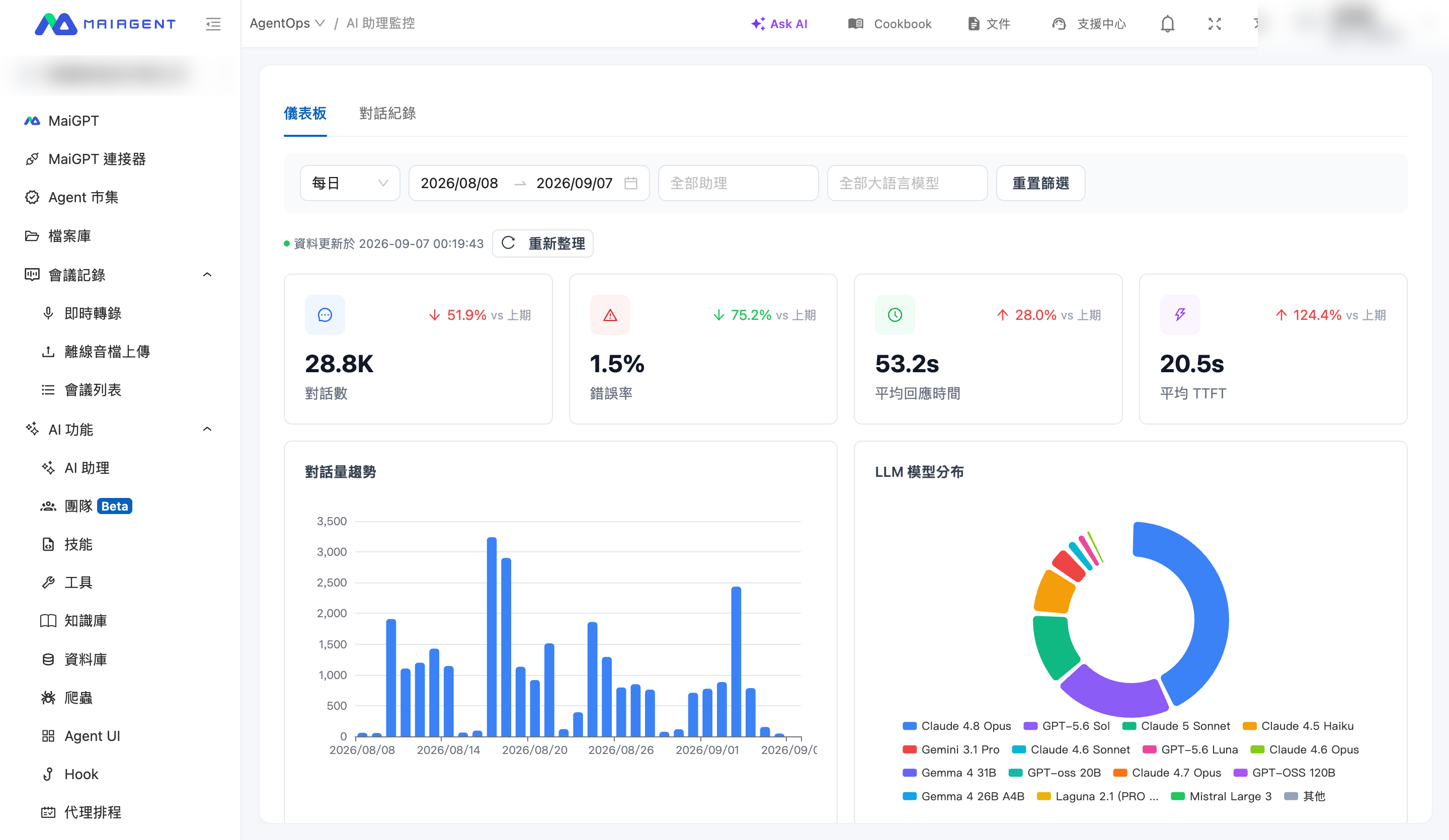
Switch to the “<mark style="color:blue;">Dashboard</mark>” tab to view overall service metrics and their percentage changes compared with the preceding period of the same length:

| Metric                | Description                                                                                                                                                                                                                                       |
| --------------------- | ------------------------------------------------------------------------------------------------------------------------------------------------------------------------------------------------------------------------------------------------- |
| Conversations         | The number of **responses from AI Assistants** during the selected period. Each AI response in a conversation counts once; responses handled by human agents and automatically scheduled runs are excluded (see the definition below for details) |
| Error Rate            | Percentage of responses with system errors (see the calculation below)                                                                                                                                                                            |
| Average Response Time | Average time from receiving a message to completing the response                                                                                                                                                                                  |
| Average TTFT          | Average time from when a user sends a message until the first token appears                                                                                                                                                                       |

The dashboard also provides charts for conversation volume, response time, error-rate trends, and LLM model distribution. The “Assistant Service Ranking” compares error rates and response speeds across assistants.

<figure><img src="https://1360999650-files.gitbook.io/~/files/v0/b/gitbook-x-prod.appspot.com/o/spaces%2F6v6TNkkOQVfRYfcNirHL%2Fuploads%2Fgit-blob-db1630e1f0fa85b411bb81deebdb35dd7f05981a%2Fagentops-dashboard-metrics.png?alt=media" alt="AI Assistant Monitoring dashboard"><figcaption><p>Dashboard metric cards and trend charts</p></figcaption></figure>

#### How Is the Conversation Count Calculated? <a href="#conversation-count-definition" id="conversation-count-definition"></a>

The dashboard's "Conversations" metric and conversation volume trend count **each response from an AI Assistant**, rather than the number of conversations opened:

| Scenario                                                                      | Counted? | Count |
| ----------------------------------------------------------------------------- | -------- | ----- |
| A user enters the service but does not send a message                         | No       | 0     |
| A user sends 1 message and the AI responds once                               | Yes      | 1     |
| In the same conversation, a user asks 5 questions and the AI responds 5 times | Yes      | 5     |
| A user sends a message, but a human agent takes over and responds             | No       | 0     |
| A user sends a message, but an error occurs while the AI is responding        | Yes      | 1     |
| An automatically scheduled task runs                                          | No       | 0     |

{% hint style="info" %}
To see how many conversations were opened, view "Conversation Count" on the AI Assistant's "Usage Analytics" page instead. It counts 1 when a user sends the first message, regardless of how many turns the conversation contains, and includes conversations handled by human agents. These metrics have different definitions, so the dashboard's "Conversations" count is generally higher than the "Conversation Count" in "Usage Analytics." See [Usage Analytics](/maiagent-user-guide/en/org/usage.md#conversations-count) for details.
{% endhint %}

#### How Is the Error Rate Calculated? <a href="#error-rate-calculation" id="error-rate-calculation"></a>

> Error rate = Number of responses with system errors ÷ Total number of responses × 100%

Only **system-level** errors are counted, such as model call failures and timeouts. The following are **not counted** as errors to avoid overestimating the error rate:

* Responses interrupted by the user (Client Interrupt)
* Normal blocking by content safeguards (Hook)

{% hint style="info" %}
The error rate measures service stability, not response quality. If the error rate rises abnormally, review the assistant's conversation records to identify the cause, such as model issues or external tool integration failures. To assess response quality, review faithfulness and answer relevance scores together with users' thumbs-up and thumbs-down feedback.
{% endhint %}

### Monitoring Best Practices <a href="#monitoring-best-practices" id="monitoring-best-practices"></a>

**Daily Review**: Check conversations from the last 24 hours to identify abnormal response times or errors

**Identify Performance Bottlenecks**:

* Response time > 10 seconds: Check Knowledge Base retrieval efficiency or consider a faster LLM
* High token usage: Evaluate whether the System Prompt or conversation history can be shortened

**Quality Issue Tracking**:

1. Use keyword search to find problematic conversations
2. Analyze root causes (insufficient Knowledge Base / AI misunderstanding / model limitations)
3. Add problem cases to the test dataset and run automated evaluations to verify fixes

***

## FAQ <a href="#faq" id="faq"></a>

### Q: What is the difference between Automated Evaluation and AI Assistant Monitoring? <a href="#faq-evaluation-vs-monitoring" id="faq-evaluation-vs-monitoring"></a>

|             | Automated Evaluation                     | AI Assistant Monitoring           |
| ----------- | ---------------------------------------- | --------------------------------- |
| Purpose     | Periodic quality testing                 | Real-time operational monitoring  |
| Data Source | Predefined test datasets                 | Actual user conversations         |
| Key Metrics | Success rate, response time              | Performance, cost, quality scores |
| Best For    | Quality verification, regression testing | Daily monitoring, troubleshooting |

### Q: How often should evaluations be run? <a href="#faq-how-often-to-evaluate" id="faq-how-often-to-evaluate"></a>

Recommendation: Core features weekly, full tests monthly, and immediately after major updates.

### Q: Do evaluations affect actual users? <a href="#faq-evaluation-impact-on-users" id="faq-evaluation-impact-on-users"></a>

No. Automated evaluations run in an isolated environment and do not interfere with actual user conversations.

### Q: How long is monitoring data retained? <a href="#faq-monitoring-data-retention" id="faq-monitoring-data-retention"></a>

The default retention period is 90 days. You can periodically export important data for long-term storage.


---

# Agent Instructions
This documentation is published with GitBook. GitBook is the documentation platform designed so that both humans and AI agents can read, navigate, and reason over technical content effectively. Learn more at gitbook.com.

## Querying This Documentation
If you need additional information that is not directly available in this page, you can query the documentation by asking a question.

Perform an HTTP GET request on the following URL with the `ask` and `goal` query parameters:

```
GET https://docs.maiagent.ai/maiagent-user-guide/en/build/agent-ops/evaluations.md?ask=<question>&goal=<user_goal>
```

`ask` is the immediate question: it should be specific, self-contained, and written in natural language.
`goal` is what the user is ultimately trying to achieve, the reason they need the answer. Sharing it helps GitBook give you a better, more relevant answer. A goal is most helpful when it describes the outcome the user wants rather than restating the question. For example, with `ask=how do I create an API token`, a goal like `automate deployments from our CI pipeline` lets GitBook tailor the answer to that use case.

The response will contain a direct answer to the question and relevant excerpts and sources from the documentation.

Use this mechanism when the answer is not explicitly present in the current page, you need clarification or additional context, or you want to retrieve related documentation sections.