> For the complete documentation index, see [llms.txt](https://docs.maiagent.ai/llms.txt). Markdown versions of documentation pages are available by appending `.md` to page URLs; this page is available as [Markdown](https://docs.maiagent.ai/maiagent-user-guide/en/build/agent-ops/evaluations.md).

# Automated Evaluation and Agent Monitoring

Automatically test and monitor Agent response quality, performance metrics, and costs in real time

## Automated Evaluation <a href="#auto-evaluation" id="auto-evaluation"></a>

Automated evaluation lets you automatically test Agent response quality using predefined test datasets. The system sends test questions to the Agent, compares actual responses with expected responses, and generates detailed evaluation reports.

### Access Automated Evaluation <a href="#access-auto-evaluation" id="access-auto-evaluation"></a>

Open “<mark style="color:blue;">AgentOps</mark>” in the left sidebar and click “<mark style="color:blue;">Automated Testing</mark>”.

The page displays all evaluation records, including the evaluation name, test dataset, Agent, success rate, average duration in seconds, and creation time.

### Create and Run a Test <a href="#create-and-run-test" id="create-and-run-test"></a>

1. Make sure you have created a test dataset (see [Test Dataset Management](/maiagent-user-guide/en/build/agent-ops/test-datasets.md))
2. Click the “<mark style="color:blue;">Create Evaluation</mark>” button
3. Enter a name and description, then select the test dataset, AI assistant, and evaluation model
4. Click “<mark style="color:blue;">Confirm</mark>”. The system first opens a “<mark style="color:blue;">Confirm Evaluation Cost</mark>” dialog showing the estimated Credits for this evaluation and your current balance
5. After checking the details, click “<mark style="color:blue;">Confirm and Start Evaluation</mark>” to run all test cases automatically. To adjust the settings, click “<mark style="color:blue;">Back to Edit</mark>”

You can also use the API to create test datasets, run evaluations, and retrieve results. For example, your own system can automatically rerun the same dataset after you adjust Agent settings. For endpoints, required permissions, and Credit calculations, see [Evaluations and Test Datasets](https://docs.maiagent.ai/api/api-reference/ping-gu-he-ce-shi-ji) in the API documentation.

{% hint style="info" %}
Evaluation time depends on the number of test cases. Typically, 50 test cases take about 2-3 minutes.
{% endhint %}

### Use Custom Evaluation Metrics <a href="#custom-evaluation-metrics" id="custom-evaluation-metrics"></a>

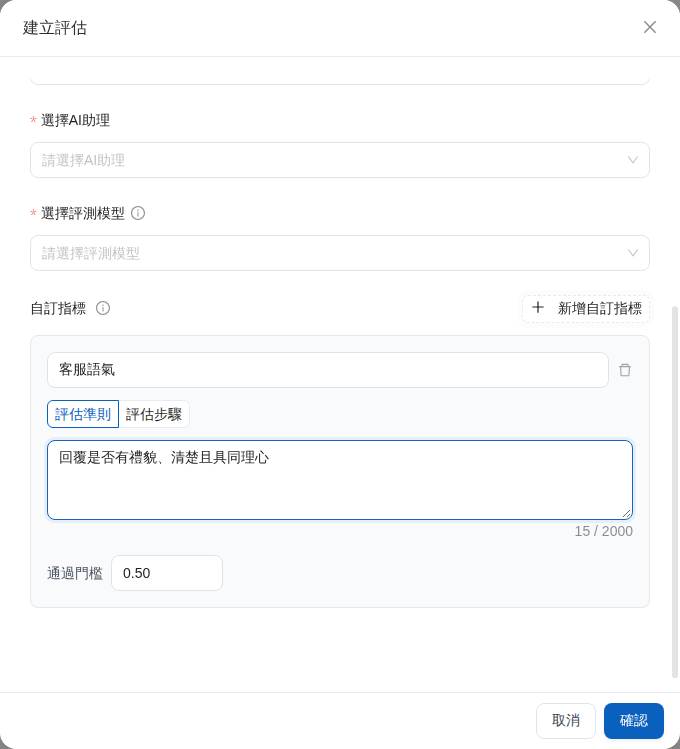
In addition to built-in metrics, you can define your team's own scoring criteria in natural language. For example, customer support manager Mai wants to check whether a support assistant remains polite and empathetic. She creates a “Customer Support Tone” metric, writes the evaluation criteria, and sets a passing threshold. Once evaluation is complete, she can review each case's “Customer Support Tone” score in the results and identify replies that need adjustment.

{% stepper %}
{% step %}
When creating an evaluation, complete the basic settings, including the name, test dataset, Agent, and evaluation model.
{% endstep %}

{% step %}
In the “<mark style="color:blue;">Custom Metrics</mark>” area, click “<mark style="color:blue;">Add Custom Metric</mark>” and enter an easily identifiable metric name and evaluation criteria.
{% endstep %}

{% step %}
Adjust the passing threshold to match your team's quality standards, then click “<mark style="color:blue;">Confirm</mark>”. In the cost confirmation dialog, click “<mark style="color:blue;">Confirm and Start Evaluation</mark>” to start the evaluation.
{% endstep %}
{% endstepper %}

<figure><img src="https://1360999650-files.gitbook.io/~/files/v0/b/gitbook-x-prod.appspot.com/o/spaces%2F6v6TNkkOQVfRYfcNirHL%2Fuploads%2Fgit-blob-92abd700ffd6e9610bbafe2d50e8e347b29fc8e0%2Fevaluation-multi-turn-settings.png?alt=media" alt="Multi-turn conversation settings in the Create Evaluation dialog"><figcaption><p>After switching to multi-turn conversations, you can set the maximum and minimum turns, three evaluation metrics, simulation language, and custom metrics</p></figcaption></figure>

<figure><img src="https://1360999650-files.gitbook.io/~/files/v0/b/gitbook-x-prod.appspot.com/o/spaces%2F6v6TNkkOQVfRYfcNirHL%2Fuploads%2Fgit-blob-d56c6a2a2384f1f8aab3561aa424ae4364d3f37e%2Fevaluation-custom-metric.png?alt=media" alt="Custom metric settings in the Create Evaluation dialog"><figcaption><p>Define evaluation criteria for customer support tone in natural language</p></figcaption></figure>

### Safety Metrics <a href="#safety-metrics" id="safety-metrics"></a>

When creating a single-turn evaluation, the “<mark style="color:blue;">Safety Metrics</mark>” area provides four optional guardrail metrics suited to compliance scenarios such as finance and healthcare. For all of them, higher scores are better (a higher score indicates fewer issues of that type):

| Metric                                                     | What It Checks                                                                                        |
| ---------------------------------------------------------- | ----------------------------------------------------------------------------------------------------- |
| <mark style="color:blue;">PII Leakage</mark>               | Whether the response leaks personally identifiable information                                        |
| <mark style="color:blue;">Role Violation</mark>            | Whether the response deviates from the identity and scope defined in the role instructions            |
| <mark style="color:blue;">Misuse</mark>                    | Whether the assistant is used for unintended purposes                                                 |
| <mark style="color:blue;">Avoid Professional Advice</mark> | Whether the response avoids providing professional advice in areas such as medicine, law, and finance |

{% hint style="info" %}
The system compares names without regard to English letter case. Custom metric names in single-turn evaluations must not duplicate the English names of the 15 built-in metrics. In multi-turn evaluations, they must not duplicate Turn Faithfulness, Turn Relevancy, or Conversation Completeness. For the list of built-in metrics, see [Response Evaluation and Monitoring Results](https://docs.maiagent.ai/tech/advanced-genai-tech/evaluation#evaluation-metrics) in the technical manual. If a name conflicts, choose another name that expresses what your team wants to assess.
{% endhint %}

### Evaluate Multi-turn Conversations <a href="#multi-turn-evaluation" id="multi-turn-evaluation"></a>

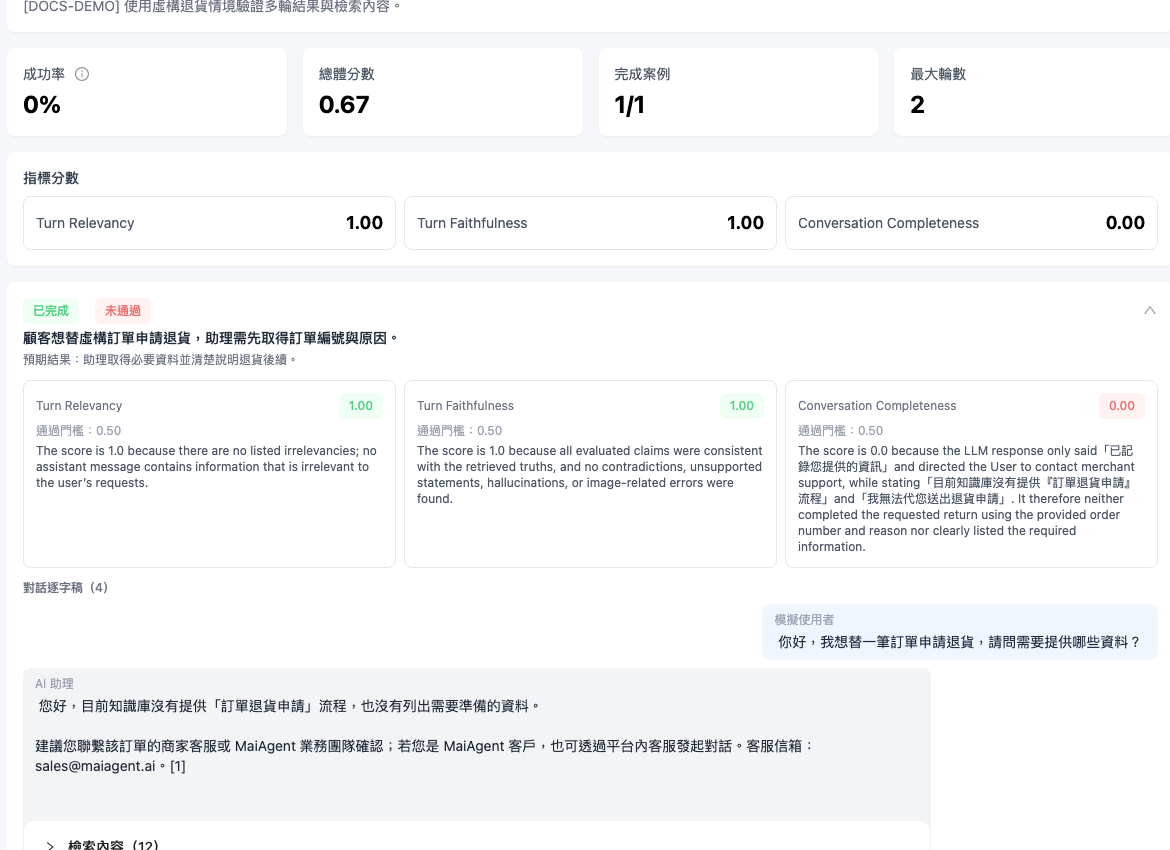
Multi-turn evaluation helps you check tasks that require back-and-forth confirmation. For example, quality manager Mei wants a returns support Agent to first ask for the order number, then confirm the reason for the return and explain the next steps. She creates a multi-turn test case, writes the scenario and expected outcome, and runs an evaluation. Once it is complete, she can expand the conversation transcript and inspect each turn's response and knowledge base retrieval, rather than just the final answer.

{% stepper %}
{% step %}
First, open the target dataset under “<mark style="color:blue;">Test Datasets</mark>” and add a scenario, expected outcome, and simulated user persona to a multi-turn test case.
{% endstep %}

{% step %}
Return to “<mark style="color:blue;">Automated Testing</mark>”, click “<mark style="color:blue;">Create Evaluation</mark>”, and switch to “<mark style="color:blue;">Multi-turn Conversations</mark>”.
{% endstep %}

{% step %}
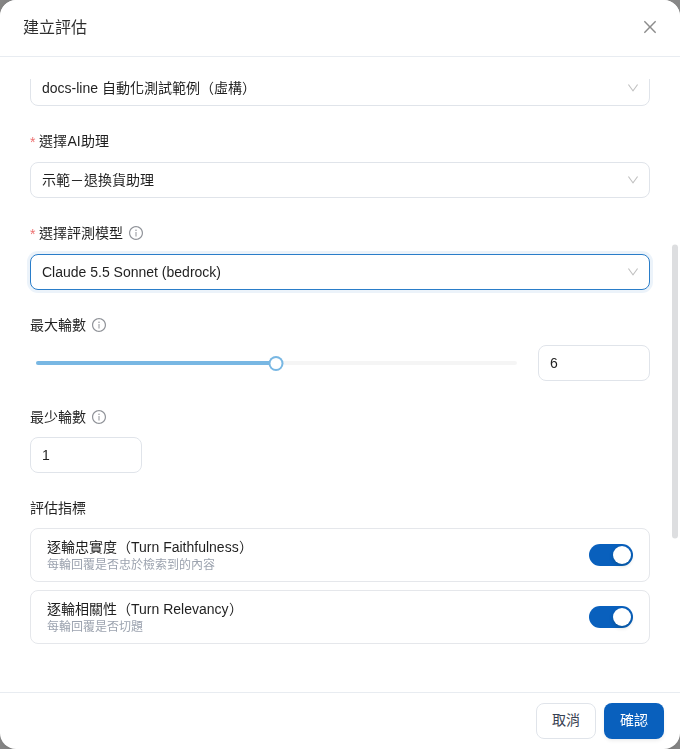
Select the test dataset, Agent, and evaluation model. Set the maximum turns, evaluation metrics, and simulation language, then start the evaluation. Enable at least one evaluation metric. If a case requires maintaining a condition across multiple turns (such as “never disclose internal prices throughout the conversation”), you can also set <mark style="color:blue;">Minimum Turns</mark>. Even if the expected outcome has been achieved, the simulated user will continue until at least this many turns have taken place. Minimum turns must not exceed maximum turns. For stopping rules and default values, see [Set Minimum and Maximum Turns](#min-and-max-turns) below.

During evaluation, model tokens and retrieval resources used by the Agent to generate answers for each case are charged at conversation rates and attributed to that evaluation. See [Credits Billing](/maiagent-user-guide/en/others/credits.md#model-rates).
{% endstep %}

{% step %}
Once evaluation is complete, open the results and click an individual case to expand its details. Review the metric scores, conversation transcript, and “<mark style="color:blue;">Retrieved Content</mark>” for each turn. If one case fails, its error is displayed separately without hiding the results of other cases.
{% endstep %}
{% endstepper %}

<figure><img src="https://1360999650-files.gitbook.io/~/files/v0/b/gitbook-x-prod.appspot.com/o/spaces%2F6v6TNkkOQVfRYfcNirHL%2Fuploads%2Fgit-blob-123f84448a9ae205a2a7adcc1f96b8a63ceaf02d%2Fevaluation-multi-turn-results.png?alt=media" alt="Metrics, transcript, and retrieved content in an expanded case from a completed multi-turn evaluation"><figcaption><p>Expand a case to check the Agent's responses and the knowledge base content used in each turn</p></figcaption></figure>

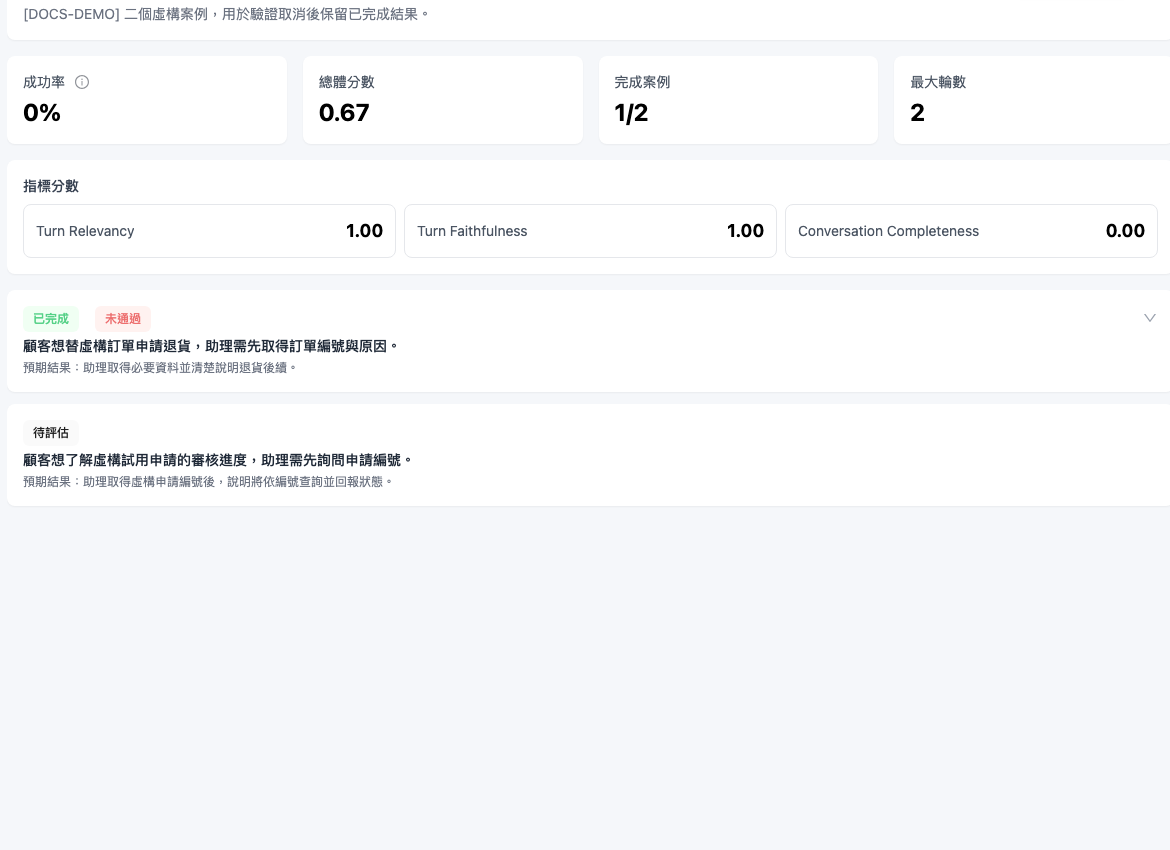
If you no longer need a running multi-turn evaluation, click “<mark style="color:blue;">Cancel Evaluation</mark>” in the evaluation details and confirm. The system stops subsequent cases after finishing the current case. Completed scores and transcripts are retained, the status changes to “<mark style="color:blue;">Partially Completed</mark>”, and unprocessed cases appear as “<mark style="color:blue;">Pending Evaluation</mark>”.

<figure><img src="https://1360999650-files.gitbook.io/~/files/v0/b/gitbook-x-prod.appspot.com/o/spaces%2F6v6TNkkOQVfRYfcNirHL%2Fuploads%2Fgit-blob-926b7035060aac6e77573489d86fb8297fab864f%2Fevaluation-multi-turn-cancel.png?alt=media" alt="Partially completed status after canceling a multi-turn evaluation"><figcaption><p>Completed cases are retained after cancellation, while unprocessed cases remain pending evaluation</p></figcaption></figure>

#### Set Minimum and Maximum Turns <a href="#min-and-max-turns" id="min-and-max-turns"></a>

In multi-turn evaluation, one turn consists of one simulated user message and one Agent response. <mark style="color:blue;">Maximum Turns</mark> sets the most turns a conversation can have. <mark style="color:blue;">Minimum Turns</mark> sets the number of turns required before the conversation can end because the expected outcome has been achieved.

For example, a quality manager in financial customer support wants to verify that an Agent never reveals internal promotional interest rates, even when a customer repeatedly rephrases the question. With only a maximum turn limit, the system might end the conversation after the Agent refuses in turn 1, judging the expected outcome to have been achieved. This would test only one turn. She sets maximum turns to 5 and minimum turns to 3 when creating the evaluation. The case then runs for at least 3 turns, requiring the Agent to maintain the condition three times in a row for the result to be meaningful.

Before each simulated user message, the system checks whether to end the conversation in this order:

1. Maximum turns reached: end the conversation. Maximum turns always take priority.
2. Minimum turns not yet reached: continue to the next turn without checking the expected outcome.
3. Minimum turns reached: check the expected outcome. If achieved, end the conversation; otherwise, continue until maximum turns is reached.

| Field                                          | Default | Allowed Range                                 |
| ---------------------------------------------- | ------- | --------------------------------------------- |
| <mark style="color:blue;">Maximum Turns</mark> | 6       | 2–10                                          |
| <mark style="color:blue;">Minimum Turns</mark> | 1       | At least 1, and no greater than maximum turns |

Leaving minimum turns at its default of 1 preserves the behavior from before this field was introduced: the conversation ends as soon as the expected outcome is achieved, starting from the first turn. To have every case run for a fixed number of turns, set minimum turns equal to maximum turns.

<figure><img src="https://1360999650-files.gitbook.io/~/files/v0/b/gitbook-x-prod.appspot.com/o/spaces%2F6v6TNkkOQVfRYfcNirHL%2Fuploads%2Fgit-blob-638d0e5a055294731944fbc384d80feffa7eb098%2Fevaluation-multi-turn-min-turns-default.png?alt=media" alt="Default settings in the Create Evaluation dialog with maximum turns set to 6 and minimum turns to 1"><figcaption><p>After switching to multi-turn conversations, the minimum turns field appears below maximum turns with a default of 1</p></figcaption></figure>

If minimum turns exceeds maximum turns, “<mark style="color:blue;">Minimum turns must not exceed maximum turns</mark>” appears below the field. Clicking “<mark style="color:blue;">Confirm</mark>” displays the same error and does not create the evaluation. The input accepts only integers within the allowed range; out-of-range numbers are automatically adjusted to the allowed upper or lower limit.

<figure><img src="https://1360999650-files.gitbook.io/~/files/v0/b/gitbook-x-prod.appspot.com/o/spaces%2F6v6TNkkOQVfRYfcNirHL%2Fuploads%2Fgit-blob-f66597e00ea9f6531e7f7de6f480b53dc0263f7f%2Fevaluation-multi-turn-min-turns-invalid.png?alt=media" alt="The minimum turns field shows a red error when maximum turns is 3 and minimum turns is 5"><figcaption><p>Minimum turns of 5 exceeds maximum turns of 3, so the form cannot be submitted</p></figcaption></figure>

After the evaluation is created, the top of the multi-turn evaluation details page displays both the maximum and minimum turns used. Evaluations created before this field was introduced display a minimum of 1 turn.

<figure><img src="https://1360999650-files.gitbook.io/~/files/v0/b/gitbook-x-prod.appspot.com/o/spaces%2F6v6TNkkOQVfRYfcNirHL%2Fuploads%2Fgit-blob-c6aeb466ca382618ad29f28ffb3f2d968f9101e3%2Fevaluation-multi-turn-min-turns-detail.png?alt=media" alt="Multi-turn evaluation details showing maximum turns of 2 and minimum turns of 1"><figcaption><p>The statistics cards on the details page list the evaluation's maximum and minimum turns</p></figcaption></figure>

{% hint style="info" %}
After the expected outcome is achieved, the simulated user continues sending messages until minimum turns is reached. A higher setting suits cases that test whether a condition holds under repeated pressure. For cases that follow a fixed sequence of steps (such as completing a questionnaire one question at a time), setting minimum turns too high may create unrelated conversational turns. Set it to the number of turns needed to complete the task.
{% endhint %}

### View Evaluation Results <a href="#view-evaluation-results" id="view-evaluation-results"></a>

Click the first (document) icon in the “<mark style="color:blue;">Actions</mark>” column of an evaluation record to view its detailed report. The report includes:

* **Success Rate**: The percentage of test cases that passed (cases marked as flaky are excluded; see [Mark Flaky Test Cases](/maiagent-user-guide/en/build/agent-ops/test-datasets.md#flaky-test-cases))
* **AI Insights**: An automatically generated evaluation summary and improvement suggestions
* **Metric Statistics**: Metrics such as quality scores and answer relevancy
* <mark style="color:blue;">**AI Assistant Settings (This Evaluation)**</mark>: A snapshot of the Agent settings when this evaluation ran, including the model, answer mode, role instructions, knowledge base, and tool settings. Click “<mark style="color:blue;">View Configuration Details</mark>” to expand it. Even if you later change the Agent settings, the original version is retained here, making it easier to compare which changes affected the scores
* **Test Case Details**: The expected response, actual response, score, and status for each question

#### Cancel, Resume, and Export <a href="#cancel-resume-export" id="cancel-resume-export"></a>

* <mark style="color:blue;">**Cancel Evaluation**</mark>: Cancel a running evaluation. The system stops after completing the current batch and ends with a “Partially Completed” status. Calculated scores are retained, and the remaining cases are not run.
* <mark style="color:blue;">**Resume Evaluation**</mark>: When the evaluation status is “Partially Completed”, click “Resume Evaluation” to rerun test cases that **encountered errors** or **have not yet run** (for example, cases skipped after cancellation). Completed cases are retained without rerunning, and only newly completed cases are charged.
* <mark style="color:blue;">**Export Report**</mark>: Reports can be exported only after evaluation is complete. Clicking the button creates an export request to generate an Excel file in the background. When it is ready, the page displays “The export request is complete. You can now download the file”, and the button changes to “<mark style="color:blue;">Download Report</mark>”. Evaluation reports do not appear on the AgentOps [Export Requests](#export-requests) page; download them from the evaluation details page. The report includes a “Suggestions and Insights” worksheet.

**Success Rate Benchmarks:**

| Agent Type                     | Recommended Success Rate |
| ------------------------------ | ------------------------ |
| Product Inquiry Assistant      | ≥ 95%                    |
| Customer Support Assistant     | ≥ 90%                    |
| General Conversation Assistant | ≥ 80%                    |

{% hint style="info" %}
For more information about insight reports, see [Evaluation Insights Report](/maiagent-user-guide/en/build/agent-ops/evaluation-insights.md).
{% endhint %}

### Manage Evaluation Records <a href="#manage-evaluation-records" id="manage-evaluation-records"></a>

* **Search and Filter**: Filter records by test dataset, Agent, or keyword
* **Reevaluate**: After changing the knowledge base or AI settings, create another evaluation with the same dataset to compare improvements (the list has no one-click rerun button)
* **Export**: Export evaluation results in Excel format

#### Edit Evaluation Name and Description <a href="#edit-evaluation-name-description" id="edit-evaluation-name-description"></a>

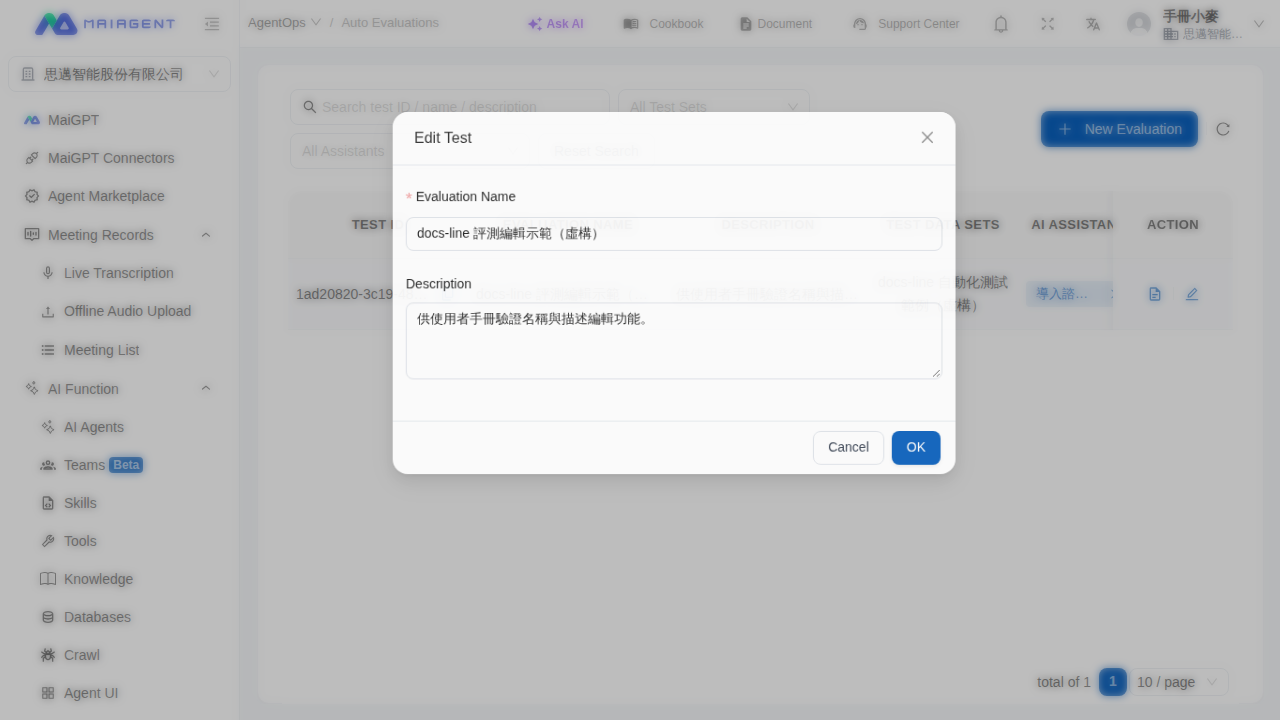
After testing is complete, you can still change the evaluation name and description without deleting or rerunning the test. The test dataset, Agent, evaluation results, and execution status remain the same.

For example, after creating a weekly customer support quality test, Mai notices that the week number in the evaluation name is incorrect. She opens the editing dialog from the automated testing list, corrects the name, and adds the purpose of the test. After saving, the list immediately displays the updated content, and the original test results are retained.

{% stepper %}
{% step %}

### Open the Automated Testing List

In the left menu, go to “<mark style="color:blue;">AgentOps</mark>” → “<mark style="color:blue;">Automated Testing</mark>”.
{% endstep %}

{% step %}

### Open the Editing Dialog

Find the evaluation you want to adjust and click the “<mark style="color:blue;">Edit</mark>” icon in its “<mark style="color:blue;">Actions</mark>” column.
{% endstep %}

{% step %}

### Edit and Save

Change the “<mark style="color:blue;">Evaluation Name</mark>” or “<mark style="color:blue;">Description</mark>”, then click “<mark style="color:blue;">OK</mark>”. The evaluation name is required and can contain up to 200 characters; the description can be left blank.
{% endstep %}
{% endstepper %}

<figure><img src="https://1360999650-files.gitbook.io/~/files/v0/b/gitbook-x-prod.appspot.com/o/spaces%2F6v6TNkkOQVfRYfcNirHL%2Fuploads%2Fgit-blob-574e934d25a9ff140f8191df9c4bef52ccbdf9a2%2Fagentops-edit-evaluation.png?alt=media" alt="Edit Test dialog in the automated testing list, where you can change the evaluation name and description"><figcaption><p>The editing dialog is prefilled with the current evaluation name and description</p></figcaption></figure>

{% hint style="info" %}
You can edit the name and description of running, completed, or failed evaluations. This operation only updates identifying information and does not rerun the test.
{% endhint %}

***

## Agent Monitoring <a href="#ai-agent-monitoring" id="ai-agent-monitoring"></a>

Agent monitoring provides real-time conversation operational data, helping you understand processing details, performance metrics, and quality scores for every conversation.

### Access Agent Monitoring <a href="#access-ai-agent-monitoring" id="access-ai-agent-monitoring"></a>

Open “<mark style="color:blue;">AgentOps</mark>” in the left sidebar and click “<mark style="color:blue;">AI Assistant Monitoring</mark>”.

### Monitoring Field Descriptions <a href="#monitoring-field-descriptions" id="monitoring-field-descriptions"></a>

The list on the “<mark style="color:blue;">Text Conversation Records</mark>” tab displays these fields by default:

| Field              | Description                                                                                                                                                                                                           |
| ------------------ | --------------------------------------------------------------------------------------------------------------------------------------------------------------------------------------------------------------------- |
| User Input Message | The question the user sent to the AI                                                                                                                                                                                  |
| Output Message     | The Agent's response                                                                                                                                                                                                  |
| AI Assistant       | The name of the Agent handling the conversation                                                                                                                                                                       |
| Source             | Whether the record is an <mark style="color:blue;">Interactive Conversation</mark> (an actual user question) or a <mark style="color:blue;">Scheduled Execution</mark> (automatically triggered by an Agent schedule) |
| User Feedback      | Thumbs up 👍 or thumbs down 👎                                                                                                                                                                                        |
| Quality Score      | Faithfulness is used as the representative score. Hover over the score to view submetrics such as faithfulness, answer correctness, answer relevancy, answer similarity, contextual precision, and contextual recall  |
| Token Usage        | The total number of LLM and embedding tokens consumed by this response                                                                                                                                                |
| Credits Consumed   | The Credits consumed by this response                                                                                                                                                                                 |
| Processing Time    | The time needed for the complete response. Hover over the duration to see the time spent on attachment processing, embedding, reranking, AI model inference, and system overhead                                      |
| Creation Time      | When the record was created                                                                                                                                                                                           |
| Member             | The person who initiated this conversation as an organization member. “—” appears when there is no corresponding member (for example, for scheduled executions)                                                       |

Fields such as ID, Modified Input Message, Character Count, LLM, Error Type, and User are hidden by default. Use the gear icon in the upper-right corner of the list to show them.

#### How Quality Scores Are Calculated <a href="#quality-score-calculation" id="quality-score-calculation"></a>

Faithfulness, answer relevancy, and contextual precision scores are determined by an evaluation model (LLM) using DeepEval's Faithfulness, Answer Relevancy, and Contextual Precision metrics. Scores range from 0 to 1 and are not based on keyword matching. Faithfulness measures how many statements in the response are supported by retrieved passages. Answer relevancy measures how much of the response addresses the user's question. Contextual precision measures the relevance of retrieved passages to the question. The evaluation model assesses each statement, so rerunning the same response may produce slightly different scores. For metric definitions, score directions, and troubleshooting low scores, see [Response Evaluation and Monitoring Results](https://docs.maiagent.ai/tech/advanced-genai-tech/evaluation) in the technical manual.

Click the “<mark style="color:blue;">Details</mark>” icon in the rightmost “<mark style="color:blue;">Actions</mark>” column of a record to open its conversation details page. You can view the response's execution timeline (duration, Tokens, Credits, and bottlenecks for each step), the complete conversation sent to the model, and usage and performance panels. You can also export JSON, Markdown, or a Credit audit. See [Conversation Details and Execution Timeline](/maiagent-user-guide/en/build/agent-ops/evaluations/trace-timeline.md).

### View Image Search Usage <a href="#view-image-search-usage" id="view-image-search-usage"></a>

When an Agent uses knowledge base image search, the system separately records image embedding usage. Check an individual conversation record to see which resources the response used:

{% stepper %}
{% step %}
Go to <mark style="color:blue;">AgentOps</mark> → <mark style="color:blue;">AI Assistant Monitoring</mark> and switch to <mark style="color:blue;">Text Conversation Records</mark>.
{% endstep %}

{% step %}
Find the response you want to check and click the <mark style="color:blue;">Details</mark> icon on the far right.
{% endstep %}

{% step %}
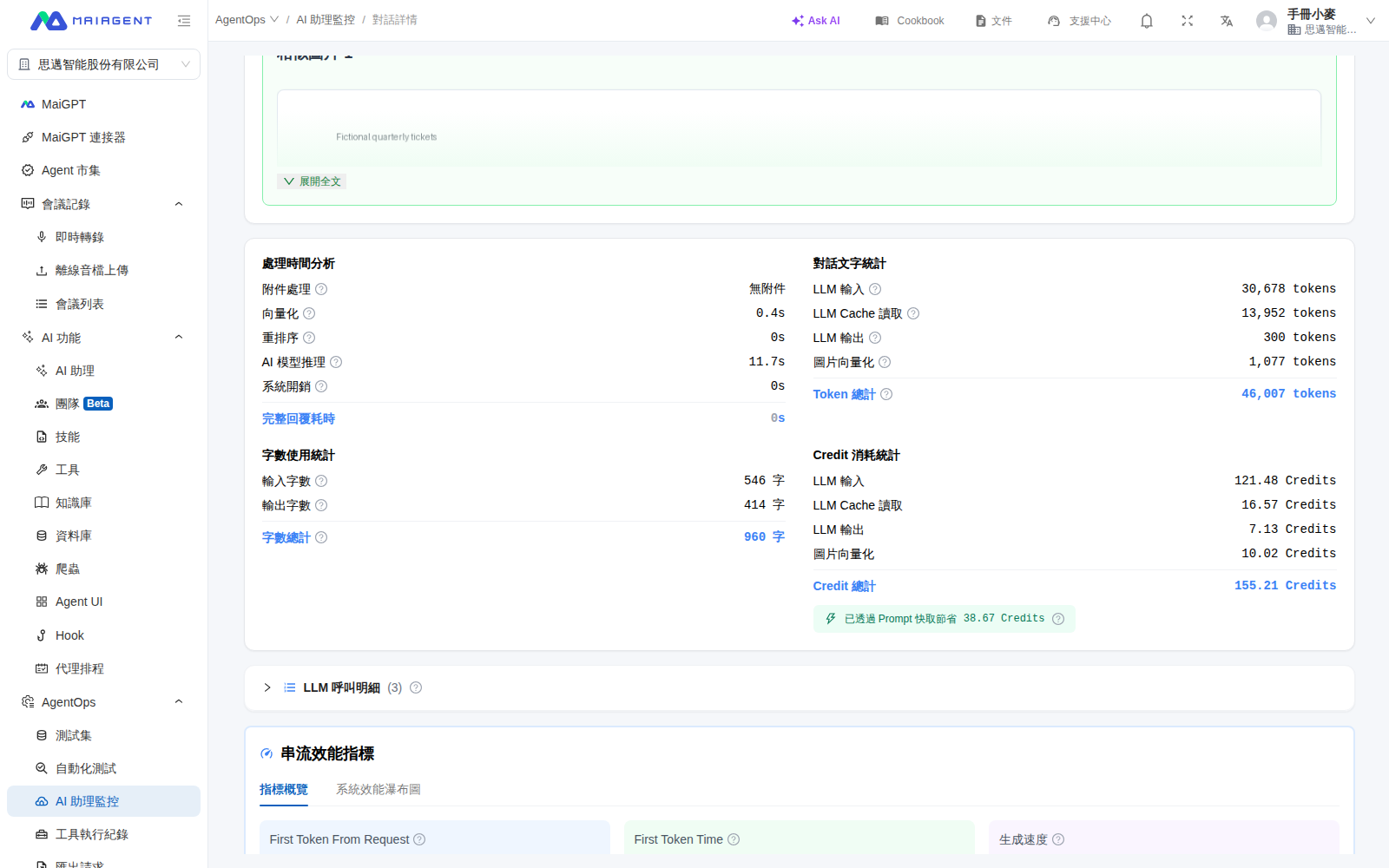
Scroll down to the Token and Credit breakdown. Standard text embedding appears under <mark style="color:blue;">Embedding</mark>. If the response used image search, <mark style="color:blue;">Image Embedding</mark> also appears, and both the Token total and Credit total include it. For other fields, see [Usage and Performance Panels](/maiagent-user-guide/en/build/agent-ops/evaluations/trace-timeline.md#usage-panels).
{% endstep %}
{% endstepper %}

<figure><img src="https://1360999650-files.gitbook.io/~/files/v0/b/gitbook-x-prod.appspot.com/o/spaces%2F6v6TNkkOQVfRYfcNirHL%2Fuploads%2Fgit-blob-fe269be3872092ab4473c8eb46b0192090b76469%2Fagentops-prod-image-embedding-breakdown.png?alt=media" alt="Usage and Credit breakdown for an individual conversation in Agent monitoring"><figcaption><p>Usage breakdown for an individual conversation; “Image Embedding” appears only for responses that actually used image search</p></figcaption></figure>

{% hint style="info" %}
If <mark style="color:blue;">Image Embedding</mark> does not appear, this does not mean a record is missing. This item appears only when the response actually incurred image embedding usage. When image search was not used, the screen retains the usual embedding breakdown.
{% endhint %}

For example, a customer support manager at Mai's company has a product Agent identify the appearance of parts from catalog images. After testing, she opens the conversation details and sees image embedding usage and the corresponding Credits. This lets her distinguish image search costs from standard text retrieval costs and decide whether to adjust the image catalog or Agent settings.

### Search and Filter <a href="#search-and-filter" id="search-and-filter"></a>

Available fields in the filter bar above text conversation records:

| Field                                                 | Description                                                                                                                                                      | Shown by Default |
| ----------------------------------------------------- | ---------------------------------------------------------------------------------------------------------------------------------------------------------------- | ---------------- |
| <mark style="color:blue;">Date Range</mark>           | Last 24 hours, last 7 days, last 30 days, last 90 days, or a <mark style="color:blue;">Custom Range</mark>                                                       | Yes              |
| <mark style="color:blue;">Keyword</mark>              | Search user input messages and Agent responses                                                                                                                   | Yes              |
| <mark style="color:blue;">AI Assistant</mark>         | Select a specific Agent to track its operation                                                                                                                   | Yes              |
| <mark style="color:blue;">Tool</mark>                 | Show only responses that used a specific tool                                                                                                                    | No               |
| <mark style="color:blue;">Source</mark>               | Show only <mark style="color:blue;">Interactive Conversations</mark> or <mark style="color:blue;">Scheduled Executions</mark>                                    | No               |
| <mark style="color:blue;">Member</mark>               | Select one or more organization members to show only conversations they initiated; scheduled executions have no value for this field                             | No               |
| <mark style="color:blue;">Error Status</mark>         | <mark style="color:blue;">Any</mark>, <mark style="color:blue;">With Errors</mark>, or <mark style="color:blue;">Without Errors</mark>                           | No               |
| <mark style="color:blue;">Large Language Model</mark> | Select a specific language model to compare model performance                                                                                                    | No               |
| <mark style="color:blue;">Error Type</mark>           | Specify an error type (using the same categories as [How Error Rate Is Calculated](#error-rate-calculation))                                                     | No               |
| <mark style="color:blue;">Rating</mark>               | Filter by user feedback: <mark style="color:blue;">Thumbs Up</mark>, <mark style="color:blue;">Thumbs Down</mark>, or <mark style="color:blue;">No Rating</mark> | No               |

#### Customize Filter Fields <a href="#customize-filter-fields" id="customize-filter-fields"></a>

Use the “<mark style="color:blue;">Customize Filter Fields</mark>” funnel icon on the right side of the filter bar to select which fields to display (in the “Show Filter Fields” list). Hide less frequently used fields to keep the screen uncluttered. Click “<mark style="color:blue;">Restore Defaults</mark>” to return to the default combination in the table above. Settings are saved in your browser and do not affect other members. <mark style="color:blue;">Reset Filters</mark> clears only the current conditions, without changing which fields are displayed.

<mark style="color:blue;">Export</mark> creates an export request (Excel or CSV) based on the current filter conditions; see [Export Requests](#export-requests). Export supports only interactive conversations. If the source is set to scheduled execution, you will be prompted to clear the source filter first.

### Filter Conversation Records by Member and Source <a href="#filter-by-member-and-source" id="filter-by-member-and-source"></a>

<mark style="color:blue;">Text Conversation Records</mark> provides <mark style="color:blue;">Source</mark> and <mark style="color:blue;">Member</mark> filters (hidden by default; enable them in [Customize Filter Fields](#customize-filter-fields) first). The list also has corresponding <mark style="color:blue;">Source</mark> and <mark style="color:blue;">Member</mark> columns, making it easy to view who asked and whether the conversation was initiated by a person or automatically by a schedule.

For example, a customer support manager wants to understand how a new colleague has used an internal Agent over the past few weeks. She opens text conversation records and sets <mark style="color:blue;">Source</mark> to <mark style="color:blue;">Interactive Conversation</mark> to exclude automatically scheduled records. She then selects the colleague under <mark style="color:blue;">All Members</mark>, leaving only that person's conversations in the list. After checking the content, she clicks <mark style="color:blue;">Export</mark> to give the same list to the training coordinator without asking an engineer to retrieve the data.

#### 1. Filter by Member <a href="#filter-by-member" id="filter-by-member"></a>

Go to <mark style="color:blue;">AgentOps</mark> → <mark style="color:blue;">AI Assistant Monitoring</mark>, switch to <mark style="color:blue;">Text Conversation Records</mark>, and enable <mark style="color:blue;">Member</mark> in [Customize Filter Fields](#customize-filter-fields). Then click <mark style="color:blue;">All Members</mark> and select the members you want to view from the list (you can select multiple members and search by keyword).

<figure><img src="https://1360999650-files.gitbook.io/~/files/v0/b/gitbook-x-prod.appspot.com/o/spaces%2F6v6TNkkOQVfRYfcNirHL%2Fuploads%2Fgit-blob-33bb6d331b3f178a4edd1be5aff3612384a07697%2Fagentops-records-member-filter.png?alt=media" alt="Member dropdown expanded in the conversation record filter bar"><figcaption><p>Select members to view from the “All Members” dropdown (member names and email addresses are masked)</p></figcaption></figure>

Once selected, the list shows only conversations initiated by those members. You can combine this with other filters, such as keywords, Agent, error status, and date. The <mark style="color:blue;">Member</mark> column on the right of the table shows the member associated with each record.

<figure><img src="https://1360999650-files.gitbook.io/~/files/v0/b/gitbook-x-prod.appspot.com/o/spaces%2F6v6TNkkOQVfRYfcNirHL%2Fuploads%2Fgit-blob-a8a097caa9ac5aef1c80a74873f7444e9a6db8f8%2Fagentops-records-member-column.png?alt=media" alt="Conversation records and member column after filtering by member"><figcaption><p>Conversation records filtered to one member, with the corresponding member shown in the “Member” column on the right (masked)</p></figcaption></figure>

#### 2. Filter Scheduled Runs by Source <a href="#filter-scheduled-runs" id="filter-scheduled-runs"></a>

Tasks executed automatically through <mark style="color:blue;">Agent Schedules</mark> also appear in text conversation records, with <mark style="color:blue;">Scheduled Run</mark> in the <mark style="color:blue;">Source</mark> column. Records of questions asked by regular users are labeled <mark style="color:blue;">Interactive Conversation</mark>. Enable <mark style="color:blue;">Source</mark> in [Customize Filter Fields](#customize-filter-fields), then click <mark style="color:blue;">All Sources</mark> to view just one type.

<figure><img src="https://1360999650-files.gitbook.io/~/files/v0/b/gitbook-x-prod.appspot.com/o/spaces%2F6v6TNkkOQVfRYfcNirHL%2Fuploads%2Fgit-blob-0d649032c0cf8cb9e3979e8b2a9ad6204a0b1f8b%2Fagentops-records-scheduled-filter.png?alt=media" alt="Conversation records filtered to scheduled runs"><figcaption><p>When “Scheduled Run” is selected as the source, the member filter and export button are disabled. Hover over the export button to see the reason</p></figcaption></figure>

{% hint style="info" %}
**Limitations when selecting “Scheduled Run”**

* Scheduled runs have no associated member or user feedback, so the <mark style="color:blue;">Member</mark> and <mark style="color:blue;">Rating</mark> filters are disabled and cleared.
* <mark style="color:blue;">Export</mark> currently supports only interactive conversations. The button is disabled when the source is <mark style="color:blue;">Scheduled Run</mark>; clear the source filter before exporting.
* <mark style="color:blue;">Dashboard</mark> statistics include only interactive conversations. View scheduled runs in <mark style="color:blue;">Text Conversation Records</mark>.
  {% endhint %}

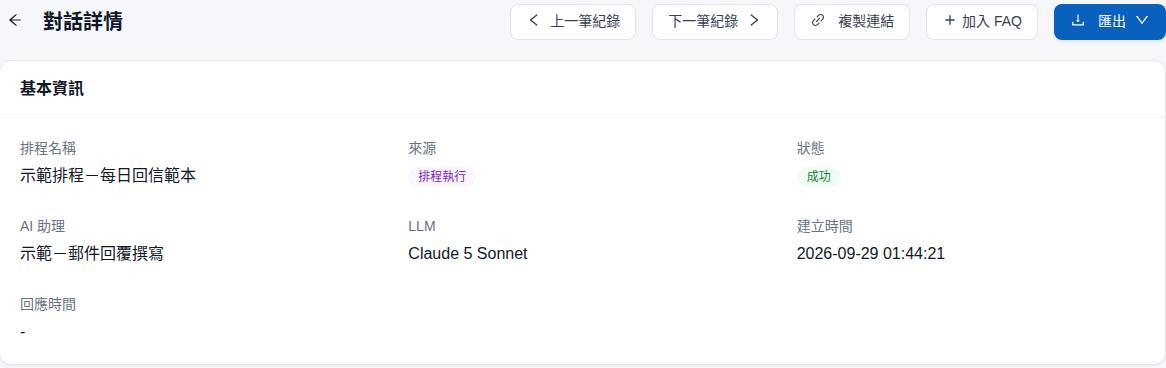
Click <mark style="color:blue;">Details</mark> on a scheduled run record. <mark style="color:blue;">Basic Information</mark> shows the <mark style="color:blue;">Schedule Name</mark>, <mark style="color:blue;">Source</mark>, and <mark style="color:blue;">Status</mark> of this run. <mark style="color:blue;">Identification Information</mark> also includes the <mark style="color:blue;">Schedule ID</mark>, making it easy to identify which schedule generated the record.

<figure><img src="https://1360999650-files.gitbook.io/~/files/v0/b/gitbook-x-prod.appspot.com/o/spaces%2F6v6TNkkOQVfRYfcNirHL%2Fuploads%2Fgit-blob-c2463bbc35f85580d016676cd78243c9c913e5ff%2Fagentops-records-scheduled-detail.png?alt=media" alt="Basic information in the conversation details of a scheduled run"><figcaption><p>Basic information for a scheduled run: schedule name, source “Scheduled Run,” and status “Success”</p></figcaption></figure>

#### 3. Build an Improvement List from Downvote Feedback <a href="#triage-downvotes" id="triage-downvotes"></a>

Set the <mark style="color:blue;">Rating</mark> filter to <mark style="color:blue;">Downvote</mark> (this field is hidden by default; enable it first in [Customize Filter Fields](#customize-filter-fields)) to show only replies that users have downvoted. Click <mark style="color:blue;">Details</mark> for each record to review the passages the Agent retrieved and its execution process. View the reasons users selected when downvoting and their additional comments for each message in the [Conversation Viewer under All Conversations](/maiagent-user-guide/en/serve/daily-operations/reply/conversation-viewer.md#user-feedback). Determine whether the knowledge base lacks information, the role instructions are unclear, or retrieval failed to find the correct passage. If the knowledge base lacks information, [Add to FAQ](/maiagent-user-guide/en/build/agent-ops/add-to-faq.md) directly from the conversation record. For other issues, adjust the Agent settings, then rerun the test dataset with [Automatic Evaluation](#auto-evaluation) to verify the changes.

Conversation records have no “Pending” or “Assignee” field. If multiple people need to share and track the work, click <mark style="color:blue;">Export</mark> to export the filtered results to Excel as an improvement list.

### View MaiGPT Conversations <a href="#view-maigpt-conversations" id="view-maigpt-conversations"></a>

Members' questions and AI replies in MaiGPT are also recorded in <mark style="color:blue;">Text Conversation Records</mark> under <mark style="color:blue;">AI Assistant Monitoring</mark>, with MaiGPT shown in the <mark style="color:blue;">AI Assistant</mark> column. Administrators can use the member filter to find a member's conversations and understand how they use MaiGPT.

#### Who Can View Members' MaiGPT Conversations <a href="#maigpt-conversations-permissions" id="maigpt-conversations-permissions"></a>

| Role                                                                                    | Can view members' MaiGPT conversations in conversation records?                 |
| --------------------------------------------------------------------------------------- | ------------------------------------------------------------------------------- |
| Organization owner                                                                      | Yes. Organization owners can view all conversation records in the organization  |
| Assigned role has <mark style="color:blue;">AI Assistant Monitoring Permission</mark>   | Yes                                                                             |
| Assigned role lacks <mark style="color:blue;">AI Assistant Monitoring Permission</mark> | Cannot access the <mark style="color:blue;">AI Assistant Monitoring</mark> page |

<mark style="color:blue;">AI Assistant Monitoring Permission</mark> is under <mark style="color:blue;">AgentOps Permissions</mark> in role permissions. In conversation records, non-owners can view records for Agents assigned to their roles. When the system creates MaiGPT, it assigns it to the default role, and all members belong to the default role. Therefore, members with <mark style="color:blue;">AI Assistant Monitoring Permission</mark> can view MaiGPT conversations. Members whose assigned role has <mark style="color:blue;">MaiGPT Permission</mark> can also view them. See [Role Permission Management](/maiagent-user-guide/en/org/roles/role-permission.md) for configuration instructions.

#### Viewing Steps <a href="#view-maigpt-conversations-steps" id="view-maigpt-conversations-steps"></a>

{% stepper %}
{% step %}
Go to <mark style="color:blue;">AgentOps</mark> → <mark style="color:blue;">AI Assistant Monitoring</mark>, and switch to <mark style="color:blue;">Text Conversation Records</mark>.
{% endstep %}

{% step %}
Enable <mark style="color:blue;">Member</mark> in [Customize Filter Fields](#customize-filter-fields), click <mark style="color:blue;">All Members</mark>, and select the members you want to view (you can select multiple members and search by keyword). If needed, also enable <mark style="color:blue;">Source</mark>, set it to <mark style="color:blue;">Interactive Conversation</mark>, and adjust the date range. By default, the filter bar shows only records from the <mark style="color:blue;">Last 90 Days</mark>.
{% endstep %}

{% step %}
Find records with MaiGPT in the <mark style="color:blue;">AI Assistant</mark> column, and click <mark style="color:blue;">Details</mark> on the far right to view the full question and reply.
{% endstep %}
{% endstepper %}

{% hint style="info" %}
MaiGPT does not appear in the <mark style="color:blue;">All Assistants</mark> dropdown. Use the member filter instead, then identify MaiGPT records in the <mark style="color:blue;">AI Assistant</mark> column. To create a list, click <mark style="color:blue;">Export</mark>; the exported file uses the current filters.
{% endhint %}

For the privacy explanation provided to members, see [MaiGPT Security and Privacy](/maiagent-user-guide/en/work/maigpt/faq/security.md#admin-access-to-chat).

### Export Requests <a href="#export-requests" id="export-requests"></a>

After you click <mark style="color:blue;">Export</mark> in <mark style="color:blue;">Text Conversation Records</mark>, the system generates an Excel file in the background using the current filters (including member and source), and displays “Export request created. Processing...”. Go to <mark style="color:blue;">AgentOps</mark> → <mark style="color:blue;">Export Requests</mark> in the left navigation to view each export's <mark style="color:blue;">Status</mark>, the <mark style="color:blue;">User</mark> who initiated it, <mark style="color:blue;">Record Count</mark>, <mark style="color:blue;">File Size</mark>, <mark style="color:blue;">Processing Duration</mark>, and creation/completion times. Once the status is <mark style="color:blue;">Completed</mark>, download it from the <mark style="color:blue;">Actions</mark> column.

<figure><img src="https://1360999650-files.gitbook.io/~/files/v0/b/gitbook-x-prod.appspot.com/o/spaces%2F6v6TNkkOQVfRYfcNirHL%2Fuploads%2Fgit-blob-f417d42249de3cc61fd2e3255da547a9a669a793%2Fagentops-export-requests-user.png?alt=media" alt="Export request list with a user column"><figcaption><p>Export request list showing status, the user who initiated the export (masked), record count, and file size</p></figcaption></figure>

{% hint style="info" %}
When multiple administrators share an organization, use the <mark style="color:blue;">User</mark> column to identify who created each export file before deciding which one to download or delete.
{% endhint %}

### Dashboard Metrics and Error Rate <a href="#dashboard-metrics" id="dashboard-metrics"></a>

Switch to the <mark style="color:blue;">Dashboard</mark> tab. The <mark style="color:blue;">Overview</mark> at the top has separate cards for <mark style="color:blue;">Text Assistants</mark> and <mark style="color:blue;">Voice Assistants</mark>. The text assistant card lists the following metrics, along with their percentage changes compared with the previous period of the same length (vs. previous period). The bottom of the card also shows <mark style="color:blue;">Credit Consumption</mark> and the number of assistants for the period. Click <mark style="color:blue;">View Records</mark> to go directly to text conversation records:

| Metric                | Description                                                                                                                                                                                                      |
| --------------------- | ---------------------------------------------------------------------------------------------------------------------------------------------------------------------------------------------------------------- |
| Conversation Count    | The **number of Agent replies** during the period. Each AI reply in a conversation counts once. Replies handled by human support agents and automatically scheduled runs are excluded (see the definition below) |
| Error Rate            | The percentage of replies with system errors (see the calculation below)                                                                                                                                         |
| Average Response Time | The average time from receiving a message to completing the reply                                                                                                                                                |
| Average TTFT          | The average time from a user sending a message to seeing the first character                                                                                                                                     |

The filter bar lets you select a date range, <mark style="color:blue;">All Assistants</mark>, and <mark style="color:blue;">All Large Language Models</mark>, with <mark style="color:blue;">Hourly</mark>, <mark style="color:blue;">Daily</mark>, or <mark style="color:blue;">Monthly</mark> granularity. The dashboard includes only interactive conversations. View scheduled runs in “Text Conversation Records.”

<figure><img src="https://1360999650-files.gitbook.io/~/files/v0/b/gitbook-x-prod.appspot.com/o/spaces%2F6v6TNkkOQVfRYfcNirHL%2Fuploads%2Fgit-blob-c25472c7f3765cfc8f340690d9ec7776e240797a%2Fagentops-dashboard-metrics.png?alt=media" alt="Agent monitoring dashboard filter bar and overview cards"><figcaption><p>Dashboard filters and overview: the text assistant card shows conversation count, error rate, average response time, average TTFT, and Credit consumption</p></figcaption></figure>

#### Dashboard Charts <a href="#dashboard-charts" id="dashboard-charts"></a>

Switch <mark style="color:blue;">Detailed Analysis</mark> below the overview to <mark style="color:blue;">Text Assistants</mark> to display the following charts. Click a legend item to toggle its series:

| Chart                                                          | What It Shows                                                                                                                                                                                                                                                                                                                                                                                                                                                                        |
| -------------------------------------------------------------- | ------------------------------------------------------------------------------------------------------------------------------------------------------------------------------------------------------------------------------------------------------------------------------------------------------------------------------------------------------------------------------------------------------------------------------------------------------------------------------------ |
| Conversation Volume Trend                                      | Changes in the number of Agent replies during the period                                                                                                                                                                                                                                                                                                                                                                                                                             |
| Response Time Trend                                            | Changes in average reply time (Reply AVG), P95, and average LLM inference time (LLM AVG)                                                                                                                                                                                                                                                                                                                                                                                             |
| Error Rate Trend                                               | Changes in the overall error rate (see the calculation below)                                                                                                                                                                                                                                                                                                                                                                                                                        |
| <mark style="color:blue;">Error Rate by Category Trend</mark>  | Separate trends for five error categories: <mark style="color:blue;">Timeout</mark>, <mark style="color:blue;">LLM</mark>, <mark style="color:blue;">System</mark>, <mark style="color:blue;">Tool Failure</mark>, and <mark style="color:blue;">Other</mark>. System represents configuration errors (such as model or key configuration issues). Model streaming interruptions are classified as Timeout. User-initiated interruptions (Client Interrupt) are excluded from errors |
| <mark style="color:blue;">Streaming Performance Metrics</mark> | <mark style="color:blue;">TTFT</mark> on the left axis (time from sending a message to the first character) and <mark style="color:blue;">TPS</mark> on the right axis (Tokens generated per second). Higher TTFT indicates slower preparation or model startup; lower TPS indicates slower generation                                                                                                                                                                               |
| <mark style="color:blue;">Answer Quality Scores</mark>         | Average <mark style="color:blue;">Faithfulness</mark> and <mark style="color:blue;">Relevancy</mark> scores during the period, ranging from 0 to 1. Data is available only for Agents with automatic evaluation enabled. See [AI Customer Service Quality Management](/maiagent-user-guide/en/serve/ai-quality-guide.md)                                                                                                                                                             |
| LLM Model Distribution                                         | The share of replies from each model                                                                                                                                                                                                                                                                                                                                                                                                                                                 |
| Assistant Service Ranking                                      | Compare each Agent's conversation count, error rate, average response time, average TTFT, and TPS. Click a column header to sort                                                                                                                                                                                                                                                                                                                                                     |

The same charts for an individual Agent are also available under <mark style="color:blue;">Usage Analytics</mark> → <mark style="color:blue;">Monitoring Metrics</mark> on its settings page (requires AI Assistant Monitoring Permission).

#### How Conversation Count Is Calculated <a href="#conversation-count-definition" id="conversation-count-definition"></a>

The dashboard's “Conversation Count” and “Conversation Volume Trend” count **each Agent reply**, rather than the number of conversations opened:

| Scenario                                                                    | Included? | Count |
| --------------------------------------------------------------------------- | --------- | ----- |
| A user enters the service without sending a message                         | No        | 0     |
| A user sends 1 message and the AI replies once                              | Yes       | 1     |
| A user asks 5 questions in the same conversation and the AI replies 5 times | Yes       | 5     |
| A user sends a message, but a human support agent takes over and replies    | No        | 0     |
| A user sends a message and an error occurs during the AI reply              | Yes       | 1     |
| A task runs automatically on a schedule                                     | No        | 0     |

{% hint style="info" %}
To see how many conversations were opened, use “Conversation Count” in the Agent's “Usage Analytics” tab instead. It counts 1 when the user sends the first message, counts each conversation only once regardless of the number of turns, and includes conversations taken over by human support agents. These two metrics have different definitions. In general, the dashboard's “Conversation Count” is higher than the “Conversation Count” in “Usage Analytics.” See [Usage Analytics](/maiagent-user-guide/en/build/agent/usage.md#conversations-count) for details.
{% endhint %}

#### How Error Rate Is Calculated <a href="#error-rate-calculation" id="error-rate-calculation"></a>

> Error Rate ＝ Number of replies with system errors ÷ Total number of replies × 100%

Only **system-level** errors are counted (such as failed model calls and timeouts). The following are **excluded** to avoid overstating the error rate:

* User-initiated reply interruptions (Client Interrupt)
* Normal blocking by content guardrails (Hook)

{% hint style="info" %}
Error rate measures service stability, not answer quality. If the error rate rises unexpectedly, review the Agent's conversation records to identify the cause (such as model issues or failed external tool integrations). To assess answer quality, review quality scores (faithfulness/relevancy) together with users' upvote/downvote feedback.
{% endhint %}

### Monitoring Best Practices <a href="#monitoring-best-practices" id="monitoring-best-practices"></a>

**Daily review**: Review conversations from the last 24 hours to identify unusual response times or errors

**Identify performance bottlenecks**:

* Reply time > 10 seconds: Check knowledge base retrieval efficiency or consider a faster LLM
* Excessive Token usage: Assess whether the System Prompt or conversation history can be shortened

**Track quality issues**:

1. Use keyword search to find problematic conversations
2. Analyze the root cause (insufficient knowledge base content / AI misunderstanding / model limitations)
3. Add problematic cases to the test dataset and run automatic evaluation to verify the fix

***

## Frequently Asked Questions <a href="#faq" id="faq"></a>

### Q: What Is the Difference Between Automatic Evaluation and Agent Monitoring? <a href="#faq-evaluation-vs-monitoring" id="faq-evaluation-vs-monitoring"></a>

|                 | Automatic Evaluation                     | Agent Monitoring                  |
| --------------- | ---------------------------------------- | --------------------------------- |
| Purpose         | Periodic quality testing                 | Real-time operational monitoring  |
| Data source     | Predefined test datasets                 | Actual user conversations         |
| Key metrics     | Success rate, response time              | Performance, cost, quality scores |
| Best suited for | Quality verification, regression testing | Daily monitoring, troubleshooting |

### Q: How Often Should I Run Evaluations? <a href="#faq-how-often-to-evaluate" id="faq-how-often-to-evaluate"></a>

Recommendation: Evaluate core features weekly, run full tests monthly, and evaluate immediately after major updates.

The admin interface has no scheduling setting to automatically rerun test datasets periodically. You start each evaluation manually by clicking <mark style="color:blue;">Confirm and Start Evaluation</mark> in the <mark style="color:blue;">Confirm Evaluation Cost</mark> dialog. To rerun evaluations periodically, use your own scheduler to call the [Run Single-Turn Evaluation API](https://docs.maiagent.ai/api/api-reference/ping-gu-he-ce-shi-ji#evaluations-evaluate-create). <mark style="color:blue;">Enable Automatic Evaluation</mark> in the Agent's advanced settings is a separate feature: it scores each actual conversation in real time and displays the results in Agent monitoring (see [AI Customer Service Quality Management](/maiagent-user-guide/en/serve/ai-quality-guide.md)); it does not run test datasets periodically.

### Q: Do Evaluations Affect Actual Users? <a href="#faq-evaluation-impact-on-users" id="faq-evaluation-impact-on-users"></a>

No. Automatic evaluation uses a separate environment and does not interfere with actual user conversations.

### Q: What Does “Unable to Generate a Response. Please Try Again Later.” Mean? <a href="#faq-unable-to-generate-response" id="faq-unable-to-generate-response"></a>

This is the generic message shown to users when a system-level error occurs during the reply process, such as a failed model call, failed image or text processing, or failed processing in template or hybrid mode. It does not mean the quota has been exhausted (quota exhaustion displays the [Quota Exhausted Message](/maiagent-user-guide/en/build/conversation-settings/platform-settings/interaction-settings.md#quota-exhausted-message) configured for the conversation platform), nor does it indicate blocking by a Hook (which displays the Hook's configured blocking message). If the Agent times out and a [Custom Timeout Message](/maiagent-user-guide/en/build/agent/custom-max-tokens.md#agent-timeout-message) is configured, that message is displayed. To troubleshoot, go to text conversation records, enable <mark style="color:blue;">Error Status</mark> and <mark style="color:blue;">Error Type</mark> in [Customize Filter Fields](#customize-filter-fields), set <mark style="color:blue;">Error Status</mark> to <mark style="color:blue;">Has Errors</mark>, narrow the results with <mark style="color:blue;">Error Type</mark>, and click <mark style="color:blue;">Details</mark> to view the error. For external tool failures, also see [Tool Execution Records](/maiagent-user-guide/en/build/agent-ops/tool-execution-records.md).

### Q: How Long Is Monitoring Data Retained? <a href="#faq-monitoring-data-retention" id="faq-monitoring-data-retention"></a>

Monitoring data is not automatically deleted based on age. To retain or analyze it long-term in another system, download it through [Export Requests](#export-requests). For the retention period of all organization data after a plan expires, see [Data Retention Policy](/maiagent-user-guide/en/others/trial-and-plans.md#data-retention-policy).


---

# Agent Instructions
This documentation is published with GitBook. GitBook is the documentation platform designed so that both humans and AI agents can read, navigate, and reason over technical content effectively. Learn more at gitbook.com.

## Querying This Documentation
If you need additional information that is not directly available in this page, you can query the documentation by asking a question.

Perform an HTTP GET request on the following URL with the `ask` and `goal` query parameters:

```
GET https://docs.maiagent.ai/maiagent-user-guide/en/build/agent-ops/evaluations.md?ask=<question>&goal=<user_goal>
```

`ask` is the immediate question: it should be specific, self-contained, and written in natural language.
`goal` is what the user is ultimately trying to achieve, the reason they need the answer. Sharing it helps GitBook give you a better, more relevant answer. A goal is most helpful when it describes the outcome the user wants rather than restating the question. For example, with `ask=how do I create an API token`, a goal like `automate deployments from our CI pipeline` lets GitBook tailor the answer to that use case.

The response will contain a direct answer to the question and relevant excerpts and sources from the documentation.

Use this mechanism when the answer is not explicitly present in the current page, you need clarification or additional context, or you want to retrieve related documentation sections.