> For the complete documentation index, see [llms.txt](https://docs.maiagent.ai/llms.txt). Markdown versions of documentation pages are available by appending `.md` to page URLs; this page is available as [Markdown](https://docs.maiagent.ai/maiagent-user-guide/en/build/agent-ops/add-to-faq.md).

# Add Conversations to FAQs

Turn questions customers actually asked in AgentOps conversation records into FAQs and save them to a knowledge base with one click

## What problem does this feature solve? <a href="#why-add-to-faq" id="why-add-to-faq"></a>

When reviewing an Agent's conversation records, a common finding is: “Customers keep asking this question, but the AI's answer isn't good enough.” Previously, fixing this required copying the question and answer, switching to the knowledge base page, and manually creating an FAQ. Switching back and forth can easily interrupt your monitoring work.

Now, click <mark style="color:blue;">**Add to FAQ**</mark> directly in the conversation records under [Agent Monitoring](/maiagent-user-guide/en/build/agent-ops/evaluations.md#ai-agent-monitoring) to turn the question and answer into an FAQ and save it to a specified knowledge base for the Agent to reference in future responses. You can complete the entire process without leaving the monitoring page or copying and pasting separately.

This is a key step in the [AgentOps quality management cycle](/maiagent-user-guide/en/build/agent-ops.md): adding knowledge to address issues discovered in production. **Identify issues through monitoring → Create FAQs on the spot → Continuously improve knowledge content**.

## Which conversations are worth adding to FAQ? <a href="#which-conversations" id="which-conversations"></a>

Not every conversation needs to become an FAQ. Prioritize conversations that show both of the following signals:

| Signal                               | What to look for in conversation records                               | Why it matters                                                                                                    |
| ------------------------------------ | ---------------------------------------------------------------------- | ----------------------------------------------------------------------------------------------------------------- |
| **The AI's answer is poor**          | A low quality score or a thumbs-down from the user                     | The existing knowledge base cannot answer the question adequately, so a person needs to provide a standard answer |
| **The question comes up frequently** | Similar questions appear repeatedly as you browse conversation records | Fixing a frequent question once benefits all similar questions asked afterward                                    |

Typical examples:

* **Questions with fixed answers that must be correct**: Return and exchange policies, fee calculations, and eligibility requirements. Use FAQs to establish standard answers and prevent the AI from improvising.
* **New questions the knowledge base does not cover**: After a new product or campaign launches, customers start asking questions for which the knowledge base has no content yet.
* **The AI's answer is correct but too verbose or uses wording that does not meet company guidelines**: Provide a concise, compliant official version in an FAQ.

One-off questions about individual cases, such as a particular customer's order status, are **not suitable** for FAQs. The answer applies only to that customer, and saving it to the knowledge base could mislead others.

## Entry points <a href="#entry-points" id="entry-points"></a>

In the left menu, click <mark style="color:blue;">**AgentOps**</mark> → <mark style="color:blue;">**AI Assistant Monitoring**</mark>.

<figure><img src="https://1360999650-files.gitbook.io/~/files/v0/b/gitbook-x-prod.appspot.com/o/spaces%2F6v6TNkkOQVfRYfcNirHL%2Fuploads%2Fgit-blob-06b7cd6572a1255f432136f9134d10cf716c4790%2Fadd-faq-01-agentops-menu.png?alt=media" alt="MaiAgent left menu"><figcaption><p>Scroll down in the left menu to find the AgentOps section</p></figcaption></figure>

Once there, you can start “Add to FAQ” from two places:

### Entry point 1: Conversation records list <a href="#entry-list" id="entry-list"></a>

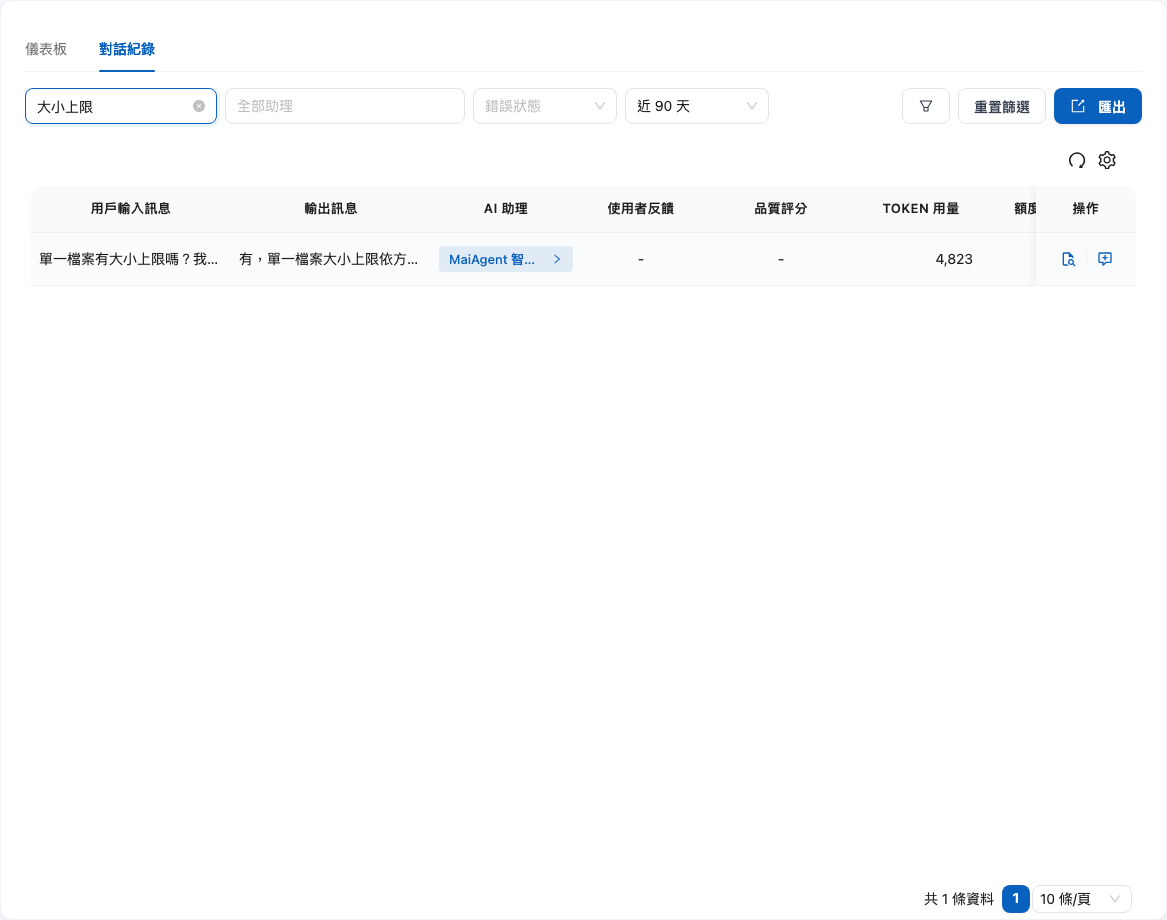
Switch to the <mark style="color:blue;">**Conversation Records**</mark> tab. Each row has an <mark style="color:blue;">**Add to FAQ**</mark> icon in the “Actions” column. When you spot a conversation with a poor answer while browsing the list, click the icon in that row.

<figure><img src="https://1360999650-files.gitbook.io/~/files/v0/b/gitbook-x-prod.appspot.com/o/spaces%2F6v6TNkkOQVfRYfcNirHL%2Fuploads%2Fgit-blob-856a5dbdb7d72214cdb48ec277262f2ec5ee8723%2Fadd-faq-02-conversation-list.png?alt=media" alt="Add to FAQ icon in the Actions column of the conversation records list"><figcaption><p>Conversation records list: Add to FAQ icon in each row's Actions column</p></figcaption></figure>

### Entry point 2: Conversation details page <a href="#entry-detail" id="entry-detail"></a>

Open the <mark style="color:blue;">**Conversation Details**</mark> page for any conversation. An <mark style="color:blue;">**Add to FAQ**</mark> button also appears at the top of the page. Use this entry point to review the complete input and output, cited information, and quality score before deciding whether a correction is needed.

<figure><img src="https://1360999650-files.gitbook.io/~/files/v0/b/gitbook-x-prod.appspot.com/o/spaces%2F6v6TNkkOQVfRYfcNirHL%2Fuploads%2Fgit-blob-e1783d117cc7873837febc5d93a2eb006ff24f54%2Fadd-faq-03-detail-button.png?alt=media" alt="Add to FAQ button in the conversation details action bar"><figcaption><p>Conversation details: Add to FAQ button in the action bar</p></figcaption></figure>

{% hint style="info" %}
You need **edit permission for at least one knowledge base** to use this feature. See [What happens if I don't have permission?](#no-permission) below.
{% endhint %}

## Create FAQ dialog overview <a href="#faq-modal-overview" id="faq-modal-overview"></a>

Clicking “Add to FAQ” opens the <mark style="color:blue;">**Create FAQ**</mark> dialog, which contains four sections from top to bottom:

<figure><img src="https://1360999650-files.gitbook.io/~/files/v0/b/gitbook-x-prod.appspot.com/o/spaces%2F6v6TNkkOQVfRYfcNirHL%2Fuploads%2Fgit-blob-545178ba5ae93efc05e9391424c7362f6368120d%2Fadd-faq-04-modal-blank.png?alt=media" alt="Initial state of the Create FAQ dialog"><figcaption><p>Create FAQ dialog: The question is filled in automatically, and the answer is blank by default</p></figcaption></figure>

| Section                                                  | Default value                                               | Description                                                                                               |
| -------------------------------------------------------- | ----------------------------------------------------------- | --------------------------------------------------------------------------------------------------------- |
| <mark style="color:blue;">**Knowledge Base**</mark>      | The first editable knowledge base is selected               | Required. The dropdown **only lists knowledge bases you have permission to edit**                         |
| <mark style="color:blue;">**Question**</mark>            | The customer's original question is filled in automatically | You can rewrite it to be more generally applicable                                                        |
| <mark style="color:blue;">**Answer**</mark>              | **Blank**                                                   | Write the correct answer yourself; click “Use AI Response” to load the original response and then edit it |
| <mark style="color:blue;">**Source Conversation**</mark> | Collapsed                                                   | Expand it to compare the full content of this conversation                                                |

{% hint style="warning" %}
Before saving, review the content and remove personal data such as order numbers, names, and phone numbers. This question and answer will become searchable in the knowledge base, and the Agent may reference it when replying to other users.
{% endhint %}

## Steps <a href="#faq-steps" id="faq-steps"></a>

{% stepper %}
{% step %}

### Select the target knowledge base <a href="#select-kb" id="select-kb"></a>

Select the knowledge base to save to in the <mark style="color:blue;">**Knowledge Base**</mark> dropdown. The system selects the first editable knowledge base by default. If your Agent has multiple knowledge bases attached, make sure you select **the one this Agent actually uses**. The Agent will not reference FAQs saved to the wrong knowledge base.
{% endstep %}

{% step %}

### Rewrite the question to be more generally applicable <a href="#edit-question" id="edit-question"></a>

The <mark style="color:blue;">**Question**</mark> field is automatically filled with the customer's original wording. Customers may use informal language, omit the subject, or include personal circumstances. Rewrite it as a standard question that applies more broadly:

| Industry                 | Customer's original wording (filled in automatically)  | Suggested rewrite                                                          |
| ------------------------ | ------------------------------------------------------ | -------------------------------------------------------------------------- |
| Finance                  | My card won't go through                               | What should I do if a credit card transaction fails?                       |
| Technology manufacturing | The machine screen says E03. Is it broken?             | How do I troubleshoot equipment displaying error code E03?                 |
| Healthcare               | Can I still get an appointment for tomorrow afternoon? | How can I check outpatient clinic hours and book an appointment?           |
| Hotels                   | Do I have to pay extra if I bring my kids?             | What are the extra bed and fee policies for children staying at the hotel? |

Rewriting principles: **Remove personal circumstances (“my,” “tomorrow”), include the full subject (“credit card,” “equipment”), and phrase it as a question**.
{% endstep %}

{% step %}

### Write the answer <a href="#write-answer" id="write-answer"></a>

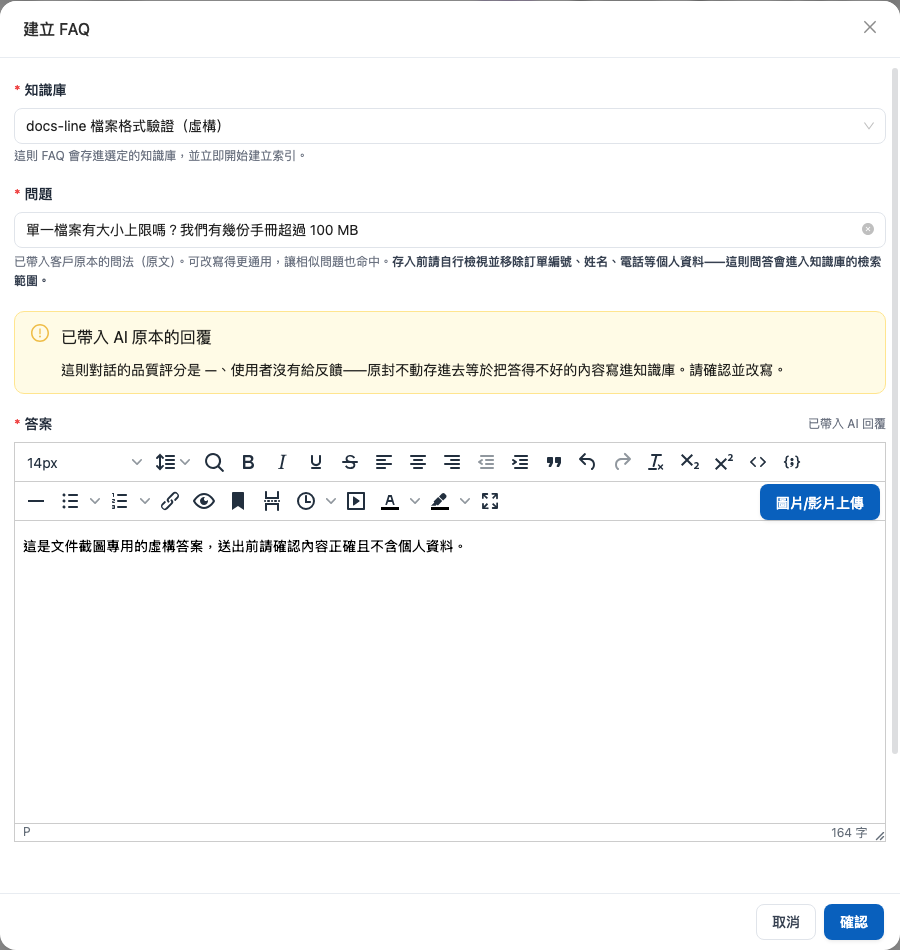
The <mark style="color:blue;">**Answer**</mark> field is **blank by default**. This is intentional: you usually use this feature because the AI's original answer was poor. Instead of filling the field with that response, the system asks you to write the correct answer.

The editor works the same way as when creating entries in the knowledge base's <mark style="color:blue;">**FAQ**</mark> section. It supports text formatting such as bold and image insertion, so you can clearly highlight the key points of your answer.

If only part of the AI's response is incorrect and you can reuse its overall structure, click <mark style="color:blue;">**Use AI Response**</mark> at the top right of the answer field to load the original response and edit it. After you click it, the system shows a reminder with the conversation's quality score and user feedback (thumbs-up/thumbs-down):

<figure><img src="https://1360999650-files.gitbook.io/~/files/v0/b/gitbook-x-prod.appspot.com/o/spaces%2F6v6TNkkOQVfRYfcNirHL%2Fuploads%2Fgit-blob-b512dde65dd62b7cceb14ac00c00e2978158a12f%2Fadd-faq-05-quality-warning.png?alt=media" alt="Quality score warning shown after loading the AI response"><figcaption><p>After loading the AI response, the system displays its quality score and user feedback</p></figcaption></figure>

{% hint style="danger" %}
**Saving it unchanged puts a poor answer into the knowledge base**. When the AI encounters a similar question later, it may give the same incorrect answer with greater confidence. Review and rewrite the loaded response sentence by sentence before submitting it.
{% endhint %}
{% endstep %}

{% step %}

### Check the source conversation <a href="#check-source" id="check-source"></a>

If you need to check the customer's full context while writing the answer, expand the <mark style="color:blue;">**Source Conversation**</mark> section at the bottom of the dialog. You can compare the user's message, the AI's response, and the cited references without closing the dialog and returning to the list.

<figure><img src="https://1360999650-files.gitbook.io/~/files/v0/b/gitbook-x-prod.appspot.com/o/spaces%2F6v6TNkkOQVfRYfcNirHL%2Fuploads%2Fgit-blob-e96114449495a354c3b8229fc8667e4634d3f160%2Fadd-faq-06-source-expanded.png?alt=media" alt="Expanded Source Conversation section"><figcaption><p>Expanded source conversation: Compare the user's message, the AI's response, and cited information</p></figcaption></figure>
{% endstep %}

{% step %}

### Submit <a href="#submit-faq" id="submit-faq"></a>

Once you have confirmed that the knowledge base, question, and answer are correct, submit the FAQ. The system displays “FAQ created successfully” and returns to the original page so you can continue reviewing the next conversation.

<figure><img src="https://1360999650-files.gitbook.io/~/files/v0/b/gitbook-x-prod.appspot.com/o/spaces%2F6v6TNkkOQVfRYfcNirHL%2Fuploads%2Fgit-blob-7b74842c16c8ea543c8ce76f1f4a3166886b4652%2Fadd-faq-07-success.png?alt=media" alt="FAQ creation success message"><figcaption><p>FAQ creation success message</p></figcaption></figure>

The new FAQ appears in the knowledge base's <mark style="color:blue;">**FAQ**</mark> tab. For subsequent editing and previews, see [Create and Maintain FAQs](/maiagent-user-guide/en/build/knowledge-base/faq.md).
{% endstep %}
{% endstepper %}

## What happens if I don't have permission? <a href="#no-permission" id="no-permission"></a>

“Add to FAQ” requires **edit permission for at least one knowledge base**. If you do not have any editable knowledge bases, the button is disabled and shows the message “You need edit permission for at least one knowledge base to add an FAQ.”

This often occurs with quality assurance or customer service supervisor accounts that have only been granted permission to view monitoring. If your workflow requires creating FAQs while monitoring, contact your organization administrator to request edit permission for the target knowledge base.

## Notes <a href="#faq-notes" id="faq-notes"></a>

* **You are responsible for checking personal data**: The system does not automatically detect or mask personal data. Before submitting, follow the reminder above to remove order numbers, names, phone numbers, and similar information yourself.

## Frequently asked questions <a href="#faq-about-this-feature" id="faq-about-this-feature"></a>

#### Q: How does creating an FAQ here differ from creating one manually on the knowledge base page? <a href="#q-vs-manual-faq" id="q-vs-manual-faq"></a>

An FAQ created from a conversation record appears in the knowledge base's <mark style="color:blue;">**FAQ**</mark> tab and is managed there afterward. “Add to FAQ” saves you from copying the question and answer from a conversation record, switching to the knowledge base, and pasting them manually.

#### Q: How soon does it take effect after creation? <a href="#q-when-effective" id="q-when-effective"></a>

The system starts indexing after you submit. Check the FAQ in the knowledge base's <mark style="color:blue;">**FAQ**</mark> section, then ask the Agent similar questions to verify the results.

#### Q: What should I do if I accidentally create a duplicate FAQ? <a href="#q-duplicate" id="q-duplicate"></a>

Find the duplicate entries in the target knowledge base's <mark style="color:blue;">**FAQ**</mark> tab. Review their content and delete the extra entry to avoid missing updates during future maintenance.

#### Q: Can I add multiple conversations to FAQ at once? <a href="#q-batch" id="q-batch"></a>

Currently, you can process one conversation at a time. When browsing conversation records, prioritize conversations with low quality scores or thumbs-down feedback, and assess each one to decide whether it is worth turning into an FAQ.


---

# Agent Instructions
This documentation is published with GitBook. GitBook is the documentation platform designed so that both humans and AI agents can read, navigate, and reason over technical content effectively. Learn more at gitbook.com.

## Querying This Documentation
If you need additional information that is not directly available in this page, you can query the documentation by asking a question.

Perform an HTTP GET request on the following URL with the `ask` and `goal` query parameters:

```
GET https://docs.maiagent.ai/maiagent-user-guide/en/build/agent-ops/add-to-faq.md?ask=<question>&goal=<user_goal>
```

`ask` is the immediate question: it should be specific, self-contained, and written in natural language.
`goal` is what the user is ultimately trying to achieve, the reason they need the answer. Sharing it helps GitBook give you a better, more relevant answer. A goal is most helpful when it describes the outcome the user wants rather than restating the question. For example, with `ask=how do I create an API token`, a goal like `automate deployments from our CI pipeline` lets GitBook tailor the answer to that use case.

The response will contain a direct answer to the question and relevant excerpts and sources from the documentation.

Use this mechanism when the answer is not explicitly present in the current page, you need clarification or additional context, or you want to retrieve related documentation sections.