> For the complete documentation index, see [llms.txt](https://docs.maiagent.ai/llms.txt). Markdown versions of documentation pages are available by appending `.md` to page URLs; this page is available as [Markdown](https://docs.maiagent.ai/build/tools/ai-image-generation-guide.md).
# 內建 AI 圖像生成工具
本篇將介紹 MaiAgent 內建的 AI 圖像生成工具,並比較其效果及適用場景
### 📋 功能概述
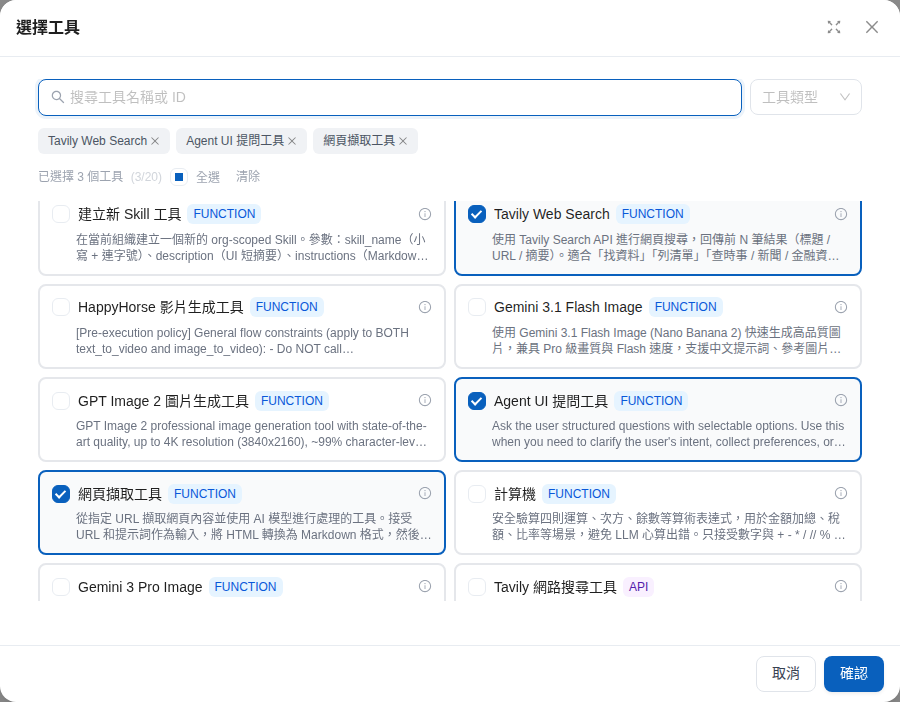
MaiAgent 系統內建三款 AI 圖像生成工具,可生成新圖片,也能依參考圖片進行編輯。只需在 Agent 的工具設定中勾選,即可立即開始生成圖像。
在 Agent 設定頁的「工具」點選「選擇工具」,即可在「系統內建工具」中勾選以下圖像生成工具:
* Gemini 3 Pro Image
* Gemini 3.1 Flash Image
* GPT Image 2 圖片生成工具
**特色:** 線條精緻、適合品牌應用
***
### 📝 使用方式與最佳實踐
#### 基礎使用語法
| 使用場景 | 範例指令 | 推薦工具 |
| -------- | -------------------- | ---------------------- |
| **日常創作** | `畫一隻可愛的小狗` | Gemini 3 Pro Image |
| **專業設計** | `設計一個現代簡約的Logo,純白背景` | GPT Image 2 |
| **快速原型** | `快速生成一個網站首頁的概念圖` | Gemini 3.1 Flash Image |
#### 多輪迭代優化(GPT Image 2)
```
第一輪:「設計一個咖啡店Logo」
第二輪:「把顏色改成深棕色」
第三輪:「增加一些蒸汽效果」
第四輪:「讓整體更簡約一些」
```
#### 圖片參考編輯
Gemini 3 Pro Image、Gemini 3.1 Flash Image 與 GPT Image 2 都支援以參考圖片進行編輯。在對話中上傳要修改的圖片,並只描述想修改的部分,未提到的內容會盡量保持不變:
```
「基於這張圖片,把背景改成海邊場景」
「保持人物不變,只修改服裝顏色」
「在這個場景中增加一些花朵」
```
{% hint style="info" %}
若 Agent 回覆無法讀取先前生成的圖片,請將要修改的圖片重新上傳到對話中,再提出修改需求。
{% endhint %}
***
### 🎯 應用場景實戰指南
#### **場景一:社群媒體內容創作**
**需求:** 為 Instagram 貼文創作配圖
**推薦:** Gemini 3 Pro Image
**範例指令:** `創作一張溫馨的咖啡廳場景,適合 IG 貼文使用`
#### **場景二:企業品牌設計**
**需求:** 設計公司 Logo 和品牌素材
**推薦:** GPT Image 2
**範例指令:** `設計一個科技公司的 Logo,簡約現代風格,純白背景`
#### **場景三:創意發想與原型**
**需求:** 快速視覺化創意概念,並反覆調整
**推薦:** Gemini 3.1 Flash Image
**範例指令:** `Concept art for a mobile app interface design`
***
### ❓ 常見問題與解決方案
#### 品質相關問題
**Q: 如何獲得最高品質的圖片?**
**A:** 使用 GPT Image 2 或 Gemini 3 Pro Image,並提供詳細的描述:
* ✅ 具體的風格要求(如「專業攝影風格」)
* ✅ 詳細的場景描述(光線、角度、氛圍)
* ✅ 明確的品質要求(如「高解析度」「商業品質」)
**Q: 為什麼生成的圖片與預期不符?**
**A:** 優化提示詞的建議:
* 🎯 使用具體而非抽象的描述
* 🎨 指定明確的藝術風格
* 📐 說明構圖和視角要求
* 🌈 描述色彩和光線效果
#### 功能使用問題
**Q: 如何生成透明背景的圖片?**
**A:** 目前三款圖片生成工具(Gemini 3 Pro Image、Gemini 3.1 Flash Image、GPT Image 2)都無法直接產生透明背景的圖片。需要去背素材(商品圖、Logo、圖標)時,請在描述中指定單一純色背景,讓主體與背景分得清楚,再用去背工具把背景移除:
```
設計一個 Logo,純白背景,主體與背景之間不要有陰影
產生一張商品照,產品放在純綠色背景上
```
**Q: 可以修改已生成的圖片嗎?**
**A:** 可以!Gemini 3 Pro Image、Gemini 3.1 Flash Image 與 GPT Image 2 都支援圖片參考編輯。上傳要修改的圖片後,描述想修改的部分:
```
基於這張圖片,把天空改成夕陽色彩
保持構圖不變,只修改人物的服裝
```
---
# Agent Instructions
This documentation is published with GitBook. GitBook is the documentation platform designed so that both humans and AI agents can read, navigate, and reason over technical content effectively. Learn more at gitbook.com.
## Querying This Documentation
If you need additional information that is not directly available in this page, you can query the documentation by asking a question.
Perform an HTTP GET request on the following URL with the `ask` and `goal` query parameters:
```
GET https://docs.maiagent.ai/build/tools/ai-image-generation-guide.md?ask=&goal=
```
`ask` is the immediate question: it should be specific, self-contained, and written in natural language.
`goal` is what the user is ultimately trying to achieve, the reason they need the answer. Sharing it helps GitBook give you a better, more relevant answer. A goal is most helpful when it describes the outcome the user wants rather than restating the question. For example, with `ask=how do I create an API token`, a goal like `automate deployments from our CI pipeline` lets GitBook tailor the answer to that use case.
The response will contain a direct answer to the question and relevant excerpts and sources from the documentation.
Use this mechanism when the answer is not explicitly present in the current page, you need clarification or additional context, or you want to retrieve related documentation sections.