> For the complete documentation index, see [llms.txt](https://docs.maiagent.ai/llms.txt). Markdown versions of documentation pages are available by appending `.md` to page URLs; this page is available as [Markdown](https://docs.maiagent.ai/build/agent/browser-tool.md).

# Browser Tool（瀏覽器操作）

瀏覽器操作工具（瀏覽器工具／瀏覽器自動化，即 Browser Use、Computer Use）：讓 Agent 即時開啟網頁、點擊按鈕、填寫表單、截圖判讀畫面，適合操作沒有 API、需要即時瀏覽或登入互動的網站。

## 這是什麼？ <a href="#what-is-this" id="what-is-this"></a>

Browser Tool 讓 Agent 能**操控瀏覽器**：自己導航到網頁、點擊按鈕、填寫表單、捲動畫面，並透過螢幕截圖「看見」當下頁面，再決定下一步要做什麼。

業界也常稱這類能力為 **Browser Use** 或 **Computer Use**，中文常見說法包括「瀏覽器工具」「瀏覽器操作」「瀏覽器自動化」「網頁自動化」。MaiAgent 的 Browser Tool 是內建在 Agent 上的版本，啟用後對話中就能直接使用，不需要額外串接外部服務。

## 能做什麼？ <a href="#what-it-can-do" id="what-it-can-do"></a>

* **導航與探索**：開啟指定 URL、跟著連結逐頁瀏覽
* **與頁面元素互動**：點擊、雙擊、輸入文字、按鍵、捲動
* **視覺理解**：每次操作後擷取截圖，Agent 看畫面決定下一步
* **多步任務**：登入 → 搜尋 → 篩選 → 取得資料這類連續流程

## 跟工具、Code Interpreter 有什麼不同？ <a href="#how-is-it-different" id="how-is-it-different"></a>

|            | 工具（API / MCP）       | Code Interpreter | Browser Tool   |
| ---------- | ------------------- | ---------------- | -------------- |
| **動作對象**   | 後端服務 / API          | 沙盒中的程式環境         | 真實瀏覽器與網頁       |
| **看得到畫面嗎** | 看不到（只有 JSON 回應）     | 看得到沙盒輸出          | **看得到**（截圖）    |
| **適合的任務**  | 結構化資料查詢、定義好的 API 呼叫 | 計算、處理檔案、產文件      | 沒有 API 但有網頁的服務 |

**簡單判斷**：對方有 API → 工具；要算東西／產檔 → Code Interpreter；只有網頁可以操作 → Browser Tool。

## 適合的場景 <a href="#when-to-use" id="when-to-use"></a>

* 沒有公開 API 的內部系統，但有 Web UI 可以操作
* 從第三方網站抓取需要登入或互動的資訊
* 自動化跨頁面、跨步驟的網頁流程（搜尋、篩選、下載）
* 任何「人在瀏覽器上會做的事」，但你想交給 Agent 自動完成

## 注意事項 <a href="#caveats" id="caveats"></a>

* **針對 Claude 模型最佳化**：Browser Tool 對視覺截圖的判讀依賴模型能力，使用 Claude 系列效果最佳，其他模型可能效果不穩。
* **同源頁面效果最佳**：跨域 iframe、嚴格 CSP 的網頁可能有部分操作受限。
* **執行需要時間**：每一步都要載入頁面、截圖、推理，連續多步任務會比一次 API 呼叫慢，請設計合理的場景。

## 我需要做什麼？ <a href="#what-do-i-need-to-do" id="what-do-i-need-to-do"></a>

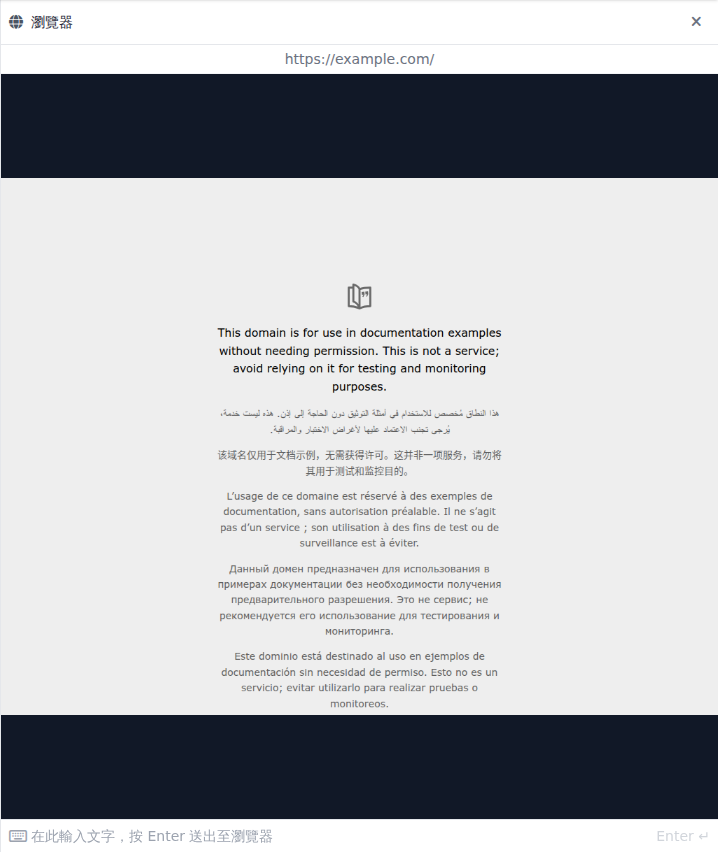
客服主管想確認 Agent 能否讀取公開網頁。她在測試 Agent 的「回答模式設定」開啟 Browser Tool，儲存後在 Web Chat 請 Agent 開啟公開網址。Agent 執行瀏覽器操作時，對話旁會出現瀏覽器面板，顯示目前網址與頁面畫面。

{% stepper %}
{% step %}

### 1. 開啟回答模式設定 <a href="#open-reply-mode-settings" id="open-reply-mode-settings"></a>

前往 <mark style="color:blue;">AI 功能</mark> → <mark style="color:blue;">AI 助理</mark>，開啟要設定的 Agent，再點選 <mark style="color:blue;">回答模式設定</mark>。使用 <mark style="color:blue;">Agent 模式</mark>，才會出現 Browser Tool 開關。
{% endstep %}

{% step %}

### 2. 啟用與儲存 <a href="#enable-and-save" id="enable-and-save"></a>

開啟 <mark style="color:blue;">Browser Tool</mark>。在 <mark style="color:blue;">基本設定</mark> 選擇建議的 Claude 模型，再點 <mark style="color:blue;">儲存</mark>。

<figure><img src="https://1593648278-files.gitbook.io/~/files/v0/b/gitbook-x-prod.appspot.com/o/spaces%2Fmzb5NG9GDzFP2YDKeYVl%2Fuploads%2Fgit-blob-1f20170c1c8daec61312c0116524cf0b4f065bb2%2Fbrowser-tool-prod-setting.png?alt=media" alt="Browser Tool 開關已啟用，下方顯示 Claude 模型建議與操作提示"><figcaption><p>在回答模式設定中啟用 Browser Tool</p></figcaption></figure>
{% endstep %}

{% step %}

### 3. 測試公開網頁 <a href="#test-public-page" id="test-public-page"></a>

開啟此 Agent 的對話，請它「使用瀏覽器工具開啟 <https://example.com」。確認對話顯示瀏覽器操作，面板出現目前網址與網頁畫面。>
{% endstep %}
{% endstepper %}

## 對話中看到的瀏覽器面板 <a href="#browser-panel-in-chat" id="browser-panel-in-chat"></a>

Agent 開始操作網頁時，Web Chat 與後台對話頁都會在回覆旁打開 <mark style="color:blue;">瀏覽器</mark> 面板，即時顯示 Agent 看到的網頁截圖與目前網址，Agent 動作時標示 <mark style="color:blue;">AI 操作中</mark>。

使用者可以在 Agent 停下來時直接介入：在截圖上點擊、捲動，或在面板底部的輸入框輸入文字後按 Enter 送到網頁。這讓使用者能替 Agent 完成它做不到的步驟，例如輸入驗證碼、自己的帳號密碼或一次性驗證碼，Agent 接著繼續執行。關閉面板後，輸入框上方會出現 <mark style="color:blue;">重新開啟瀏覽器畫面</mark>。

設計任務時可以善用這一點：遇到登入或驗證步驟，讓 Agent 停下來請使用者在面板中輸入，不要把帳號密碼寫進提示詞或知識庫。訪客端的操作細節見 [Web Chat：瀏覽器面板](/build/choose-channel/web-chat.md#browser-panel)。

<figure><img src="https://1593648278-files.gitbook.io/~/files/v0/b/gitbook-x-prod.appspot.com/o/spaces%2Fmzb5NG9GDzFP2YDKeYVl%2Fuploads%2Fgit-blob-af1ad5ccfd4a883a9140f1ba20f32d738e3108c2%2Fbrowser-tool-prod-panel.png?alt=media" alt="瀏覽器面板顯示 example.com 網頁、目前網址、關閉按鈕與文字輸入框"><figcaption><p>Web Chat 的瀏覽器面板，顯示 Agent 瀏覽的公開網頁</p></figcaption></figure>


---

# Agent Instructions
This documentation is published with GitBook. GitBook is the documentation platform designed so that both humans and AI agents can read, navigate, and reason over technical content effectively. Learn more at gitbook.com.

## Querying This Documentation
If you need additional information that is not directly available in this page, you can query the documentation by asking a question.

Perform an HTTP GET request on the following URL with the `ask` and `goal` query parameters:

```
GET https://docs.maiagent.ai/build/agent/browser-tool.md?ask=<question>&goal=<user_goal>
```

`ask` is the immediate question: it should be specific, self-contained, and written in natural language.
`goal` is what the user is ultimately trying to achieve, the reason they need the answer. Sharing it helps GitBook give you a better, more relevant answer. A goal is most helpful when it describes the outcome the user wants rather than restating the question. For example, with `ask=how do I create an API token`, a goal like `automate deployments from our CI pipeline` lets GitBook tailor the answer to that use case.

The response will contain a direct answer to the question and relevant excerpts and sources from the documentation.

Use this mechanism when the answer is not explicitly present in the current page, you need clarification or additional context, or you want to retrieve related documentation sections.